After launching your Content Optimizer campaign, you can track which variant of the change performs best.
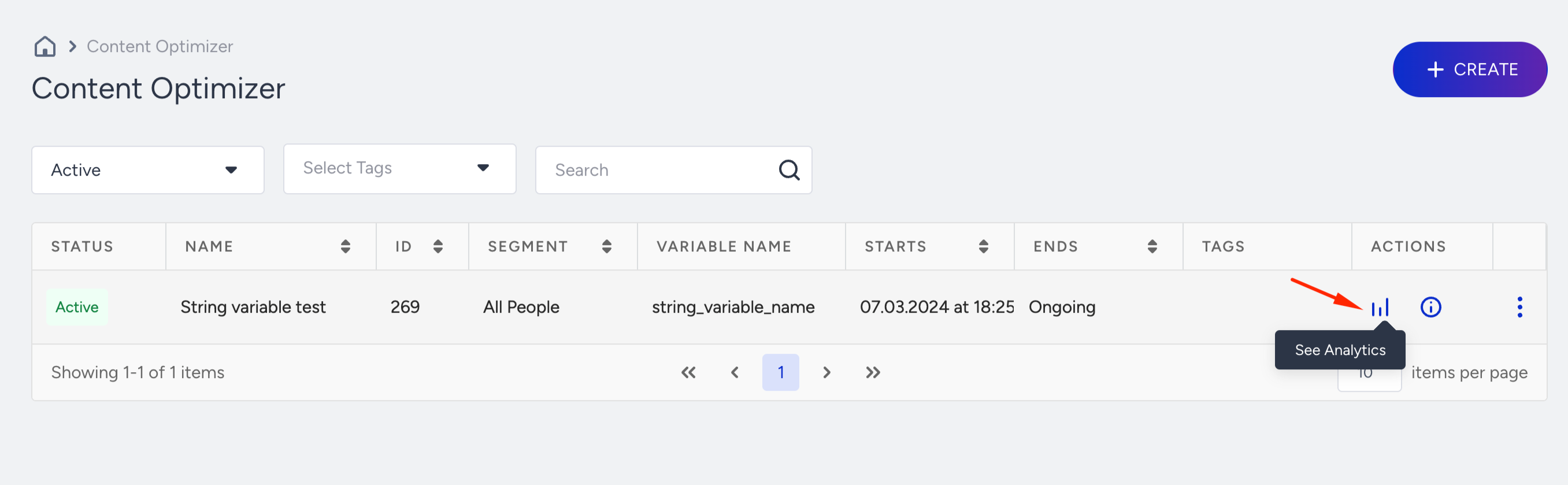
1. Go to Campaigns > Experimentation > App Content Optimizer.
2. Click the See Analytics button against the campaign you want to analyze.
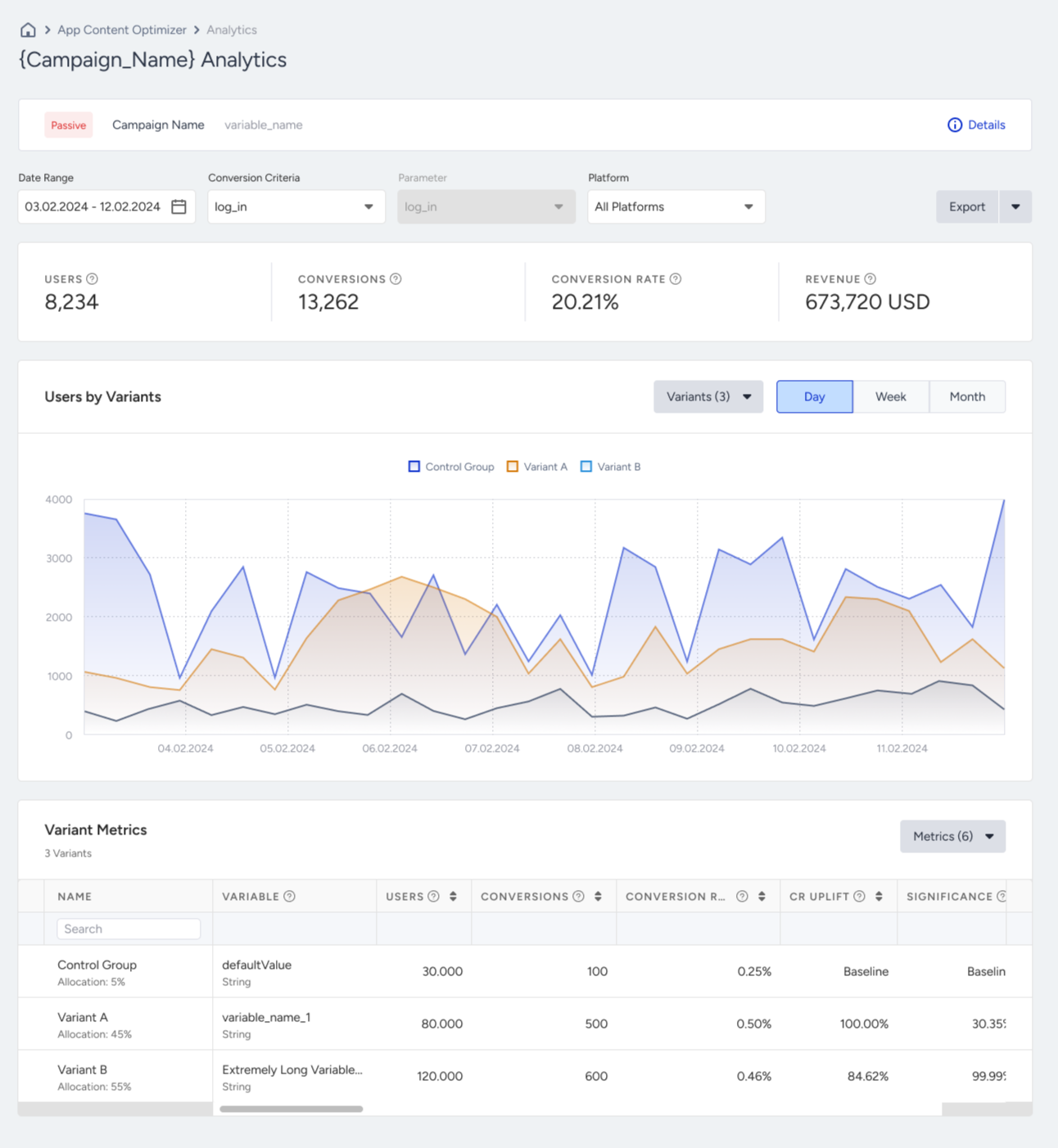
Your dashboard will look like the following example.
Filters
You can filter your metrics by Date Range, Conversion Criteria, and Platform.

Export
Click the Export button to download a report in XLS format.
Metrics
Your dashboard offers Users, Conversions, Conversion Rate, and Revenue metrics.

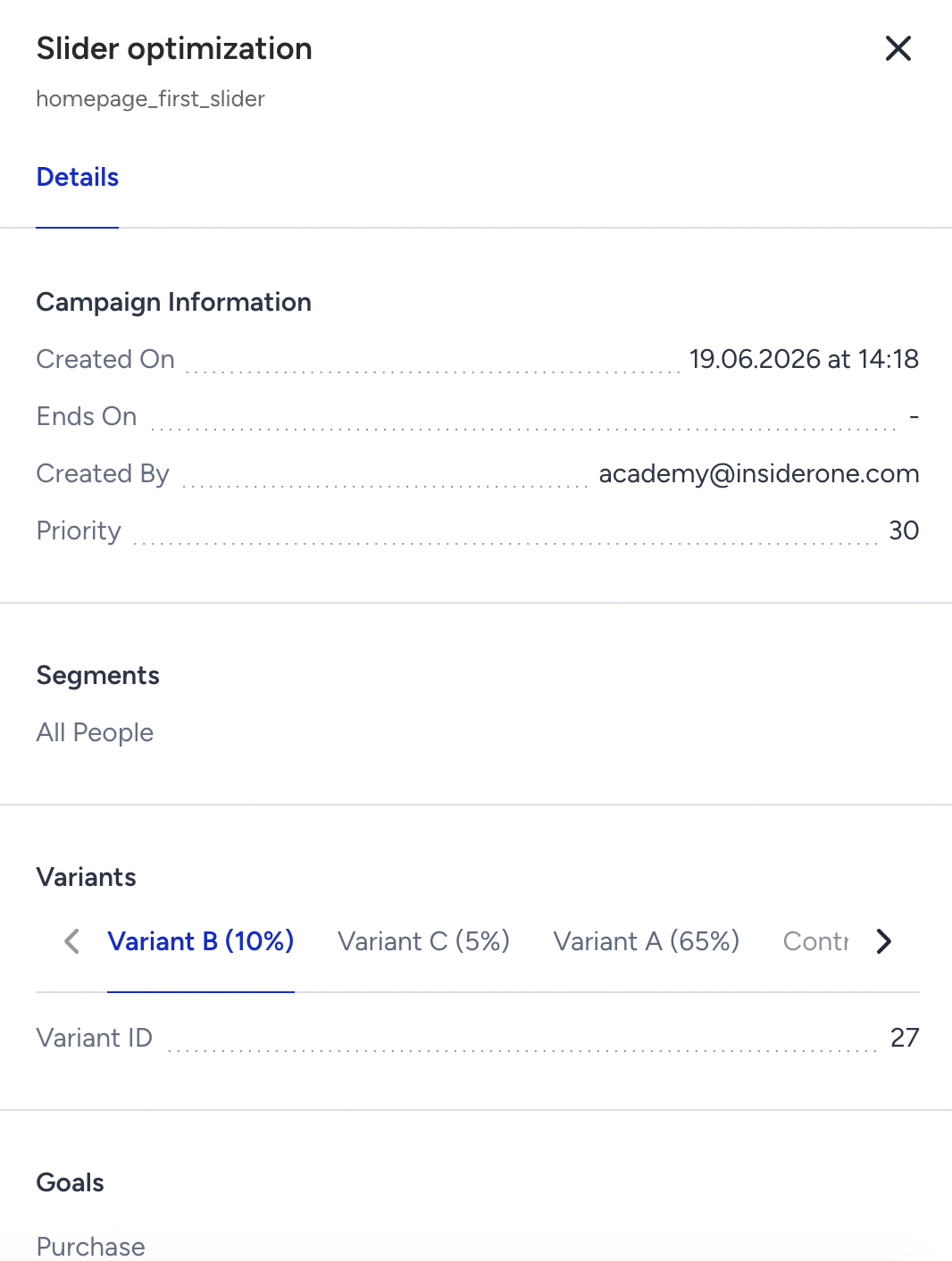
You can also click the Details button against he campaign name to see the create and start dates, creator, and segment of your campaign.
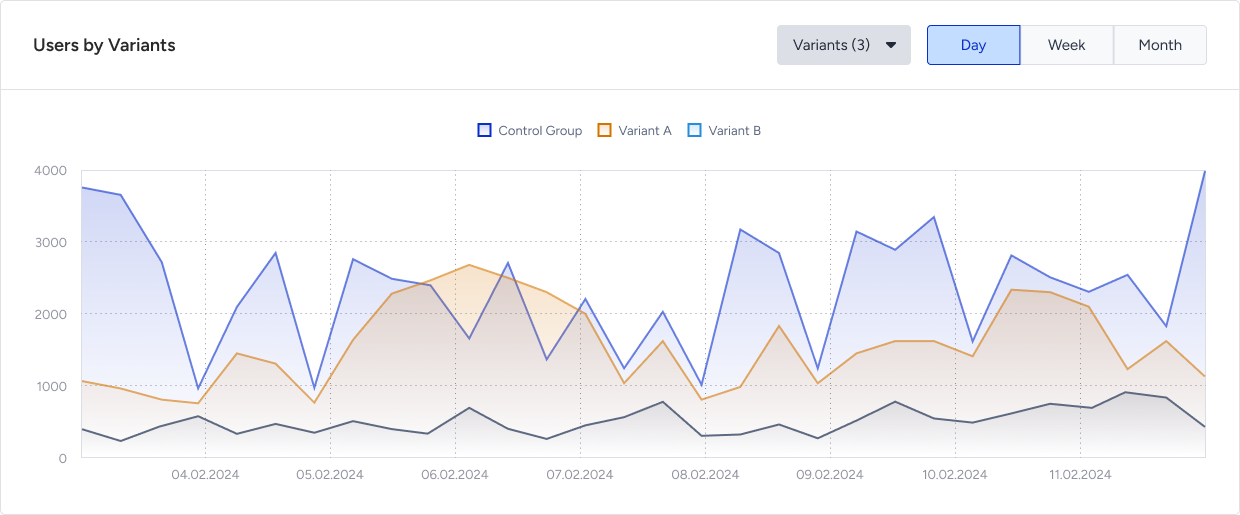
Users by Variants
The graph displays the number of users in your Variant(s) and Control Group over time.
Variants Metrics
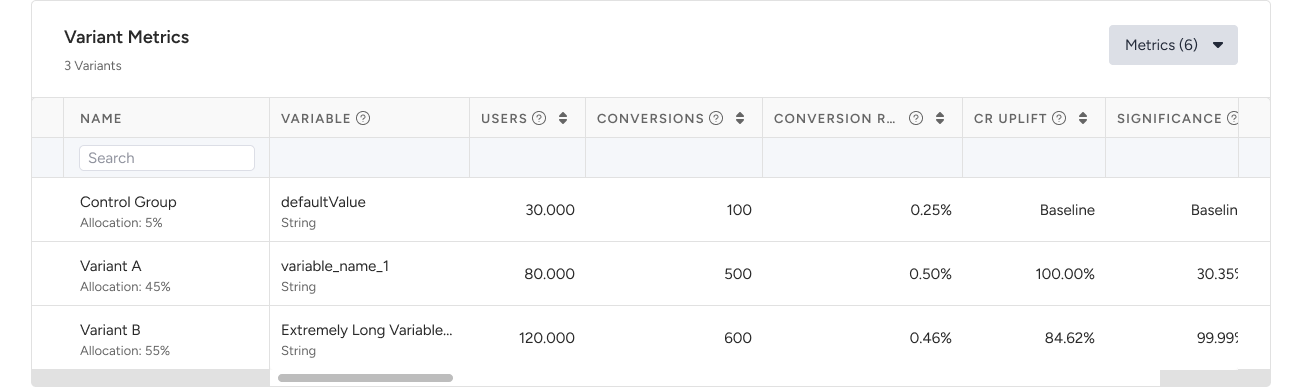
The data table displays your variants along with the variable you changed to create your test, and the following metrics:
- Users: The number of unique users who viewed your content optimization in the app.
- Conversions: The number of users who performed the primary goal event.
- Conversion Rate: The percentage of users who performed the primary goal event.
- CR Uplift: The increase or decrease in performance compared to the control group.
- Significance: Indicates if the users' change in behavior is a result of the test. Statistical signification variants indicate that the A/B/n test was successful.