Feedback is your users' voice. By running surveys, you can learn what your users think about your brand, website, and products.
Thanks to Feedback, you can gather insights, including specific questions, user opinions about your products, and personal data, through simple forms on your website.
Edit a Feedback Question
To edit the Survey element, click the Edit Question button under Settings.
You can add pages, edit questions, and create conditions on Edit Questions.
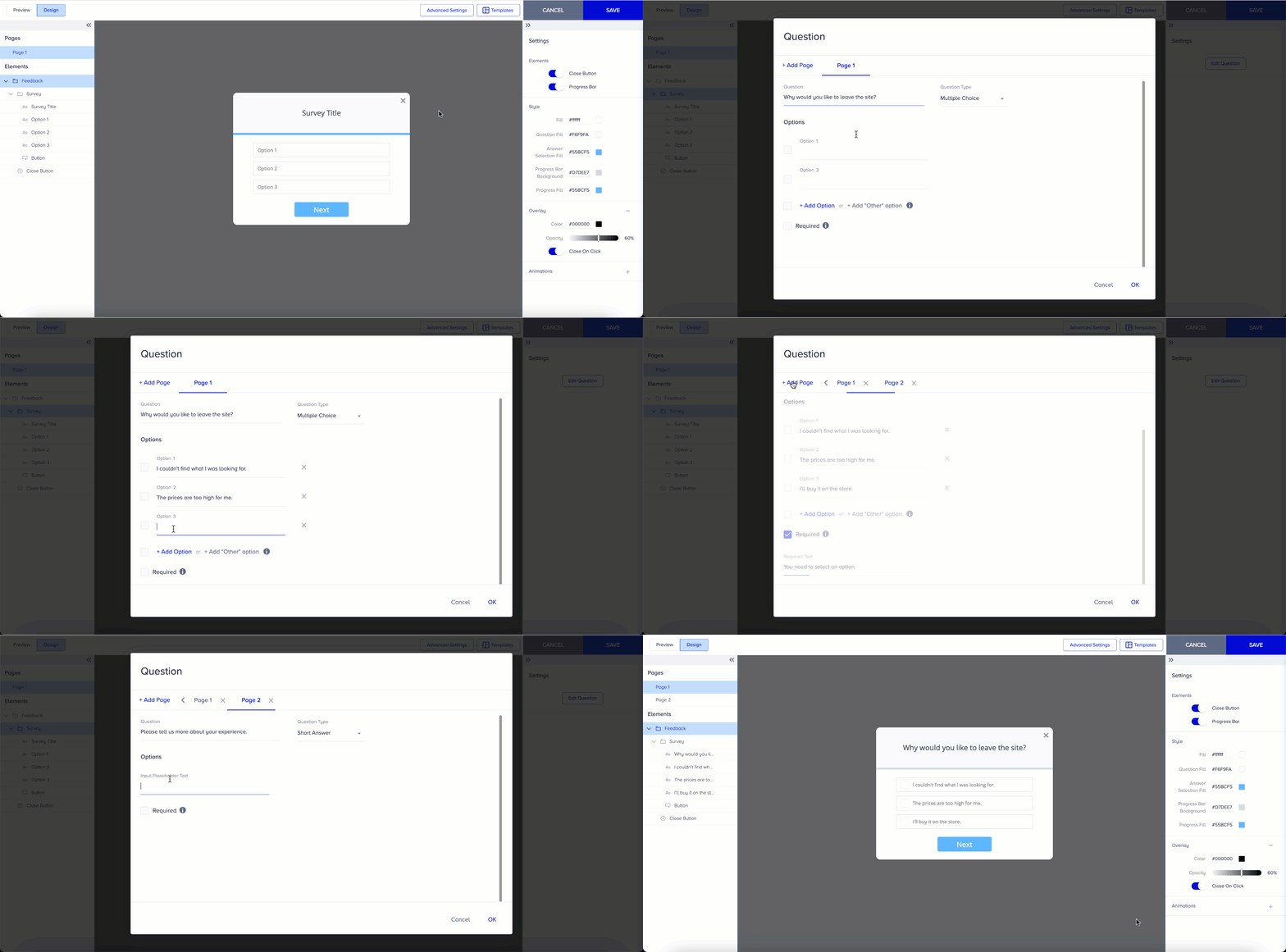
Start by selecting a question type and adding page(s) if needed. The question types are as follows:
Single Choice asks users to select only one option, while Multiple Choice enables users to select more than one option.
Dropdown enables users to select an option from a dropdown menu.
Linear Scale asks users to rate a statement on a scale of 1 to 5.
Email asks users to leave their email address. You can choose to make this a required entry and display an error message when users submit the survey without providing an email.
Date asks users to select a date.
Yes/No allows you to get quick answers from users.
Short Answer can be used to gather user comments.
Thanks lets you add a thank-you page as the last page of the survey.
If you want your users to answer questions in a row, you can enable the Send via Answer toggle.
After you type your questions, adjust their text settings separately.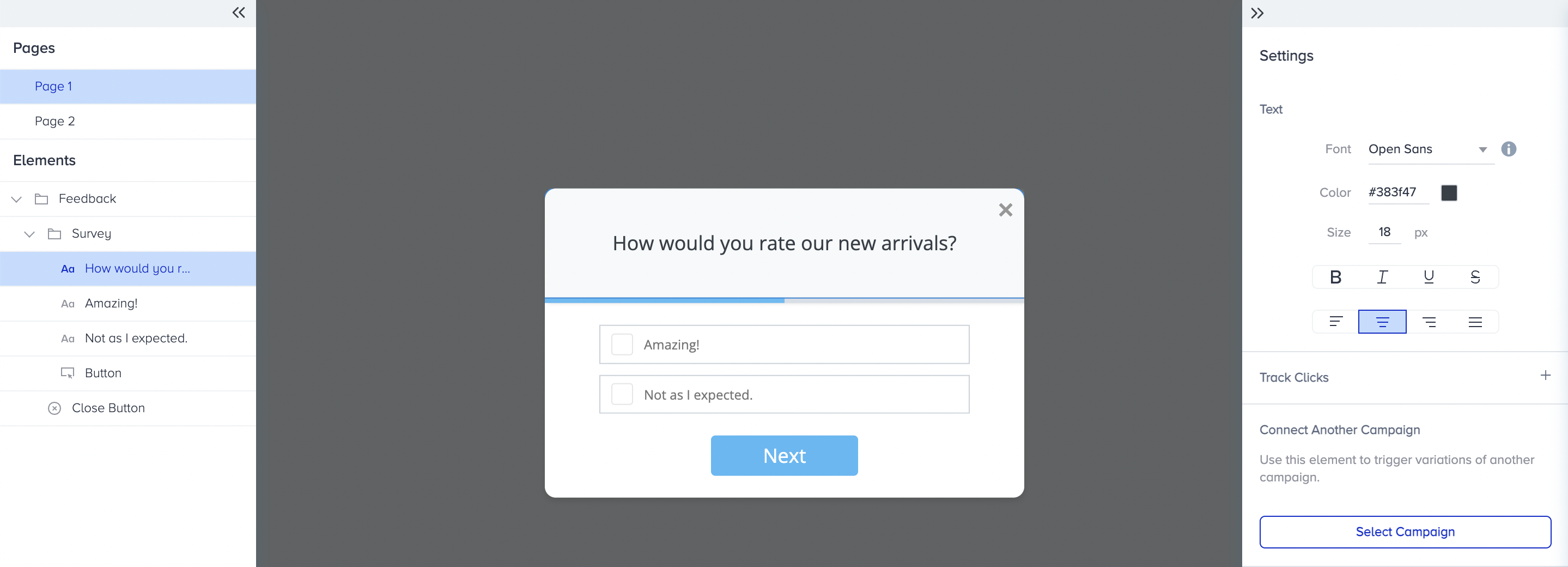
Export Feedback Results
You can export the answers of Feedback campaigns via the Export Collected Data option.
Only users with the appropriate authorization role can export the variation data.
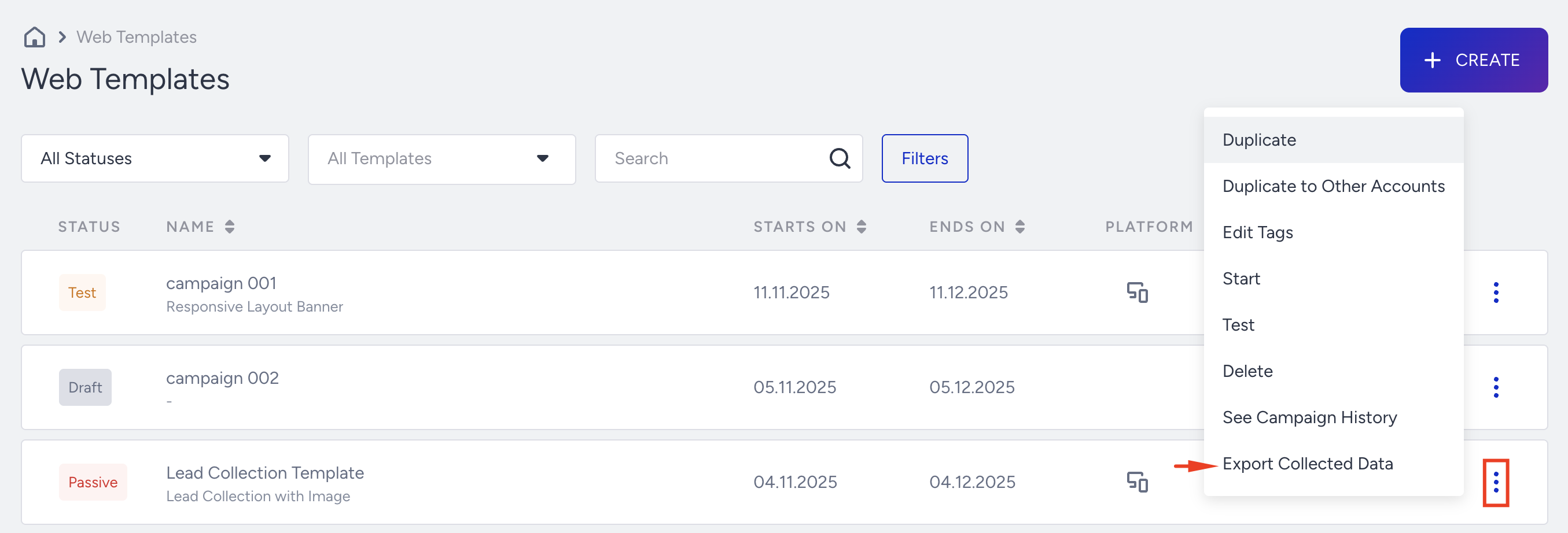
After clicking the Export Collected Data option, you can specify the date range for the data and choose the variation.
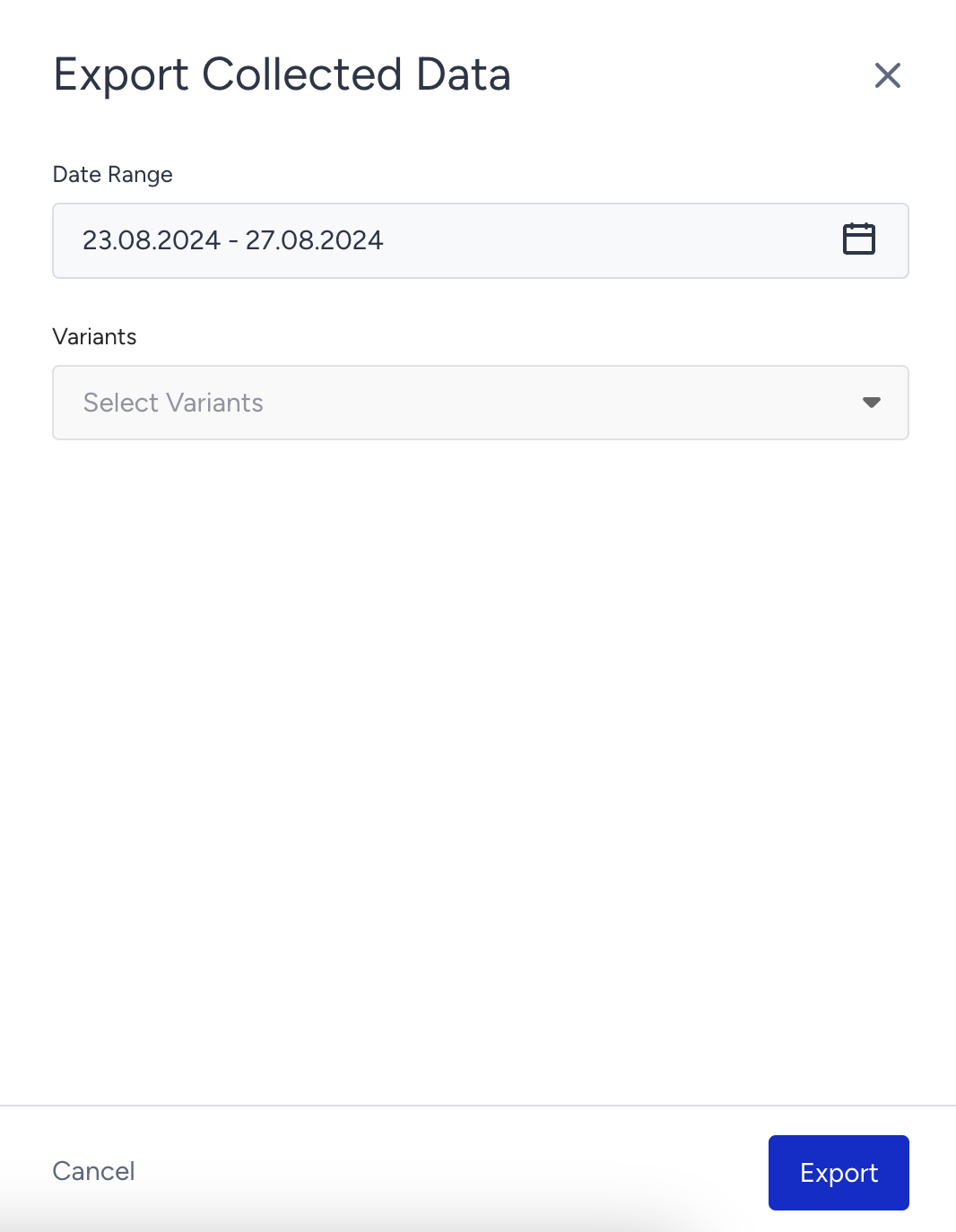
You can select a maximum of a 1-year date range.
You cannot export the result if no data has been collected in the selected date range.
After properly selecting the date range and the variant, click the Export button, and the result will be downloaded immediately to your device.
If the data is extensive and requires time to prepare the result, it will be sent to you via email. In this case, you can see a toaster message after clicking the Export button.
Once the report is ready, you will receive this email. Click the Download button to access the results.
You will receive an error email if the email cannot be generated because of an issue. Click the Retry button to be redirected to the Web Templates page with your previous selection. You need to click the Export button again.
Since the report contains PII, only the user who sent the request can access it. If the user shares the URL with another user, this user cannot access the report.
If the primary user is no longer eligible to view this report (due to PII access, Group Level Access, or any other reason), they cannot access it.
If the user completes the survey twice with different responses, only their most recent response will be considered, and they will belong to the latest segment accordingly. To generate user segments based on the answers provided, reach out to the Insider One team.
Because of limitation in the XLSX format, the file is exported in the CSV format. You can convert the file easily to XLSX if you want.
Method 1
Search “CSV to Excel” on the browser.
Visit one of the websites.
Upload the collected data file.
Click the button.
The XLSX file is ready and you can download it.
Method 2
Open a Google sheet file.
Follow File > Import > Upload > Browse
Select the file and click the Open button
Click the Import Data button on the modal.
The XLSX file is ready.
Method 3
Open an Excel sheet.
Follow Data > From Text/CSV > Upload > Browse.
Select the file and click the Import button.
Click the Load button on the modal.
The XLSX file is ready.