You can duplicate Web Templates campaigns to optimize performance without affecting existing results. You can duplicate a successful campaign to create a new experience and gain fresh insights.
Duplicate a Web Template campaign
To duplicate a campaign,
Navigate to Campaigns > Optimization > Web Templates.
Click the 3-dots menu and select Duplicate.
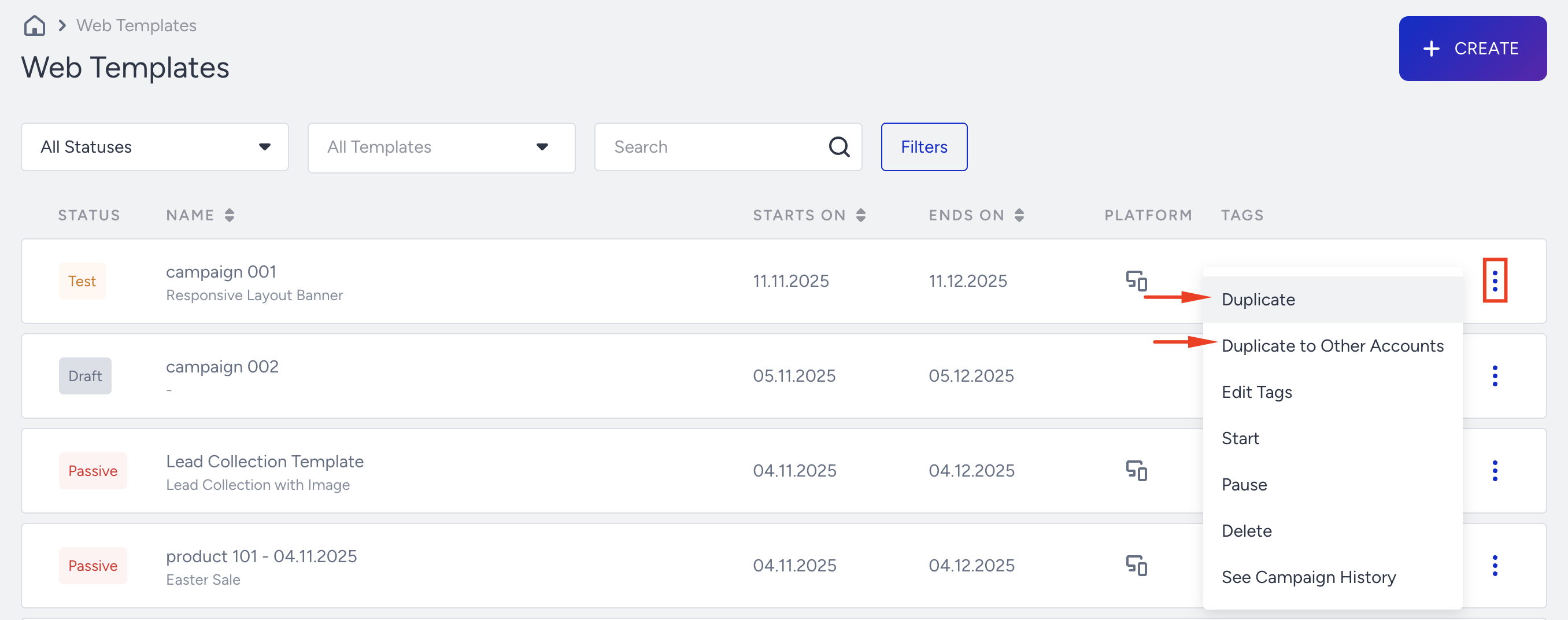
You can duplicate your campaign on Mobile, Tablet, and Desktop. Selecting this option duplicates the segments and rules.
To duplicate a campaign to another device type, you need to update the design variation. You will then see a confirmation message below.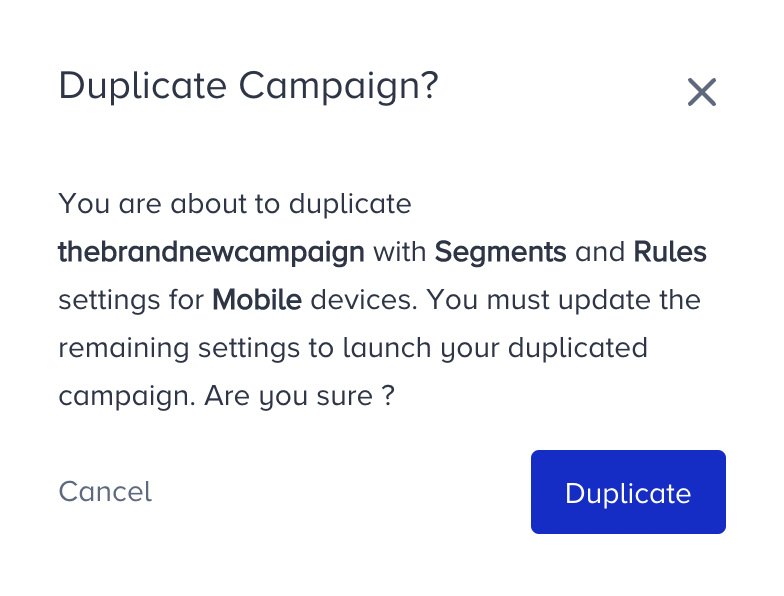
When you click Duplicate, you will receive a message about the result. Once duplicated, you can update the necessary configurations and launch it.
Duplicate custom rules
For campaigns duplicated after September 25, 2025, the Builder ID is automatically updated. You no longer need to manually edit the Builder ID when recreating custom rules for duplicated campaigns.
This manual step only applies to campaigns duplicated before this date or in environments where the automatic update is not supported.
To duplicate a campaign that has one or more custom rules, you need to follow these steps:
Click Duplicate from the three dots next to the experience you want to duplicate.
Once duplicated, go to the Rules section, select the custom rule, and click Go to Custom Rule.
.png)
You will see the custom rule content. Copy the content and create a new rule by navigating to Components > Rules > Custom Rules.
.png)
After copying the content, change the Builder ID and/or Variation ID displayed on the first two lines of code. They are mobile ID and desktop ID, respectively.
.png)
To find the builder ID:
Go to your copied experience and look for the number (ID) in the URL, or you can see it written next to the name of your custom rule. .png)
.png)
To find the variation ID:
Go to the Design step of your copied experience. You can find the Variant ID explicitly on the page. .png)
Once you replace the IDs, click Save.
To insert a new custom rule, navigate to your experience, go to the Rules step, delete the existing custom rule, and insert the new one you've created.
Duplicate a Web Template campaign to other domains
You can use the Duplicate to Other Domains option to easily duplicate a Web Template campaign for your other domains, if any.
If you cannot view all the domains in the domains list while duplicating Web Template campaigns, contact the Insider One team.
Click on the Duplicate to Other Domains option located under the 3-dots menu against the campaign you want to duplicate.
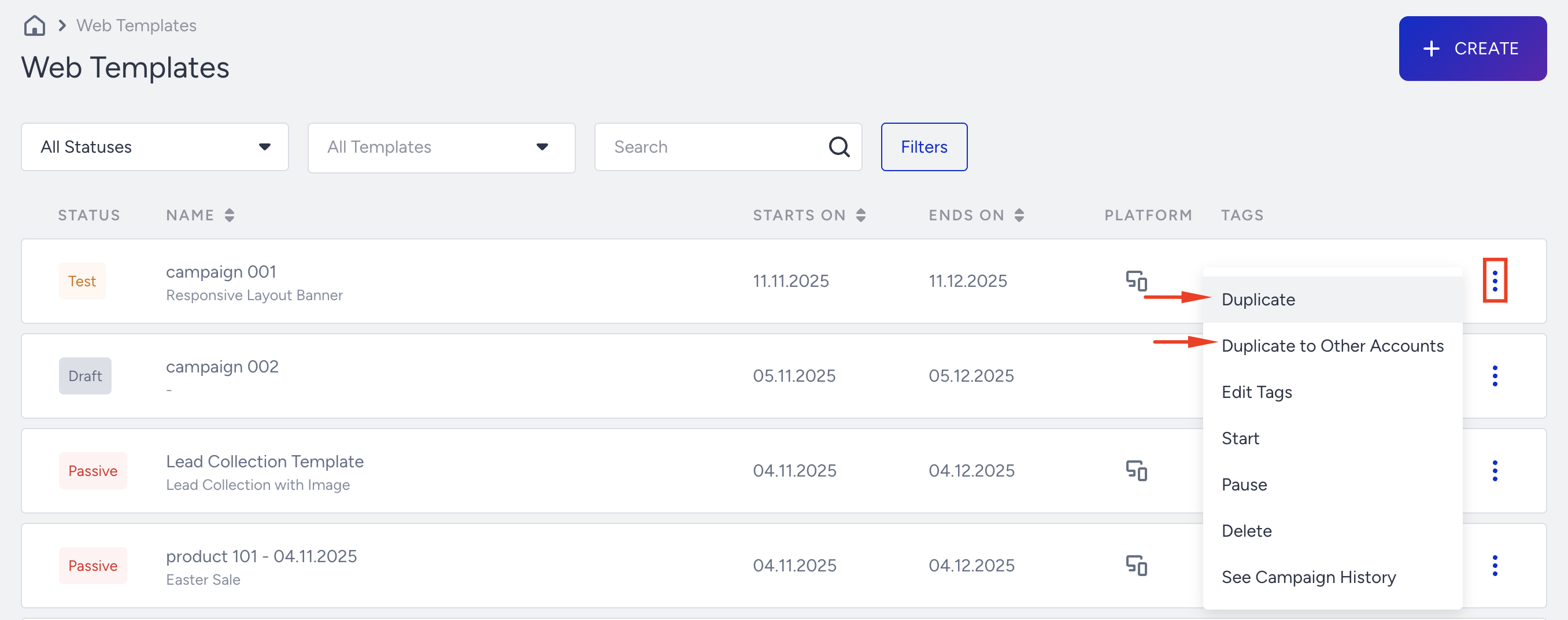
Select the domains to which you want to duplicate the campaign, and click Duplicate.

After this, you will have successfully duplicated your campaign to the other domains. Now, go check the same product listing on other domains and edit your campaign accordingly. Your campaign will be listed as passive with the “Copy” Suffix.
If you duplicate a campaign that includes currency settings from Domain A to Domain B, the preferred currency settings are also transferred. As a result, the duplicated campaign will reflect only Domain A's preferred currencies. You can save the Action Builder in the latest campaign to implement Domain B's preferred currencies.
If you duplicate a campaign containing Custom Rules, Product List Rules, or Data Match Rules from Domain A to Domain B, none of these rules will transfer to Partner B. This is because these rules are stored in the database as being specific to a particular panel. Consequently, the rule step in the duplicated campaign will be empty if it includes any of these rule types