If you cannot see campaigns in the test link or on your website while using Safari, this is likely caused by Safari’s enhanced privacy protection.
Safari 17 introduces a browser-level protection service that blocks known third-party trackers, including Google Tag Manager (GTM). As a result, the Insider Tag may not load, preventing campaigns from appearing. This behavior originates from the browser and cannot be resolved on Insider One’s side.
To solve it, click the “Reload with Reduced Protections” button in Safari’s pop-up to temporarily disable the protection and allow Google Tag Manager to load.
If you integrate the Insider Tag via GTM, Safari may block the tag until the page is reloaded with reduced protections. To avoid this dependency, you can add the Insider Tag script directly inside your web page’s <head></head> tag instead of using Google Tag Manager.
When you create a new campaign, we strongly recommend saving it in Test status first to test your variant(s) before launching.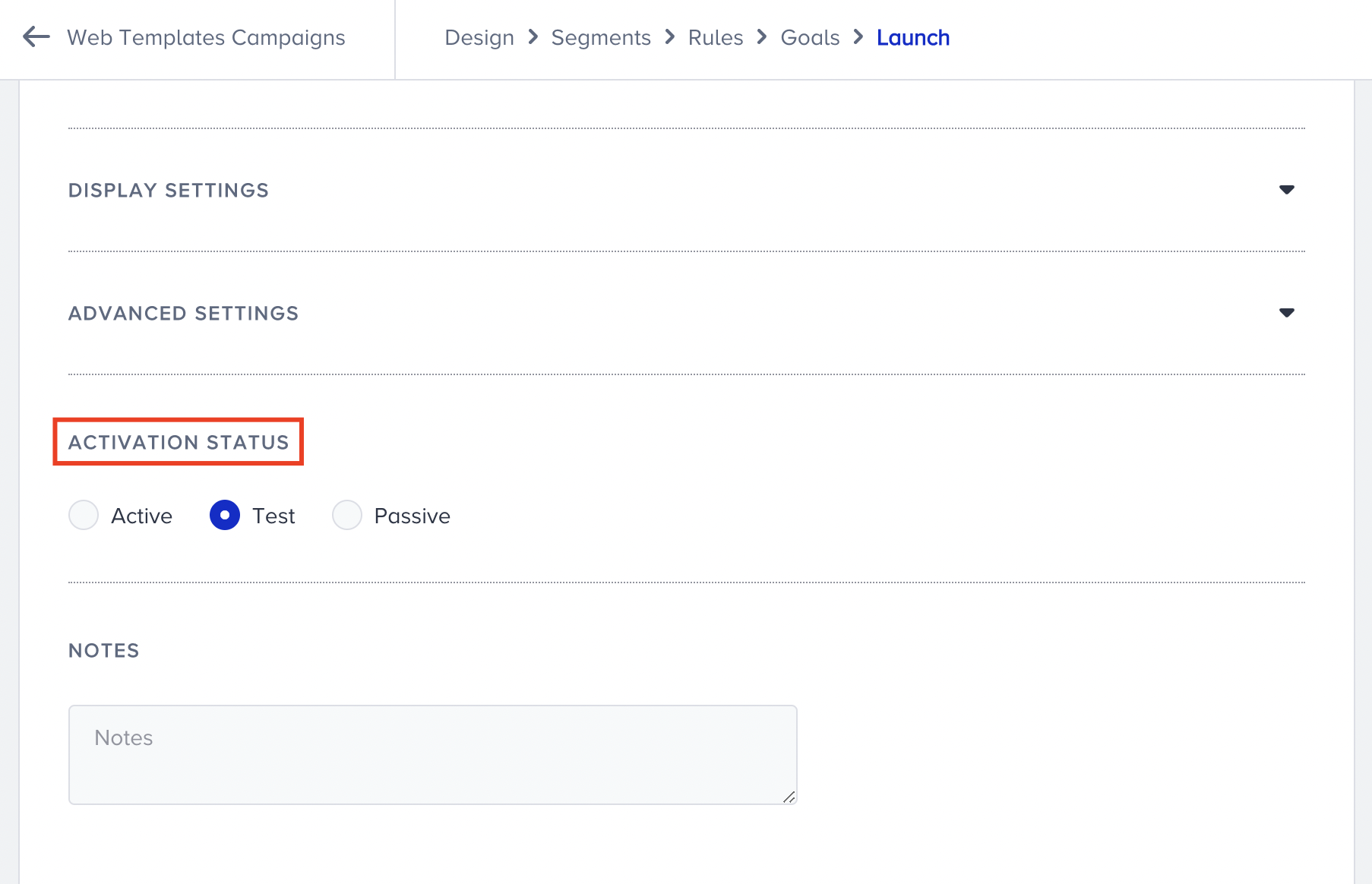
After you save your test campaign, generate your panel to apply changes to the API. You can now test your variant(s) using the test links on the respective product's listing page.
This article covers the answers to the questions below
Desktop Web Templates
Click the Test Link button in the same row as your campaign.
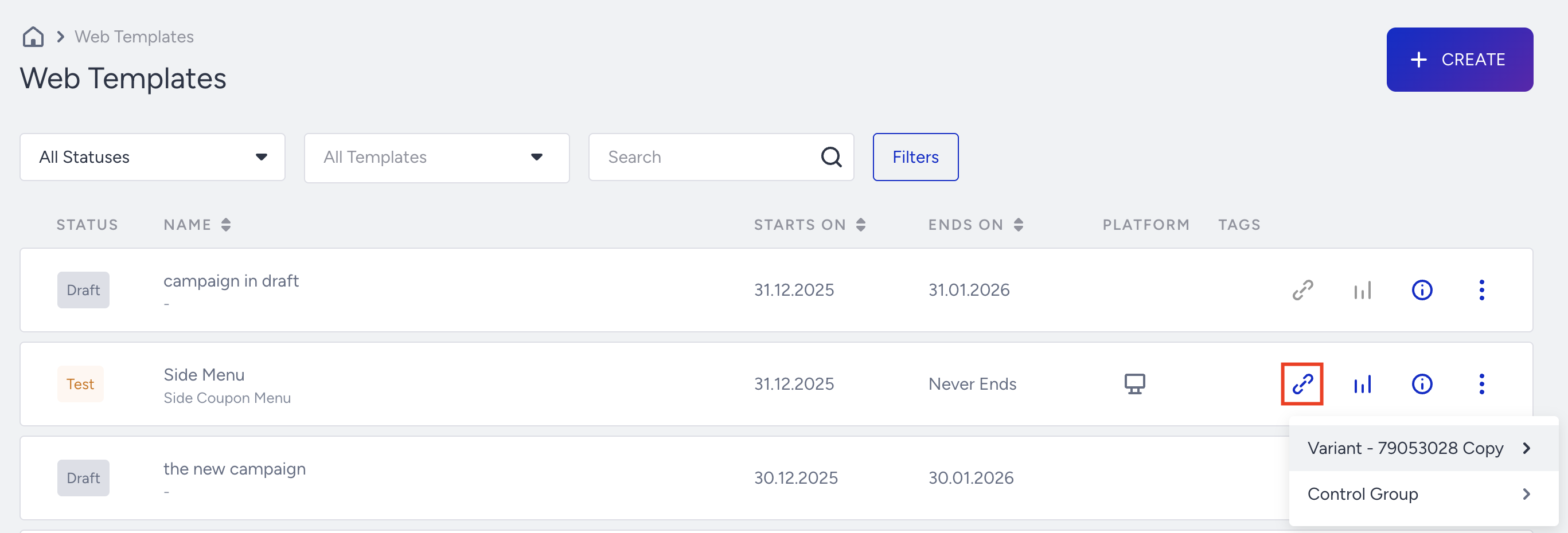
Right-click the variant you want to test, open the link in an incognito window, or copy the link address.
Unless the campaign requires otherwise, we strongly suggest you test your campaigns in an incognito window to avoid caching issues or create a new profile in your browser. Also, make sure there is only one tab open in incognito mode.
When directed to the test URL, you can right-click and inspect. Additionally, you can change the platform in the inspect mode to test the campaign you want to check.
Remember to refresh the page whenever you switch platforms to ensure your campaign is displayed correctly. Otherwise, you won’t be able to see the correct version of your campaign, explicitly designed for the relevant platform.
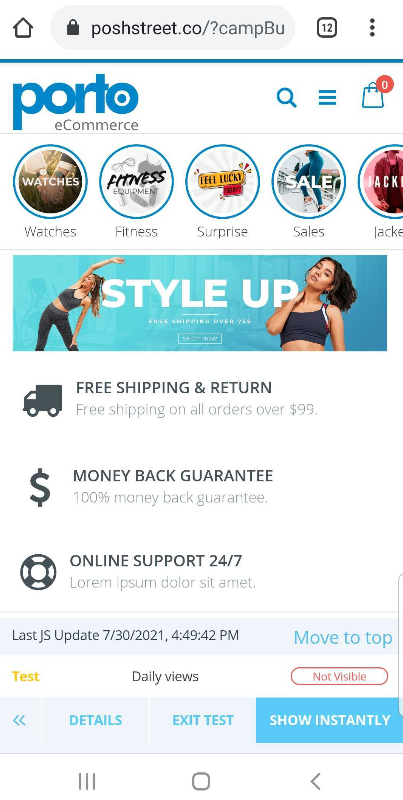
To test it, follow the segments and rules you configured in your campaign. When you trigger your campaign, you will see the Visible label.

Clicking the Details menu in the bottom bar displays campaign information, including the creation date, campaign language, ID, start and end dates, segments and rules, campaign variants, and assigned goals. Reviewing these details can help you verify any concerns you have about your campaign.
You can also use the System Rules and Logs tabs for more insights about your campaign.
Mobile Web Templates
Click the Test Link button in the same row as your campaign.
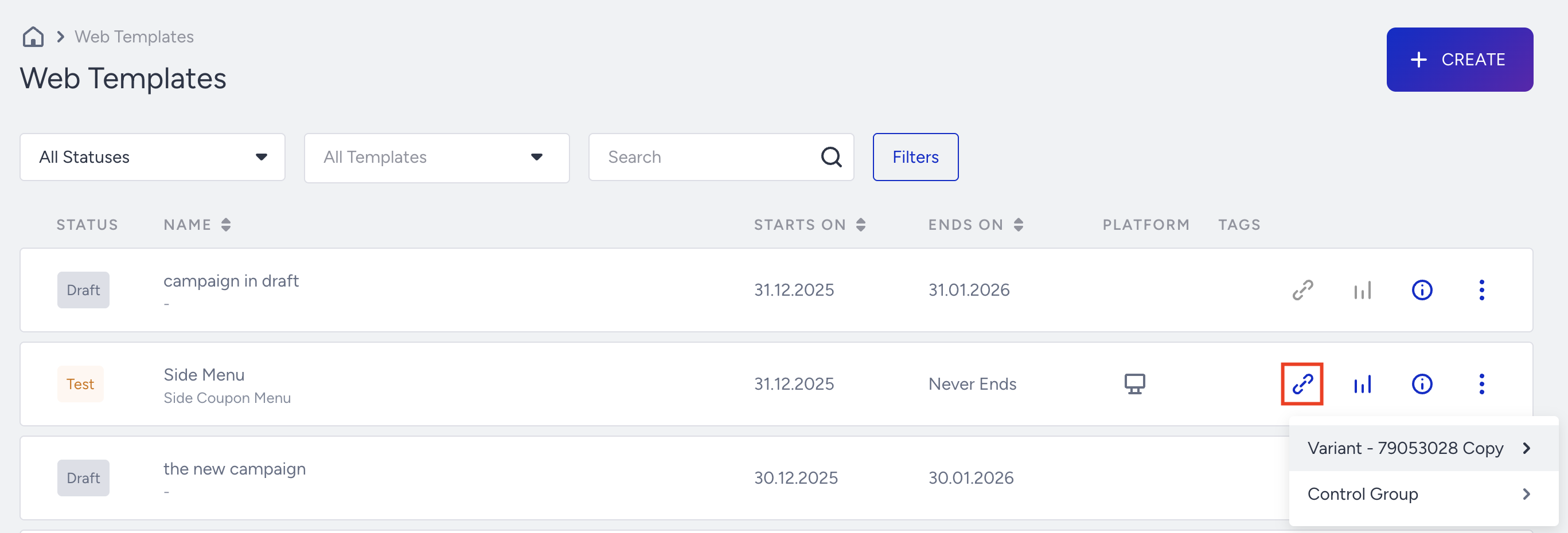
You can test your campaign on both desktop and mobile devices.
Desktop Devices
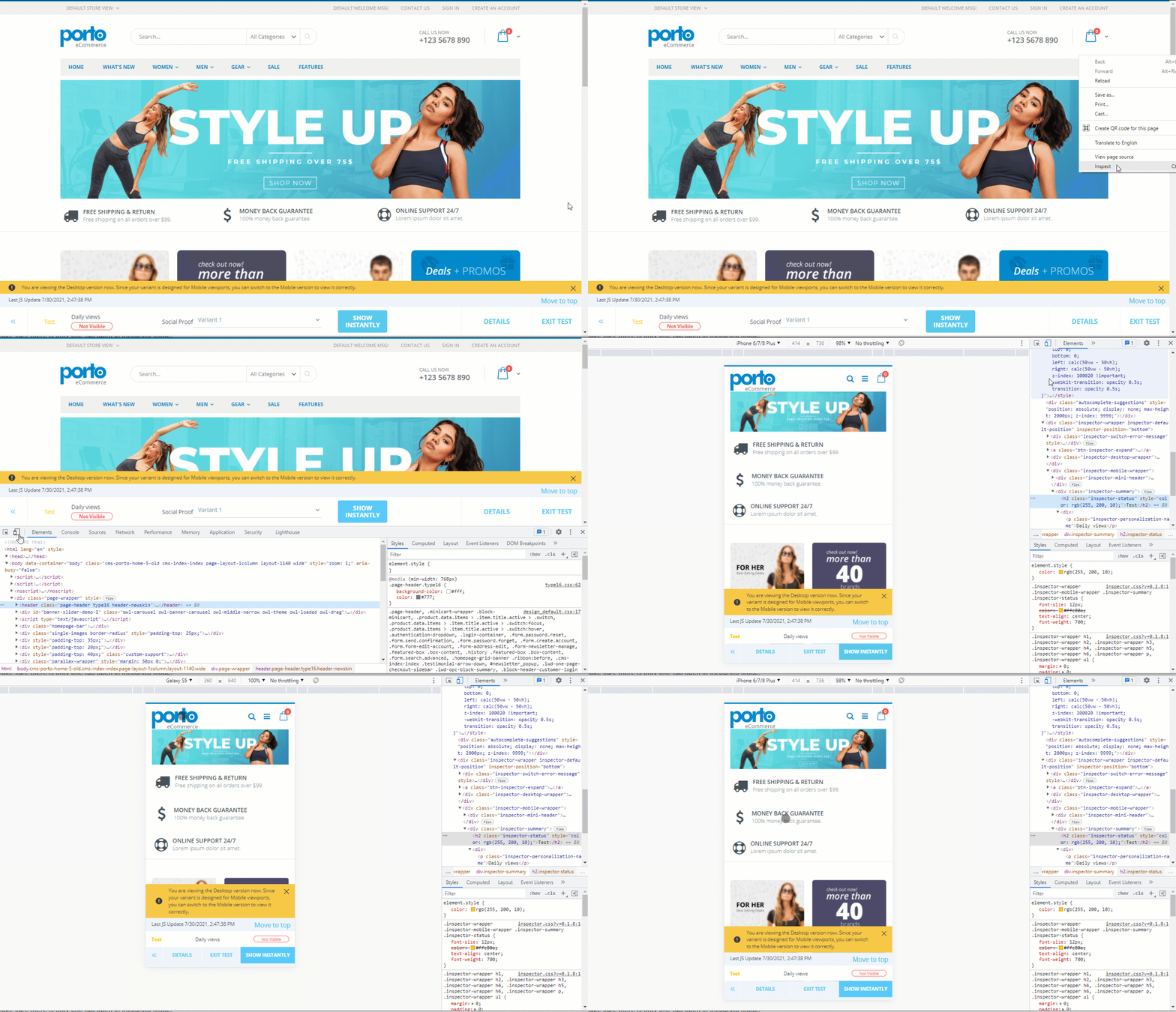
To test your campaign on your desktop device, right-click the variant you want to test, open the link in an incognito window, or copy the link address.
Switch to the mobile viewport using the browser console. Then you can use the Insider One Inspector to test your campaign. You should follow the segments and rules you configure in your campaign to test it. When you trigger your campaign, you will see the Visible label.
Mobile Devices
Right-click the variant you want to test, open the link in a window, or copy the link address to a window where you are signed in.
This test option is available for Chrome browser users. To use it, sign in to your Google account and turn on sync in Chrome.
Click the address bar to see the Share button.

Select the device that you want to send the link to.

Once you send the page to your mobile device, you will receive a notification like the example below from Chrome on your device.
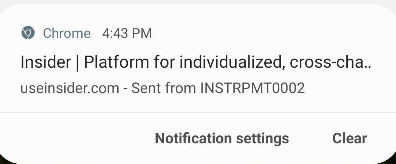
Click the notification to open the link on your mobile device. To test your campaign, follow the segments and rules you configured. When you trigger your campaign, you will see the Visible label.
As an alternative to this option, you can also try one of Chrome's experimental features: Send tab to self when signed in.

Once you enable this option, you can right-click the test variant and send the test link to your device.
Test campaigns can be treated as Active campaigns because their HTML code is exported to the website. Therefore, it’s important to deactivate a test campaign if you no longer intend to test it. Because:
- Test campaigns can be triggered by custom rules on the website, which means they might be unexpectedly visible to users.
- Exported test campaigns increase the API size, potentially leading to performance issues and slower website response times."
Tips and Tricks
Make sure you generate your panel before you test your campaign
Make sure you are on an incognito window unless otherwise required.
Make sure there is only one tab open in incognito mode.
Check if your campaign is scheduled for a future date. If it is, it will not be displayed since scheduled campaigns are not reflected on the website.
Check the generated time and see if it is updated.
If all these steps are correct, follow the rules and segments in the Details tab of the Insider One Inspector.
If you want to test your Web Templates campaign as a returning user, refer to the video below to learn the details: