MMS is an extension of SMS that enables the transmission of multimedia content, such as images, audio, video, and text. The primary difference between SMS and MMS is that MMS supports a much wider range of content types and allows for longer text messages. While SMS is limited to 160 characters, MMS can contain up to 1530 characters, and special characters do not impact this limit.
MMS lets you send text, pictures, animations, and short videos. You can include images in JPG, PNG, or GIF format—up to 600 KB in size—to make your messages more engaging.
Leveraging MMS, you can engage your audience with dynamic and visually appealing messages, enhancing the overall impact of the marketing efforts.
This guide aims to provide answers to the questions below:
Requirements for MMS campaigns
Insider One's MMS service is available exclusively in Australia, Canada, and the USA, and it currently operates solely through Twilio.
If you want to start sending MMS messages, contact the Insider One team to enable it for your account.
Ensure your media files are within the specified size and format limitations to ensure proper delivery and presentation.
Create an MMS campaign
Creating MMS campaigns is very similar to creating SMS campaigns. The primary difference lies in the Design step, where you incorporate multimedia elements. To start creating an MMS campaign,
1. Click the Create button on the SMS listing page. Name your campaign and choose the message type. 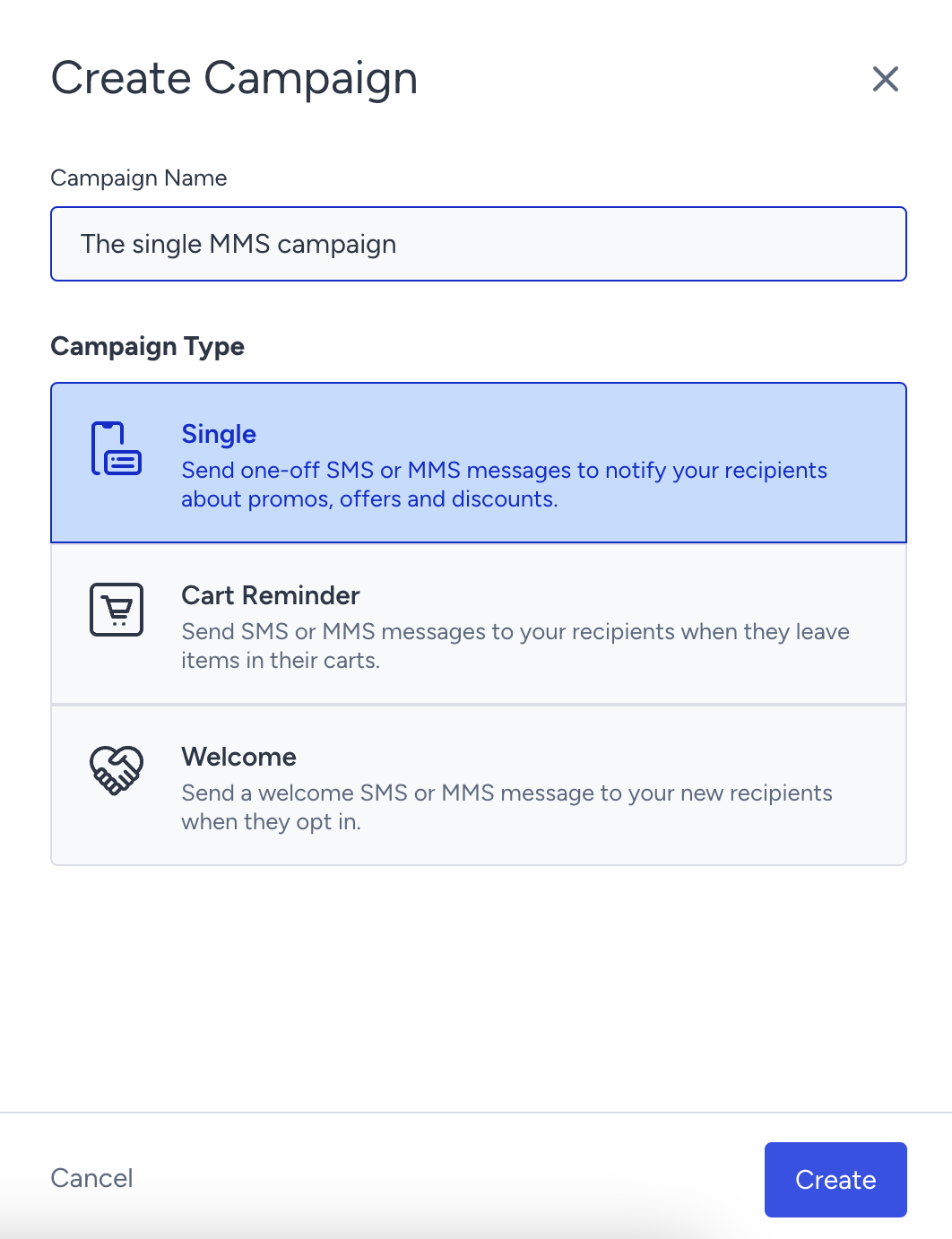
2. Depending on your message type:
If it is Single, continue with the Segments step.
If it is a Cart Reminder or Welcome, continue with the Rules step.
3. When in the Design step, click on the MMS option to start configuring your MMS message. 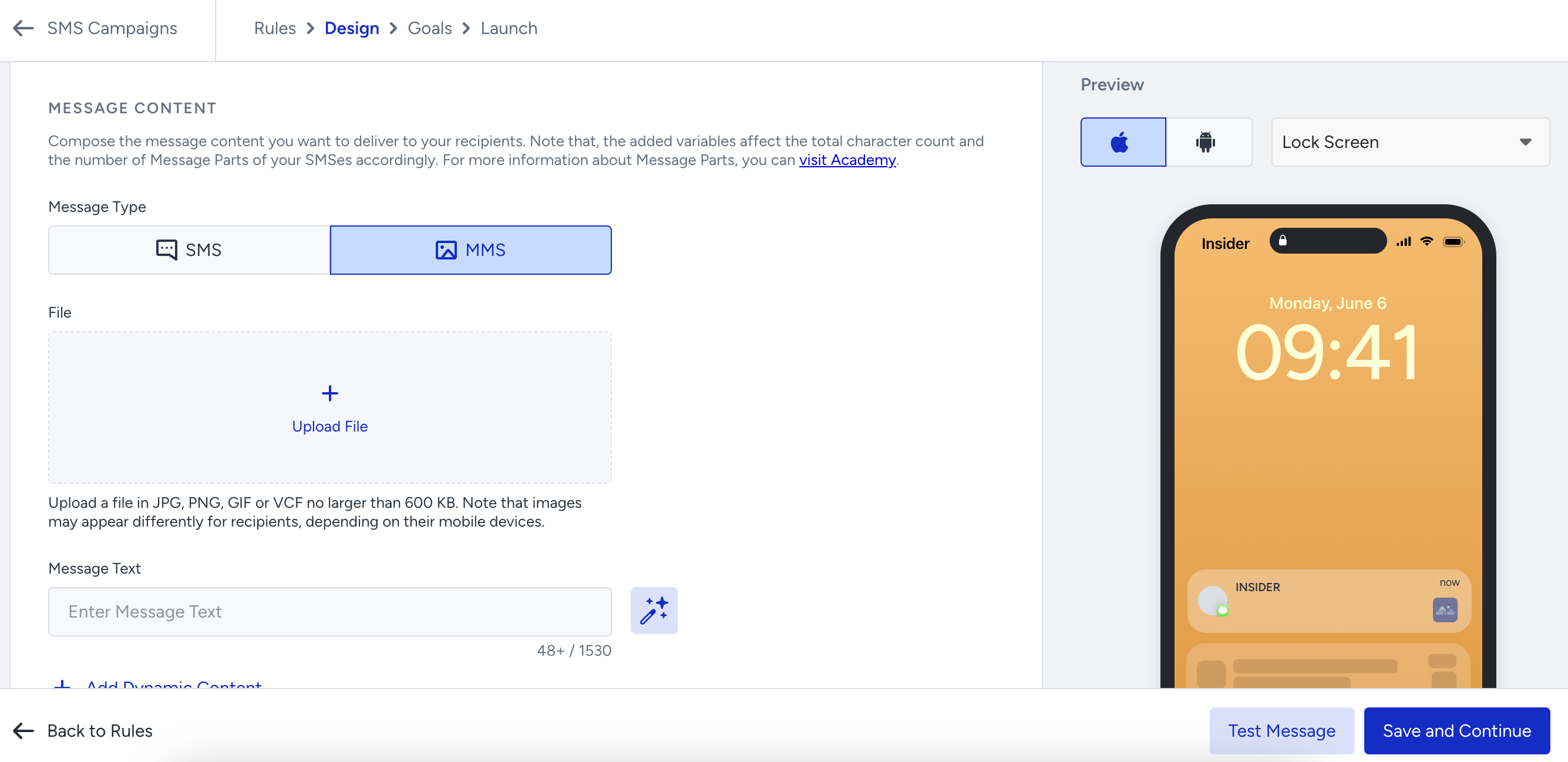
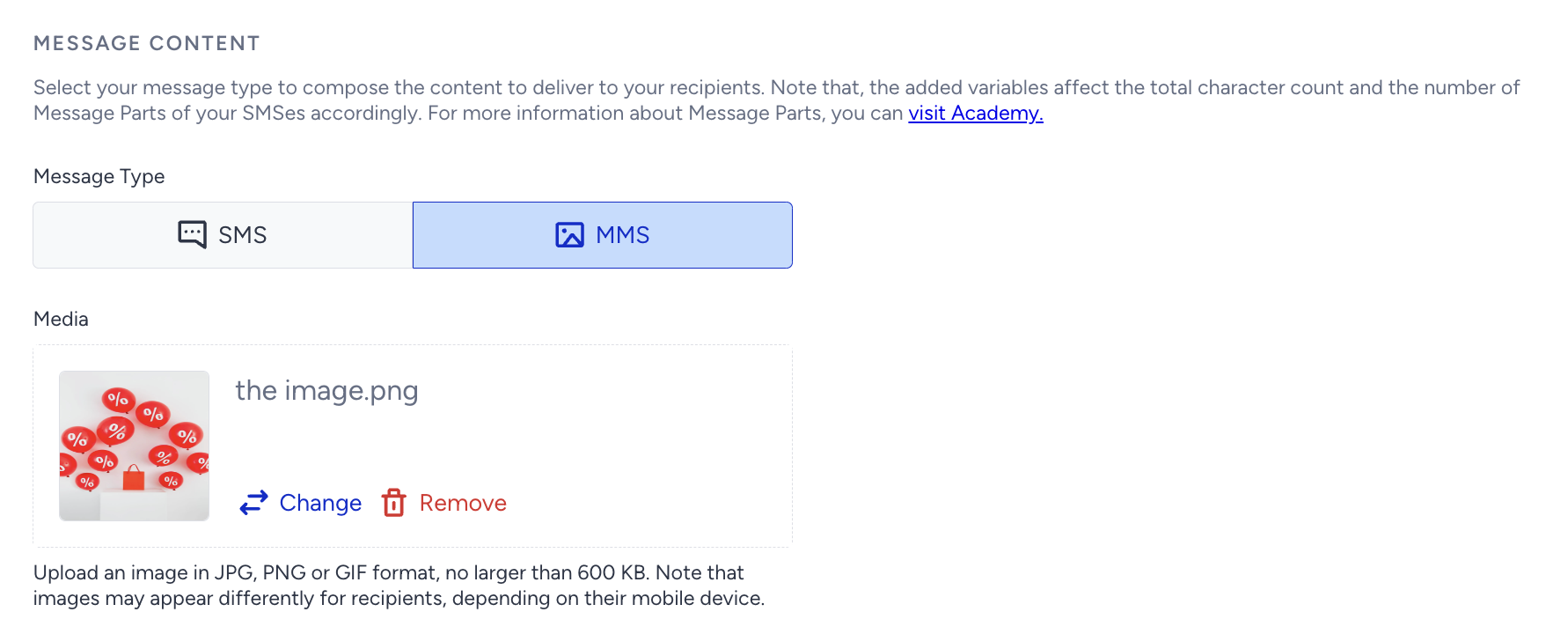
4. Add multimedia elements to your message, such as images, videos, or GIFs. Ensure your media files comply with the size and format limitations mentioned in the InOne panel.
Upload an image in JPG, PNG, or GIF format, no larger than 600 KB.
5. To add text to your MMS, you can use the SMS AI Text Generator.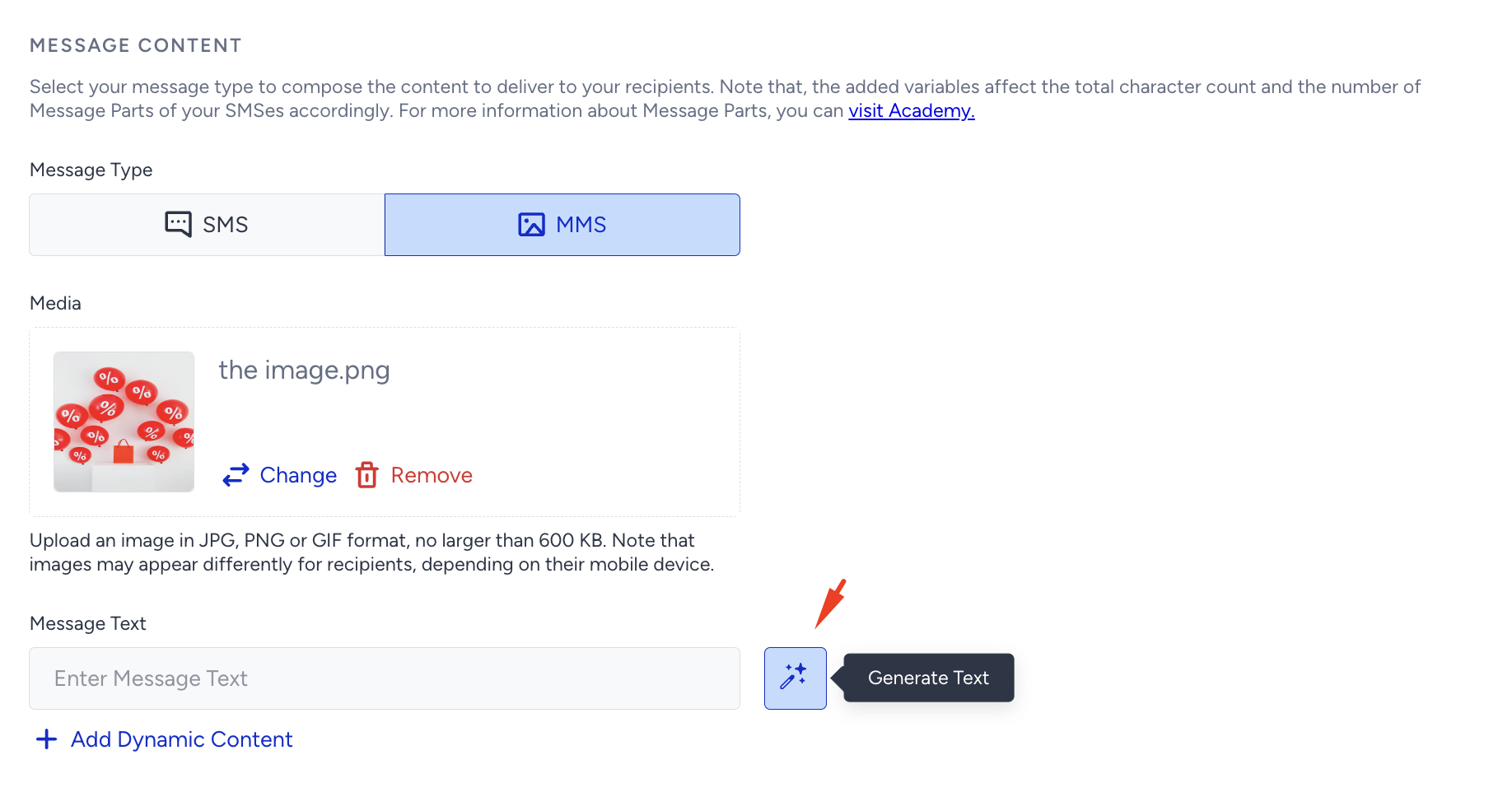
6. Preview your message to see whether all multimedia elements are correctly attached and the text is accurate. We highly suggest you test your message before launching your campaign.
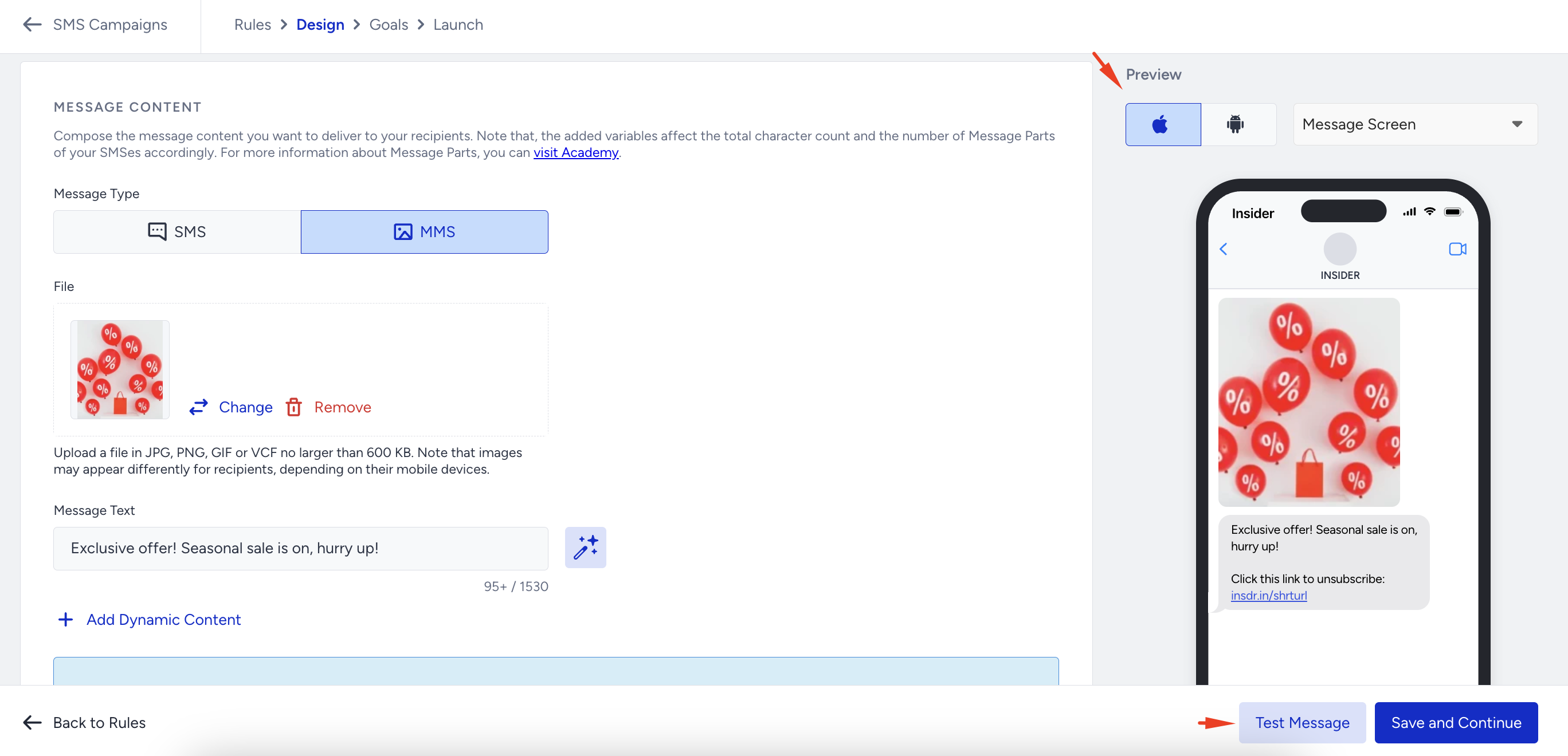
7. Depending on your message type,
If it is a Single or Cart Reminder, continue with the Goals step.
If it is Welcome, continue with the Launch step.
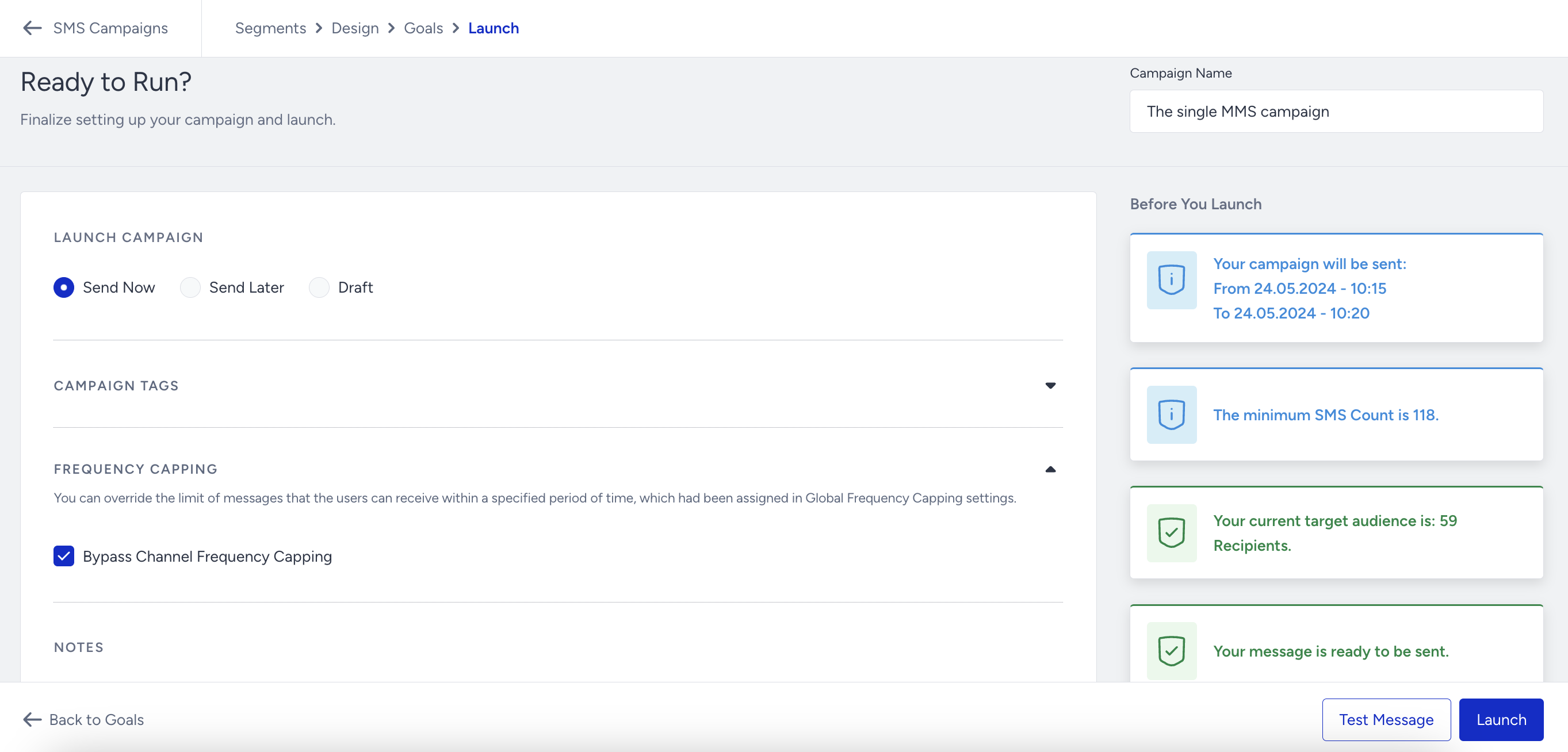
8. In the Launch step, finalize your settings and start your campaign. We highly suggest testing your message before you launch your campaign.