In addition to the default attributes provided by Insider One, you can also define custom attributes. These are useful when you need to track data points not included in the default list, or when you have specific business use cases.
When adding a custom field or custom user property, ensure it complies with the platform's predefined limits to support smooth data processing and compatibility.
In this article, you can find answers to the following questions:
How can I delete a custom attribute?
Create a custom attribute
You can have up to 80 custom attributes (excluding default attributes) by default. This includes all custom attributes from the mobile application, website integration, CRM integration, and email custom fields.
To create a custom attribute,
Click the Create button when you are on the Attributes tab.
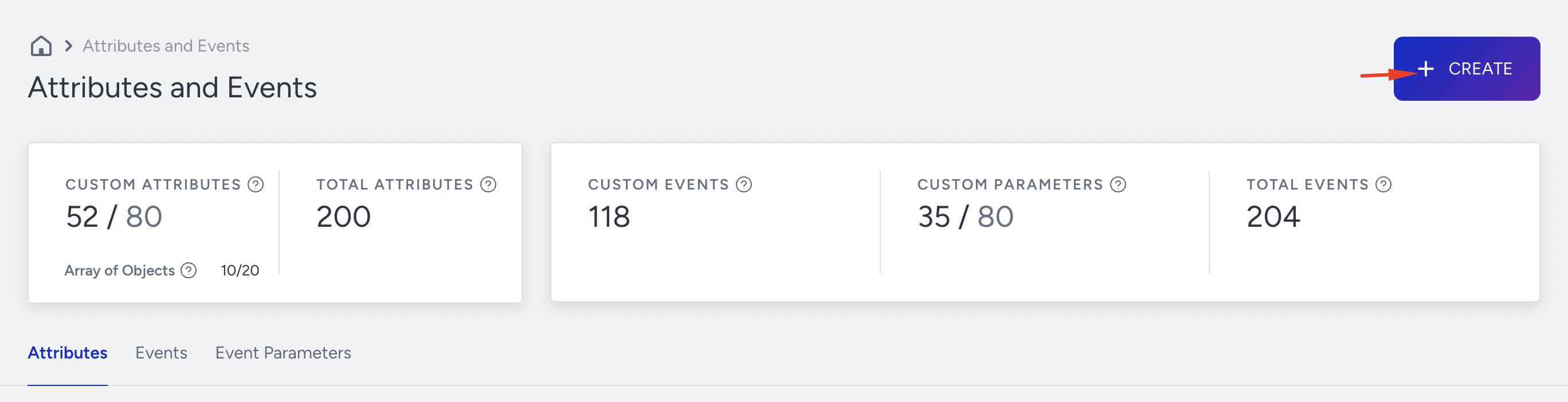
On the creation modal, fill in the necessary details:
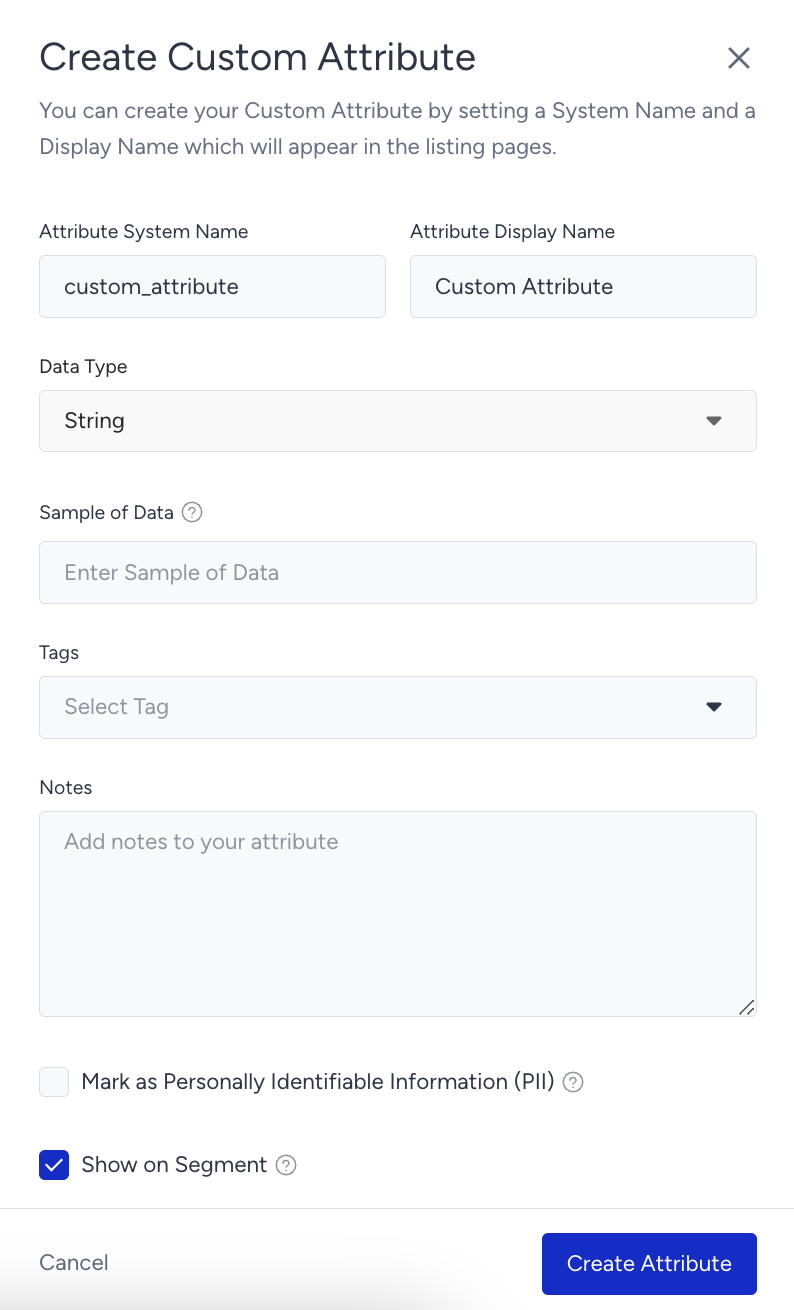
Attribute System Name: The name used for any system interaction, such as the Upsert User API parameter. It is recommended to be created in lowercase, without spaces, such as custom_attribute_name or product_cat_name.
Attribute Display Name: This is the main name of the data you will see while interacting with the InOne panel, such as when selecting in segmentation, etc. Attribute Name or Product Category Name can be examples.
Data Type: This is the standard type you must define for an attribute.
The Boolean data type can only have one of two possible values: True or False. e.g. Club Member = True
The Date is a data type used to store and manipulate dates and times. It is used to represent a specific point in time in RFC 3339 format, such as 2026-01-10T15:41:00Z.
The Number is a data type represented by a number that indicates an amount. The number can be either a whole number, a positive or negative number, or a floating-point number. e.g., '712*
The Number Array is a collection of numerical values stored together, allowing for operations like sorting, searching, and calculations on the elements. e.g., "1, 2, 3, 4, 5."
The String is a data type used to represent text or a sequence of characters. It can be used to store and manipulate alphanumeric data, such as names, addresses, or messages. e.g., "Hello"
The String Array is a collection of strings that can be stored together, providing functionality for tasks such as sorting, searching, and modifying the individual string elements. e.g., "apple," "banana," "orange."
The URL is a string of characters that provides a unique address for accessing resources on the internet. e.g., "http://insiderone.com"
Sample of Data: This is an empty input box where you can enter any value, preferably a sample value for that custom attribute, so you can skim the list of attributes with sample values to better understand your data sets.
For example, if you have the attribute of Store ID, you can input one of the sample values: “ST0015-A”
Tags: You can add labels or keywords to help organize and categorize the data.
Notes: You can input any explanation about your attributes accordingly to remind yourself of the definition. This is an open field text input area.
Mark as PII: Mark this checkbox if you want an attribute to be marked as one that contains Personally Identifiable Information. This controls information access for panel users based on their roles and permissions. For example, panel users with PII access set to False cannot see this attribute in the InOne panel.
The "Show on Segment" checkbox allows you to choose whether the attribute you’re creating will be available for selection while you’re creating segments.
Custom Attribute Prefix
Insider One automatically adds the c_ prefix to custom attribute names when you save them. Enter the name without the prefix: for example, enter datejoined to create the stored key c_datejoined. Entering c_datejoined creates c_c_datejoined.
Once you create your attributes on this page, you can use one of these data ingestion methods to pass a value for a user attribute.
While sending Number values, send values as numbers, not formatted strings. Do not include thousands separators or currency symbols. Use a period (.) as the decimal separator. For example, send 1234.56, not 1,234.56, 1.234,56, or $1,234.56.
Edit a custom attribute
Select the Edit option from the dropdown menu next to the attribute to edit a custom attribute.

When editing a custom attribute, the System Name and Data Type fields are locked to prevent potential issues with active campaigns or dynamic segments.
Upon opening the edit side modal for an attribute, you’ll see two tabs that show where the attribute is currently in use:
Active Campaigns
Dynamic Segments
You can switch between these tabs to view details on related usage.
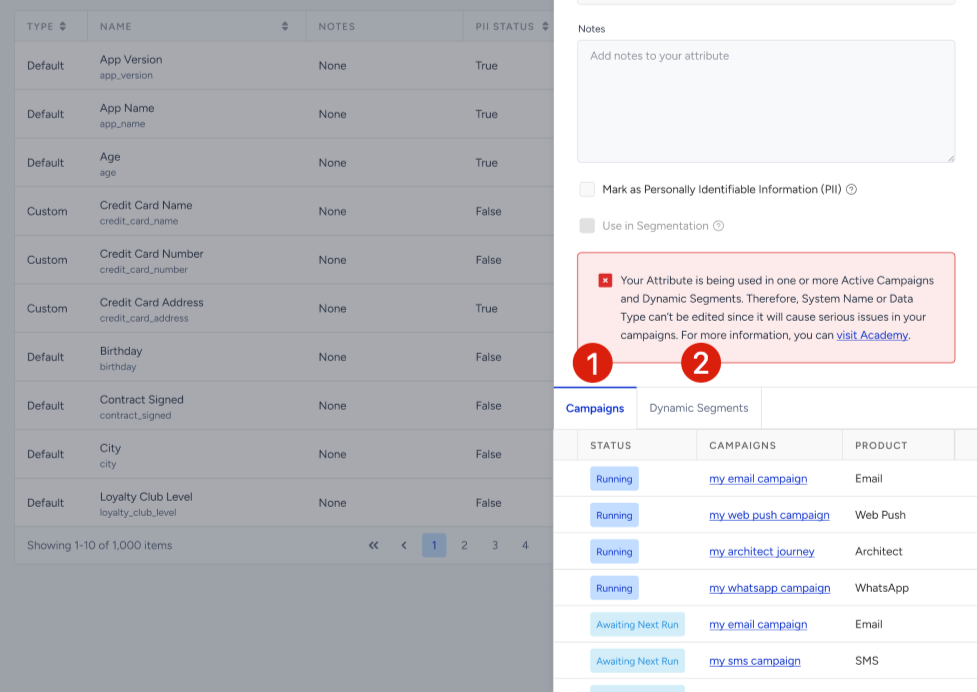
You can edit a custom attribute depending on where it's currently being used. The ability to update fields like System Name and Data Type changes based on their usage in campaigns or dynamic segments:
Used in Both Campaigns and Dynamic Segments
System Name and Data Type are not editable.
You need to end all campaigns and delete all dynamic segments that use the attribute before editing.
Used Only in Campaigns
System Name and Data Type are not editable.
To make changes, ensure that:
All running campaigns are completed.
All related dynamic segments are deleted.
If you only stop (but don’t delete) a campaign and then edit the attribute, the campaign may not function properly when reactivated.
Used Only in Dynamic Segments
System Name and Data Type are not editable.
Once all associated dynamic segments are deleted, these fields will become editable.
Not Used in Any Campaign or Dynamic Segment
All fields, including System Name and Data Type, are fully editable.
After making your changes, don’t forget to click Save to apply them.
You can pause or resume any attribute ingestion directly on the Attributes and Events page. Pausing ingested data means that Insider One will stop accepting the data (or blocking) from flowing into its database. You might need it in case there are occurrences of sending the wrong batch of data that need to be stopped.

Delete a custom attribute
You can request deletion of custom attributes you no longer need. Default attributes cannot be deleted, and custom attributes configured as identifiers are also protected from deletion.
To request deletion, contact the Insider One team and provide the attribute’s system name.
Before you request deletion:
Check where the attribute is used. Open the attribute’s edit side modal and review the Active Campaigns and Dynamic Segments tabs.
Remove or replace references to the attribute. Review the listed campaigns and dynamic segments. As an additional precaution, check any journeys and message personalization that use it. Do not treat the two tabs as a complete dependency list.
Stop sending the attribute from all data sources. Check APIs, SDKs, CRM integrations, and file imports. Verify that ingestion has stopped before submitting the deletion request. Continued ingestion can repopulate deleted attribute data.
Deleting an attribute that a campaign still uses may affect campaign execution. Remove or replace those references before requesting deletion.
Notes on creating, editing, or deleting attributes
The following limitations apply when working with attributes. These default rules ensure data consistency and system performance. If your use case requires adjustments (e.g., increased attribute capacity), contact the Insider One team — we can review and increase the limits to meet your needs.
Default attributes cannot be edited.
Default attributes and identifier attributes cannot be deleted. Only custom attributes are deletable. For details, see Delete a custom attribute.
If you’ve reached your custom attribute limit, reach out to the Insider One team to request a cleanup of unused attributes.
Before you delete a custom attribute, remove it from all active campaigns, dynamic segments, and journeys. If the attribute is still in use, campaigns, dynamic segments, and journeys that use it can stop working correctly.
Changing an attribute’s data type will overwrite existing values. For example, if a string attribute stores "true" and "false" as text, changing the type to Boolean will convert these values to true/false.