You can build a Bundle Strategy to combine pinned products, catalog-filtered products, and algorithm-driven recommendations into a single, reusable configuration, so you can set up complex merchandising logic once and reuse it across campaigns.
With bundle strategies, you can:
Highlight specific brands or products in the first slots, then let an algorithm fill the remaining ones.
Filter your catalog directly to show a themed collection (e.g., a holiday selection) with no algorithm needed.
Show a "Complete the Look" or matching-set bundle only when the shopper is viewing a specific product or category, using a trigger.
Upload pre-built product combinations in bulk with Import from CSV, so viewing one product automatically shows the rest of its Bundle; no need to configure each one manually.
This guide explains the following:
CORE CONCEPTS
Bundle strategy: The overall setup you create and attach to a campaign. A Bundle Strategy can contain one or more Bundles.
Bundle: A combination of Slots and a Trigger Rule. A Bundle Strategy can hold several Bundles; only one is served at a time, based on which Bundle's Trigger Rule matches.
Slot: A position inside a Bundle. Each Slot decides what product (or products) fill that position: a specific product, a catalog filter, or an algorithm.
Trigger rule: The condition that decides when a Bundle is shown, for example a specific product or a matching product attribute.
To create a bundle strategy, follow these steps:
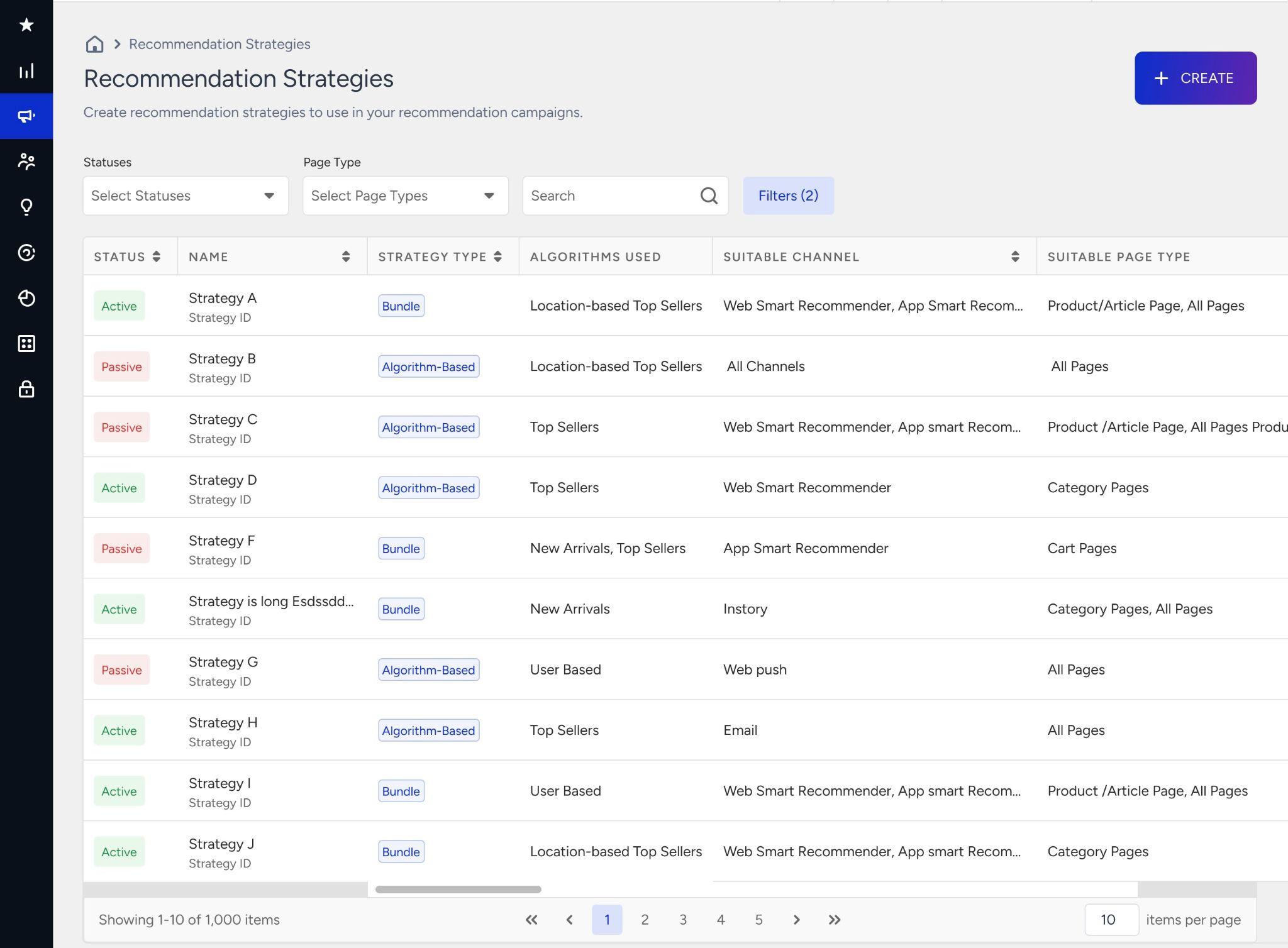
Open Campaigns > Recommendation > Recommendation Strategies.
On the Recommendation Strategies page, click the + Create button.
In the Create Recommendation Strategy modal, set Strategy Type to Bundle.
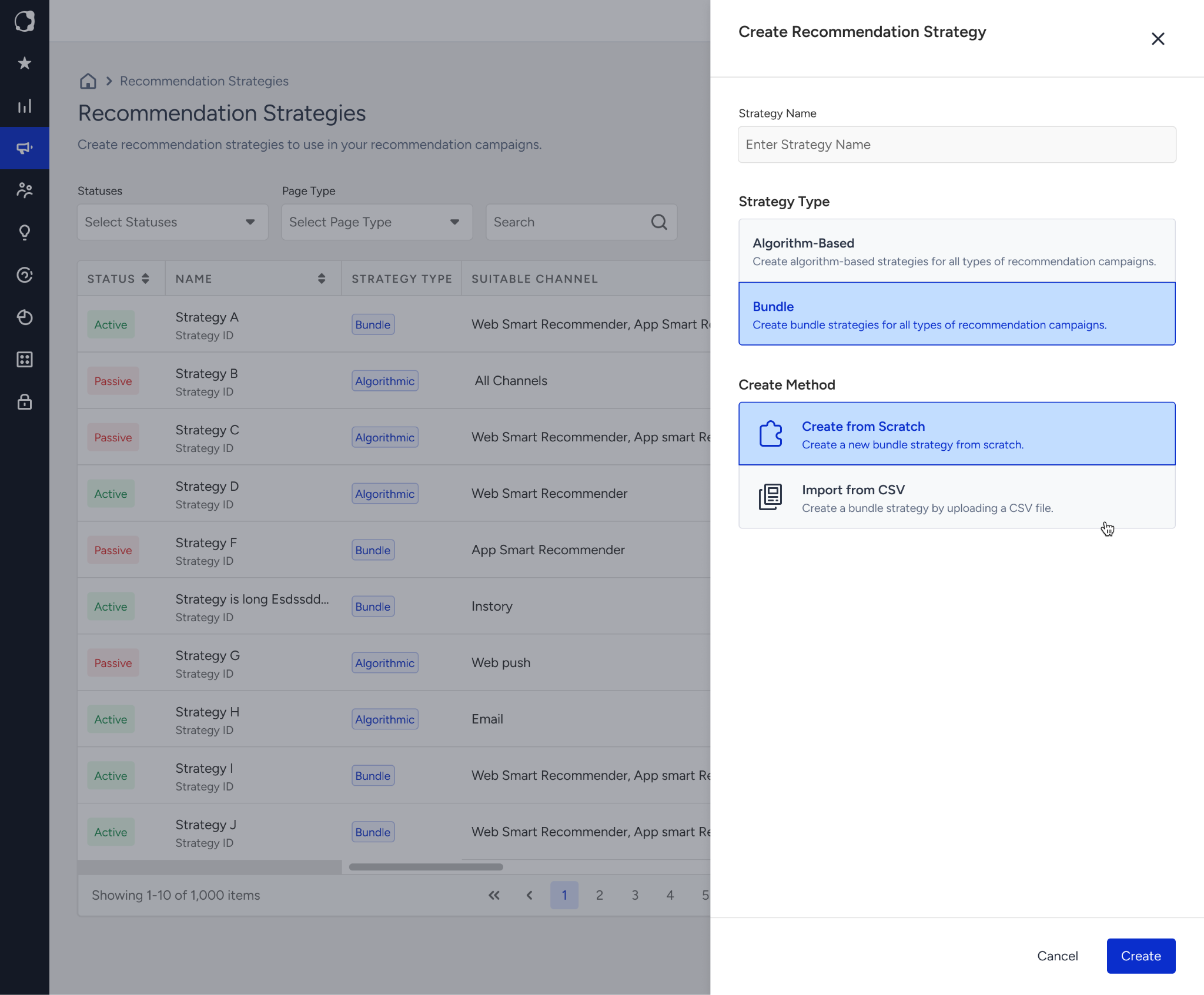
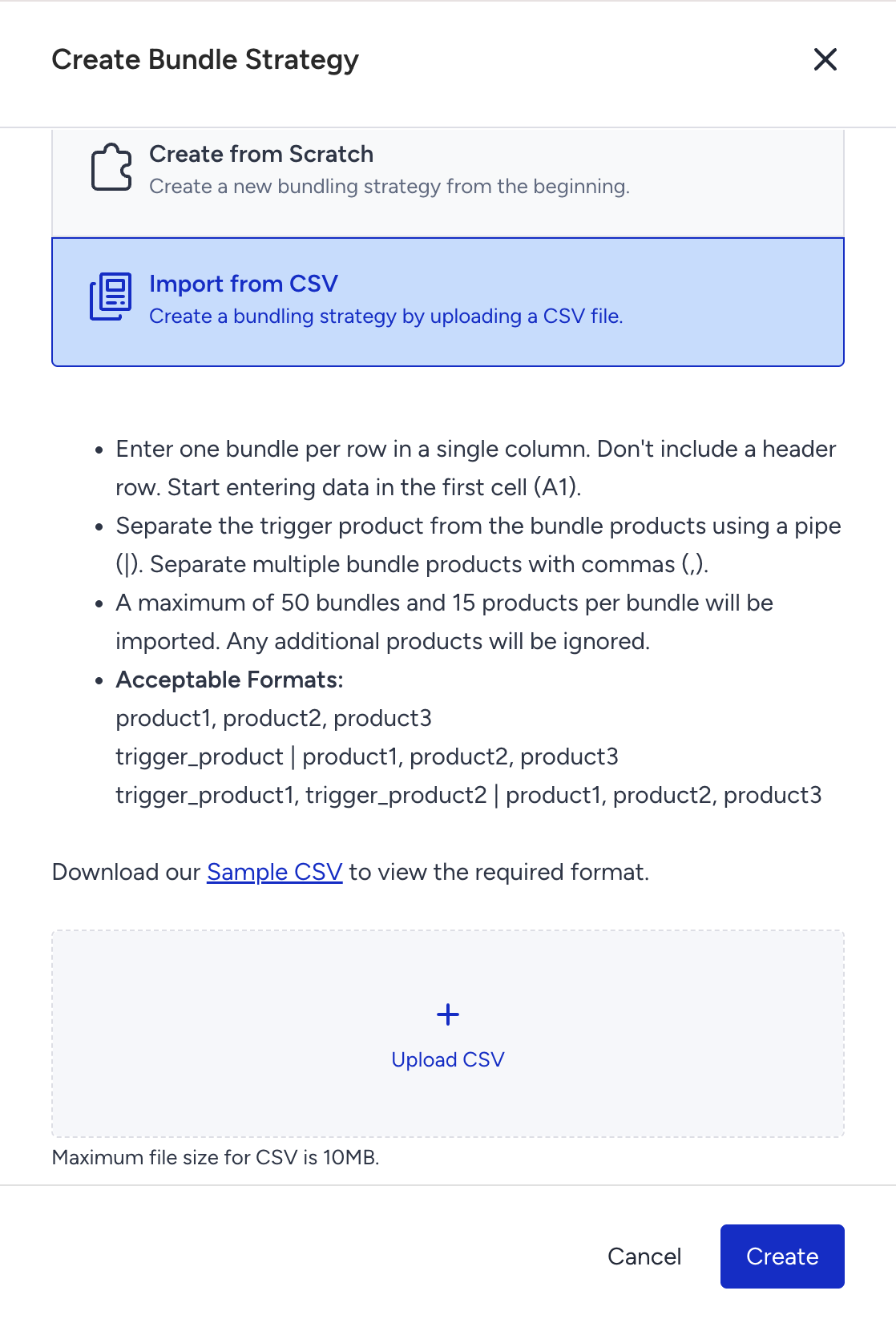
Choose a Create Method: Create from Scratch to build the bundle step by step, or Import from CSV to create bundles in bulk from a file.
Enter a Strategy Name and click the Create button.
Create bundles from scratch
Select channel and page type. Choose which channel and page type this strategy applies to. Your choice here determines which configuration, trigger, and personalization options are available in the next steps.

You cannot change the page type for an active campaign’s strategy.
Configure the bundle. Add Slots to build the bundle. Each Slot is configured independently, and you can drag and reorder them.
A bundle can hold up to 90 products. A pinned product (Select from Catalog) counts as 1, while an Add from Algorithm or Add from Filter slot counts as many products as the size you set with the count selectorYou can choose from three slot types: Select from Catalog, Add from Algorithm, and Add from Filter.
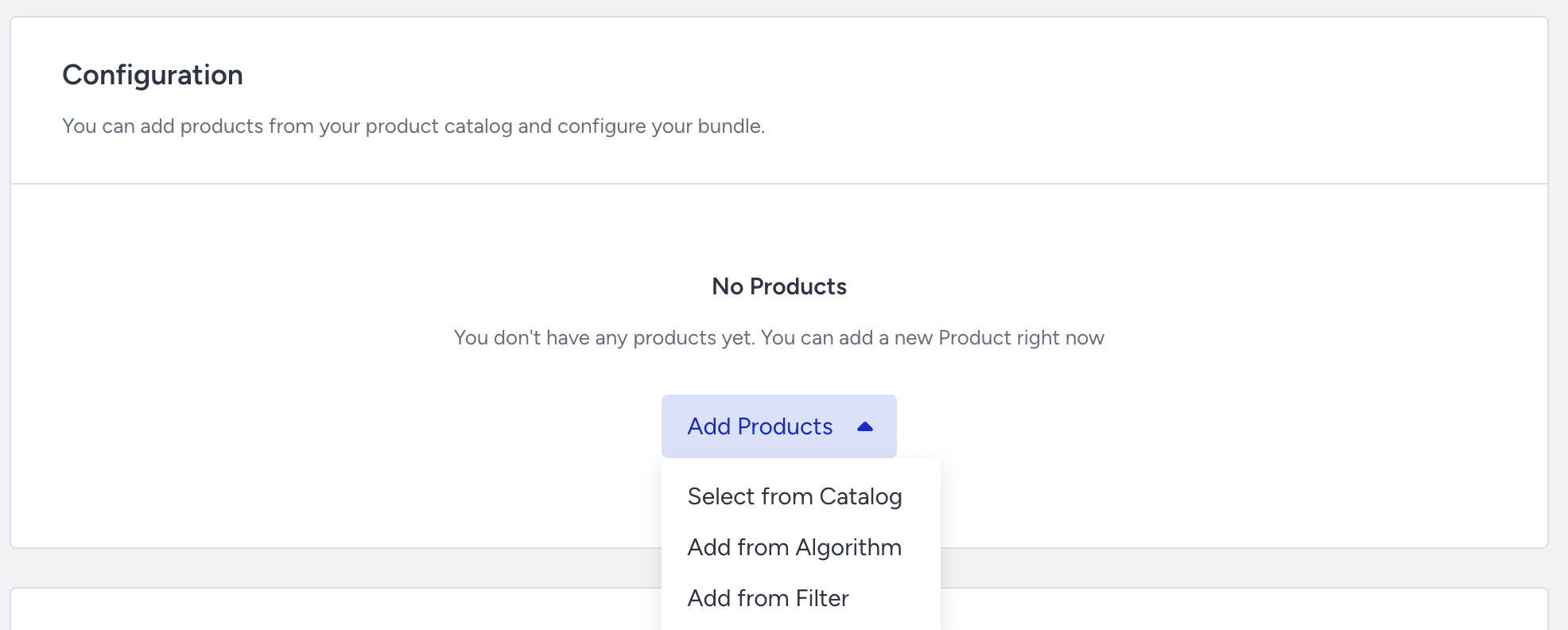
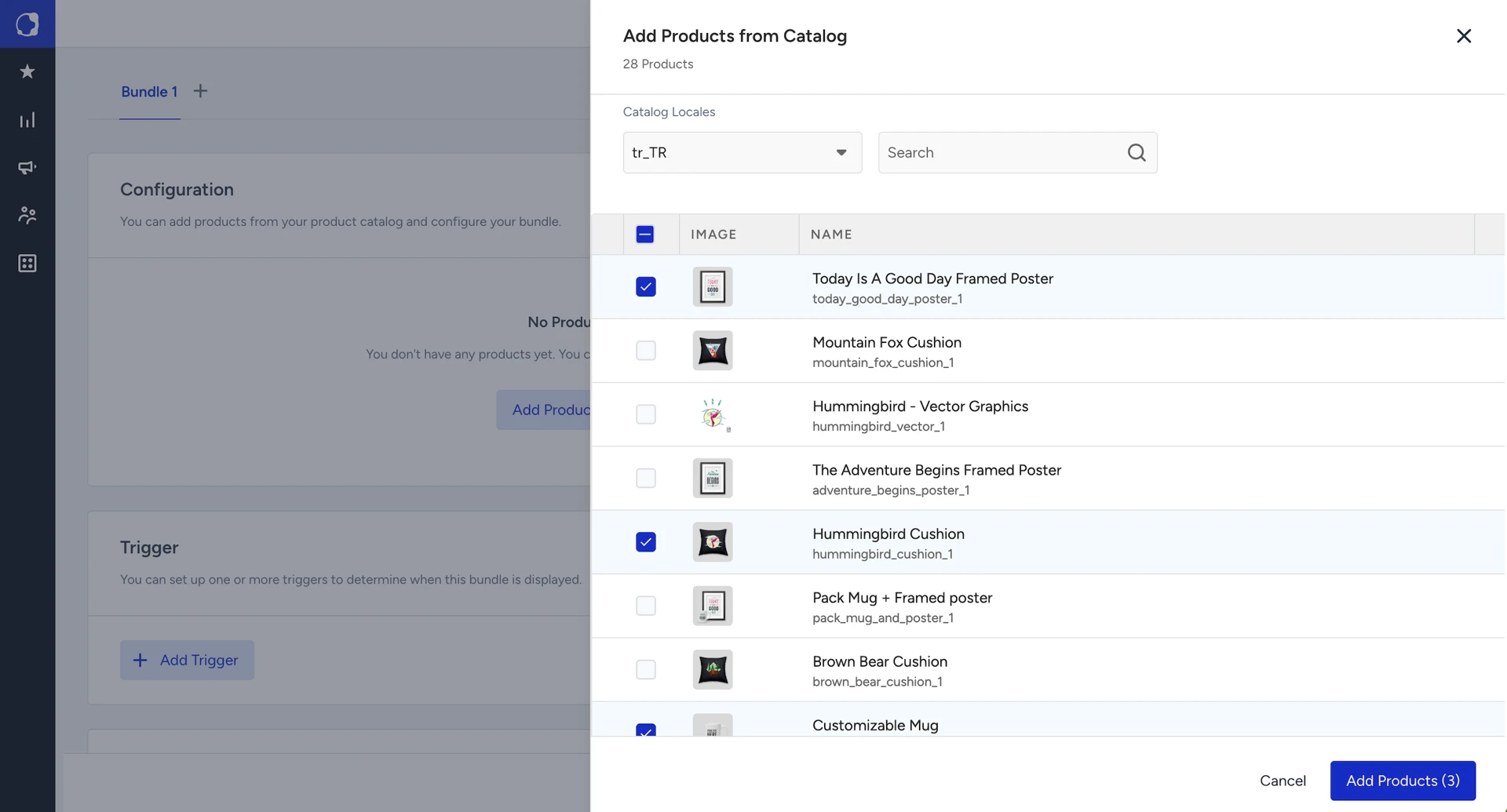
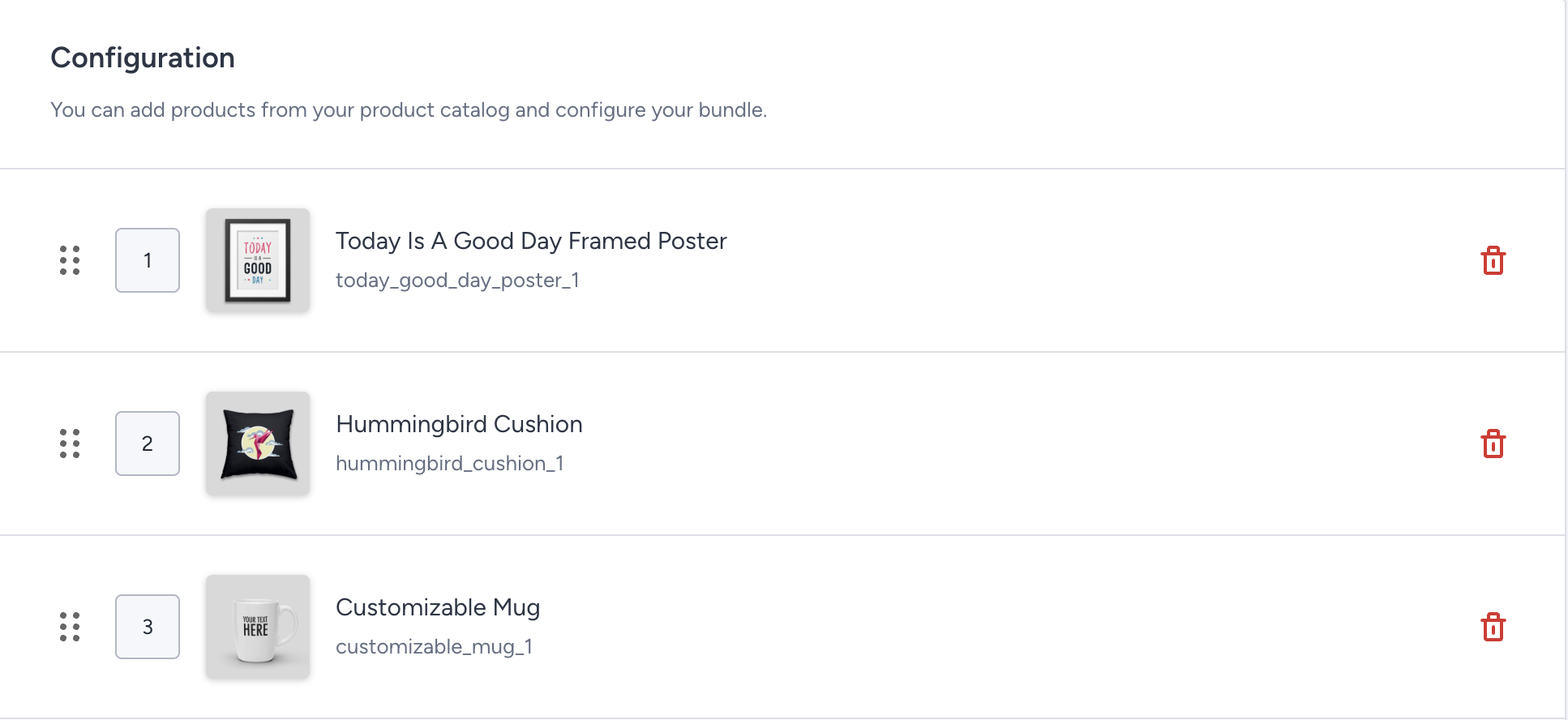
Select from Catalog: Pick one or more specific products directly from your catalog to pin into the Bundle.
Use the count selector (up to 15 at a time) to set how many products an Add from Algorithm or Add from Filter slot returns. Each algorithm has its own limit:
Up to 20: User-Based, Real-Time User Engagement
Up to 50: Recently Viewed, Purchased Together, Purchased with Last Purchased, Substitute Products, Checkout Recommendation
A slot can never take the bundle above 90 products total.
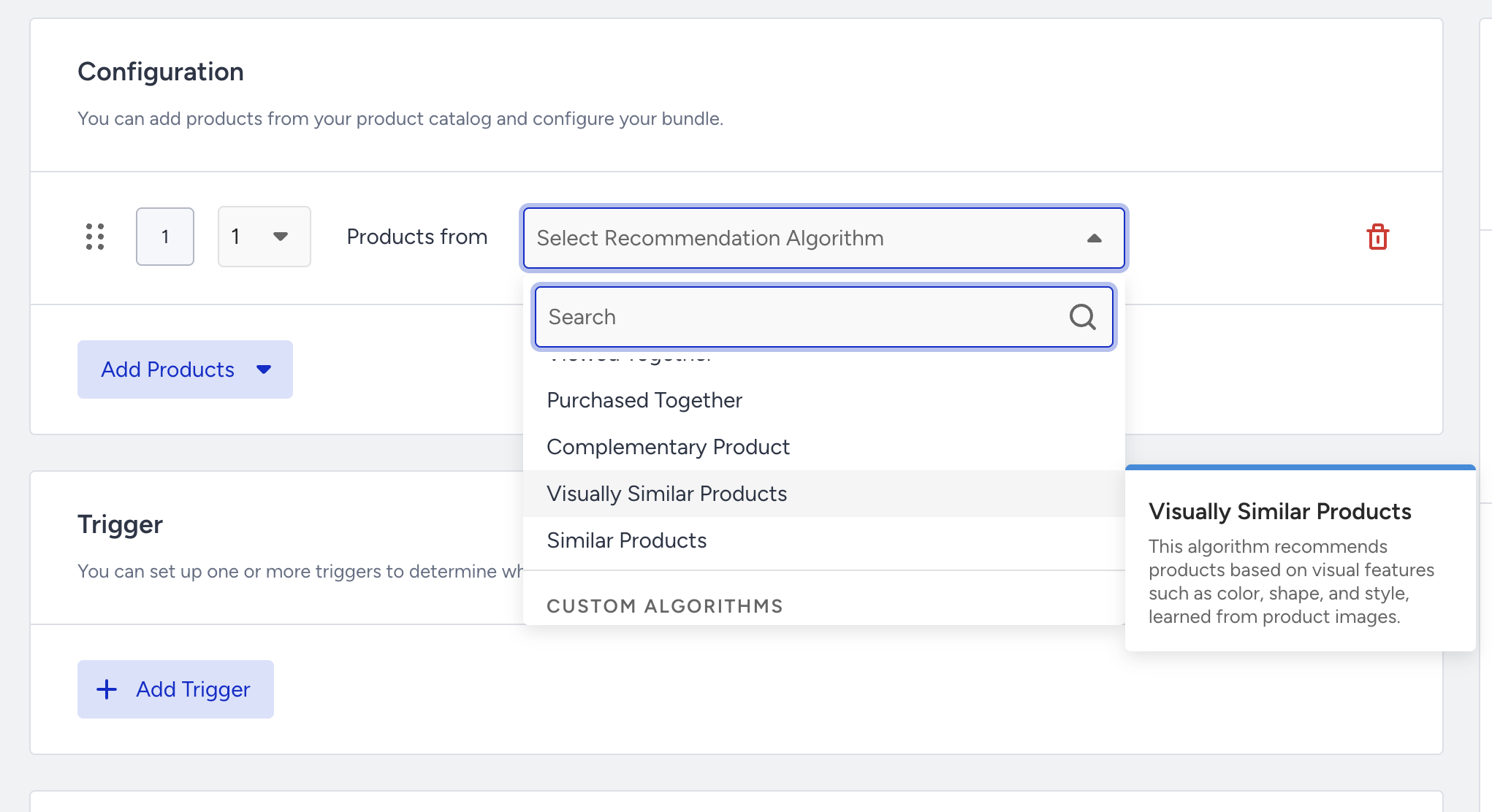
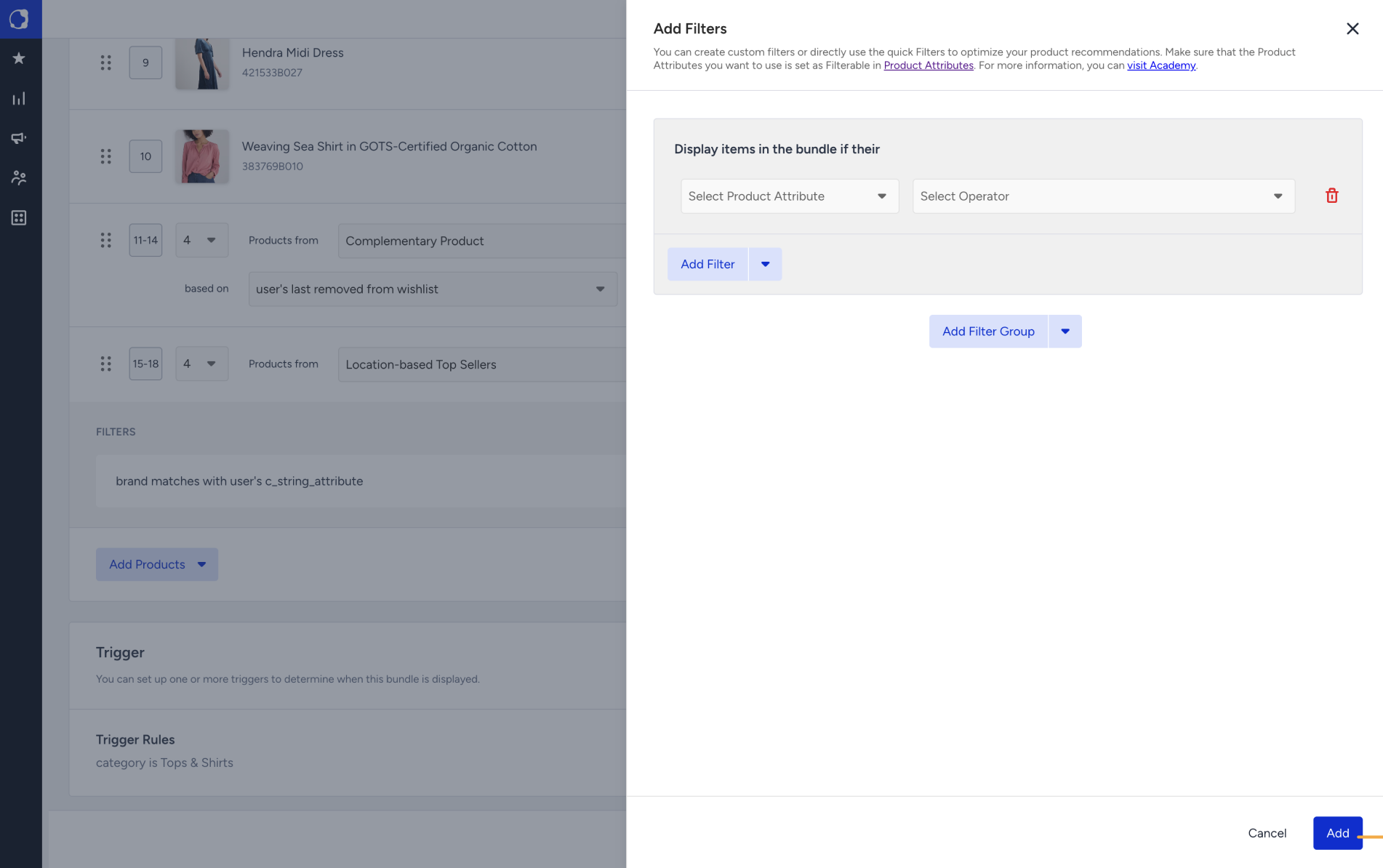
Add from Algorithm: Fill the Slot with a recommendation algorithm. You can add filters at the top of the algorithm; they apply only to this Slot.
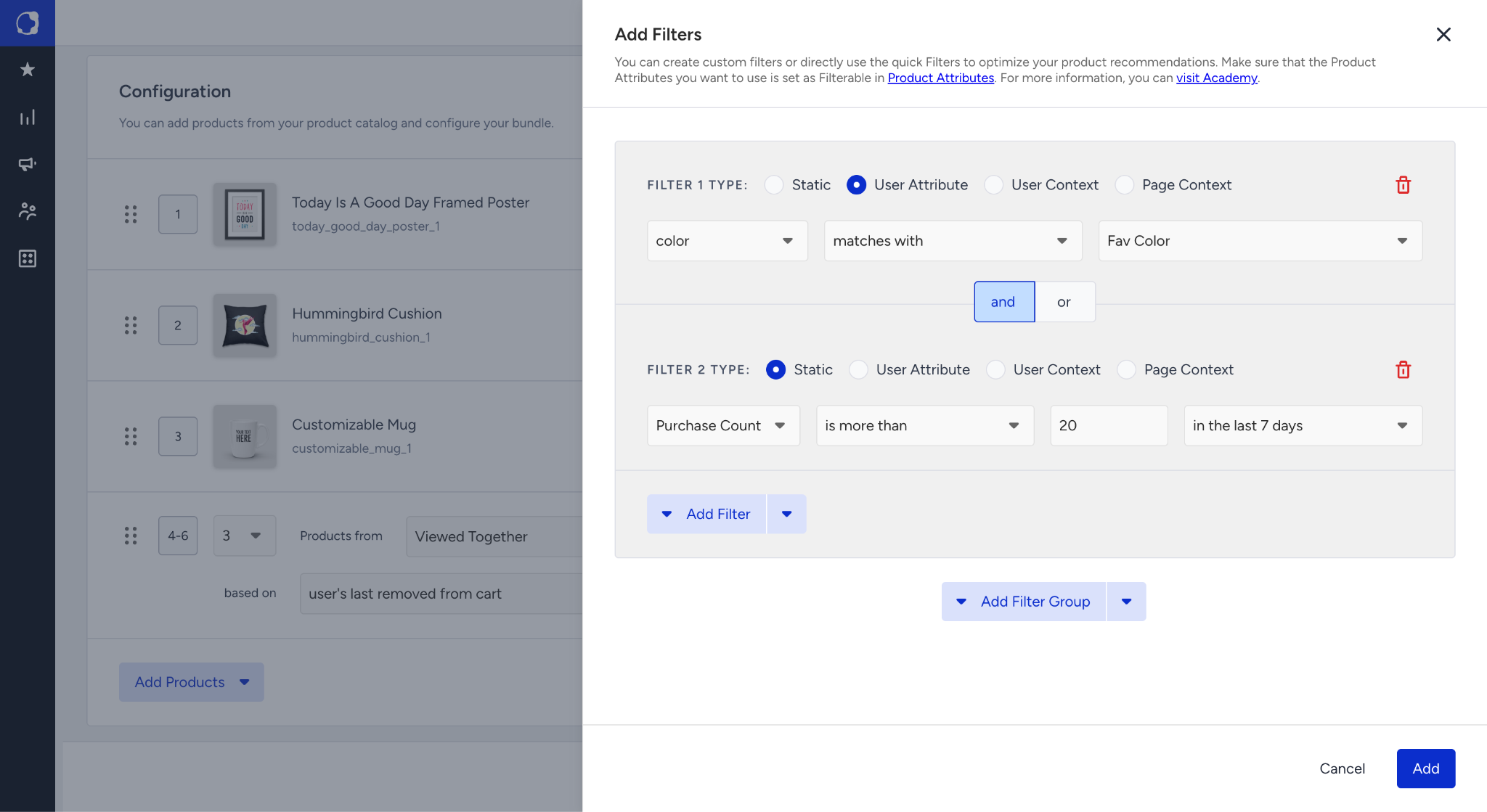
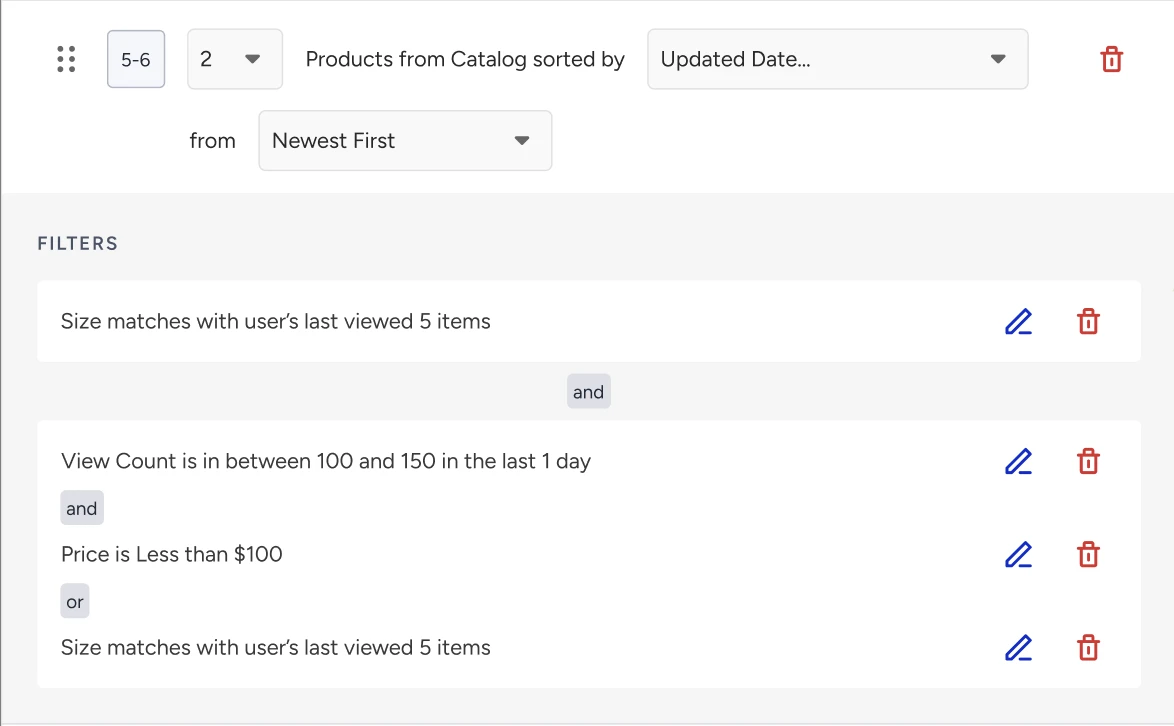
Add from Filter: Filter the product catalog directly, without an algorithm. You can also choose how the filtered results are sorted, by a number product attribute or by a Sorting Attribute (Created Date, Updated Date, Purchase Count, Add to Cart Count, View Count), in ascending or descending order.
You can create cases as follows:
Pin a specific product in one slot, fill another with the Purchased Together algorithm, and fill a third with items under $30 using Add from Filter. All three slot types can work together in the same bundle.
Add a slot filtered to products under $50, sorted by Add to Cart Count descending. This slot updates automatically as shoppers add different items to their carts.
Pin three specific products in fixed slots so they always appear together as a set, then add one more slot filtered to your newest items, sorted by Created Date descending. That slot refreshes automatically while the rest of the set stays fixed.
Add a trigger. Set when each bundle should be shown. A trigger has two parts, and you can use both together:
Trigger Products: Show the bundle when the shopper is viewing selected products.
Trigger Rules: Show the bundle when a condition on the viewed product is met.
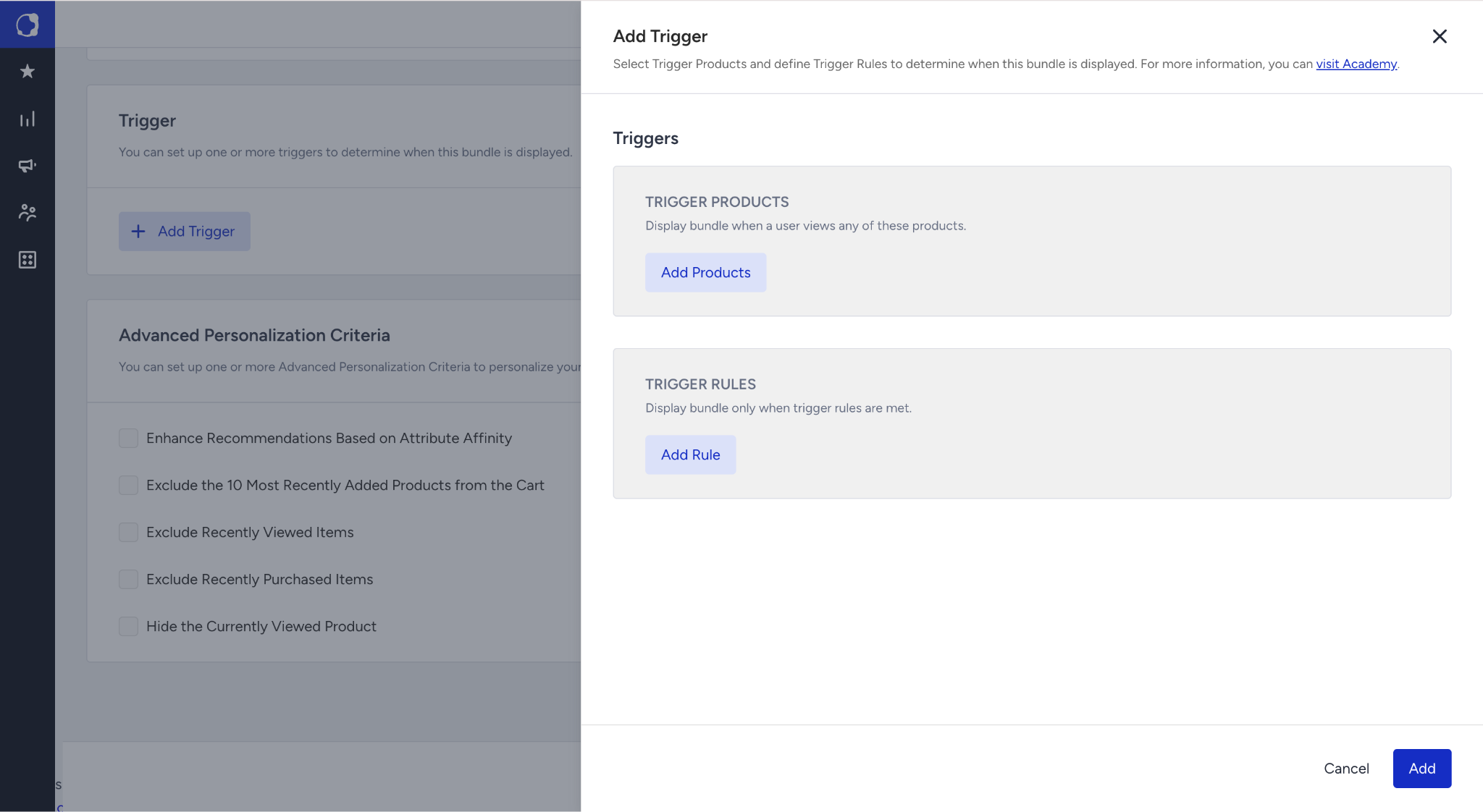
Trigger Rules are evaluated against the current page's context: the product being viewed or the category being browsed.
The All Pages option has no fixed page context at all, so Trigger Rules aren't available for that page type.
Because Category Page has no single viewed product, only the Category attribute can be used for a Trigger Rule there.
Below are some trigger rule examples:
To show a "Shop the Category" bundle only on your Electronics category pages, set a Trigger Rule where Category equals Electronics.
To promote a specific brand's accessories only when the shopper is viewing that brand's products, set a Trigger Rule on the Brand attribute.
To show a budget-friendly bundle only on lower-priced items, set a Trigger Rule based on a Price attribute.
For how multiple bundles within the same strategy are prioritized, and how to set a fallback, refer to Work with multiple bundles in one strategy.
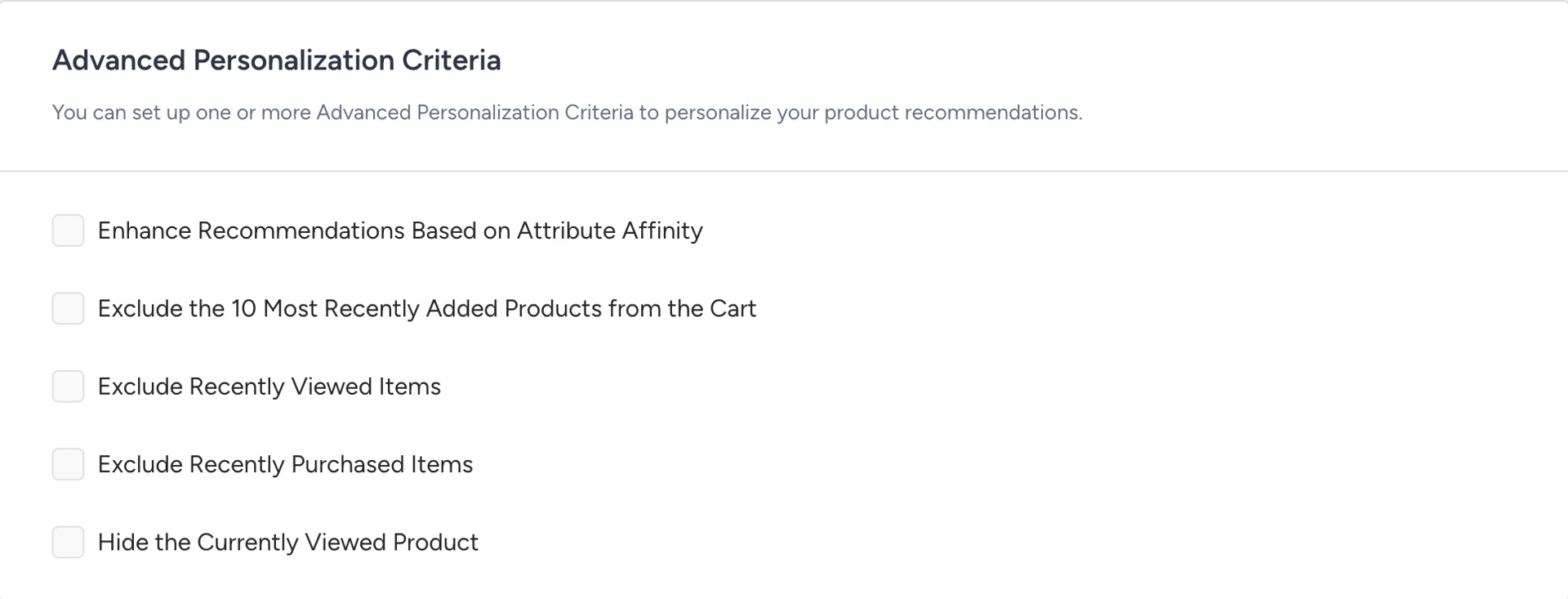
Set advanced personalization criteria. Add further personalization on top of your slot configuration. For example, exclude recently viewed or recently purchased items, or hide the product the shopper is currently viewing.
Preview and save. Use the Preview panel to run a live dry run, set reference values (locale, store, category, item), and see the exact products the bundle would generate before saving anything.
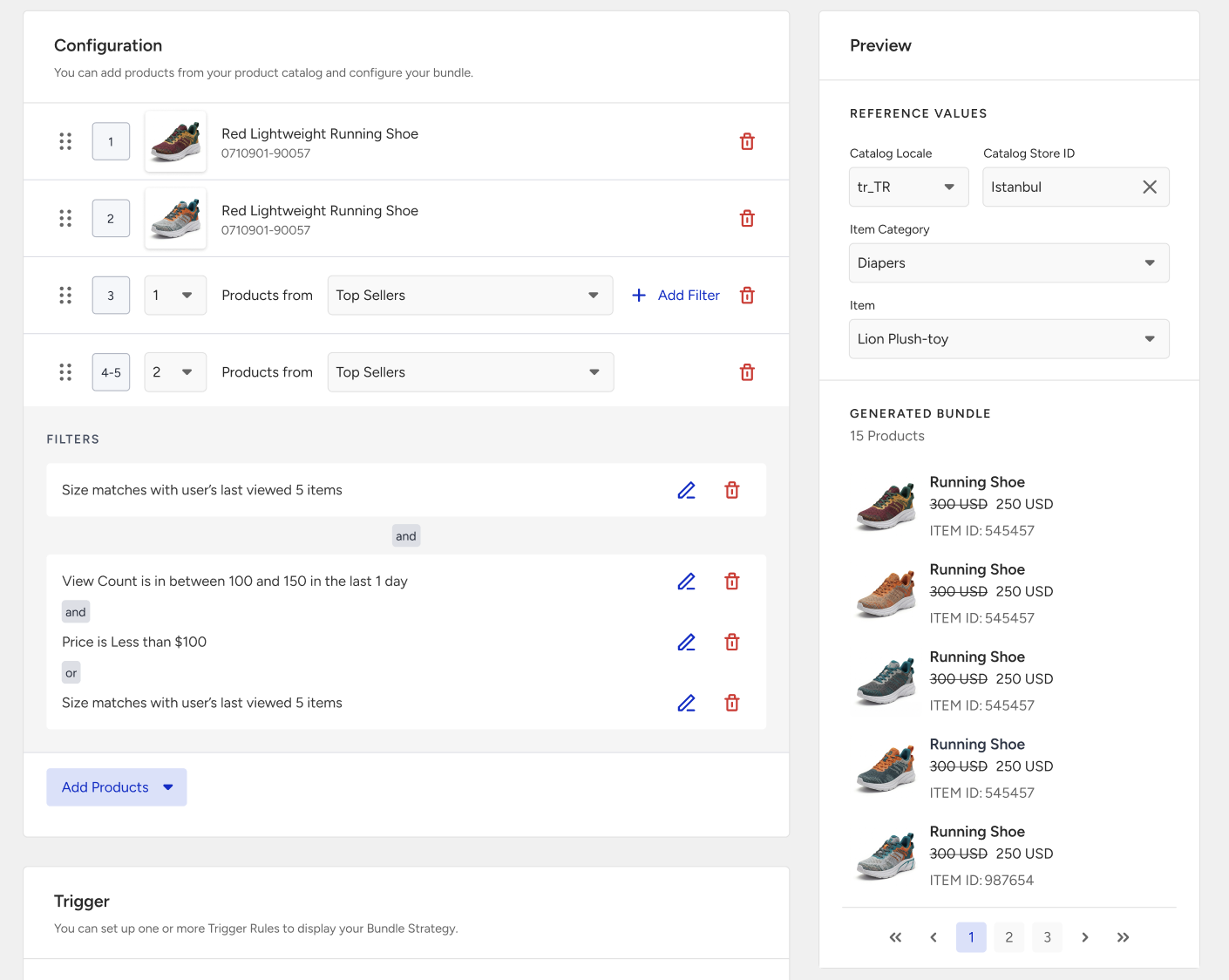
If the Bundle has a Trigger Rule, the preview only returns results when your reference values match that rule.
Work with multiple bundles in one strategy
A single Bundle Strategy can hold more than one bundle, each built for a different situation, e.g., one bundle for when a shopper is viewing a jacket, another for when they're viewing shoes.
Click the + (Add) button next to the bundle tabs to add another bundle. Each new bundle gets its own tab, with its own slots, trigger, and advanced personalization criteria.
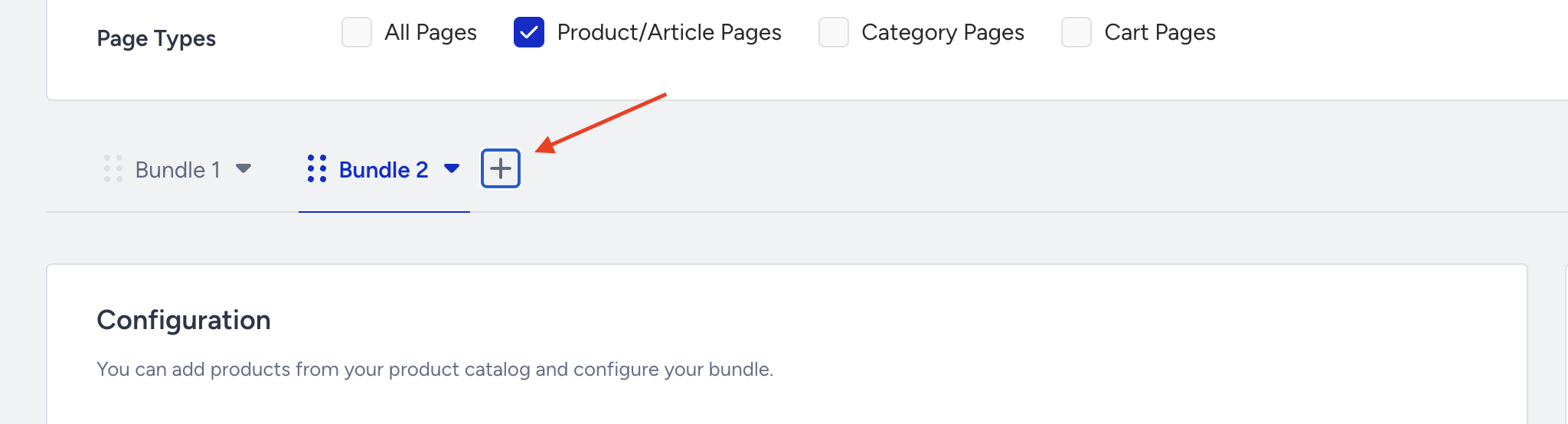
You can drag the tabs to reorder them. The order matters; when more than one bundle's trigger matches at the same time, the bundle positioned furthest left is shown.
You can mark one bundle per strategy as the fallback using Set as Fallback in its tab menu. If no other bundles match, this bundle is selected as a last resort, even if its own trigger didn’t match.

This lets you serve a different bundle to different shoppers from a single strategy, without building and maintaining a separate strategy for every scenario.
Below are example cases:
Build one strategy with three bundles: a Shoes Bundle triggered on Category equals Shoes, a Jackets Bundle triggered on Category equals Jackets, and a Fallback Bundle using an algorithm like Top Sellers for every other page. Shoppers always see something relevant to what they're browsing.
For a jewelry catalog, build a "Ring & Earring Set" Bundle triggered on specific ring product IDs, a "Watch & Strap Set" Bundle triggered on specific watch product IDs, and a Fallback Bundle showing your best sellers. Each Bundle fires only when the shopper is viewing one of its own trigger products, not a whole category.
Import bundles from a CSV file
Instead of building bundles one by one, you can create a Bundle Strategy in bulk from a CSV file. Each row in the file becomes one bundle.
Ensure you follow the criteria below when creating your CSV file:
A plain row of comma-separated product IDs creates an untriggered bundle: product1, product2, product3.
Adding a pipe (|) splits the row into trigger product(s) on the left and the bundle's products on the right, creating a trigger-gated bundle: trigger_product | product1, product2, product3. You can list more than one trigger product before the pipe, separated by commas.
Untriggered and trigger-gated rows can be mixed in the same file.
A CSV import brings in a maximum of 50 bundles and 90 products per bundle; anything beyond that is not imported.
Download the sample CSV from the import panel to see the expected format.
After you upload the file, you land in the same editor used by Create from Scratch, with all imported bundles and slots already filled in, so you can review everything before saving. If any bundle, product, or trigger product couldn't be imported (e.g., because it exceeds the bundle or product limit, or a product isn't in your catalog), you'll see a row-level summary of what was skipped and why, together with a downloadable list of the unimported products.
Assign a bundle to a campaign
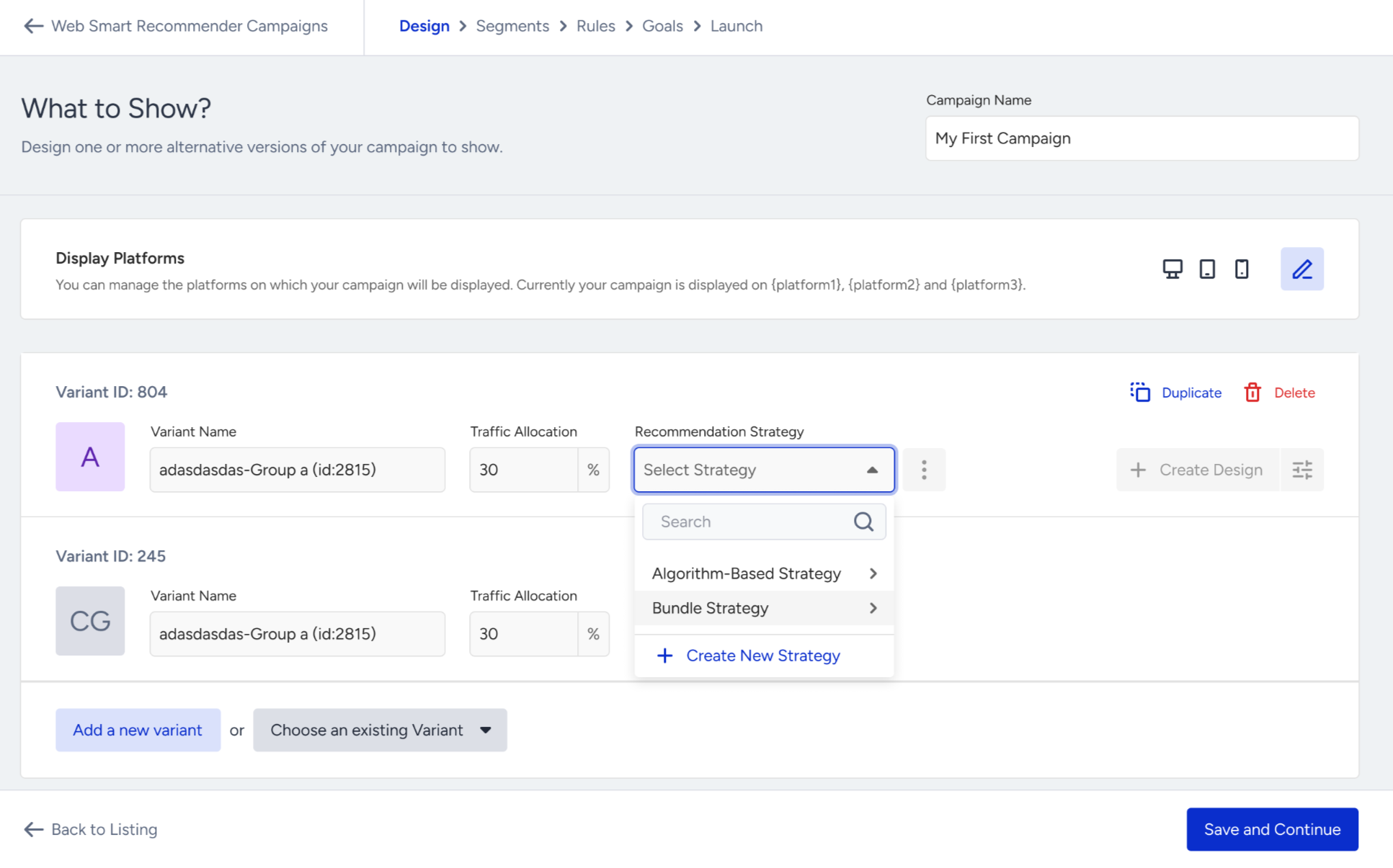
Bundle strategies are attached to campaigns through the same campaign creation flow you already use for other recommendation strategies. In the Design step, the strategy-assignment dropdown lists your bundle strategies alongside your regular recommendation strategies. Only the bundles that match the campaign's page type and channel are shown.