A Content Set is the generated, labeled, and reviewed set of variants built from one base content on one channel. Write your message once, and the Decision Agent turns it into a set of on-brand variants. You review every one, and only the variants you approve are ever sent.
This article is the detailed reference for creating and reviewing Content Sets. For the end-to-end journey setup, see Architect Decision Agent. For the concept behind it, see AI Decisioning.
By the end, you will have an approved set of variants you trust, ready for the Decision Agent to match to each user.
In this article:
Where Content Sets live
In the InOne panel, navigate to Agent One > Agent One Teams > Content Set. The list shows every set with its channel and status.
Status | Meaning |
|---|---|
Draft | The set is saved but not generated yet. You can reopen it and continue. |
Generating | Generation runs in the background. The set is read-only until it finishes. |
Generated | The variants are ready in Content Review. |
Failed | Generation didn't finish. Start it again or create a new set. |
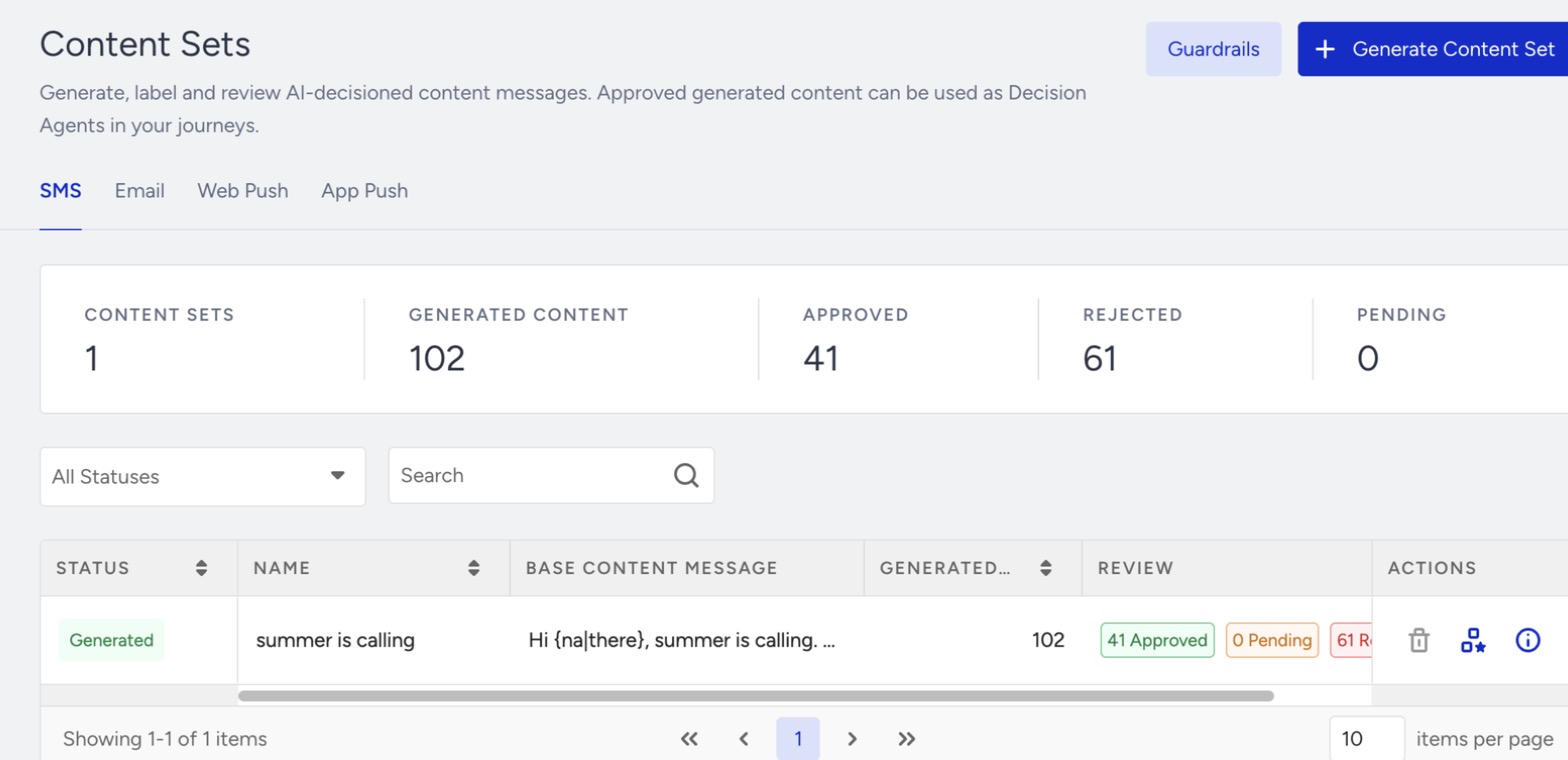
Create a Content Set
Every set belongs to one channel, and you can start it in two ways:
From the channel element under a Decision Agent, click Save and Create Content Set. Your base content carries over.
From the Content Set list, choose the journey and the message there.
Name the set so your team can recognize it later in the Decision Agent, for example by journey, message, or season.
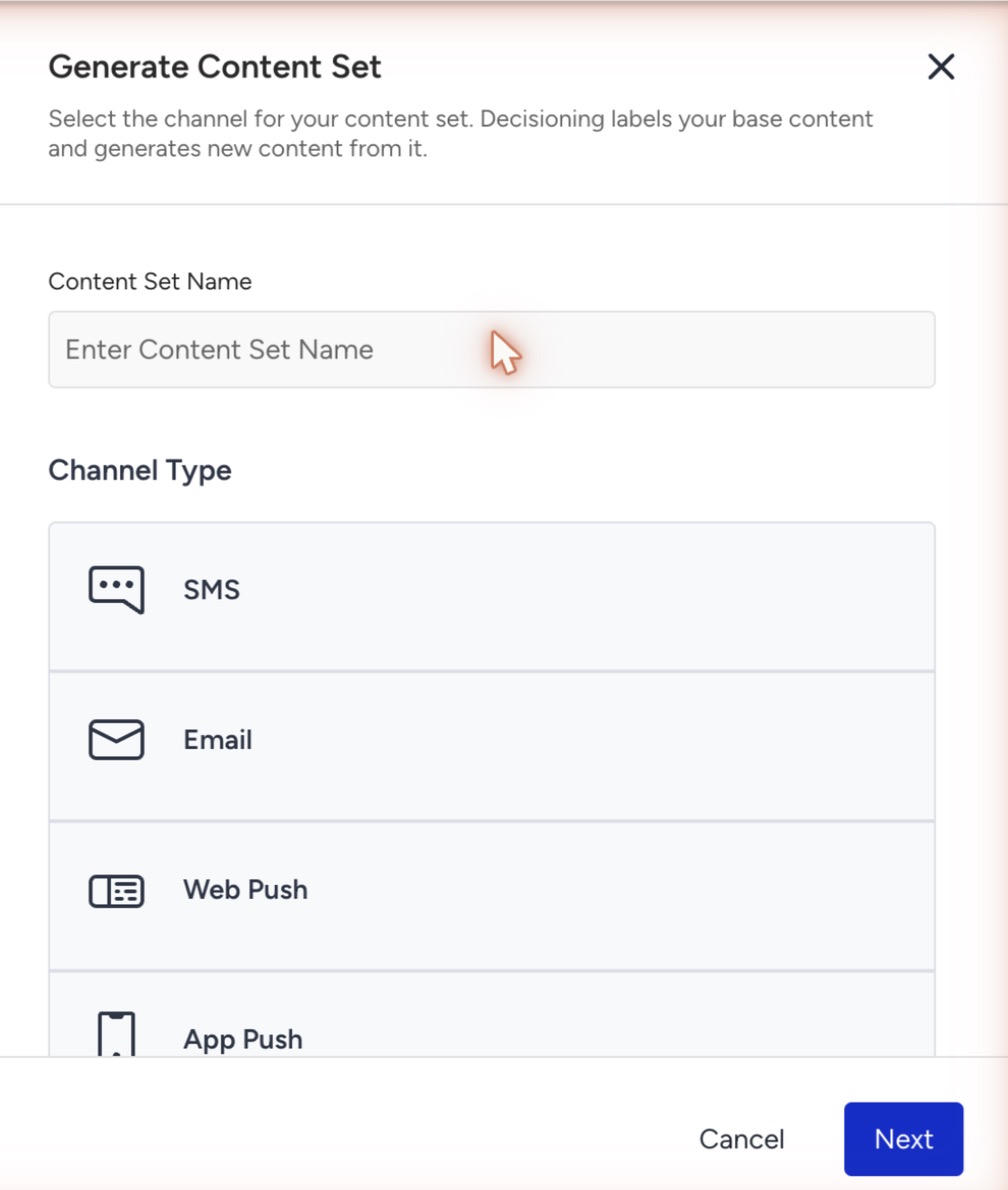
Step 1: Base Content Selection
Pick the journey, then the message on that channel. The preview shows the message as it renders today. Under the preview, you see the automatic labels: greeting, value proposition, incentive, tone, call to action, and urgency. You don't write these labels. The Decision Agent reads your content and labels it.
Step 2: Labeling
For each of the six dimensions, select the labels you want variants for. The base content's own labels are preselected. Every dimension needs at least one label.
A banner shows the maximum number of variants your combination can produce, and the formula behind it. For example: Greeting 1 × Value Proposition 2 × Incentive 2 × Tone 2 × Call to action 1 × Urgency 1 = 8.
To choose well:
Match the intent of the base content. A reminder is not a promotion. A cart message's call to action is "complete purchase."
Treat urgency as a ladder: no urgency, reminder, time-limited, and last chance. Stay within one step of where the base content sits. Stock scarcity is separate from this ladder.
Keep offers honest. Select an incentive label only if the base content carries that incentive. A variant never invents a code, a gift, or a discount.
Choose distinct over many. Two clearly different plays teach the Decision Agent more than 10 near-identical variants.
Step 3: Launch
Review the summary.
Optionally, set a maximum number of variants below the fan-out count. The Decision Agent then generates the most distinct combinations up to that number.
Click Start Generation. Generation takes a few minutes.
You can click Save as Draft at any step.
Content Review
Open Content Review. Channel tabs run across the top, and each row shows one base content with its variant count. Open a row to see its variants.
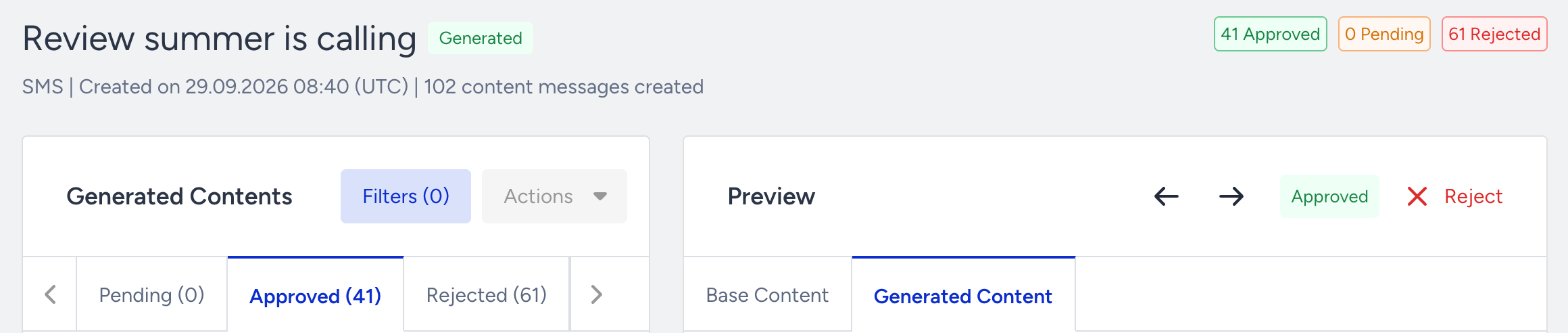
For each variant, you can:
See the labels it carries.
Check its AI Match Level (High, Medium, or Low). This shows how closely the variant matches your guardrails and channel rules. Use it as a guide for your attention, not as a gate.
Use Compare with base content to see the variant and the base content side by side.
Click Approve, or click Reject and choose a reason: no labels assigned, does not match its labels, does not meet expectations, or other. Add a note if it helps the next round.
Click Regenerate on a rejected variant to get new copy with the same labels.
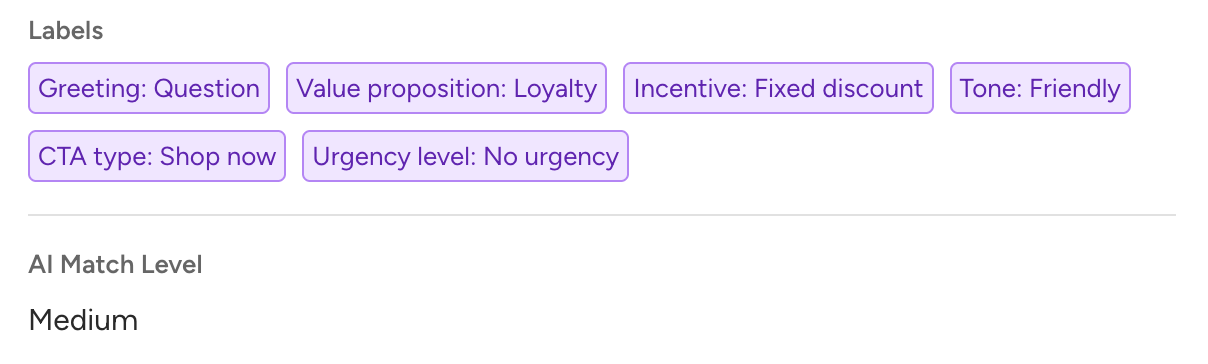
Click Save changes when you finish. Approval happens per variant, and only approved variants are ever sent.
Review well
Aim for an approved set you trust, not a high approval rate. Rejections show the filter working.
Reject for brand and rule violations and for real defects, such as a wrong offer, broken personalization, or invented figures. Taste-level differences don't need a rejection.
When you keep rejecting the same thing, write it into Brand Voice or Content Rules, then regenerate.
The Decision Agent passes personalization tokens and their fallback values through unchanged. It never invents a fallback. If a token looks wrong, fix the base content.
Use a Content Set in a journey
Open the Decision Agent.
Select the set on the matching channel path.
Check the set's state: Generating, No approved variants, or Ready.
Approve variants before you launch the journey.
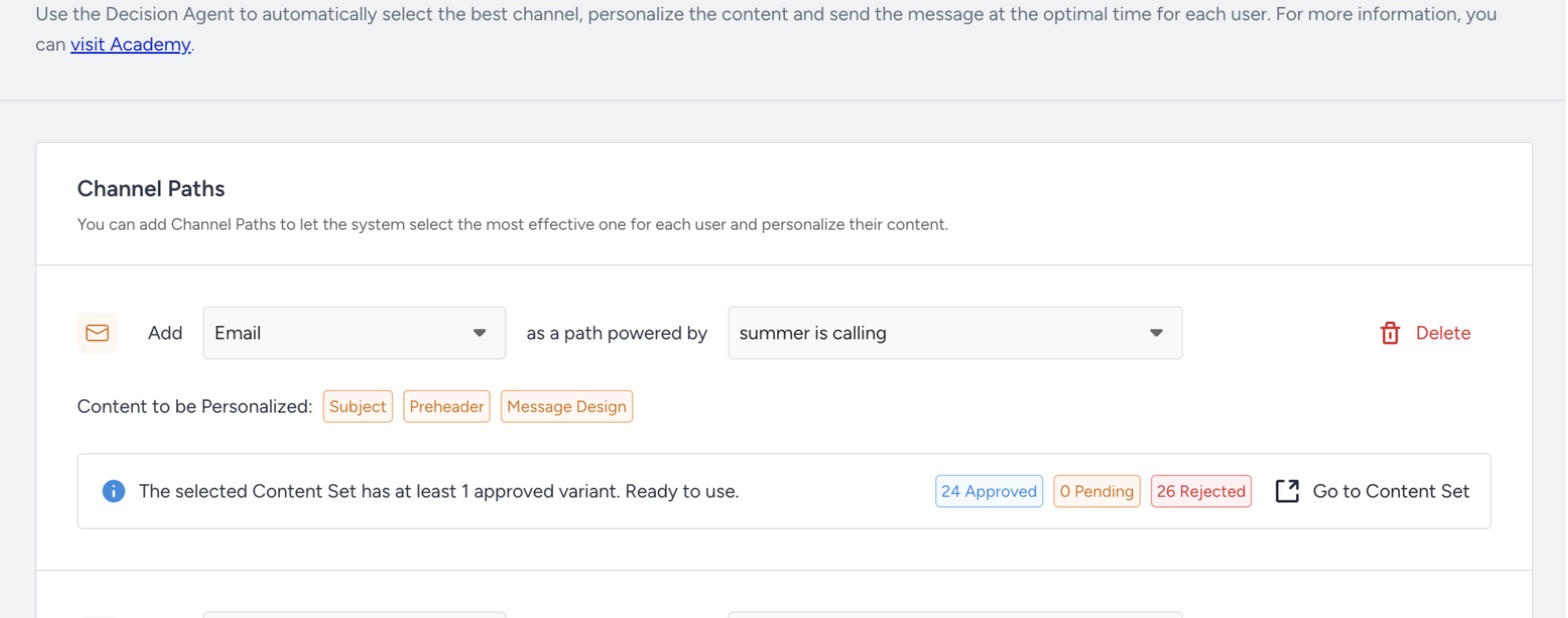
Every content path needs a Content Set. You can't save the Decision Agent element without one.
After launch
Approving or rejecting variants later applies to the next sends. Keep at least one approved variant in every set that is in use.
A generated set is read-only. For new wording, change the base content and create a new set. For new copy on the same labels, regenerate the rejected variants.
When a season or offer changes, create a new set from the updated base content and switch the path to it.
Next steps
You can now turn one base content into a reviewed set of variants and keep that set fresh as your offers change. Ready to see it in action? Create your first Content Set from the channel element under a Decision Agent.