You can only resize on-page templates.
You can modify the size of pop-up campaigns based on your design content. For example, if you want a square layout that displays only an image, you can dynamically adjust the template size as the uploaded image's dimensions change.
Insider One’s Action Builder includes a Size menu in both the Preview and Design tabs, letting you easily adjust your campaign’s width and height for greater flexibility during creation.
How template resizing works
You can modify the width and height of templates using pixels (px) or percentages (%).
If the Auto-fit option is set to Height, the template’s height automatically adjusts as elements are added or removed.
Size values are synchronized between the Preview and Design tabs, meaning any change in one tab is instantly reflected in the other.
Resize via canvas indicators
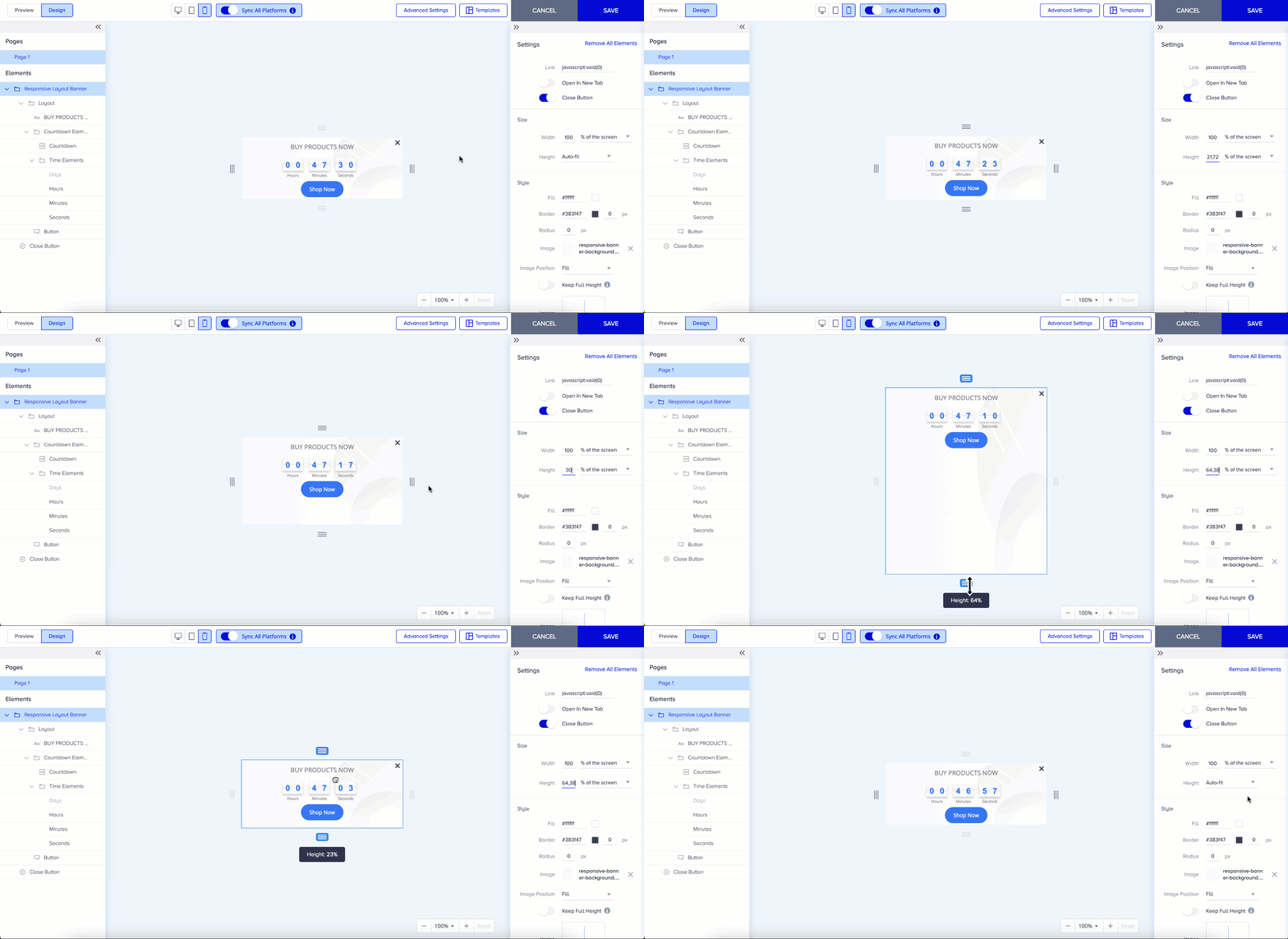
You can also resize templates directly on the canvas using pull indicators.
Four indicators appear around the template to visually adjust the width and height.
The size values are synchronized between the Design and Preview tabs. So any changes made in the Preview tab will also be reflected in the Design tab and vice versa.
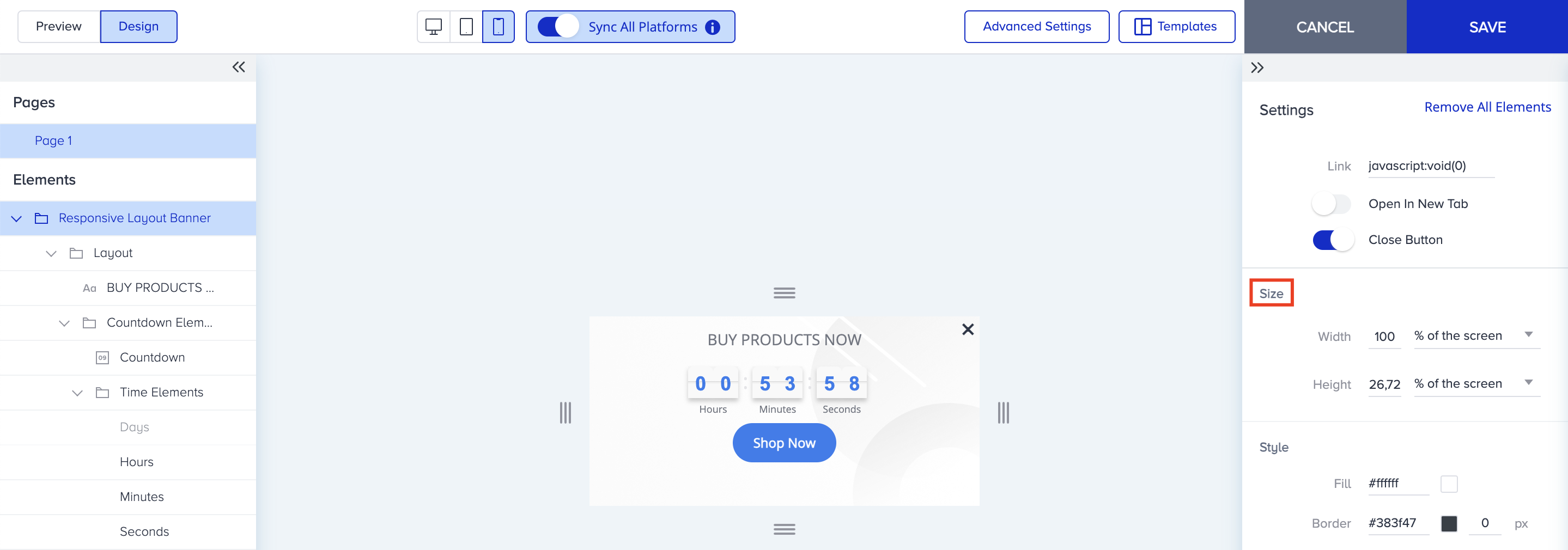
As you drag an indicator, the size values update automatically.
Best practices
If the template content exceeds the visible area, it will become visible when the resizing indicators are selected.
To maintain a clean layout, always review and adjust both the template content and size values after resizing.