Cross-platform templates include both Layouts and Elements. Elements are the building blocks of layouts, and you can add them to the template individually, while layouts are combinations of up to four elements. With these options, designing your campaigns becomes easy and flexible.
Additionally, Template Structure offers more advanced design capabilities, enabling you to easily organize layouts and elements into sections.
How does Template Structure work?
The Template Structure is available for all cross-platform templates except Social Proof. It is under the Settings menu.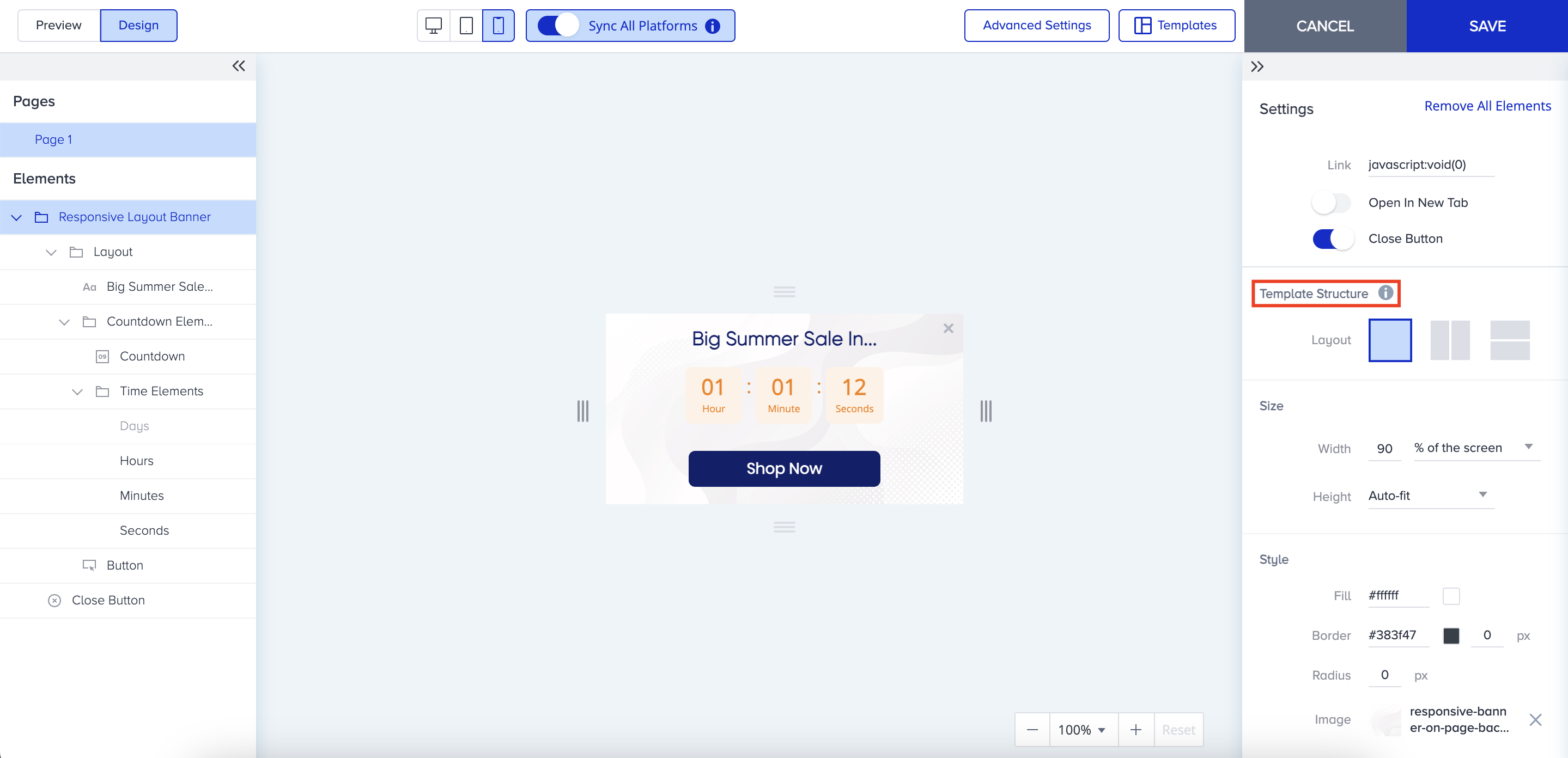
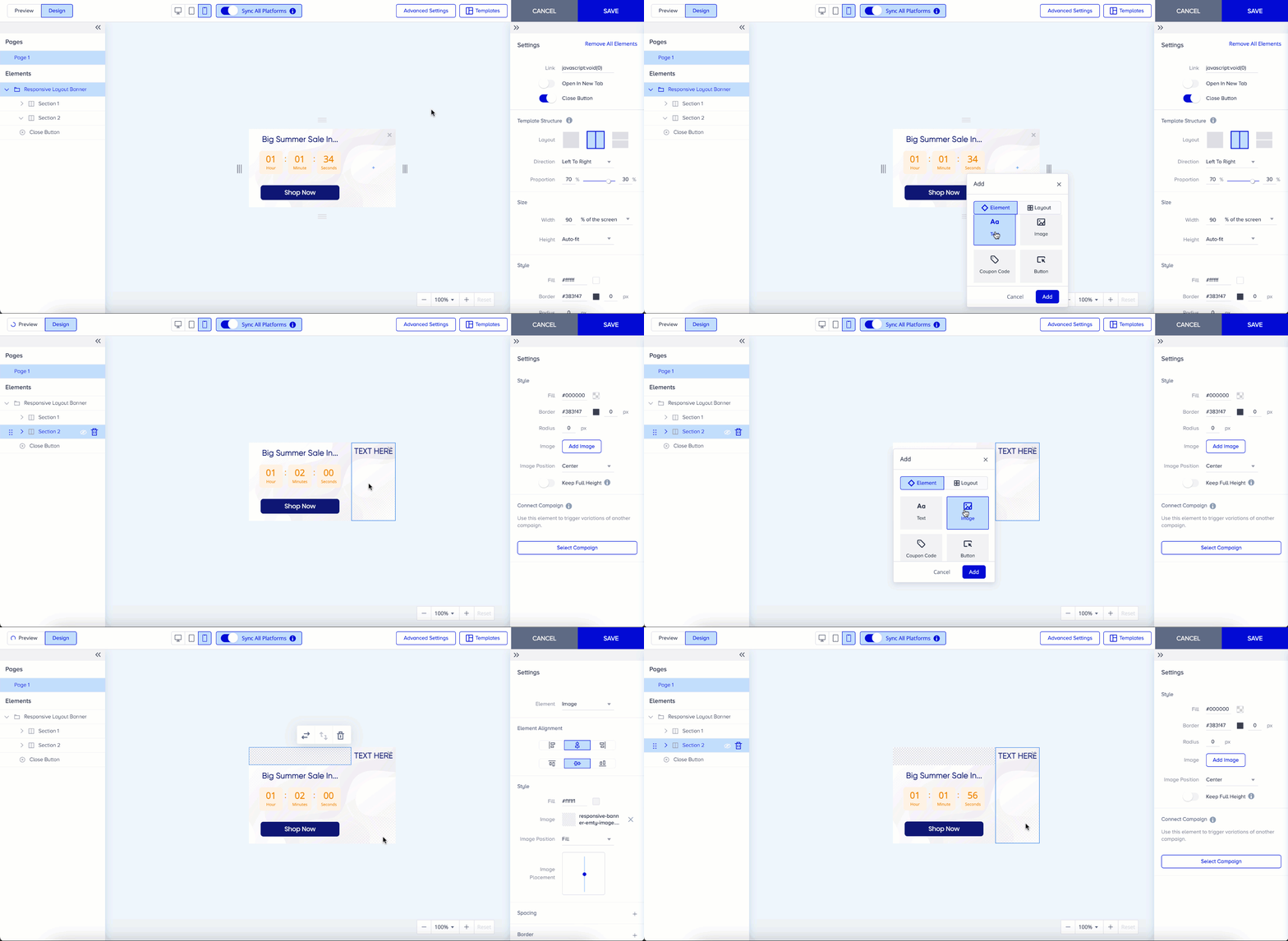
Templates come with one section by default; you can add a second section if desired. Depending on your preference, the templates are divided into two sections, either horizontally or vertically. All elements from the first layout or the first individual element are placed in the first section, while everything else is allocated to the second section of the design. You can adjust the layout direction of your structure either through the Settings in the right menu or by dragging sections in the left menu if you want to change it.
.gif)
You can also drag the sections to change the proportion between the sections, or you can do so via the slider.
.gif)
When you add a section to one platform, it will also be added to other platforms if synchronization is enabled. The order of elements/layouts inside the section will also be synced across all platforms. However, changes to the layout structure will not be applied to other platforms. For example, if you choose a horizontal layout structure, it will not be synced with different platforms. Mobile may have a vertical structure, while desktop may have a horizontal structure when sync is enabled. Direction and proportion settings are also not synced to other platforms, allowing you to easily differentiate the designs.
The experience of adding a new element or layout is the same for the Template Structure. You can add an element/layout via the Add Element menu.
Use cases
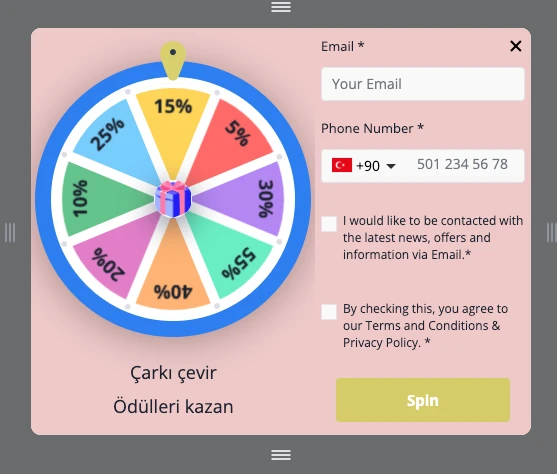
Assume you want to display a pop-up to your users if they need assistance. Below is the design you want. Since a layout can include a maximum of 4 elements, you cannot do the same design without Template Structures.
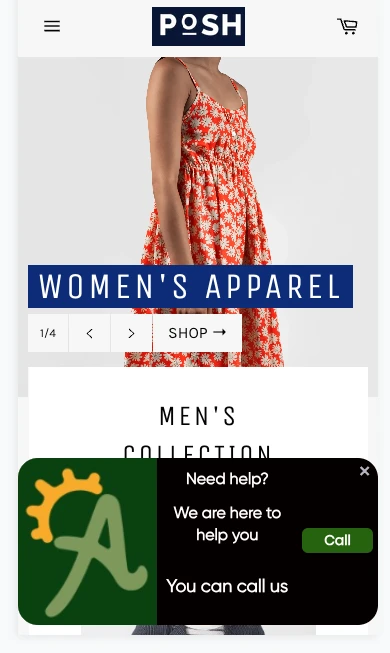
Using the Template Structure, you can realize this scenario:
The design requires adding two layouts side by side.
The first layout is 1x4, and the second layout is 3x1.
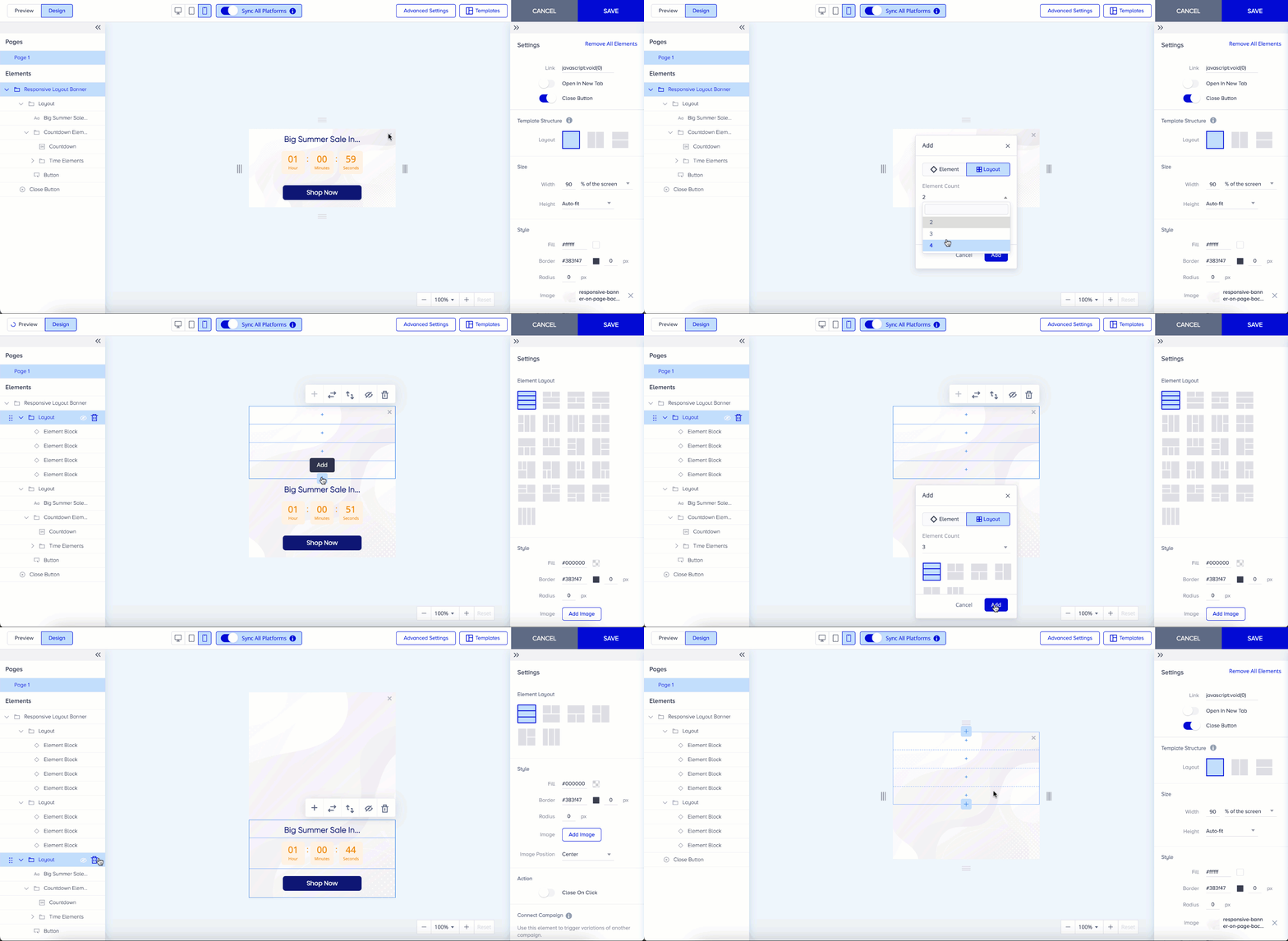
Thanks to the template structure, you can add the second layout to the design and split it into two sections.
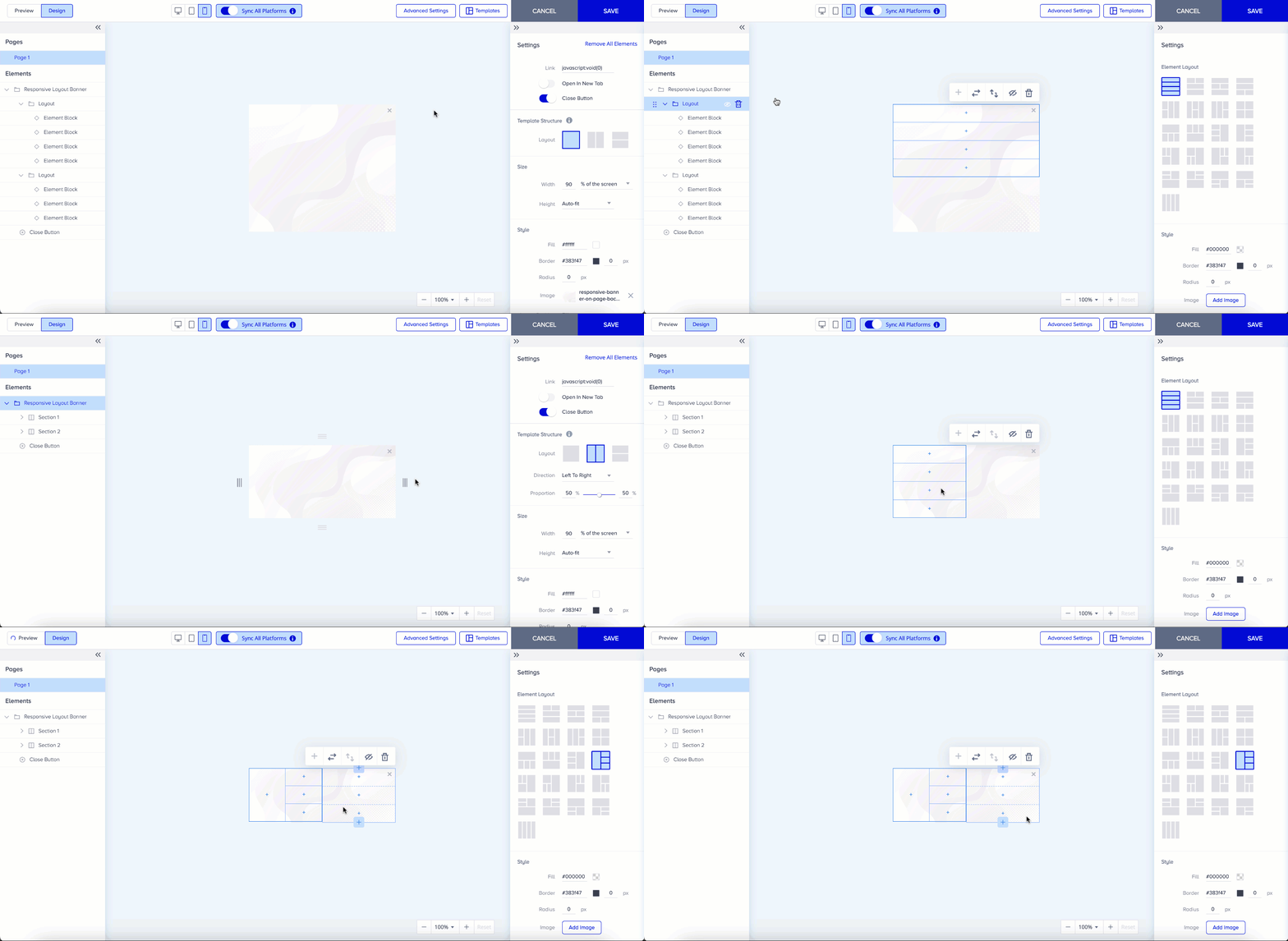
Then, you can adjust the layouts according to the design with ease.
You want to launch a Wheel of Fortune campaign and position the wheel to the left, accompanied by an explanation in the desktop version. The non-responsive Wheel of Fortune template helps you position the Wheel in the left part, but you cannot add text. So, using the Template Structure helps you add it.
You need two elements and five elements in those two sections.
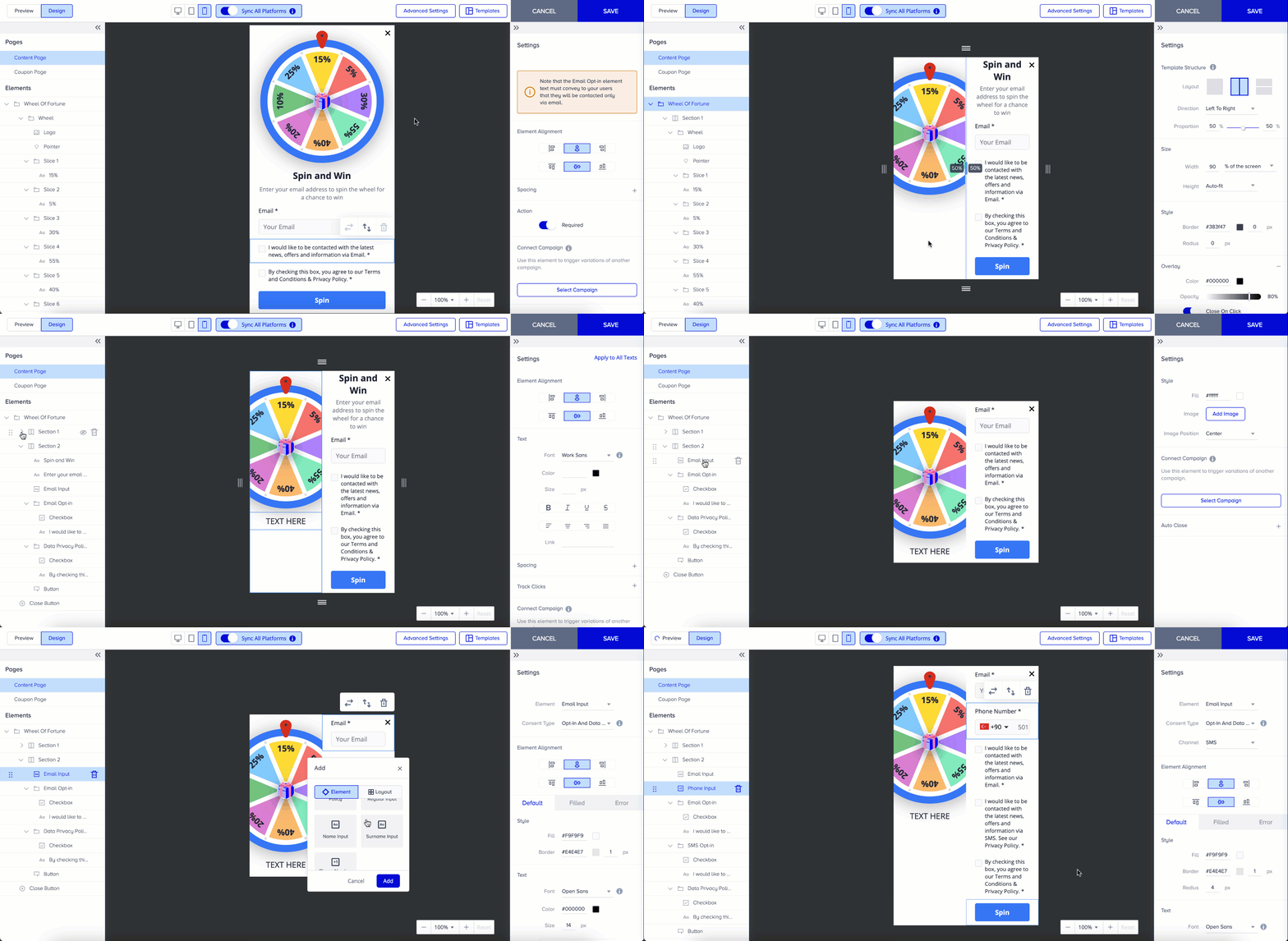
You can also add a layout to the 2nd section if you want.
You have time-bound coupon codes and want to give them to users who share their email addresses. This is the Pick a Gift campaign design you want to create:
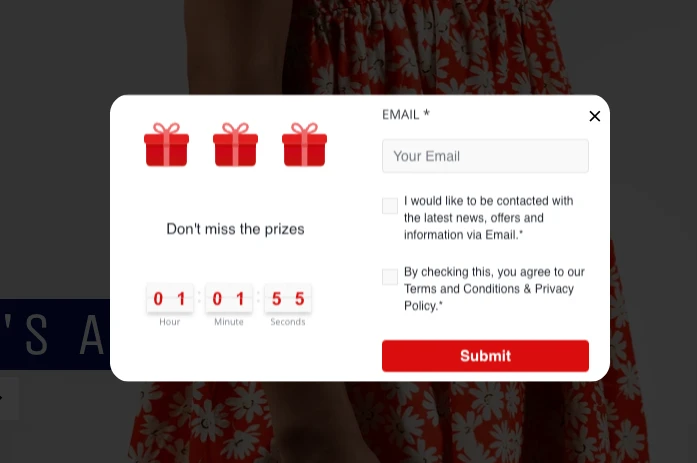
The design requires three elements and a 4x1 layout.
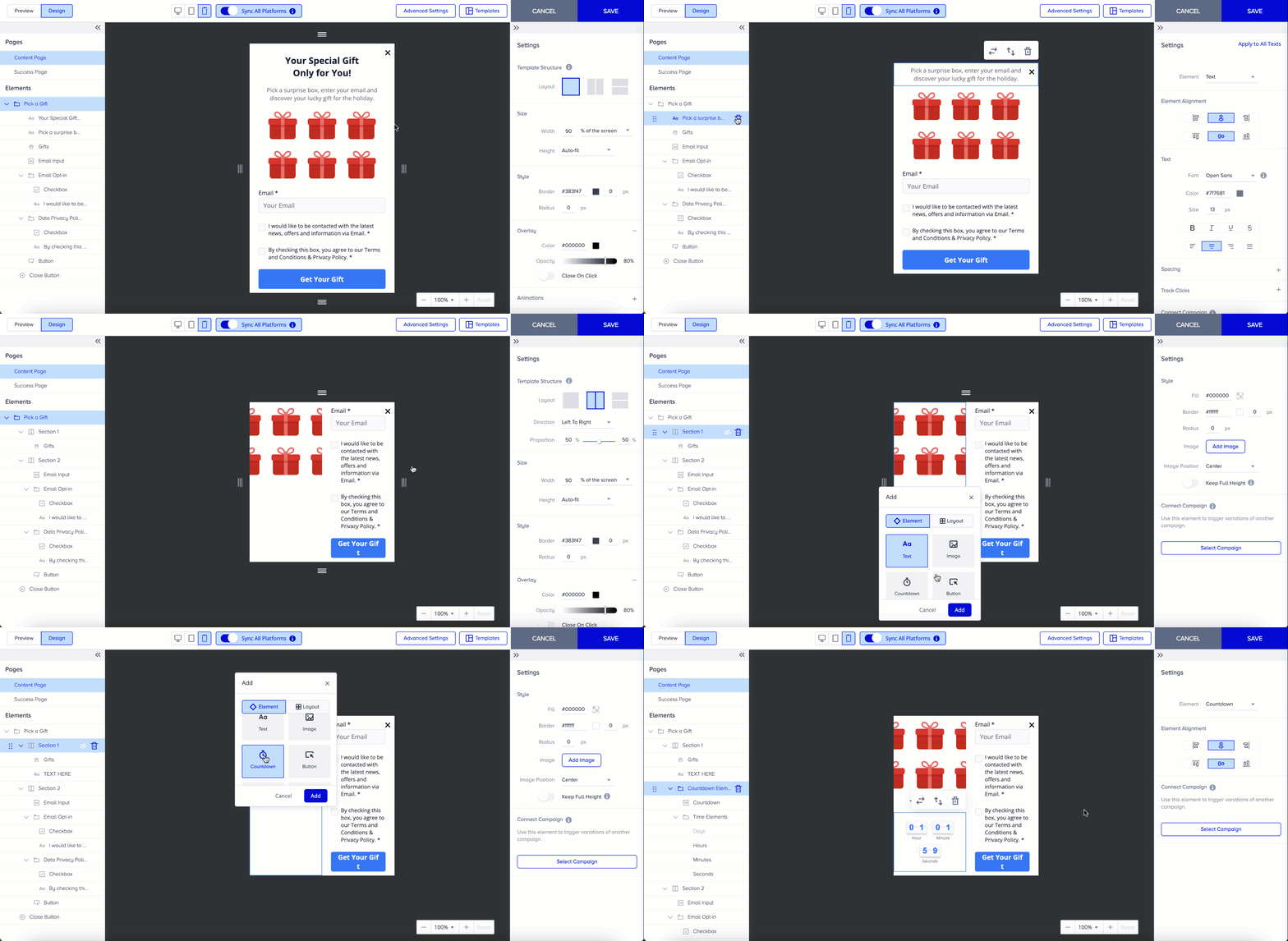
After designing the sections, you can focus on the details.
Overall, the Template Structure allows you to design the templates individually by splitting them into two parts. In other words, you can consider them as merging two designs in the same campaign.