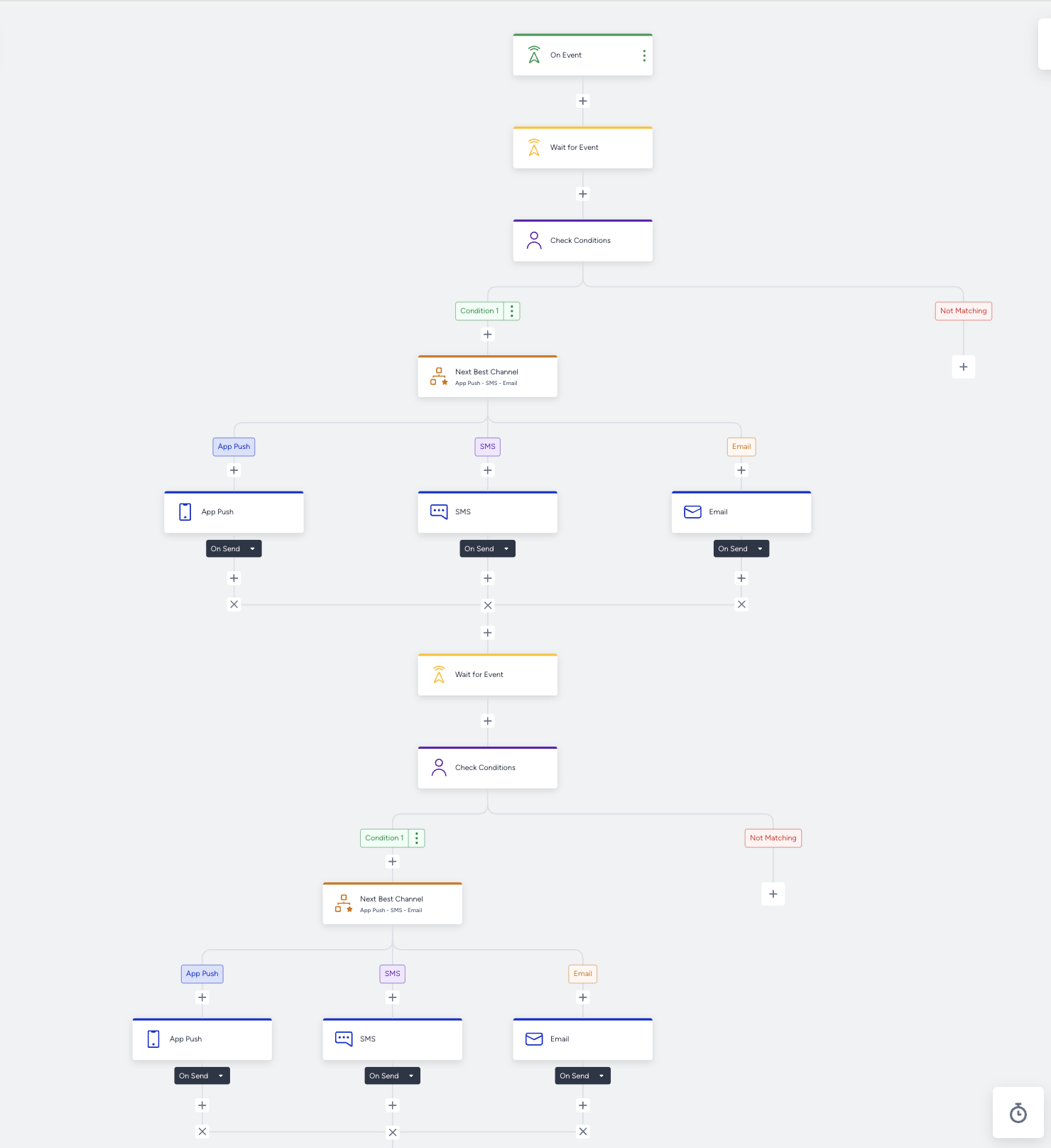
Loan applications often involve several steps after submission, such as assigning a financial advisor, uploading documents, and completing verification tasks. Customers can forget these steps, which slows down the approval process.
The Loan Application Task Completion Reminder use case is a journey that guides customers through the loan application process and ensures that required tasks and document submissions are completed for the same loan application.
When a customer submits a loan application, the process typically includes follow-up steps such as assigning a financial advisor, uploading required documents, and completing verification tasks. These steps can happen across different channels or timeframes.
By using Architect and its event parameter consistency features, this use case tracks actions associated with the same loan application (loan_id) throughout the journey. Reminders and communications trigger only when the required tasks for that specific loan are not yet completed.
Using Constant Starter Event Parameters, the journey compares the loan ID from the initial loan submission with later events such as advisor assignment or document completion. This keeps the journey on the correct loan process and avoids mixing events from different loan applications that belong to the same customer.
Why is the Loan Application Task Completion Reminder use case important?
Loan application processes often require multiple steps and interactions between customers and advisors. Without timely reminders and proper tracking, customers can forget to upload documents or complete tasks, which slows down the approval process.
This use case helps financial institutions in the following ways:
Prevent application drop-offs: Customers sometimes begin a loan application but fail to complete the required documentation. Automated reminders help them finish the process.
Ensure process accuracy: By tracking actions through the same loan ID, institutions avoid confusion between multiple loan applications that the same user submits.
Accelerate loan processing: When customers complete their tasks on time, advisors review applications faster and move them toward approval.
Improve customer experience: Proactive reminders help customers navigate complex financial processes smoothly.
What goals can you achieve with the Loan Application Task Completion Reminder use case?
Increase loan application completion rate: Customers who start the process receive encouragement to finish required tasks and submit documents.
Reduce operational delays: Advisors receive completed documentation faster, so they process applications more efficiently.
Improve customer engagement: Timely and contextual reminders keep users informed about the status of their loan application.
Ensure data consistency across events: Constant Starter Event Parameters guarantee that all actions relate to the same loan application.
Enhance advisor productivity: Advisors spend less time chasing missing documents and more time reviewing completed applications.
Technical requirements
Before using any channel in your journeys, you must complete the respective channel integrations. Depending on the channels you want to use, additional integrations might be required.
If you need custom events, create them and send them to Insider One. This use case relies on the loan_submission, advisor_assigned, and loan_task_completed events.
If you have a mobile app, you must implement SDK Integration.
For further integration details, refer to Architect Integration Guide.
Create a Loan Application Task Completion Reminder journey
You can create a Task Completion Reminder journey to remind your users to complete their tasks and fill out the required documents for their applications. You can create this journey for specific loans and BFSI offerings, as well as for users with specific attributes, such as high-value customers.
Below is an example use case scenario for banking, finance, and insurance (BFSI):
John submits an online application for a personal loan through your bank's website. Several steps must be completed before the application can move forward, such as assigning a financial advisor and collecting required documents (e.g., proof of income, ID verification, or bank statements).
Once John submits the application, the system records a loan_submission event with a unique loan_id. Shortly after, a financial advisor is assigned to review and assist with John's application. However, John still needs to complete several required tasks, including uploading documents.
Customers can start multiple loan applications over time (e.g., a personal loan and a car loan). Therefore, you need to ensure that advisor assignments and completed tasks correspond to the same loan application.
Also, as the banking company, you might track loan amounts that increase when an advisor is assigned. In that case, check whether the loan amount is more than the amount in the first application, and configure your communication strategy accordingly.
Starter: When John submits the loan application, he enters the journey through the loan_submission event, which includes the loan_id parameter. This parameter remains constant throughout the journey.
Wait for advisor assignment: After John enters the journey, the system waits for a short period (e.g., one hour) to allow the advisor assignment process to take place. You can also use the Wait for Event element to hold users until an advisor is assigned.
Check whether the advisor is assigned for the same loan: Use the Check Conditions element to evaluate whether the advisor_assigned event occurred with the same loan_id as the starter event.
If an advisor has been assigned for the same loan, John proceeds in the journey.
If not, the journey triggers an internal notification for manual follow-up.
Using Constant Starter Event Parameters ensures that the advisor assignment corresponds specifically to John's loan application, not to any other loan he submitted.
Wait for task completion: Once the advisor is assigned, wait for a period (e.g., 24 hours) to give John time to complete the required tasks and upload documents.
Check whether the required tasks are completed for the same loan: Add another Check Conditions element to evaluate whether John has completed the required tasks. This step checks whether the loan_task_completed event occurred with the same loan_id as the starter event.
If John completed the tasks for the same loan application, the advisor can start processing the loan application.
If not, he proceeds to receive a reminder message.
Send a reminder message: If John has not yet completed the required tasks, send him a reminder through an appropriate communication channel such as email, SMS, or push notification. The message can include:
A reminder to upload missing documents
A link to continue the loan application
Contact information for the assigned advisor
Below is an example message:
"Your loan application is still in progress. Please complete the required steps to move forward with your application. Your advisor is ready to assist you if needed."
Optional follow-up check for loan amount increase: You can also check whether the loan amount increased during the process and send relevant communications to encourage a further increase. To do so, check whether the loan_amount is greater than the loan_amount in the starter event.
Step 1: Select the starter
Select the On Event starter and choose the loan_submission event. When a customer submits a loan application, they enter the journey.
The starter event must include a unique identifier, such as the loan_id parameter, which remains constant throughout the journey to ensure that all actions correspond to the same loan.
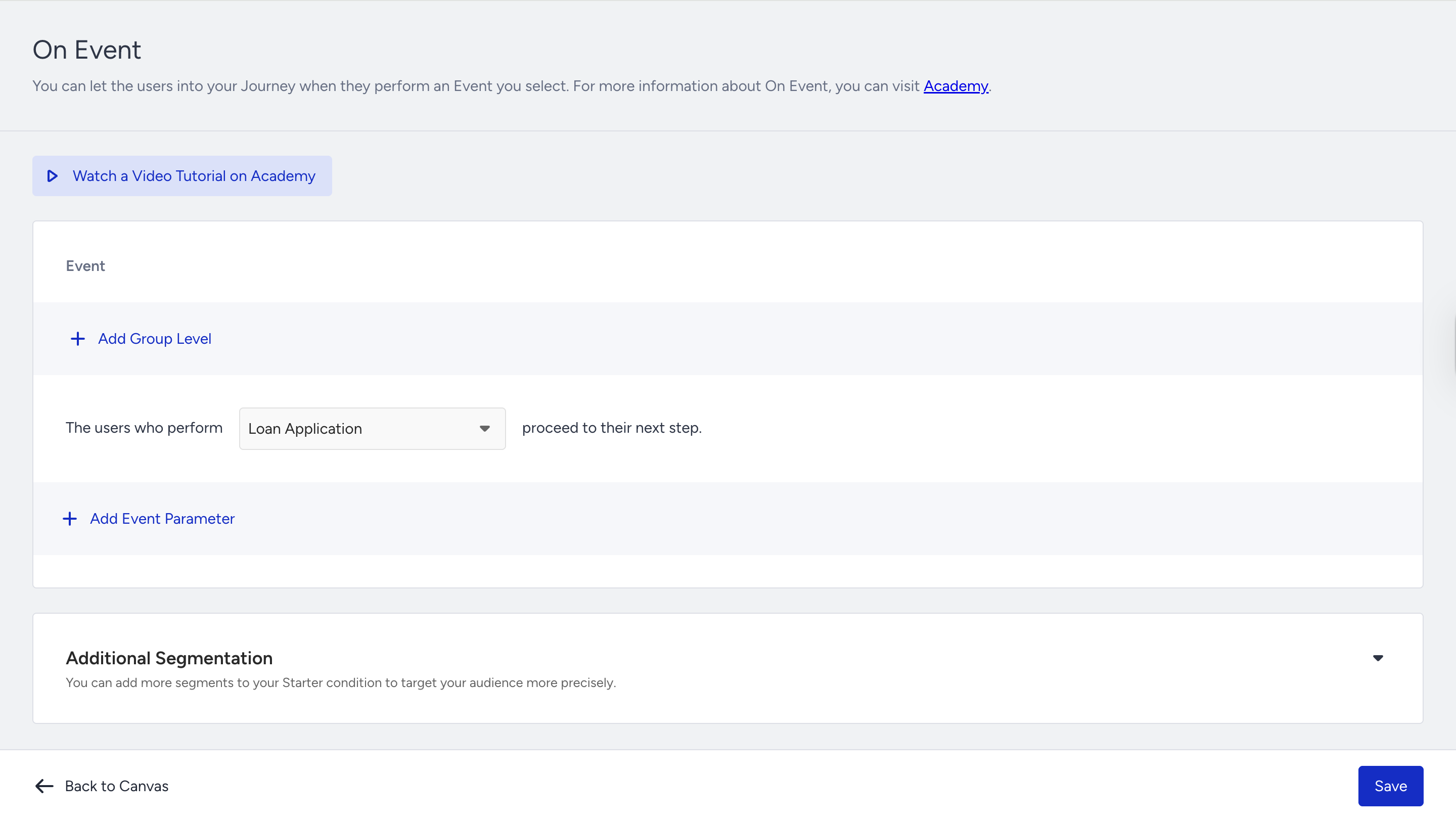
The On Event starter considers every platform to take users, such as a website, a mobile app, and offline data (passed by the CRM API). You can have custom events for different scenarios, such as booking or watching a series.
Step 2: Target the correct segment
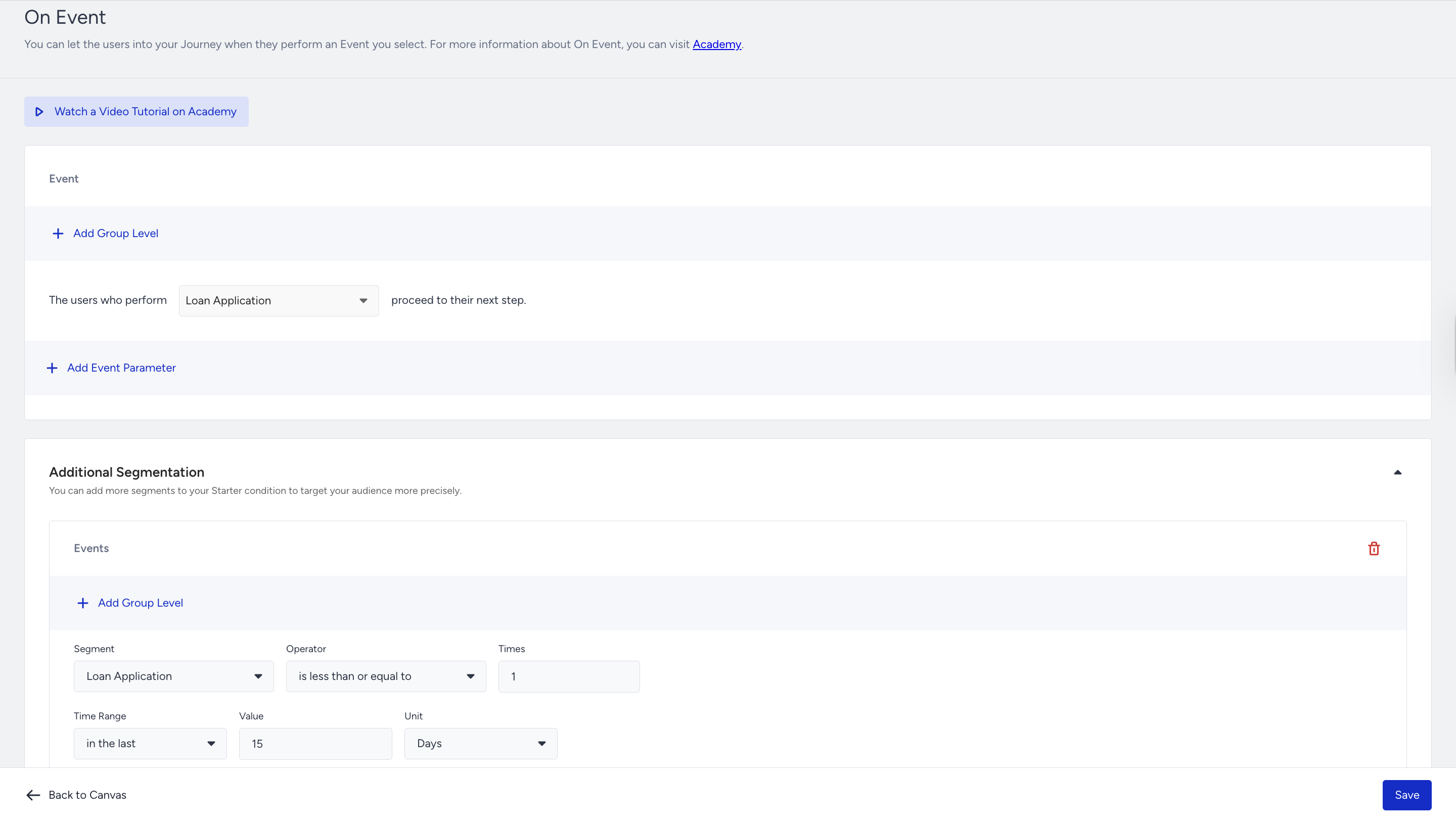
You can optionally segment users based on loan attributes such as:
Loan type (home loan, personal loan, or car loan)
Loan amount
Risk category
Application channel (mobile app or web)
This helps financial institutions personalize reminders based on the loan application's complexity or priority.
Step 3: Build your journey
3.1.1. Wait for advisor assignment event
After you decide on the segmentation, add a Wait for Event element to wait until an advisor is assigned to the user.
Alternatively, add a Wait for Some Time element (e.g., one to two hours) to allow the system to assign a financial advisor to the loan application.
This delay also prevents race conditions in which advisor assignment events are not yet registered in the system.
3.1.2. Check whether the advisor has been assigned for the same loan
Add a Check Conditions element to evaluate whether the advisor_assigned event occurred. Use Constant Starter Event Parameters to ensure that:
advisor_assigned.loan_id = loan_submission.loan_id
The matching path means an advisor has been assigned for the same loan application.
Users in the not matching path can receive an internal notification or follow-up action to ensure that the advisor assignment happens promptly.
3.2. Filter your users
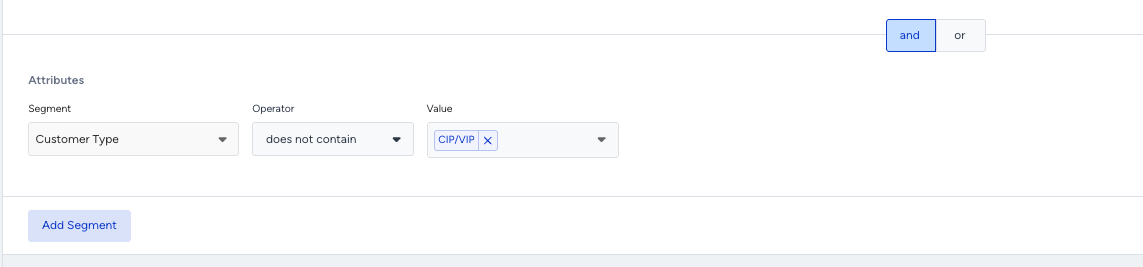
You can add a Check Conditions element to filter users for different paths on the journey flow:
Segment users based on their loyalty or type attributes.
Segment users based on their previous loans and applications.
Segment users based on their previous purchase history, including frequency, value, and product categories.
Segment users based on their language.
Segment users based on any attribute or event parameters you want.
3.3. Wait for task completion
Add a Wait for Some Time element (for example, 24 hours) to give the customer time to upload documents or complete required tasks.
You can also use the Wait for Event element to hold users until the tasks are completed and then move them to the next element.
3.4. Check whether the required tasks are completed
Add another Check Conditions element. Evaluate whether the loan_task_completed event occurred. Use Constant Starter Event Parameters to ensure that:
loan_task_completed.loan_id = loan_submission.loan_id
This guarantees that the completed tasks belong to the same loan application that triggered the journey.
Matching path: The user completed the required tasks or documents for the loan.
3.5. Check user reachability
Before sending the initial message, you can check if users are reachable on that channel. If not, you can try another channel on another path of the Check Reachability element.
Adding Check Reachability is valuable because:
You can assess users' reachability on selected channels, and they receive your messages from the prioritized channels if they are reachable.
You can prevent users from dropping out of the journey by directing them to the appropriate path based on their reachability.
You can optimize your budget and resources for the correct channels.
.png)
3.6. Reach your users via the best channel
You can add the Next Best Channel element for the following goals:
Maximize conversion: Ultimately, the reminder journey aims to re-engage users and encourage them to complete their tasks. By using the Next Best Channel element to deliver targeted messages through the most effective channels, you can optimize your re-engagement efforts and drive higher completion rates.
Personalized communication: Effective re-engagement requires personalized communication that resonates with individual users. You can deliver highly targeted messages via the most appropriate channels, increasing the likelihood of capturing users' interest and prompting them to complete their application.
Optimize for reachability: Next Best Channel takes users' reachability on different channels into account as an additional parameter in its decision-making process. This ensures that messages are delivered via channels where users are most likely to be reachable, increasing the chances of successful delivery and engagement.
3.7. Send a reminder message
If users have not completed the tasks, send a reminder message via an appropriate communication channel such as:
Email
SMS
Push notification
WhatsApp
The message can include:
A reminder to upload required documents
A link to the loan application dashboard
Advisor contact information
Instructions on the next steps
Below is an example message:
"Your loan application is almost complete. Please upload the remaining documents to proceed with your loan approval. Your advisor is ready to assist you."
3.8. Select your channels
Channel selection is a crucial decision in your journey to reach your targets. Consider the following factors when you add channels:
User preferences: Users have different preferences for communication channels. Some users prefer email for receiving promotional messages, while others prefer push notifications or text messages. The Next Best Channel element helps you handle these preferences.
Channel effectiveness: Each communication channel has strengths and limitations in reach, engagement, and conversion rates. For example, email works well for detailed, personalized messages, while push notifications suit time-sensitive reminders.
Audience segmentation: Different user segments respond differently to messages delivered through different channels.
Reachability: Review your User Reachability data on the Overall Analytics page. Assess the number of reachable users across individual channels or channel combinations. With insights into user reachability, you can design journeys that capitalize on the best-performing channels to ensure optimal engagement and outcomes.
.png)
3.9. Create your content and send the initial message
You can add different messages to the journey flow, including App or Web Push Notification, Email, SMS, and WhatsApp. You can also show a banner in the On-Site or In-App channel, or use the remarketing opportunity on Facebook.
After deciding how you want to continue with the communication, design your content:
Select Event Parameter on the Add Dynamic Content menu.
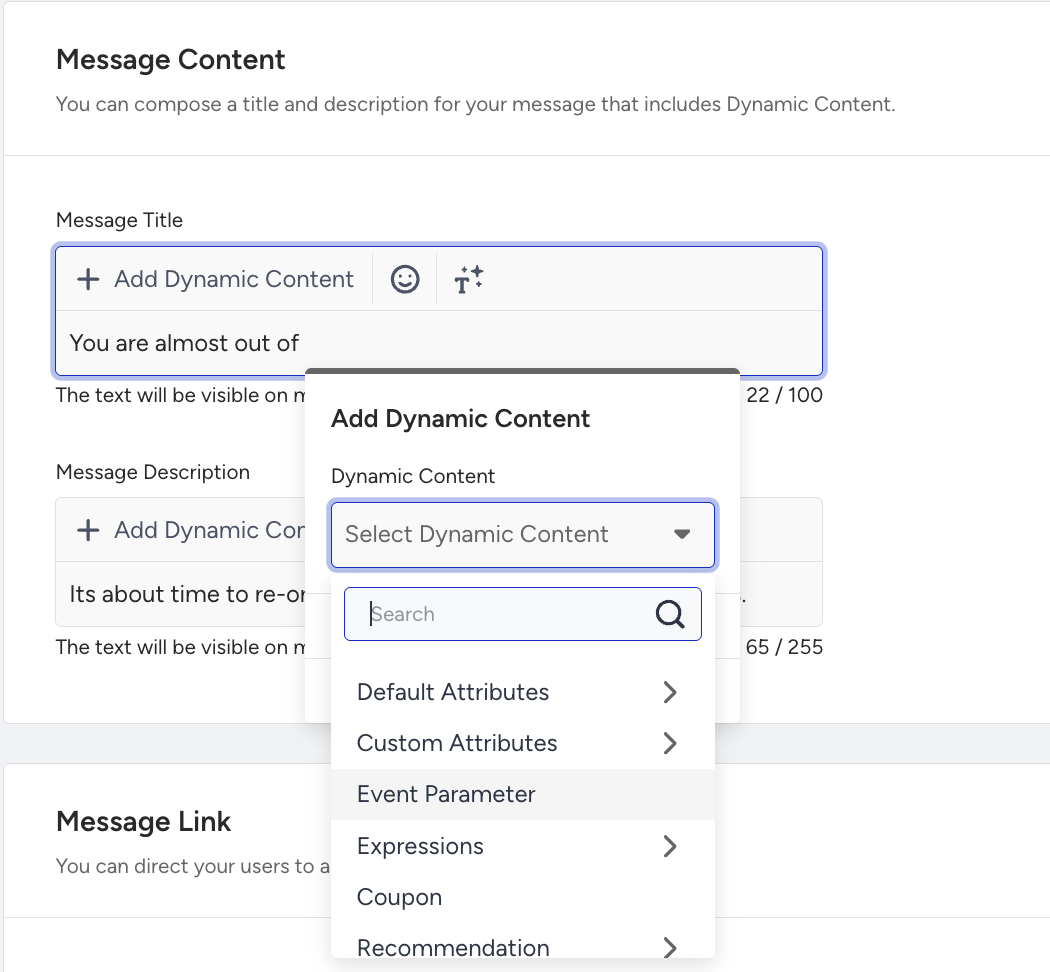
Find the Constant Event Parameter option in the dropdown and choose the necessary parameter. Users receive the message with the parameter of the starter event.
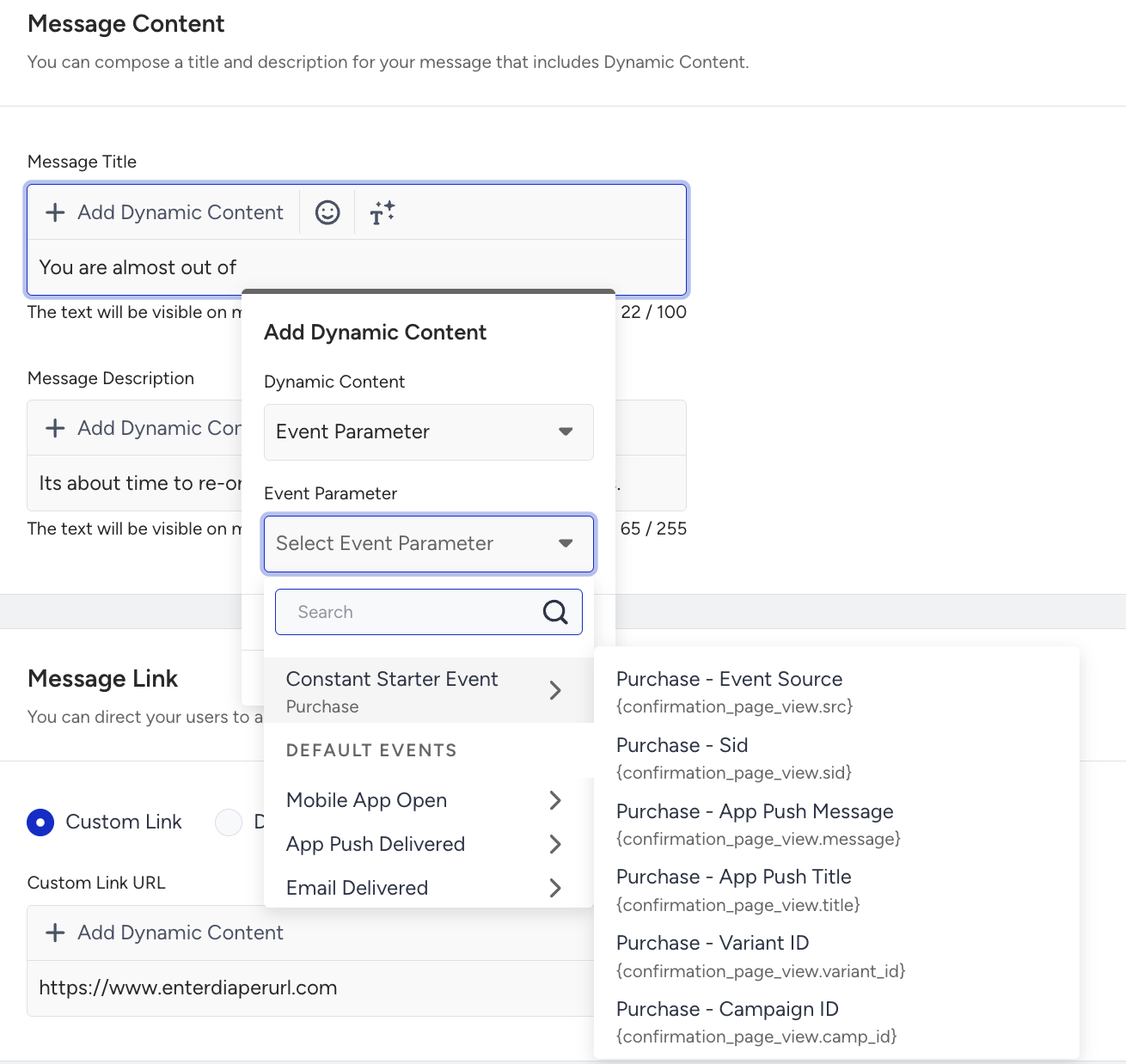
The respective information appears at the top of the page. The event parameters you choose are inserted in the content.
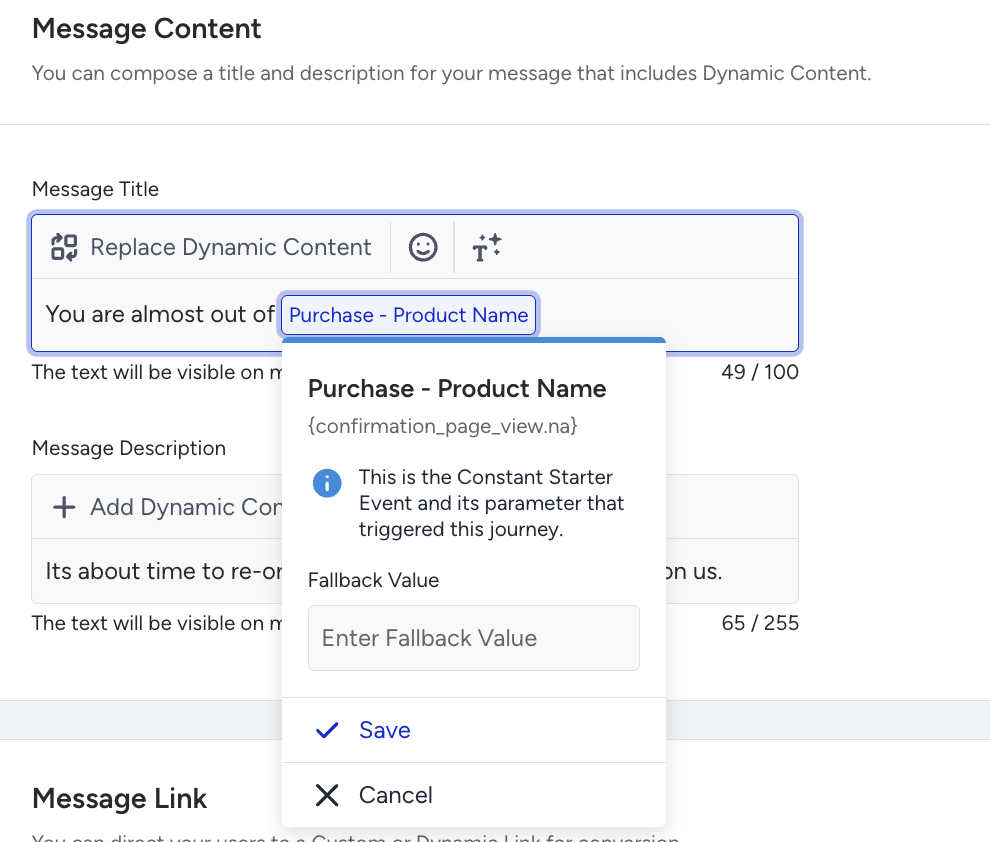
Define a fallback value for your dynamic content.
If you want to use an event parameter again, you can use only the starter event.
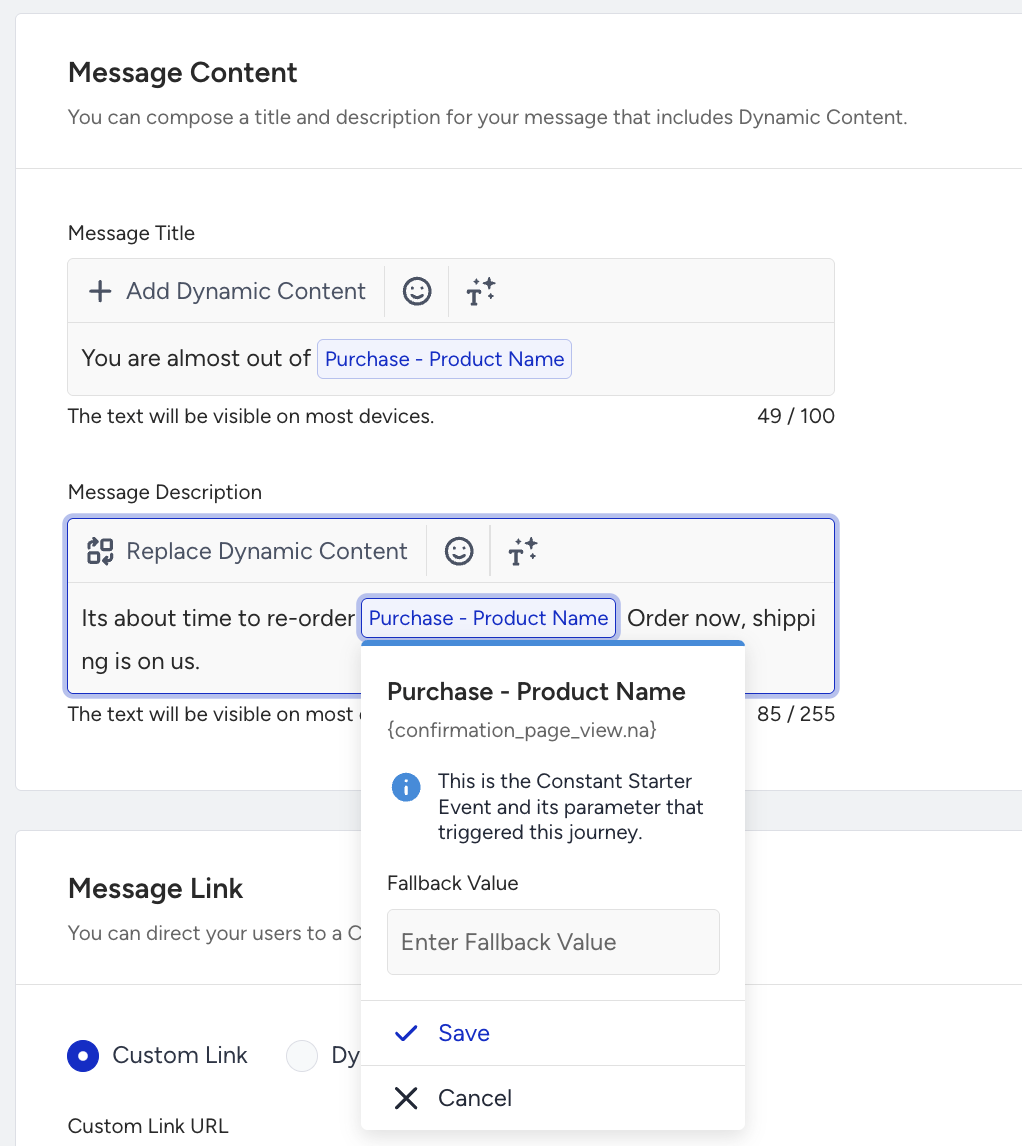
Web Push
You can add event parameters to show users details of their loan application, such as the pending tasks.

You can use and customize premade email templates in Select Templates.
.png)
Follow-up messages, tips, and best practices
Designing effective follow-up communication is critical in loan application journeys. Because financial processes often involve multiple steps and documentation requirements, timely, helpful reminders significantly improve completion rates and customer satisfaction.
Below are several recommendations and best practices for follow-up messages in the Loan Application Task Completion Reminder journey.
Send contextual and actionable reminders: Your reminder messages should clearly explain what the user needs to do next. Avoid generic reminders and guide users toward completing the required steps. For example, your message can include:
A reminder that their loan application is still in progress
A clear list or mention of pending tasks
A direct link to the application dashboard or document upload page
Contact details of the assigned advisor for assistance
Actionable guidance reduces confusion and makes it easier for customers to complete their application.
Personalize messages with advisor information: Including the assigned advisor's name or contact information makes the experience feel more supportive and personalized. Customers are more likely to continue when they know a real person is available to help. For example, your message can include:
Advisor name
Advisor contact information
An invitation to ask questions if assistance is needed
This also strengthens the relationship between the customer and the financial institution.
Use multiple channels for important reminders: Loan applications are high-intent financial processes. If a user does not respond to the first reminder, consider using additional channels to ensure the message reaches them. A common strategy is:
First reminder via push notification or SMS
Follow-up via email for more detailed information
Final reminder or advisor outreach if tasks remain incomplete
Using multiple channels increases the likelihood that users see and act on the reminder.
Give customers enough time between reminders: Avoid sending reminders too frequently, as this can overwhelm or annoy users. Instead, give customers enough time to gather documents and complete tasks. A typical cadence is:
First reminder after 24 hours
Second reminder after two to three days
Final reminder after five to seven days
This approach balances helpful reminders with a respectful communication frequency.
Ensure event parameter consistency: One of the most critical aspects of this journey is ensuring that all events refer to the same loan application. Use Constant Starter Event Parameters to ensure that:
The advisor_assigned event corresponds to the same loan_id as the loan_submission event.
The loan_task_completed event also matches the same loan_id.
This prevents situations where a customer has multiple loan applications and the journey mistakenly evaluates actions from different loans.
You can send users to a contact list to collect their email addresses and retarget them via email.
.png)
You can check multiple reachabilities on channels for users at the same time and lead them to the corresponding path.
.png)
Step 4: Launch your journey
Before launching your journey, complete your launch settings:
Set journey entry capping so you do not send too many messages to the same users. This optimizes your messaging frequency.
Use the User Eligibility setting to prevent users from entering another journey for the same purpose too frequently and receiving the same type of messages.
Set special goals beyond purchase for users who enter the task completion journey. For example, increasing the loan amount in the process or visiting loan pages. You can create a custom event to set goals, or use default events and their event parameters.
If you do not want to send task completion reminders to users who canceled their applications, set the Exit Criteria for users. For example, "Make users exit who canceled a loan application". Exit criteria dismiss users from the journey immediately when the user performs that action or when their attribute value changes to the desired value.
.png)
Example flow
Below is an example flow for a task completion reminder journey.