The Localization feature enables you to create and launch multi-language journeys with ease. This option offers a user-friendly interface that lets you select target locales based on linguistic and regional criteria within a single email campaign.
Using the Localization feature, Architect delivers the right message to the right recipients in their preferred language, enhancing personalization and engagement.
The localization feature in Architect aims to enhance efficiency, increase engagement, report analytics on locales, and boost conversions as follows:
Reduce the time and effort required to create multilingual journeys and manage multiple email content.
Deliver content that resonates with different cultural and linguistic groups to improve engagement rates.
Track performance and insights of a single multi-language campaign for users in different locales.
Tailor messages to specific audiences to increase the likelihood of conversions.
This article explains the following:
Requirements
Localization in Architect Email is available to all partners that have email localization enabled.
To create localization campaigns in the Architect Email channel, you should create user locales for your account.
Create a localization campaign
To create localization campaigns in the Architect Email channel, add an Email element to your journey.
On the Email element page, toggle the Localization button on to enable the Localization feature.
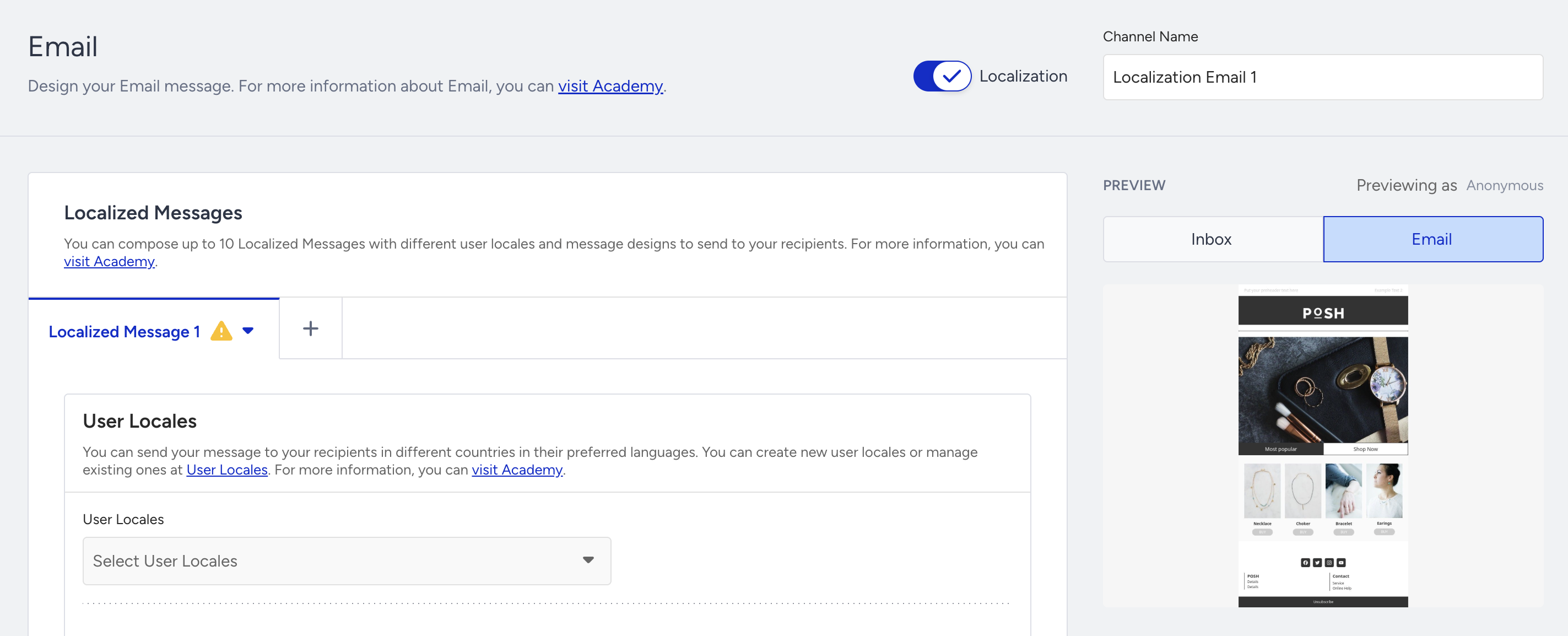
Select the User Locale(s) you want to target with your Email variant.
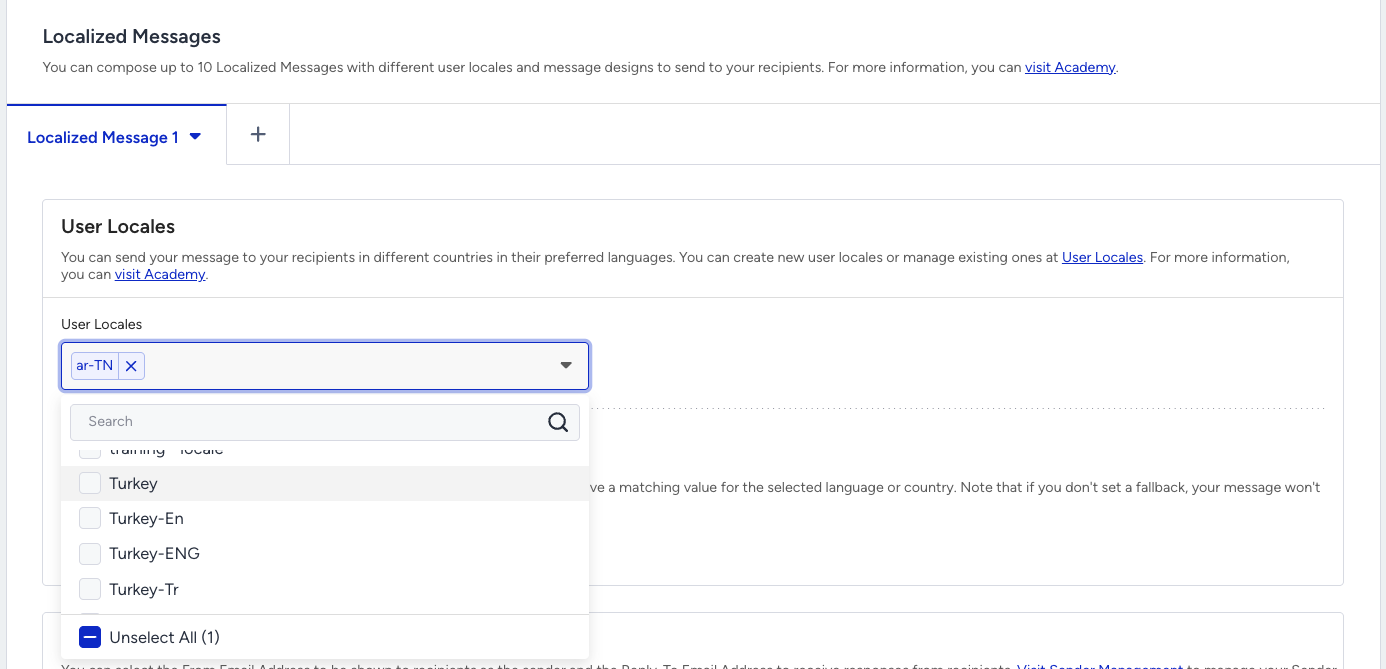
A locale can belong to only one variant in the same Email element, so a locale already used by another variant is disabled.
After you select the User Locale(s), create the Email content and set up your Email settings for the first variant.
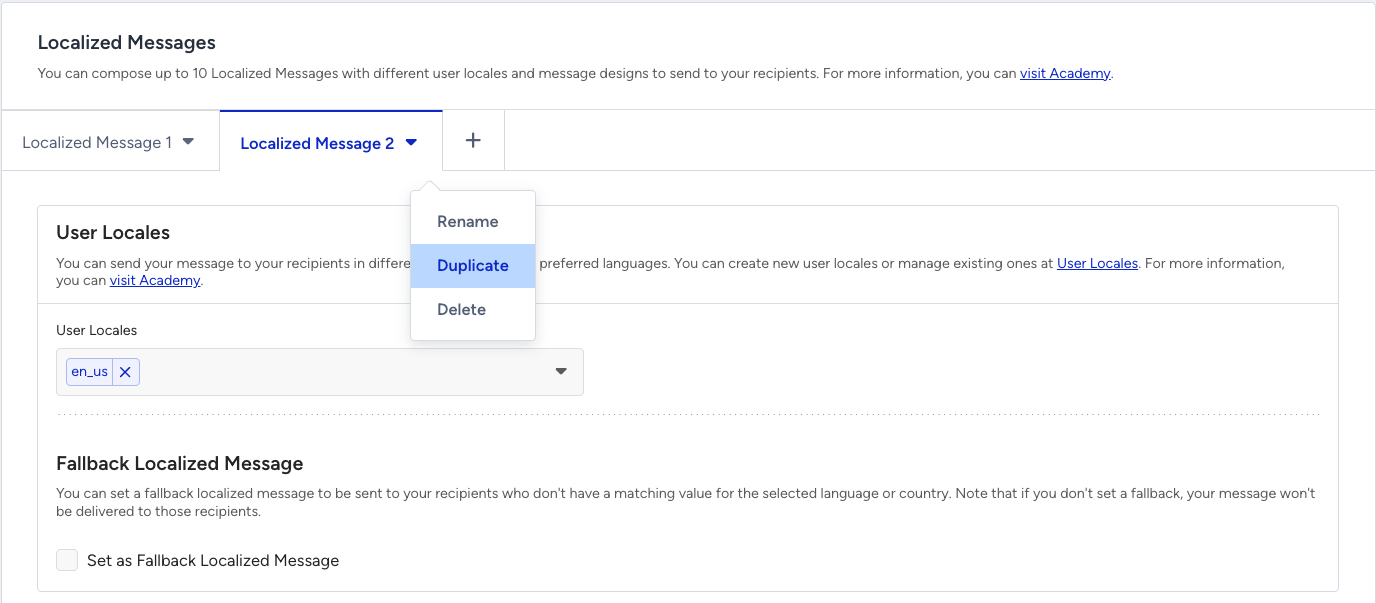
Add more variants with the + button, or Duplicate an existing variant to reuse its content. The copy does not carry over the original's user locales. You can create up to 30 variants in one Email element, including the fallback.
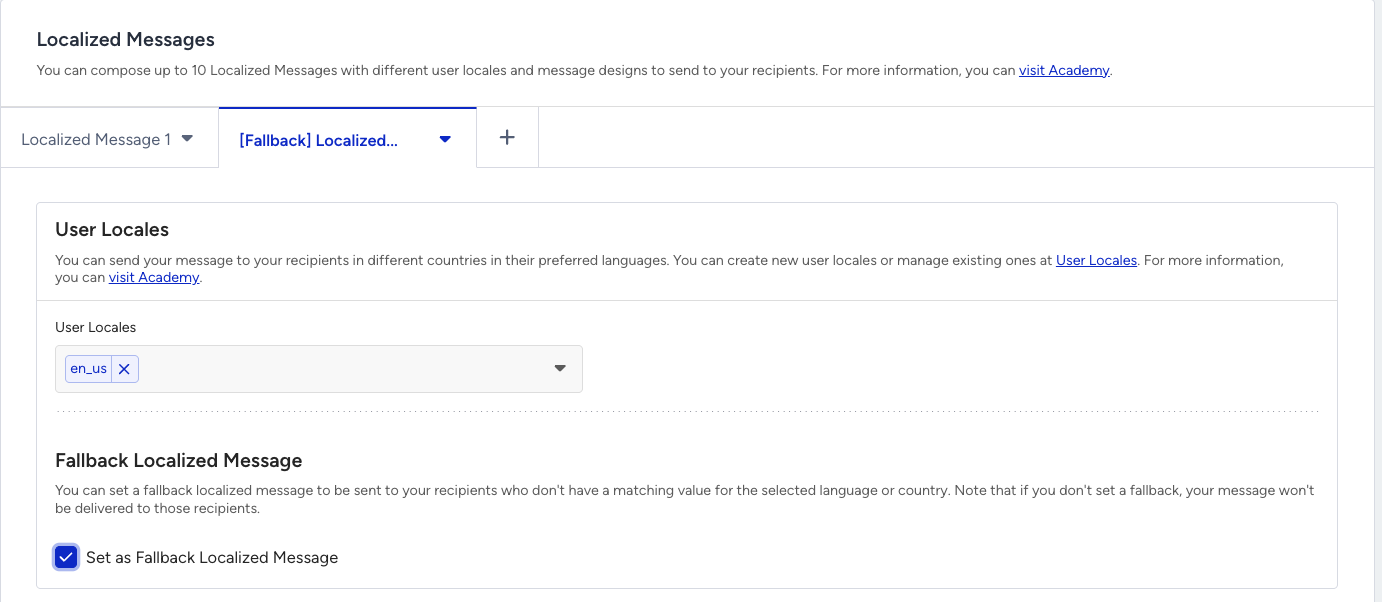
Optionally check Set as Fallback Localized Message on one variant. Users whose locale does not match any variant receive this fallback variant.
Use the variant tab dropdown to rename, duplicate, or delete a variant, or Disable Localization to turn localization off. When you disable localization, Architect keeps the content of the fallback variant, or the first variant if no fallback is set.
If the variant tab has an error or a warning, tabs will have a warning icon to inform the user.

Test the localization campaign
Testing your localization campaign before launching it is crucial to ensure its success and effectiveness.
After you build your content, click Preview and Test Message to test your localization campaign. Architect previews and sends the test message of the variant you display on your screen.
Check reports
Architect reports the performance metrics of localization campaigns on the Email Channel Analytics page. To display the metrics, navigate to Email Channel Analytics > Performance by User Locales.
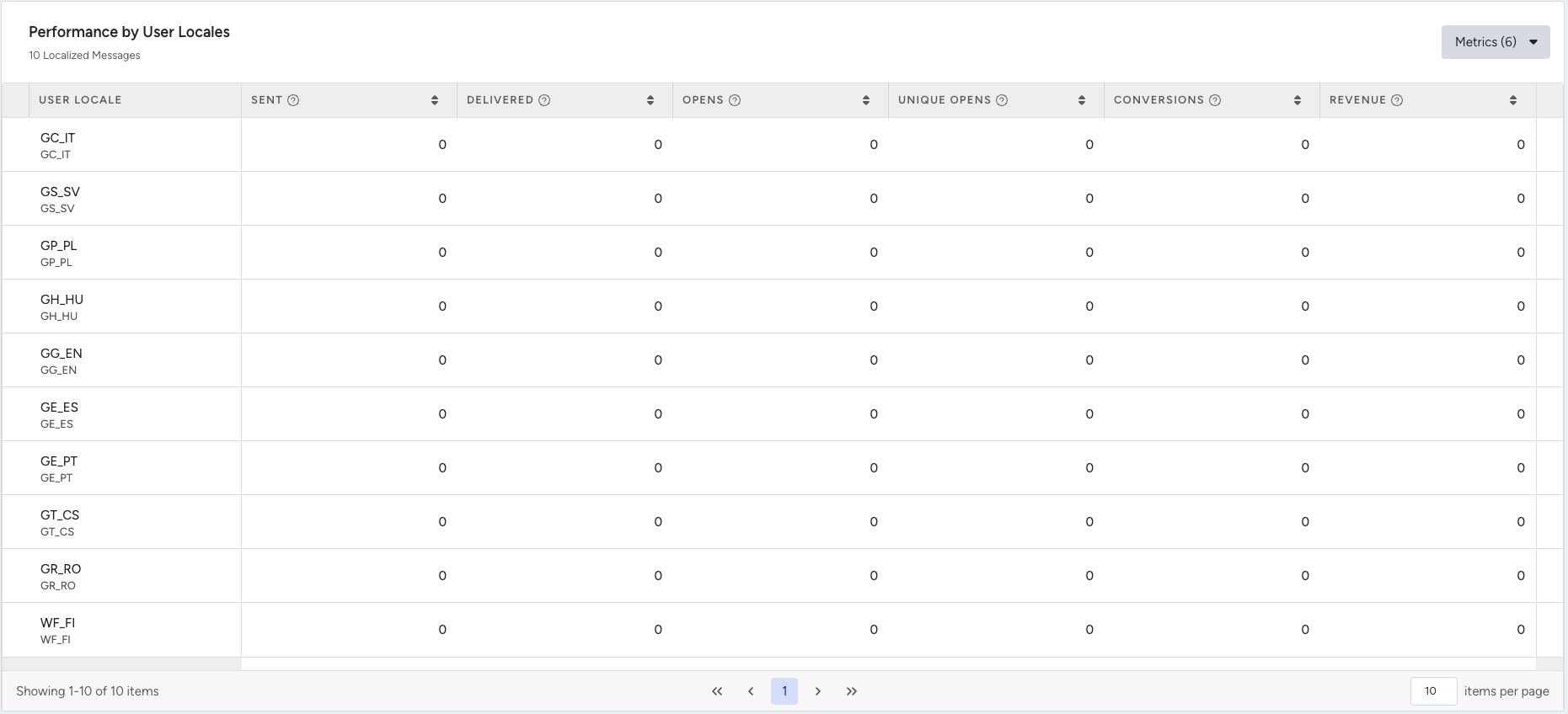
If you have not selected a Fallback Localized Message, users whose locale does not match any variant are dropped from the Email element and reported as a System Drop under Dropped Messages. If a fallback is set, those users receive the fallback variant instead of being dropped.
Keep in mind
Localization is supported only for the Email element. Other channel elements do not support it.
A user locale can belong to only one variant per Email element.
You can create up to 30 variants per Email element, including the fallback.
You cannot add or remove variants in an Active journey. To change variants, edit and version the journey.
Adding, removing, or renaming locales is only allowed while the journey is in Draft. You can still edit the content of existing variants on an active journey.
A fallback is optional. Without one, users who do not match a locale are dropped (System Drop).
FAQ
Q: Can we add or remove variants in an active journey?
A: No. You need to edit and version the journey to change its variants.
Q: How can we segment users who received a specific variant?
A: Each variant has a distinct ID. Use that ID to segment the users who received it.
Q: Does the Language selection in Launch Settings affect the campaign?
A: Yes. If you limit journey entry by Language, some users with locales that carry that Language value may not receive the email because users do not match the journey language and will not enter the journey.
Q: Does Architect duplicate the variants across accounts?
A: If localization is enabled, only the content of variants of your Email element will be duplicated. Architect does not duplicate user locales to the target account.
Q: How does the constant event parameter work with Localization?
A: When you enable a constant event parameter in one of the variations, Architect makes the event constant across all variations when you add the event to the other variations.