Suggested readings: Personalized Content in Architect Journeys, Events and Attributes
You can insert dynamic content into your journeys to personalize your messages for each user. Once a user arrives at a channel element in the journey flow, the system uses their last action or the last updated value of a specified attribute to display dynamic content based on your selection.
Some strategies may not require the details of their last action (i.e., event parameter) or the latest updated value of an attribute. Instead, they may require an event parameter for the event used when a user enters a journey for the first time. The following example provides a better understanding of such strategies.
You want to target the users who purchased an item from a particular category or product that needs replenishing after a while. To do this, you need to remind these users to repurchase the same product. Let's say Jackline purchases diapers for her baby today and enters the journey. She will be on hold in the wait element for two weeks. After two weeks, she will receive an email or a web push notification that reminds her to repurchase diapers. Meanwhile, she also purchases a maternity care product one week after the diapers. After two weeks, she proceeds to the channel element and receives an email or a web push notification that reminds her to repurchase {product}.
Suppose you insert the "last purchased product name" or "purchase name" event parameters in the {product}. It will be {maternity care product} instead of {diapers} as the system considers a user's last action or last updated value of a specified attribute.
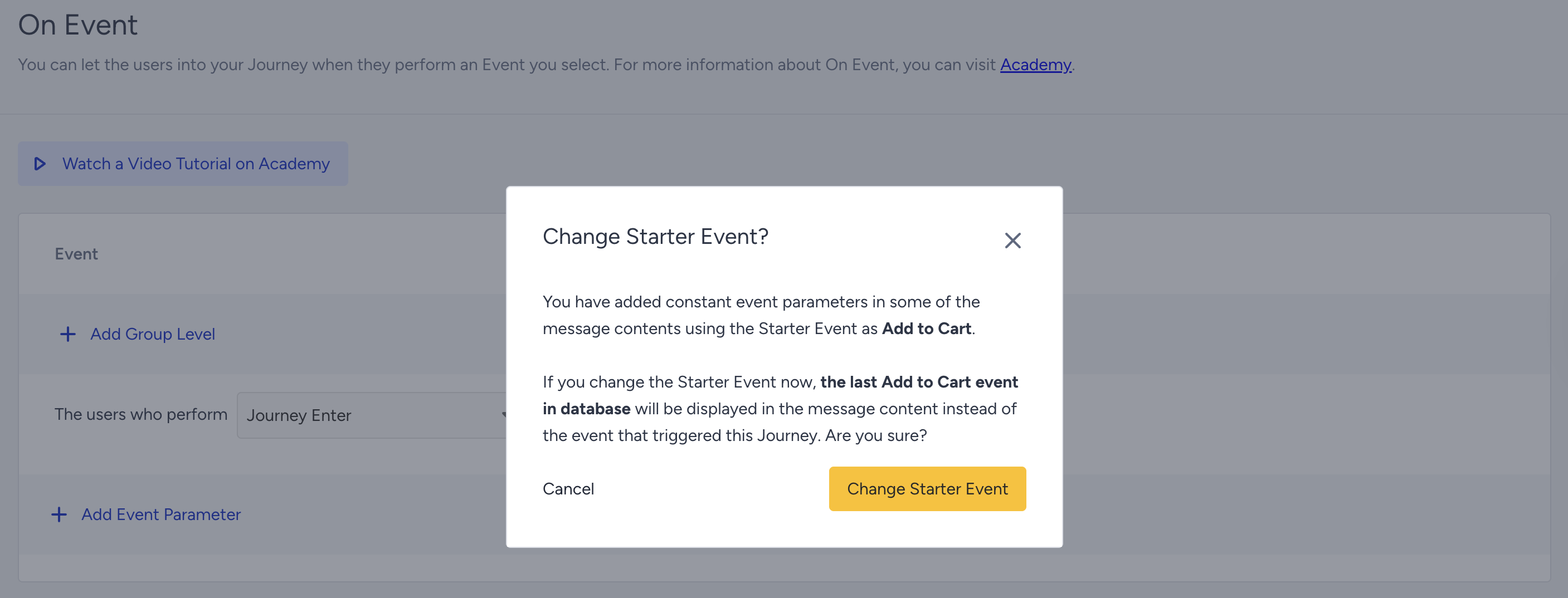
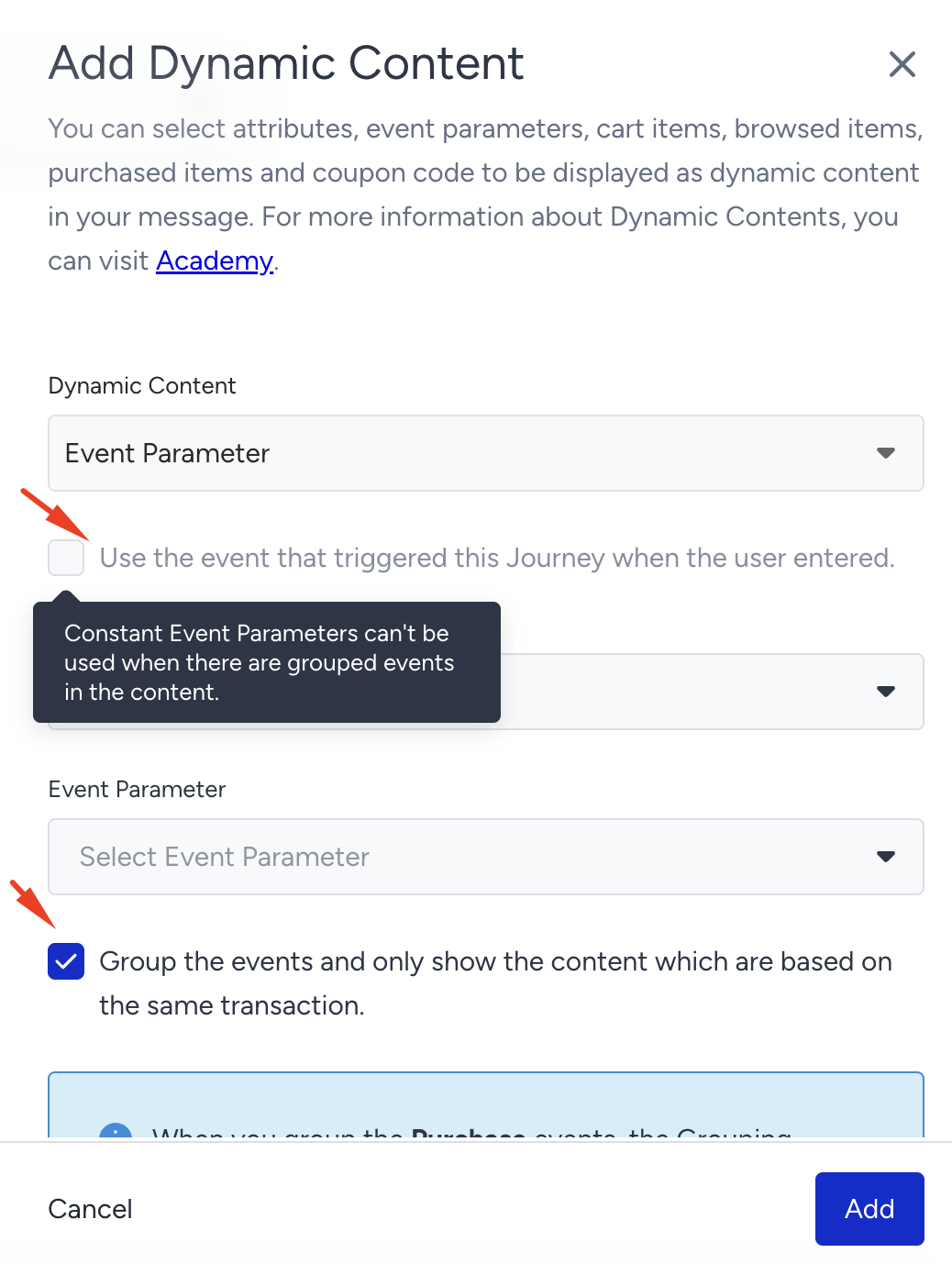
To display {diapers} instead of {maternity care product}, you should check the "Use the event that triggered this journey when the user entered." box. This will allow the system to use the event parameter that triggered the journey in the first place as a constant.
Constant event parameters help you offer more relevant content and highly personalized experiences throughout your journeys, as in the following use cases:
- Replenishment: Remind your users to repurchase products that might be running low in stock.
- Browse abandonment: Instead of nudging users with the last browsed product information, nudge them with the content they first browsed.
- Subscription: Your website may have many subscription options and pages. Remind your users to subscribe using the first subscription option they visit.
- Flight reminder: If users have two or more flights, send a reminder before each flight, including the flight details.
- Cross-selling: If the user buys more than one product or service, offer the most relevant and curated ancillary or complementary products or recommend a service.
- Ask your users whether they liked the movie they watched when they start watching another movie.
How do constant event parameters work?
Once you enable constant event parameters in your journey and launch it, the event for a specific user will be automatically marked the first time they enter the journey. When the user arrives at the channel element, they will receive the message content that includes the selected event parameter(s). In this case, the last event will not populate the event parameter(s). Instead, the event that triggered the journey will populate it.
Take, for example, the 10 purchases Daniel has made until now. All purchase events are already stored in the database. Today, Daniel makes his 11th purchase and enters the journey. Two days after entering the journey, he makes his 12th purchase. He arrives at the channel element in the journey flow and receives a message with the details of the 11th purchase.
Use constant event parameters in a journey
To use constant event parameters in your journey, follow these steps:
1. Select On Event or On Dynamic Date as your starter element and choose the event that will trigger your journey. You can also add event parameters. Save the starter element.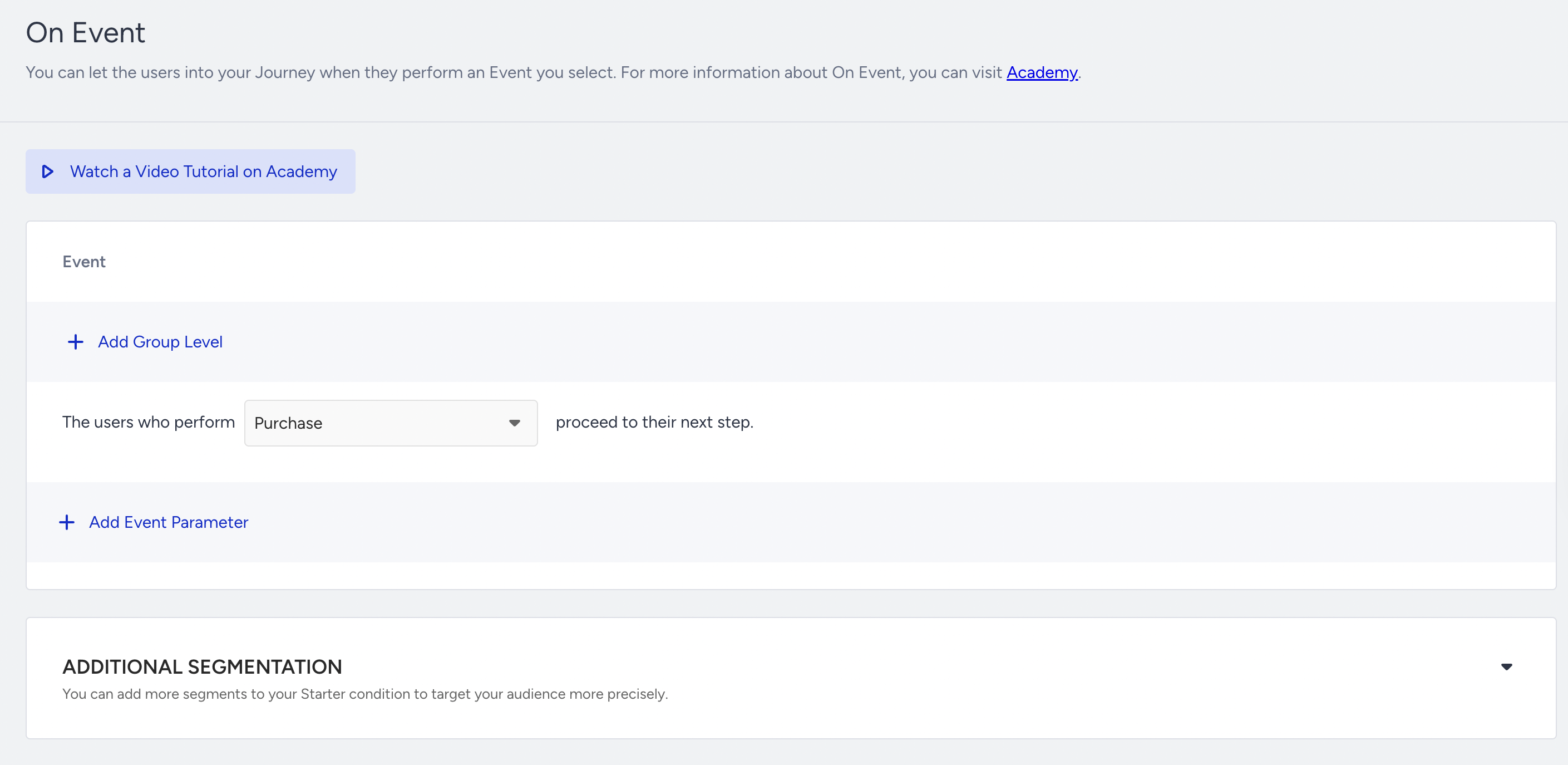
2. Design your journey.
3. Go to your channel element. Click the Add Dynamic Content button and select Event Parameter.
4. Choose the event parameter you want to insert in the content..png)
Refer to Use an Array of Objects in Journey Elements to use an Array of Objects in constant dynamic content.
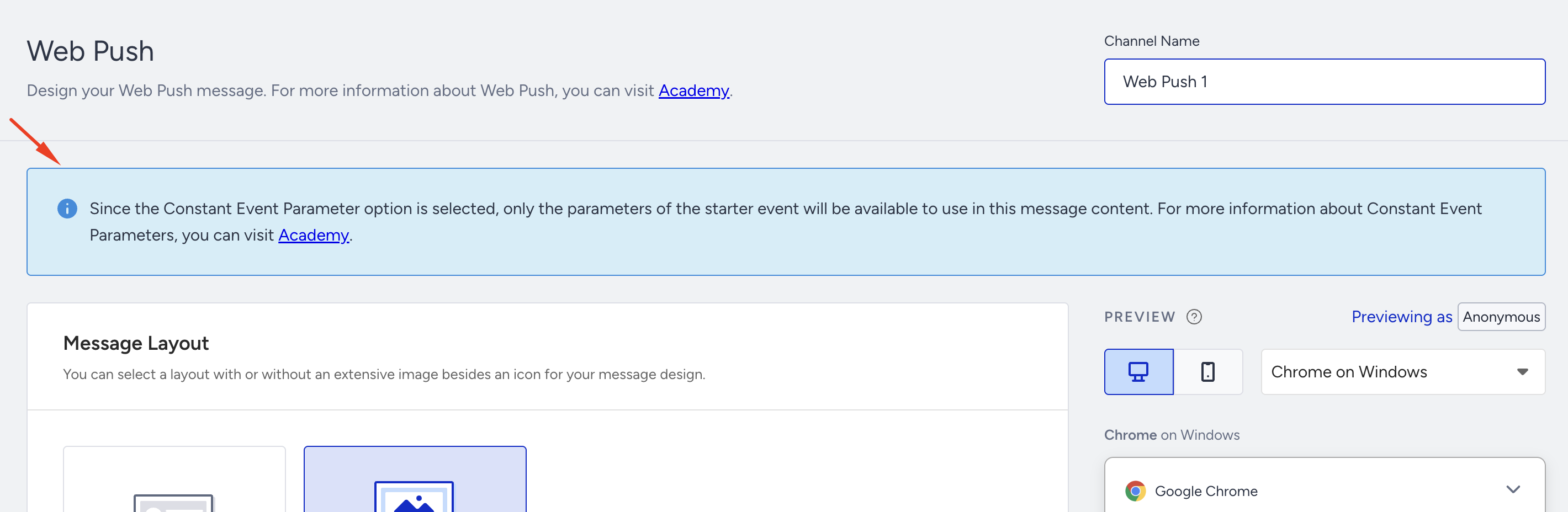
5. You will be prompted with the respective information at the top of the page. Accordingly, the event parameter(s) you choose will be inserted in the content.
 6. Define a fallback value for your dynamic content.
.png)
7. If you want to use an event parameter again, the system recommends using the constant starter event parameters.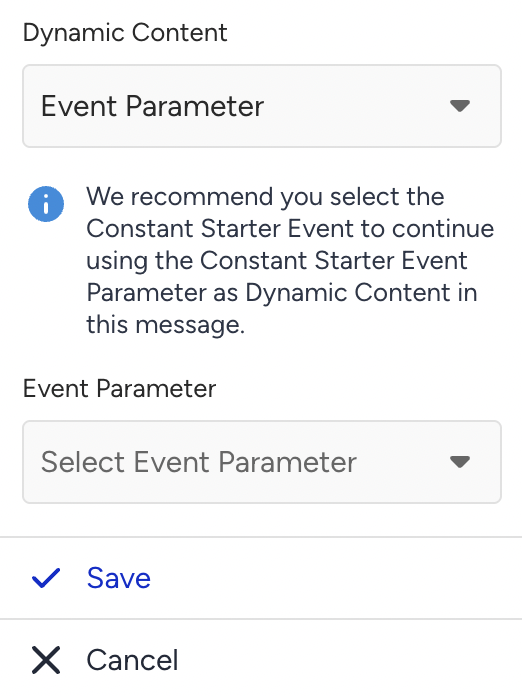
8. Complete composing your message and save the element to continue designing your journey.