You can follow these steps to use the Wait until a Time Slot option in your Wait element:
Click the + (plus) button to select "Wait" in the dropdown.
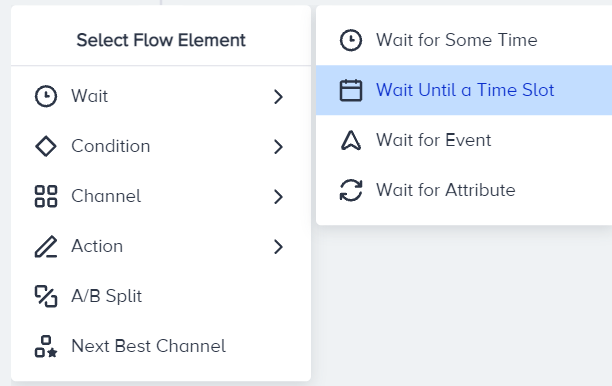
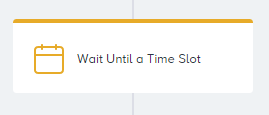
Select the Wait Until a Time Slot option.
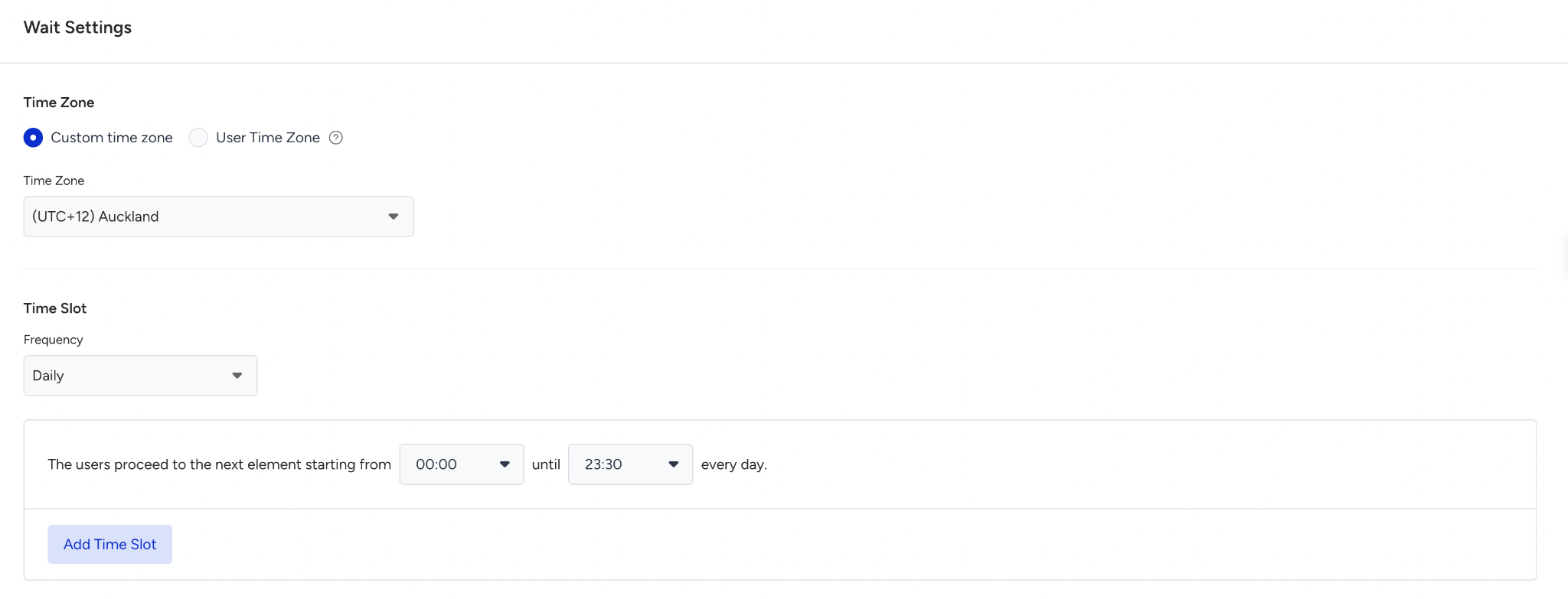
Under Time Zone, select Custom Time Zone or User Time Zone.
Custom Time Zone is selected by default and applies one fixed time zone to every user. Your own time zone is preselected, and you can pick any other from the list.
User Time Zone applies the slot in each user's own time zone. Include the hover text.
You don't need to configure the time slot based on your selected time zone, as it adjusts automatically.
The "Your local timezone" option no longer exists; journeys saved with it open on Custom Time Zone.
If you selected User Time Zone, set a Fallback Time Zone for users who don't have a Time Zone attribute set. Select Set Custom Time Zone to apply one fixed time zone to those users, or Let the users proceed to the next element immediately to send them straight to the next element without waiting
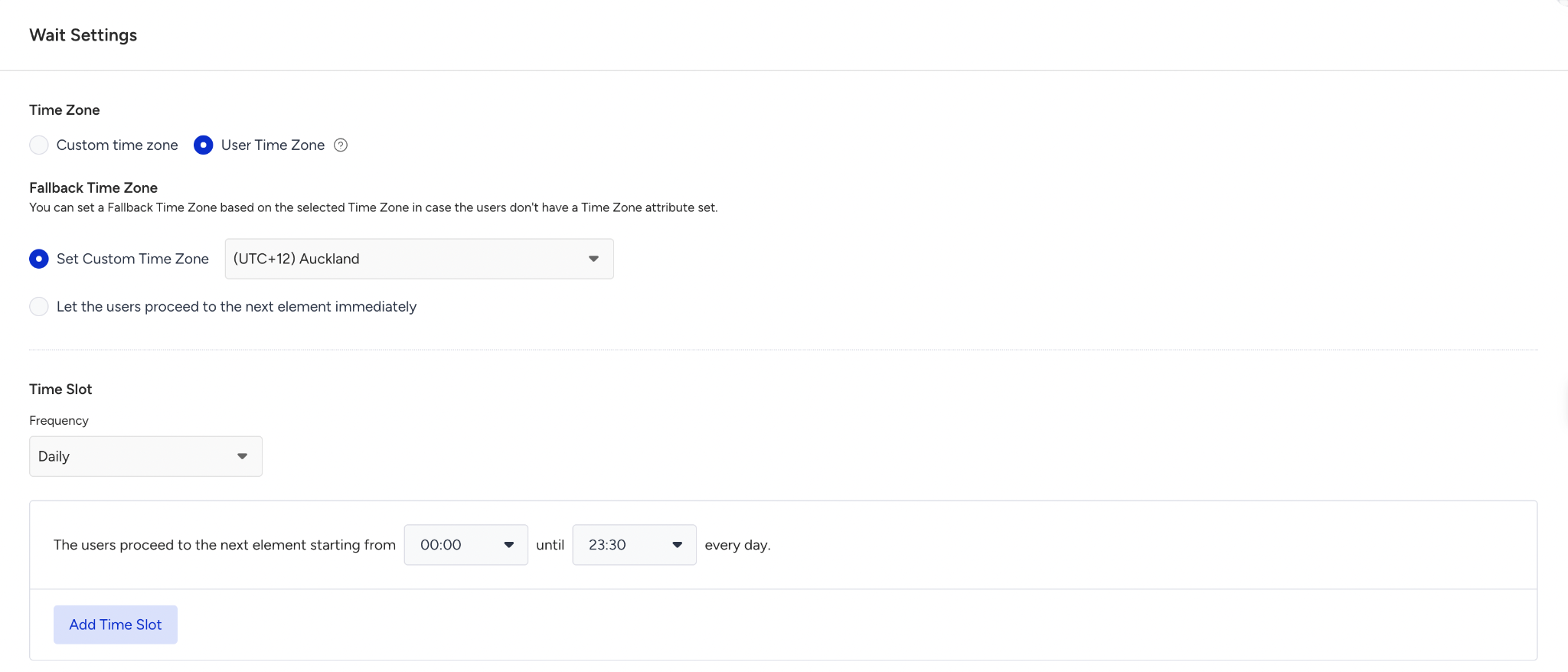
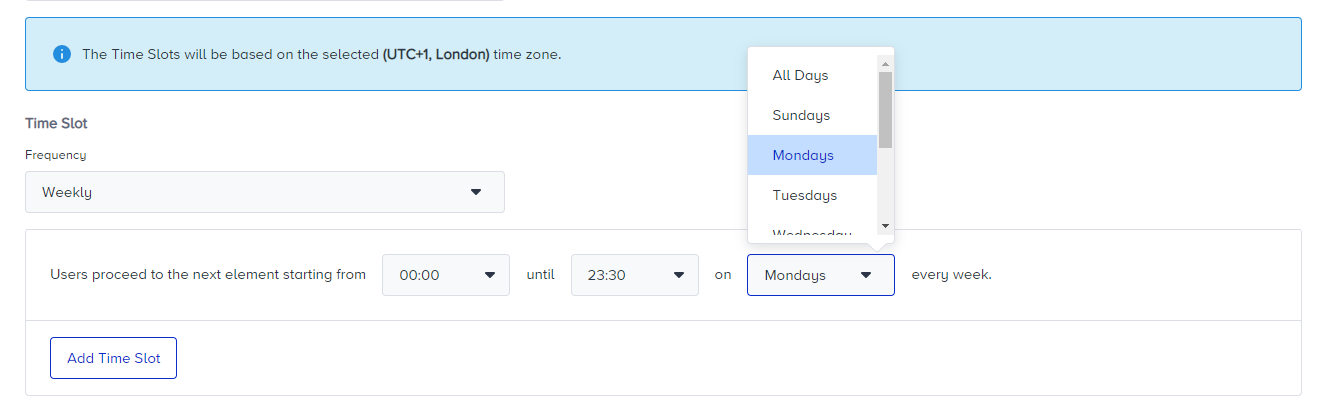
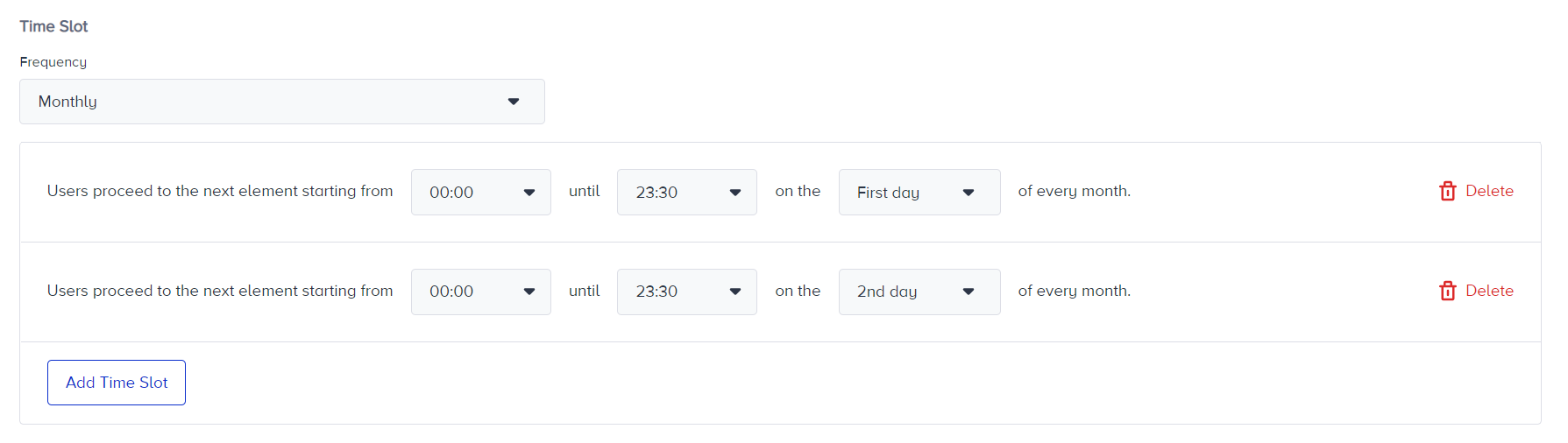
Select the frequency. You can add days of the week or days of the month based on your selection.
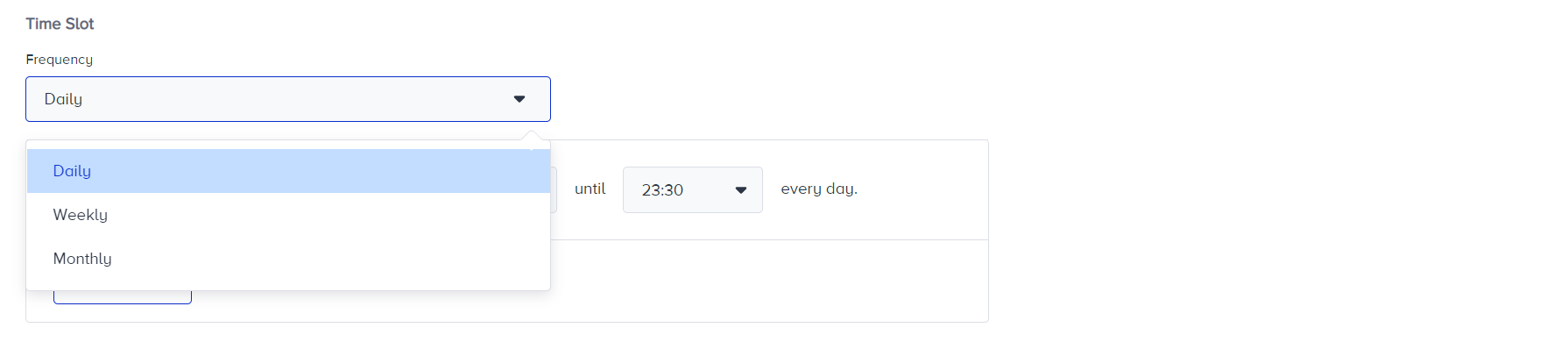
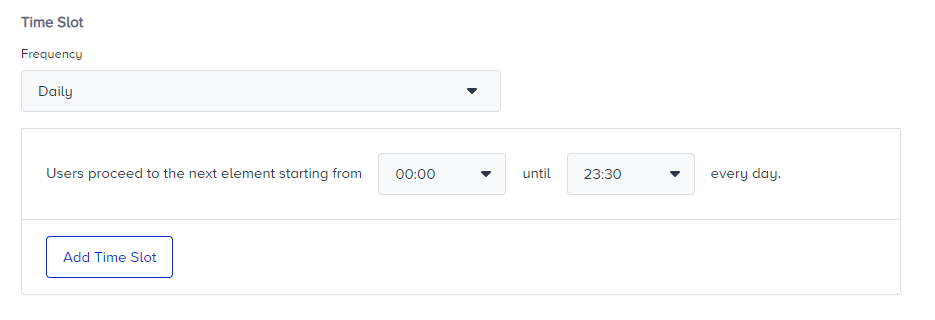
If you want to use the Daily frequency, specify the time slot.
If you want to use the Weekly or Monthly frequency, choose the day(s) you want your users to proceed.
Add other time slots if needed.
Save this step and go back to the canvas to continue designing your journey.
"Wait" elements become editable after you turn your journey status to Passive. If you change the status to Passive to change the wait time slot, only new users will proceed through the flow based on the new wait time slot once you re-launch your journey.