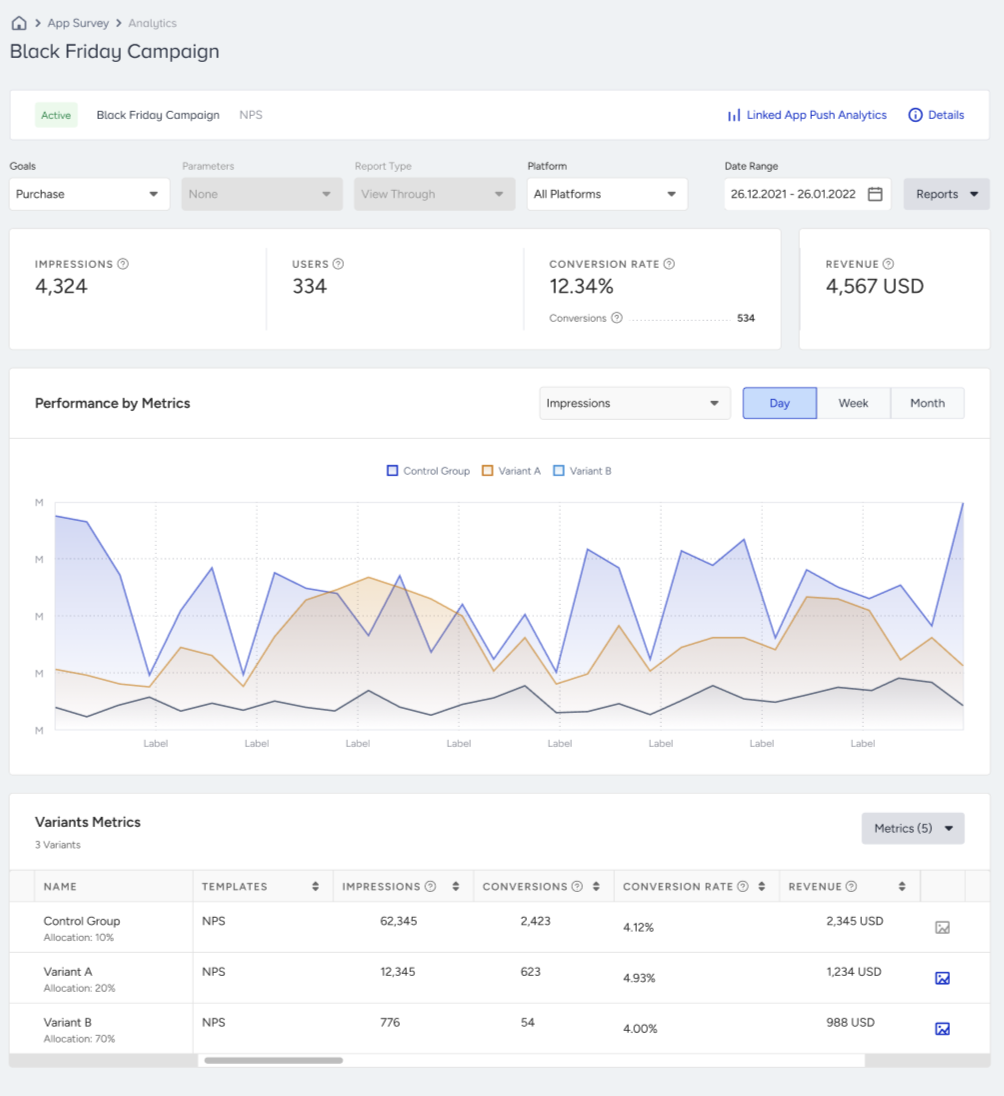
App Survey From Push enables you to link your app surveys to your push notifications. When a user taps the push notification, the linked survey opens inside your app, so you can collect feedback at the exact moment a user engages with your message.
This article explains the following:
App Survey From Push feature is currently not supported on tablet devices.
Create your survey
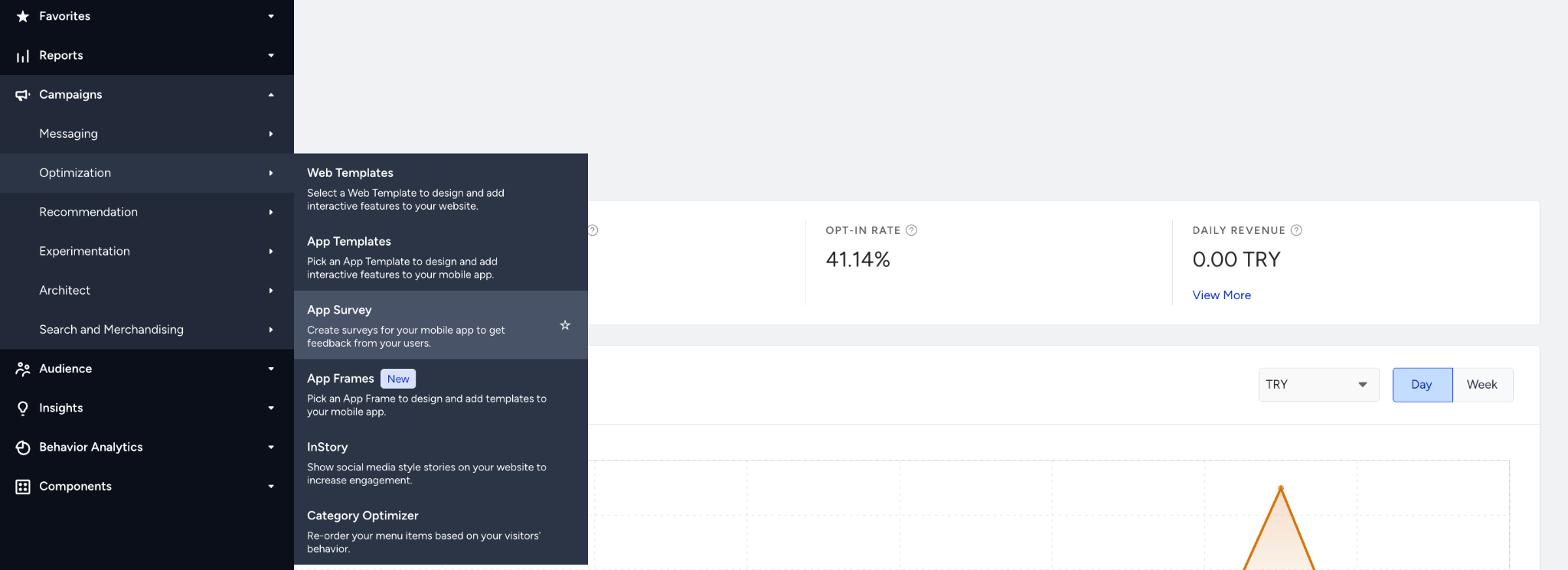
Go to Campaigns > Optimization > App Survey.
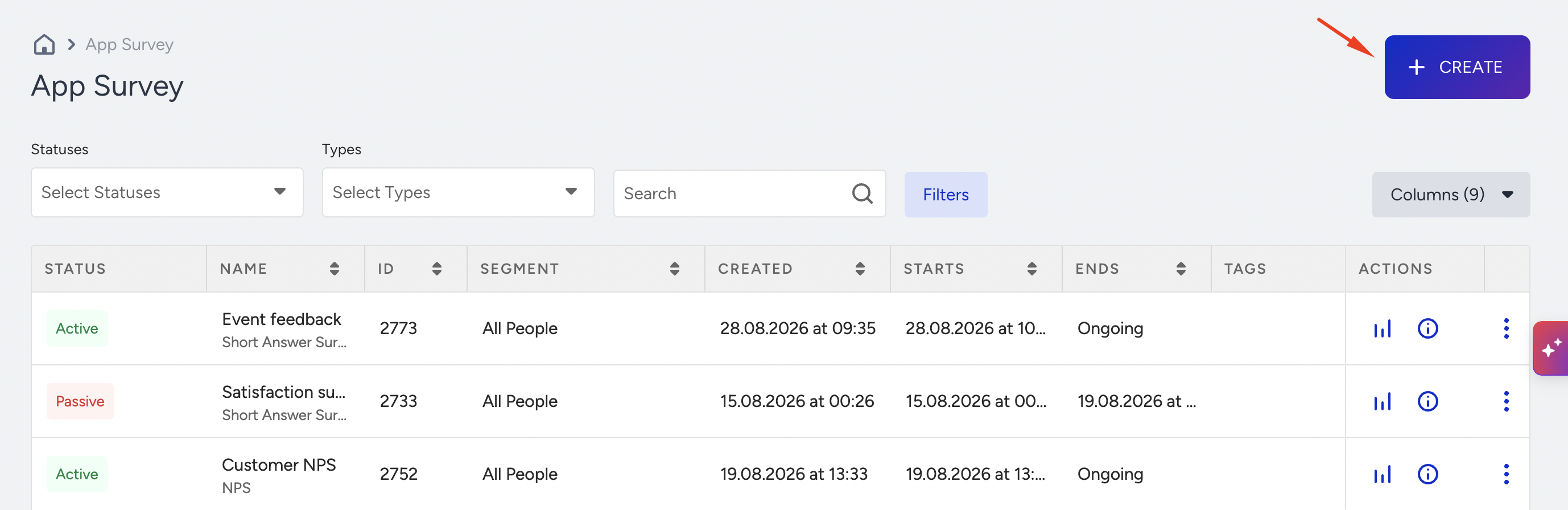
Click the Create button.
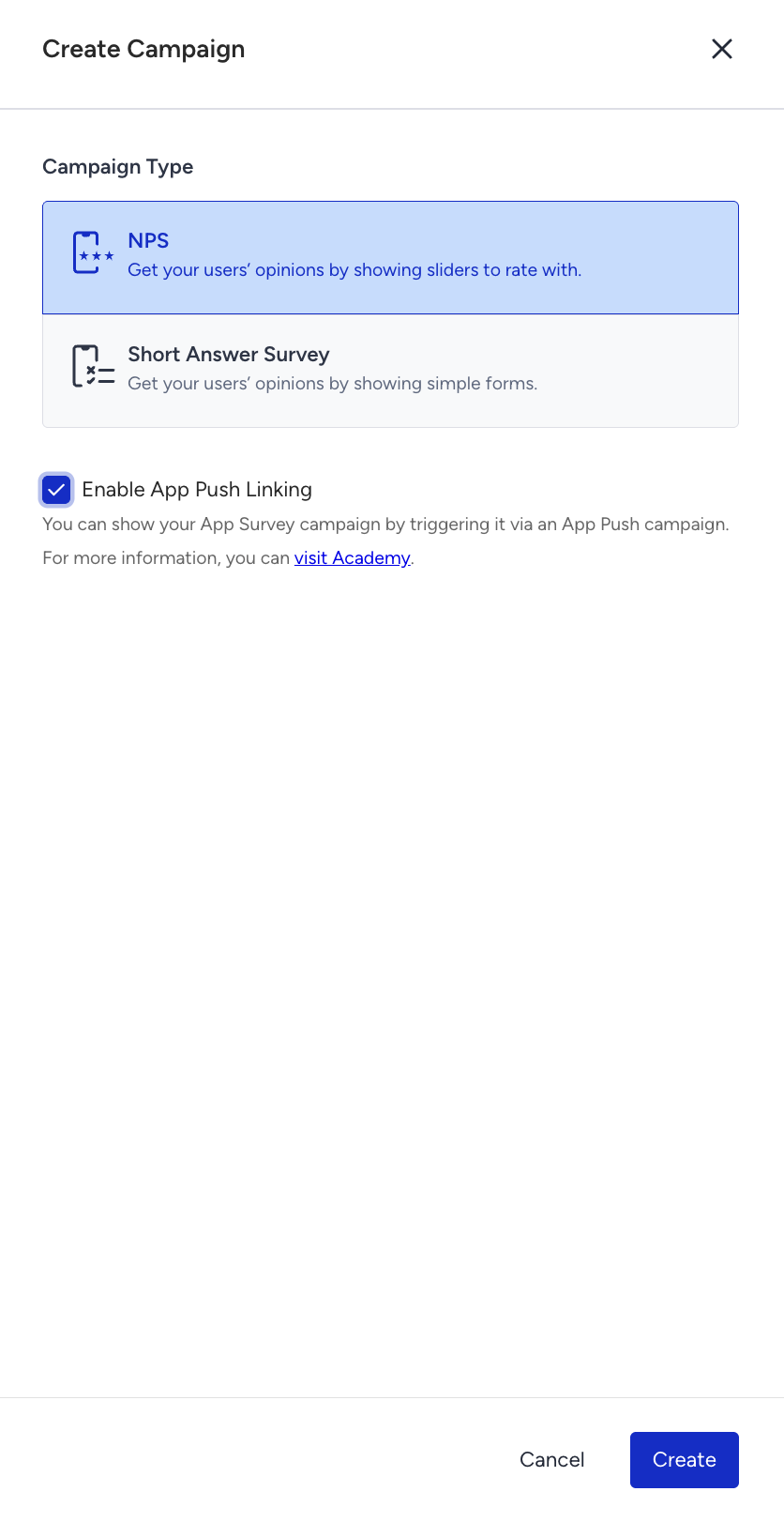
3. Select your campaign type and check the Enable App Push Linking box. Click the Create button.
4. Select the survey you want to link to your app push campaign and start editing it.
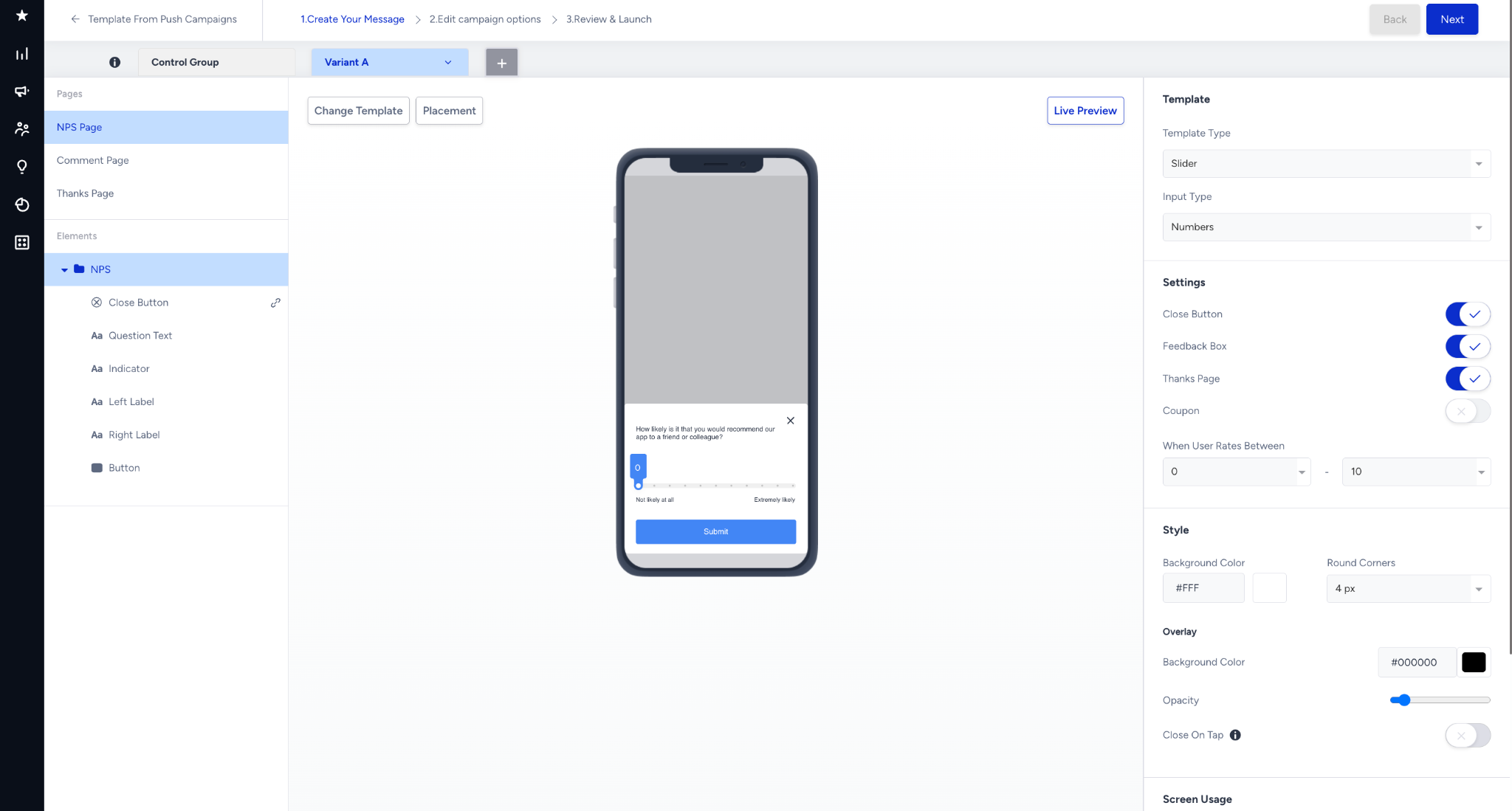
Add your questions using the available question types (Welcome, Single Choice, Multiple Choice, Linear Scale, Dropdown, Short Answer, NPS, and Thank You).
5. Once you complete designing your survey, save it in Active status to activate it.

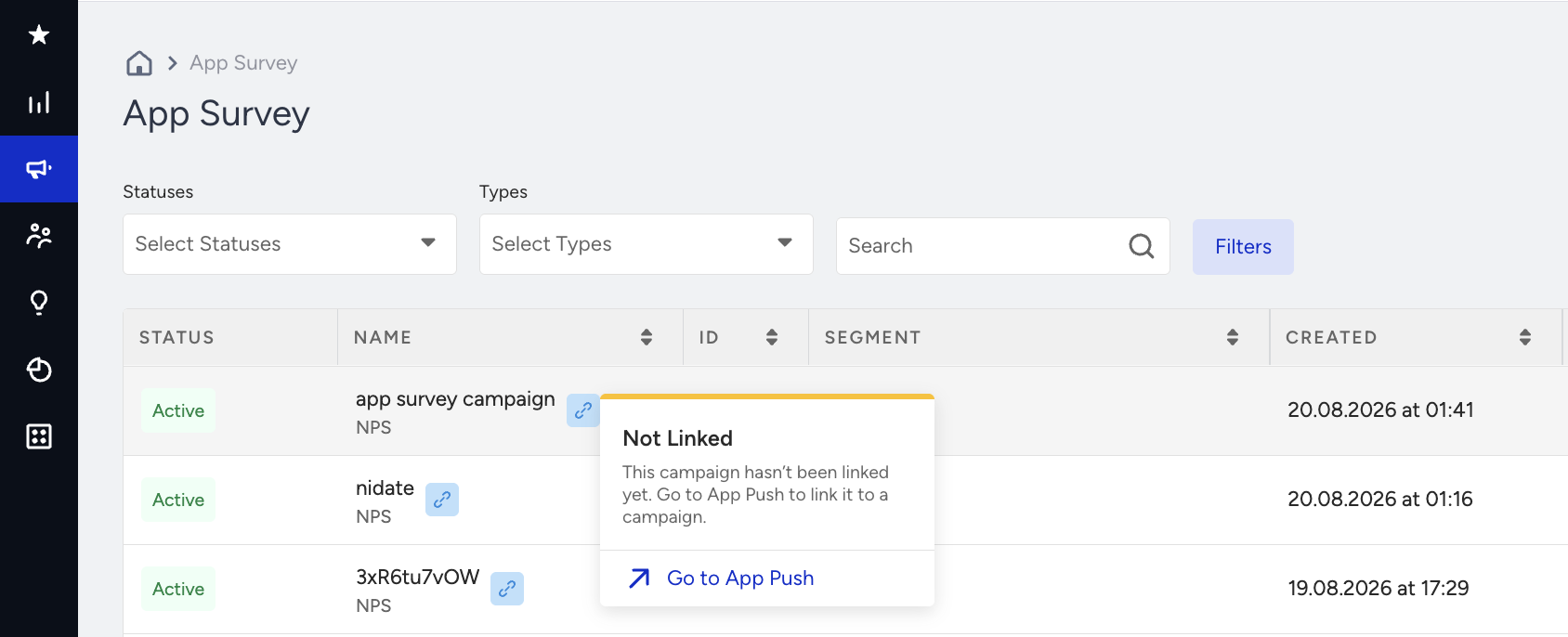
After activation, the survey is listed as Not Linked until you connect it to an app push campaign.
Link your survey to app push
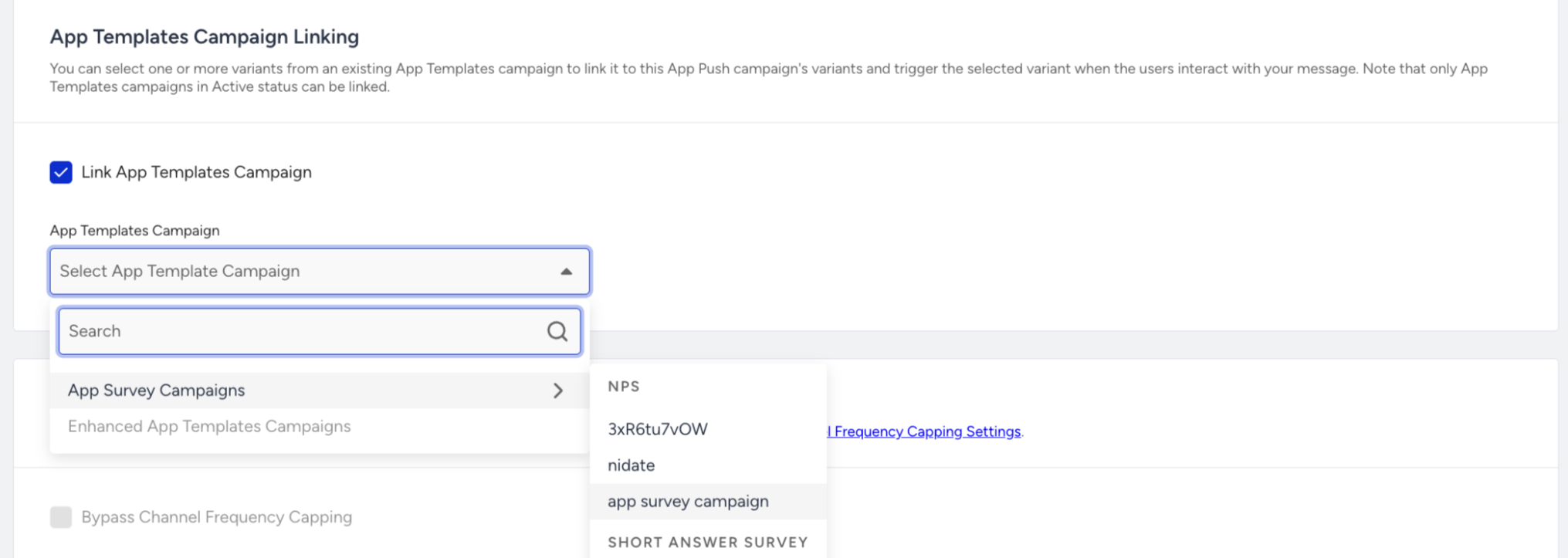
On the launch step of your app push campaign, check the Link App Templates Campaign box to select your app survey campaign.
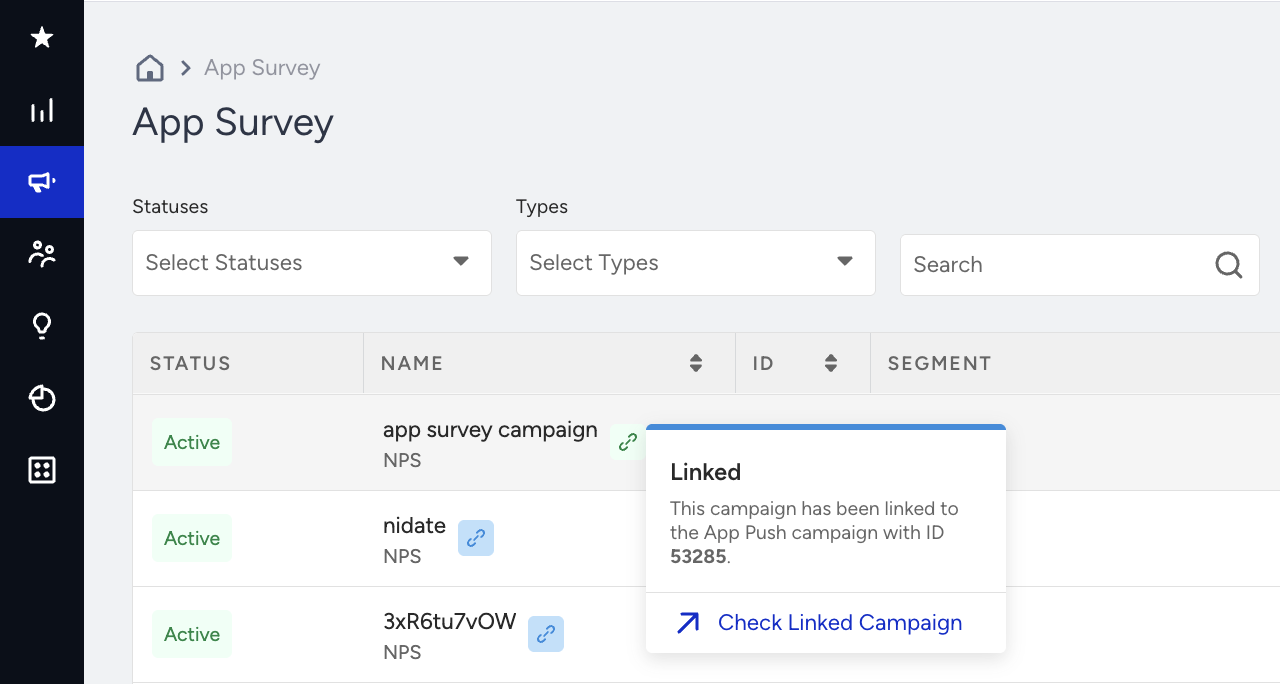
Once you link your survey to the app push campaign, it will be listed with the Linked message.
Analytics
The analytics for both the app push and the linked survey are listed under the campaign-level analytics for the app push campaign.
On this page, you can see the survey-related metrics.