The listing page displays the app cards along with their status information, name, campaign ID, segment, created date and time, start and end date and time, and tags.
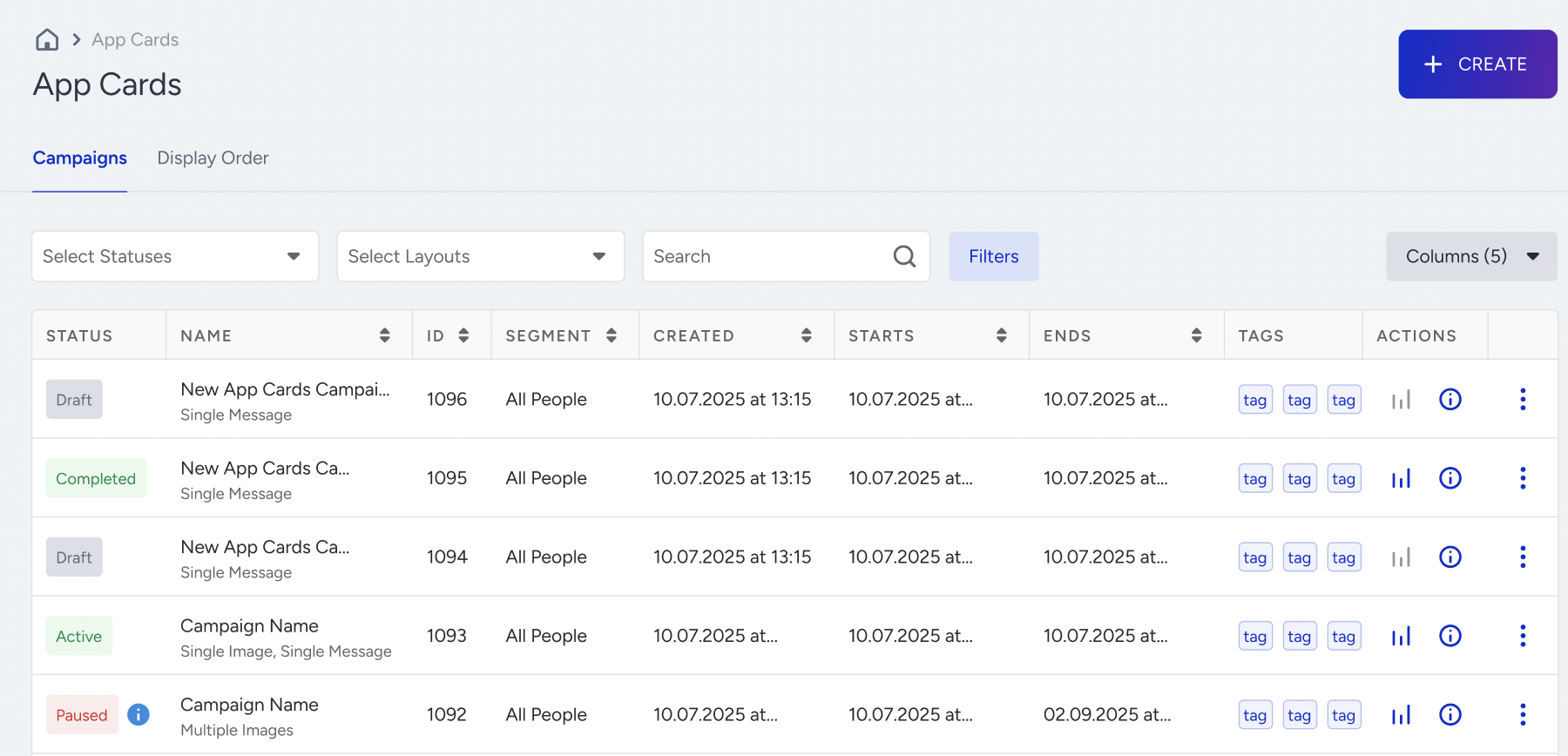
You can filter campaigns by status, layout (single message, single image, multiple images), tags, and group access (if enabled) on the listing page.
You can visit the campaign-level analytics pages to see campaign details.
Each campaign row contains a three-dot menu that displays different options depending on the campaign’s status: Edit, Edit Tags, Duplicate, Delete, Start, and Stop.
Create
Clicking the Create button will open a side modal to enter the campaign name.
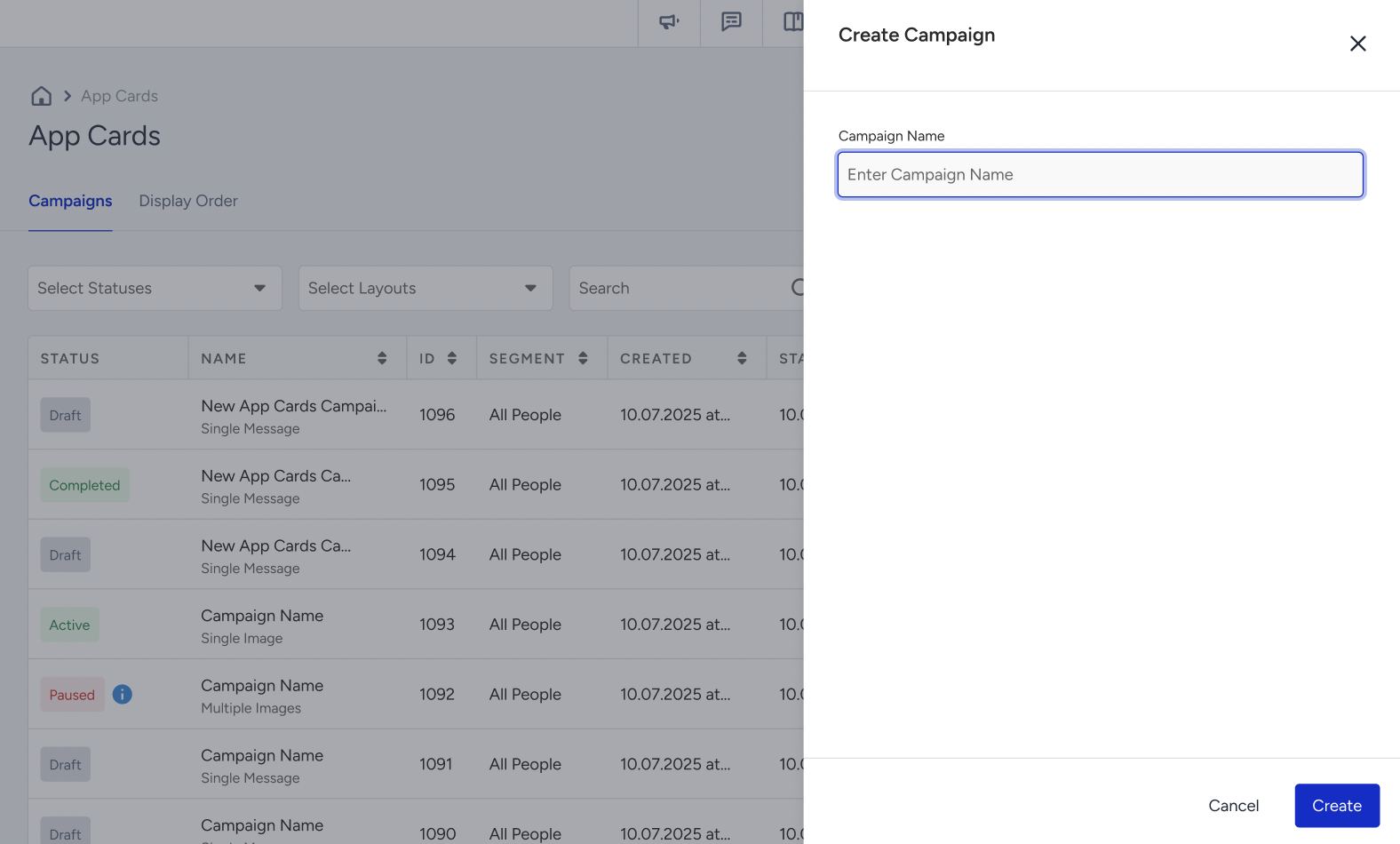
Once you name your campaign and save this step, you can configure the segments, design, goals, and launch steps.
Status
Each campaign in the list can have one of the following statuses. You can filter the list by these statuses using the Select Statuses dropdown.
Draft: The campaign is being created or edited and is not yet launched. No messages are delivered.
Scheduled: The campaign is set to launch at a future start date/time. No messages are delivered until the start date is reached, at which point it becomes Active.
Active: The campaign is live and delivering messages according to its configuration.
Paused: The campaign has been temporarily halted. Messages are not delivered while paused, and it can be resumed to Active.
Stopped: The campaign has been manually stopped. It is removed from all users and will not be sent again. This action cannot be undone.
Sunset: The campaign is being phased out after its active period.
Completed: The campaign reached its selected end date without being stopped manually and has finished delivering.