The A/B Split Control Group feature lets you randomly allocate a percentage of users who will not be further targeted within the journey. This helps you analyze the impact of your marketing efforts within an Architect journey over a time period. You can compare test paths against control group users to measure the true impact of your campaigns, which is sometimes called using a holdout to measure incrementality.
This article explains the following:
How does the A/B split control group work?
Once you enable the Control Group, Architect randomly allocates a percentage of users who arrived at the A/B Split element to the Control Group path. Architect tracks Control Group users' conversions based on the attribution window duration you set for the journey and users complete the journey after the duration ends.
Once assigned to a control group, users do not receive any messages from the journey.
Architect selects a range of users randomly, and assigns them to the Control Group. The Control Group users are randomly selected for a single journey. For example, a Control Group user can enter another journey when eligible and may not be allocated to the Control Group.
If a user is eligible to enter the journey multiple times, Architect assigns the user to the same A/B Split path. This ensures the experiment’s validity and data consistency.
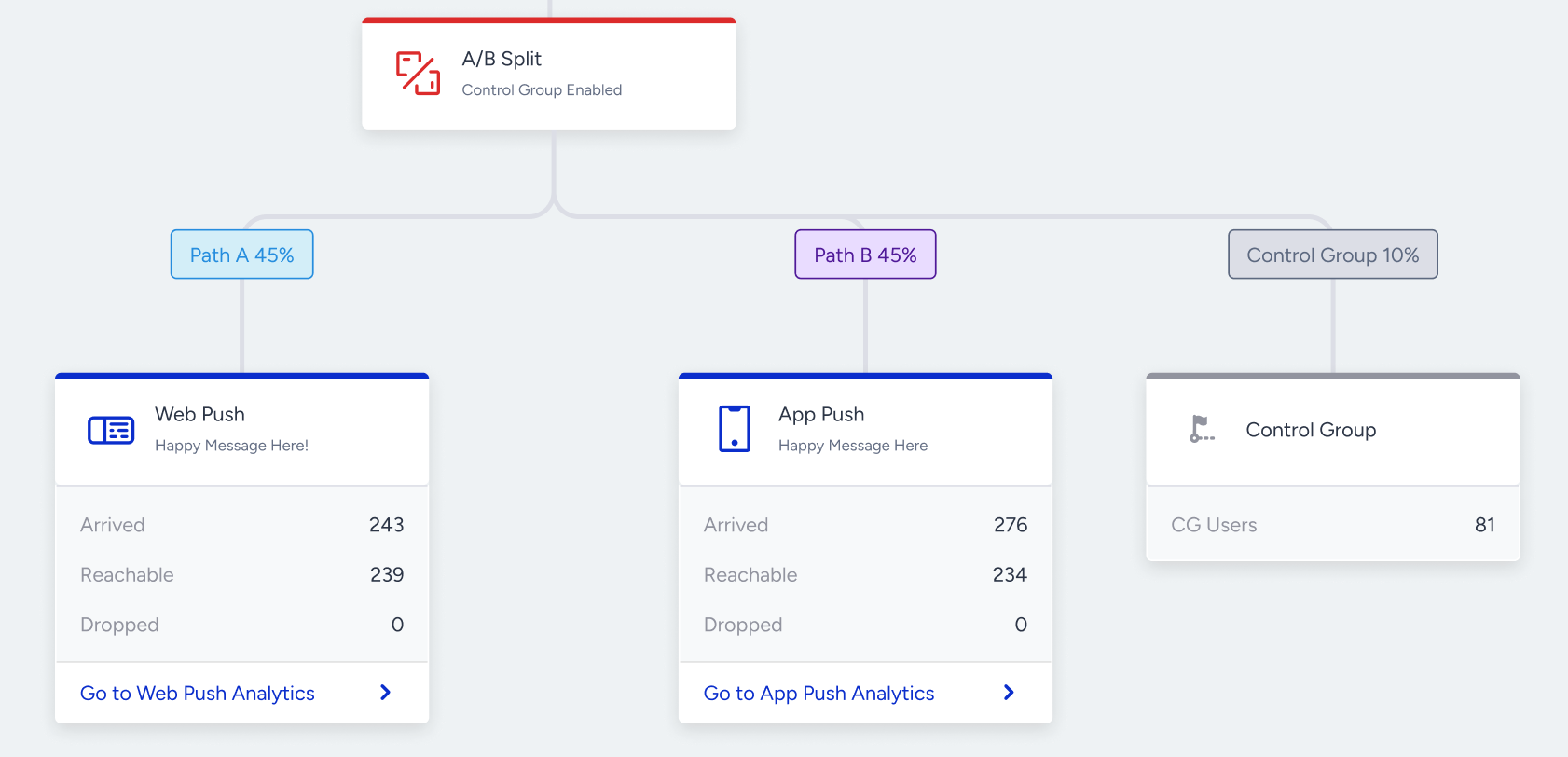
With Control Group enabled, you can measure the effect of different send times, intervals, creative variations, or channel combinations on conversions.
Set up control group
To enable control group, follow these steps:
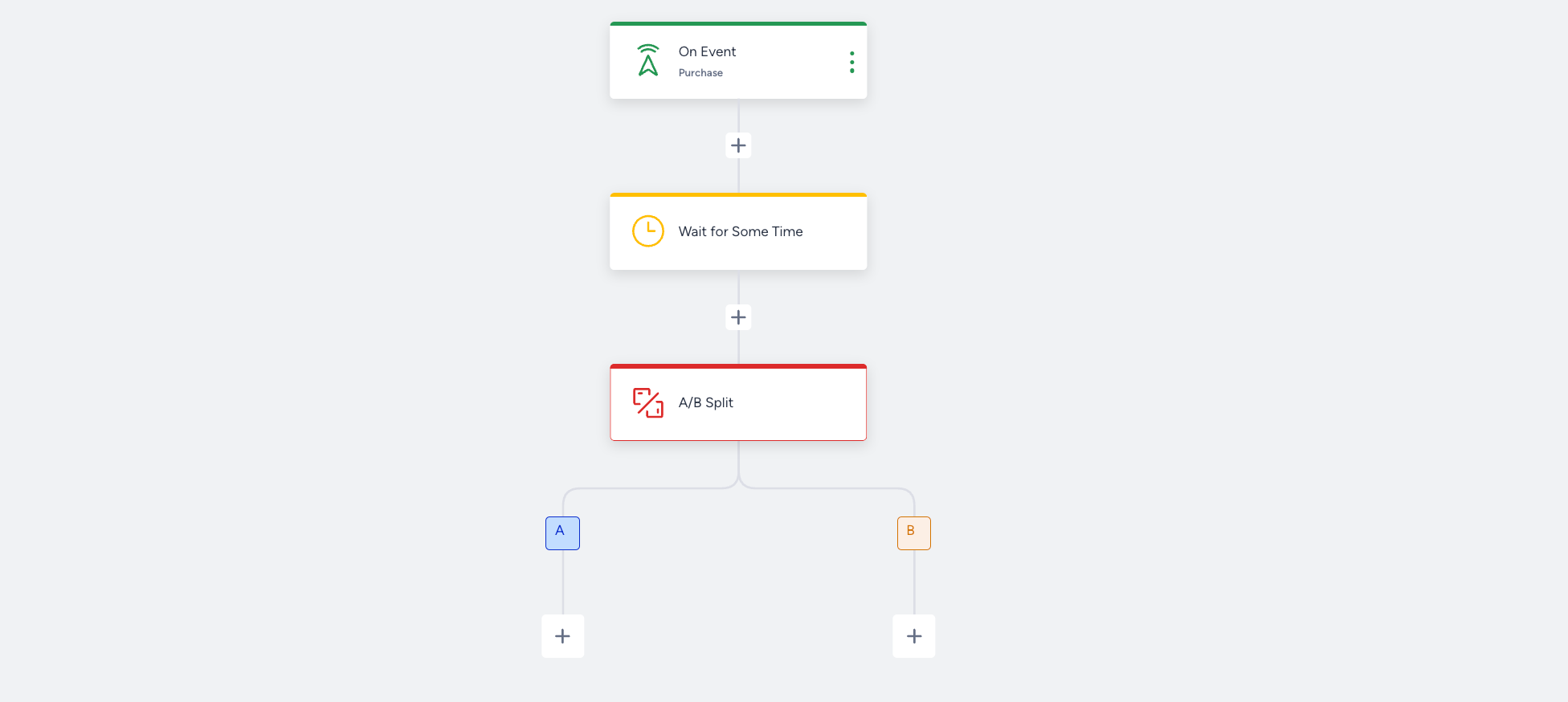
Add an A/B Split element to the journey.
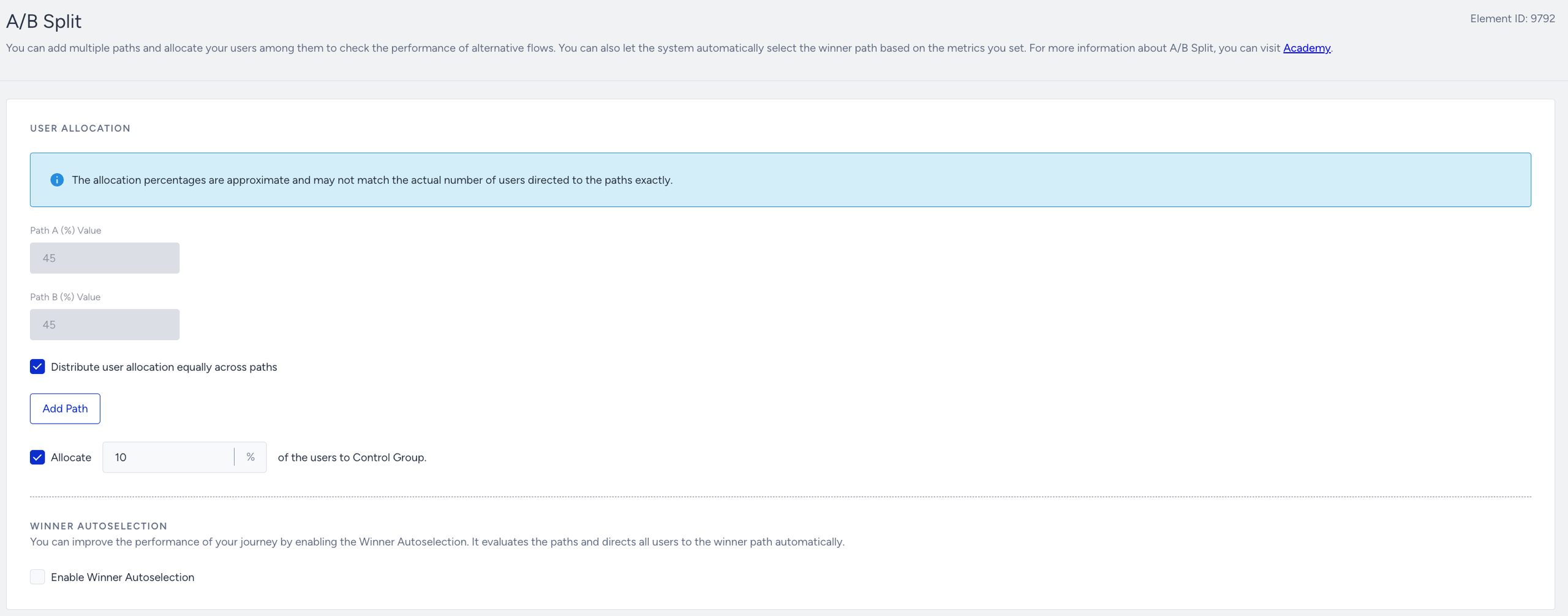
Check the Control Group box, set a percentage for your paths, and click the Save button.
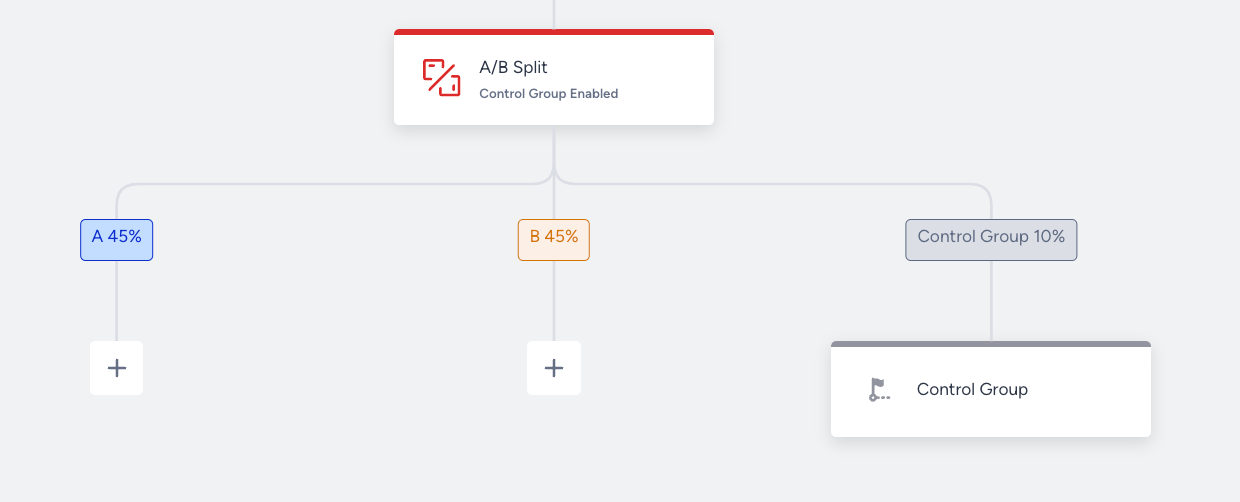
The Control Group path will appear on the canvas under your A/B Split element.
When the Control Group checkbox is enabled, you can distribute your user allocation across all paths, ensuring the total equals 100%. You can modify user allocation percentages while the journey is Active. Any changes will reassign future entrants based on the new distribution and the users who have already been assigned remain on their current paths.
You can also use the Extended Path Allocation and A/B Winner Autoselection features with the Control Group feature.
Export control group users
Architect allows you to export the control group users under the A/B Split element.
To export the control group users:
Navigate to the Control Group element on the canvas, and hover over the element to display the User Profiles.
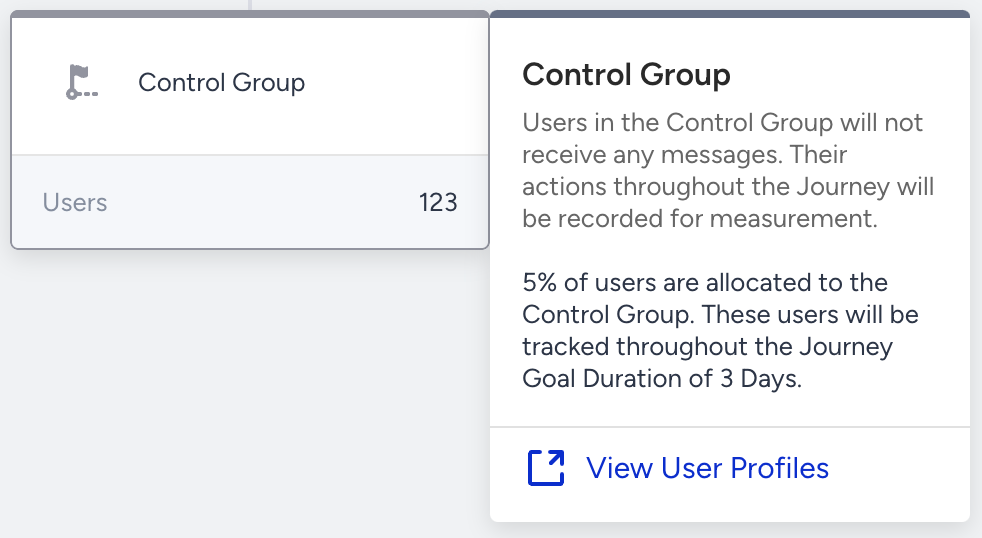
Once you display users on the User Profiles page, click the Export button to export users. To display the control group users, you should use the Journey Control Group Enter event.
You can use the Journey Control Group event with the following parameters:
Type: ab-split
Group: control
Journey ID: Your journey ID
Campaign ID: A/B Split element campaign ID
You can also further narrow down the users via attributes and events.
Control Group Analytics
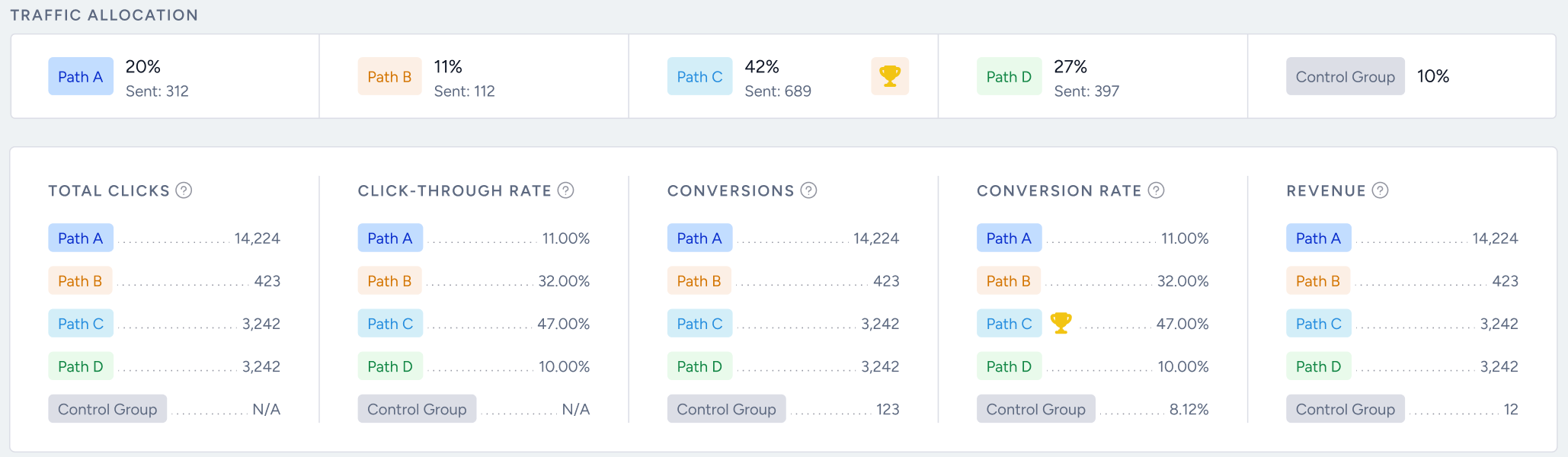
When the Control Group is enabled, Control Group users' conversions are reported on the A/B Split Analytics page with Number of Users, Incremental Conversions, Conversion Rate Uplift, Conversion Rate, Conversions, Incremental Revenue, Average Order Value, and Average Order Value Uplift metrics.
Custom Goals Analytics
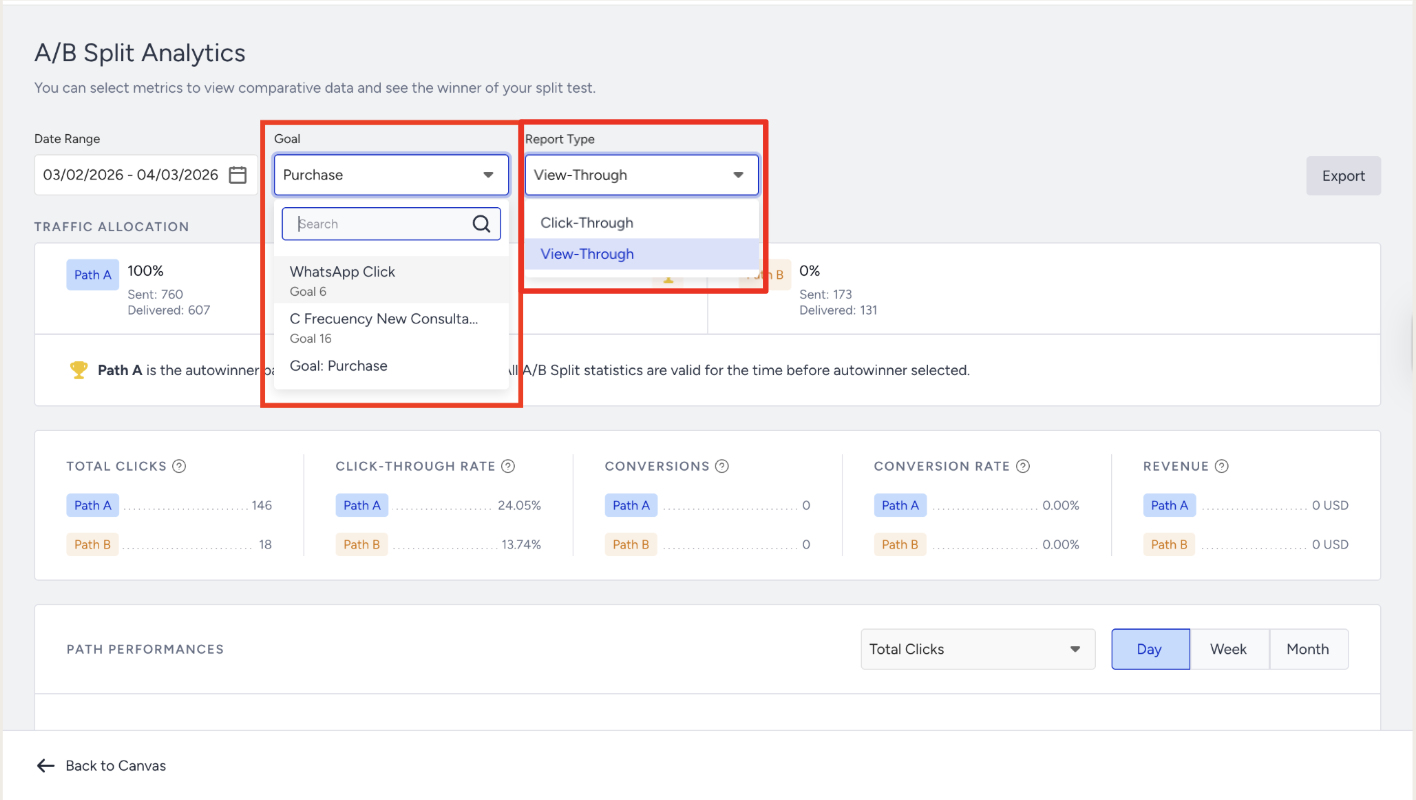
You can analyze Control Group performance against any configured conversion goal, not just the default purchase goal. The Goal dropdown on the A/B Split Analytics page lets you select from all available conversion goals, including custom goals you have defined for the journey.
Custom goal metrics are tracked independently for each path, including the Control Group. This means you can compare how each path and the control group perform for specific goals such as add-to-cart, sign-up, or any other custom conversion event you have configured.
To select a custom goal, open the A/B Split Analytics page and use the Goal dropdown to choose the conversion goal you want to evaluate.
Report Type: Click-Through and View-Through attribution
The A/B Split Analytics page supports two attribution models, available through the Report Type dropdown:
Click-Through (default): Attributes conversions to users who clicked a message before converting. This is the standard attribution model.
View-Through: Attributes conversions to users who received a message, regardless of whether they clicked. This captures conversions influenced by message exposure, even when the user did not click through directly.
Both attribution models apply to all conversion and revenue metrics on the page, including Control Group comparison metrics.
To switch between attribution models, use the Report Type dropdown at the top of the A/B Split Analytics page. The selected report type applies to all metrics displayed on the page.
Use View-Through attribution when you want a more complete picture of your campaign's impact. This is particularly useful for channels like Email or Web Push where users may see the message and convert later without clicking.
Frequently asked questions
Q: Can I use A/B Split Control Group and Architect-level Control Group features simultaneously?
A: Yes, you can use both at the same time.
Q: Can control group users receive messages from campaigns in the journey?
A: Once assigned to a control group, users complete their journey after the duration ends and do not receive further messages from the journey. However, they can enter other journeys if they are eligible and receive messages.
Q: Can I add an element after Control Group element?
A: No, you cannot add an element after the Control Group element.
Q: Can I update the allocation percentage of control group users?
A: Yes, the allocation percentage can be updated.
Q: What is the percentage range of a control group path?
A: You can set the percentage as you wish as long as the total sum is 100 percent.
Q: Can I compare users' analytics for custom goals?
A: No, currently you cannot compare users' analytics results for custom goals.
Q: Do control group users have an attribution window?
A: Yes, both user groups share the same attribution window.
Q: Can I export the control group metrics on the A/B Split Analytics page?
A: Yes, you can export the control group metrics.
Q: Can I export the control group users on the User Profiles page?
A: Yes, you can. When you hover over the Control Group element, you can navigate to the User Profiles page to export users.
Q: Can I enable a control group at any point in a journey?
A: Yes, you can enable a control group multiple times where you can add the A/B Split element.
Q: Can I disable/enable a control group for an active journey?
A: Yes, you can. You need to navigate to the top bar and click the Edit Journey button first.
Q: Can I use the winner autoselection with a control group?
A: Yes, you can use the winner autoselection. However, we do not recommend using Open or Click metrics to determine the winner when the control group is enabled as the control group users cannot receive any message so they cannot open or click.
Q: Can I use the extended path allocation with the control group?
A: Yes, you can use the extended path allocation with the control group. It excludes the Control Group percentage from redistribution and remaining test paths are equally assigned their values.
Q: How can I adjust the goal duration?
A: On the canvas, navigate to Go to Launch > Journey Goals. To change the goal duration, you need to navigate to the top bar and click the Edit Journey button first.