Pix Payment Request adds a payment button to your WhatsApp template messages in Insider One for recipients in Brazil. When a message arrives, the recipient sees a Copy Pix code button. Tapping it copies a Pix BR Code (the "Pix Copia e Cola" string) to their clipboard. The recipient pastes it into a bank or wallet app and confirms the payment. This replaces typing codes by hand, taking screenshots, or selecting a 150-character string out of a text message.
This article covers:
How does Pix Payment Request work?
Keep the following two points in mind:
Insider One does not process the payment. Your own payment service provider (PSP) or bank generates the Pix code, and Insider One only carries it inside the WhatsApp message. Reconciliation and payment confirmation stay in your PSP.
The code is per message. Your PSP generates a separate Pix code for each recipient at the moment you send, so you never store a code inside the template.
Before you start
Make sure you have the following in place:
Requirement | How to get it |
|---|---|
Pix Payment enabled on your Insider One account | Ask the Insider One team to turn it on. Pix Payment is not turned on automatically with the WhatsApp Enterprise add-on. |
Brazilian recipients | Pix messages go only to Brazilian phone numbers (country code |
A PSP or bank that generates dynamic Pix BR Codes | Use your existing Pix provider. You need one code per payment request. |
API credentials | Your Transactional API key (it starts with |
An approved template with a payment button | Create the template in the InOne panel as described in the next section, then wait for Meta approval. |
Create a Pix payment template
You create Pix payment templates in the InOne panel like any other WhatsApp template. To create one, follow these steps:
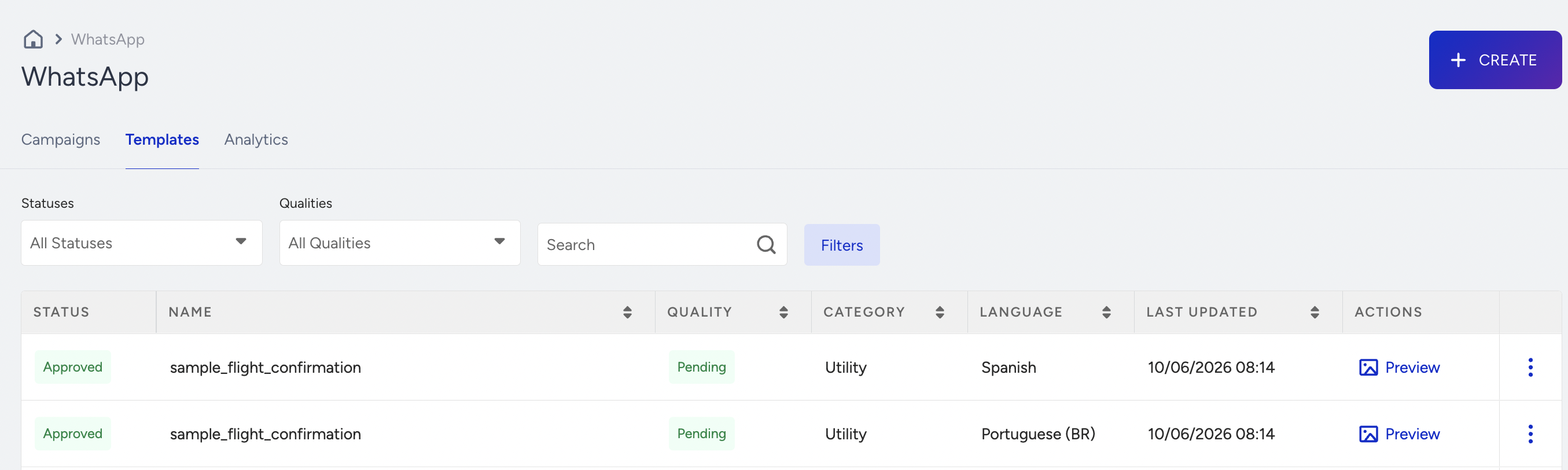
Navigate to InOne > Campaigns > Messaging > WhatsApp. Switch to the Templates tab and create a new template.
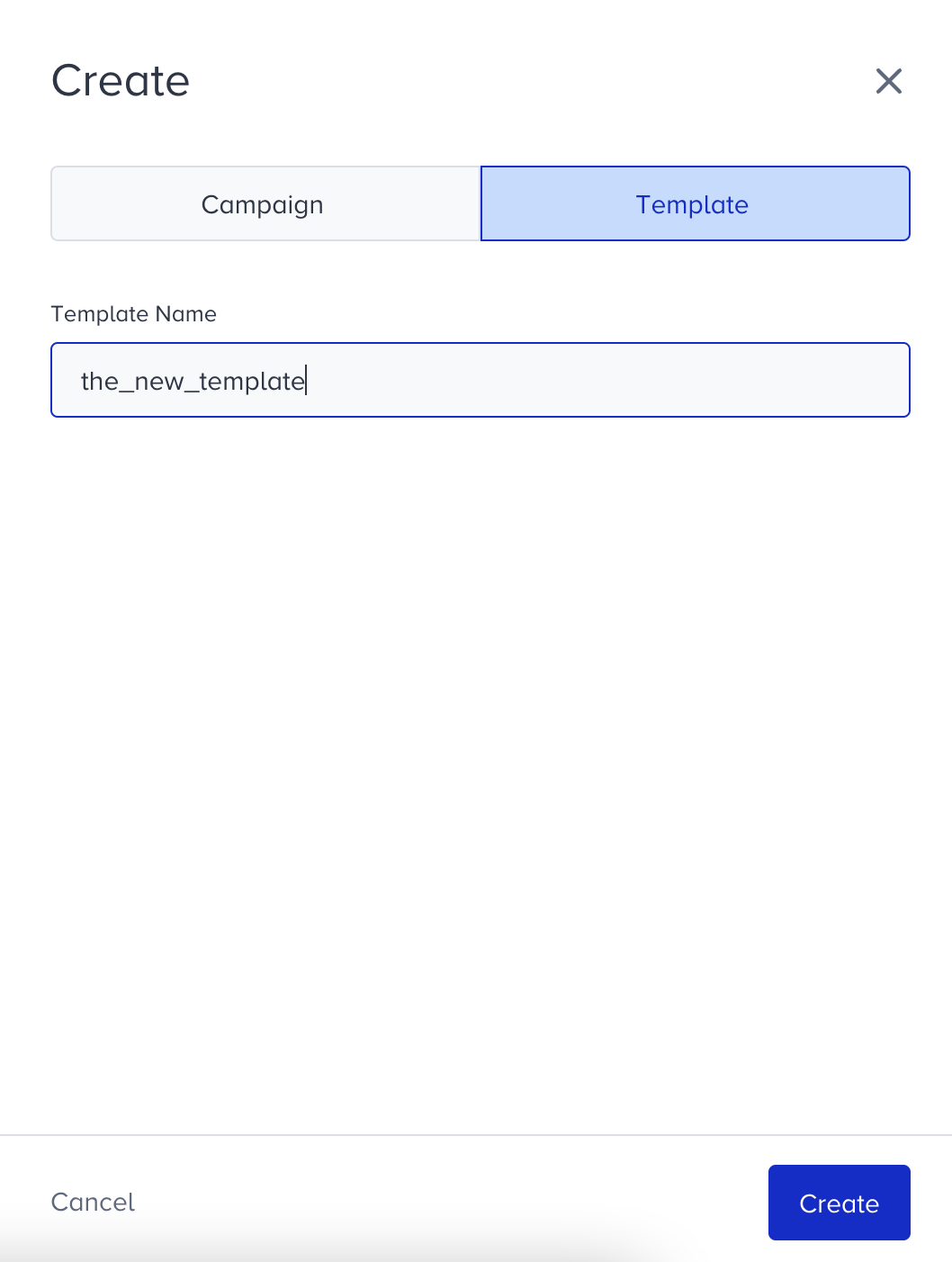
Click the Create button, name your template, and proceed to the template creation screen.
Choose the category: Marketing or Utility.
Compose the header, body, and footer as usual. Body variables are supported.
Open the Buttons section, add a Call to Action button, and select Request Payment from the Type of Action dropdown.
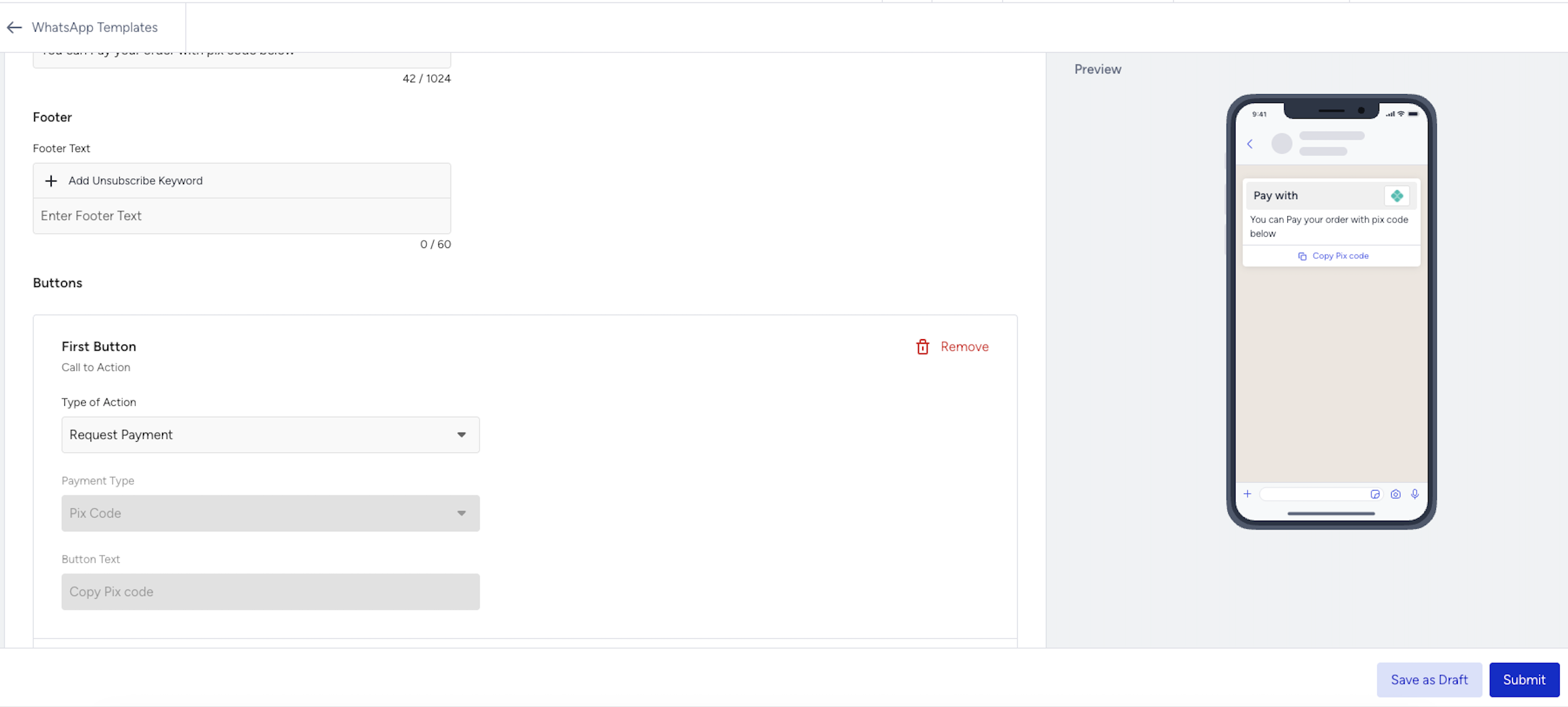
Check that Payment Type shows Pix Code. It is the only supported payment type today, so the field is locked.
Save the template and submit it for Meta approval. Wait until the status is Approved before you send.
Two details on this screen work differently from other WhatsApp templates:
You do not enter a Pix code when you create the template. The panel has no code field. Meta requires a sample code with the template submission, so Insider One supplies a fixed sample on your behalf. The real, per-recipient code travels with each message you send through the API.
You cannot write the button label. The Button Text field is filled in for you and is read-only. The label is fixed and never translated, so it stays the same regardless of the template language.
If Request Payment does not appear in the Type of Action dropdown, Pix Payment is not enabled on your account yet. See Before you start.
Template rules
A template with a payment button follows these rules:
Rule | Limit |
|---|---|
Payment buttons per template | One |
Total buttons in a template that has a payment button | Three (the payment button plus two more) |
Combine with Quick Reply, Visit Website, or Call Phone Number | Yes, within the three-button total |
Combine with Share Contact Info | No. WhatsApp allows that button only on its own. |
Carousel templates and carousel cards | Not supported |
Template categories | Marketing and Utility |
Pix code length or character set | No limit. A valid BR Code can exceed 500 characters, and Insider One accepts it as is. |
Button label | Fixed and not editable. WhatsApp renders it as Copy Pix code in every template language. |
Next steps
You now know how Pix Payment Request works, what you need before you start, and how to create a template with a payment button.
Sending Pix payment templates are available through the API only. After Meta approves the template, send it through the API with a Pix code from your PSP for each recipient. For the request format, headers, and error handling, see Send WhatsApp Pix Payment Request Messages Through the API.
Payment templates are unavailable in the template picker for WhatsApp campaigns and in Architect. They can still be used in Architect journeys through the Call an API element, call the WhatsApp APIs from there. Make sure the Pix code reaches the journey as an event parameter and that you insert that parameter into the request body, so each customer gets their own code. See Using Call an API.