The Web Templates listing page lists all your previously created campaigns.
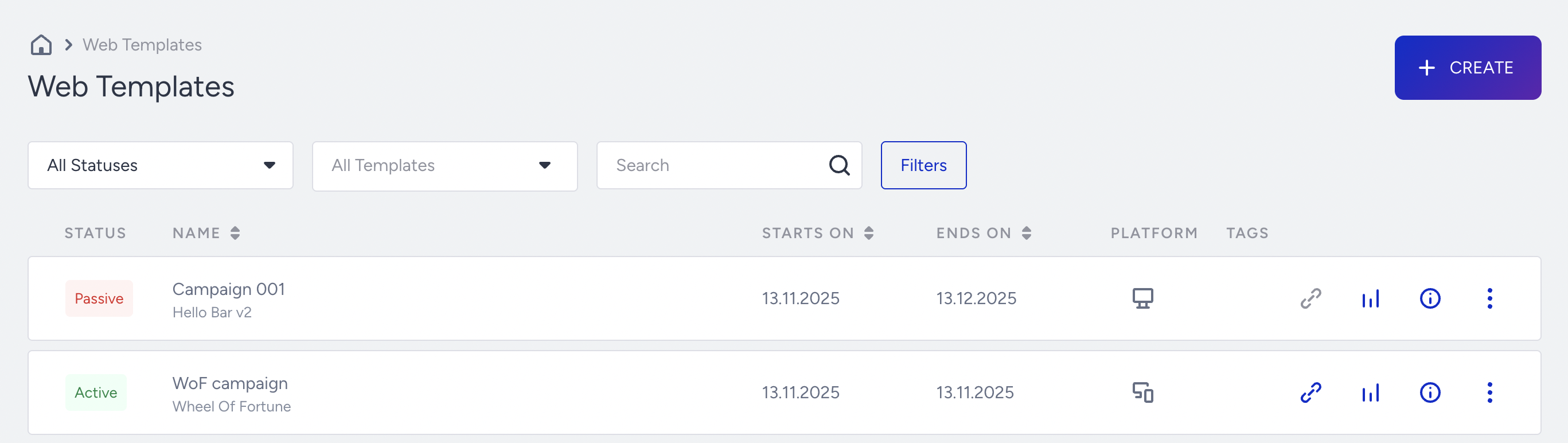
Using this page, you can also perform the following operations:
Create campaigns
You can create campaigns when you click the Create button.

Filter campaigns
You can filter and list your campaigns by status, template, campaign name, platform, and tags.
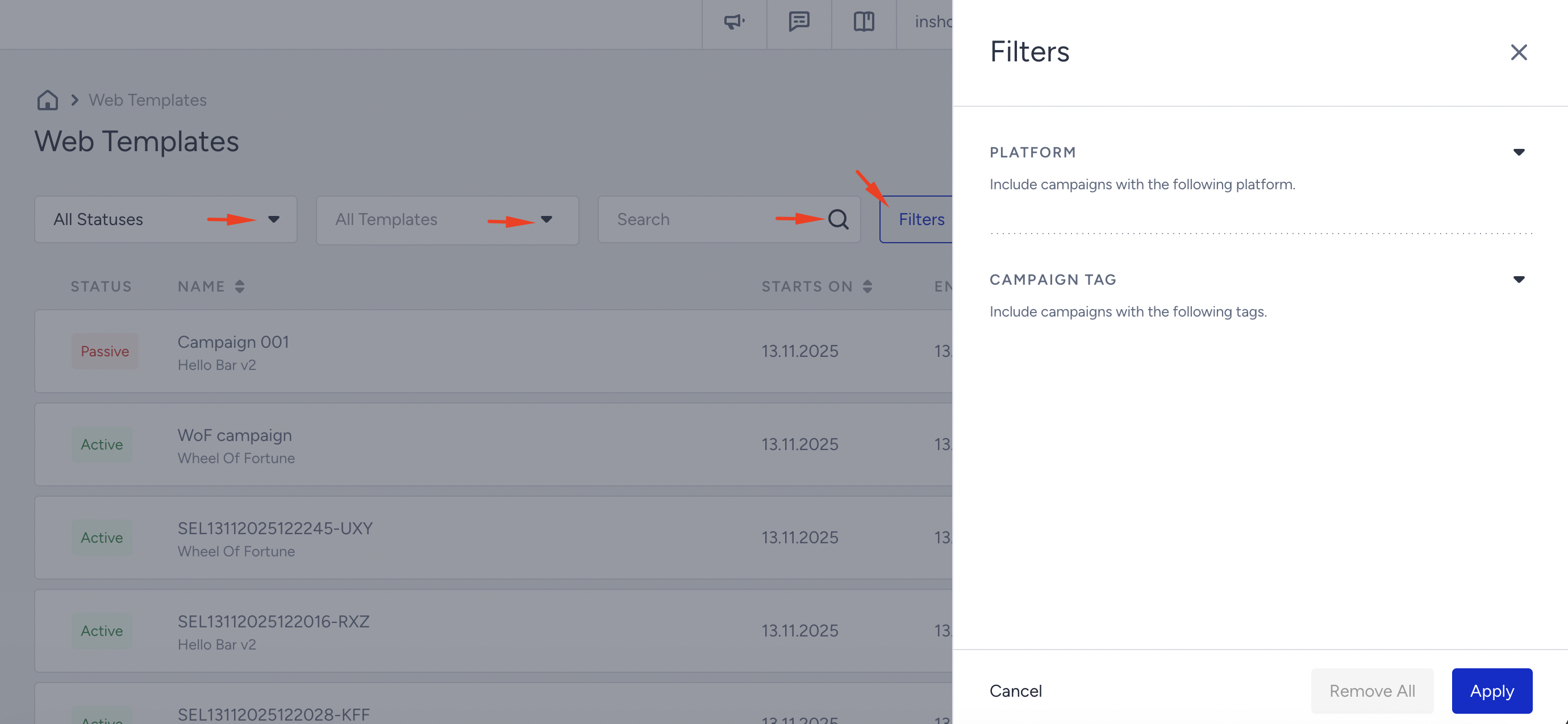
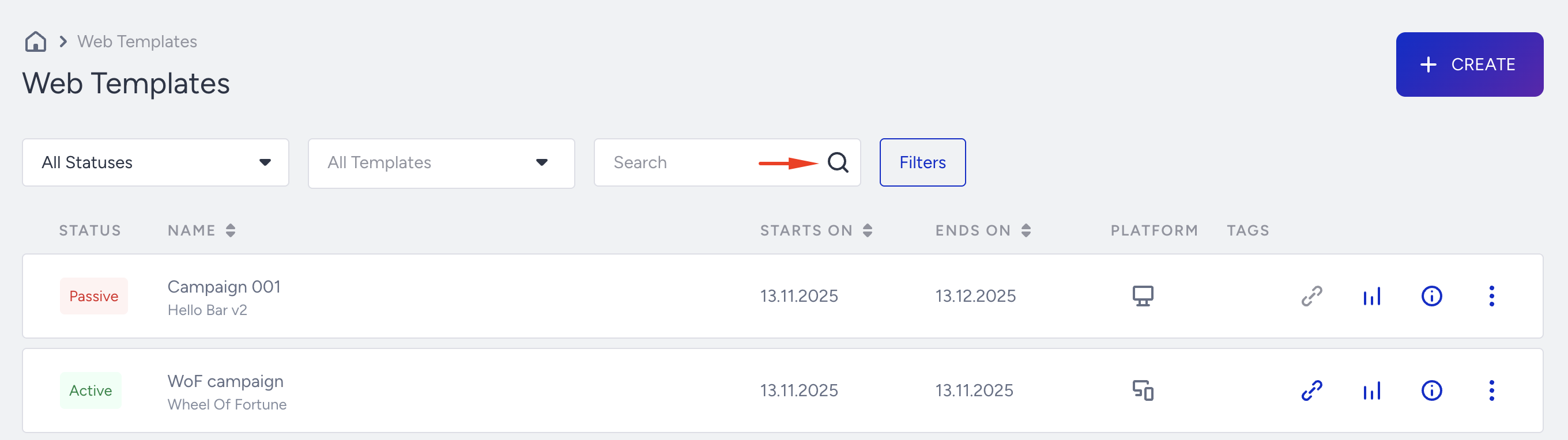
Search campaigns
You can search for your campaigns by name or campaign ID.
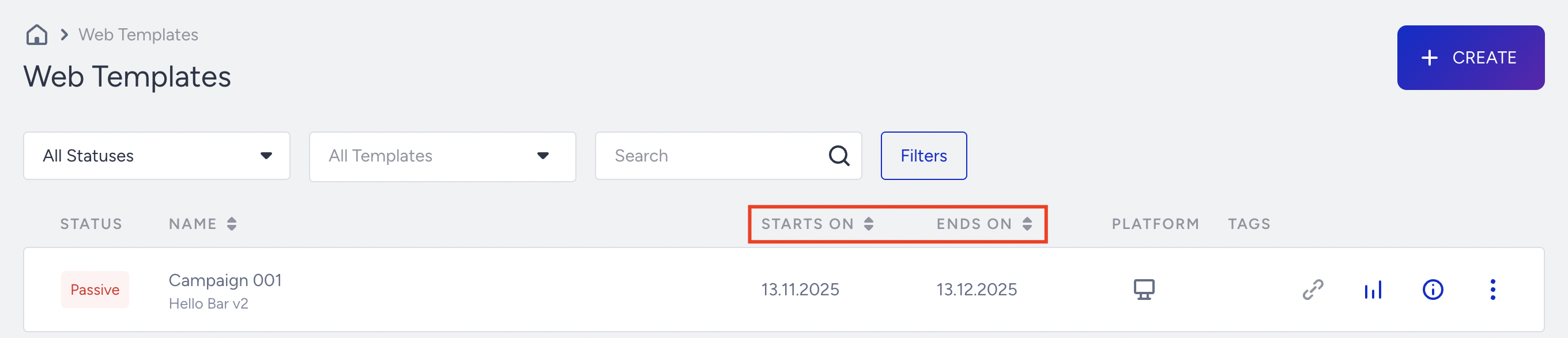
Sort campaigns
You can sort your campaigns based on their Starts On and Ends On dates.
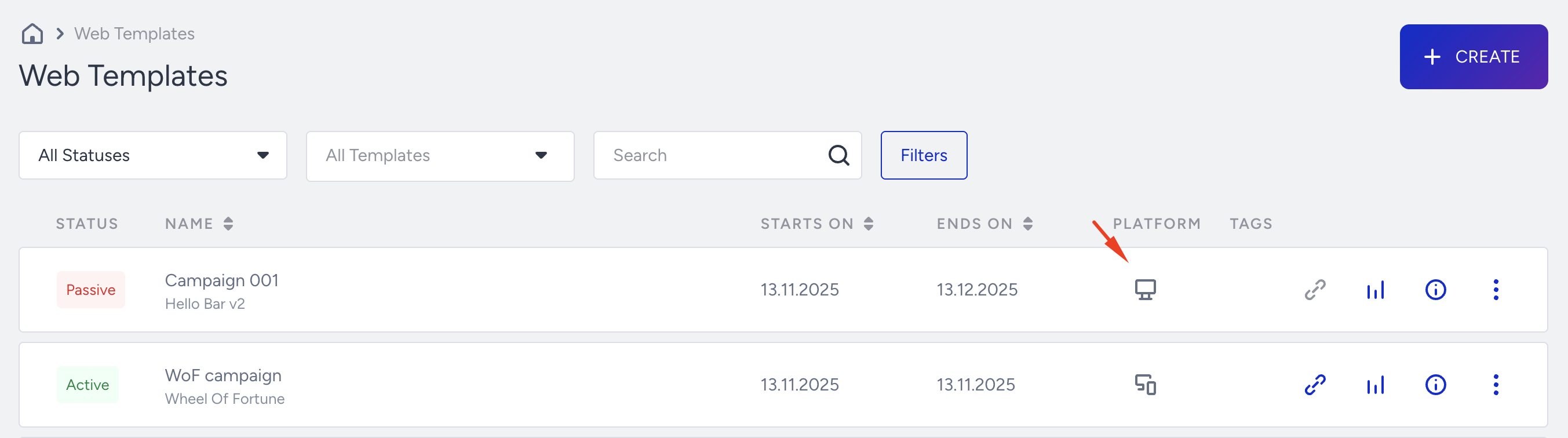
Campaign platforms
You can see which platform your campaign is set on.
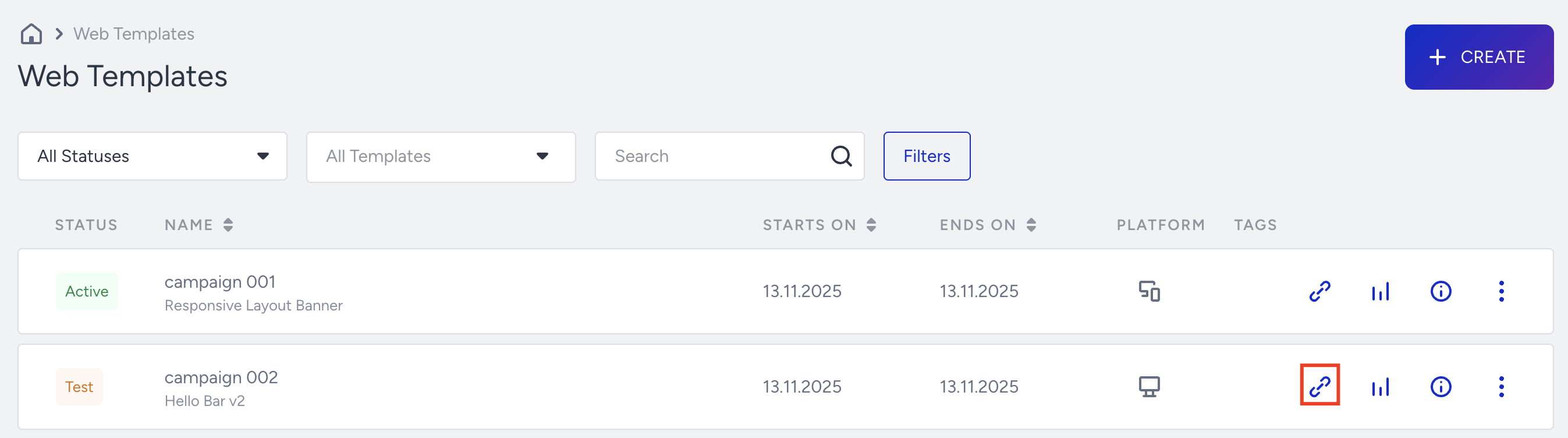
Test campaigns
You can get the test link for your campaigns to check that everything works as expected.
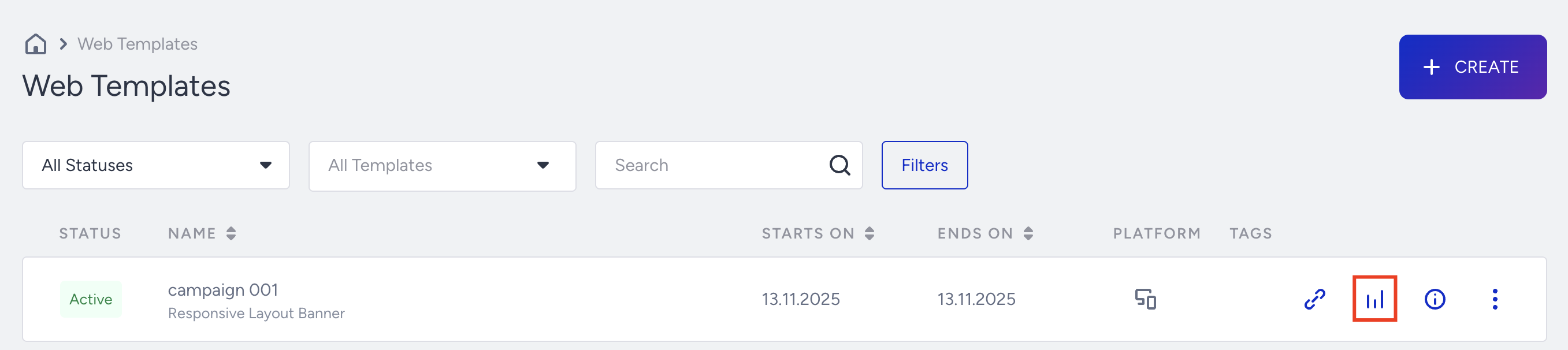
See analytics of each campaign
You can click the Analytics link for each campaign to view the analytics.
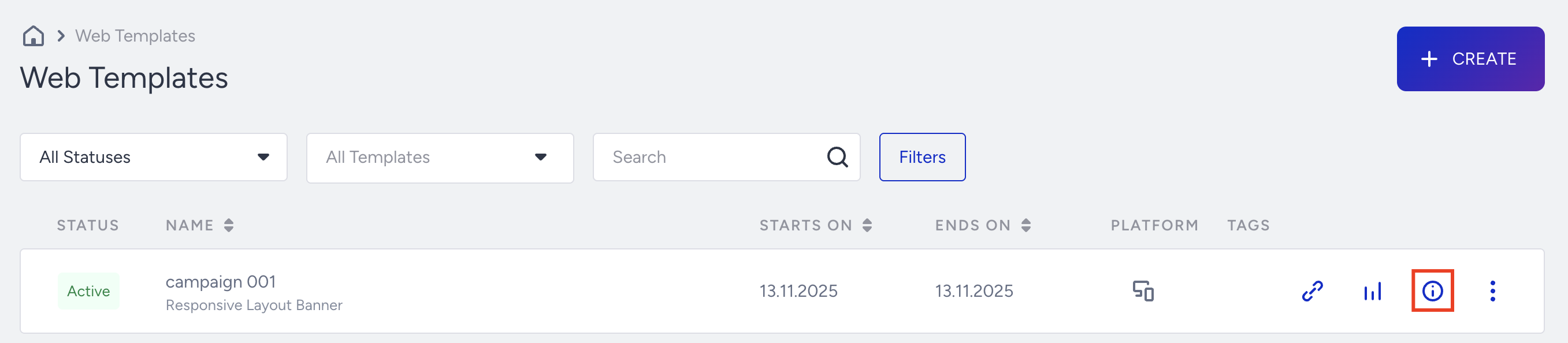
See details of each campaign
You can see the campaign details, segments, rules, variations, and goals when you click Details next to each campaign.
Duplicate campaigns
You can duplicate your campaigns to edit them and create a similar campaign on different platforms. If you are using Insider One with a multi-domain system, you can also duplicate your campaigns to your other domains.
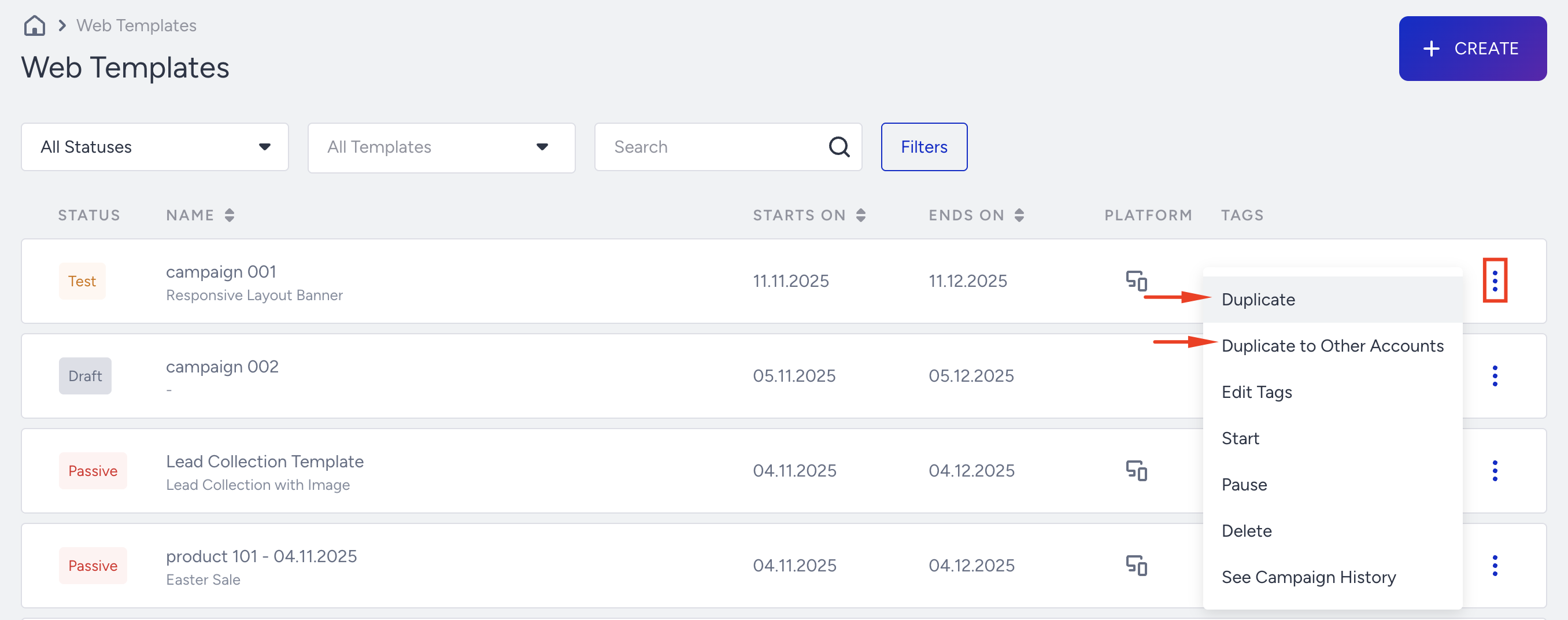
You can refer to Duplicate a Web Template Campaign for further information.
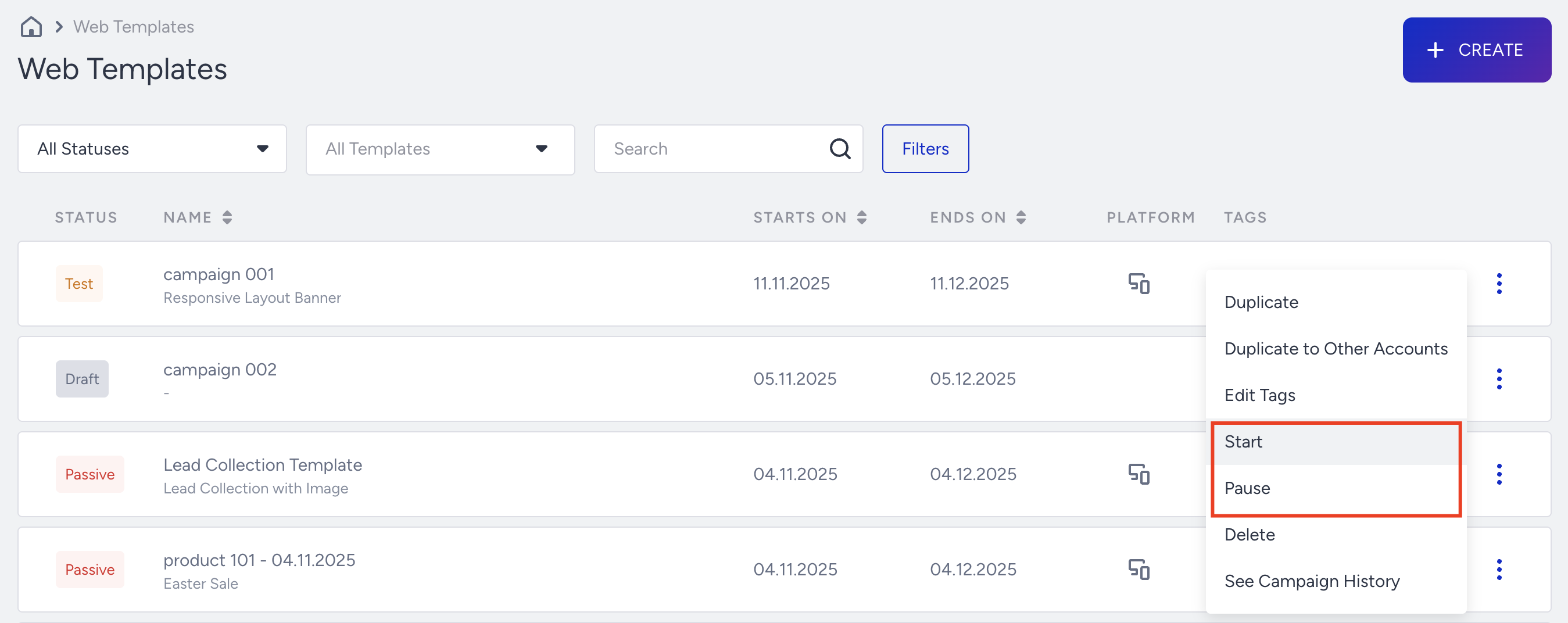
Change activation statuses
You can change the activation status of the campaigns under the menu.
Delete campaigns
You can delete your campaigns with the Delete option under the menu.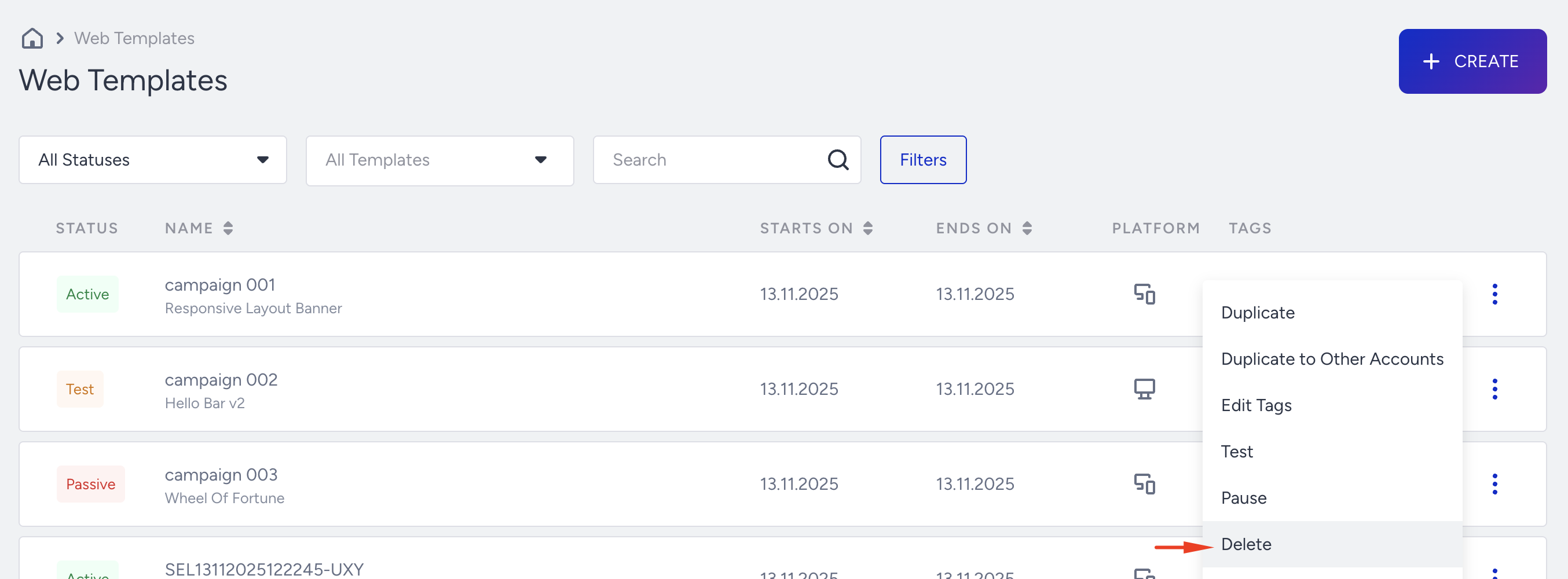
See Campaign History
Campaign Change History helps you track which campaign changes were made by which user and when.
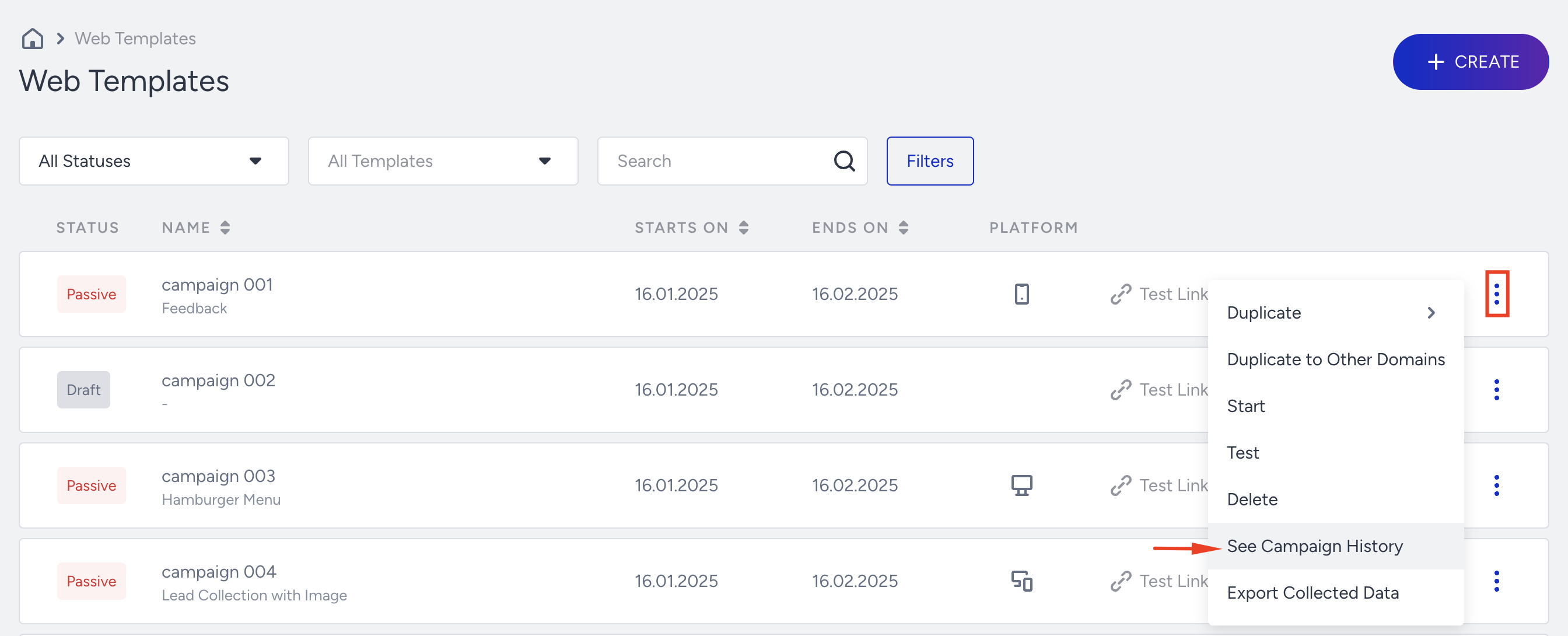
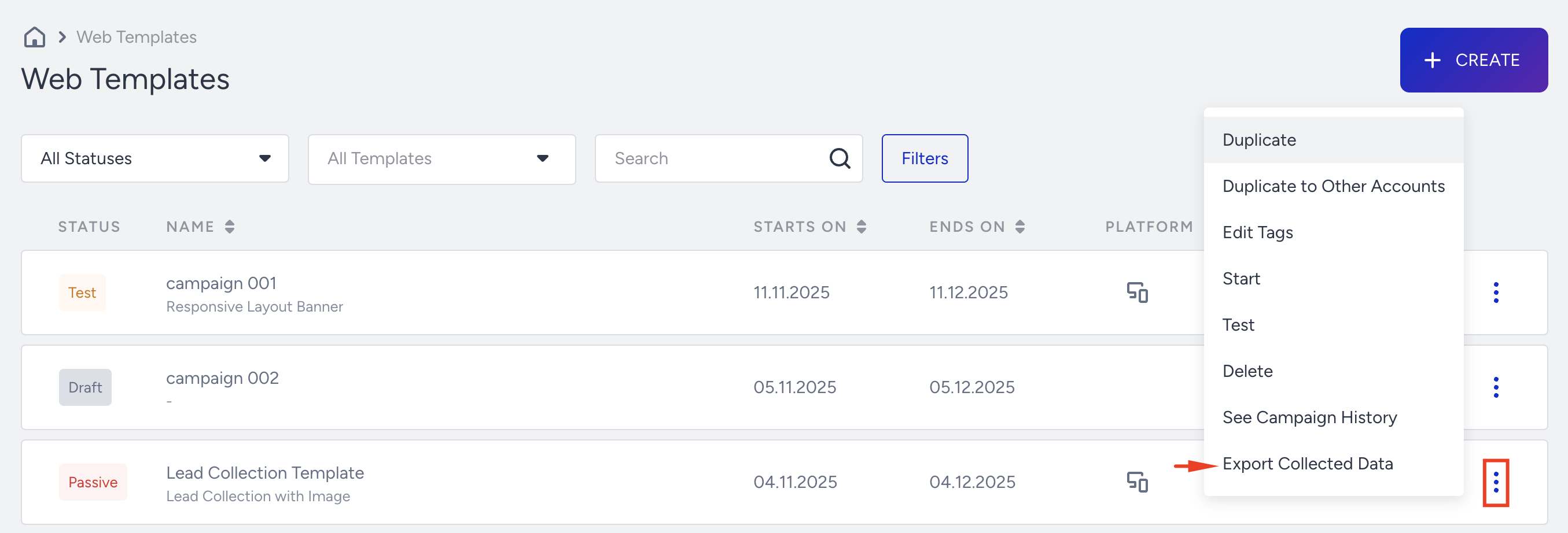
Export Variation
You can export the answers of Feedback campaigns and the collected leads of Lead Collection campaigns via the Export Collected Data option.
Only users with the appropriate authorization role can export the variation data.
You can select a maximum 1-year date range.
You cannot export the result if no data has been collected in the selected date range.