The Web Push listing page shows all your previously created campaigns. From this page, you can manage campaigns with options to create, filter, configure, analyze, and more.
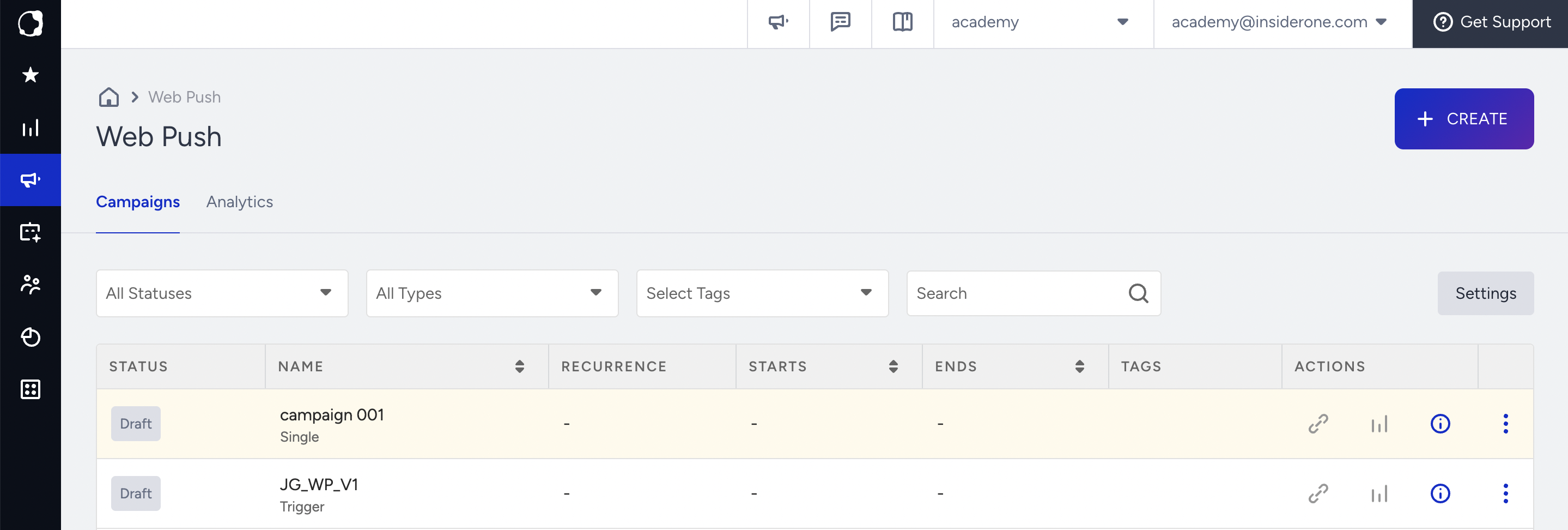
From this page, you can manage your campaigns with the following options:
Create campaigns
Click the Create button to start building a Web Push campaign.
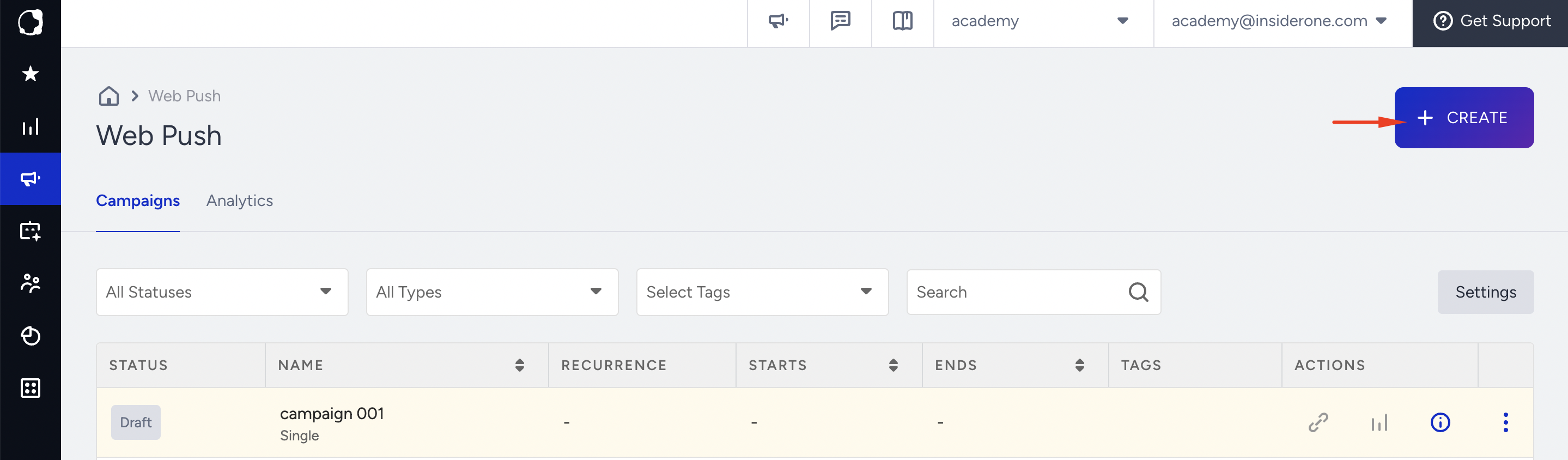
You can create up to 15 campaigns per minute.
Filter and list campaigns
Filter campaigns by status and type to easily manage your campaign list.
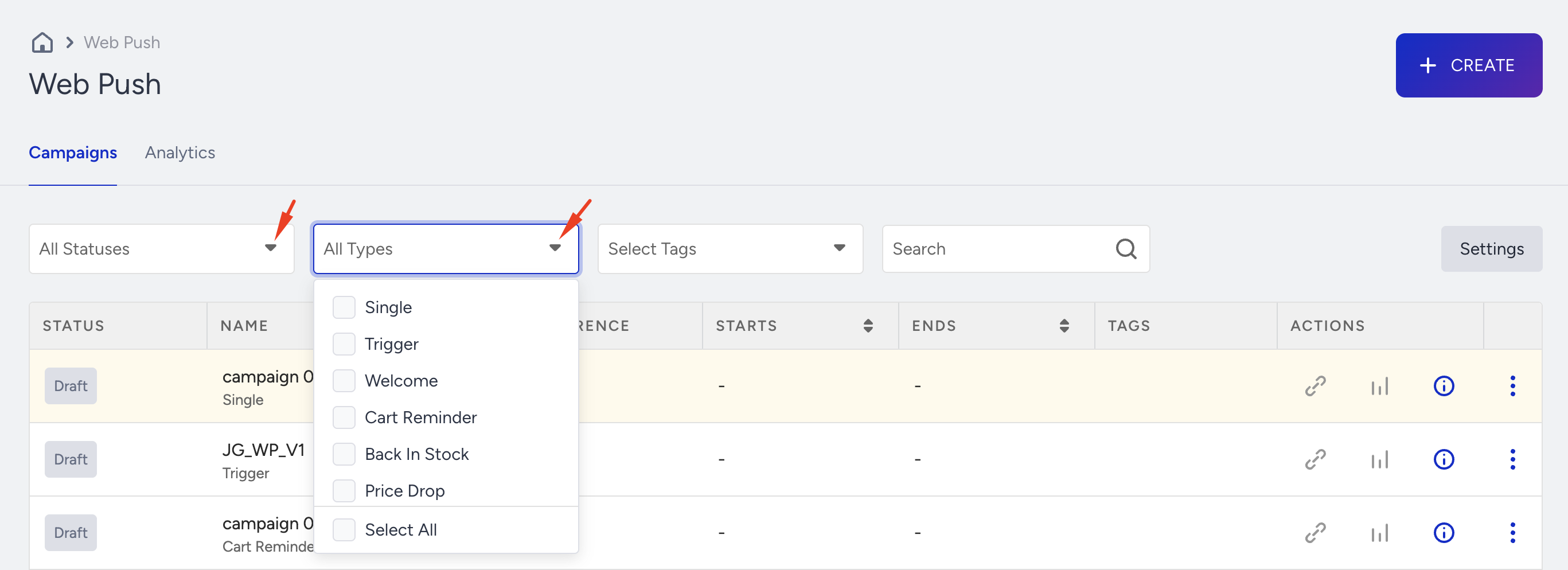
The statuses you can use to filter your campaigns are:
Draft: If your campaign has not been sent or scheduled yet, or if you have saved it as a draft, it will be listed with the Draft status.
Scheduled: If your recurring campaign is set and scheduled for the first time, it will be in the “Scheduled” status.
Running: If your campaign is being sent, it will be in “Running” status.
Awaiting Next Run: A Web Push must be activated before it can be listed in the “Awaiting Next Run” status. Then, whether it’s paused or not, if it’s scheduled for a future date, it will appear as “Awaiting Next Run.”
Completed: If your campaign was sent for all specific recurrences, your campaign will be in “Completed’ status.
Paused: If you pause your campaigns temporarily, they will be in "Paused" status. You can click the Resume button to keep your paused campaigns running.
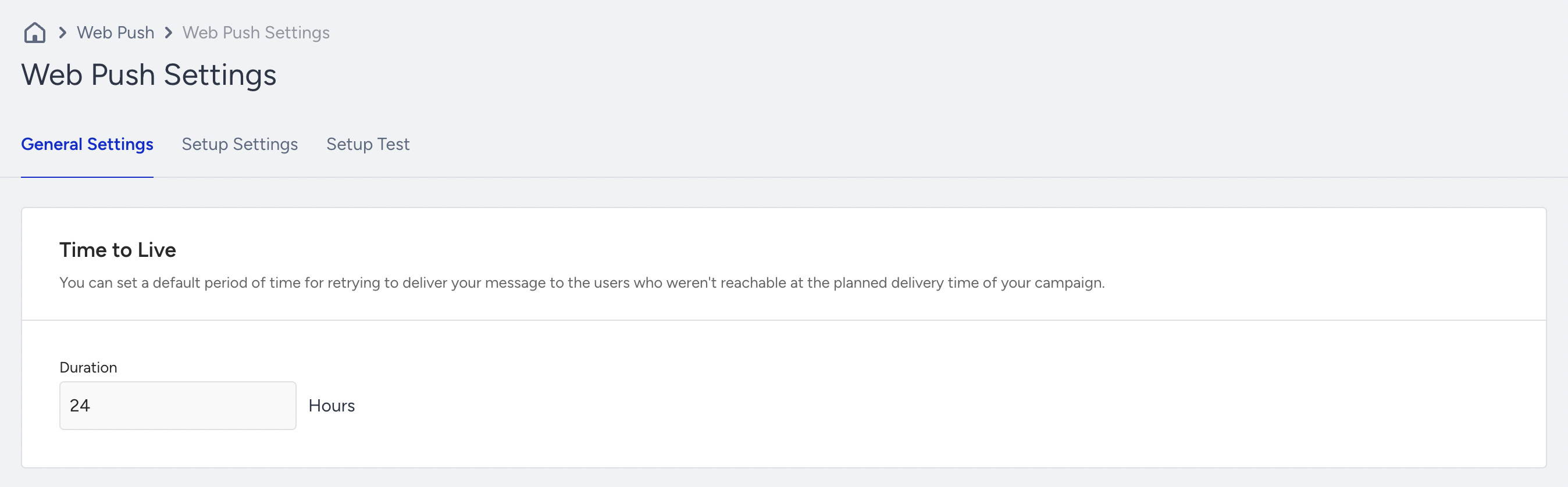
Configure Web Push settings
You can configure General and Setup settings. You can switch between tabs to complete the configuration.
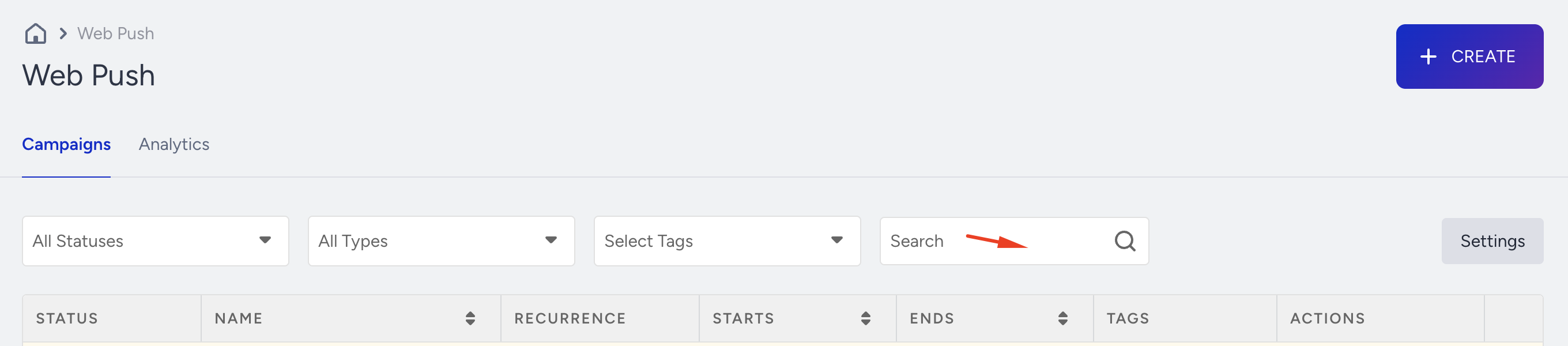
Search campaigns
You can search for your campaigns by name, campaign ID, or tag using filtering.
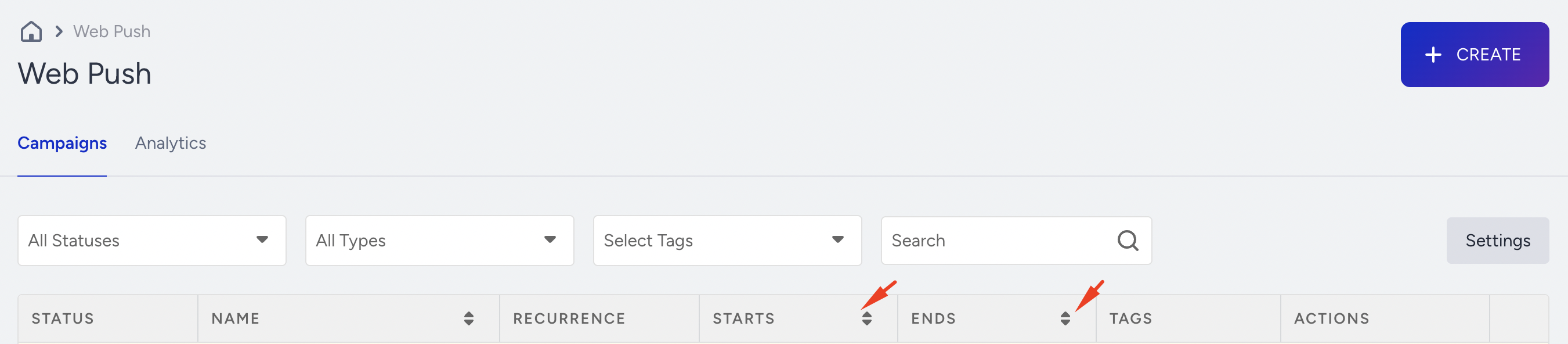
Sort campaigns
You can sort your campaigns based on their Starts On and Ends On dates.
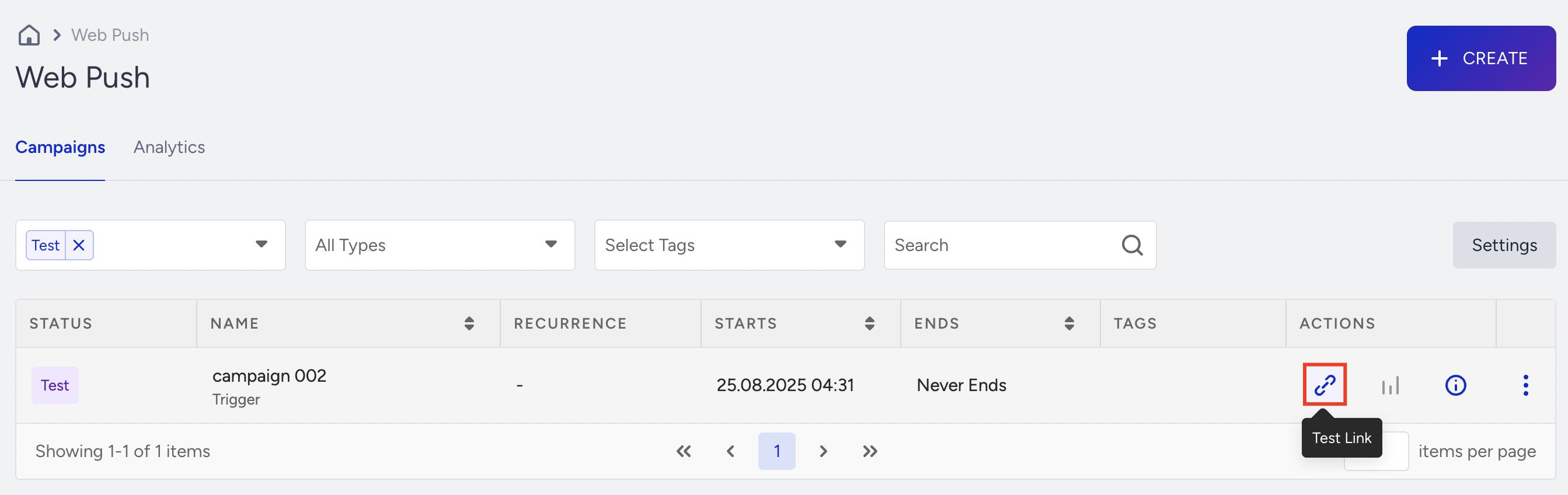
Test campaigns
If a campaign is in Test status, you can generate a test link for preview.
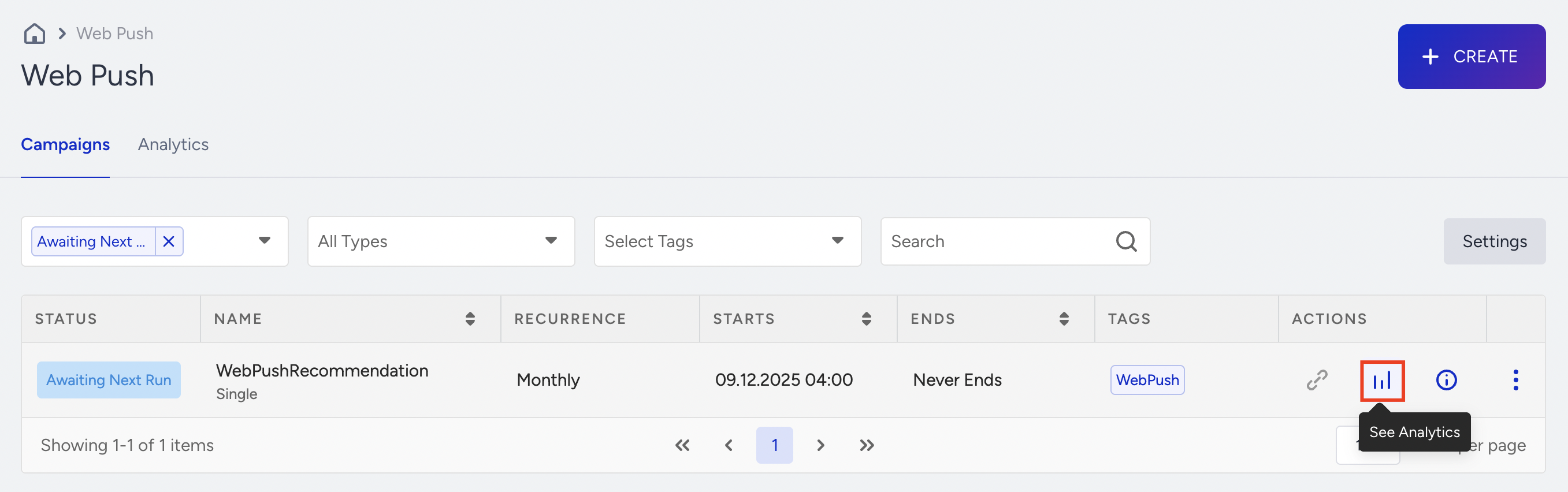
See analytics of each campaign
Click the Analytics button next to each campaign to review key performance metrics.
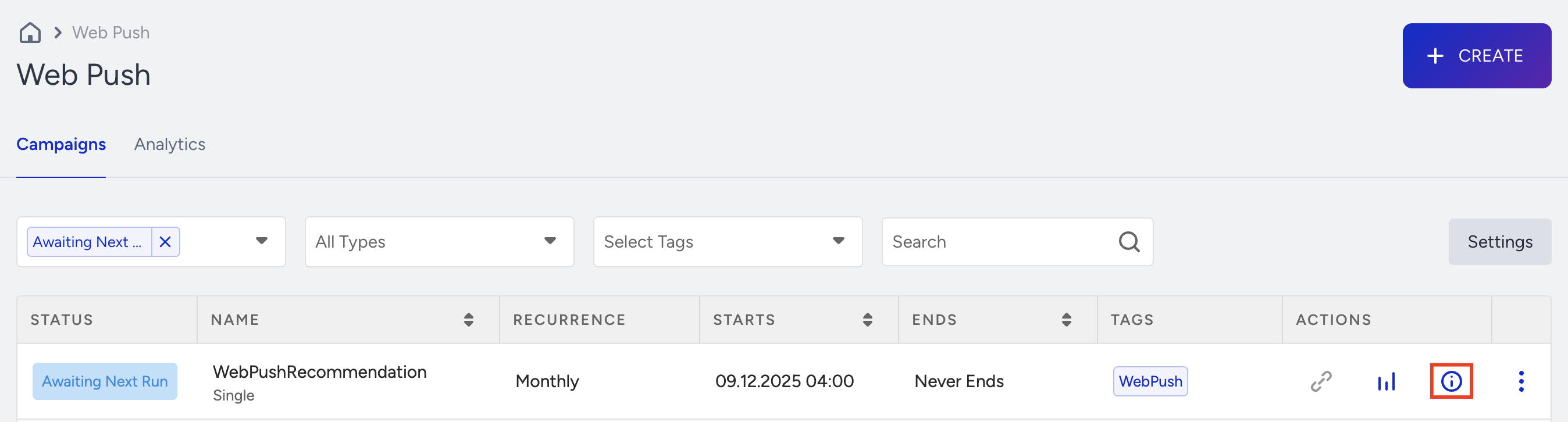
See details of each campaign
You can view personalization, segment, variation, and goal information by clicking the Details button next to each campaign.
Duplicate campaigns
Use the three-dots menu to duplicate an existing campaign. This creates a copy you can edit and reuse.
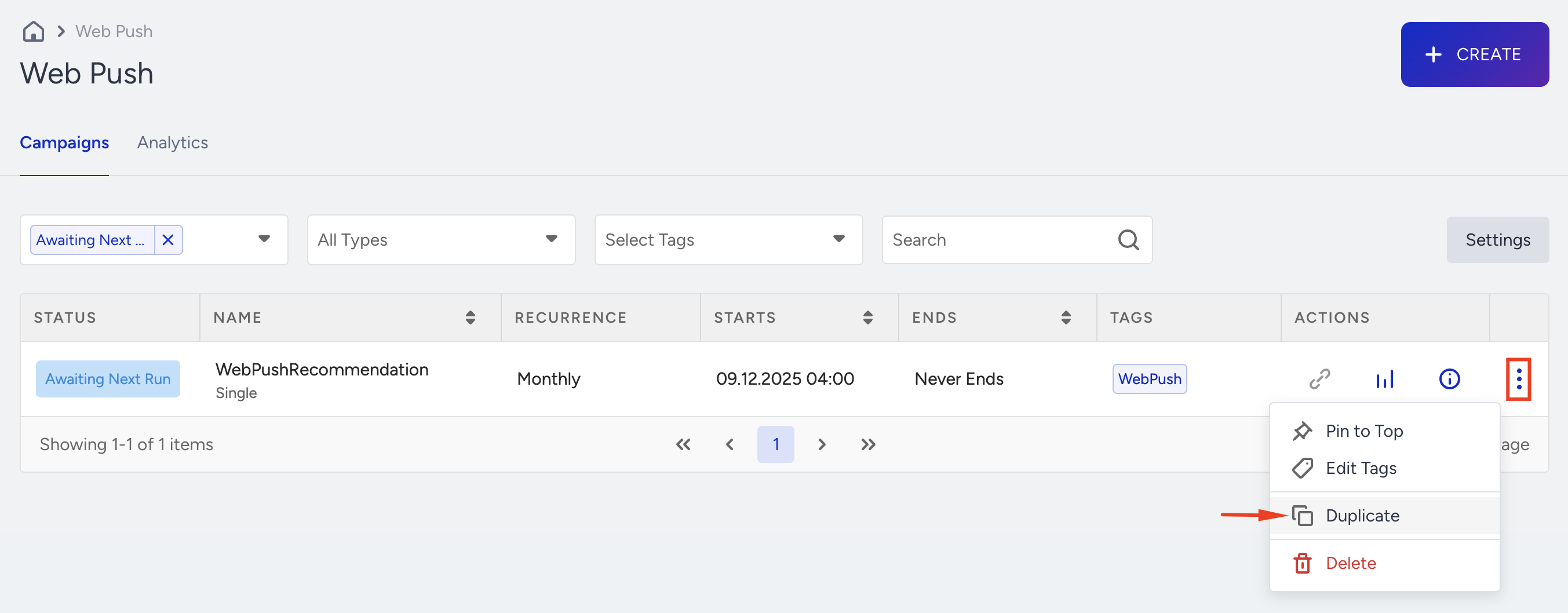
You can duplicate a maximum of 15 campaigns per minute.
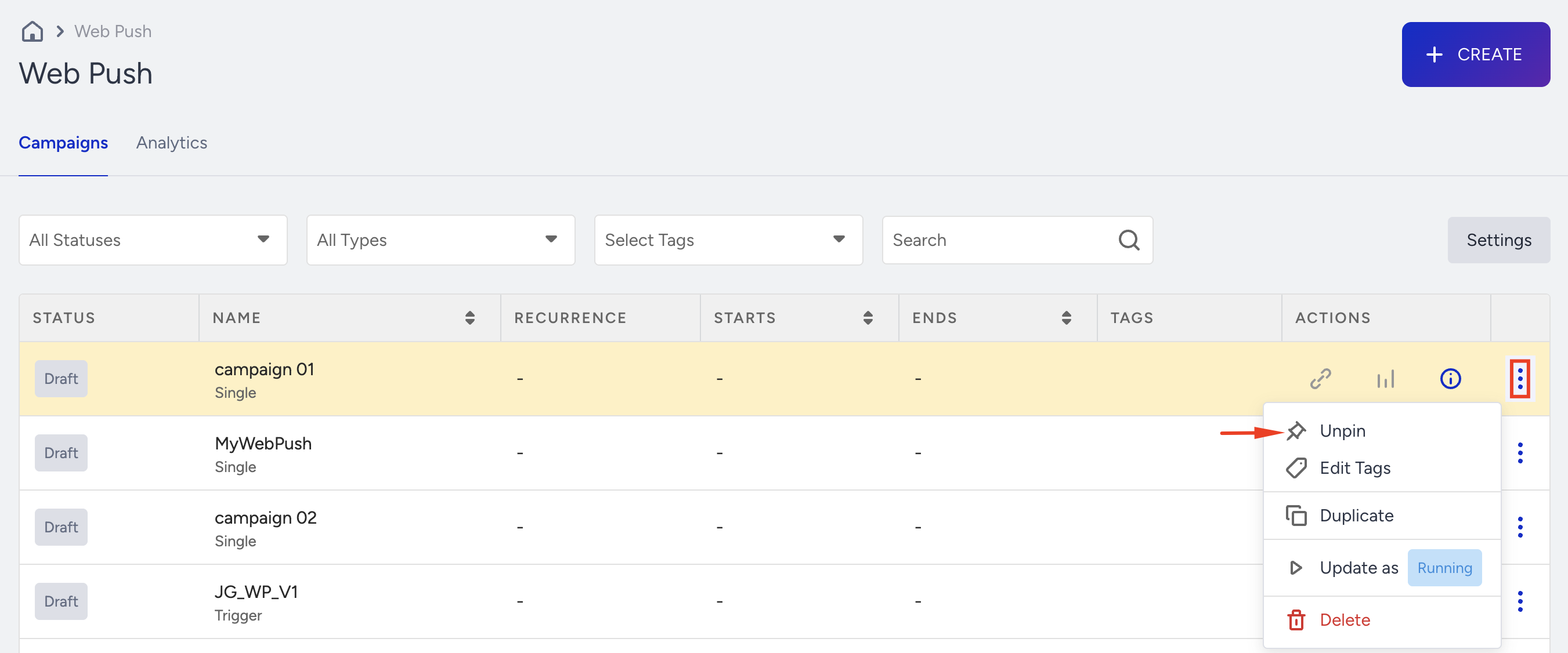
Pin/unpin campaigns
From the 3-dots menu, pin frequently used campaigns to keep them at the top of the list.
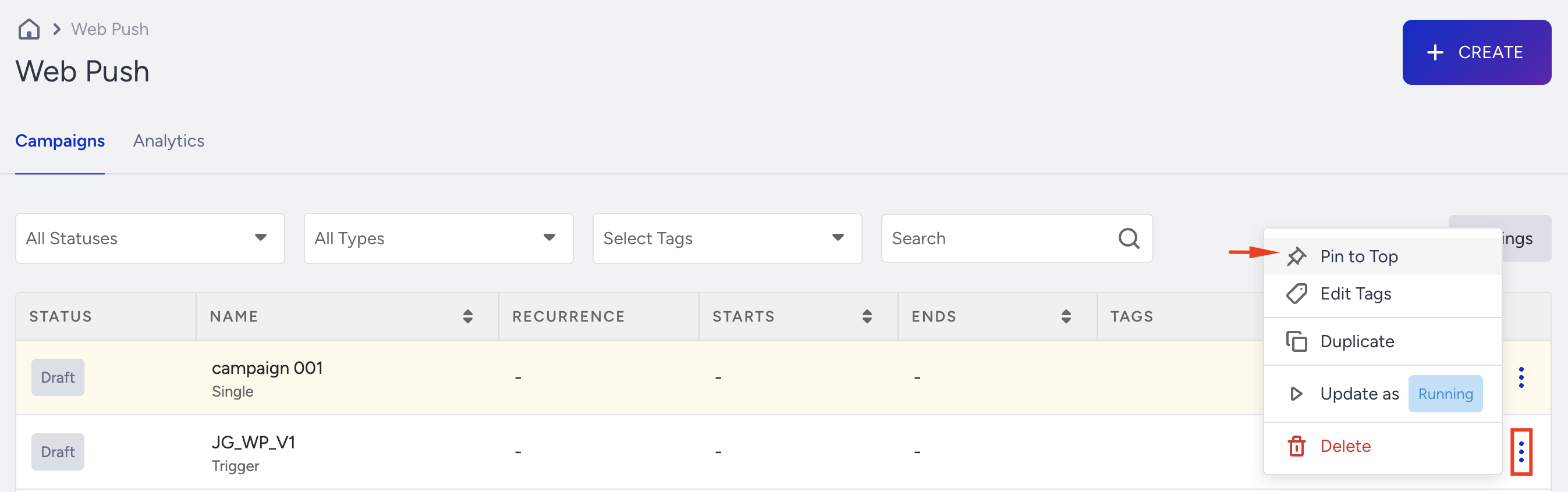
The pinned campaigns will be highlighted in yellow. You can unpin them if desired.
Change activation statuses
Use the 3-dots menu to change the activation status of the campaigns.
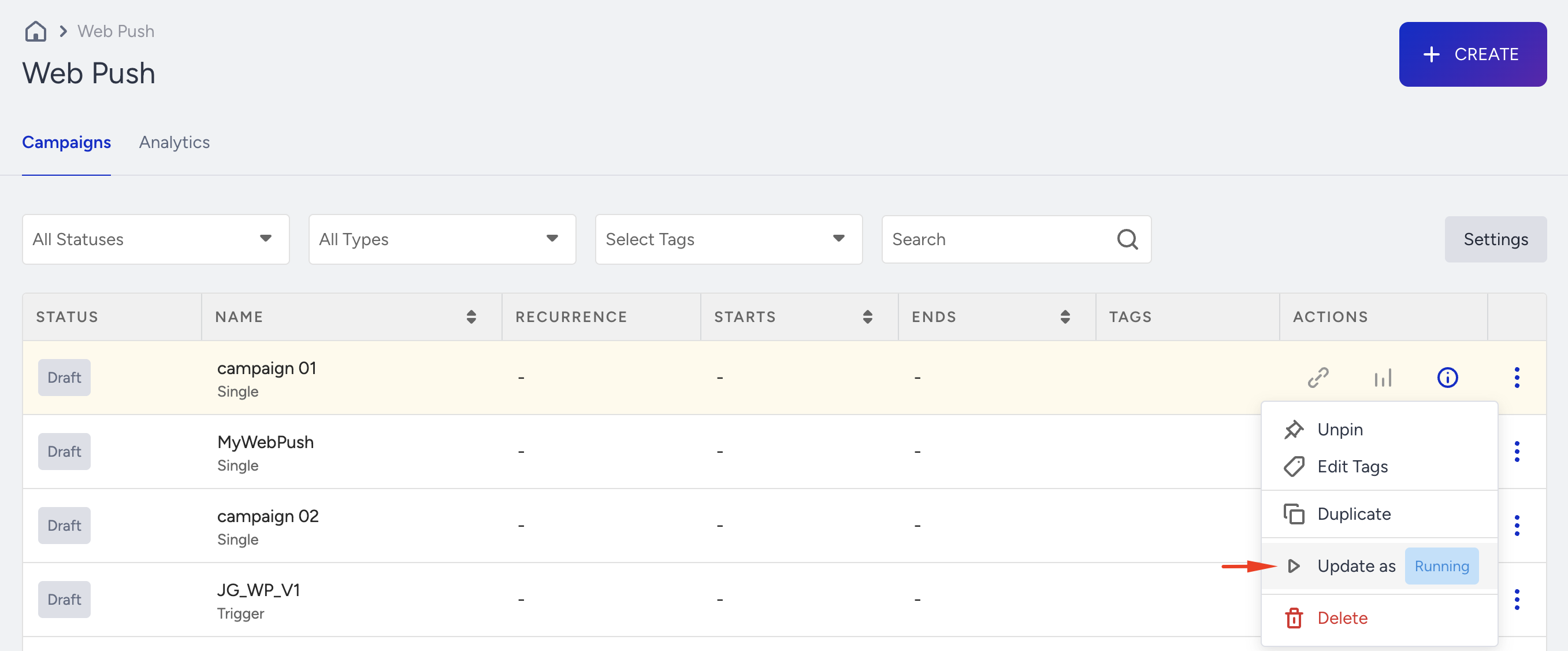
You can pause up to 15 campaigns per minute.
Delete campaigns
You can delete your campaigns using the Delete button located next to each campaign under the three-dots menu.
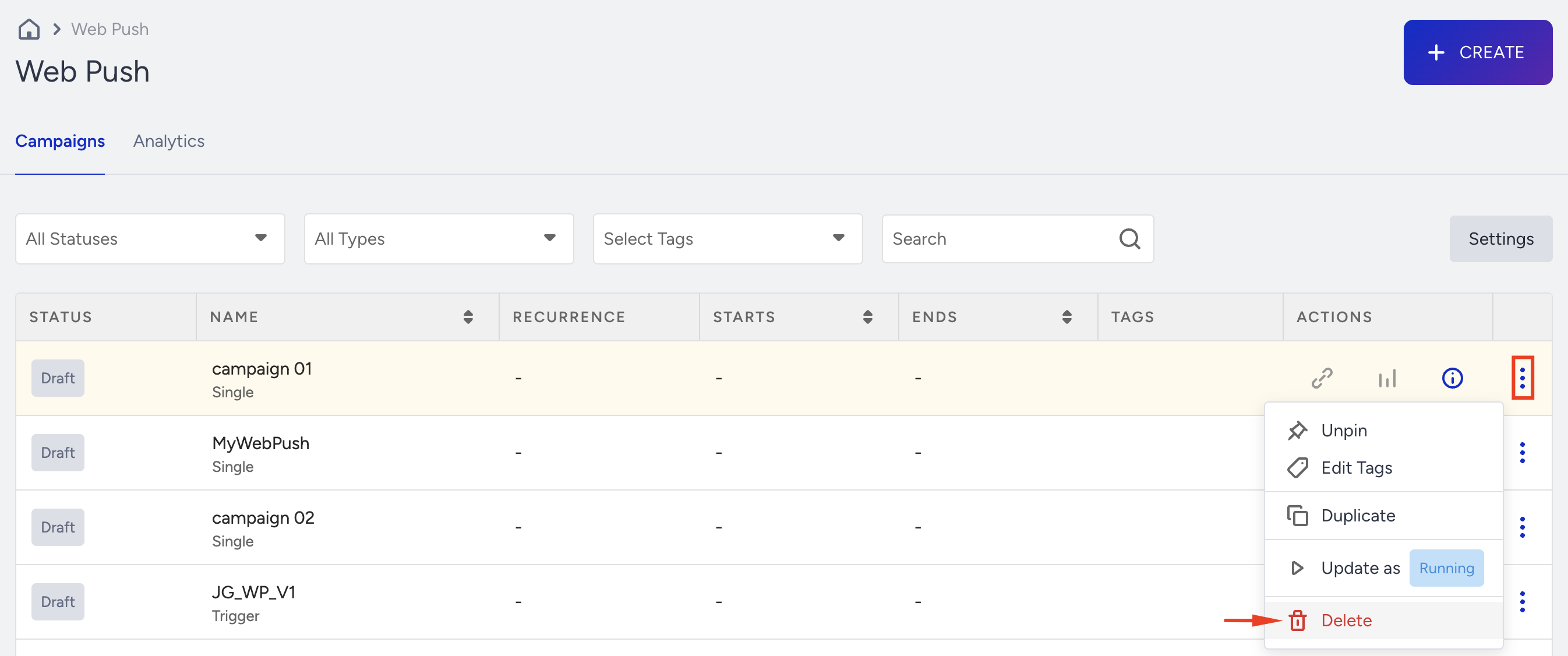
You can delete up to 15 campaigns per minute.