After you design your Web Push notification, test whether the rules you’ve configured work as expected. This includes verifying that the notification is triggered under the correct conditions, such as user behavior, page visits, segment filters, or browser type. Testing ensures that your campaign logic functions correctly before going live, helping you identify and resolve issues.
By running controlled tests using tools like Test Message, Preview as User, or trigger simulations, you can confirm that the right users receive the notification under the right circumstances.
To receive Web Push notifications, you need to opt in on your website.
Trigger Push
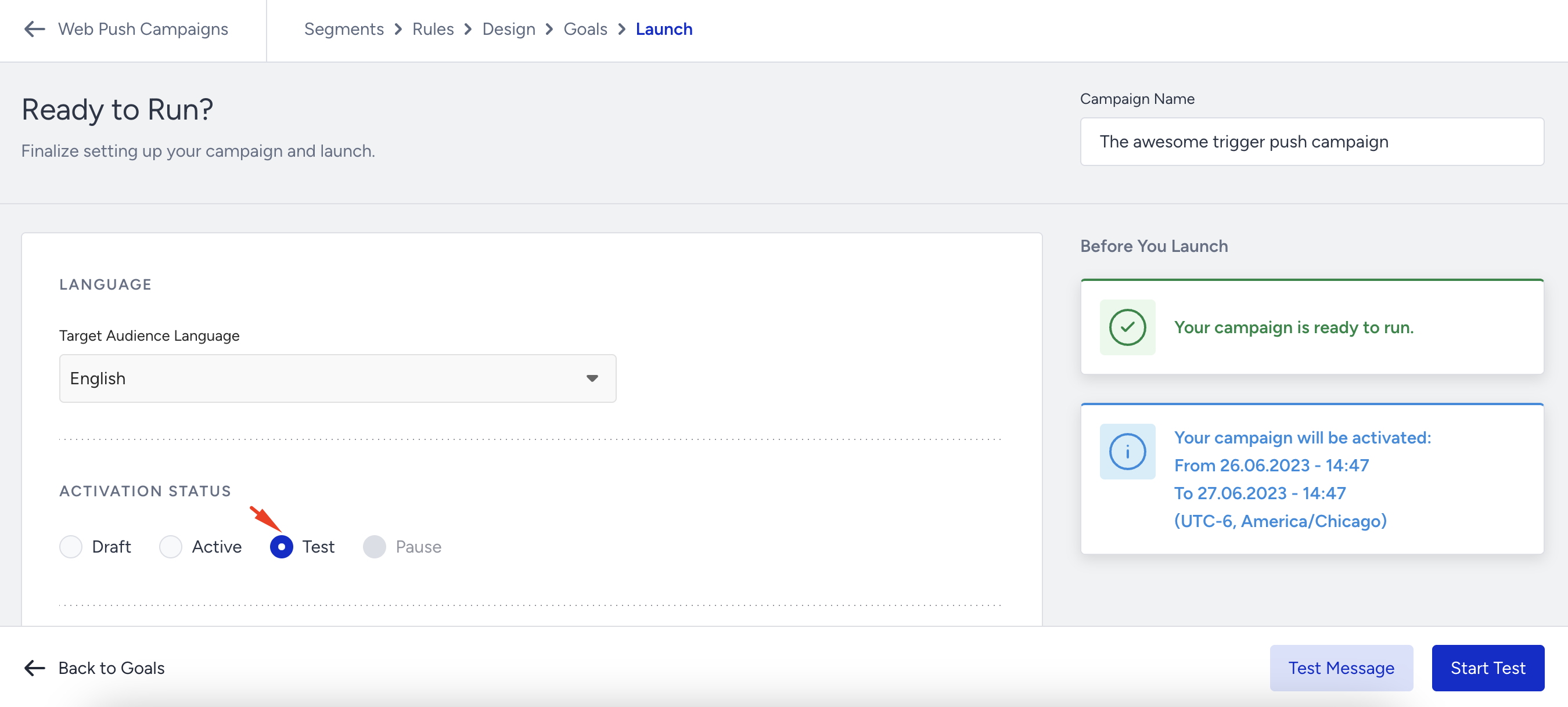
On the Launch step, set your campaign activation status to Test. Ensure the language setting is correct.
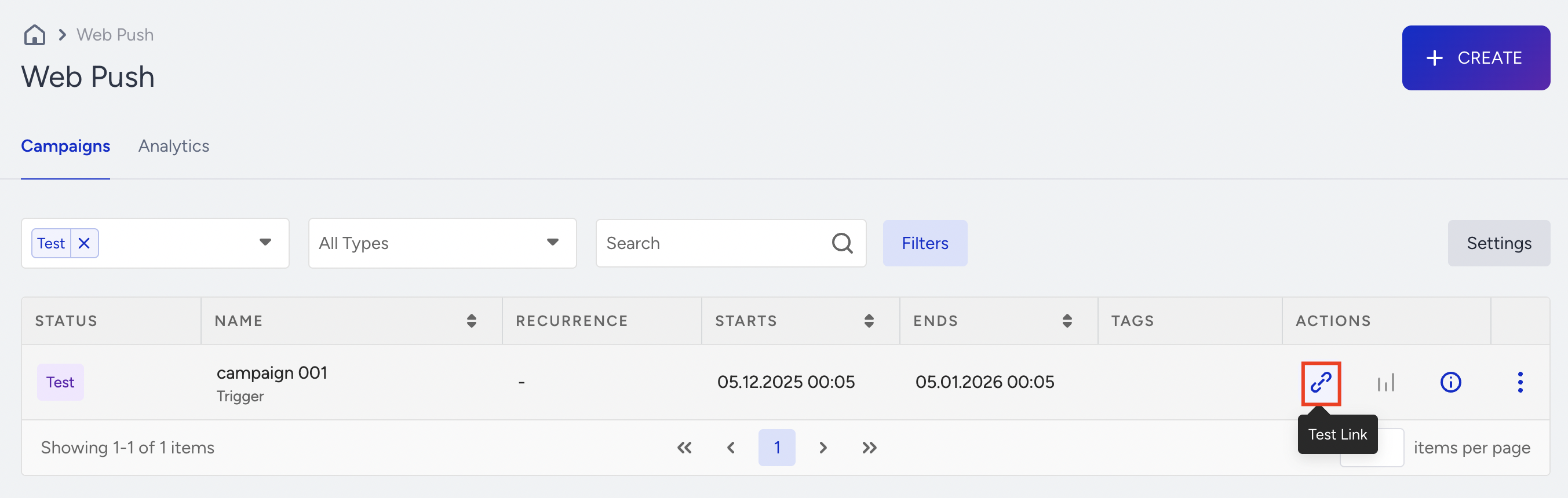
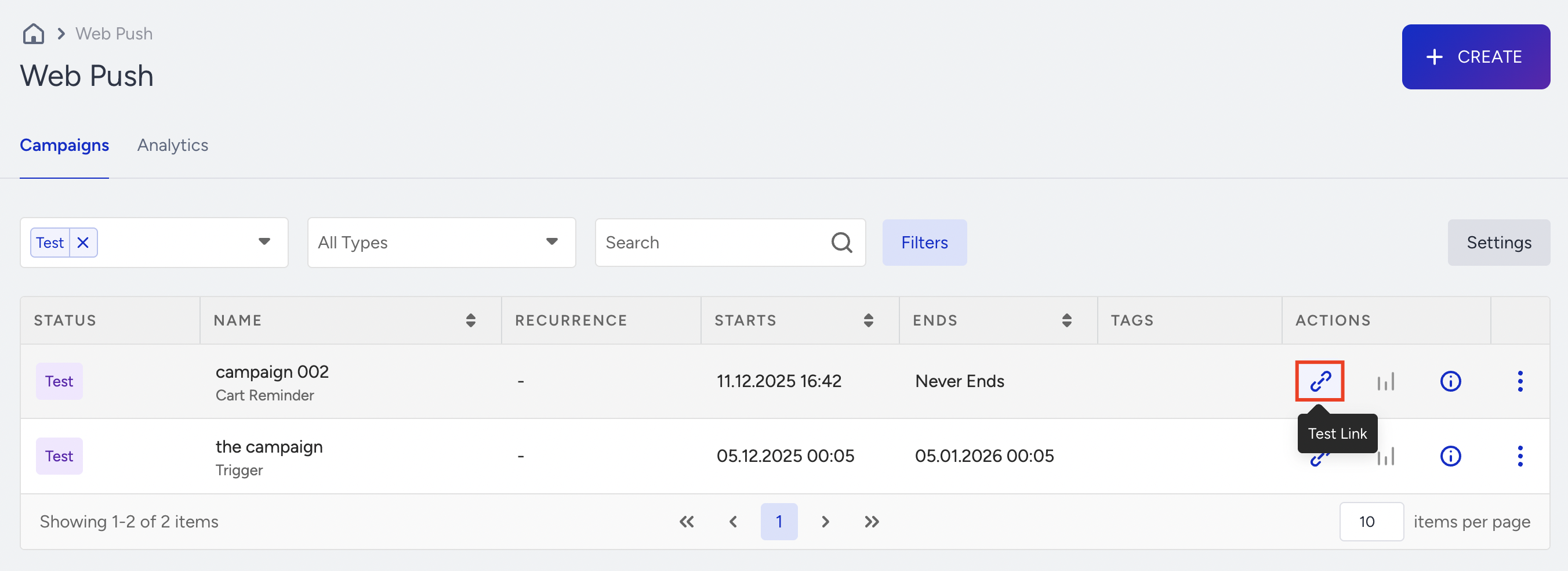
Generate the panel and visit the campaign’s Test link on the Web Push listing page.
You will land on your website.
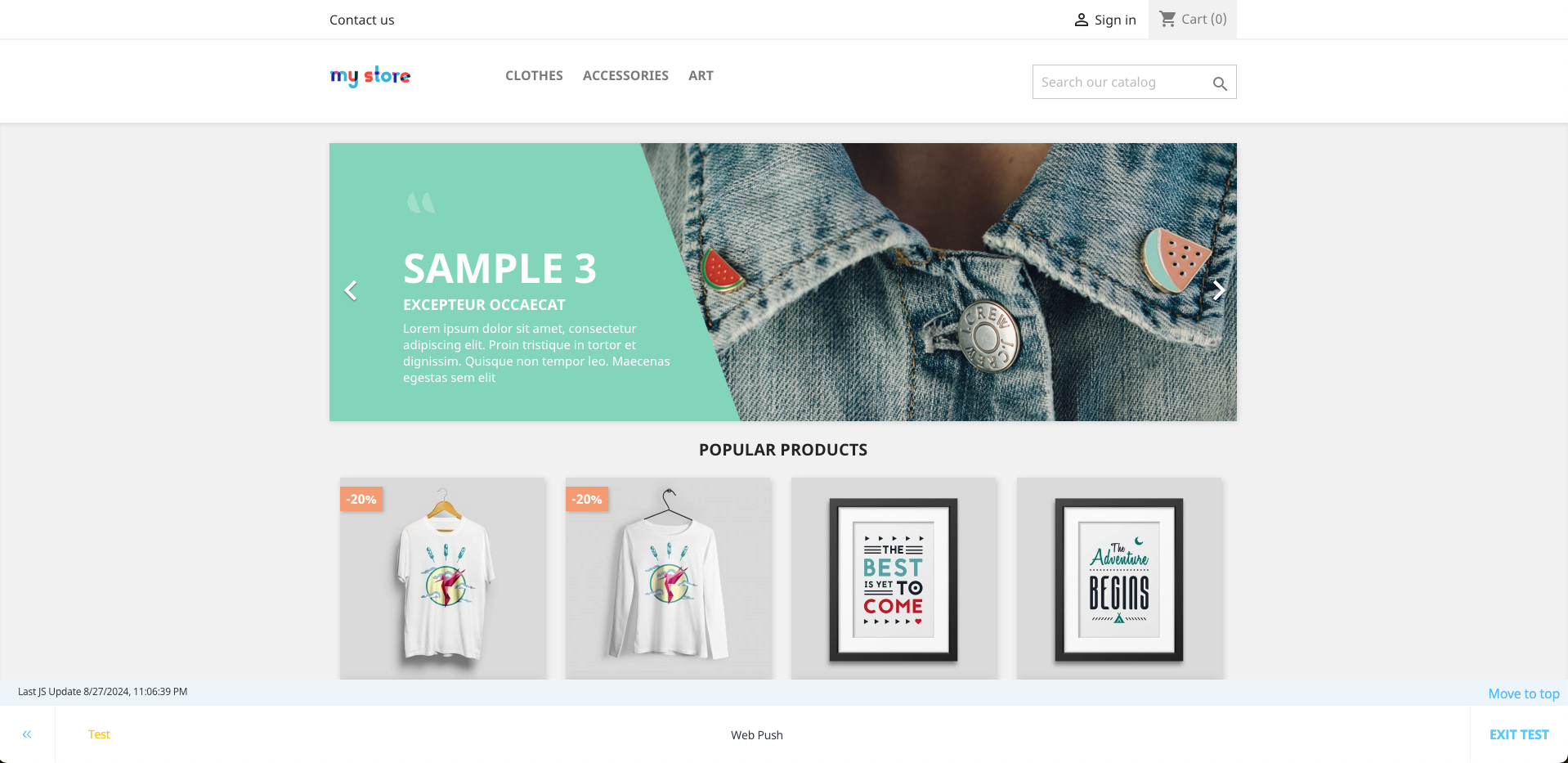
To receive the Trigger notification, you must meet the criteria you set in the Rules step. Then, click Exit Test to exit test mode.
Cart Reminder Push
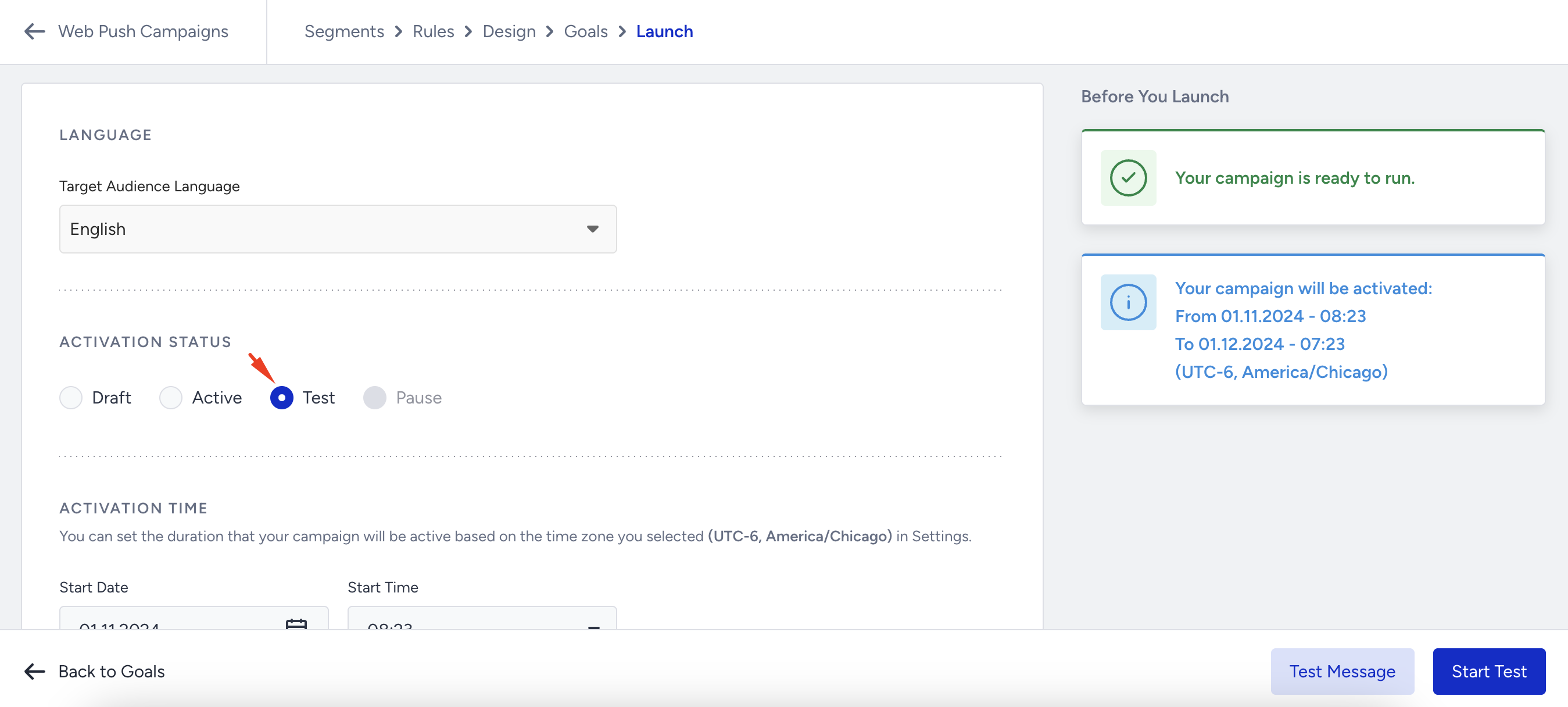
On the Launch step, set your campaign activation status to Test. Ensure the language setting is correct.
Generate the panel and visit the campaign’s Test link on the Web Push listing page.
Add items to your cart, and after the delay time, you will receive a Web Push notification.
Once you confirm that all configurations are working properly, click Exit Test.
After that, you can schedule and launch your Web Push notification campaign.