WhatsApp Vote is a voting system developed for users to rate WhatsApp conversations. This guide aims to answer the questions below:
- How can I set up the WhatsApp Voting?
- How can I customize the Confirmation screen?
- How can I use voting for the WhatsApp channel?
- How can I see WhatsApp Vote as a user?
Set up the WhatsApp Voting
To set up the WhatsApp Voting,
1. Log in to MindBehind and select your company from the Companies page on the navigation panel. 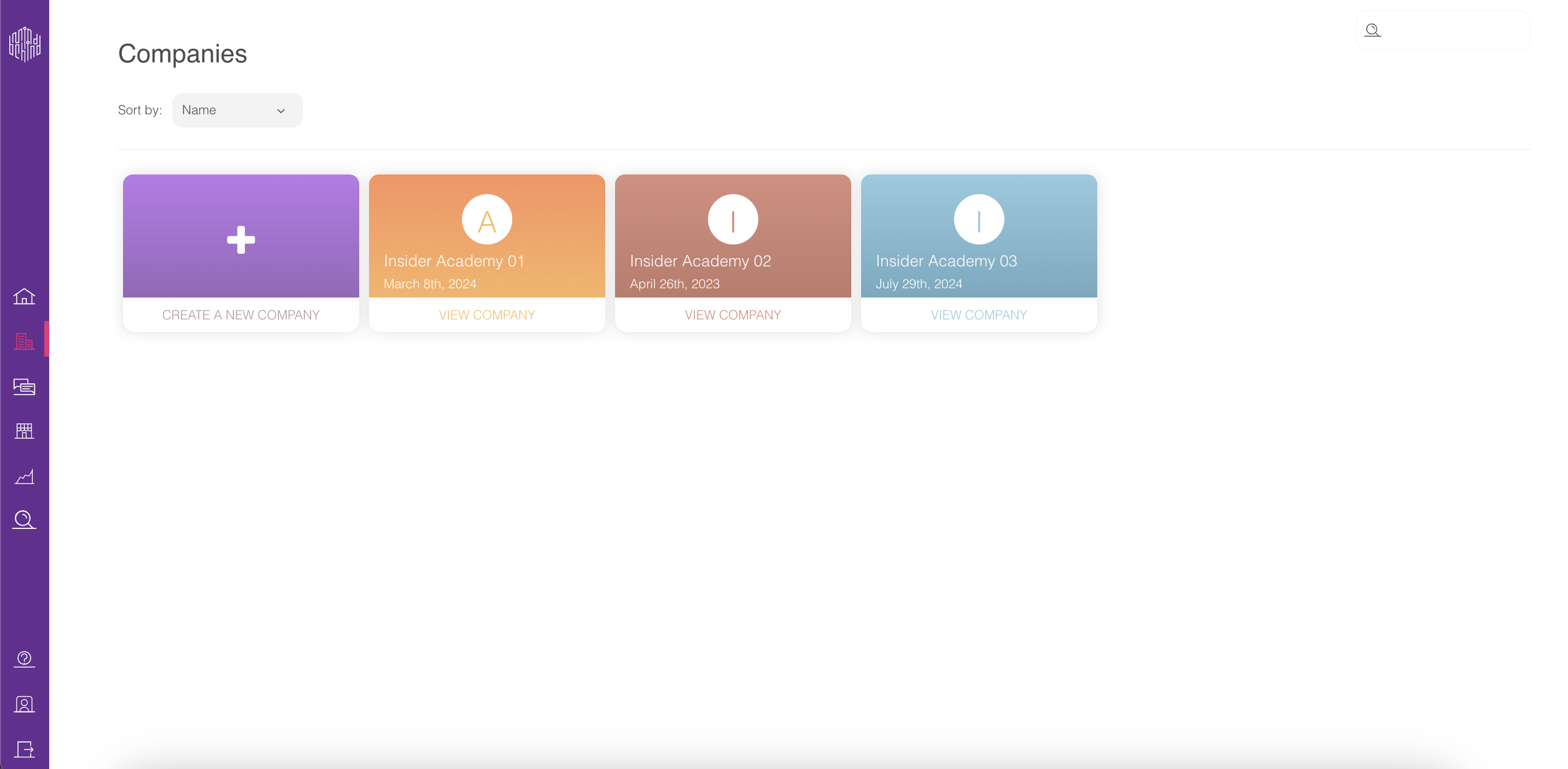
2. Go to the Channels tab on the Company Management page. Go to the WhatsApp channel and click on the "star" icon. 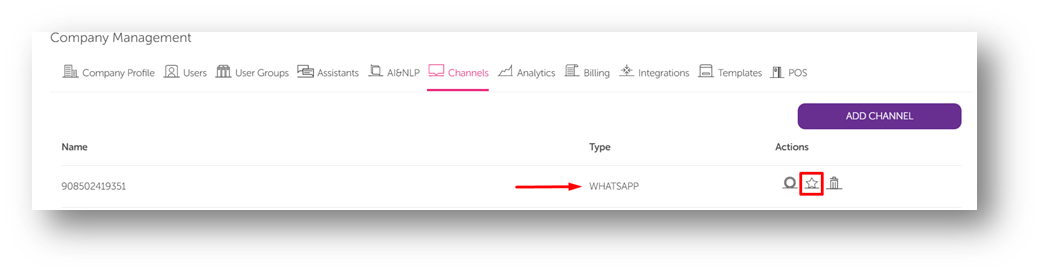
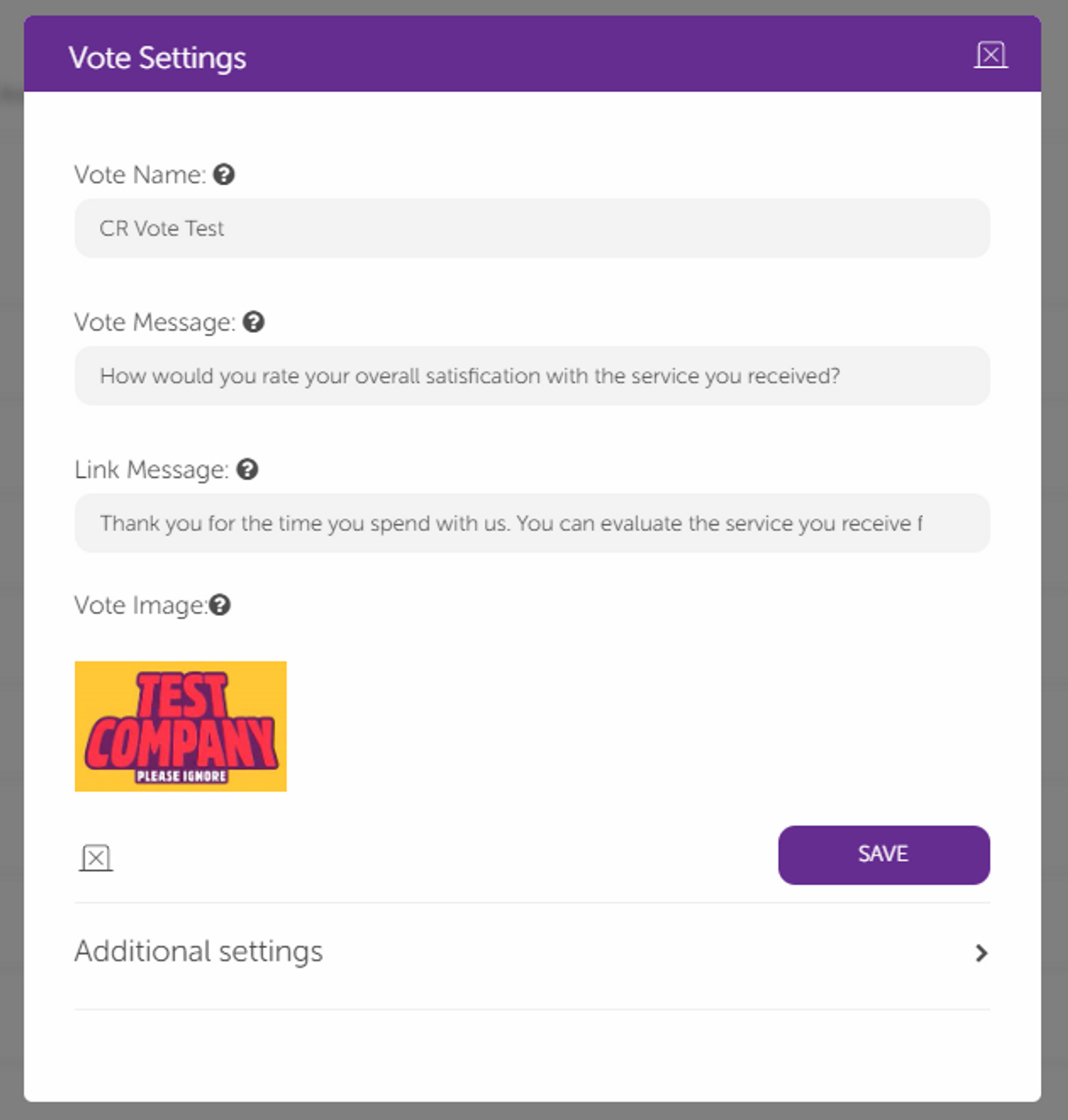
3. You will see a pop-up page. Fill in the information in this pop-up. Fill in the Vote Name, Vote Message, and Vote Link mandatory fields. The Vote Image field is optional, and you can put the company logo here.
4. Once all information is filled in, click the Save button to ensure all details are saved.
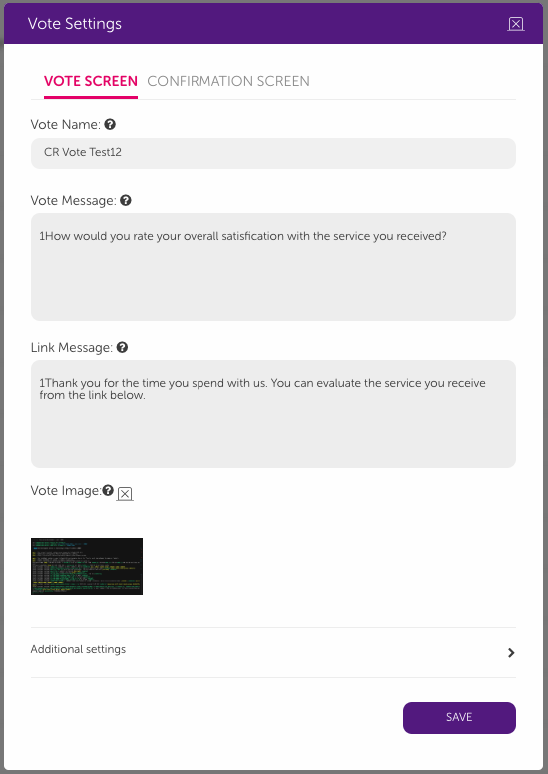
5. You can find additional settings at the bottom of the pop-up that allow you to customize the vote. All the additional settings sub-fields are optional. 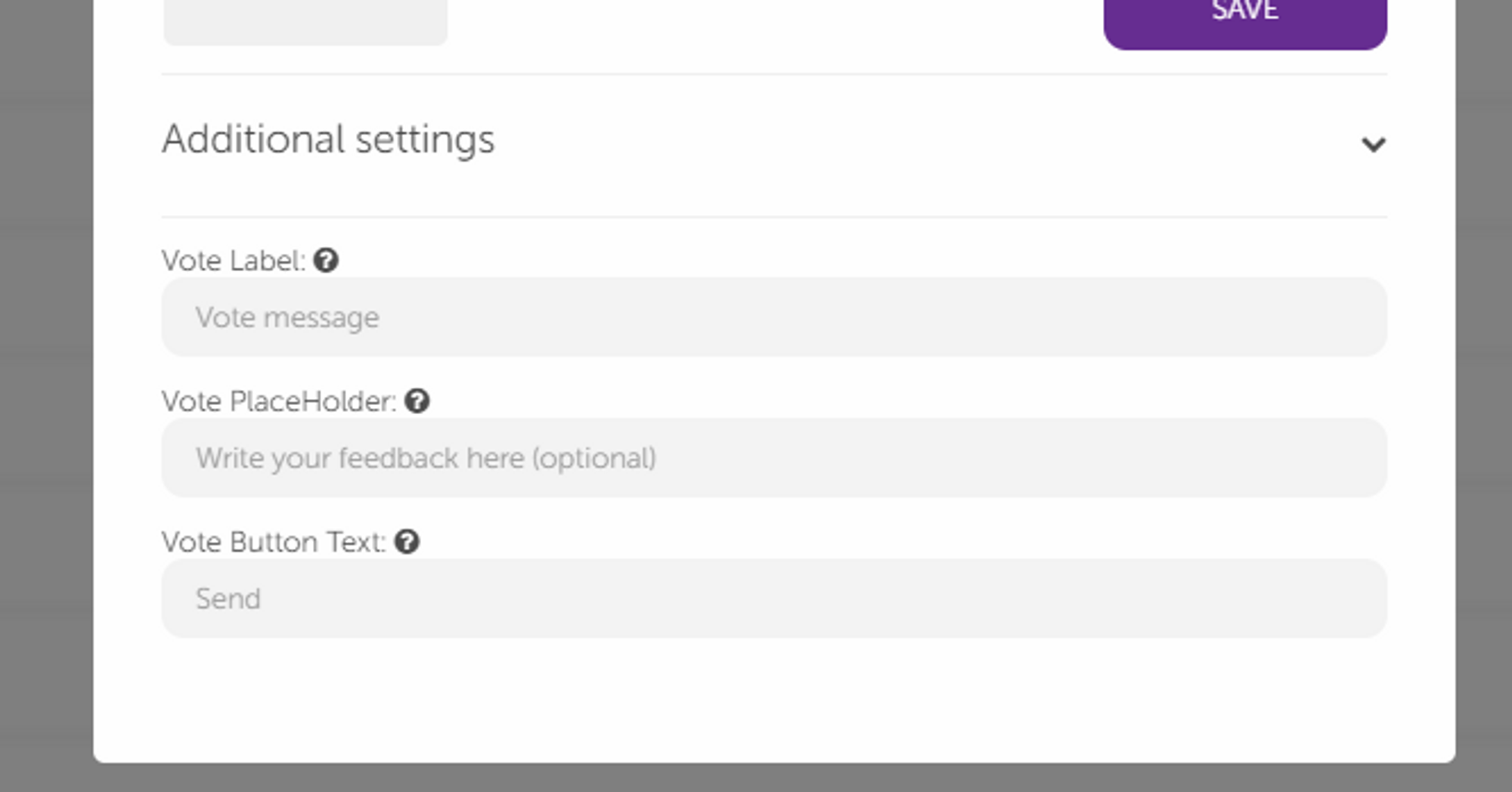
These additional settings fields have some limitations:
- The Vote Label is optional and can be a maximum of 70 characters. The default value is: “Vote message”.
- The Vote Placeholder is optional and can be a maximum of 70 characters. The default value is: “Write your feedback here (optional)”.
- The Vote Button Text is optional and can be a maximum of 14 characters. The default value is: “Send”.
Customize Confirmation screen
You can customize the Vote Confirm screen on the Confirmation Screen..png)
- The image you add to the Vote screen will also be seen on the Confirmation Screen.
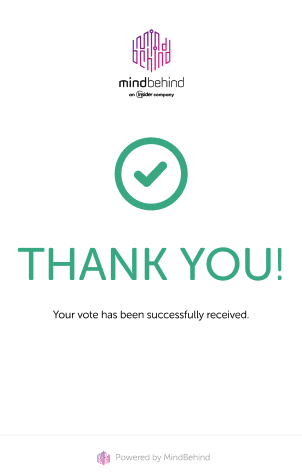
- If you use the default settings, the user will see the standard “Thank you!” message, as shown in the screenshot below.
- If everything is entered as required, vote settings will be saved.
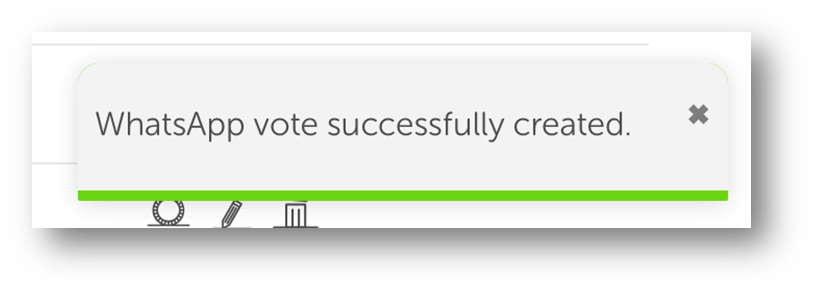
- After you fill in the required fields, the vote settings creation process will be completed for your channel.
Use Voting for the WhatsApp channel
To use the Voting for WhatsApp channel, follow the steps for each section below:
Assistants
You can configure voting for the WhatsApp channel before publishing your bot.
Select the rating mode and click the Publish button. The image below shows the Assistant Map editor, Publish screen, and the Deployment tab. 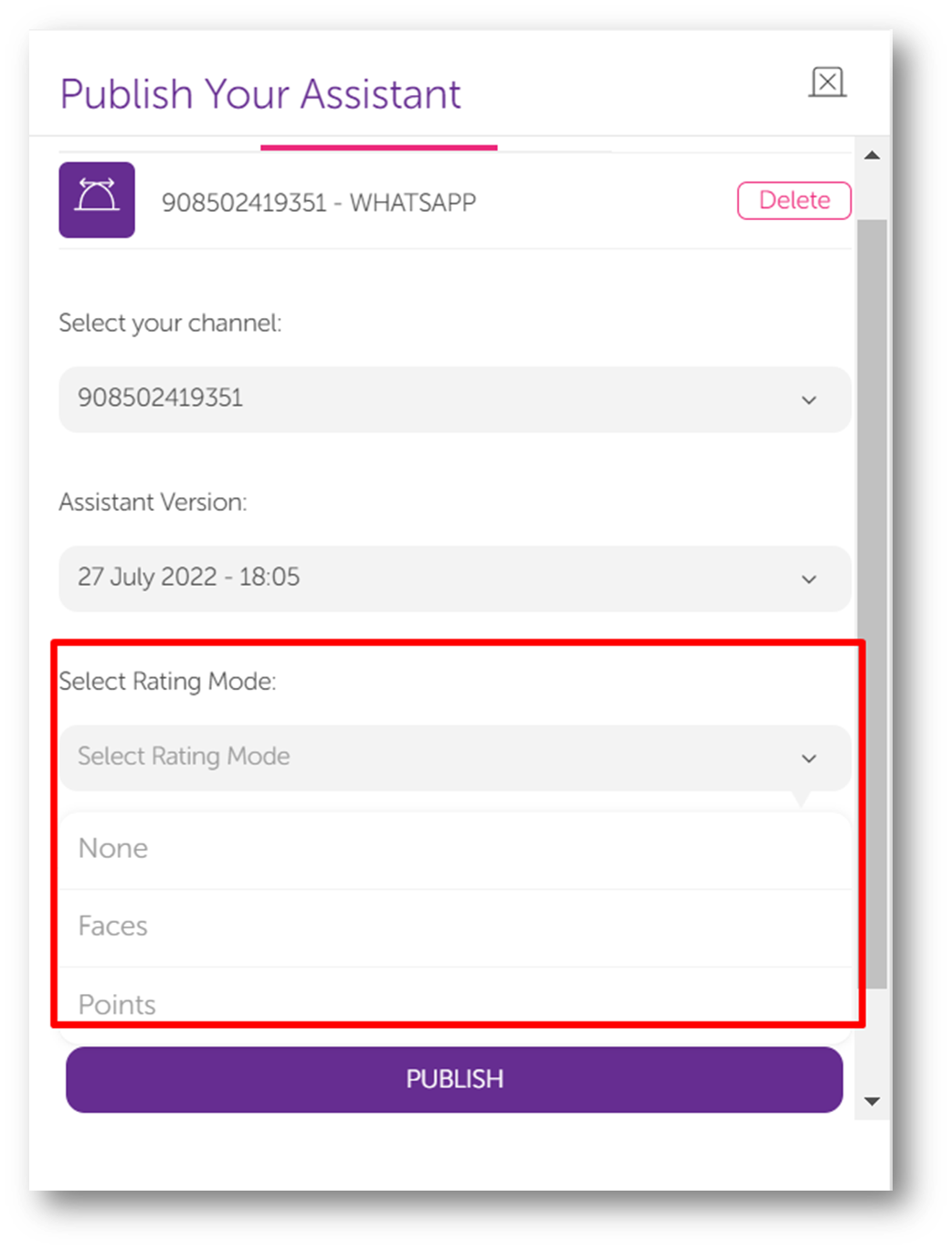
MindBehind Live
Voting for WhatsApp can also be implemented on MindBehind Live to collect voting data for live conversations. To implement voting for WhatsApp on MindBehind Live, follow these steps:
- Go to MindBehind Live. Click on the Departments tab under Company Management, and click the Configurations icon.
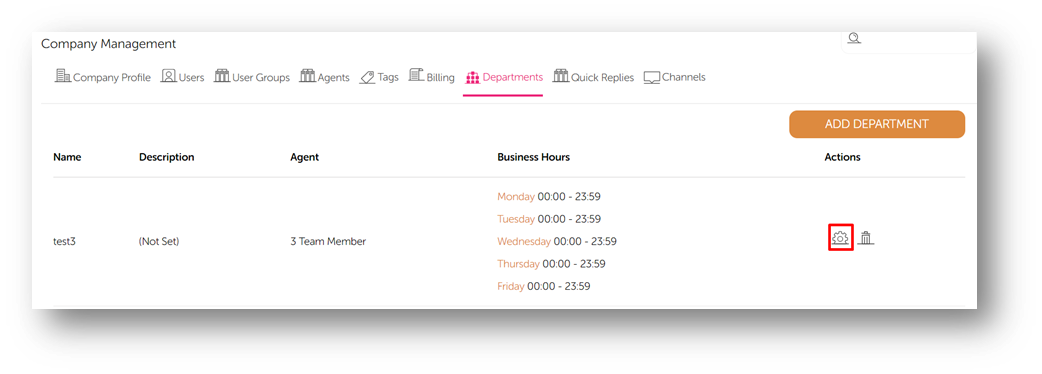
- Go to the Deployments tab and select WhatsApp Channel. You will find the configurations for voting.
- Set up the configurations according to your requirements and click the Save button.
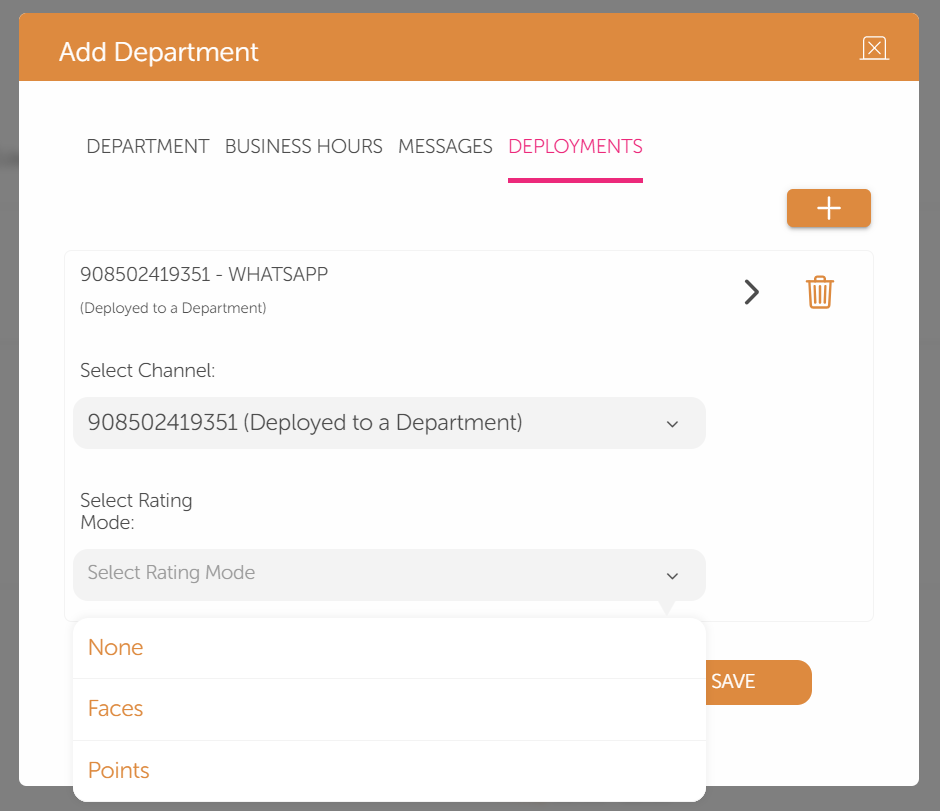
Receive feedback
Once you are all set, your customers will receive a message based on the details of your voting configurations. At the end of this message, there will be a unique URL that will guide your customers to vote for your services. 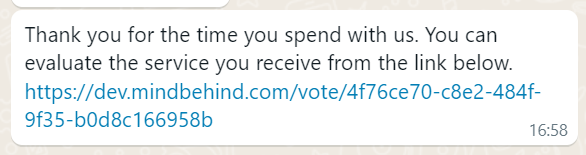 On this page, customers can rate using facial expressions or numbers based on the configurations you made. Adding a comment is optional.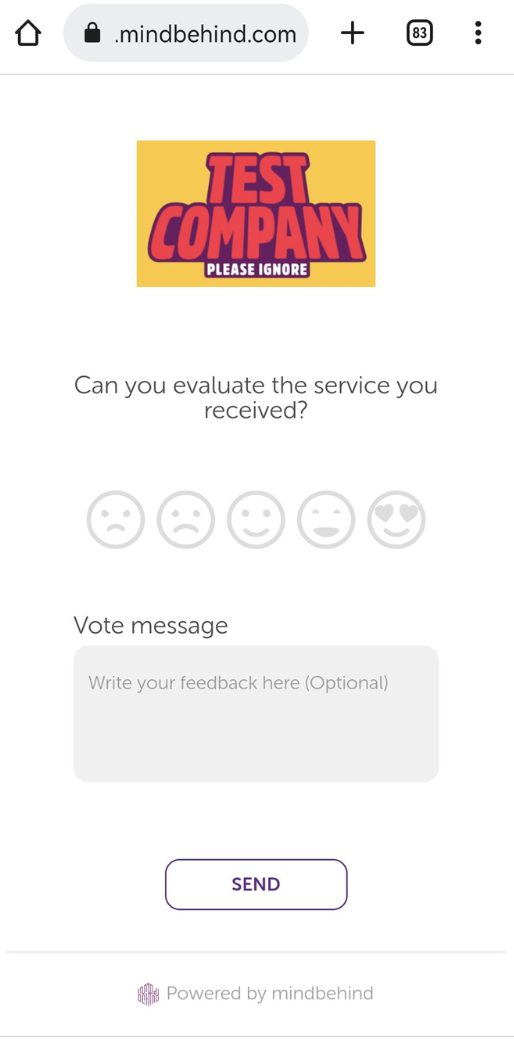
You can see a detailed report of votes on MindBehind Live. You can read the Live Detailed Report for further details.
See WhatsApp Vote as a user
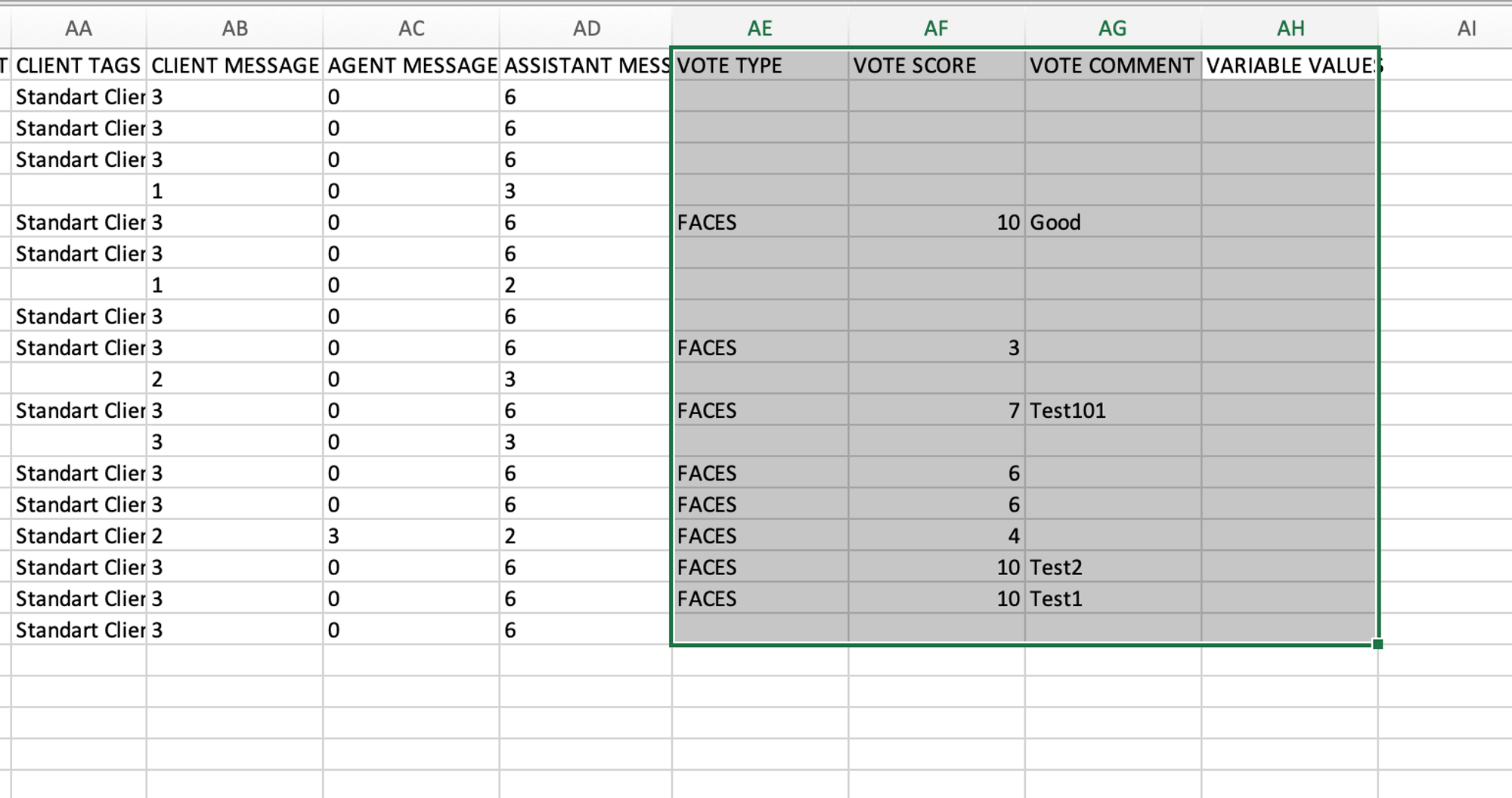
You can review the feedback received in your conversations. You can see the Vote Type, Vote Score, and Vote Comment information in an Excel file.
To review the feedback, follow the steps below:
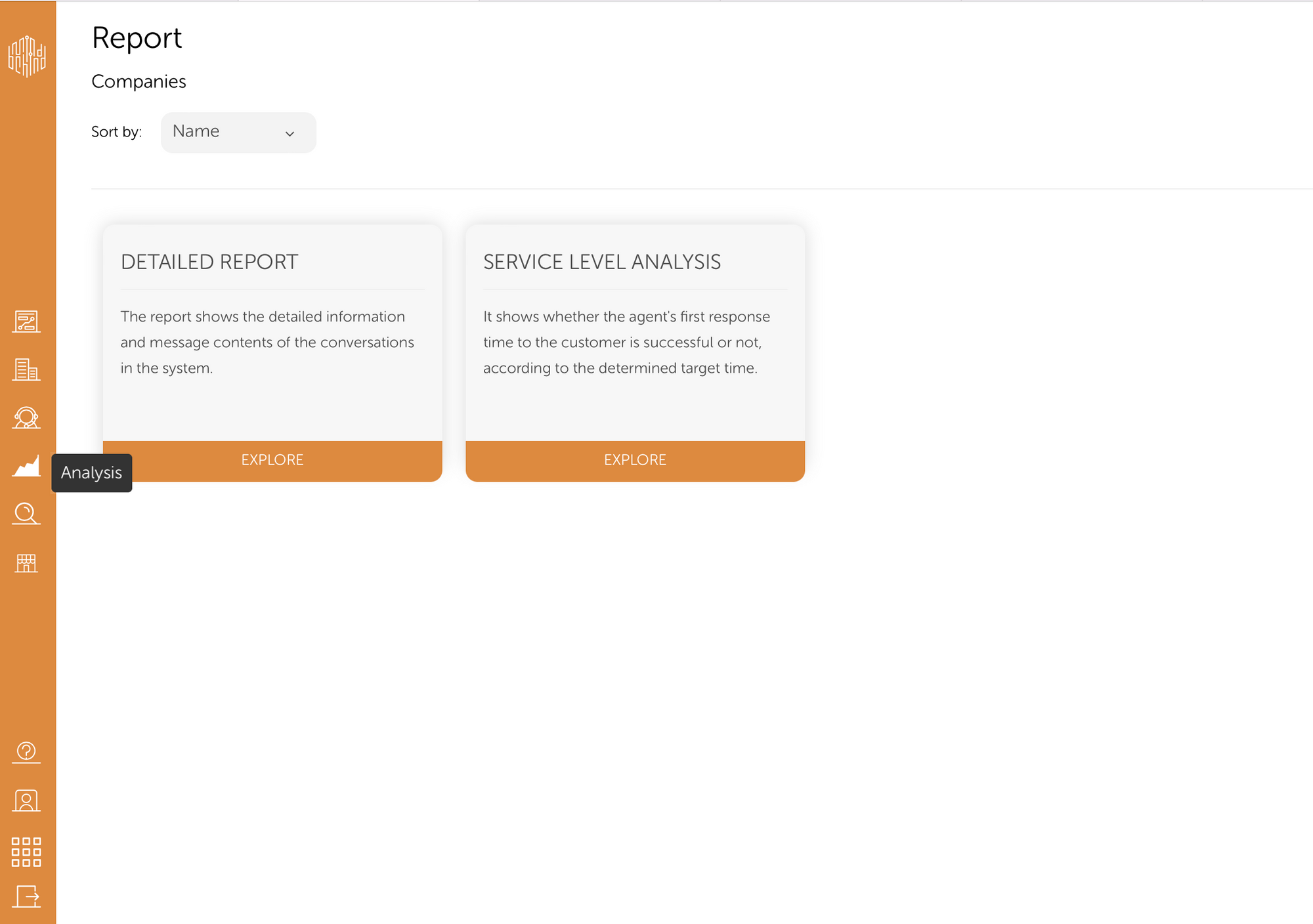
- Select the Analysis option in the left navigation panel and click on the Detailed Report.
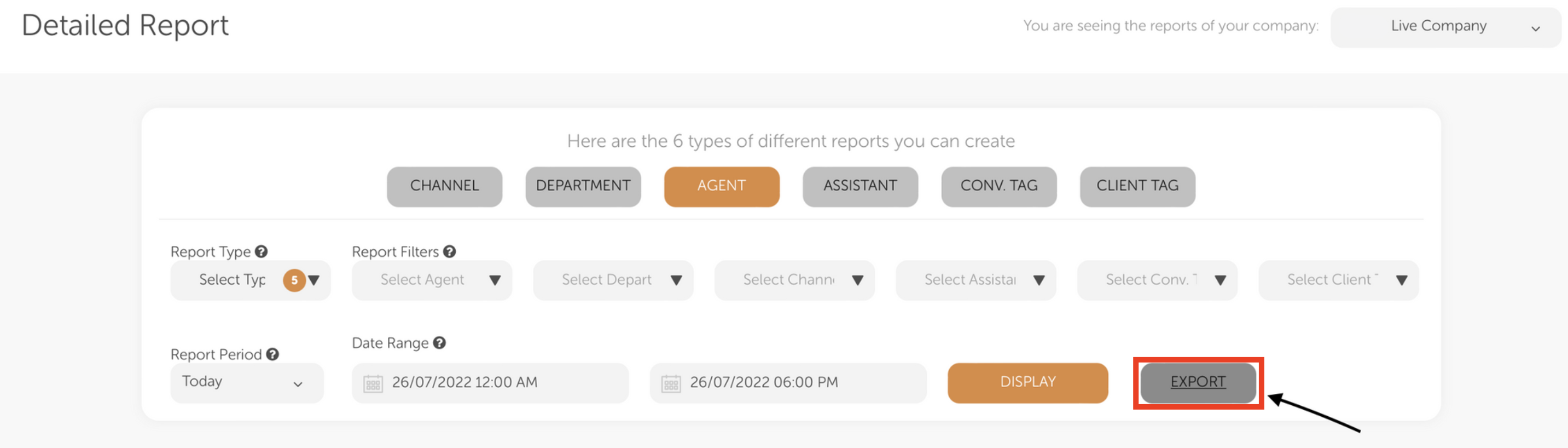
- In the detailed report, fill in the date range and optional parameters and click the Export button.
- A pop-up page will appear. Select the conversation report on that pop-up, and the Excel file will be emailed to you that contains the required data.
 The sheet contains the Vote Type, Vote Score, and Vote Comment sections.