Talon.One is a promotion and loyalty platform that helps businesses create and manage personalized campaigns, including discounts, coupons, referral programs, and loyalty rewards.
You can integrate Talon.One with Insider One to export batches of unique coupon codes and distribute them through bulk campaigns. After you export the codes from Talon.One, you prepare the file and upload it to Coupon Lists in Insider One. Insider One then assigns one code to each recipient.
This method does not fetch coupons directly from Talon.One. It uses a point-in-time export and import process. To add codes generated after the export, export and upload the updated codes again.
Use case
Use this method when you want to distribute Talon.One coupon codes in a bulk one-time send, such as a large email campaign, without fetching a code for each user through an API.
Choose the coupon distribution method
You can distribute Talon.One coupons through Insider One by manually uploading a batch of codes or by requesting codes in real time through Architect. Choose the method that fits your campaign.
Comparison | Manual Export and Import | Architect API Method |
|---|---|---|
Best for | Bulk one-time sends and large email campaigns | Real-time, per-user coupon distribution in an Architect journey. |
How codes reach Insider One | You export a CSV file from Talon.One and upload it to Coupon Lists. | Architect requests a code from Talon.One for each user through the Call an API node. |
Insider One requirement | Access to Coupon Management and Coupon Lists | Architect Enterprise, or the Call an API add-on for the Essential or Growth package. |
Freshness | Point-in-time snapshot. Export and upload again to add newly generated codes. | Always current |
Where redemption is tracked | Talon.One | Talon.One |
For real-time, per-user coupon distribution, refer to Use Talon.One Coupon Codes with Architect.
Choose the Upload Path
Coupon codes can reach Insider One through an upload regardless of whether they come from Talon.One, Shopify, or another platform. The correct upload method depends on whether the codes are available as an unbound pool or reserved for specific customers in Talon.One.
Talon.One Coupon Type | What It Means | Insider One Upload | Delivered Through |
|---|---|---|---|
Unbound (pool) | The codes are generated in bulk and are not reserved for specific customers. The | Upload the codes to Coupon Lists in Coupon Management. | Use the Coupon block or the |
Bound (per customer) | Each code is reserved for a specific customer through the | Import the identifier and coupon code as user data through a Static Segment CSV, First-Party Segment upload, or the Upsert User Data API. Map the coupon column to a custom attribute. | Insert the custom attribute as dynamic content, for example |
Do not upload bound coupons to Coupon Lists. Insider One assigns codes from a Coupon List independently of Talon.One's per-customer reservation. This can assign a reserved code to the wrong user. Import bound coupons as user attributes instead.
The following steps explain how to upload and distribute unbound coupon codes through Coupon Lists.
Prerequisites
Before you begin, make sure you have the following:
A Talon.One account with a coupon campaign that has generated unique coupon codes.
Access to Coupon Management and Coupon Lists in Insider One.
Enough unique codes for your target audience. Prepare at least one code per recipient and additional codes for users who might re-enter a campaign or journey.
Step 1: Export Coupon Codes from Talon.One
Open the Talon.One Campaign Manager and select your application.
Open the campaign that contains the coupons. If you have not generated the codes yet, create a batch of unique codes based on the size of your audience.
Go to the Coupons tab for the campaign.
Use the Export option to download the coupons as a CSV file.
The exported file can contain the coupon code, expiry date, usage limits, campaign attributes, and other values. For an unbound Coupon List upload, you only need the coupon code column.
Menu labels can vary depending on your Talon.One version and workspace configuration. If the Export option is not available, check your role permissions or contact your Talon.One administrator.
Step 2: Prepare the CSV file
Coupon Management requires a minimal CSV format. Reformat the Talon.One export before uploading it to Insider One.
Requirement | Rule |
|---|---|
File type | A UTF-8 encoded |
Headers | Do not include a header row. The first coupon code must be in the first cell. |
Columns | Add one coupon code per line. Insider One ignores any text after the first comma on a line. |
Uniqueness | Only unique codes are accepted. Insider One removes duplicate codes during upload. |
Code format | Each code must contain at least two alphanumeric characters. Supported characters are |
File size | Maximum 10 MB per CSV file |
Maximum number of codes | Up to 20 million unique codes per list. For more codes, use a Single Code list. |
Maximum expiration period | One year |
To reformat the Talon.One export:
Open the exported CSV file in a spreadsheet application or text editor.
Keep only the coupon code column and delete all other columns.
Delete the header row so the file starts with the first coupon code.
Confirm that each code is on a separate line.
Save the file as a UTF-8 encoded
.csvfile.If the file is larger than 10 MB or contains more than 20 million codes, divide the codes into multiple lists that meet the upload limits.
Bound coupons require a different file format. Keeping only the coupon code column applies to unbound coupons uploaded to Coupon Lists. For bound coupons, keep both the customer identifier and coupon code columns so Insider One can match each code to the correct user.
Step 3:Upload the codes to Coupon Lists
Navigate to InOne > Components > Coupon Lists > Upload Coupons.
Select the CSV file you prepared.
Enter a name for the list. Use a name that identifies the related Talon.One campaign, such as
Talon-SpringSale-2026. Click Save.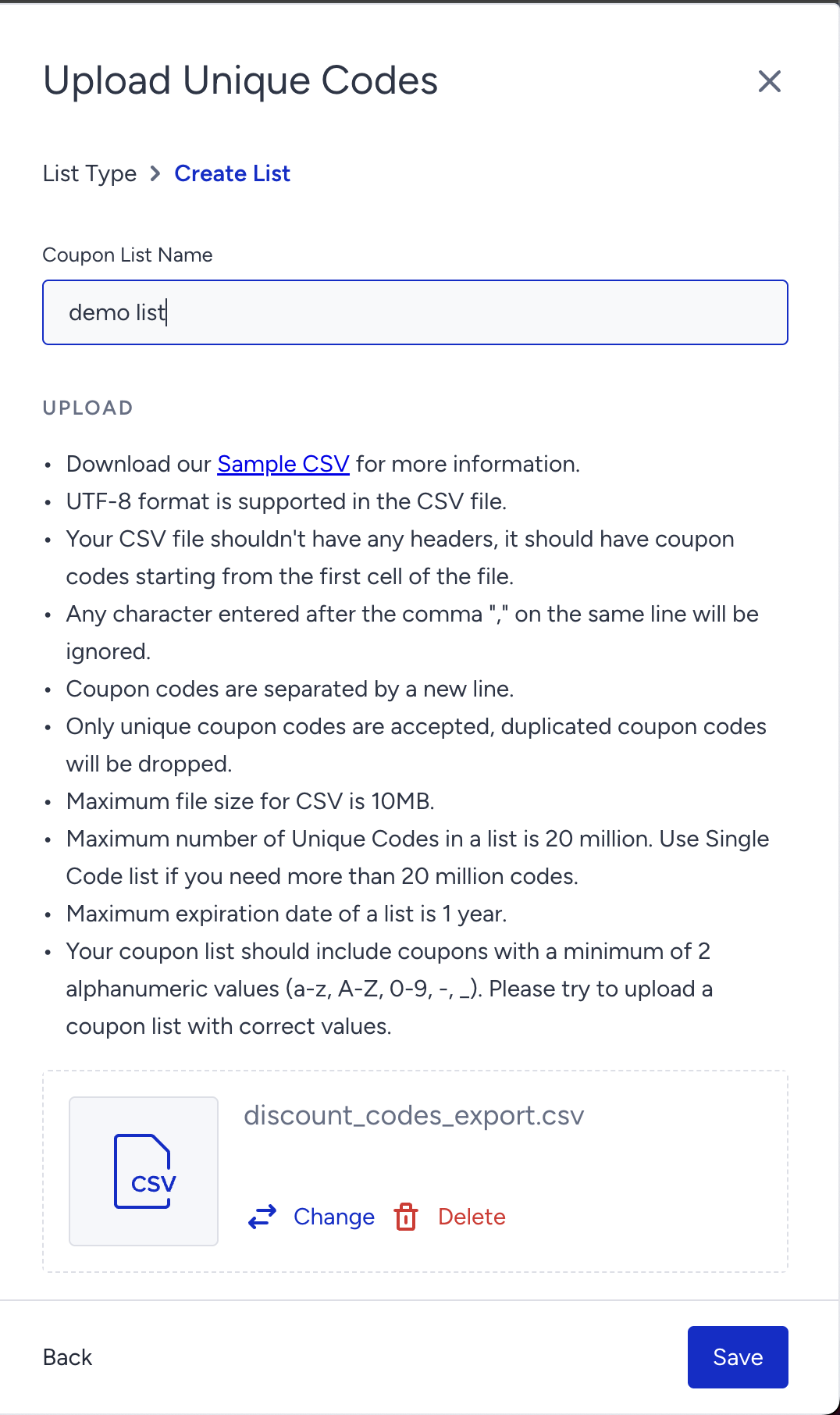
Set an expiration date within one year. Align the expiration date with the Talon.One campaign so users do not receive expired codes.
Click Upload. Insider One validates the file and removes duplicate codes.
After the upload is complete, confirm that the list appears under Coupon Lists.
Step 4: Use the Coupon List in campaigns
After the upload is complete, you can use the coupon list in supported Insider One campaigns and channels.
In the drag-and-drop editor, add the Coupon block to your design and select the imported Talon.One coupon list in the block settings.
In the HTML editor, insert the
{@COUPON_CODE}tag wherever you want the unique coupon code to appear.
Refer to Send Bulk Emails with Unique Coupons from Talon.One for the complete setup instructions..
Architect
Open an Email, SMS, Web Push, WhatsApp, or App Push channel element in your Architect journey.
Insert the Coupon Code dynamic attribute in the message content.
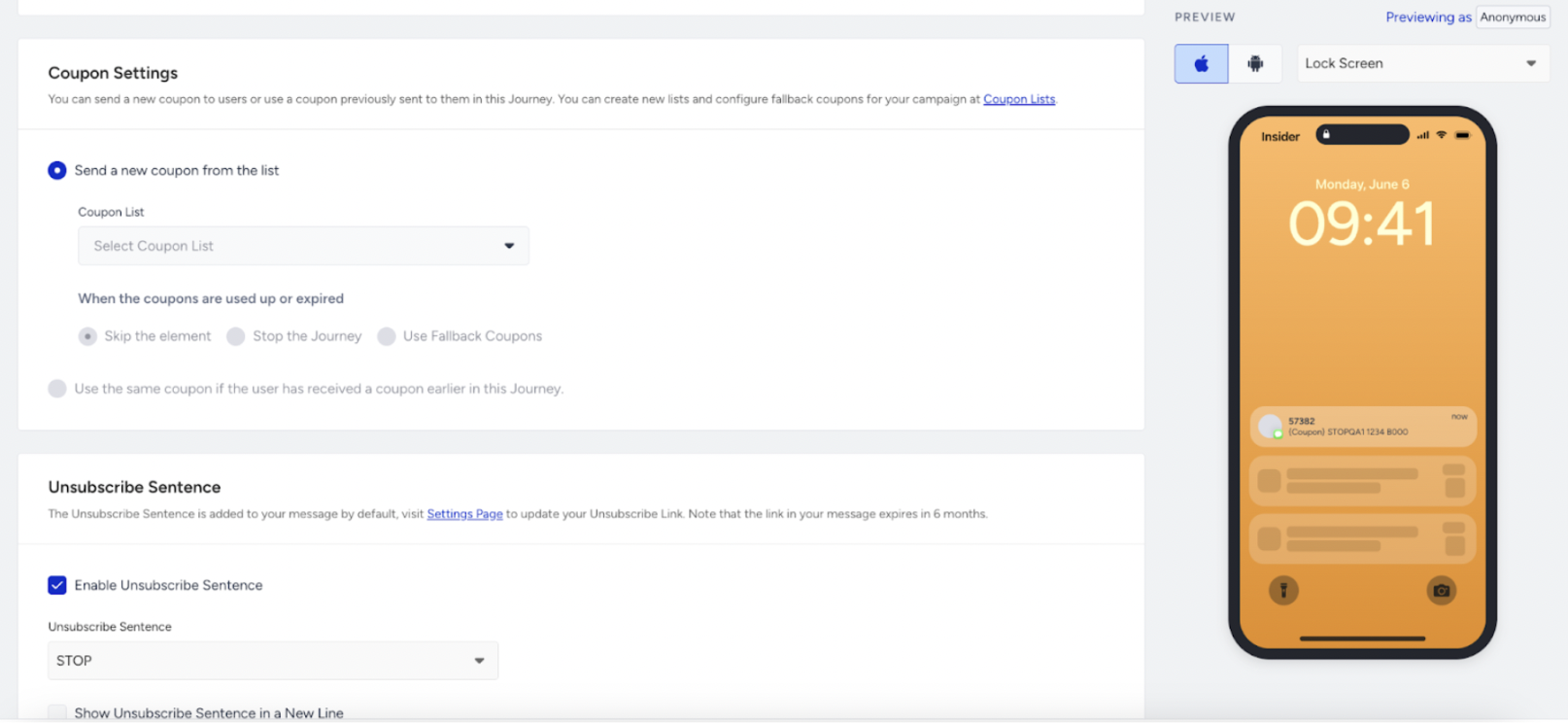
Configure the following options in Coupon Settings:
Coupon type: Select Send new coupon to assign a new unique code to each user, or Send previously assigned coupon to reuse a code assigned earlier in the same journey.
Coupon list: Select the coupon list you uploaded.
Depletion action: Choose whether to skip the channel element, stop the journey, or use a fallback coupon when the list has no available codes.
Save the channel element. Each user who reaches it receives a unique code from the selected list.
Other channels
You can also use Coupon Lists in Onsite, Web Push, App Push, SMS, and WhatsApp campaigns to deliver personalized promotions.
When a customer enters the code at checkout, Talon.One validates the code and tracks its redemption. Insider One does not report the redemption status.
Import Bound Coupons as User Attributes
When Talon.One coupons are reserved for specific customers, do not upload them to Coupon Lists. Import each code as a custom user attribute to preserve the relationship between the customer and the coupon.
Export the coupons from Talon.One and keep both the recipient identifier and coupon code columns. The identifier is required to match each code to the correct user.
Import the data using one of the following methods:
Static Segment or First-Party Segment upload: Prepare a CSV file containing the user identifier and
coupon_codecolumns. During the upload, mapcoupon_codeto a custom attribute, such astalon_coupon. Navigate to Audience > Segments to begin.Upsert User Data API: Add the code under
attributes.customfor each user and use the recipient identifier to update the correct user profile.
Insert the custom attribute as dynamic content or a personalization token in your message, for example
{{c_talon_coupon}}. Do not use the Coupon block for bound coupons.
Limitations
No live synchronization: The manual method uses a point-in-time export and import. Codes generated in Talon.One after the export are not available in Insider One until you export and upload them.
Redemption status is not shared: Insider One records that a code has been assigned so it is not given to another user. Talon.One remains the source of truth for whether the code has been redeemed.
Coupon lists must contain enough codes: Insider One stops distributing codes when a list is empty. Before a large send, check the remaining number of codes and configure a depletion action in Architect.
Expiration dates must be aligned: Set the Coupon List expiration date to the same date as, or an earlier date than, the Talon.One campaign end date. This prevents recipients from receiving codes that are no longer valid.
Identifier requirements depend on the upload path: Remove recipient identifiers when uploading unbound codes to Coupon Lists. Keep the identifier as the join key when importing bound coupons as user attributes. Because this file contains personal data, handle it securely.
Frequently Asked Questions
Can Insider One pull coupons directly from Talon.One for a bulk send?
No. For a bulk send, export the codes from Talon.One and upload them to Insider One. Fetching a code for each user in real time requires the separate Architect API method.
How many codes should I export?
Export at least one code for each recipient in your target audience. Include additional codes for users who might re-enter the campaign or journey.
Will a Talon.One export with multiple columns and a header row upload?
For a Coupon List upload, remove the header row and keep only the coupon code column. Insider One ignores text after the first comma on each line, but it treats a header row as a coupon code and adds it to the list.
Can I upload a file larger than 10 MB?
No. Split the codes into multiple CSV files that are each smaller than 10 MB, then upload them as separate lists.
What happens if the same code appears more than once?
Insider One removes duplicate codes during the upload.
Who tracks whether a code was redeemed?
Talon.One tracks coupon validation and redemption at checkout. Insider One only records that the code was assigned.
Can I use Coupon Lists for coupons reserved for specific customers?
No. Import bound coupons as custom user attributes through a Static Segment CSV, First-Party Segment upload, or the Upsert User Data API. Coupon Lists can assign codes independently of the Talon.One reservation and break the customer-to-code mapping.