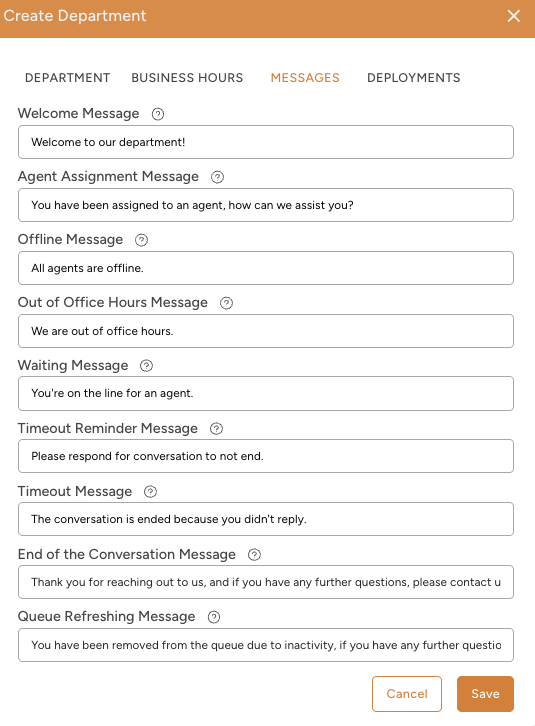
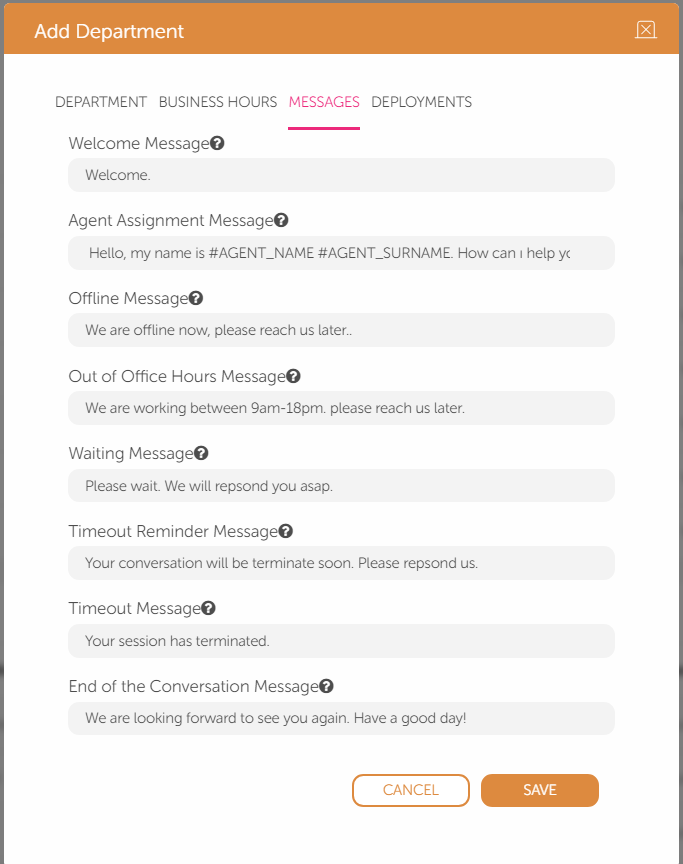
This guide aims to explain how you can use the department messages on MindBehind Live. You can see the message examples that you can add to the conversations:
- Welcome Message
- Agent Assignment Message
- Offline Message
- Out-of-Office Hours Message
- Waiting Message
- Timeout Reminder Message
- Timeout Message
- End-of-Conversation Message
- Queue Refreshing Message
Welcome Message
When the client's conversation arrives at a department, if there is at least one available agent during working hours, you can send a welcome message to the client. For example, “Welcome to Support Hub!”
Agent Assignment Message
This is the message sent by the system when the conversation is assigned to an appropriate agent. You can use the following parameters while creating an agent assignment message.
- #AGENT_NAME
- #AGENT_SURNAME
For example, “My name is John. How can I help you?”
Offline Message
When the client's conversation comes to a department, if there is no online agent at that time, an offline message is sent to the client.
For example, “All of our customer representatives are offline now, please continue to wait.”
Out-of-Office Hours Message
If the client's conversation arrives at a department outside of working hours, an out-of-working-hours message is sent by the system.
For example, “Since we are out of working hours, I cannot transfer you to our customer representative now. Our customer representatives serve between 09:00 – 18:00 on weekdays and 09:00 – 14:00 on Saturdays, except for public holidays.”.
There are two different options after sending this message.
- If the below setting is not active, the conversation is queued and waiting to be assigned to the agent.
- If the below setting is active, the conversation is terminated by the system.
Waiting Message
When the client's conversation arrives at a department, if there is no available agent at that time, a waiting message is sent to the client. For example, “All agents are talking to other customers now. Please wait.”
Timeout Reminder Message
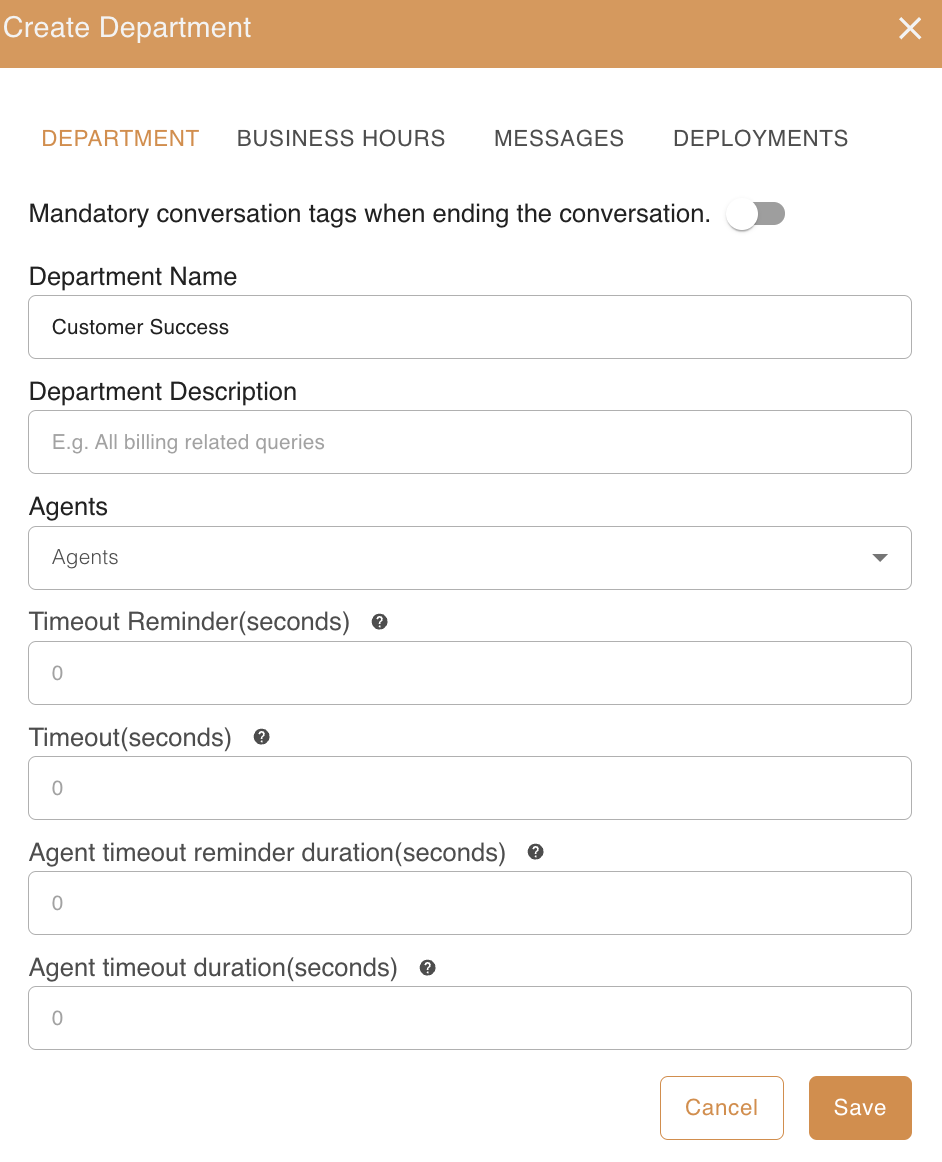
In an ongoing conversation, if the client does not respond to the agent until the timeout reminder period, a timeout reminder message is sent by the system. For example, “This conversation will end within 1 minute because we cannot get a response from you. If there is a topic you want to add, could you please share it with me?”
Timeout Message
If the client does not respond to the agent in a conversation, the conversation should be closed automatically after a certain period by the system. This situation is referred to as "Conversation Timeout." The timeout reminder and timeout times are set on the department settings page.
.png)
In an ongoing conversation, if the client does not respond to the agent until the timeout period, a timeout message is sent by the system, and the conversation ends. For example, “As we have not received a reply from you for a long time, we ended the conversation. You can reach us at any time from this line.”
End-of-Conversation Message
The End-of-Conversation message is sent by the system when the conversation is terminated. For example, “Thank you for reaching out to us, and if you have any further questions, please contact us anytime you want.”
Queue Refreshing Message
The Queue Refreshing feature allows you to automatically manage inactive conversations waiting in the queue.
When the Queue Refreshing toggle is enabled, the system detects inactivity based on your specified time duration. Once this limit is reached, the following actions occur:
- The conversation is flagged as Abandoned.
- The conversation is immediately removed from the Live Agent queue.
- The Queue Refreshing Message is sent as the final interaction to inform the user.
Example Message: "You have been removed from the queue due to inactivity. If you have any further questions, please contact us again."