Quick Replies on MindBehind Live refer to predefined answers that can be routed as agents resume live conversations. Users with admin access to the relevant company must determine these answers. Agents cannot create these messages, but they can use messages that have been created.
To add quick replies to your conversations,
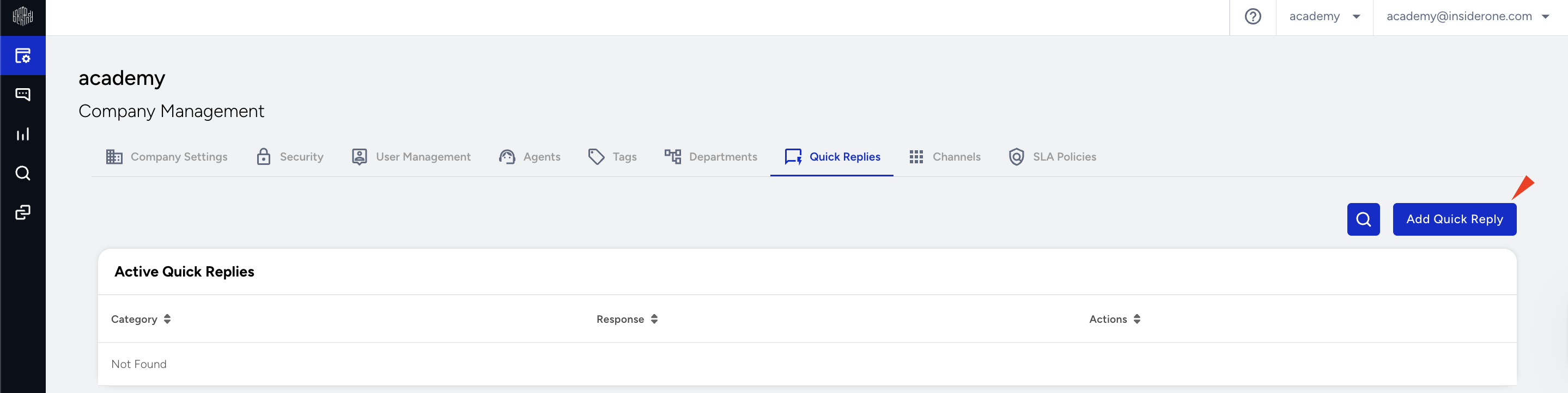
Navigate to MindBehind Live > Company Management > Quick Replies and click the Add Quick Reply button located at the top right.
In the window that opens, enter your quick reply in the Quick Reply Description field. Use the Description field to add a note about its purpose.
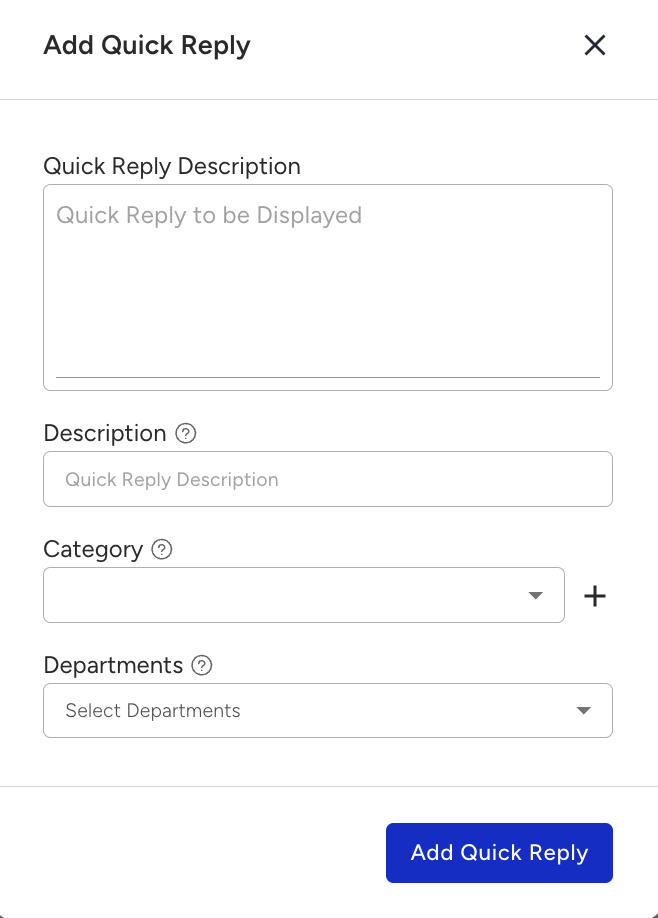
Use the Category field to organize your quick replies. Enter a category name and click the + (plus) icon to add it.
To customize quick replies for specific departments, select a department from the Departments field. If you do not select a department, the quick reply is available for all departments.
Once you add your quick replies, the agents can use them in their conversations.
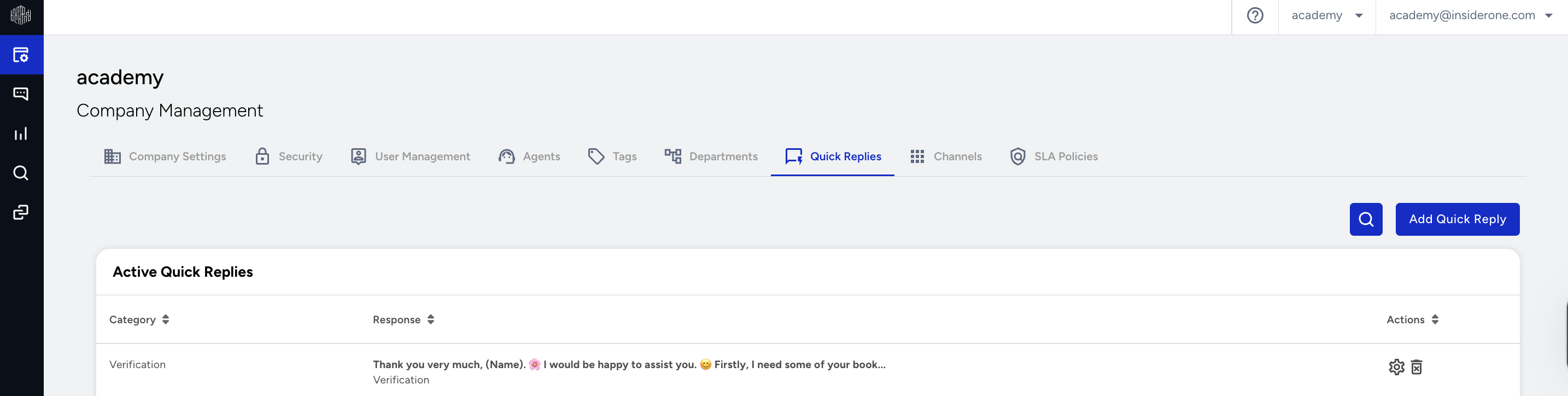
The Description field also acts as a keyword. When you enter this expression in the agent input field, the related quick reply is suggested on the customer agent screen.