Testing before activating or sending a campaign enables you to see how your campaign will look when it is completed or active.
To test your WhatsApp campaign, you should opt in via lead collection templates or Web SDK integration (Native forms on your website if Web SDK integration is completed) as the first step.
Dynamic content is not visible in test messages with real data when users lack the corresponding data in the Insider One database.
In this article, you will see the steps on how to test WhatsApp message types:
Test a Single message campaign
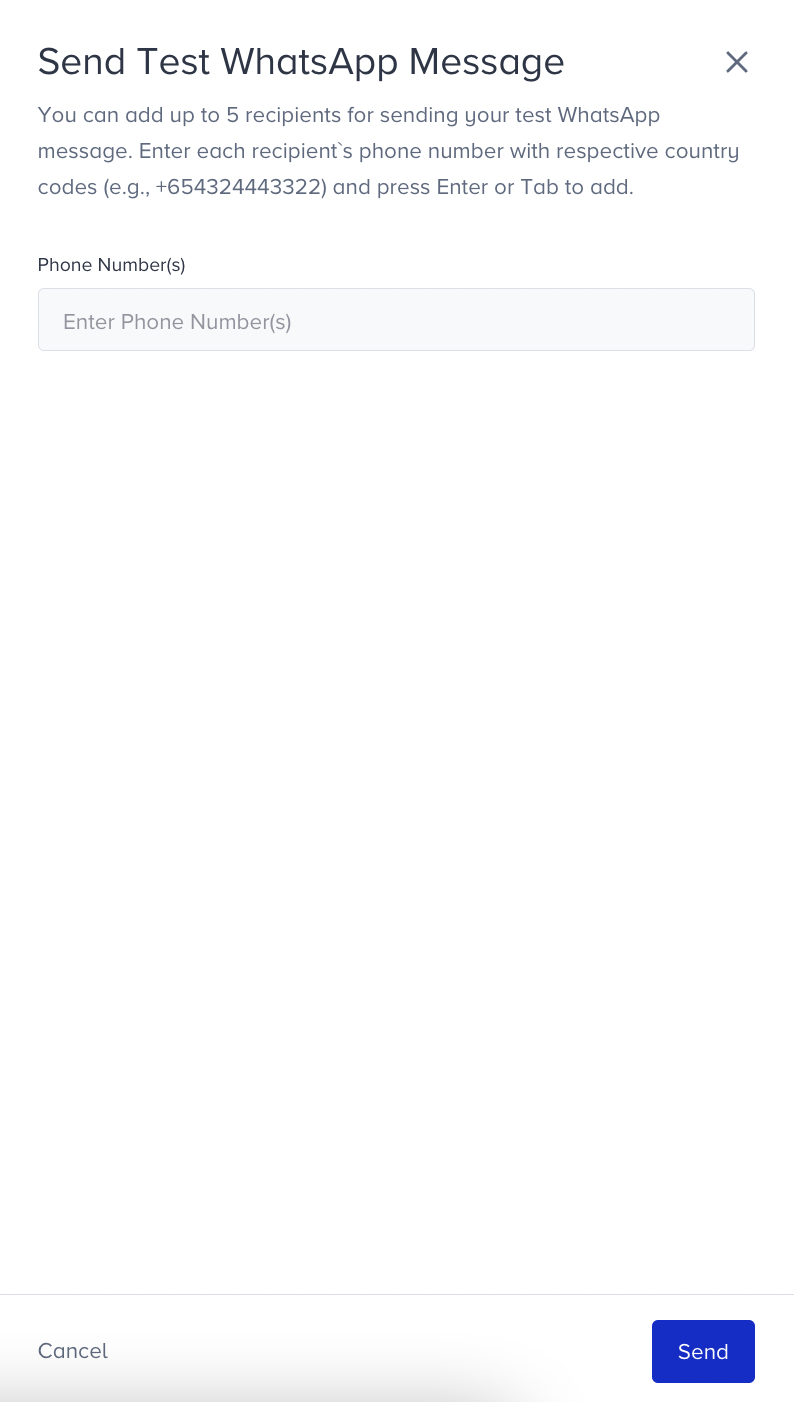
Click the Test Message button at the bottom right of the screen in the Design or Launch Step.
Enter the phone numbers to which you want to send the test message into the input area. You can add up to 5 phone numbers, each starting with a country code.
Click the Send button to send the test messages to the numbers you provided.
Test a Purchase Confirmation message campaign
Since the Purchase Confirmation Message is triggered according to user behavior on your web or mobile site, you can test this campaign by executing a purchase confirmation scenario on your end. You must reach your website via the Test button on the campaign listing page.
You should opt in to receive a test message from the Purchase Confirmation campaign. For further information, refer to Subscriber Collection for WhatsApp.
1. To test it, your campaign must be in the Test status. You can make its status Test either during the launch step or on the campaign listing page.
2. To receive the purchase confirmation message, you should opt in via a lead collection template or Web SDK.
3. Click the Test button on the campaign listing page. When you click the button, it automatically redirects you to your site. 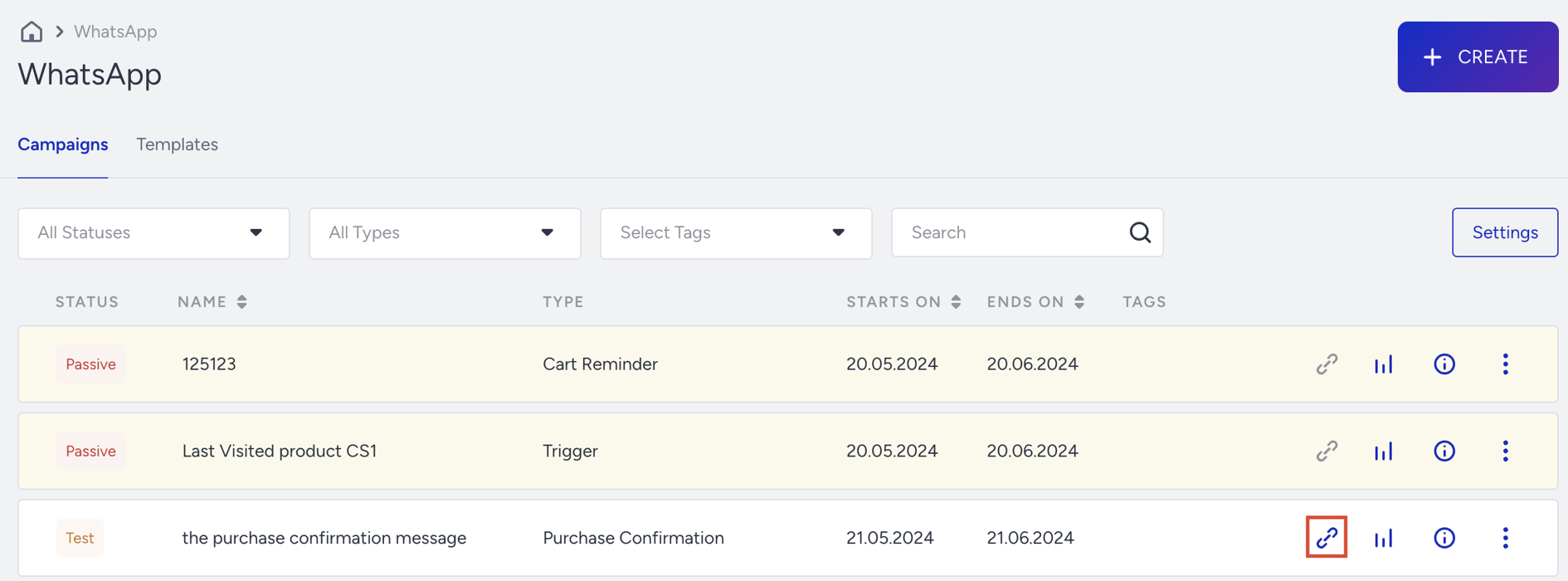
You do not need to sign in to your website to receive the test message.
Test an Event Reminder message campaign
Since the Event Reminder Message is triggered according to user behavior on your web or mobile site, you can test this campaign by executing a scenario on your end. You need to reach your website via the Test button on the campaign listing page.
You should opt in to receive the test message from the Event Reminder campaign.
1. To test it, your campaign must be in the Test status. You can set its status to 'Test' either in the Launch step or on the campaign listing page.
2. To receive the event reminder message, you should opt in via a lead collection template or Web SDK.
3. Click the Test button on the campaign listing page. When you click the button, it automatically redirects you to your site. 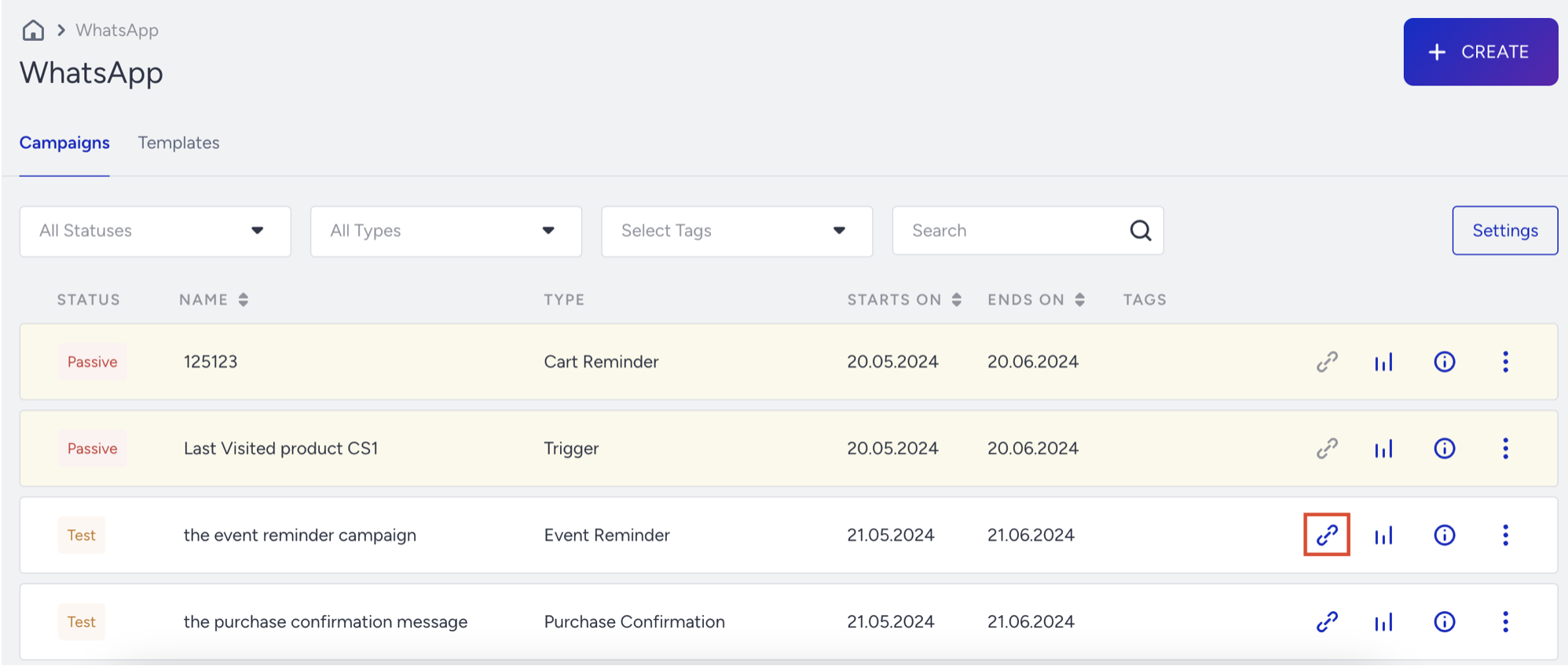
4. You need to apply the scenario you have entered in the Rule step. Then, you will receive your test message.
You do not need to sign in to your website to receive the test message.
Test a Trigger Message Campaign
Since the Trigger Message is triggered according to user behavior on your web or mobile site, you can test this campaign by executing a scenario on your end. You need to reach your website via the Test button on the campaign listing page.
You should opt in to receive a test message from the Trigger Message campaign.
1. To test it, your campaign must be in the Test status. You can make its status Test either in the launch step or on the campaign listing page.
2. To receive the trigger message, you should opt in via a Lead Collection template or Web SDK.
3. Click the Test button on the campaign listing page. When you click the button, it automatically redirects you to your site. 
4. You need to apply the scenario you have entered in the Rule step. Then, you will receive your test message.
You do not need to sign in to your website to receive the test message.
Test a Cart Reminder Message Campaign
Since the Cart Reminder Message is triggered according to user behavior on your web or mobile site, you can test this campaign by executing a cart abandonment scenario on your end. You need to reach your website via the Test button on the campaign listing page.
You should opt in to receive the test message from the Cart Reminder campaign.
1. To test it, your campaign must be in Test status. You can make its status Test either in the Launch step or on the campaign listing page.
2. To receive the cart reminder message, you should opt in via a Lead Collection template or Web SDK.
3. Click the Test button on the campaign listing page. When you click the button, it automatically redirects you to your site. 
4. You need to add a product to your cart and leave the website without finalizing the purchase. Then, you will receive your test message after the time period you defined in the Rules step.
You do not need to sign in to your website to receive the test message.