The Test Email Setup step is the final validation stage of the Email Setup process. It ensures that all sender authentication, link branding, and delivery configurations function correctly before you begin sending live campaigns.
By completing this step, you confirm that your sender address is authorized, your emails are successfully delivered, and any branded links open securely over HTTPS. This test acts as the final quality checkpoint between configuration and active campaign execution.
Completing the Test Email step allows you to verify the full functionality of your email infrastructure under real delivery conditions. This process helps ensure:
Verified sender authenticity: Your selected sender address is authorized to send emails on behalf of your domain, reducing the likelihood that messages will be filtered or blocked.
Secure and functional links: If Link Branding is enabled, test messages confirm that all links resolve securely over HTTPS using your branded link domain.
Delivery and reachability: The test confirms that emails are successfully delivered to the intended inbox.
Configuration confidence: Once the test is confirmed, you can proceed knowing your email setup is complete and ready for campaign use.
How does Test Email Setup work?
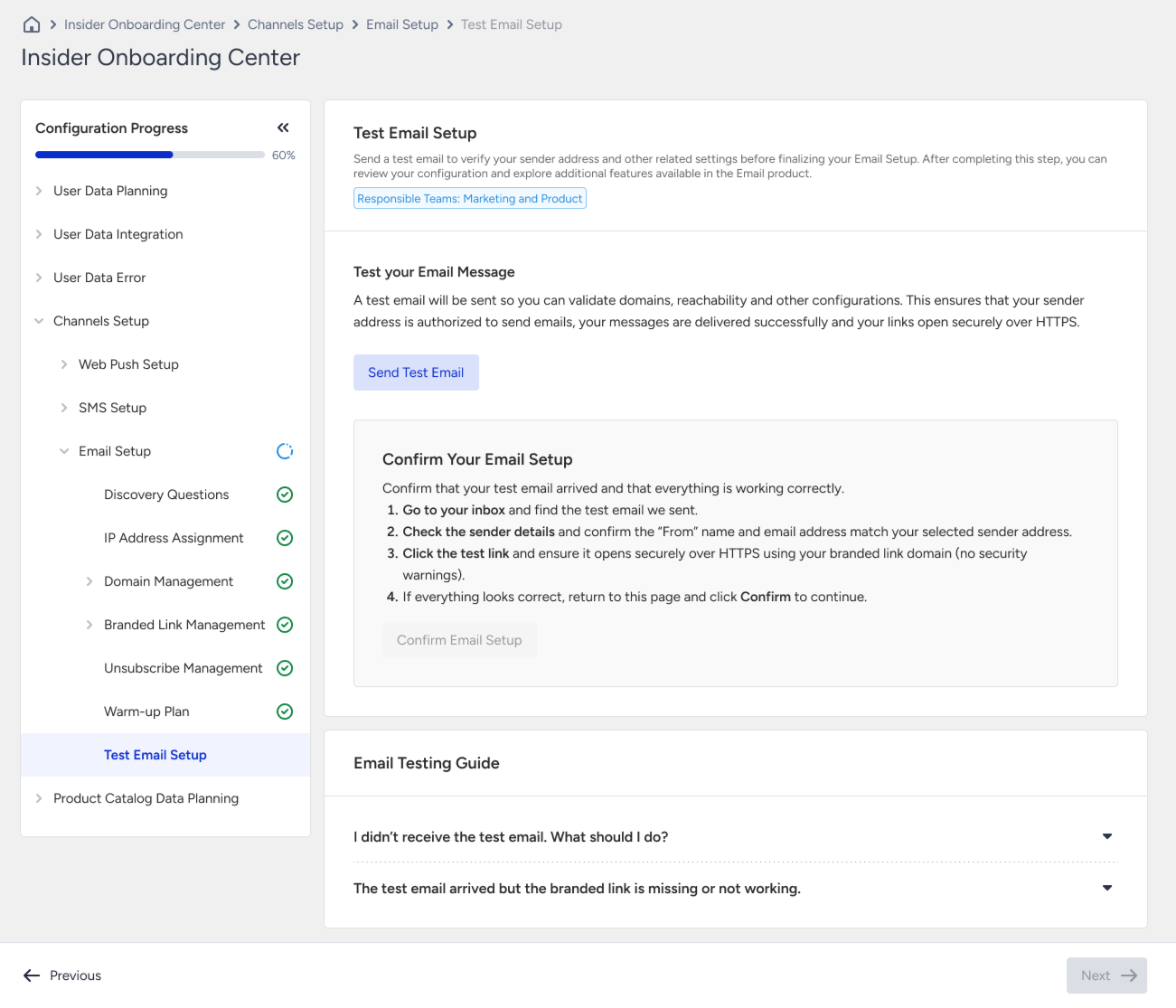
The Test Email Setup page allows you to preview and send a predefined test email using one of your configured sender addresses.
On the Test Email Setup page, click the Send Test Email button to open the preview drawer.
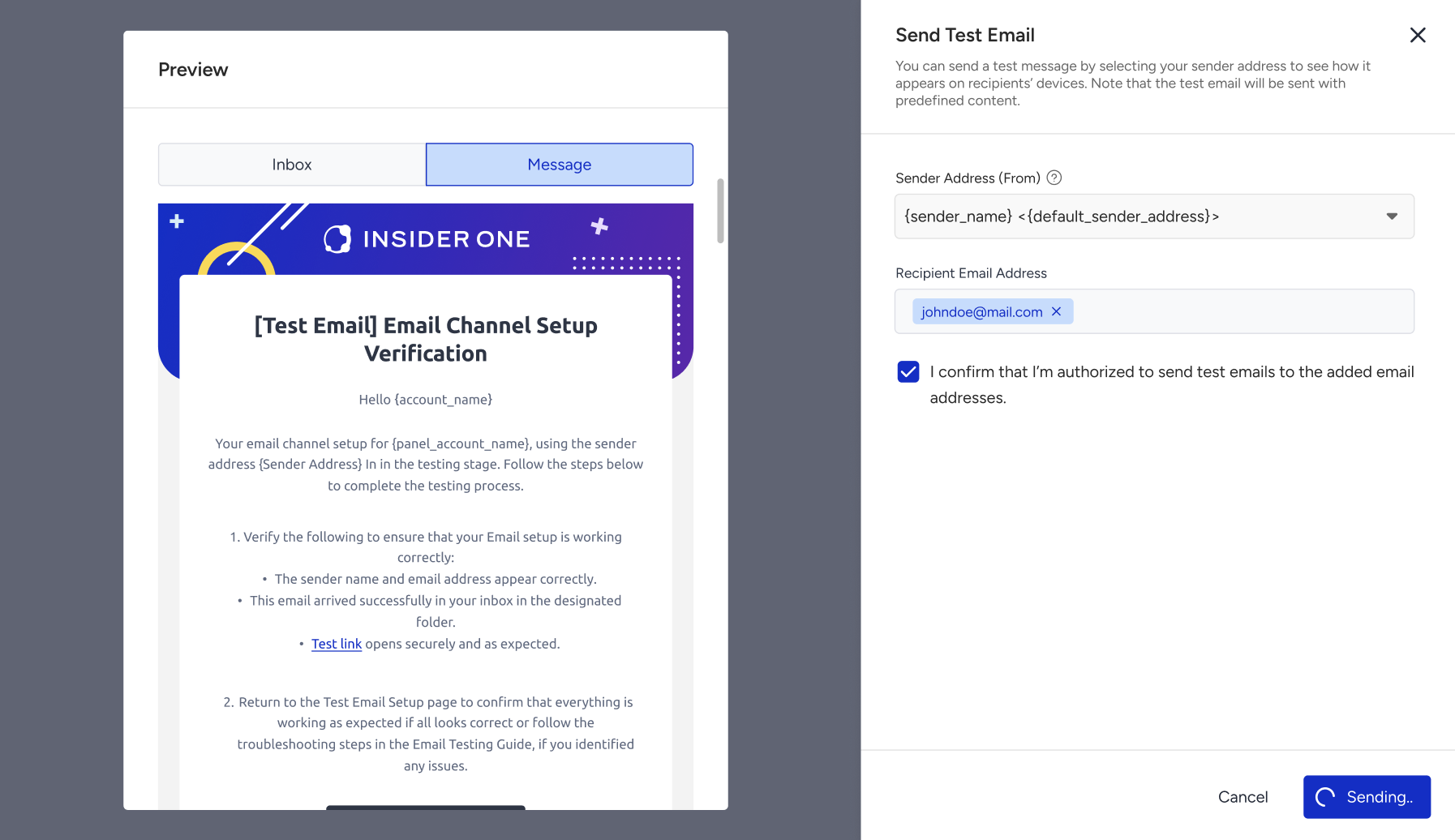
Within the drawer:
You may switch between Inbox Preview and Message Preview.
The test content is predefined and cannot be edited.
The preview helps you understand how the email will display to recipients.
On the right side of the drawer:
Select a Sender Address (From) from the dropdown list. A tooltip is available for additional guidance.
Add one or more recipient email addresses. Up to 15 recipients are supported.
Confirm authorization. Select the checkbox confirming that you are authorized to send emails to the listed recipients.
After entering all the required inputs, you can click the Send button and begin delivery.
Once the email is sent, you can check the delivered email in your inbox and verify the following:
The sender name and email address are correct.
The email successfully arrived in the inbox.
Any branded links open securely over HTTPS.
If you have more than one sender domain you want to test, or want to send another test email, click the Send Test Email again to open the preview drawer.
Once you click the Confirm Email Setup button, you cannot send test emails from this page again. However, you can always send test emails from the email campaign creation steps.
Confirm test email and finalize setup
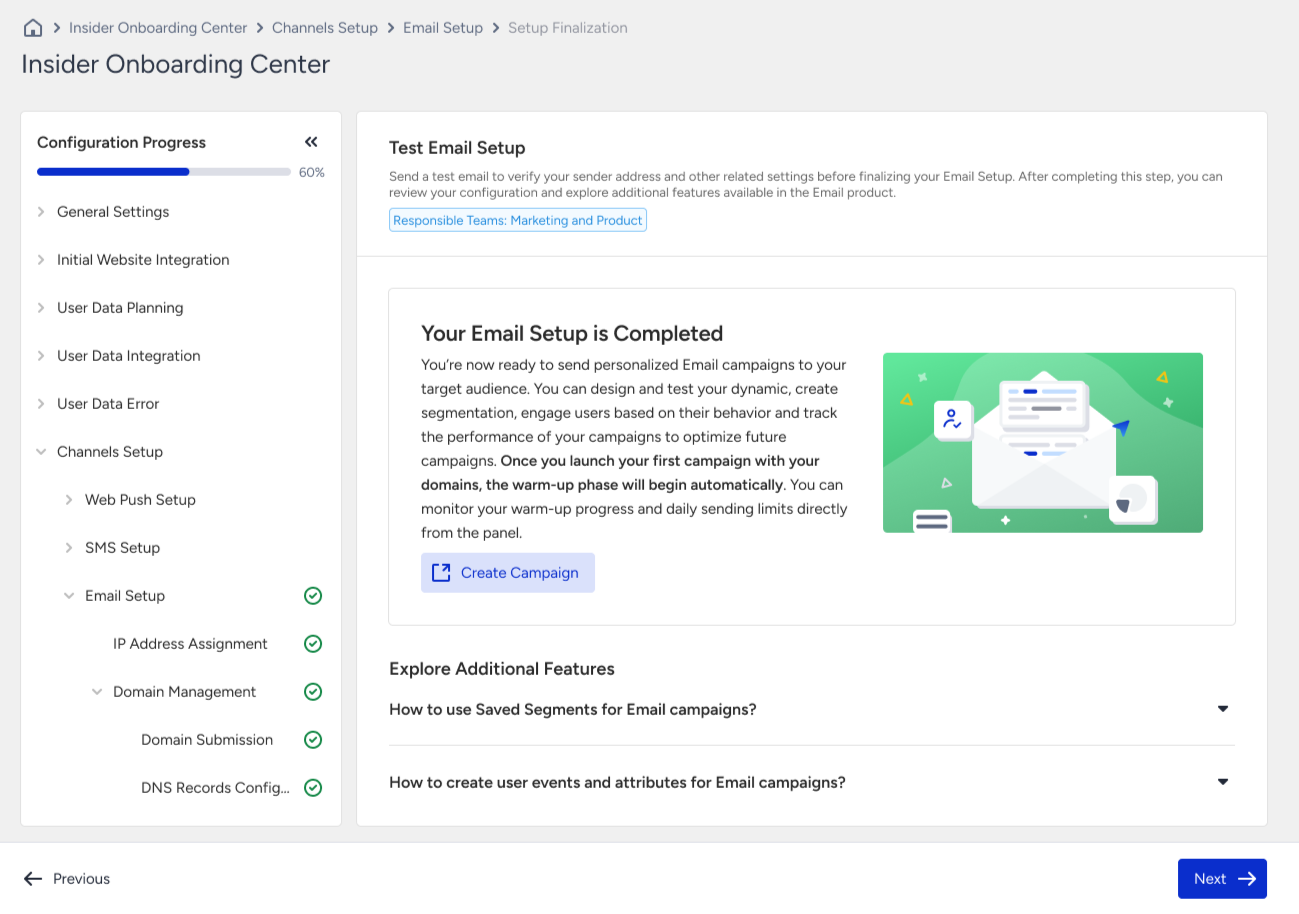
Once you have verified successful delivery, you can return to the Test Email Setup page and click the Confirm Email Setup button to see the success message. This means that you have configured each required step of Email Setup and are now ready to start your campaigns.