You cannot make any changes to External Platform Integrations without having either an Administrator or an Editor with PII access in InOne. Refer to User Roles for further information.
You can establish Insider One as a native event connector in Tealium's ecosystem and send data from your website and apps to Insider One. With this integration, you can enable Insider One to collect any event and attribute from Tealium.
This integration guide provides answers to the following questions:
Refer to the Insider One Connector for further information on Tealium.
Use Cases
Sending your website and app data from Tealium to Insider One helps you leverage a range of use cases as follows:
Triggering journeys
You can track user behavior such as cart abandonment, purchase, etc., to trigger journeys with Insider One’s Architect product and target users across different channels such as website, web push, email, etc.
Personalizing user experience
You can leverage the comprehensive user information, such as name, age, viewed products, items added to cart, interest categories, etc., that is passed from Tealium to deliver personalized user experiences and messaging to your users.
Stream Audiences
You can sync your first-party segments to Insider One and tailor your messaging with VIP customers or inactive users.
Configure Insider One as the event connector on Tealium
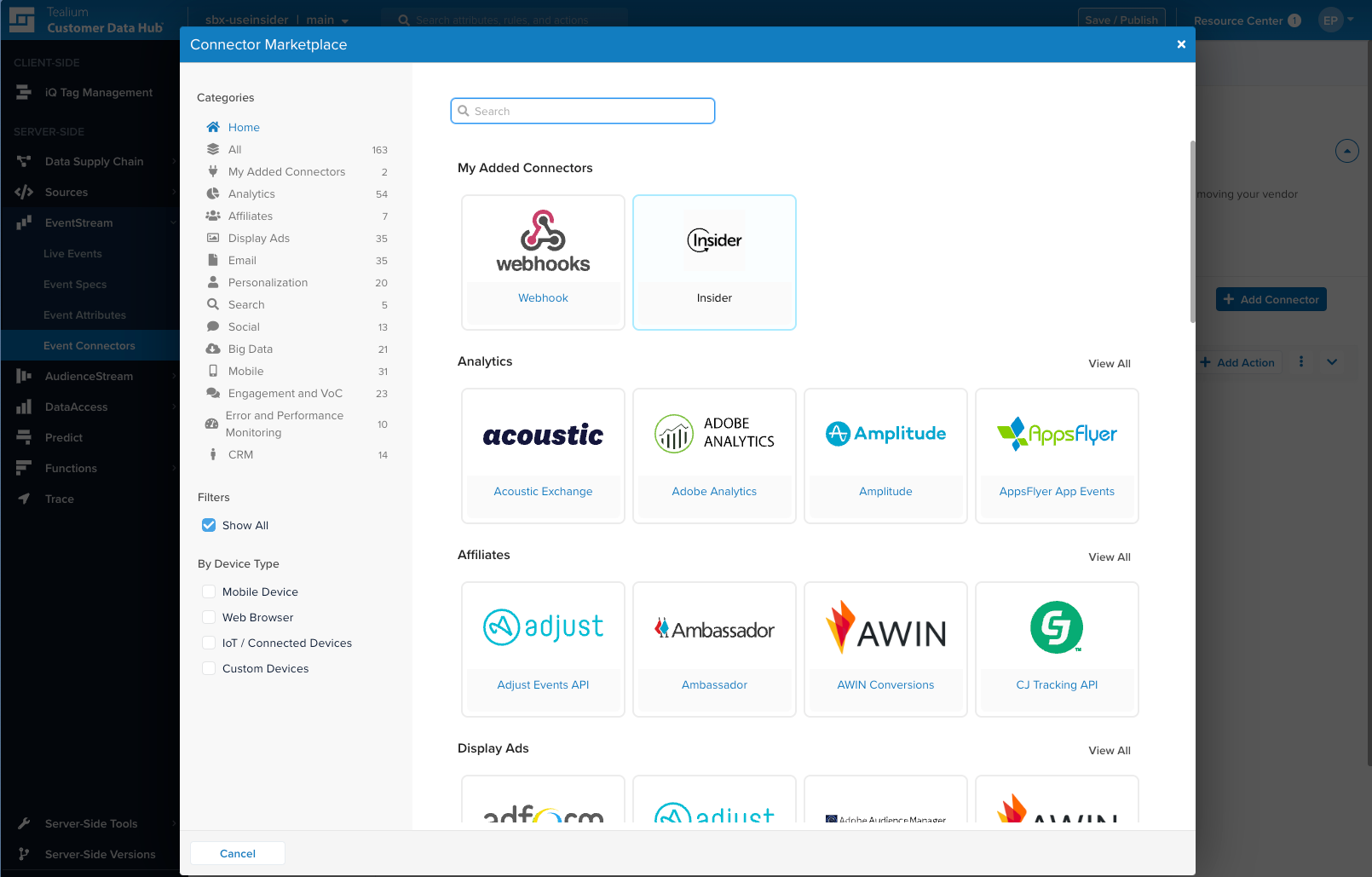
Log in to your Tealium account. Find Insider in the connector marketplace under Event Connectors.
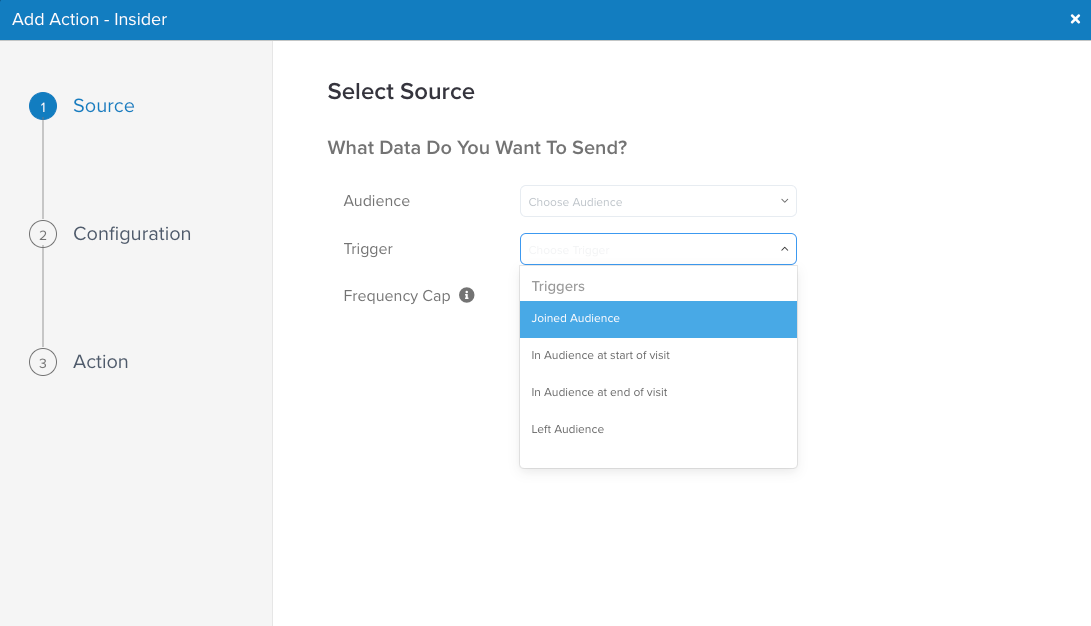
Select your Audience and trigger condition. To always have the latest information, you need to set up two different Audience Syncs: once for the Joined Audience and once for the Left Audience.
On the Configuration page, click Add Connector to configure Insider One as your connector for your Event stream.
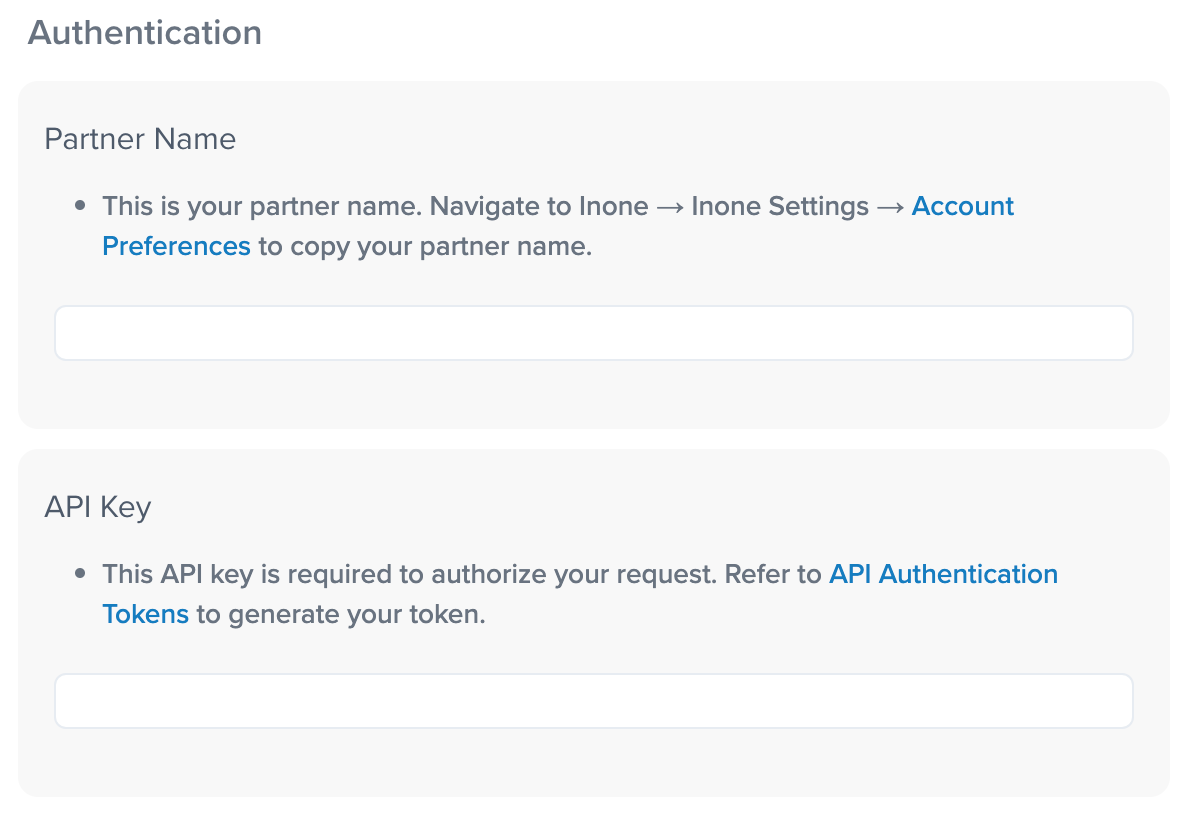
To find the Partner Name and API Key, navigate to Insider One's InOne panel > Components > External Integrations.
Select the Tealium platform.
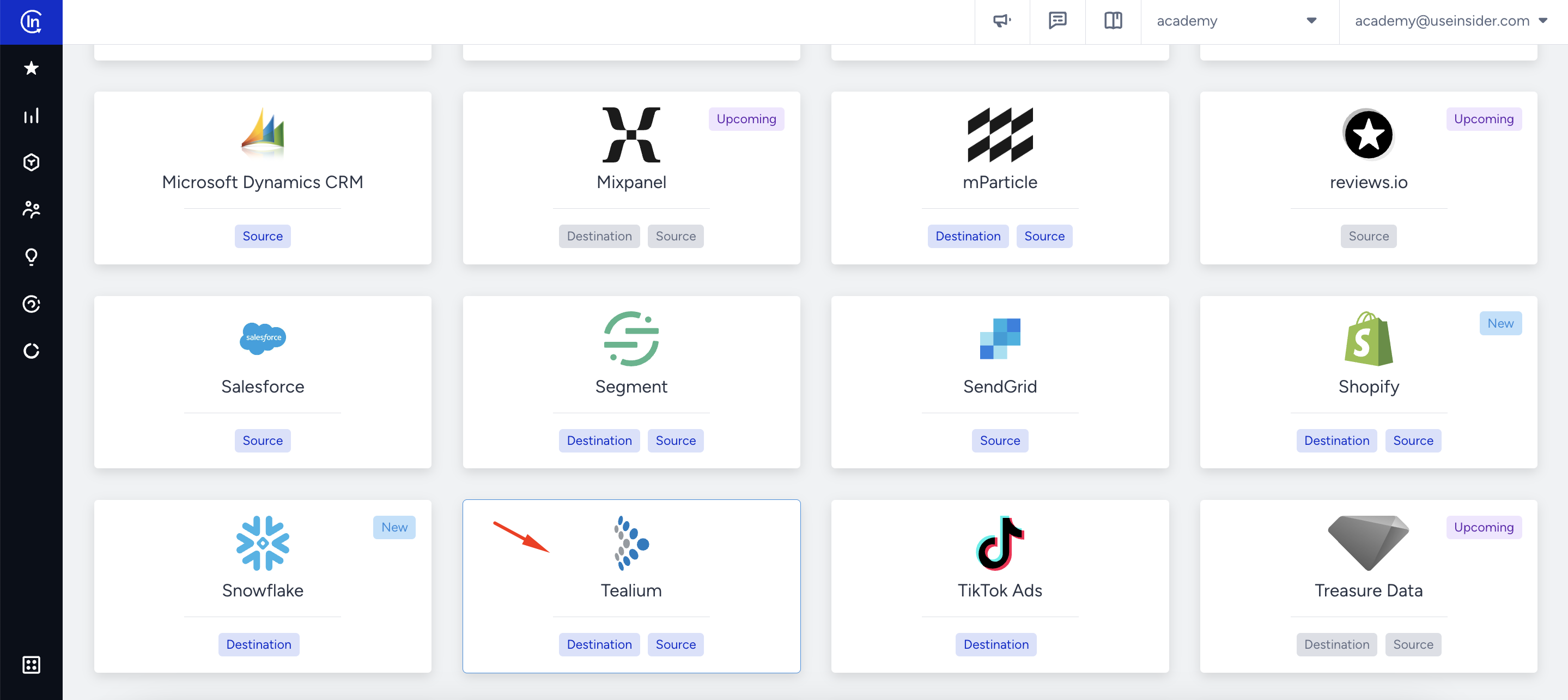
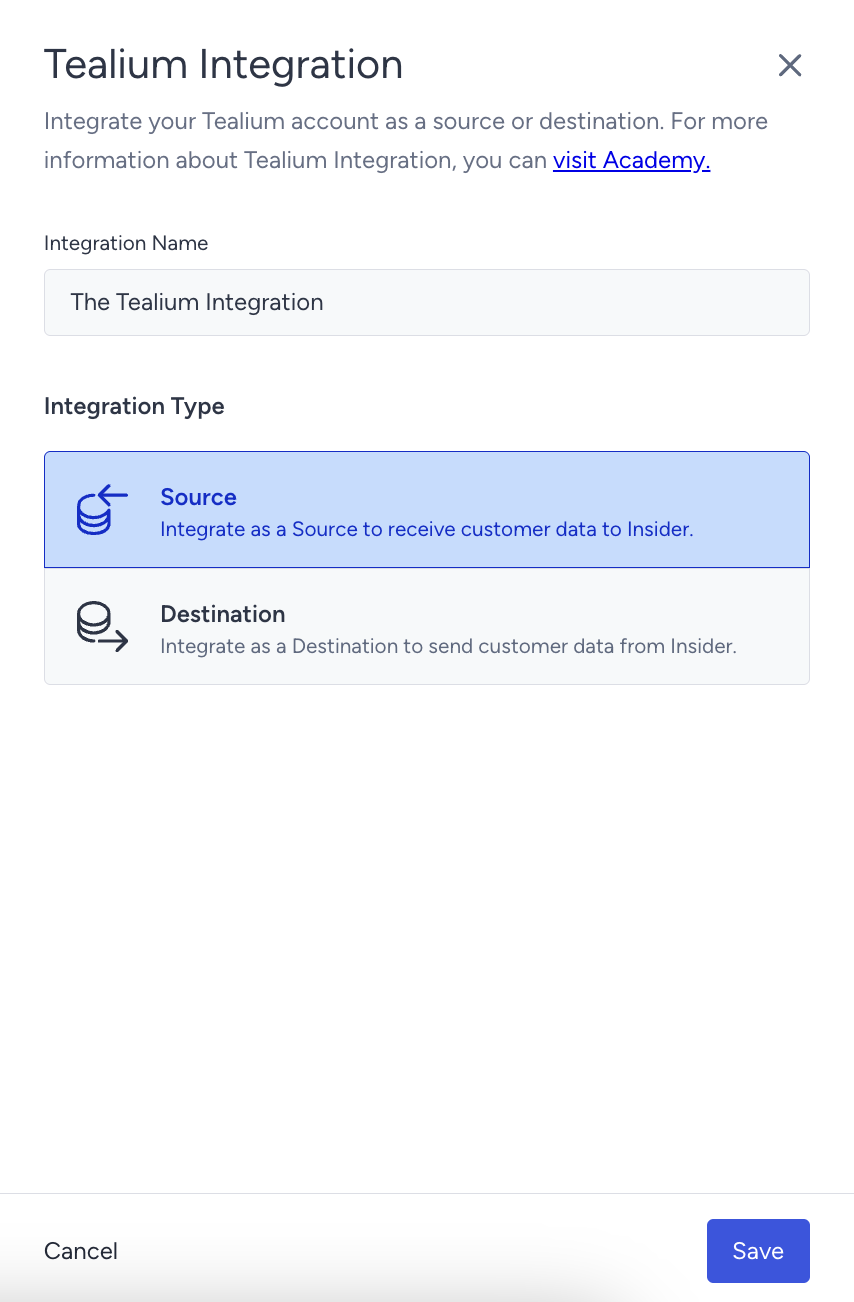
Give a name to your integration, select Source as the integration type, and click the Save button.
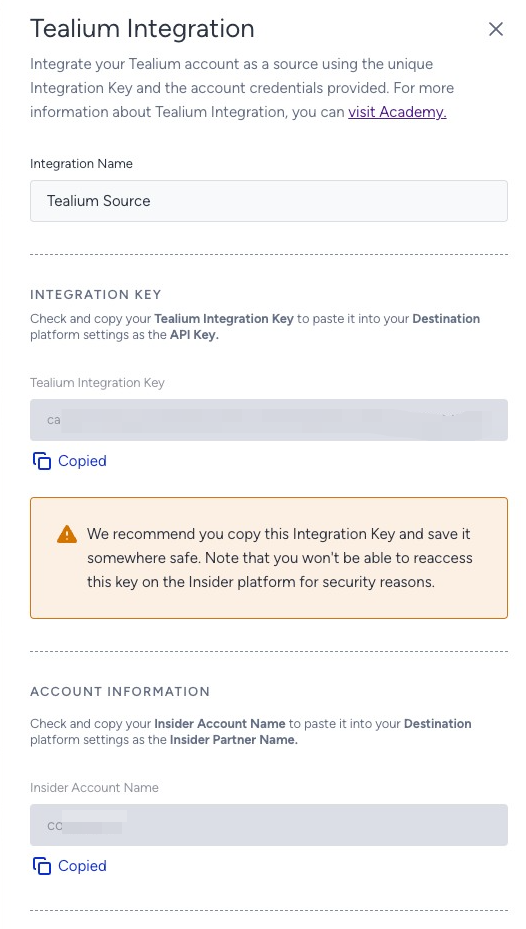
Copy the Tealium Integration Key and Insider One Account Name, and click the Save button.
After you copy the information, go back to your Tealium account, paste those values, and click the Continue button.
If you select the Trigger Condition as Joined Audience:
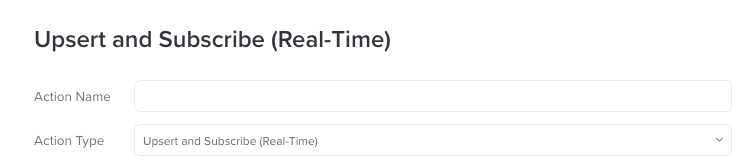
Select Upsert and Subscribe (Real-Time).
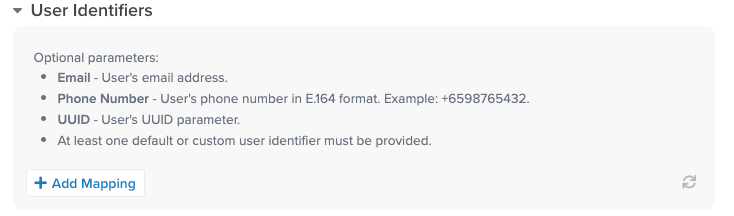
Select your User Identifier to be sent to Insider One.
The Identifier you selected should be selected as an Identifier on the Insider One Identity Resolution Page, too, for your integration to work properly.
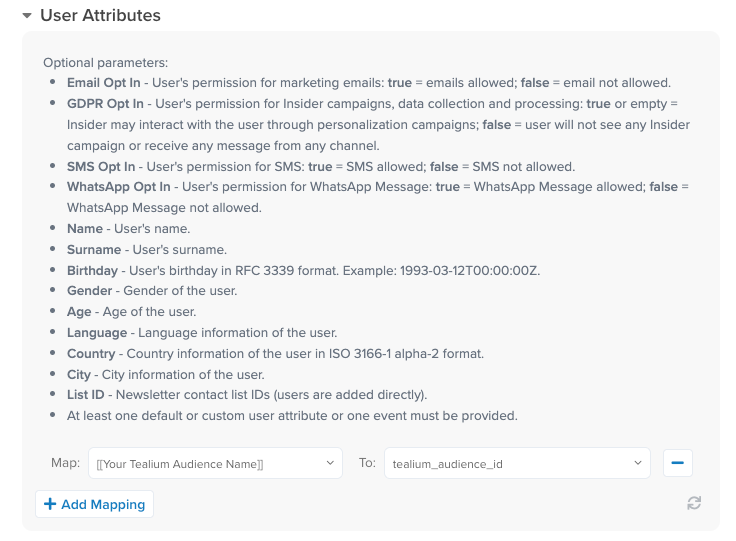
Under User Attribute, map your Audience Name to tealium_audience_id. You need to write the segment name that you want to see on the Insider One's InOne panel manually under the select option dropdown on Tealium.
Follow the instructions below when you set the Trigger Condition as Left Audience.
Select Delete Attribution (Real-Time).
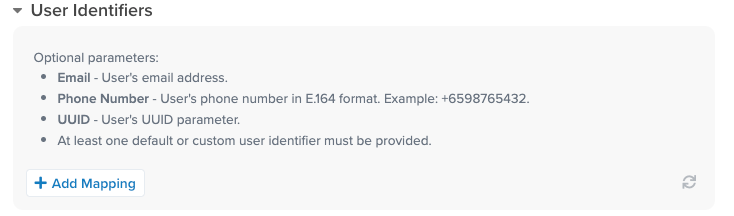
Select your User Identifier to be sent to Insider One.
The Identifier you selected should be selected as an Identifier on the Insider One Identity Resolution Page, too, for your integration to work properly.
Under Partial Delete Default User Attribute, map your Tealium Audience Name to tealium_audience_id. Write the segment name that you want to see on Insider One's InOne panel manually under the select option dropdown on Tealium.
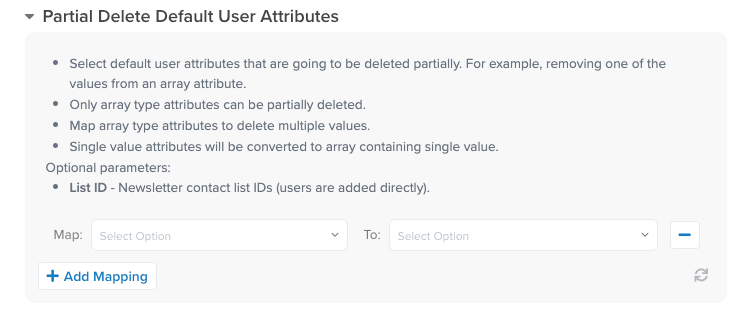
Click the Finish button to start the sync process for your Audiences.
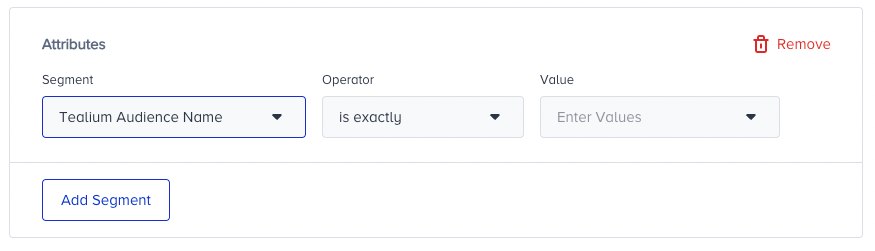
To utilize the segments that you have created on Insider One's InOne panel, select Tealium Audience Name from the Segment dropdown under Attributes on any messaging channel, Architect, or dynamic segment.