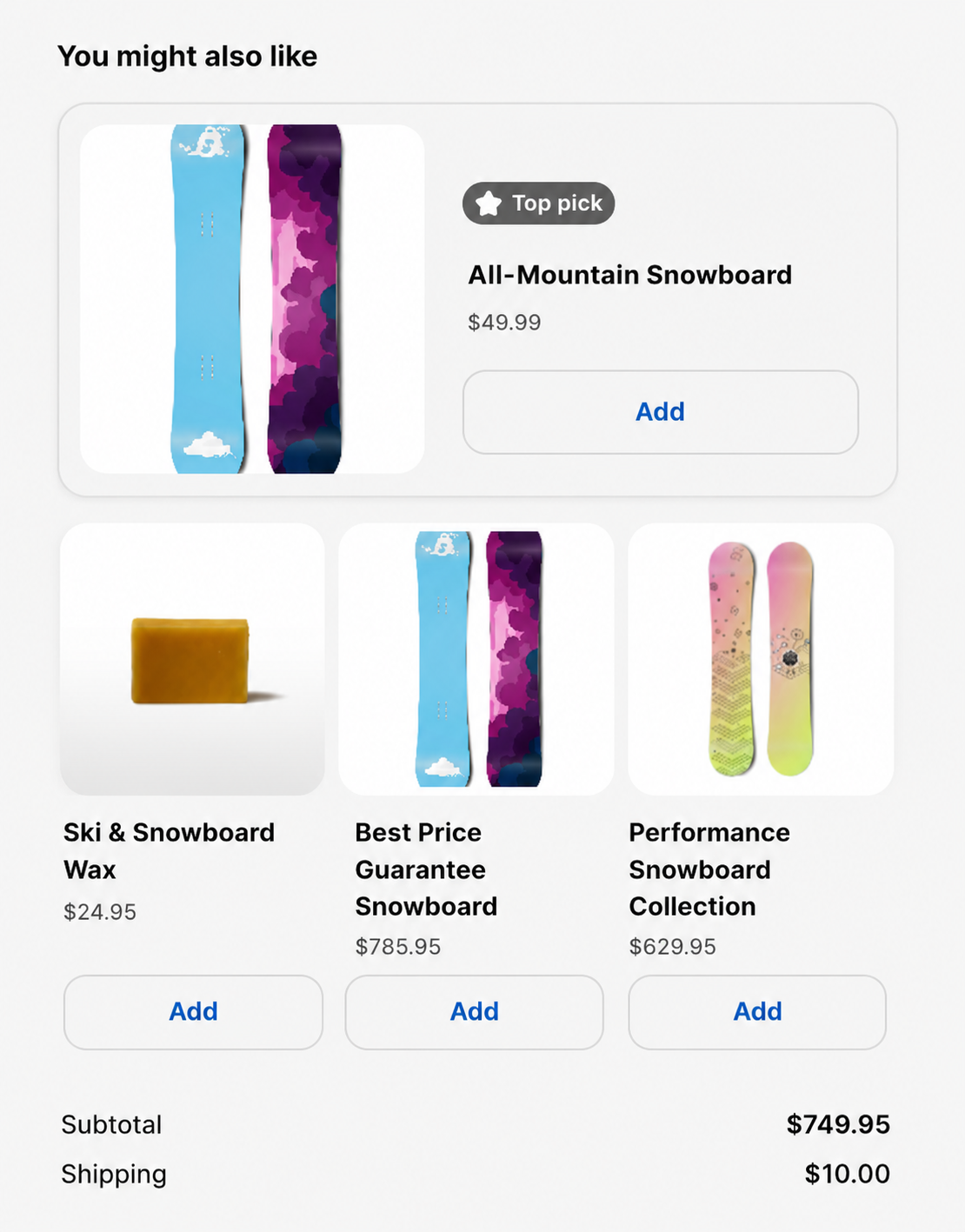
Checkout Recommendations adds an Insider One product recommendation block to your Shopify checkout and order status, or thank-you, pages. You do not need to install an additional app or grant any new permissions.
Shoppers can view recommended products while completing their purchase. On the checkout page, they can add a recommended product to their cart without leaving the checkout flow.
What Checkout Recommendations does
Displays Insider One product recommendations on the checkout page and the order status, or thank-you, page.
Lets shoppers add a recommended product directly to their cart from the checkout page.
Links each recommendation on the order status page to its product page. Because the order has already been placed, add-to-cart is not available on this page.
Ranks products with the Insider One recommendation engine and the algorithm you select, such as New Arrivals, Top Sellers, Trending, or Purchased Together.
Provides five layout options: List, Grid, Bento, Carousel, and Spotlight.
Uses the shopper's checkout language and currency, hides out-of-stock products, and can hide duplicate variants of the same product.
Lets you customize the block title, button text, and product card appearance in the Shopify checkout editor.
Before you start
Make sure the following requirements are met. Otherwise, the recommendation block might appear empty.
Use a Shopify plan that supports the block you want to add. Adding the block to the checkout page requires Shopify Plus because checkout editor customization is a Shopify Plus capability. The order status, or thank-you, page block is available on all Shopify plans.
Install the Insider One Shopify app on your store. The installation creates the store setting that the block uses to identify your Insider One account.
Make sure Smart Recommender is active for your Insider One account and your product catalog is connected to Insider One. The recommendation engine needs a connected catalog to return products. Recommendations are a licensed part of your Insider One plan. If the block remains empty, confirm that recommendations are enabled for your account.
For personalized recommendations, make sure the Insider One tag (ins.js) is active on your store. This enables Insider One to recognize signed-in shoppers. For details, see Personalization.
You add, configure, and position the block in the Shopify checkout editor. This setup is typically completed by a Shopify store administrator or marketer.
Add the block to checkout
In your Shopify admin, go to Settings > Checkout.
Select Edit on your live checkout profile to open the checkout editor.
In the checkout editor, open the checkout page, select Add block, and choose Insider One Recommendations.
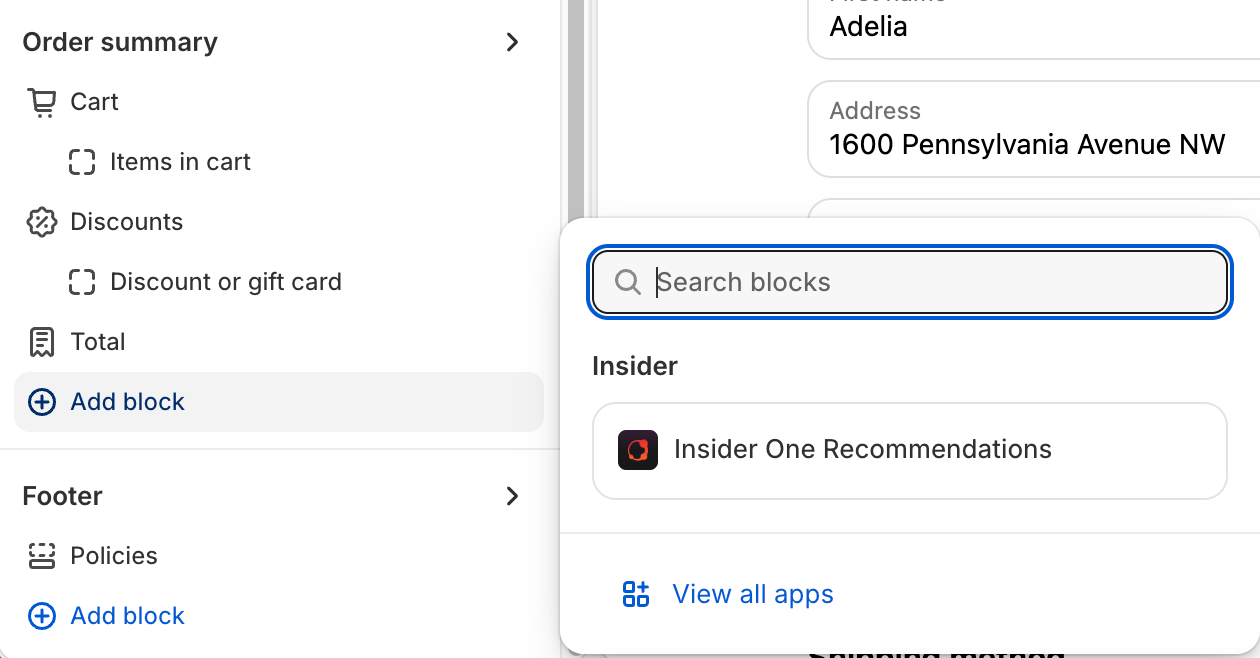
Move the block to the preferred location in the checkout layout.
To display recommendations after an order is placed, repeat these steps on the order status (thank-you) page.
Save the checkout profile.
Configure the block
Select the block and configure its options in the editor sidebar. The settings are grouped into the following categories.
Recommendations
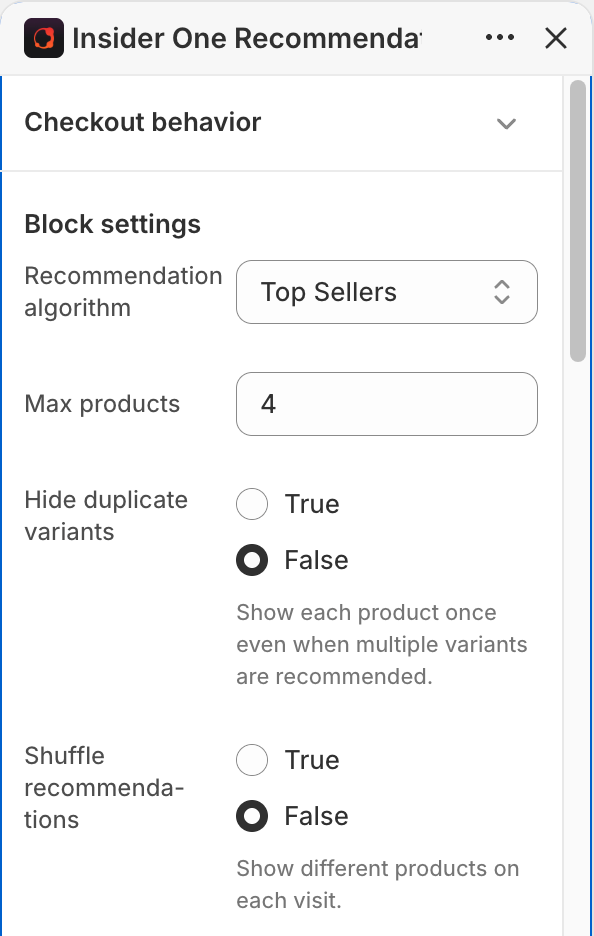
Recommendation algorithm: Select the logic Insider One uses to choose products. Available options are New Arrivals, Top Sellers, Trending, Most Popular, Most Valuable, Highest Discounted, Purchased Together, Viewed Together, Last Purchased Together, Complementary, Substitute, Similar, Visually Similar, User Based, User Engagement, Recently Viewed, Manual Merchandising, Chef, and Mixed.
Max products: Set the number of products to display, from 1 to 4.
Hide duplicate variants: Display each product only once when multiple variants of the same product are recommended.
Shuffle recommendations: Change the display order of recommended products on each visit.
Content
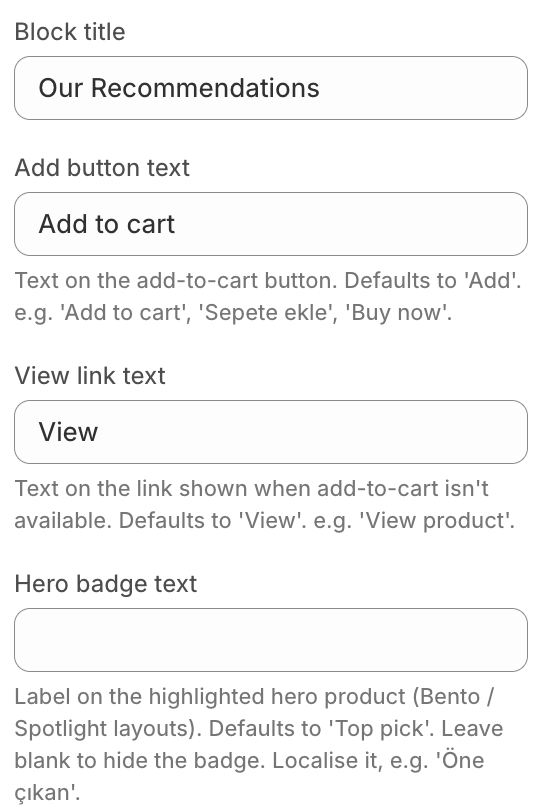
Block title: Enter the heading displayed above the recommendations.
Add button text: Enter the label for the add-to-cart button. The default value is Add. You can use another label, such as Add to cart or Sepete ekle.
View link text: Enter the label displayed when add-to-cart is unavailable. The default value is View.
Hero badge text: Enter the label displayed on the highlighted product in the Bento and Spotlight layouts. The default value is Top pick. Leave this field empty to hide the badge.
Layout
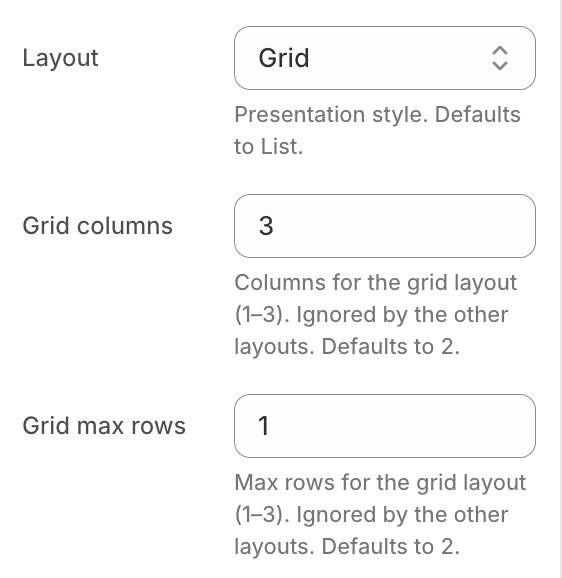
Layout: Select List, Grid, Bento, Carousel, or Spotlight. The default layout is List.
Grid columns: Set the number of columns for the Grid layout, from 1 to 3. The default value is 2. This setting does not apply to other layouts.
Grid max rows: Set the number of rows for the Grid layout, from 1 to 3. The default value is 2. This setting does not apply to other layouts.
Appearance
Add button style: Select Default or Prominent. Prominent displays a bolder, filled button.
Card borders: Show or hide a border around each product card. Borders are enabled by default.
Image shape: Select Square, Portrait, or Landscape. The default value is Square.
Image fit: Select Cover to fill the image frame or Contain to display the complete image inside the frame. The default value is Cover.
Product title length: Set the number of characters displayed before a long product title is shortened. You can enter a value from 20 to 100. The default value is 50.
Show original price when discounted: Display the original price with a strikethrough next to the sale price. This setting is enabled by default.
Personalization
Whether recommendations are personalized depends on the selected algorithm. The available algorithms use different types of data.
Many algorithms do not need to identify the shopper. Some use store-wide signals, such as New Arrivals, Top Sellers, Trending, and Most Popular. Others use the current product or cart context, such as Purchased Together, Complementary, and Substitute.
User-based algorithms, such as User Based, User Engagement, and Recently Viewed, personalize recommendations for each shopper. These algorithms require the shopper to be identified by Insider One.
Anonymous shoppers can still see recommendations, but the products are ranked with non-personalized logic instead of shopper-specific data.
Limitations
The checkout page block requires Shopify Plus. Stores on other Shopify plans can still use the order status, or thank-you, page block.
Add-to-cart is available only on the checkout page block. On the order status page, during accelerated checkout with Apple Pay or Google Pay, and for draft orders, each recommendation displays a View link to the product page instead.
You can display up to four products.
Grid columns and Grid max rows apply only to the Grid layout. Other layouts ignore these settings.
Recommendations are retrieved from your Insider One account and connected catalog. The block remains empty until the Insider One Shopify app is installed and the catalog is connected.
You can customize the block with the settings described in this article. Custom CSS is not supported.