Insider One MCP connects your AI client to Insider One's analytics and campaign data through natural language queries. Once connected, you can ask questions about campaign performance and retrieve channel metrics directly from your AI client without switching between platforms.
Insider One MCP currently supports the following channels:
Email (Campaign and Overall Analytics, Template Library)
SMS (Campaign, Overall, Transactional, and OTP/Verify Analytics)
WhatsApp (Campaign, Overall, Transactional, and OTP/Verify Analytics, Template Management)
Web Push (Campaign and Overall Analytics, Top Metrics)
Mobile App (App Push Overall Analytics, InApp Details, Message Center Messages)
Architect (Journey Analytics)
To connect multiple Insider One panels to the same AI assistant, refer to Connect Multiple Insider One Panels to Your AI Assistant.
Prerequisites
Before you begin, make sure you have the required credentials and tools for your preferred authentication method.
For OAuth 2.0 setup:
An MCP-compatible AI client (Claude, Cursor, or similar)
Insider One Client ID and Client Secret (available in your Insider One Account Settings)
Node.js is installed on your machine (not required for Claude Desktop)
Create a dedicated key set specifically for your MCP client. Do not reuse existing keys.
Set up MCP with the OAuth 2.0 method
OAuth 2.0 is the recommended authentication method because it supports all available channels and does not require separate API keys for each one.
Before connecting your AI client, generate your OAuth 2.0 credentials from Insider One.
All Insider One MCP tools are available via OAuth 2.0.
Generate your OAuth 2.0 credentials
Generate a Client ID and Client Secret from the InOne panel by following the steps below.
Navigate to InOne > your username > Settings > InOne Settings > Integration Settings.

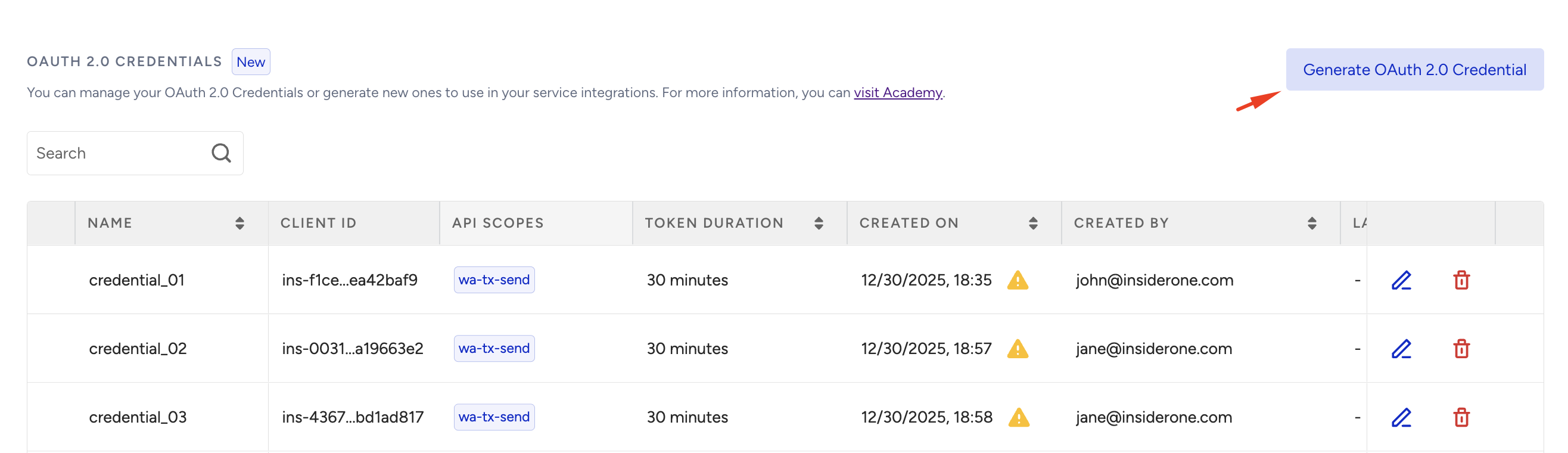
Scroll to the OAuth 2.0 Credentials section and click Generate OAuth 2.0 Credentials.
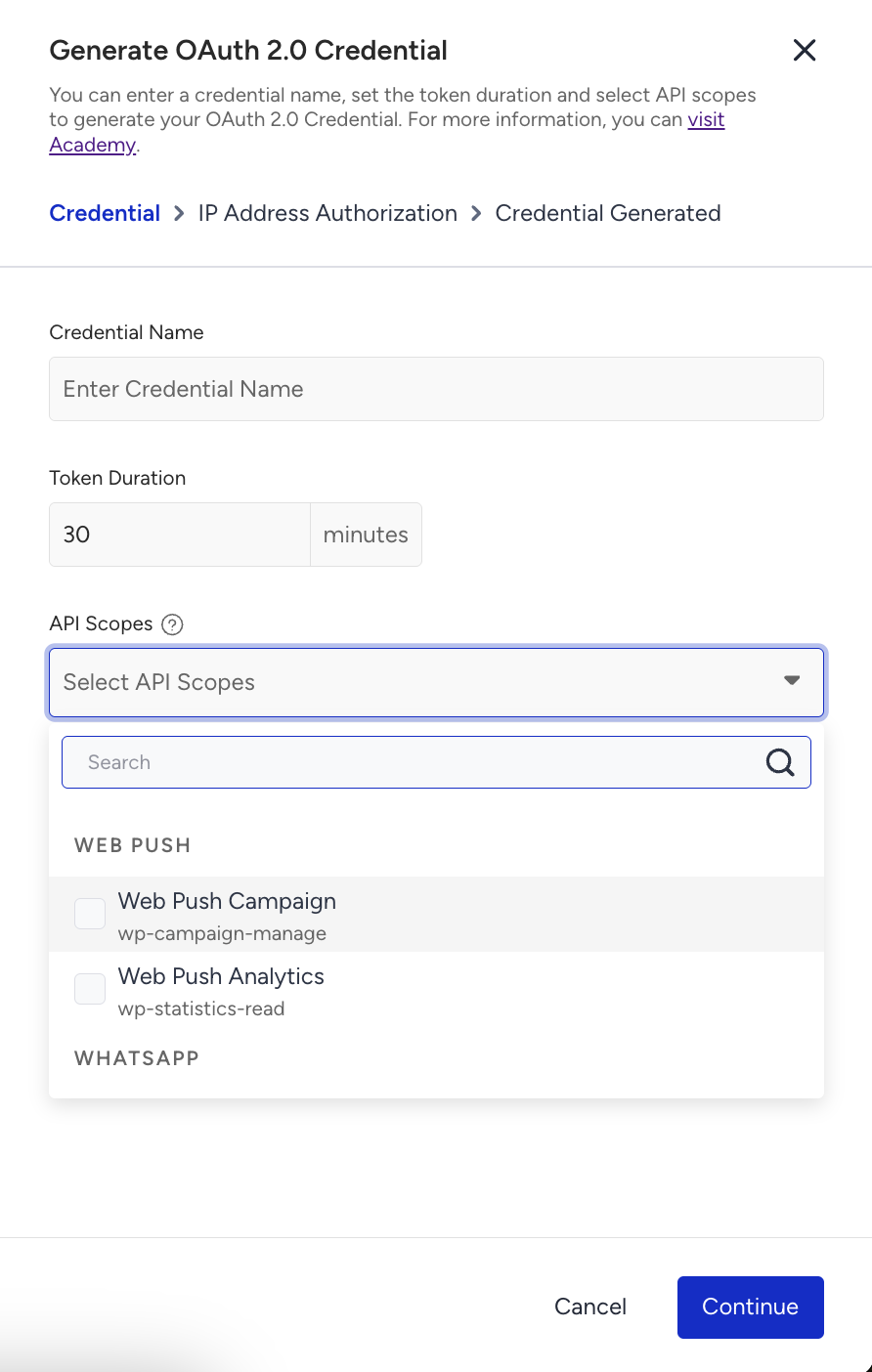
Select the scopes you want to grant. For full MCP functionality, enable all available channels.
Once generated, copy your Client ID and Client Secret and store them securely. You will need these in the setup steps below.
Your Client Secret is only shown once. Make sure to save it before closing this screen.
Claude Desktop (No code required)
If you use Claude Desktop, you can connect to Insider One MCP through Claude's built-in Connectors interface. No configuration files or terminal commands are required.
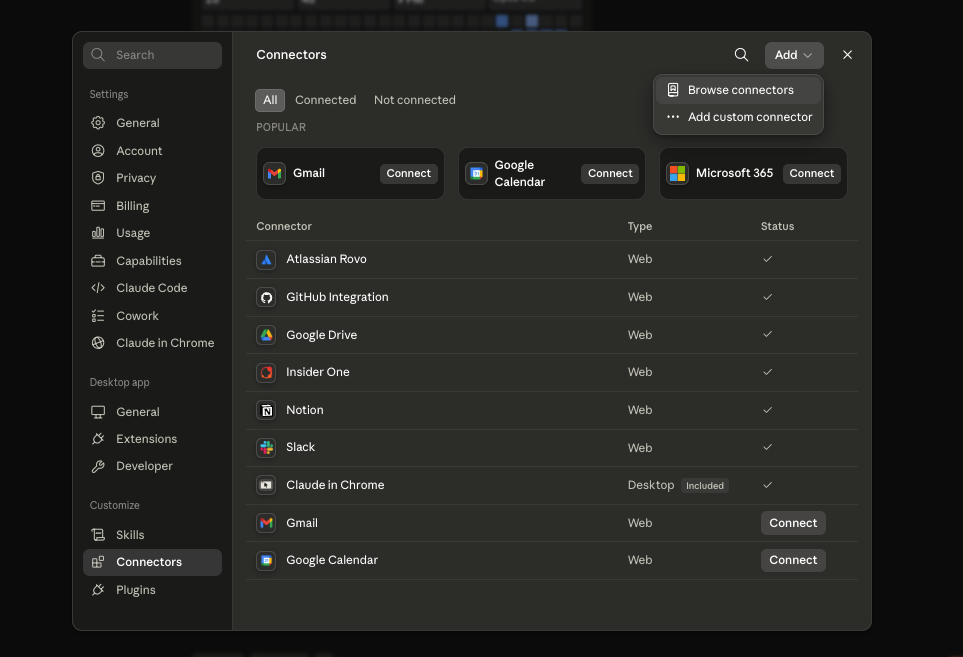
Navigate to Claude > Settings and click Add, then select Browse connectors.
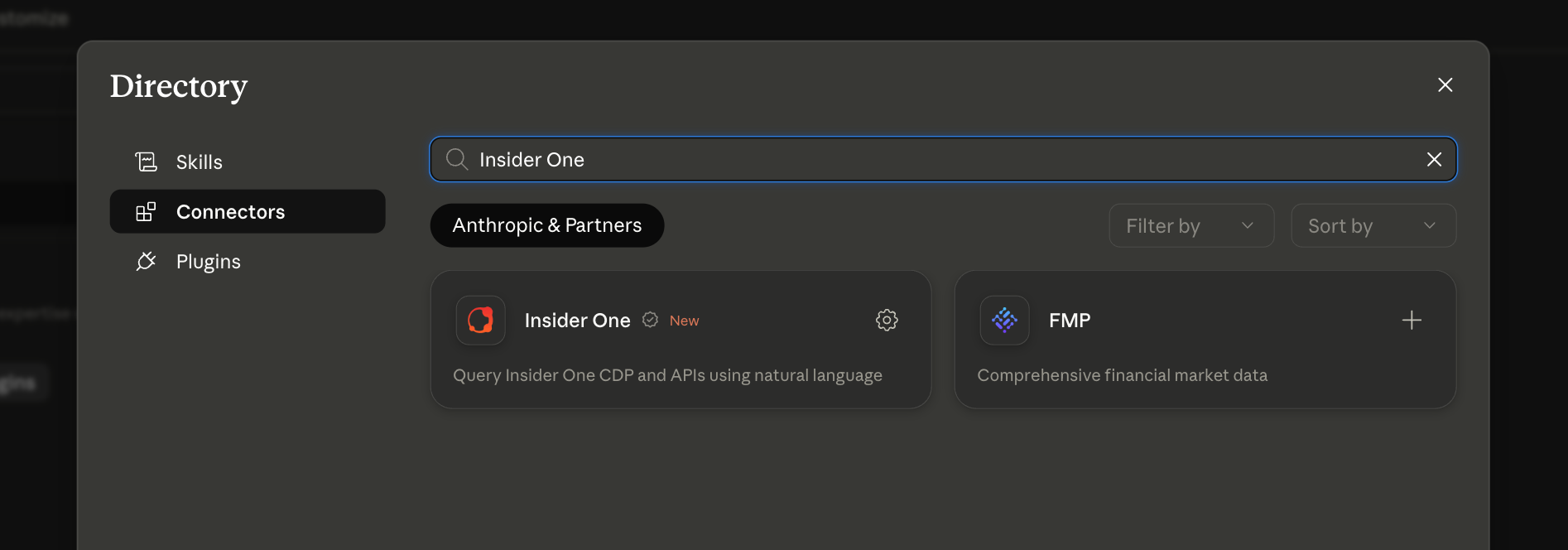
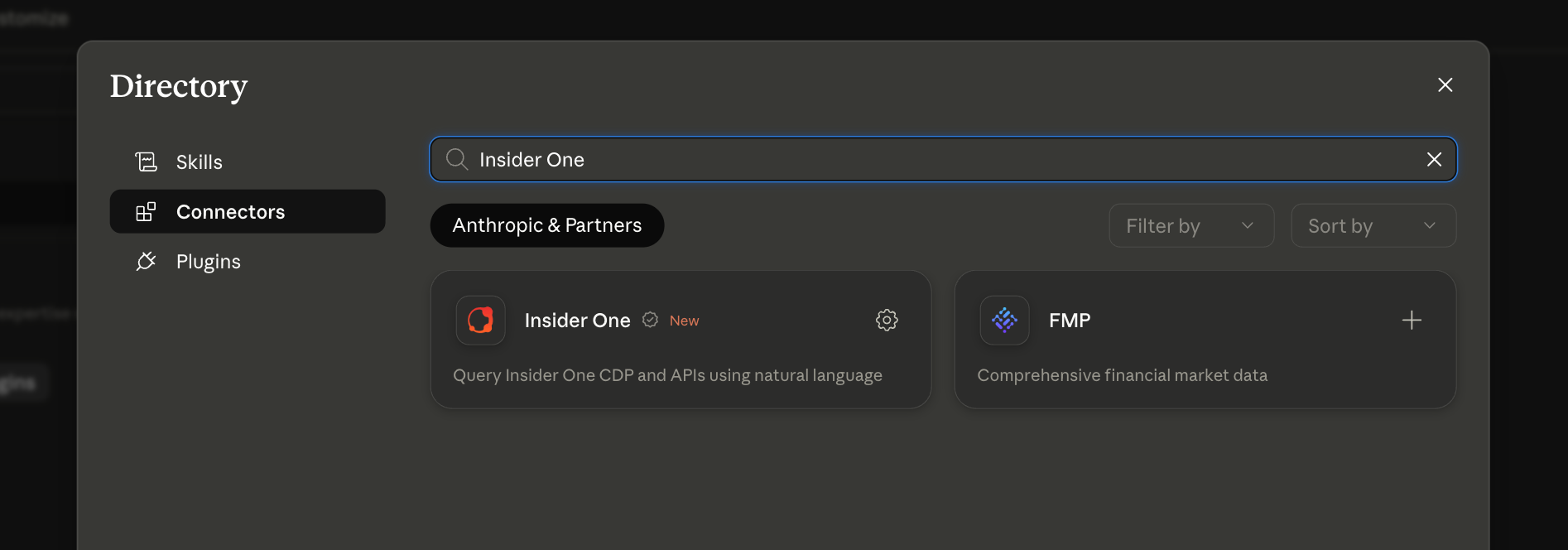
In the Directory, search for Insider One, then select the Insider One connector to add it.
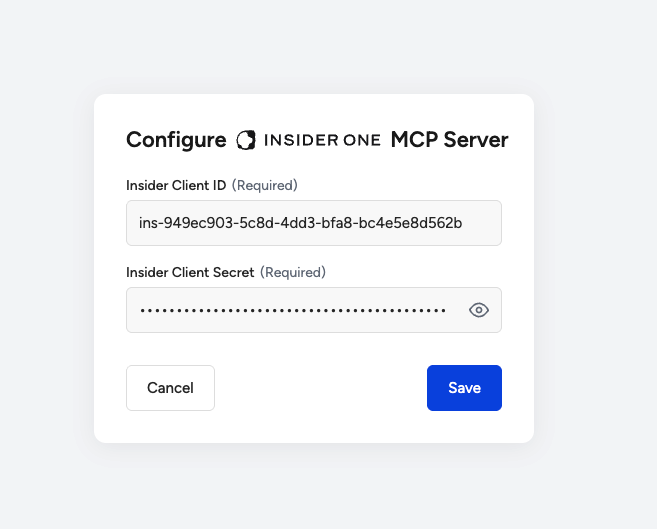
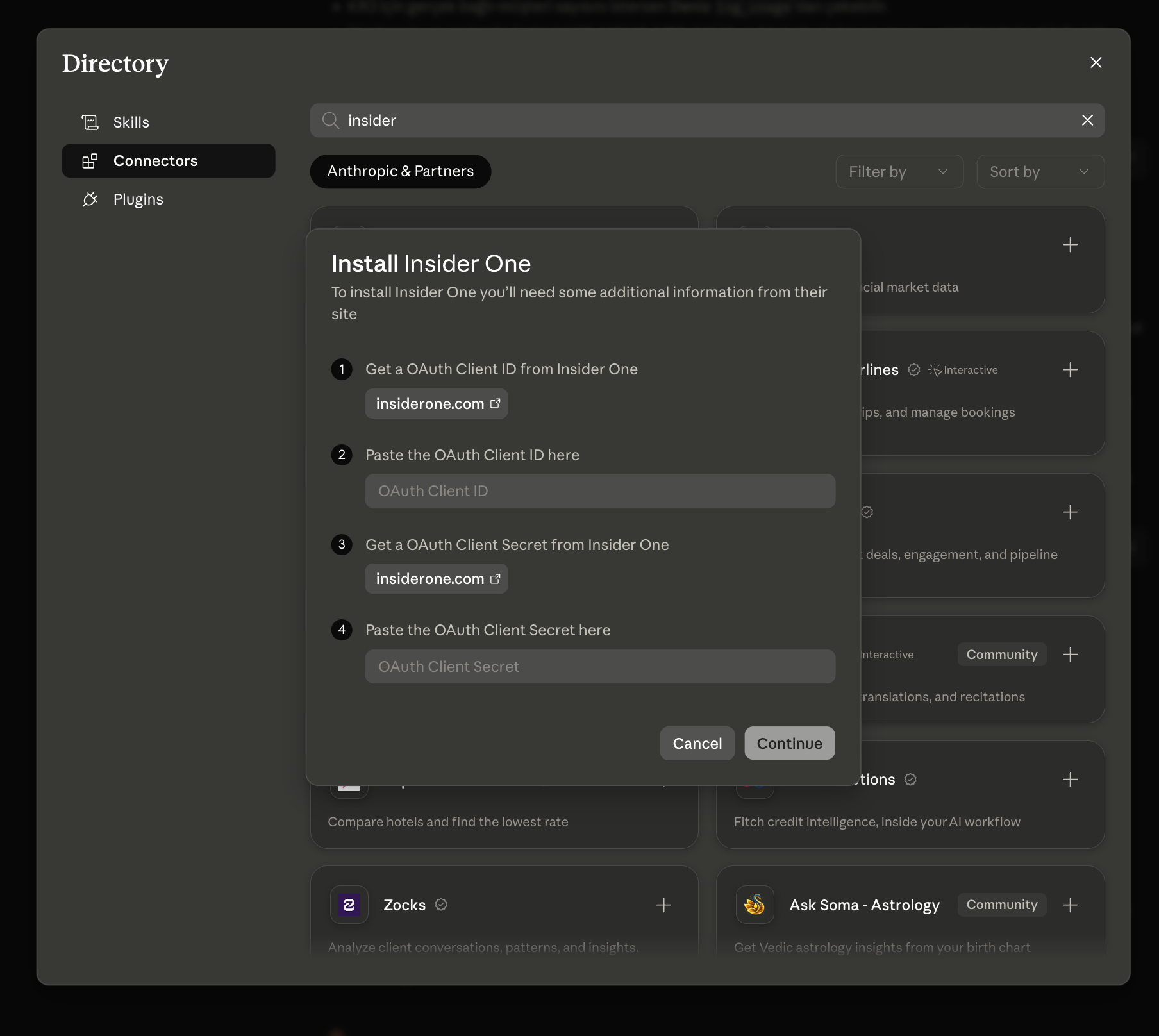
Enter your Insider One Client ID and Client Secret when prompted. Click Save.
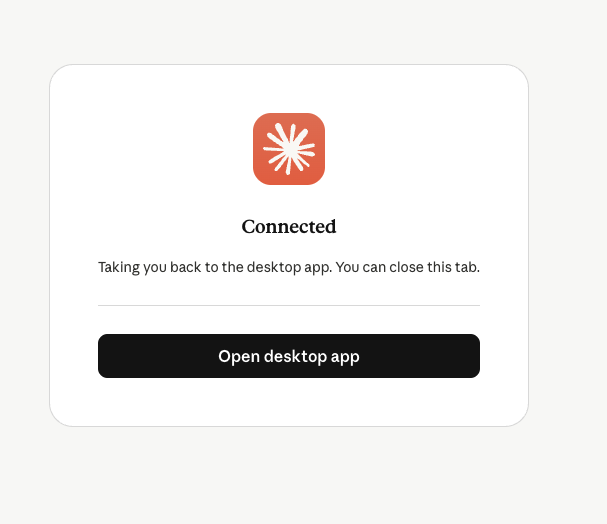
You will see a Connected confirmation. Insider One now appears in your Connectors list.
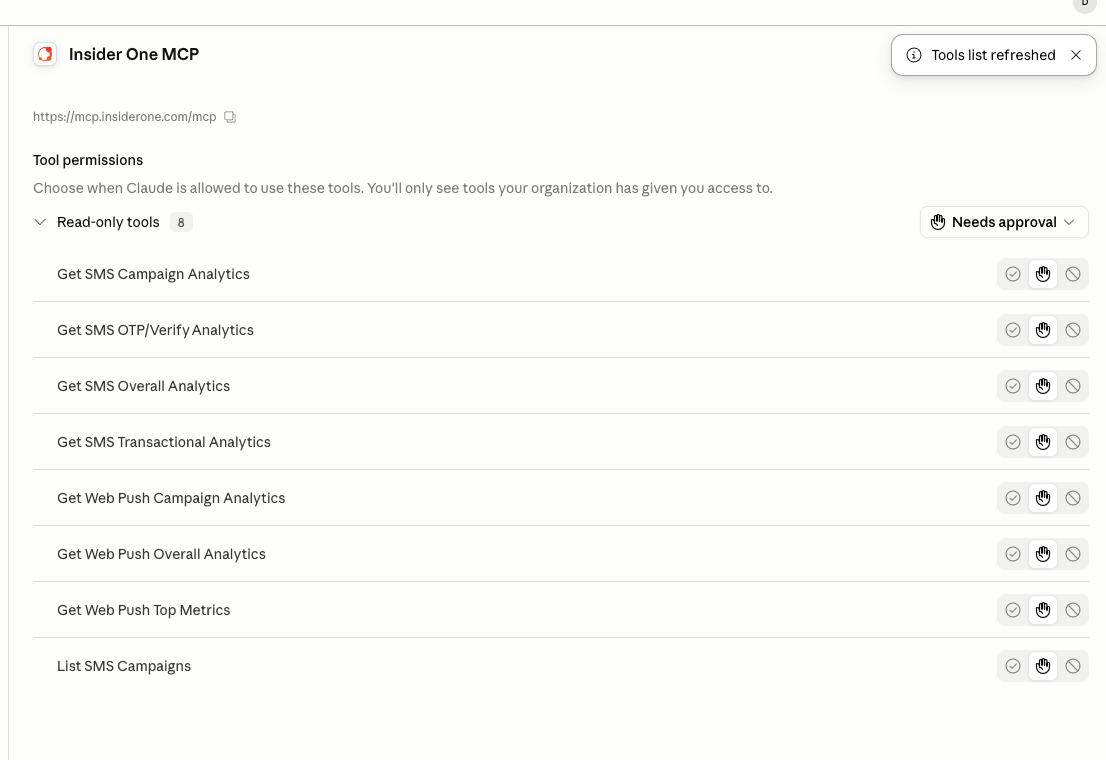
Once the connection is established, Insider One MCP becomes available within Claude and provides access to 8 read-only tools across supported channels.
Cursor and other clients (OAuth via npx mcp-remote)
If your AI client does not support the Connectors interface (e.g., Cursor and similar tools), configure the MCP server manually using the settings below.
Node.js must be installed on your machine.
Get your Client ID and Client Secret from your Insider One Account Settings.
To add the MCP server, navigate to Cursor > Settings > Tools and Integrations > MCP Tools > Add Custom MCP.
Add the following configuration:
{
  "mcpServers": {
    "insider-one-mcp": {
      "command": "npx",
      "args": [
        "-y",
        "mcp-remote",
        "https://mcp.insiderone.com/mcp",
        "--header",
        "Authorization: Bearer YOUR_ACCESS_TOKEN"
      ]
    }
  }
}
Replace
YOUR_ACCESS_TOKENwith the Bearer token obtained via the OAuth 2.0 authorization flow using your Client ID and Client Secret.Fully restart Cursor (or your chosen client) to apply the configuration.
Tool Permissions
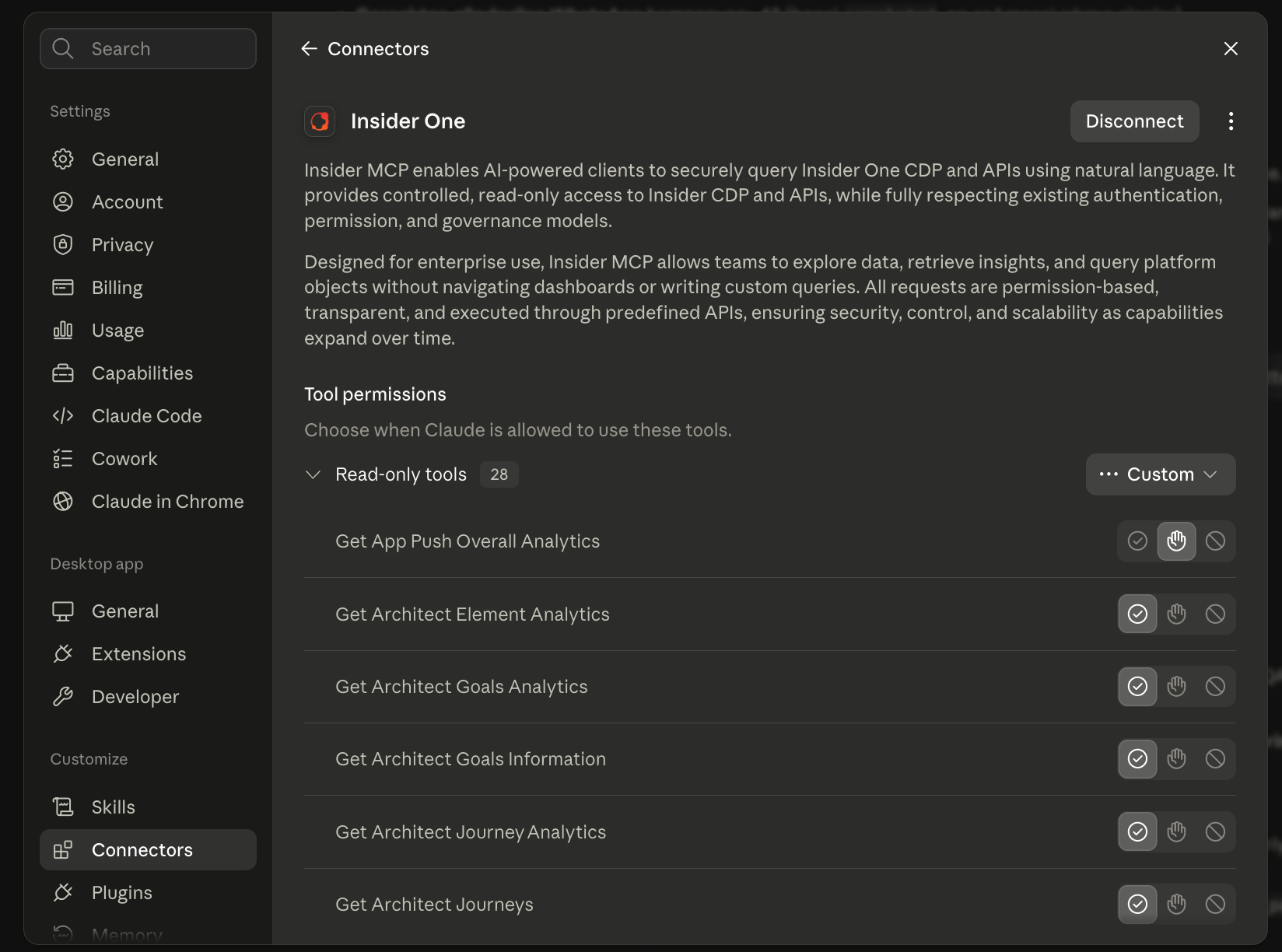
Insider One MCP includes both read-only tools and write tools. You can control when Claude is allowed to use each tool from the connector's Tool permissions screen:
Read-only tools (Analytics, Campaign Lists, Email Templates) can be set to run automatically.
Write tools (creating or editing templates and campaigns) are set to 'Needs approval' by default. Claude will ask for your confirmation before every write action.
You can adjust these per tool at any time from Settings > Connectors > Insider One > Tool permissions.
If already connected
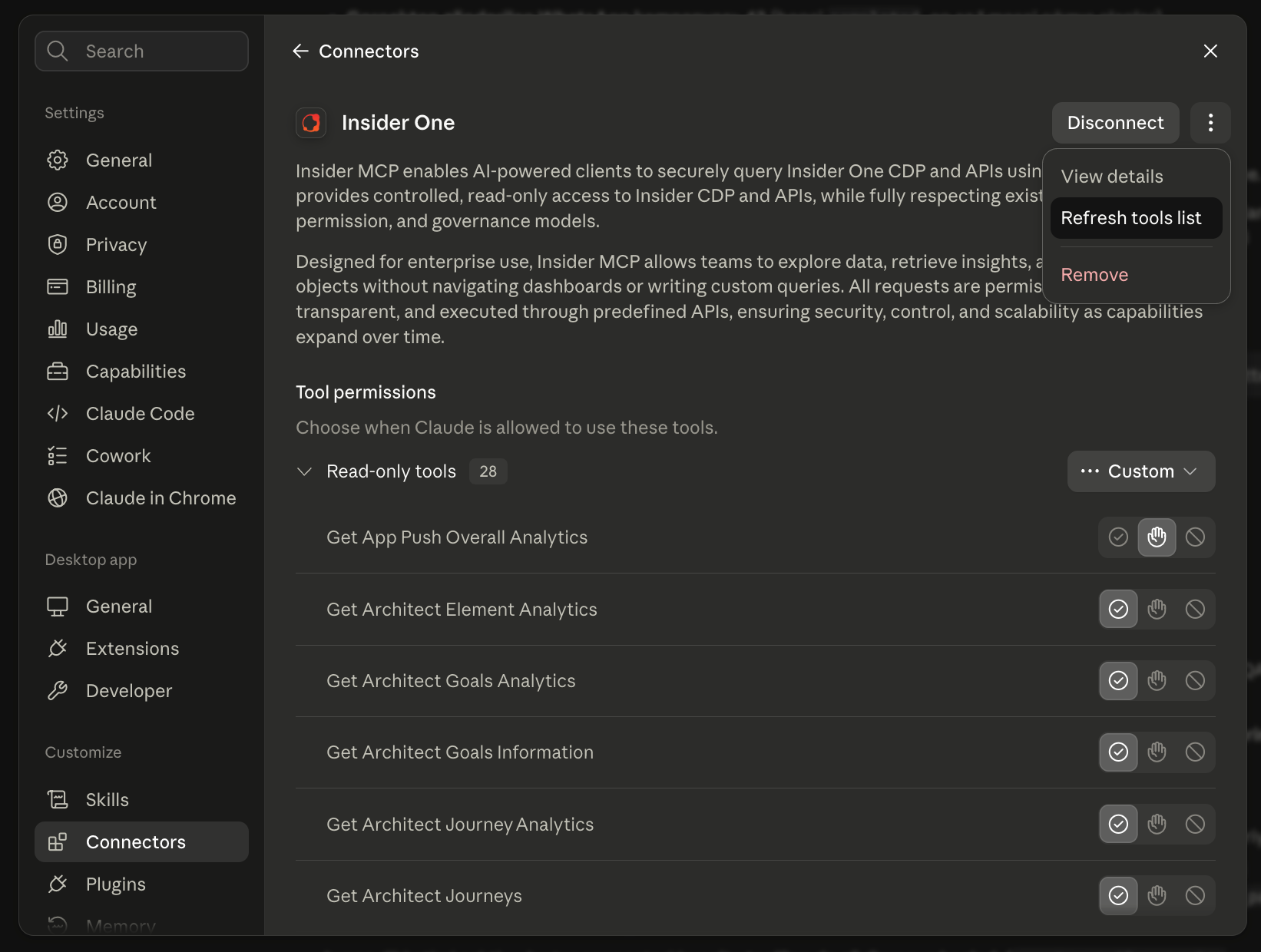
If you connected Insider One before a new capability was released, open the connector's three dots menu and select Refresh tools list to load the newly added tools. If tools still do not appear, remove the connector entirely and connect again from scratch
Test your connection
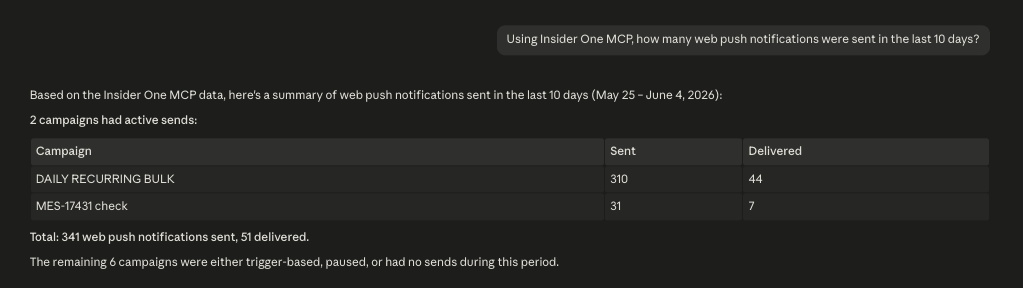
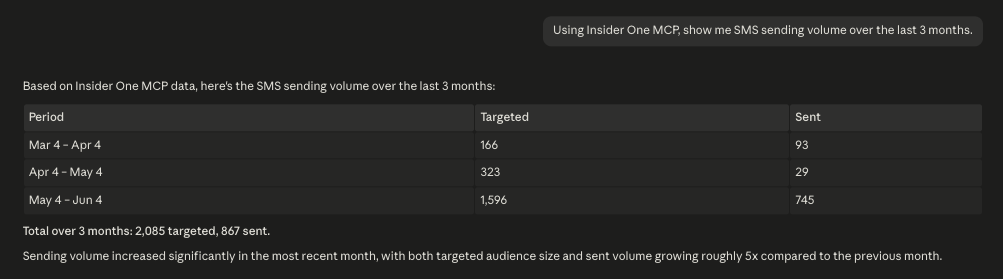
After completing the setup, run one of the following queries to confirm that your connection is working correctly:
“How many web push notifications were sent in the last 10 days?”
“Show me SMS sending volume over the last 3 months.”
FAQ & Troubleshooting
If you encounter issues during setup or connection, review the common solutions below.
I'm getting a connection error, or the connector stopped working. How do I fix it?
A simple Disconnect is not enough to reset the connector. Follow these steps to completely remove the existing connection before reconnecting:
In Claude, navigate to Settings > Connectors > Insider One.
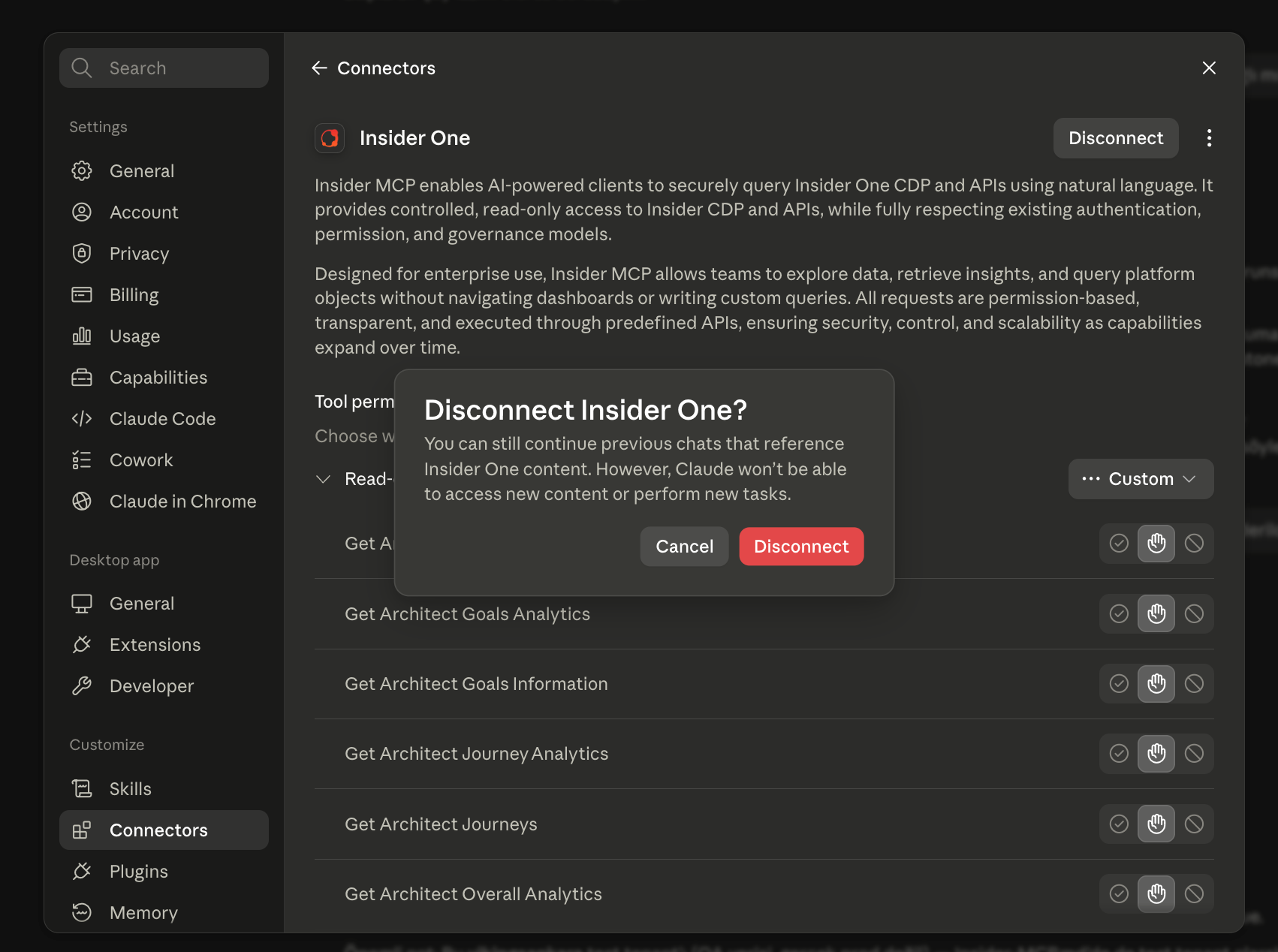
Click Disconnect, then confirm.
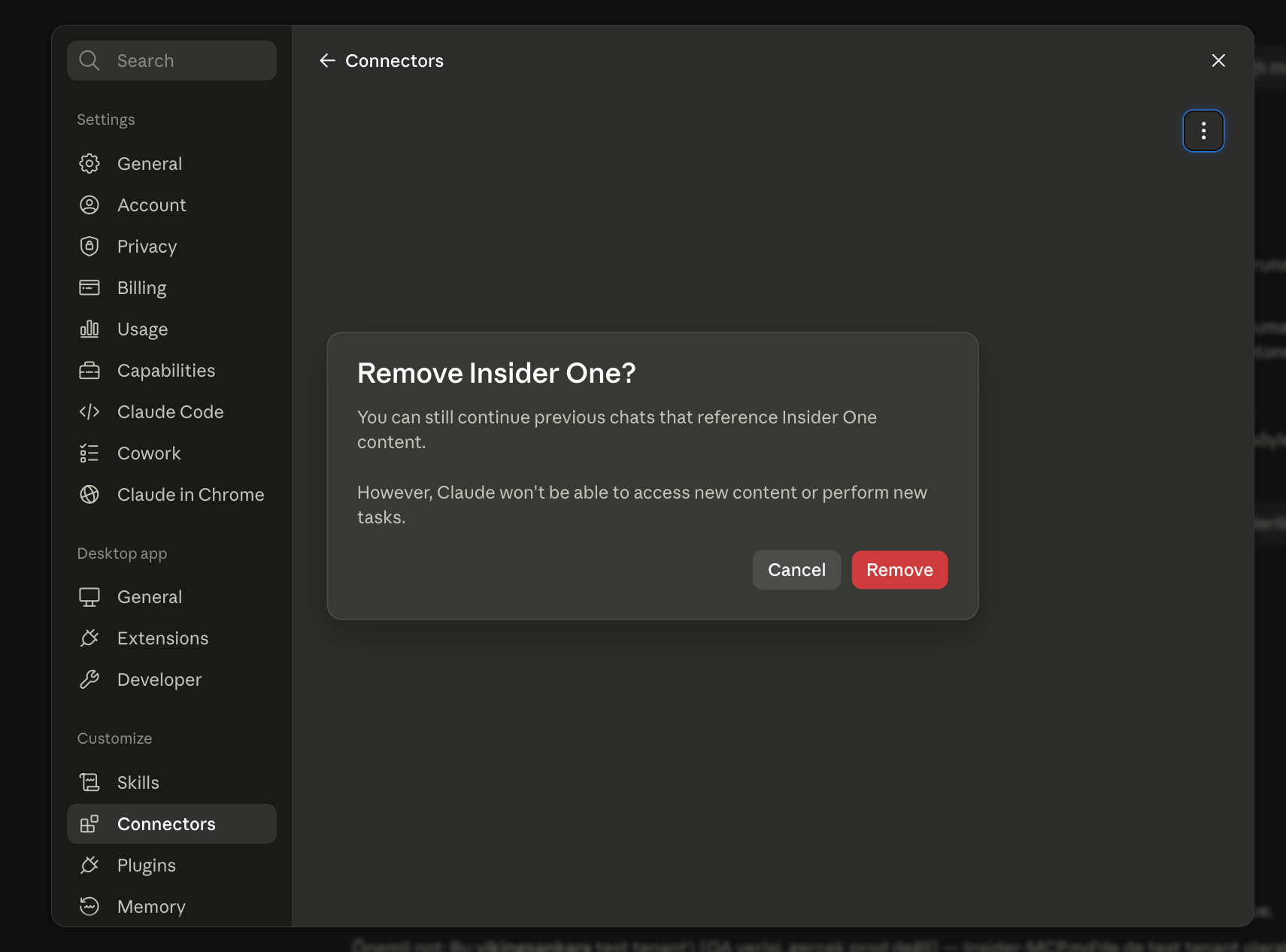
Open the connector menu (…) and click Remove. Confirm again to completely clear the existing connector state.
Before reconnecting, generate or locate your OAuth 2.0 credentials in the Insider One panel (Settings > InOne Settings > Integration Settings > OAuth 2.0 Credentials). Keep your Client ID and Client Secret ready.
Complete the reconnection process in one session. OAuth access tokens remain valid only for the configured token lifetime (up to 90 minutes). If the token expires before you finish, generate a new credential and restart the process.
Open Browse connectors, find Insider One, click Connect, and enter your Client ID and Client Secret when prompted.
Verify the connection with a simple prompt, for example:
List my SMS campaigns.
I connected earlier, but the newly released tools don't appear.
If new Insider One tools are available but do not appear in Claude:
Navigate to Claude > Settings > Connectors > Insider One.
Open the connector menu (…) and select Refresh tools list.
If the new tools still do not appear, follow the complete reconnection process described in the previous FAQ (Disconnect > Remove > Connect).
Claude created a campaign or template. Did anything go out to my customers?
No. Claude only creates drafts in your Insider One panel.
Campaigns and templates are never sent, scheduled, or published automatically. Your team must review and launch every draft from the Insider One panel. In addition, every write action requires your explicit approval in Claude before it is executed.
Which credentials do I use to connect?
Use the OAuth 2.0 Client ID and Client Secret generated from the Insider One panel (Settings > InOne Settings > Integration Settings > OAuth 2.0 Credentials). Refer to Generate your OAuth 2.0 credentials.
When generating the credentials, select the scopes for the channels you want Claude to access. A tool is available only if the corresponding scope is included in the credential.
Insider One recommends creating a dedicated OAuth 2.0 credential for your Insider One MCP connection instead of reusing an existing credential.
Invalid credentials
Double-check your Client ID and Client Secret
Ensure you are not reusing keys from another integration.
Tools not returning data
Confirm that the relevant channels are active on your Insider One account.
If you still have issues, please contact the Insider One team at support@useinsider.com.
Claude Team and Enterprise accounts
Insider One is available as an official connector in the Claude directory. If you use a Claude Team or Enterprise account and cannot connect to Insider One, your organization’s Claude or IT settings might restrict which connectors members can use.
Before troubleshooting the Insider One connection, check the following with your Claude organization owner or IT team:
Confirm whether your organization allows third-party MCP connectors in addition to commonly used integrations such as Google, Atlassian, or Slack.
Check whether third-party connectors require administrator approval or consent before members can use them.
For Team and Enterprise accounts, confirm that an organization Owner has enabled the Insider One connector in the organization’s Claude settings.
Organization-level restrictions vary by Claude workspace. A connection issue on a Team or Enterprise account does not necessarily indicate an issue with the Insider One connector.
If you previously disconnected and removed the connector, but Claude redirects you directly to the browser without asking for your new credentials when you reconnect, the issue might be related to your organization’s Claude authentication or connector configuration. Creating another OAuth 2.0 credential does not necessarily resolve this behavior.
If the connection still fails after your organization confirms the settings above, collect the exact error message, timestamp, and reference ID shown by Claude, then contact the Insider One team.