Liquid is a templating language that lets you inject dynamic, personalized content into your standalone App Push notifications. Instead of sending the same message to everyone, you write a single template and Liquid fills in the right data for each recipient automatically, their name, membership tier, offer details, and more.
In Insider One App Push, Liquid is available in the Message Title, Message Description, Image, and Deep Link fields. It works in both standalone campaigns and Architect journeys.
The Liquid Tags feature is available for early access. To activate it for your account, contact the Insider One team.
Supported | Not supported |
|---|---|
|
|
This guide explains the following concepts:
Enable Liquid Tags
Step 1: Liquid Tags toggle
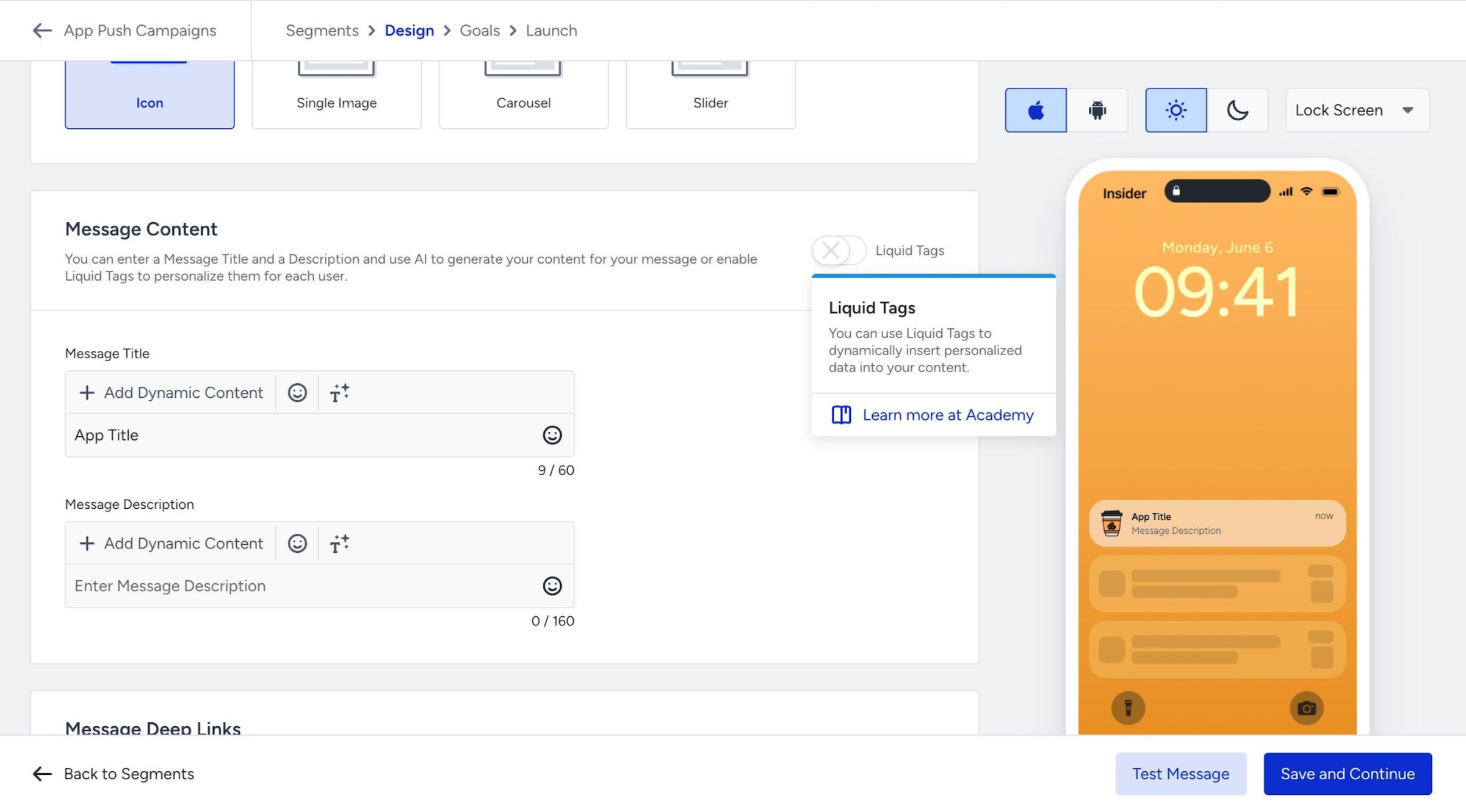
In your App Push campaign, go to App Push Campaigns → Design. In the Message Content section, you will see the Liquid Tags toggle in the top-right corner. By default, this toggle is off.
Cart Reminder pushes have no support for Liquid.
When you hover over the toggle, a tooltip appears explaining what Liquid Tags do.
Step 2: Enable Liquid Tags
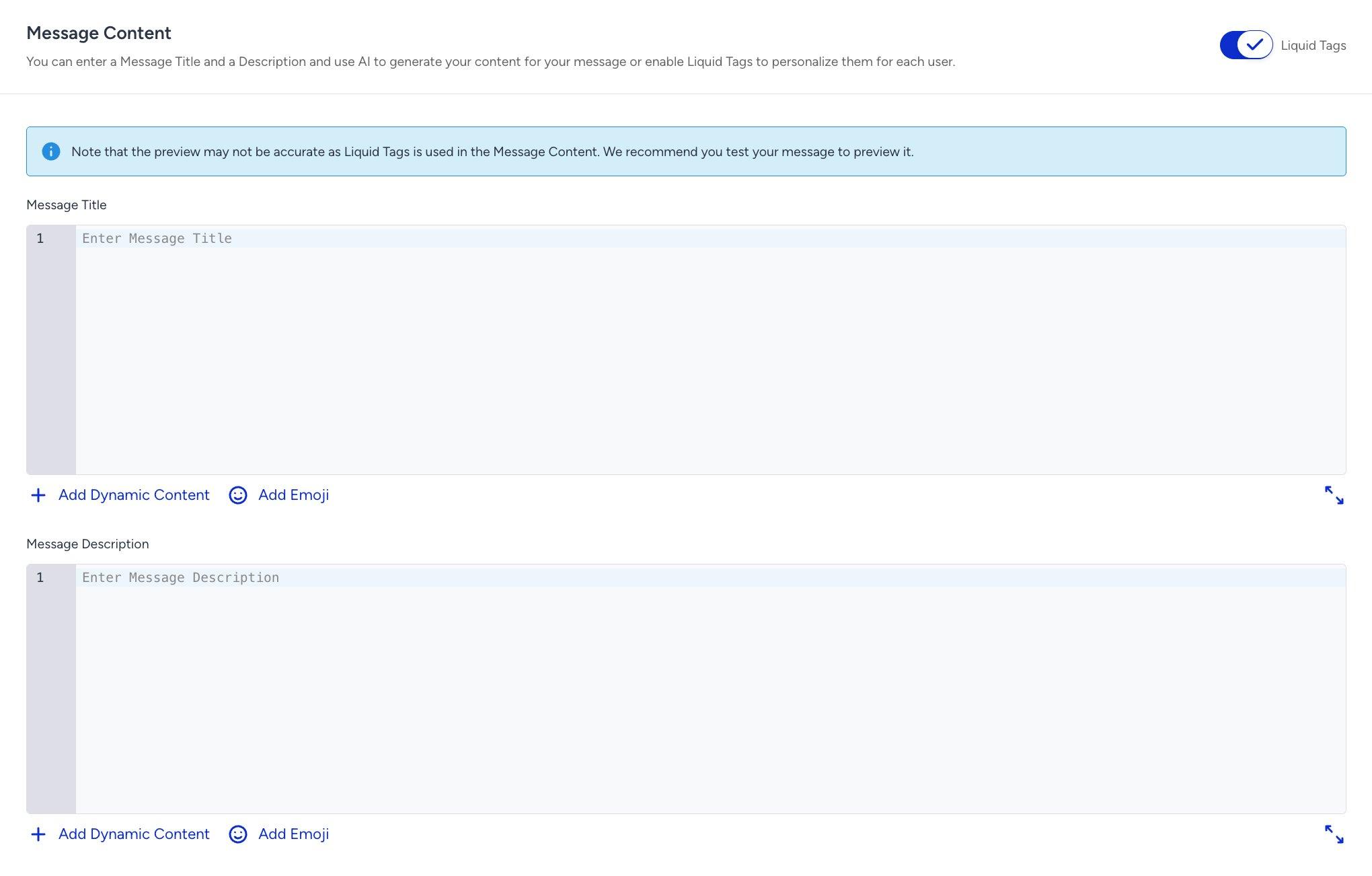
Click the toggle to enable Liquid Tags. It turns blue with a checkmark. The Message Title and Message Description fields switch to code-friendly editors with line numbers.
An info banner appears at the top of the Message Content section stating that the preview may not be accurate when Liquid Tags is used in the Message Content. We recommend you test your message to preview it.
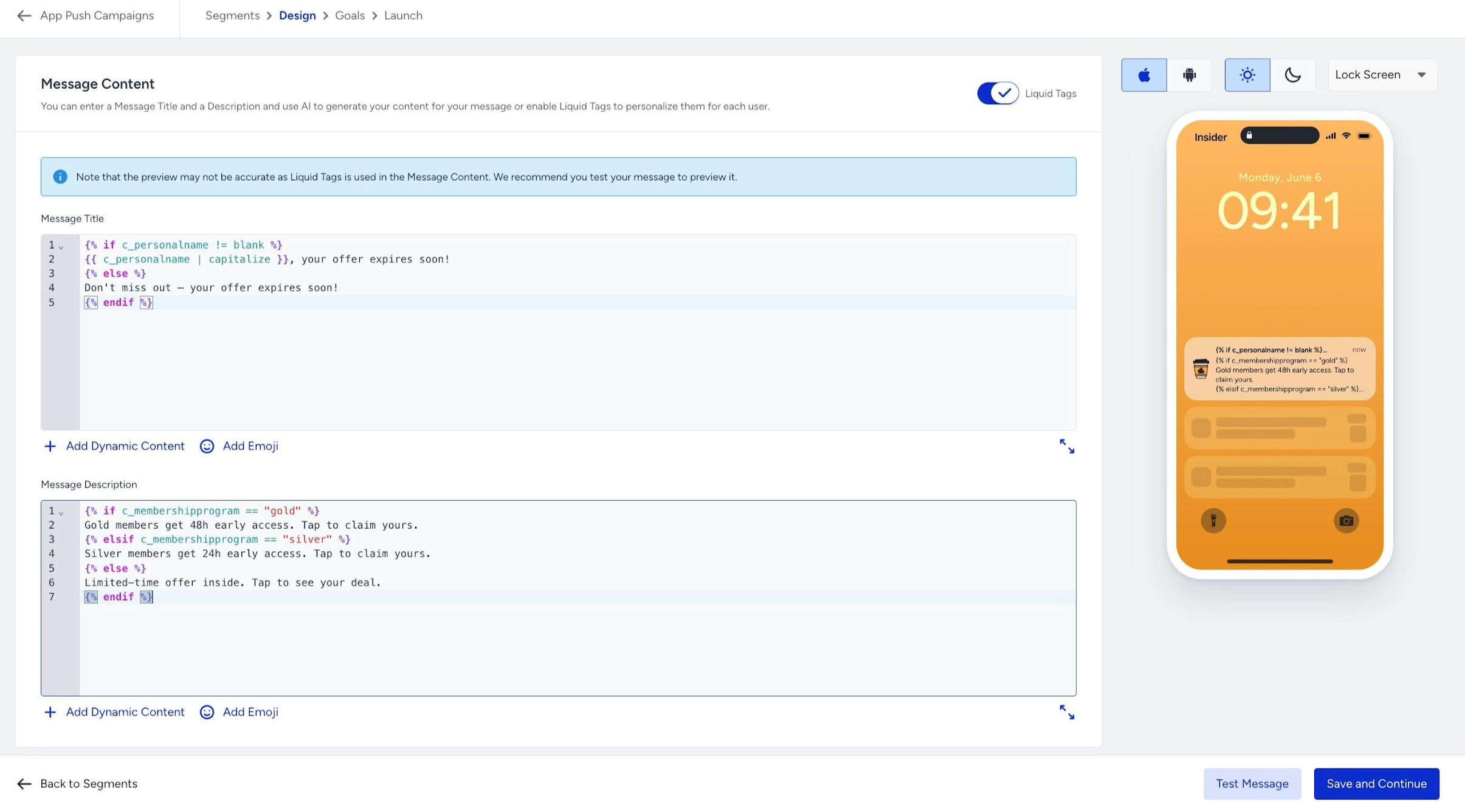
This means the lock screen preview on the right side of the editor shows the raw Liquid code rather than resolved values. This is expected behavior. You can use the Test Message function to verify the actual output with real user data.
Step 3: Write Liquid in title and description
Type your Liquid code directly into the Message Title and Message Description fields. The editor shows line numbers and syntax highlighting. You can also click the Add Dynamic Content button to browse and insert attribute names from a dropdown without typing them manually.
The lock screen preview on the right updates as you type, but shows the raw Liquid code. This is expected behavior. The code is resolved only at send time, using each recipient's real data.
Message Title supports up to 60 characters and Message Description up to 160 characters. These limits apply to the rendered output, not the raw Liquid code; so test with representative user data before sending.
Step 4: Test your message
Click the Test Message button at the bottom right to send a test notification to your registered devices. The test notification renders your Liquid code using real user data, so you can verify the output before the campaign goes live.
Use cases
The following use cases address the most common pain points marketers face when personalizing App Push notifications. Each one is simple, practical, and ready to copy directly into the Message Title or Message Description field.
For each use case, enable Liquid Tags, then paste the code into the appropriate field.
Use case 1: Greet with a name fallback
The most common first step in personalization is addressing the user by name in the message title. Without a fallback, a missing name attribute leaves a blank or broken title.
The default filter shows a fallback value whenever the attribute is empty. No if/else logic is needed.
Welcome back, {{ c_personalname | capitalize | default: "there" }}!


{ When name = Ilayda  →  Welcome back, Ilayda! }
{ When name is blank  →  Welcome back, there! }
capitalize formats the name correctly regardless of how it was stored. default catches both unset and empty values, so the title never appears broken.
Use case 2: Membership tier message
Show a different notification message for each membership tier. Users outside the program see a generic invitation instead.
{% if c_personalname != blank %}
{{ c_personalname | capitalize }}, your offer expires soon!
{% else %}
Don't miss out — your offer expires soon!
{% endif %}
{% if c_membershipprogram == "gold" %}
Gold members get 48h early access. Tap to claim yours.
{% elsif c_membershipprogram == "silver" %}
Silver members get 24h early access. Tap to claim yours.
{% else %}
Limited-time offer inside. Tap to see your deal.
{% endif %}Use case 3: Show last viewed product
Re-engage users by referencing the product they last viewed. If no product is on record, show a generic fallback.
{% if last_visited_product_title == blank %}
New arrivals are waiting for you.
{% else %}
Still thinking about {{ last_visited_product_title }}?
{% endif %}
{% if last_visited_product_title == blank %}
Explore our latest collection — tap to browse.
{% else %}
It's still in stock. Tap to go back.
{% endif %}last_visited_product_title is a default attribute. Follow Add Dynamic Content > Default Attributes to insert it without typing manually.
Use case 4: Offer expiry date
Show when the user's personalized offer expires. If no expiry date is stored, show an open-ended fallback.
{% if c_personalname != blank %}
{{ c_personalname | capitalize }}, your offer expires soon!
{% else %}
Your exclusive offer expires soon!
{% endif %}
{% if c_offer_expiry_date == blank %}
Available while stocks last — tap to claim.
{% else %}
Offer expires {{ c_offer_expiry_date | time_format: "DD MMMM" }}. Tap to claim.
{% endif %}
{ When date = 2026-05-15 → Offer expires 15 May. Tap to claim. }
{ When date is blank → Available while stocks last — tap to claim. }time_format converts raw timestamps into readable dates using Moment.js tokens. DD MMMM produces 15 May. DD/MM/YYYY produces 15/05/2026. Adjust the format for your audience.
Use case 5: Suppress notification when data is missing
When the data that makes a notification relevant is missing, suppress it entirely for that user rather than showing a broken or irrelevant message.
{% if c_abandoned_cart_count == blank %}
  {% abort_message "No cart data — skipping" %}
{% endif %}
You left {{ c_abandoned_cart_count }}
{% if c_abandoned_cart_count == 1 %}item{% else %}items{% endif %}
in your cart!


{ When count = 3      →  You left 3 items in your cart! }
{ When count is blank →  Notification suppressed for this user. }
Complete your order before they sell out. Tap to go back.abort_message cancels the notification only for the specific user who is missing the required data. All other users in the campaign receive their notification normally.
Liquid errors
If your Liquid code contains a syntax error, the editor prevents you from saving and shows a validation message. The most common causes for validation errors are as follows:
Unclosed tag
Every {% if %} needs {% endif %}, every {% for %} needs {% endfor %}.
Missing colon in a filter
You must write | time_format: "DD MM", not | time_format "DD MM". The colon between the filter name and its argument is required.
Unmatched quotes
Every opening " must have a closing ". An unclosed string will cause the rest of the template to be misread.
Misspelled filter name
titlecase does not exist; the correct filter is capitalize.
If you cannot find the error, remove the last block you added and check whether the validation clears. You can work backward from the most recent change.