Liquid is a templating language that lets you inject dynamic, personalized content into both Architect InApp and standalone Enhanced Mobile Templates. Instead of building a separate template for each segment, you write a single template and Liquid fills in the right data for each user automatically.
In App Enhanced Templates, Liquid works differently from Email and App Push. There is no campaign-level toggle. Instead, you add Liquid directly to individual text elements inside the template editor using the Add Liquid Tag button. Each Liquid block is given a name and lives inside that specific text element.
Liquid is available in all text content fields, headline text, offer copy, banners, and any other profile-based text element. Full filter support is included.
The Liquid Tags feature is available for early access. To activate it for your account, contact the Insider One team.
Liquid in App Enhanced Templates is text-only. You can personalize any text element in the template, but not image sources, button links, or layout attributes.
Supported | Not supported |
|---|---|
|
|
Add Liquid Tags to a template
Step 1: Open a template from the library
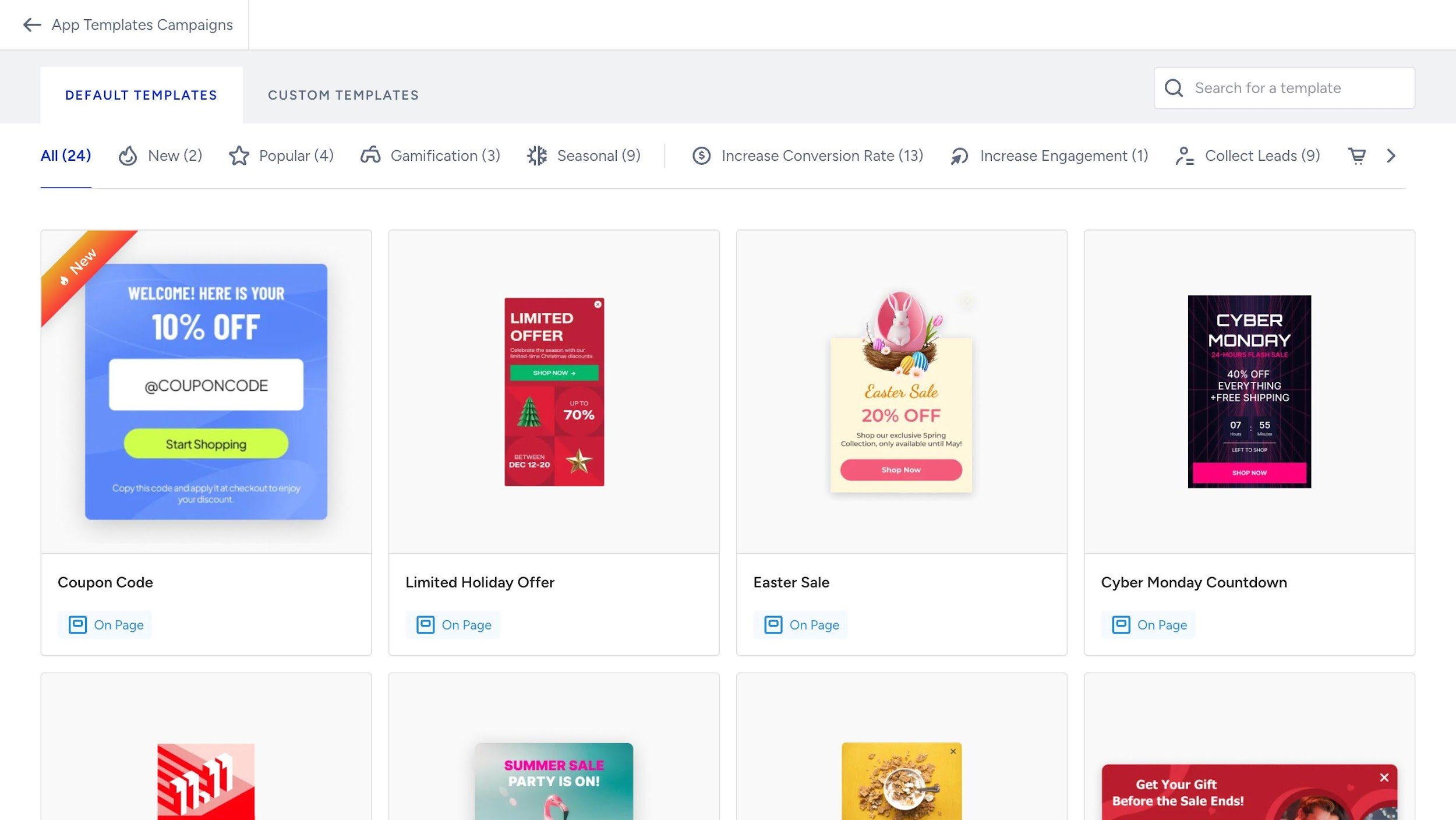
Navigate to App Enhanced Templates in the Insider One panel. You will see the template library with Default Templates and Custom Templates tabs. Select the template you want to personalize and open it in the editor.
Step 2: Select a text element in the canvas
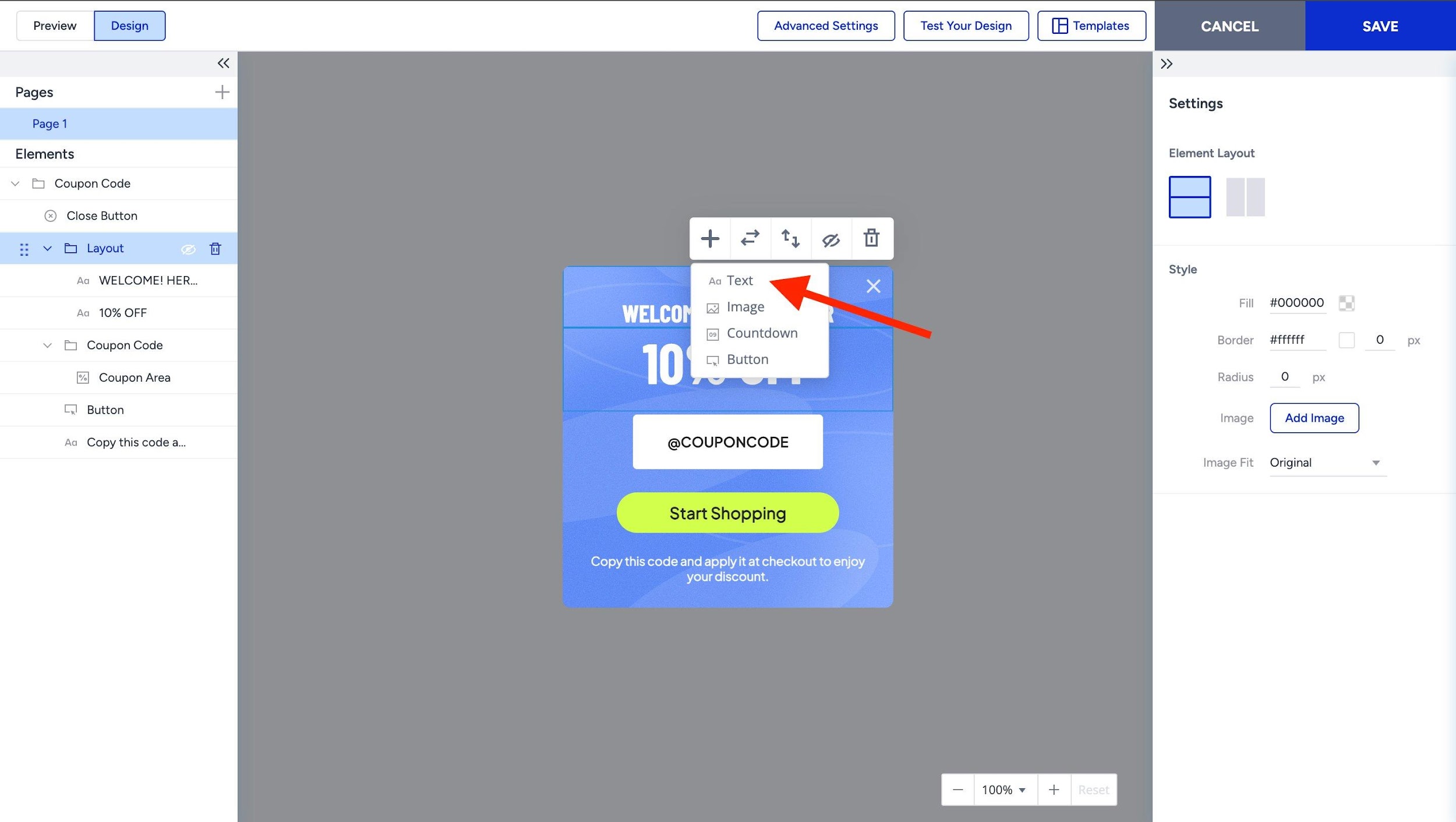
Once inside the editor, you will see the template canvas in the center and an Elements panel on the left.
2.1. Click on any text element in the canvas to select it. A small toolbar appears above the element, showing options including Text, Image, Countdown, and Button.
2.2. Click Text from the element toolbar to open the text content editor. This is where you will add your Liquid tag.
Step 3: Add Liquid Tag
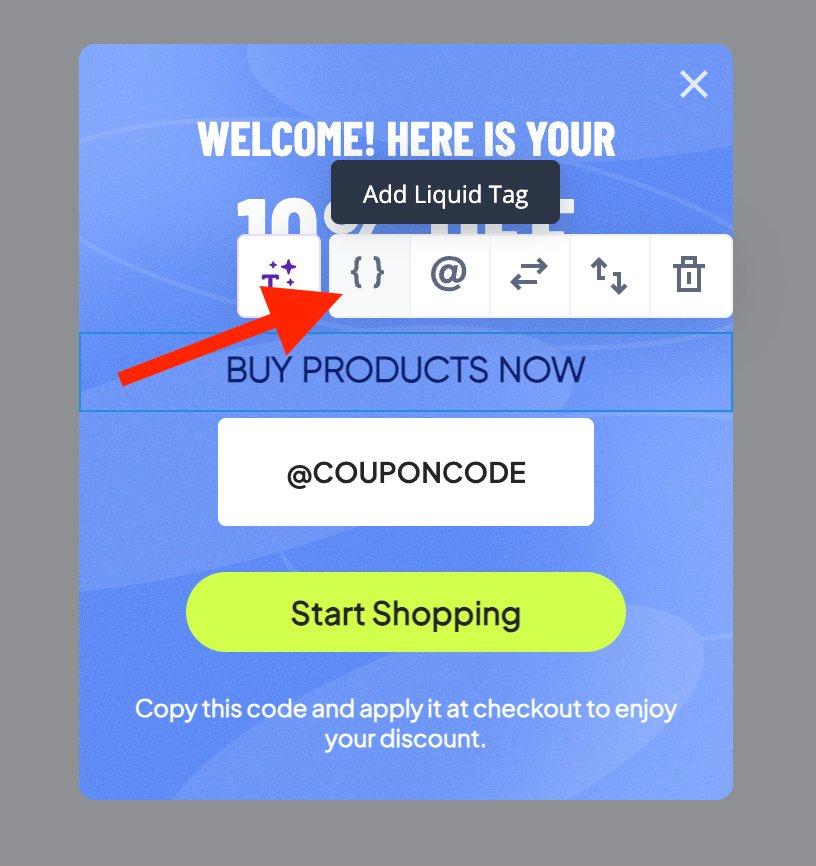
With the text element selected, click the icon labeled Add Liquid Tag in the element toolbar. This opens the Add Liquid Tag modal.
Step 4: Add Liquid code
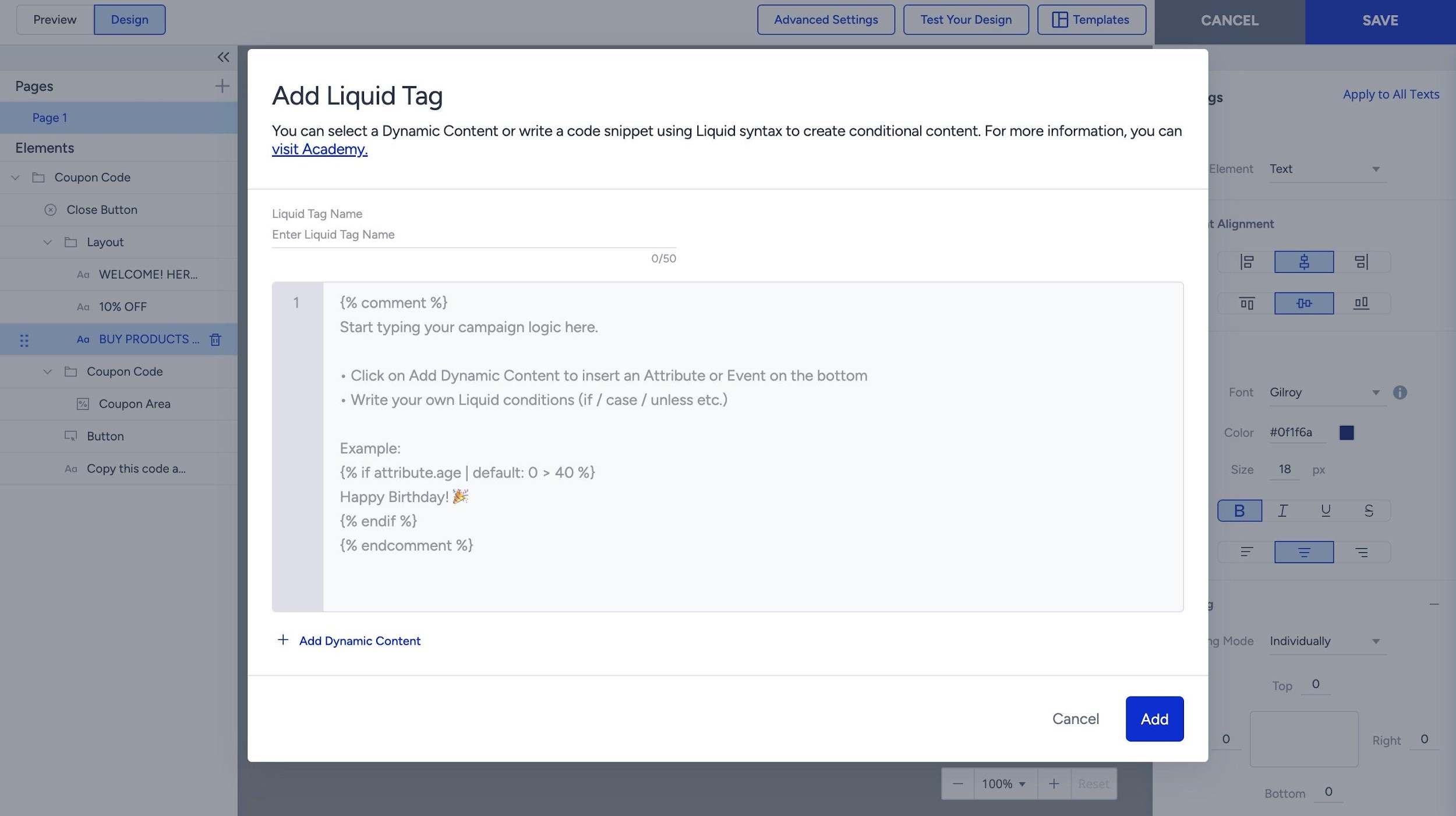
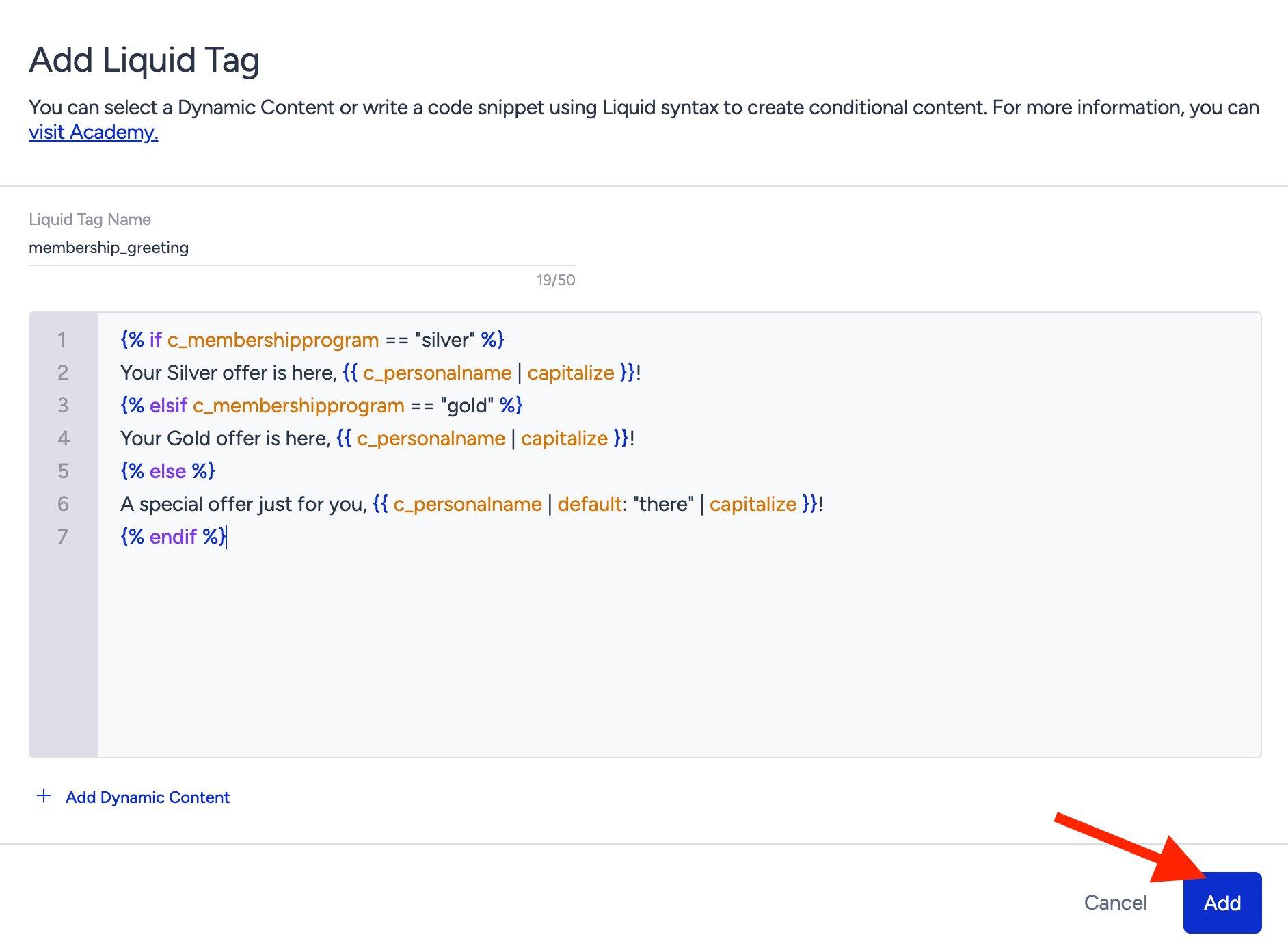
The Add Liquid Tag modal opens with two parts:
Liquid Tag Name: A short identifier for this tag (max 50 characters). It appears as a chip in the canvas. Use descriptive names like membership_greeting or offer_copy.
Code editor: Write your Liquid syntax here. Supports the full Liquid syntax: objects with {{ }}, tags with {% %}, and filters with |.
The code from the example above:
{% if c_membershipprogram == "silver" %}
Your Silver offer is here, {{ c_personalname | capitalize }}!
{% elsif c_membershipprogram == "gold" %}
Your Gold offer is here, {{ c_personalname | capitalize }}!
{% else %}
A special offer just for you, {{ c_personalname | default: "there" | capitalize }}!
{% endif %}
Click the Add button to save the tag and apply it to the text element.
Step 5: The Liquid tag chip
After clicking Add, the Liquid tag appears as a chip inside the text element in the canvas. The chip shows the tag name you entered, prefixed with { }.
In the Elements panel on the left, the element now shows the tag name as its identifier. Click the chip at any time to re-open the Edit Liquid Tag modal and update the code.
Each text element holds one Liquid tag chip. The chip replaces the static text of that element. At render time, Insider One evaluates the Liquid code and displays the result for each user.
Step 6: Insert attribute names
Inside the Add Liquid Tag or Edit Liquid Tag modal, click the Add Dynamic Content button to browse and insert attribute system names without typing them manually.
The dropdown has three categories:
Default Attributes: Standard profile data available for all users
Custom Attributes: Your brand-specific attributes (prefixed with c_)
Event Parameters: Data from user actions and events
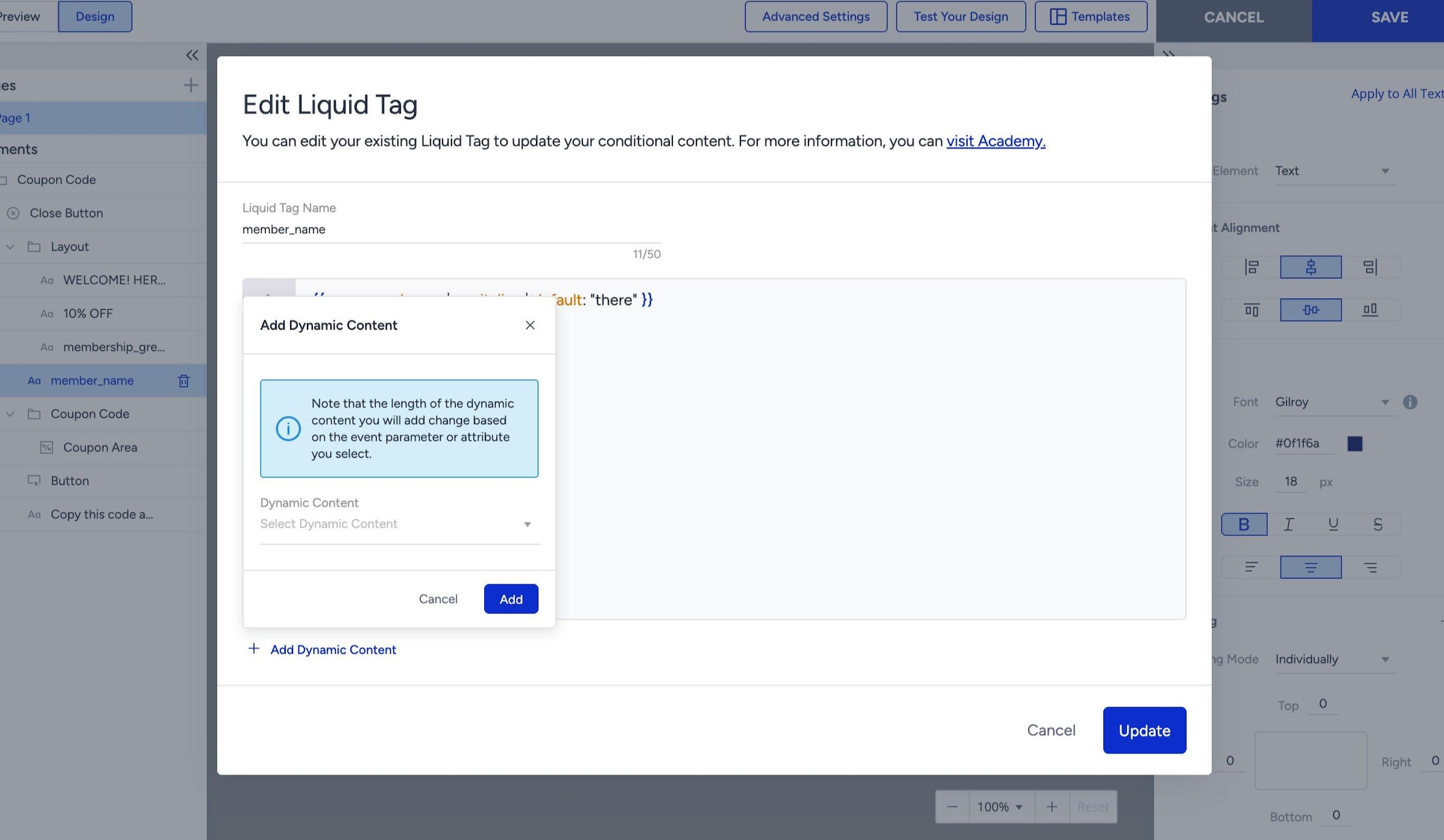
When you select an attribute, its system name is inserted at the cursor position. You can then wrap it with Liquid syntax and add filters.
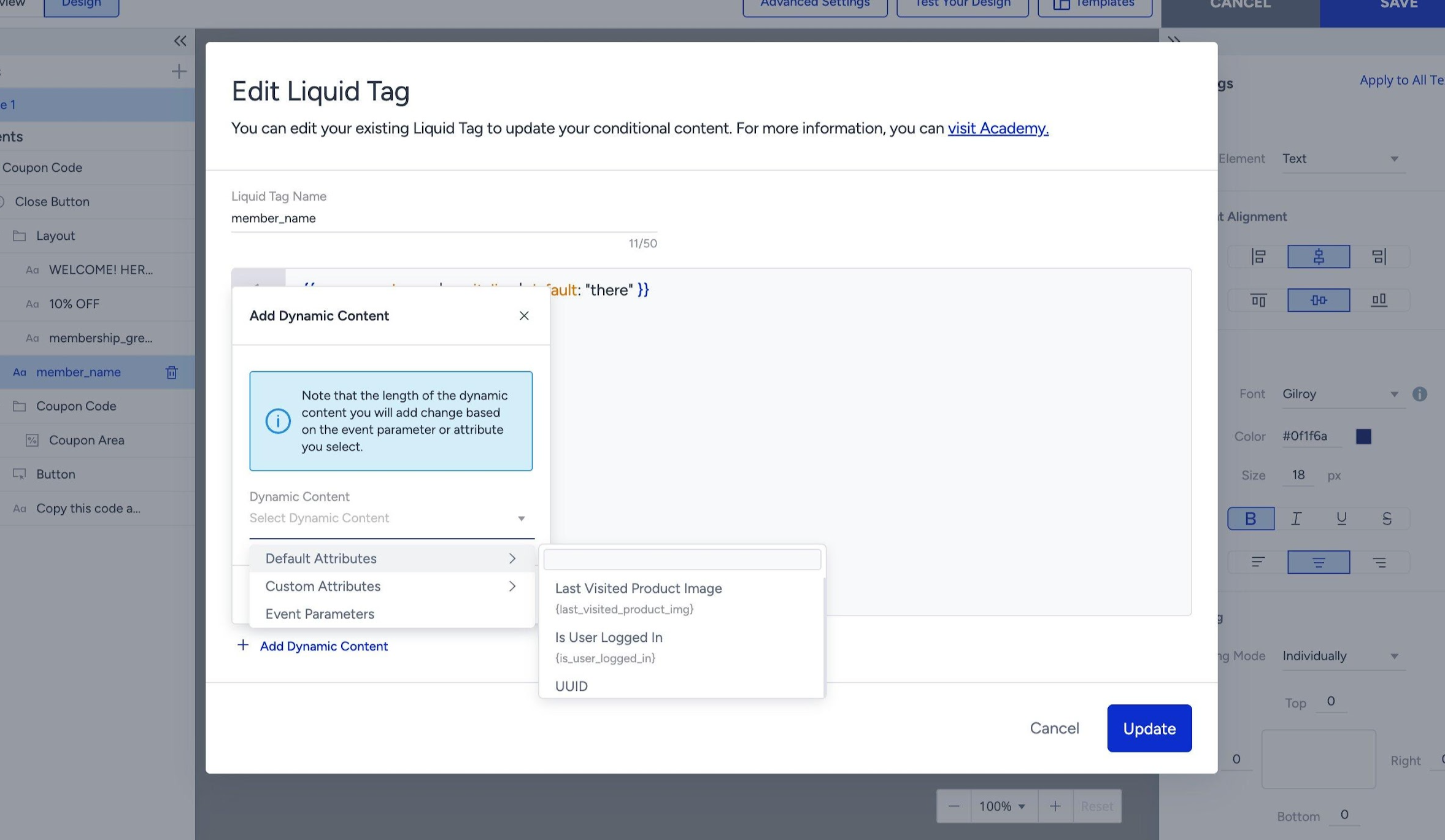
{ Selecting Personalname from Custom Attributes inserts: }
{{ c_personalname }}


{ You can then add filters: }
Welcome back, {{ c_personalname | capitalize | default: "there" }}!
Use Add Dynamic Content to find the exact system name of any attribute. This avoids typos in attribute names, which would cause the variable to render as empty for all users.
Step 7: In case of syntax errors
If your Liquid code contains a syntax error, the modal shows an inline error message below the code editor. A red X icon appears on the affected line. You cannot click the Add or Update buttons until the error is resolved.
Unlike Email and App Push, where errors appear as a red border around the field, App Enhanced Templates display a descriptive error message directly in the modal. This makes it easier to understand what needs to be fixed.
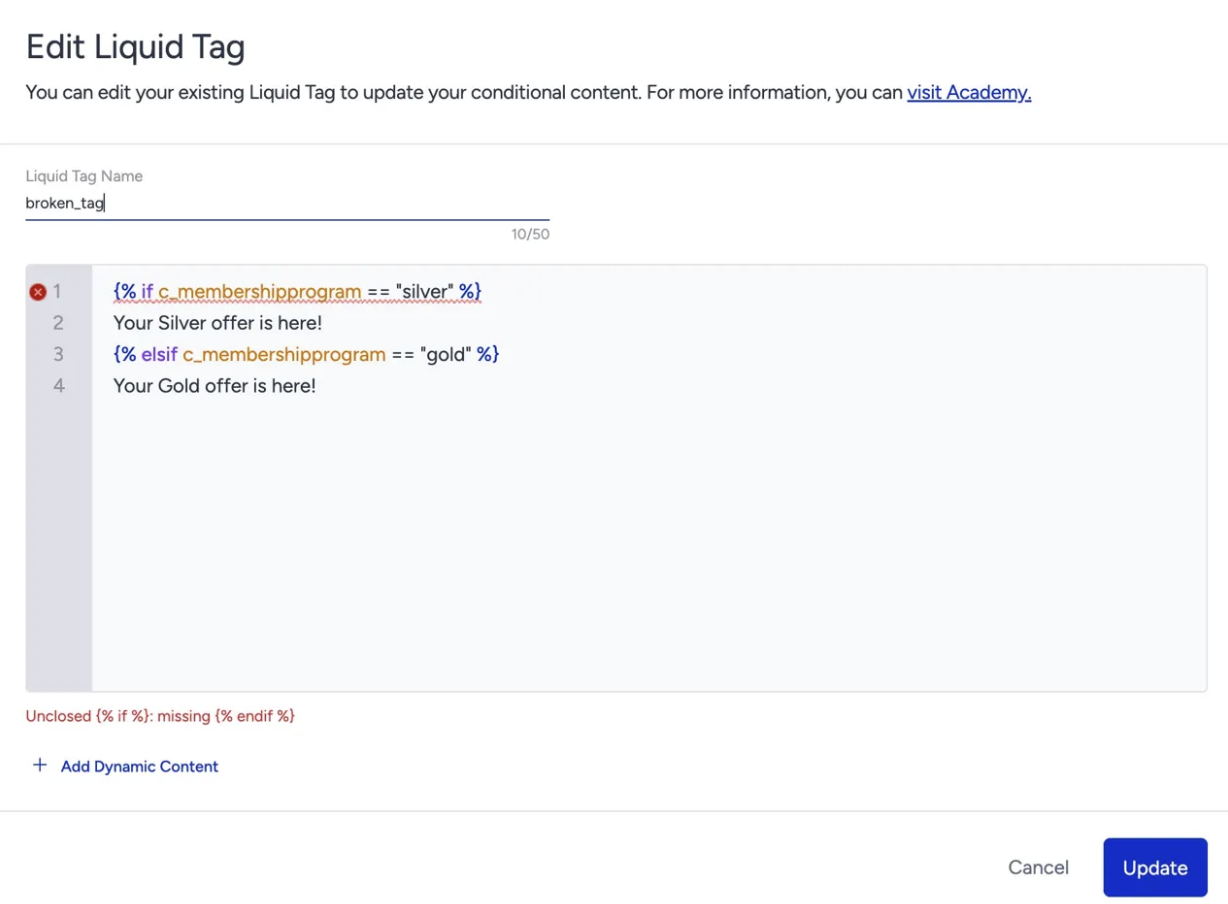
In the example above, a syntax error is shown inside the modal. The message "Unclosed {% if %}: missing {% endif %}" pinpoints the exact problem.
The most common causes are:
Unclosed tags: Every {% if %} must be closed with {% endif %}. The error message names the unclosed tag.
Missing colon in a filter: Write {{ date | time_format: "DD MMMM" }}, not {{ date | time_format "DD MMMM" }}.
Unmatched quotation marks: Every opening " needs a closing ".
Misspelled filter names: For example, titlecase is not valid. The correct filter is capitalize.
Step 8: Test your design
After adding Liquid tags, click the Test Your Design button in the top toolbar to preview the template before publishing. The modal offers two options:
Live Preview: Scan the QR code with your mobile device to see the template render in real time on your screen.
Test Message: Send the template to your registered test devices. Click the Send Test Message button to deliver it to registered devices.
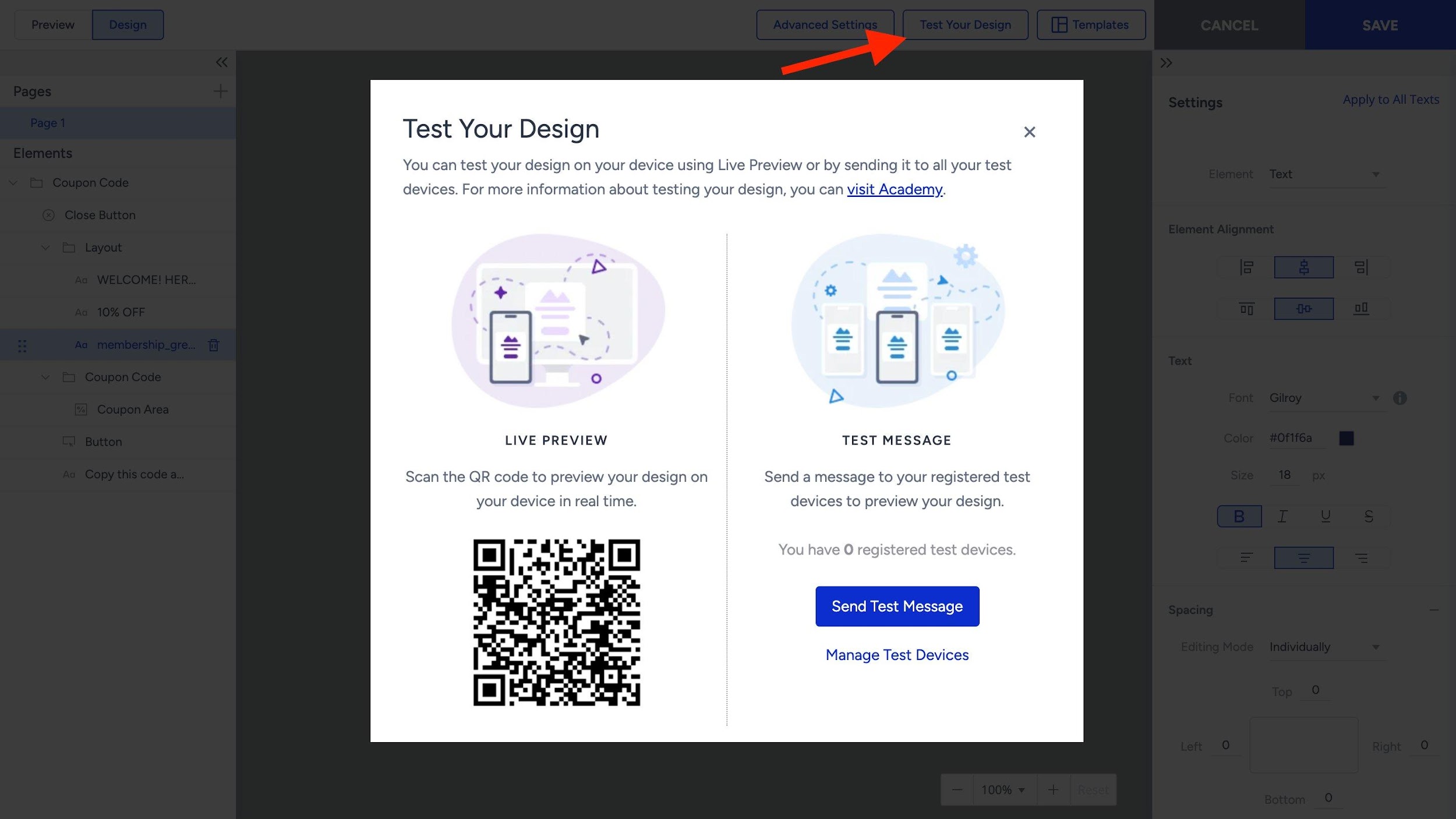
Unlike Email, App Enhanced Templates does not have an in-panel user search for previewing Liquid. To see Liquid rendered with real user data, use a registered test device or click the Manage Test Devices button to add your device first.
Use Cases
The following use cases address the most common pain points marketers face when personalizing App Enhanced Templates. Each one is simple, practical, and ready to copy directly into the Liquid Tag modal.
For each use case, select a text element, click the Add Liquid Tag button, enter the Liquid Tag Name shown, and paste the code into the editor.
Use case 1: Greet with a name fallback
The most common first step in personalization is greeting the user by name. Without a fallback, an empty name attribute leaves a broken greeting.
Solution: The default filter shows a fallback value whenever the attribute is empty. This single line handles both cases, name present and name missing, without any if/else logic.
Liquid Tag name: greeting_text
Code
Welcome back, {{ c_personalname | capitalize | default: "there" }}!


{ When name = Ilayda  →  Welcome back, Ilayda! }
{ When name is blank  →  Welcome back, there! }
capitalize formats the name correctly, even if it was stored in all caps or all lowercase. default catches both unset attributes and empty strings, so you never end up with a blank greeting.
Use case 2: Show an offer expiry date
One of the most requested use cases in App Enhanced Templates is showing when a personalized offer expires. Dates stored in Insider One are raw timestamps, the time_format filter converts them into readable text.
Marketers often create separate template variants per expiry date. With Liquid, a single template handles any expiry date stored as a user attribute.
Liquid Tag name: offer_expiry
Code
{% if c_offer_expiry_date == blank %}
  Offer available while stocks last.
{% else %}
  Your offer expires on {{ c_offer_expiry_date | time_format: "DD MMMM YYYY" }}.
{% endif %}


{ When date = 2026-05-15  →  Your offer expires on 15 May 2026. }
{ When date is blank      →  Offer available while stocks last.  }
Insider One exclusive — time_format
The date stored as 2026-05-15 is automatically formatted into "15 May 2026" using DD MMMM YYYY tokens. Adjust the format: DD/MM/YYYY for numeric, MMMM DD for US style, dddd DD MMMM to include the weekday name.
Use case 3: Show the last product the user viewed
App Enhanced Templates are frequently used as re-engagement banners. Showing the user the product they last viewed is one of the highest-performing personalization techniques.
If the last visited product attribute is blank, a generic fallback message should appear instead of a broken or empty banner.
Liquid Tag name: last_product_text
Code
{% if last_visited_product_title == blank %}
  Explore our latest collection.
{% else %}
  Still thinking about {{ last_visited_product_title }}?
{% endif %}


{ When product = "Blue Sneakers"  →  Still thinking about Blue Sneakers? }
{ When product is blank           →  Explore our latest collection.      }
last_visited_product_title is a default attribute available via the Add Dynamic Content dropdown. Select Default Attributes to find it without manually typing the name.
Use case 4: Show a personalized discount amount
Some brands offer different discount percentages based on user segments. Instead of building separate templates for each tier, use a Liquid tag to show the correct discount to each user.
Managing one template per discount tier does not scale. A single template with conditional discount logic reduces duplication and maintenance overhead.
Liquid Tag Name: discount_offer
Code
{% if c_discount_rate != blank %}
  {{ c_discount_rate }}% off — just for you.
{% else %}
  A special offer is waiting inside.
{% endif %}


{ When discount = 20  →  20% off — just for you.            }
{ When discount blank →  A special offer is waiting inside. }
Use case 5: Display total spend with currency formatting
Showing a user their total spend or loyalty balance is a powerful engagement tactic. The money_format filter handles currency symbol and separator formatting automatically.
Raw numbers from the database (e.g., 1234.5) need to be formatted correctly for the user's locale. Without Liquid, this requires separate templates per locale.
Liquid Tag name: spend_summary
Code
{% if c_totalpurchaseprice == blank %}
  Make your first purchase to start earning rewards.
{% else %}
  Total spend: {{ c_totalpurchaseprice | money_format: "TL", "dot, comma" }}
{% endif %}


{ When total = 1234.5  →  Total spend: TL 1.234,50                          }
{ When total is blank  →  Make your first purchase to start earning rewards. }
Insider One exclusive money_format
money_format: "TL", "dot, comma" produces TL 1.234,50. Switch to "comma, dot" for US/UK format (TL 1,234.50). The filter always rounds to 2 decimal places.
Use case 6: Suppress the template when critical data is missing
Sometimes a generic fallback is not enough; if the data that makes the template relevant is missing, suppress the template entirely for that user. abort_message handles this.
A "Your cart is waiting" template shown to a user with no cart items looks irrelevant and hurts engagement. Aborting the render for those users protects the experience.
Liquid Tag name: cart_reminder
Code
{% if c_abandoned_cart_count == blank %}
  {% abort_message "No cart data — skipping" %}
{% endif %}
You left {{ c_abandoned_cart_count }}
{% if c_abandoned_cart_count == 1 %}item{% else %}items{% endif %}
in your cart.


{ When count = 3      →  You left 3 items in your cart.    }
{ When count is blank →  Template suppressed for this user. }
abort_message suppresses the template only for the specific user who is missing the required data. All other users see the template normally. The reason is logged for reporting.