Sorting options allow users to customize the order of search results. This can be helpful for users who want to find specific items or see results in a particular order. The search pop-up is a crucial component of Eureka, seamlessly integrated into your ecommerce site's search bar. It allows your customers to search for products within your catalog effortlessly. Sorting options can also be used through the Eureka Search API.
You can find answers to the following questions in this article:
The sorting options
The sorting options available in Eureka are:
Relevance: This option sorts results by their relevance to the user's search query.
Price: This option sorts results by price, either low to high or high to low.
Date: This option sorts results by date, either newest or oldest first.
Rating: This option sorts results by rating, either highest- or lowest-rated first.
Popularity: This option sorts results by popularity calculated by Insider One.
Your users can select their preferred sorting option from the drop-down menu in the search results pop-up.
Configure sorting options
You can see several predefined sorting options to suit your preferences. These options include sorting by relevance, price (descending), price (ascending), discount, most-rated, best-rated, and popularity. These options provide a foundation for a smooth shopping experience.
To start sorting the options configuration,
Navigate to Eureka > Settings > Sorting.
Select the locale you want to edit the sorting options.
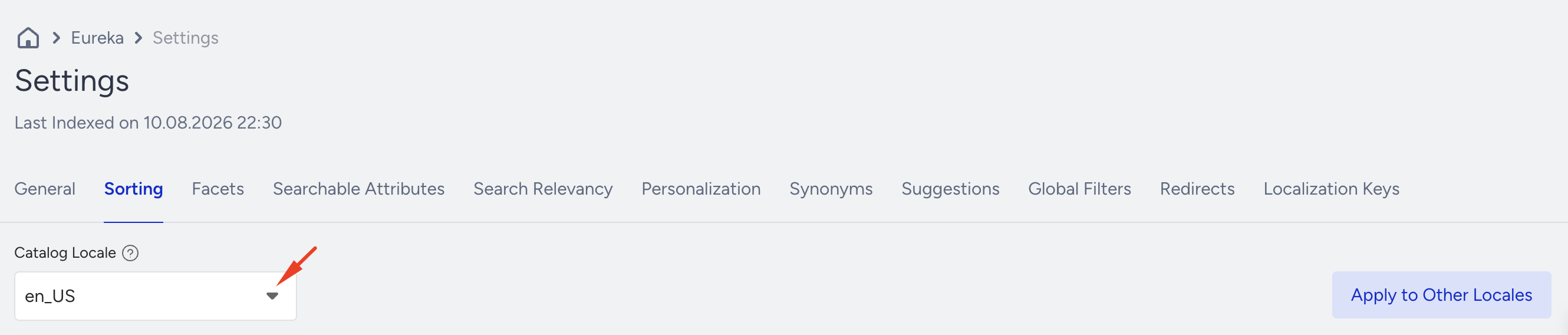
You can check the sorting options listed on the page. Since relevancy is the default sorting option, it cannot be deactivated.
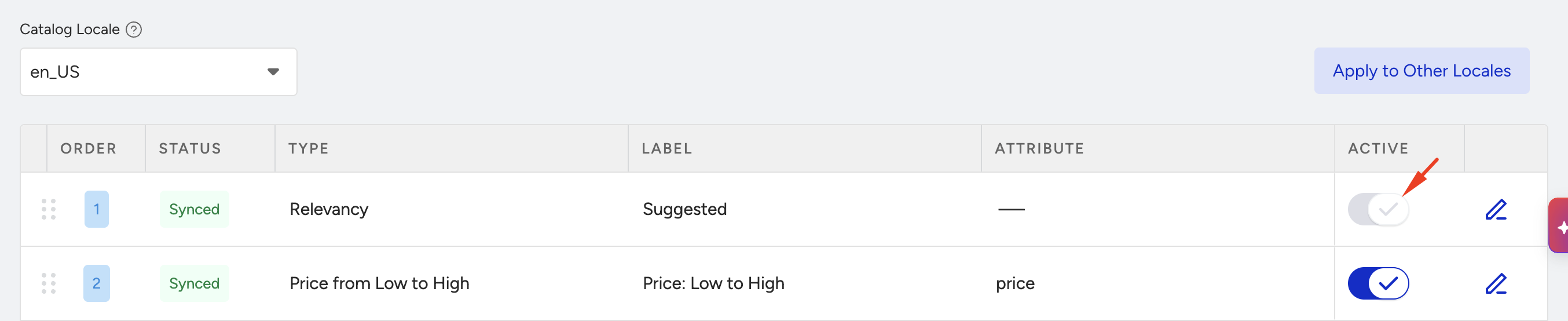
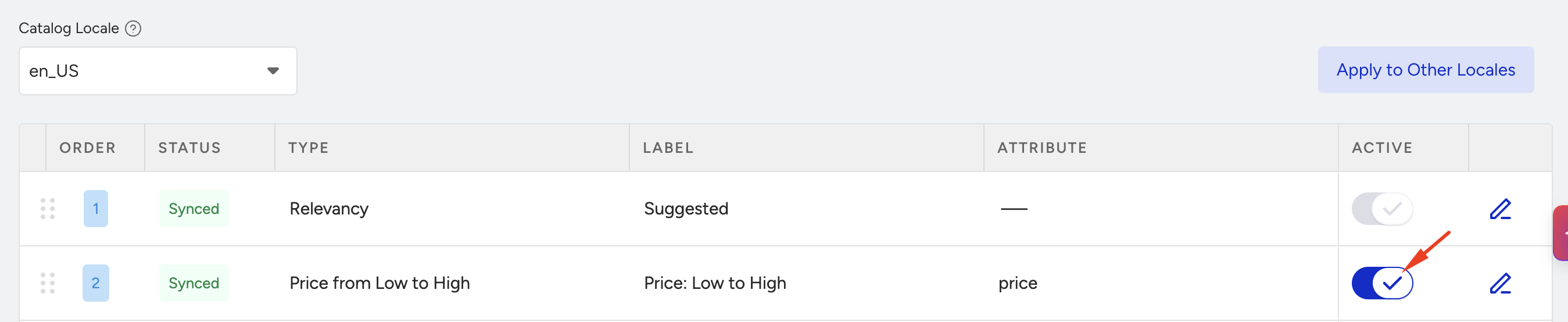
Activate/deactivate a sorting option
You can activate or deactivate a sorting option in the search pop-up to control which sorting options are available to your users. For example, during a holiday season or a special sale period, you might want to prioritize a "Discount" sorting option to help customers find the best deals quickly.
To activate or deactivate a sorting option, click the toggle next to the option. You are informed when it is successfully updated.
Customize the label of a sorting option
We strongly recommend using label customization to ensure your users can easily understand and choose the desired sorting option. You can assign meaningful and recognizable names to each sorting option, creating a seamless and user-friendly experience.
To assign a label, click the pen icon against the Sorting option.
Edit the label to match what you want to see in the pop-up.
.gif)
Order sorting options
You can customize the sorting order to prioritize specific sorting options based on your users' preferences. This flexibility enables you to fine-tune the search experience and drive engagement.
To change the order of the sorting options, click on the drag icon on the left side and drop it where you want it. Then, it will be shown in the search pop-up in the same order you set.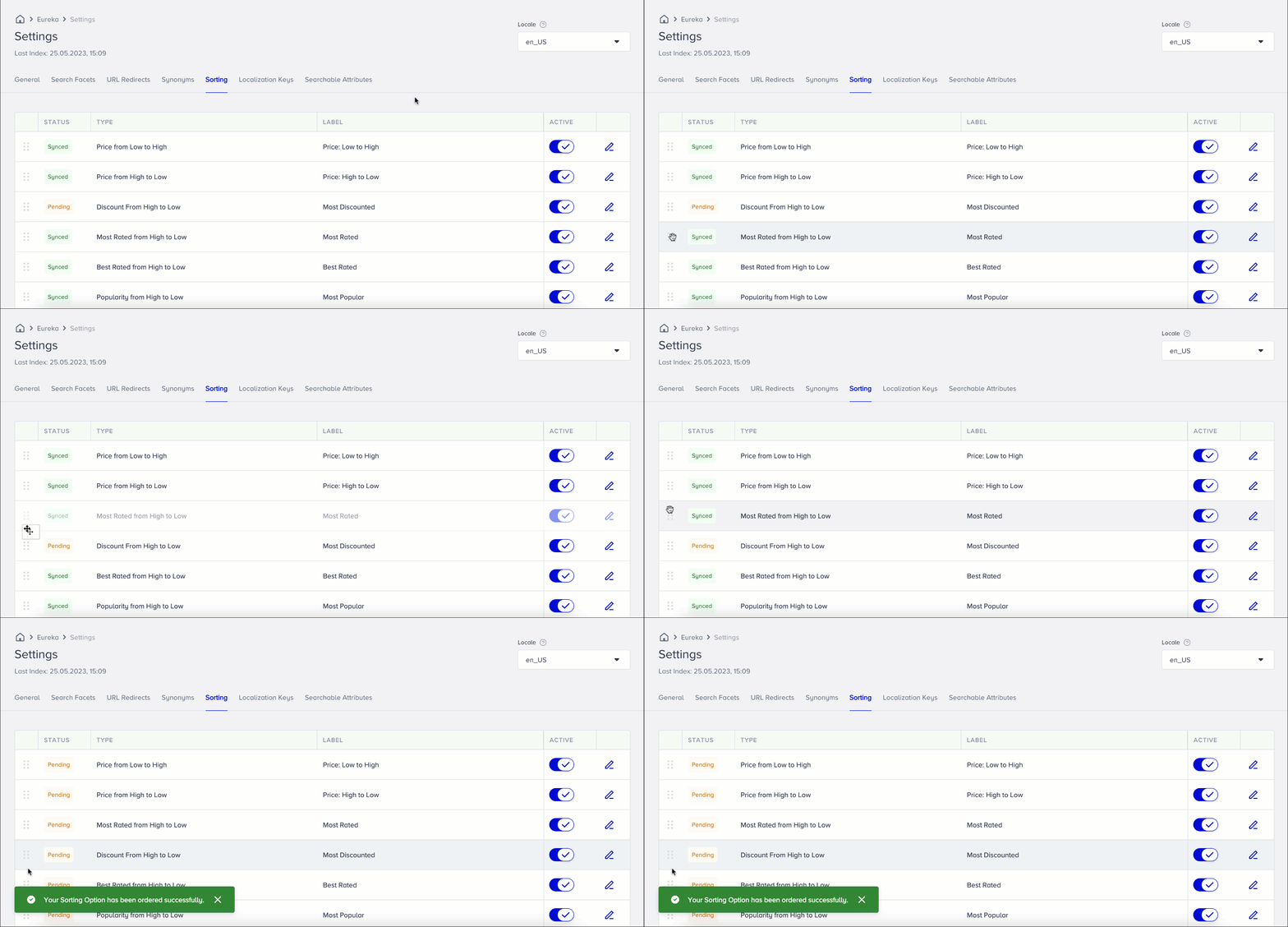
You can also add custom sorting options from your catalog. This enables you to tailor the sorting experience to align with your brand image and provide a personalized touch. One popular custom sorting option to consider adding is "Newest to Oldest." To implement the "Newest to Oldest" sorting option:
Add an attribute, such as “activation_date,” to the selected catalog integration method.
Reach out to the Insider One team to add this new attribute as a sort option.