Filtering enables you to create a subset of products from your catalog for use in search results and category listing pages. You can use any product attribute to create global filters.
Global Filters will affect both:
Search Results
Category Listing Pages (if Eureka Category API is integrated)
Use Cases
Everyday use cases for filtering include:
A merchandiser wants to remove products with a rating below 4.0 and product names containing "summer" from search results entirely.
An ecommerce professional wants to exclude products with a stock count of 0 and those with a product date older than 1 month from both search results and category pages.
An ecommerce professional wants to remove products with an expected delivery date longer than 5 days from search results entirely.
Create a global filter
To create a global filter:
Navigate to Search and Merchandising > Eureka > Eureka Settings.
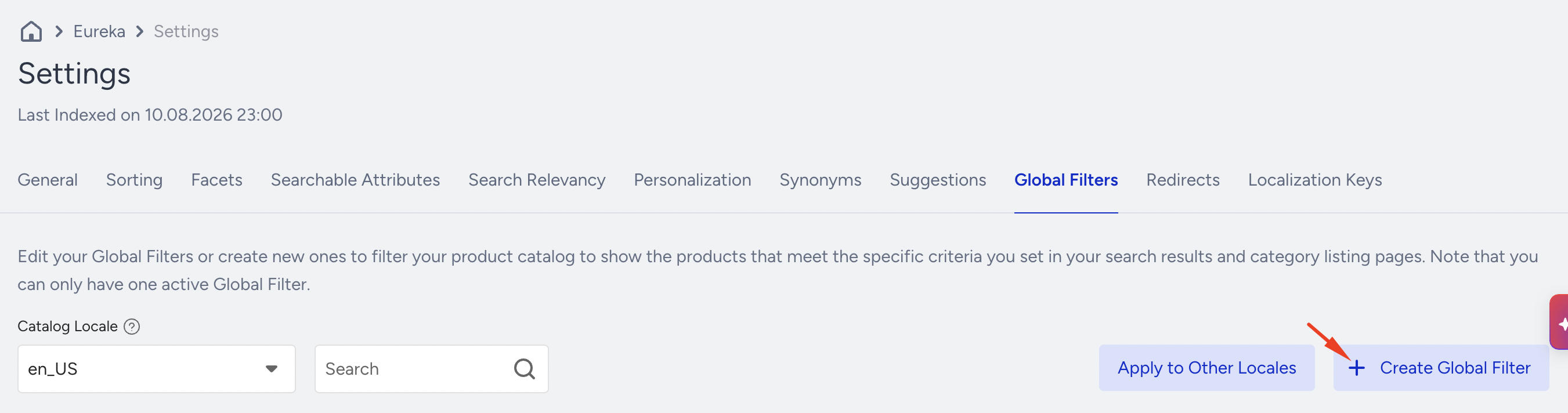
Click the Global Filters tab, then click the Create Global Filter button.
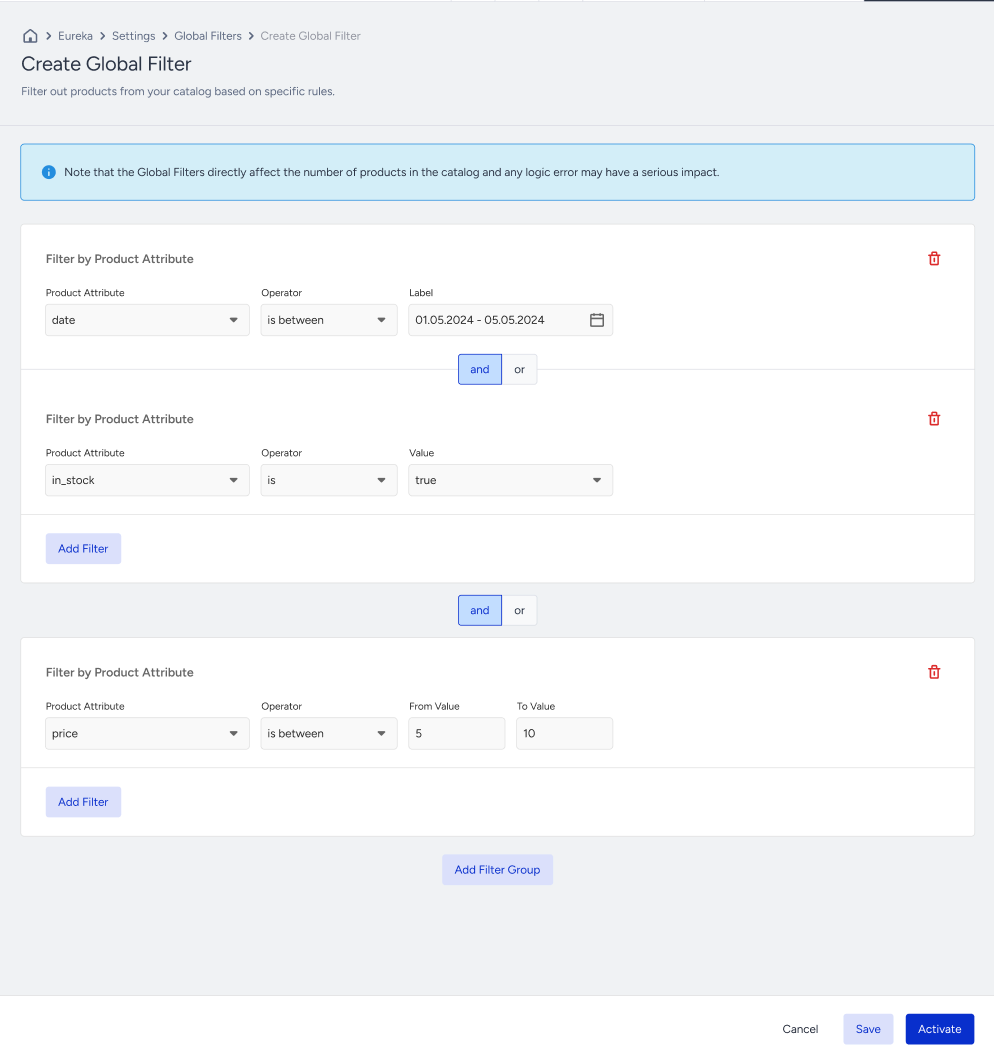
Select a product attribute operator and value. Each Global Filter must have at least one attribute, operator, and value trio. If your use case needs more than one attribute, click the Add Filter button, and then use AND or OR operators while joining multiple attributes in a single rule. If you want to join two rule groups, click the Add Filter Group button to create a new one.
The attributes you want to use while creating Global Filter Rules must be defined as Facetable. Their Facetable toggles must be switched on in the Catalog Manager > Product Attributes menu.
After completing the rule, click the Save button to save the rule as a passive rule. Click the Activate button to save and activate your rule. Note that only one Global Filter Rule can be active at a time.
After you activate a rule (or deactivate an active one), reindexing is required to update the catalog used for Search and Category pages. You can either click the Reindex button in the information message to start reindexing manually, or it will start automatically at its planned time.
After a rule has been activated, the products that are affected by the rule will not be visible for Category and Search Merchandising.
You can also refer to the video below to understand Global Filtering better:
If this video does not load in your region, you can watch it on our YouTube Channel.
List global filters
To list the global filters, navigate to Eureka > Eureka Settings and click the Global Filters tab.
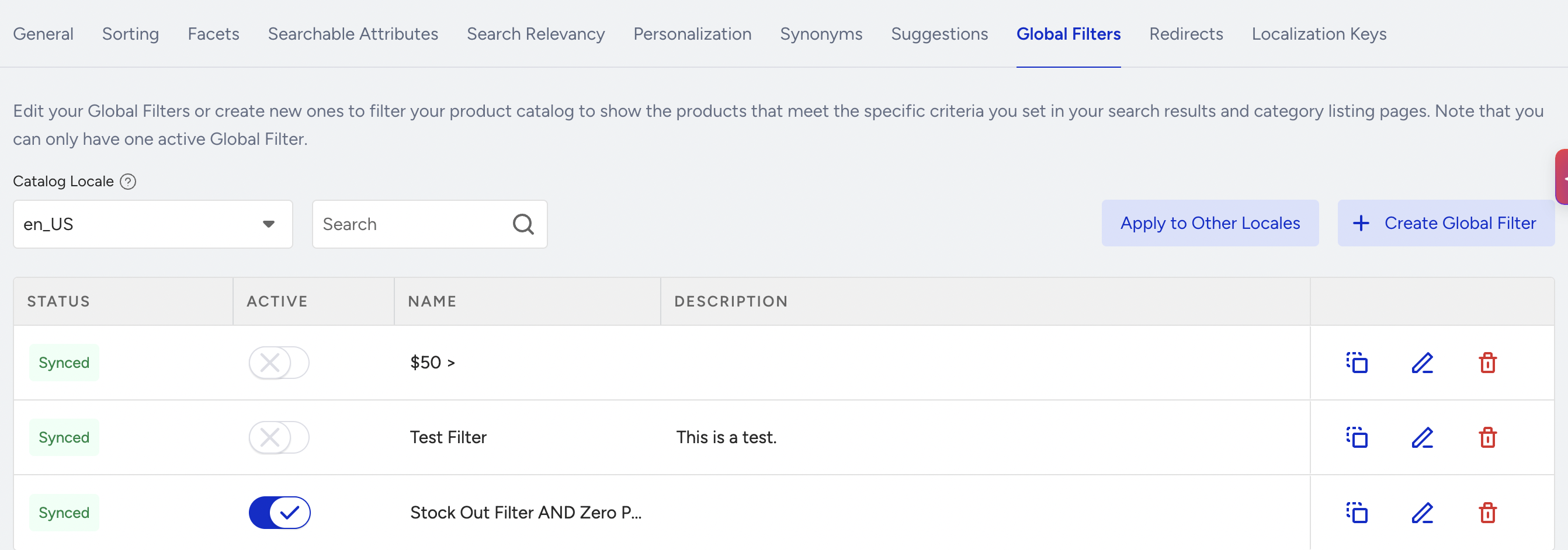
You can use the search bar to search among filter names, filter descriptions, attributes, or operators.
You can use the filter state toggle to activate or deactivate a filter.
To duplicate a filter entirely, you can use the duplication button. This button creates a copy of the initial rule with a “Copy” expression in its name.
To edit the filter, click the Edit icon.
If you edit and activate a passive filter, your previous active filter will automatically become passive.
To delete a filter, click the Delete icon and then click the Delete button.
The global filters are defined for each locale separately. To list the filters of another locale identified for your panel, use the Locale dropdown at the top right corner of the screen.