You can personalize the custom input element on the template in different ways while designing it.
First, you can customize the input based on user interaction. For example, you can set a different background color for the input in the default, filled, and error cases.
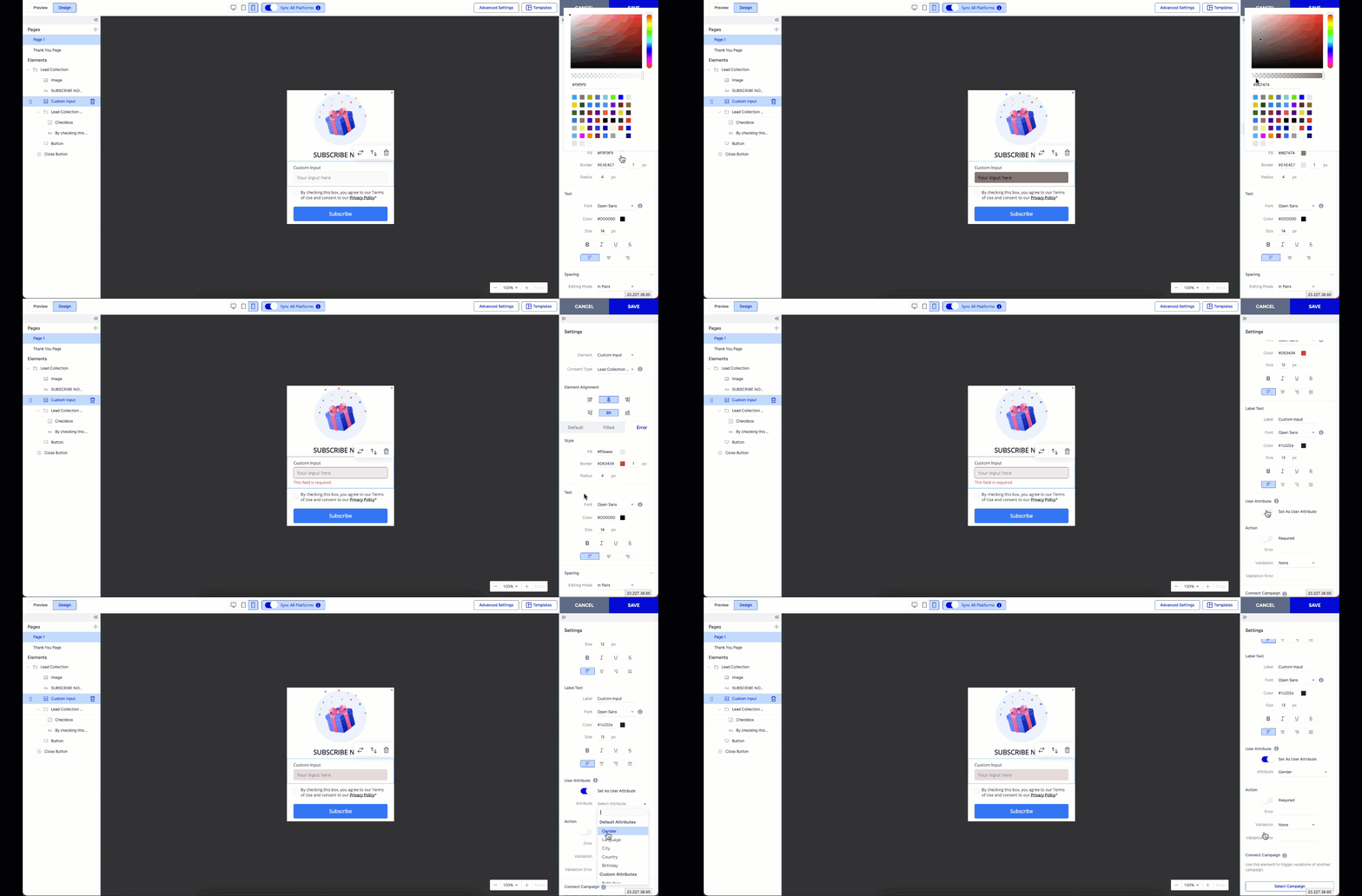
You can change the placeholder and label text in the Settings menu and decide whether this input is mandatory for the end users to submit the form.
To send the data collected via a Custom Input, you can enable the Set as User Attribute toggle and select an attribute from the dropdown menu.