While designing, you can add elements to Lead Collection templates as needed via the Add Elements option.
Click on an element on the left bar or hover over the template, and click on the (+) plus button on your template to add elements. 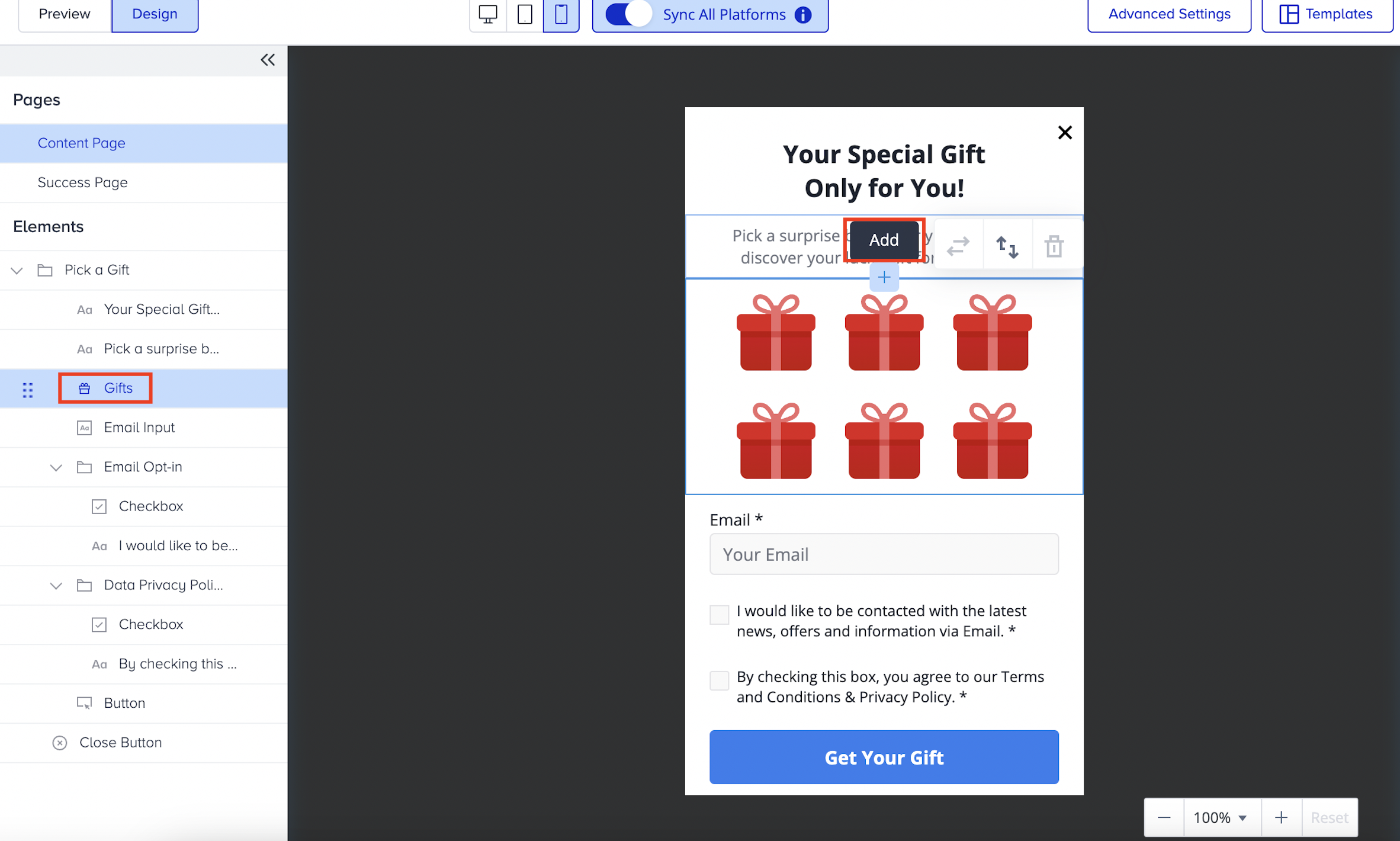
You will see a list of elements. You can select the type of element you want to add and click the Add button. 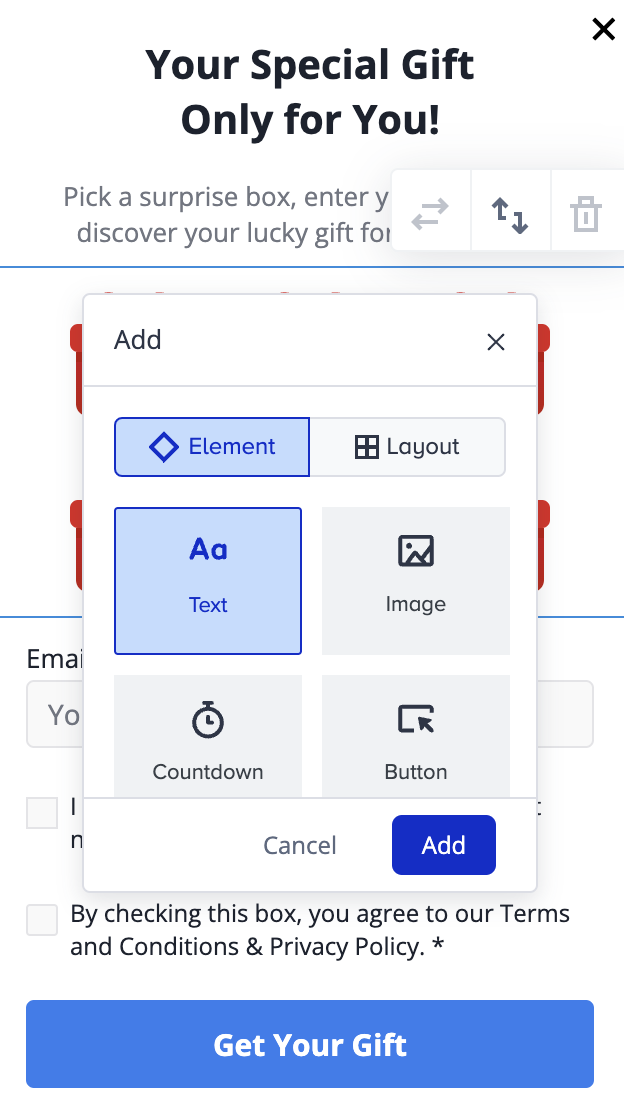
In addition to the text, image, countdown, and button elements, Add Elements lets you add the following to your lead collection templates.
Element | Function |
|---|---|
Policy | Adds any policy |
Regular Input | Adds another input box for any information you want to ask your users |
Phone Number | Asks for user's phone number with country codes |
Name Input | Asks for user's name |
Surname Input | Asks for user's surname |
Keep in mind that generic/custom inputs are not equivalent to typed lead inputs. For example, phone use cases should use the dedicated phone element.
If your company obtains your users' consent in compliance with the local regulations, make sure to pass the GDPR opt-in field to Insider. If you want to stop collecting and processing the data of an identified user, GDPR opt-in field should have the false value. Insider cannot be held liable if these obligations are not fulfilled and reserves the right to seek compensation from your company.