You can create tickets to contact support, report campaign issues, get integration support for your technical processes, open a help case, or ask general questions in the Insider One Help Center.
You can also ask your questions directly on the Insider One Help Center's live chat or on your InOne panel, based on your region’s live chat hours.
This guide aims to provide step-by-step instructions for:
Sign in/up
To create a ticket directly on Insider One Help Center, you can sign in/up on the platform. Signing in lets you view the tickets you create and follow, as well as your activity.
(2).png)
To sign in:
1. Go to Insider One Help Center.
2. Click the Sign in button.(2).png) 3. Sign in with your credentials if you already have an account.
3. Sign in with your credentials if you already have an account.
If you forget your password, click "Forgot password?" to get an email to reset it.
4. If you do not have an account, click the Sign up button to create an account with your business email.
5. You will receive an email to create a password and sign in. Click the link to go to the password creation page.(2).png) 6. Set a password for your account within the password requirements and click the Set password button.
6. Set a password for your account within the password requirements and click the Set password button.(2).png)
Signing in/up to the Insider One Help Center requires credentials different from those needed to log in to Insider One's InOne panel.
Once you sign in, click the Submit a request button.(2).png)
To follow your activities on the tickets, click Requests.(1).png)
Track panel support usage
You can track your panel support usage on a daily updated dashboard within the Insider One Help Center.
Go to Requests to see the percentage of your panel support used.
(2).png)
You can also click the Increase your support limit button to request additional support hours. Once you submit your request, the Insider One team will evaluate it and contact you.
Create tickets
You can create four types of requests:
Campaign Related Requests
Integration Support
General Questions
Mindbehind Chatbot & Mindbehind Live Request
Read more on ticket types.
Requirements for different types of campaigns
When creating tickets, you need to provide the following requirements for the respective type of campaign. The tables below display the required information for each product. Transmitting this information in your tickets will help Insider One's Operation Excellence Team offer you the best experience.
Click to see requirements for Web Products
Product | Required information |
|---|---|
- Design | |
- Design | |
- Design | |
- Design | |
- When to change the category order | |
- Image (if required) | |
- Design | |
- Design | |
- Detailed explanation of the requested campaign | |
- Design | |
- Design | |
- Design | |
- Design | |
- Design | |
- Design | |
- Design | |
- Coupon Code | |
- Design | |
- Design | |
- Design | |
- Image (if required) | |
- Image (if required) | |
- Coupon Code | |
- Image | |
- Minimum number of dynamic values to show the campaign (e.g. N daily views) | |
- Design | |
- Design | |
- Design | |
- Design | |
- Design (e.g. text, color, font family, font size) | |
- Design |
Click to see requirements for Messaging Products
Product | Required information |
|---|---|
- Design | |
- Detailed explanation of how it should work | |
- Segments | |
- Design | |
- Design | |
- Design | |
- Message Content |
Click to see requirements for Discover Products
Product | Required information |
|---|---|
- Design | |
- Design |
Check the status of your tickets
After you submit your ticket, you'll receive an automatic reply from us, and within approximately 3 hours, you'll be notified as to who owns the task.
The response time for critical issues is approximately 1 hour.
You can follow up on the status of your tickets and send and receive responses in the system or via email.
If you want your team members to receive the follow-up responses on the tickets you create, you can add them to the cc in the email threads. This will automatically add them to the ticket.
You can also view your tickets and their status under Requests when you log into the system.
If you do not respond to your ticket on the "Waiting for your reply" status within the next 1.5 days, your ticket is marked as resolved. If you do not respond to your ticket on the "Awaiting for your approval" status within the next 1.5 days, your ticket is marked as resolved.
We recommend that you share detailed information and clear screenshots that might help us with the issues you report in the tickets to make the process faster and more effective.
You can keep track of your issues in the following statuses:
Status | Description |
|---|---|
Open | Operational Excellence Team has started working on the request. |
Waiting for Your Reply | Awaiting further information/material to proceed with ticket resolution. |
Waiting for Your Approval | Operational Excellence Team is waiting for the requester’s testing and approval. |
Development in Progress | Insider One Technical Team is currently developing a solution. |
Investigation in Progress | Insider One Technical Team is currently investigating the issue. |
Solved | Operational Excellence Team has resolved the ticket. |
When a ticket is marked as resolved, you have a 2-day window to reopen it. After this period, the ticket transitions to a closed status, and you can only open a follow-up ticket.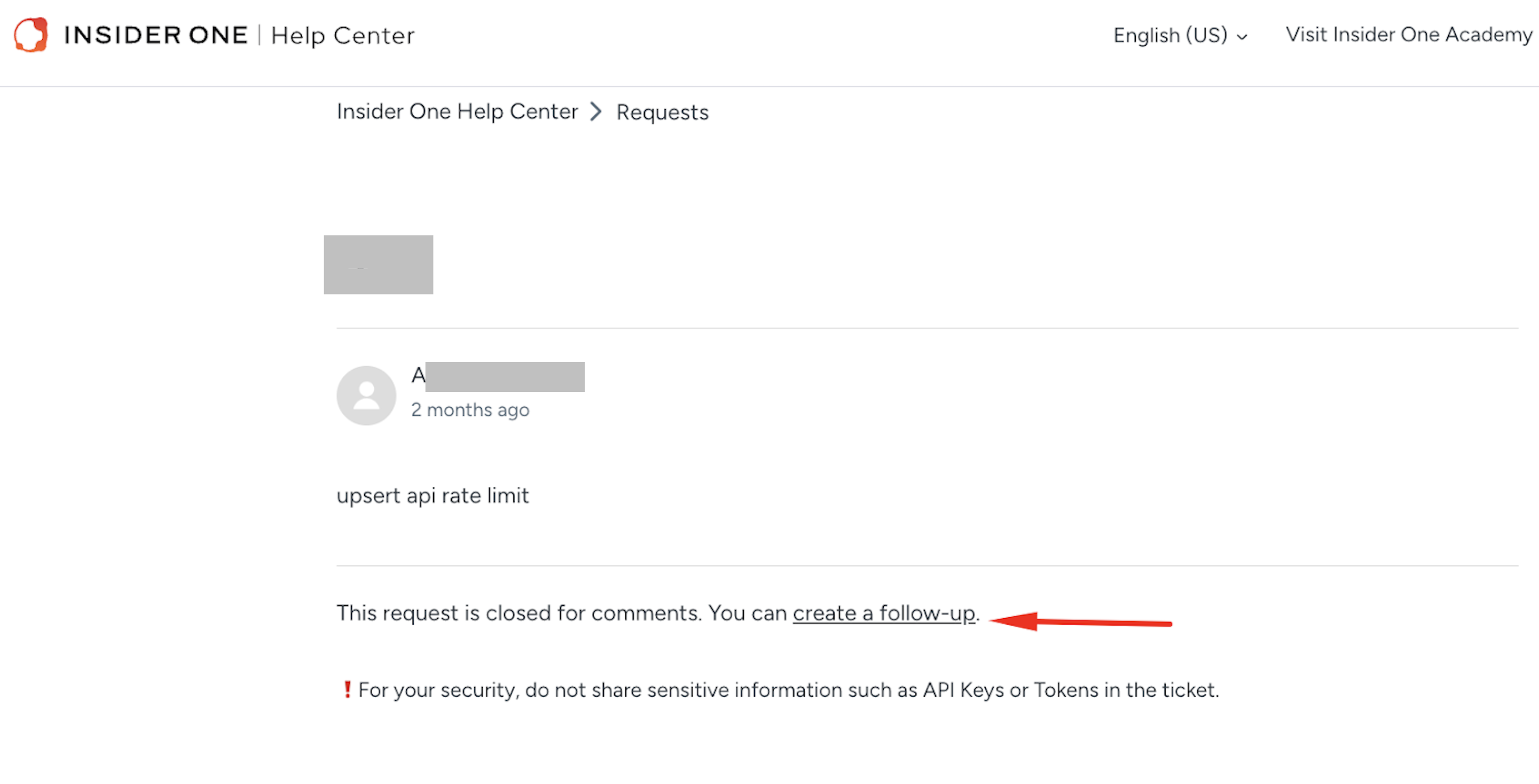
Rate the support
Once your ticket is resolved, you will be notified via email. You can also rate the support you receive using the short survey in the email.
.png)
You can also rate your experience on the Live Chat with the like/dislike buttons.