You cannot make any changes to External Platform Integrations without having either an Administrator or an Editor with PII access in InOne. Refer to User Roles for further information.
This article explains how to configure Insider One's Web Push as a Custom Activity in Salesforce Journey Builder. Once configured, you can trigger Web Push notifications directly from your Salesforce journeys.
The configuration consists of three phases:
Create a custom activity
Set activity properties
Build journeys with Web Push
Before you start
Locate your partner name before beginning. You can easily find it on the Account Settings page, or in the top right corner of your InOne panel. It is used in the Salesforce API URLs in the steps below and must be entered exactly as it appears, in lowercase.
Create a custom activity
To create your custom activity, follow these steps:
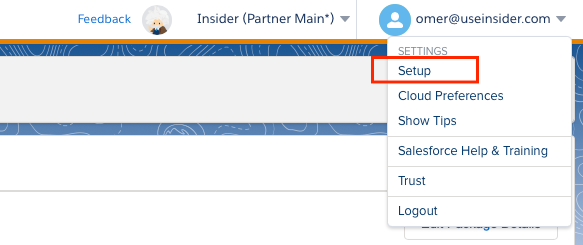
Click your user name to navigate to Setup.
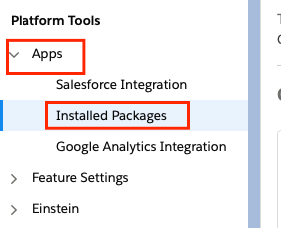
Go to Apps > Installed Packages.
Click the New button on the top right of the screen.

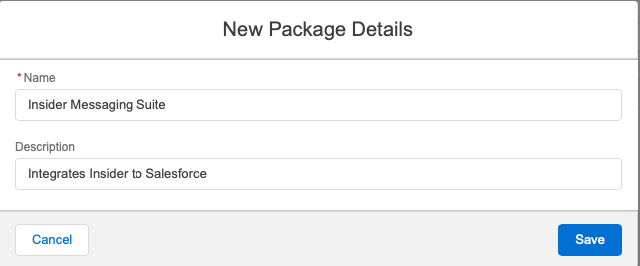
Enter a name and description for the package, and click the Save button.
Set activity properties
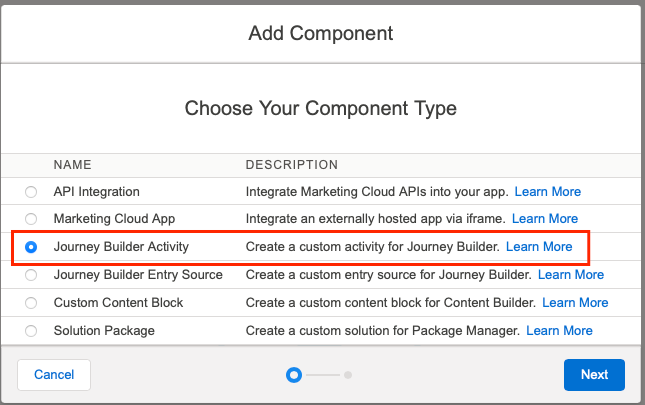
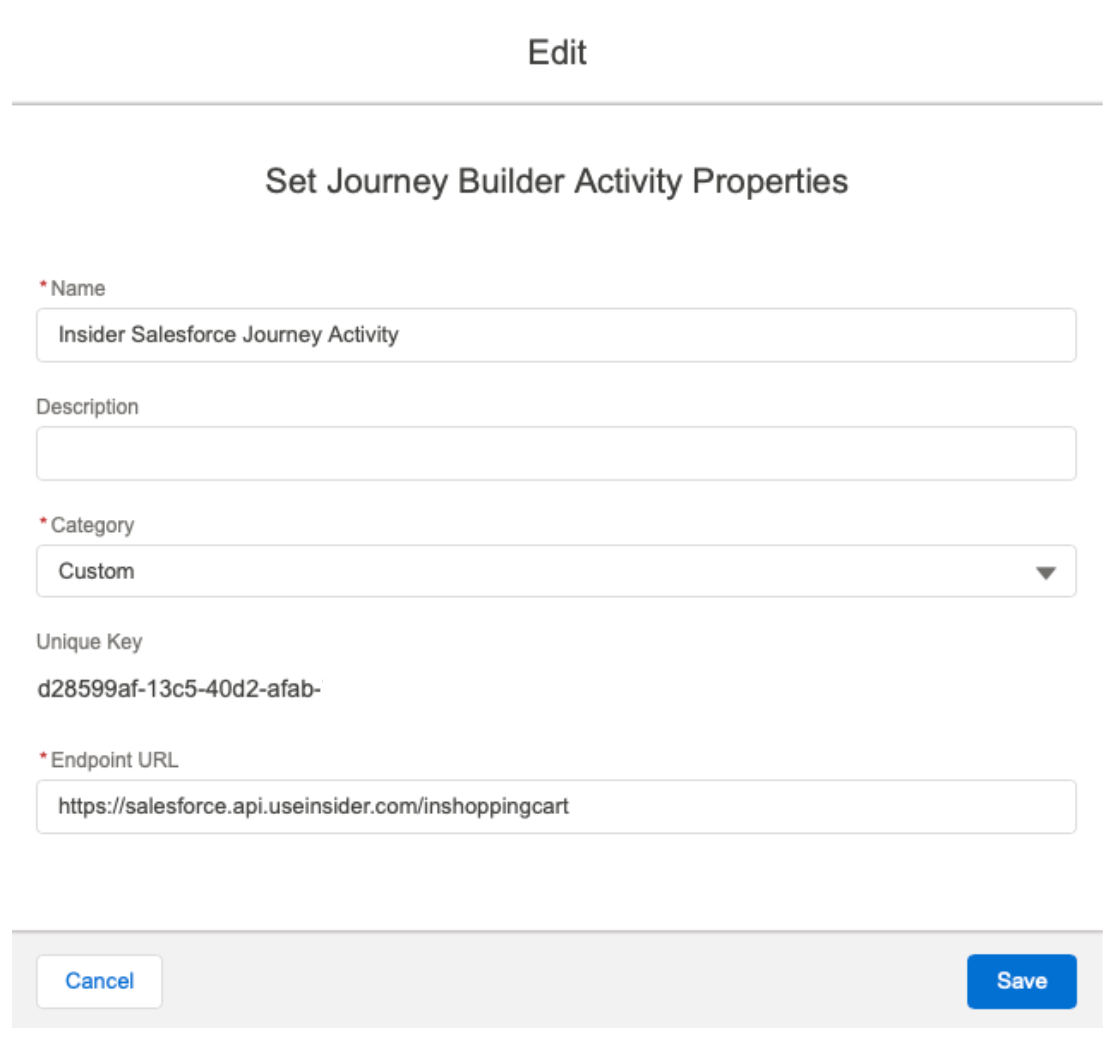
Click on Add Component below, choose Journey Builder Activity, and click the Next button.
Fill in the following component fields, and replace the partnerName in https://salesforce.api.useinsider.com/{partnerName} before adding your URL. Then click the Save button.
Your partner name is case-sensitive in this URL. Use the exact lowercase value shown in the top right corner of your InOne panel.
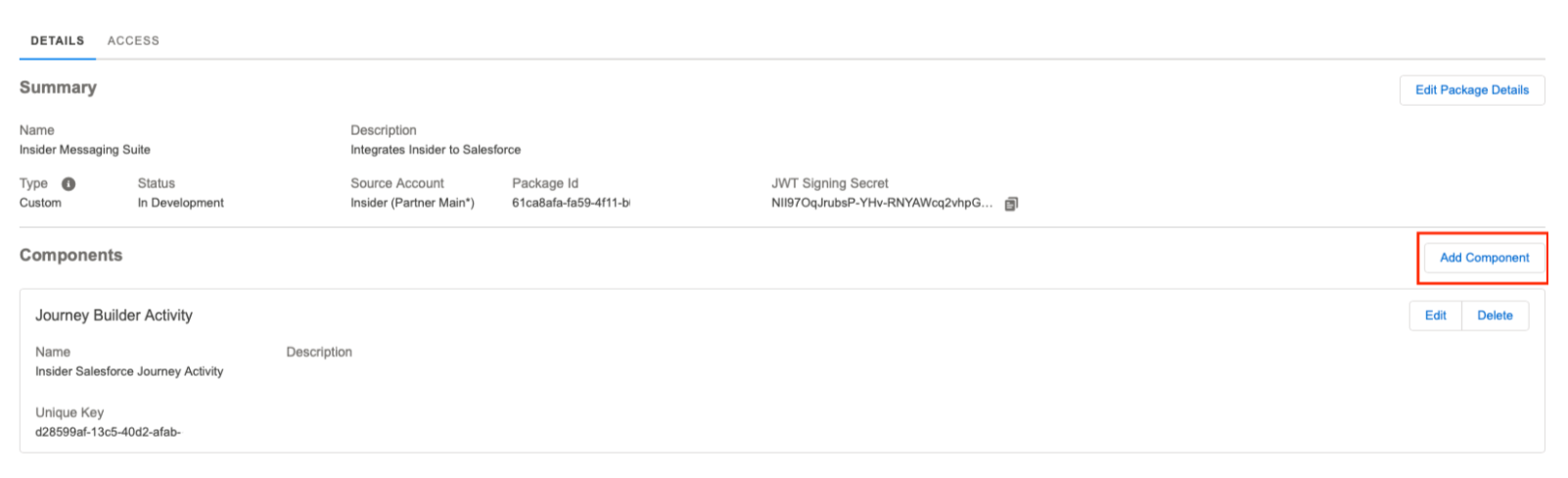
After saving this step, click the Add Component button again.
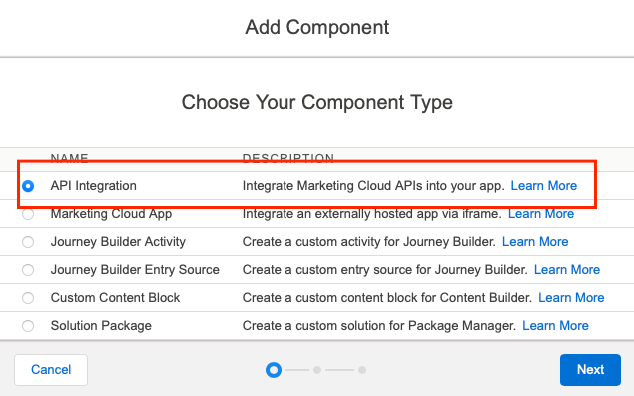
Choose API Integration and click the Next button.
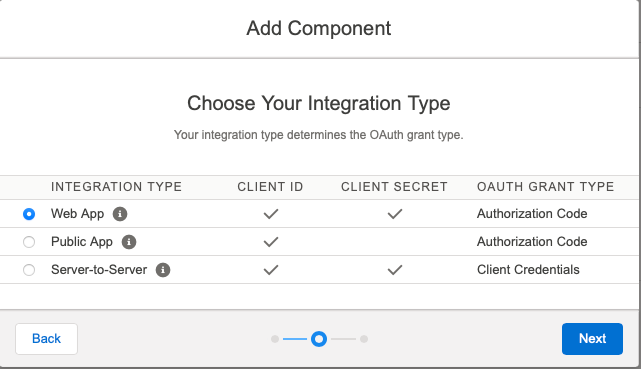
Choose Web App and click the Next button.
In the URL field, enter the following and replace {partnerName} with your InOne partner name: https://salesforce.api.useinsider.com/{partnerName}/index
Select the channels you want to activate with this activity, then click Save.
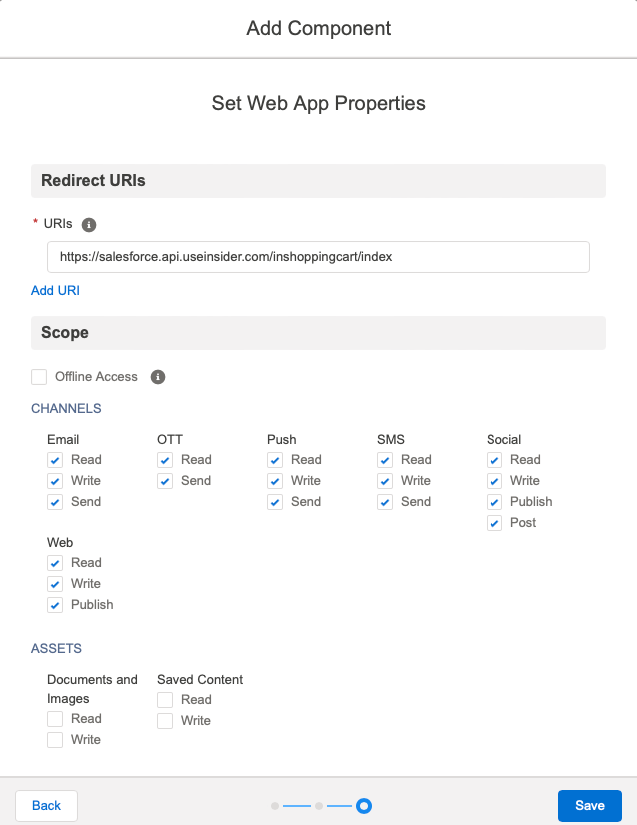
Note: The /index suffix in this URL is required. This URL is different from the one entered in step 2.
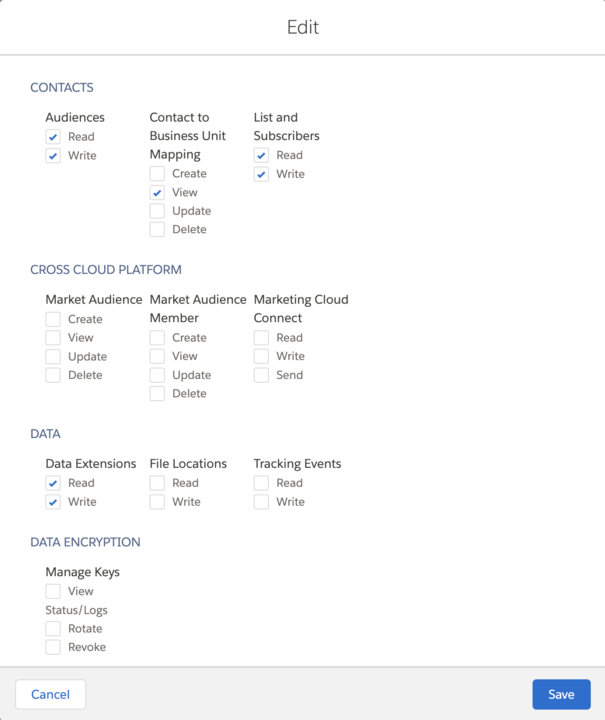
Under Data, enable the Data Extensions checkboxes, and click the Save button.
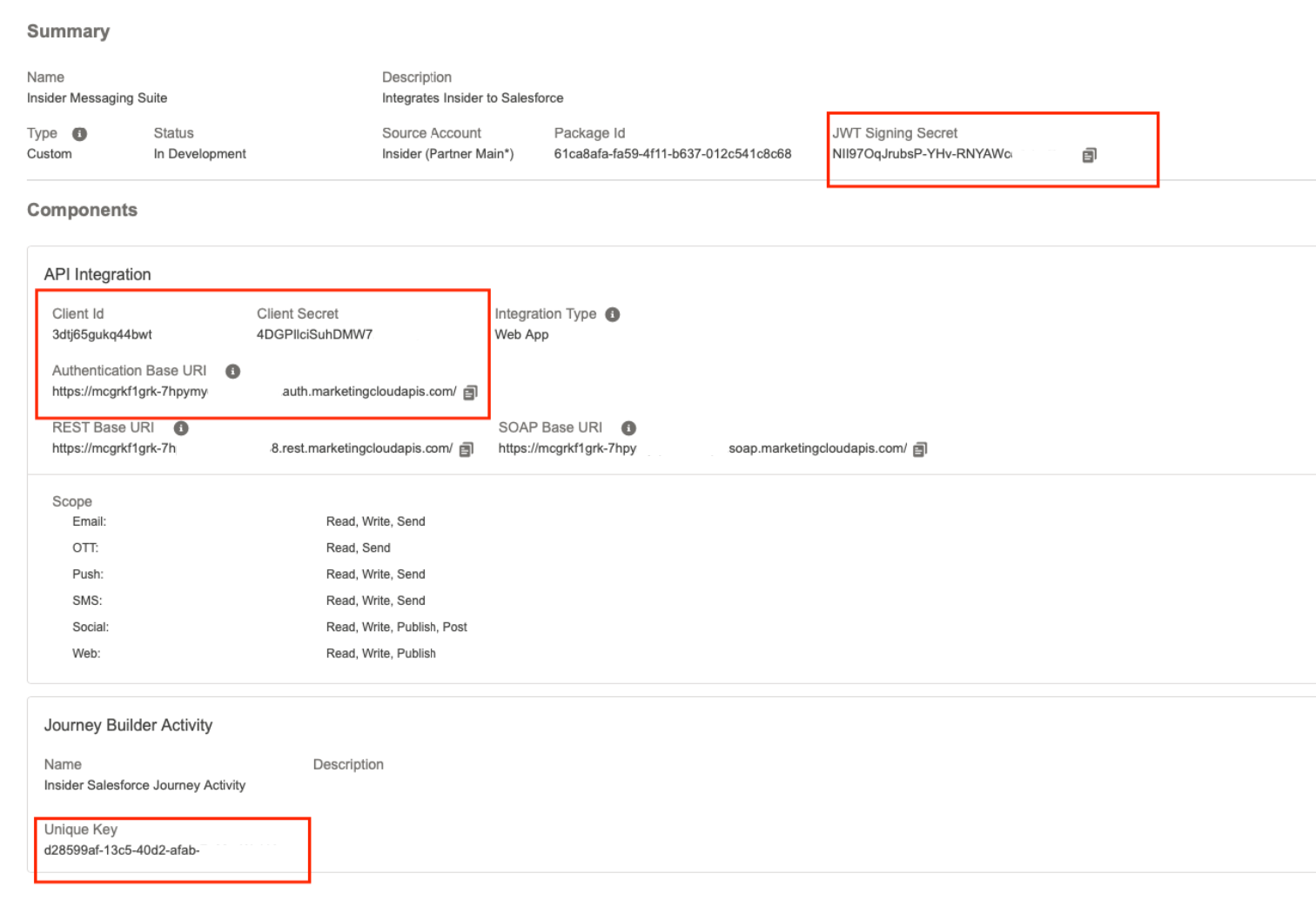
Review the summary page to confirm all settings are saved correctly before proceeding.
Build journeys with Web Push
In Journey Builder, select your configured Insider One app from the activity panel.
(7).png)
Fill in the required fields for the Web Push activity. The following fields are available:
Campaign: Select the Web Push campaign to trigger from this journey step
Identifier: Map the Salesforce contact field that corresponds to the user identifier in Insider One (for example, email address)
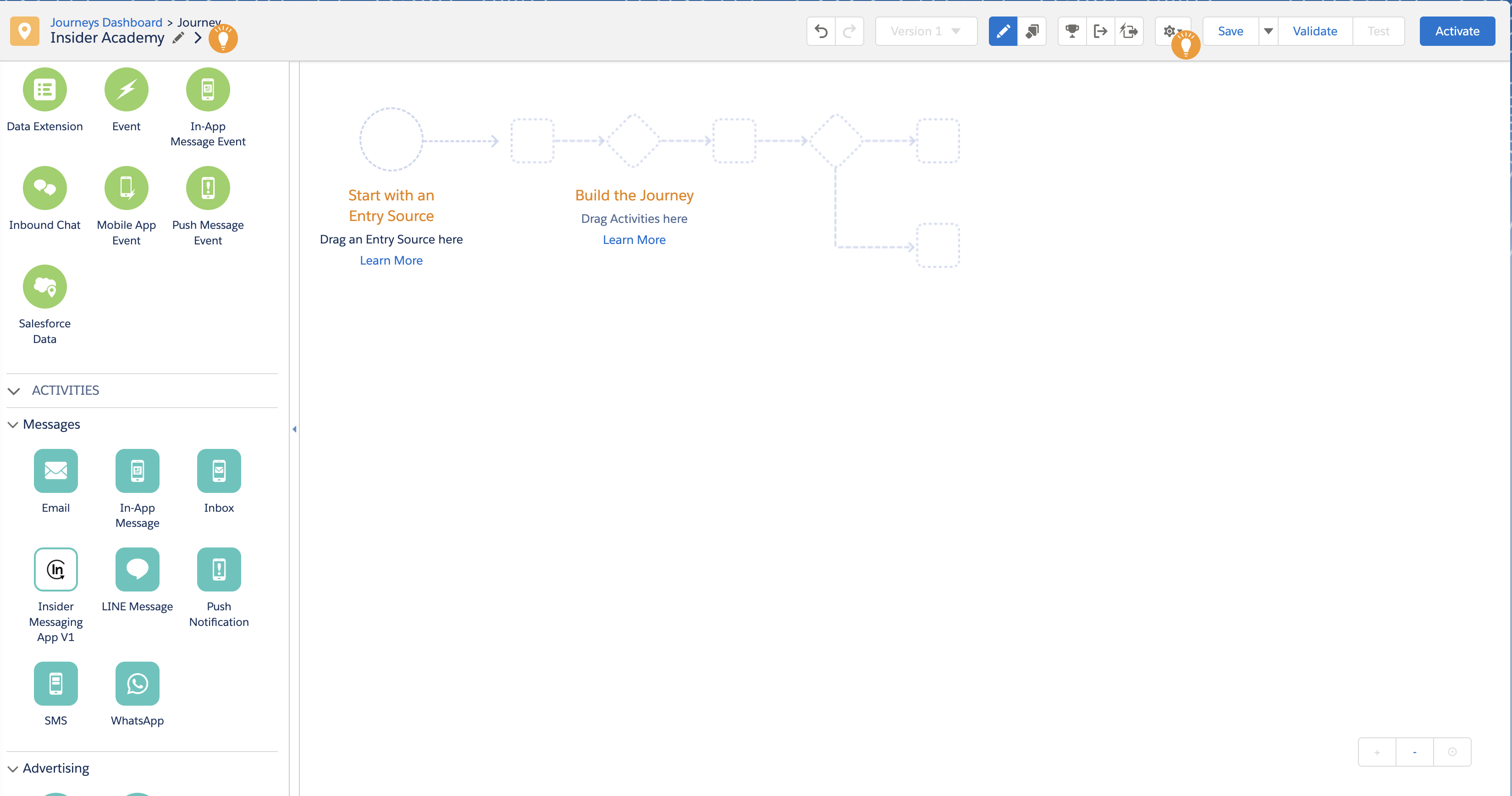
Click Done to save the activity and continue building your journey.
Troubleshooting
The activity does not appear in Journey Builder after setup.
Verify that the package was saved correctly in Installed Packages and that the correct {partnerName} value was used in both URLs in steps 2 and 6 of Set activity properties. The partner name must be lowercase and must match your InOne account name exactly.
The journey step fails with an authentication error.
Confirm that your InOne account has the correct permissions for the Salesforce integration.
Users are not receiving Web Push notifications from the journey.
Verify that the identifier field mapped in the journey activity matches an identifier configured in your Insider One panel. If the identifier is not recognized, users will not be resolved, and no notification will be sent.