You cannot make any changes to External Platform Integrations without having either an Administrator or an Editor with PII access in InOne. Refer to User Roles for further information.
Salesforce integration allows you to use Insider One's messaging products within your Salesforce account. You can add Insider One's Email product to Salesforce journeys as a Custom Activity.
Before using Insider One's Email in your Salesforce journeys:
First, you should create your custom activity on the Salesforce dashboard.
The Insider One team should configure your custom activity on Insider One's end.
Then you should build your Salesforce journey with Insider One's Email product.
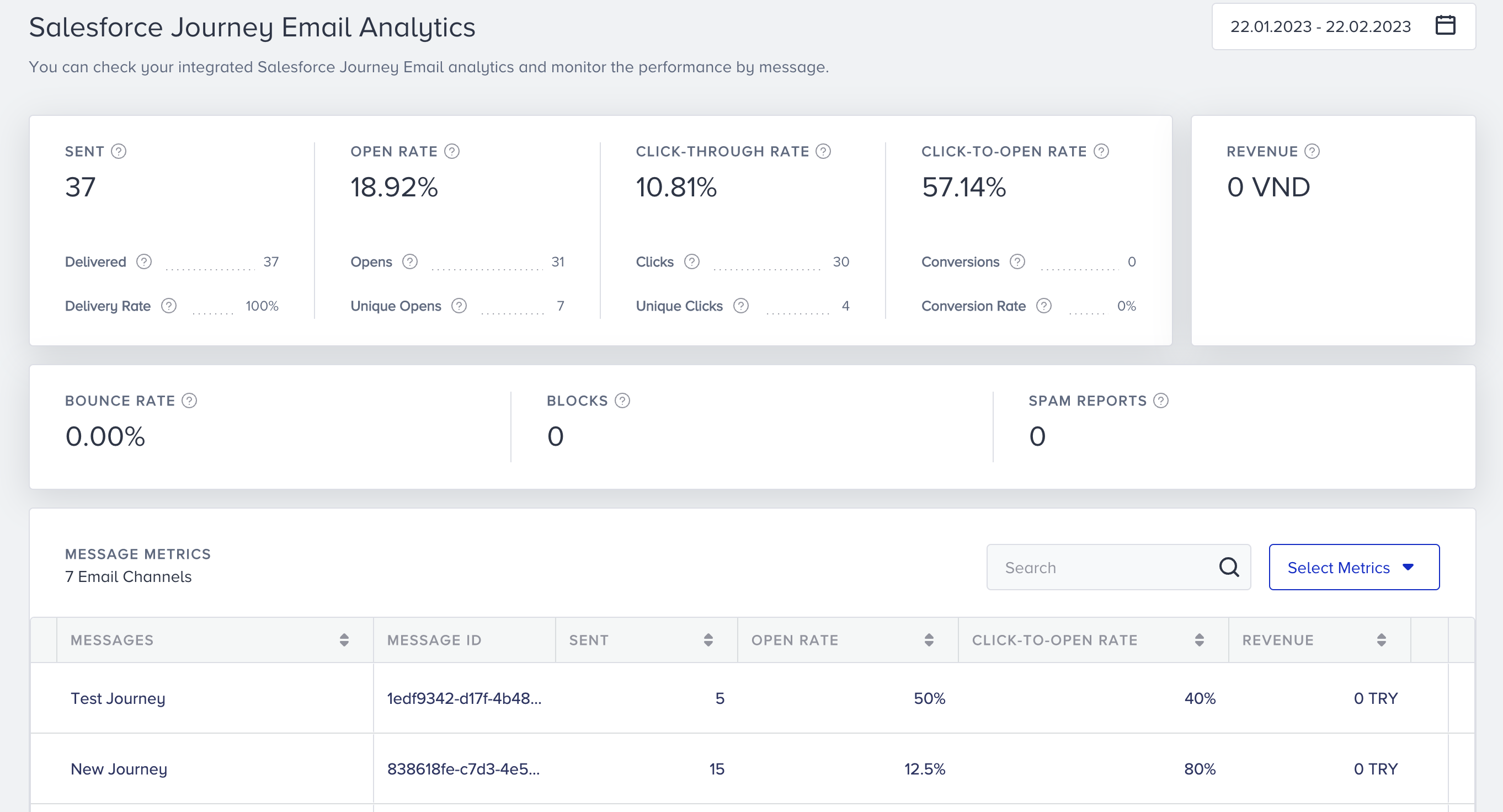
Once you launch your journeys, you can see the delivery, engagement, and revenue metrics of your launched Salesforce Email Custom Activity overall and with channel breakdown.
Create Custom Activity
To create your custom activity, follow these steps:
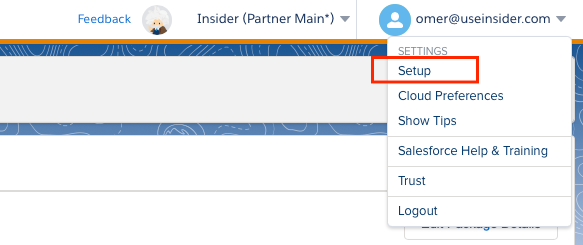
Click your user name > Setup.
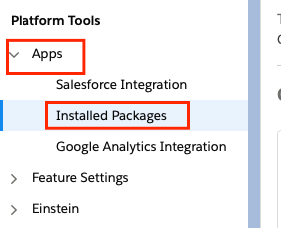
Go to Apps > Installed Packages.
Click the New button on the right-hand screen.

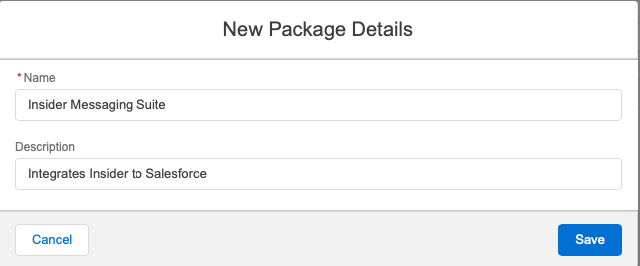
Enter a name and description for the package, and click the Save button.
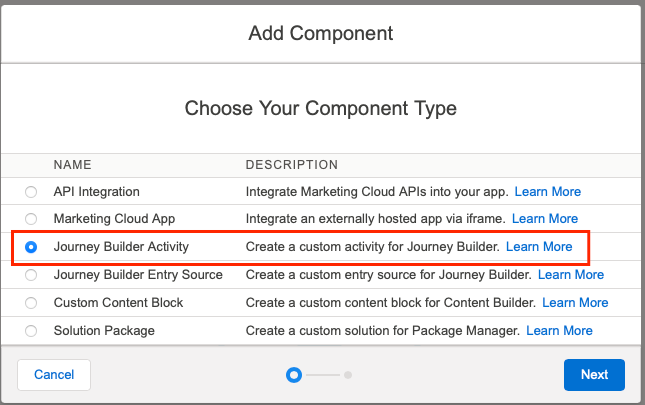
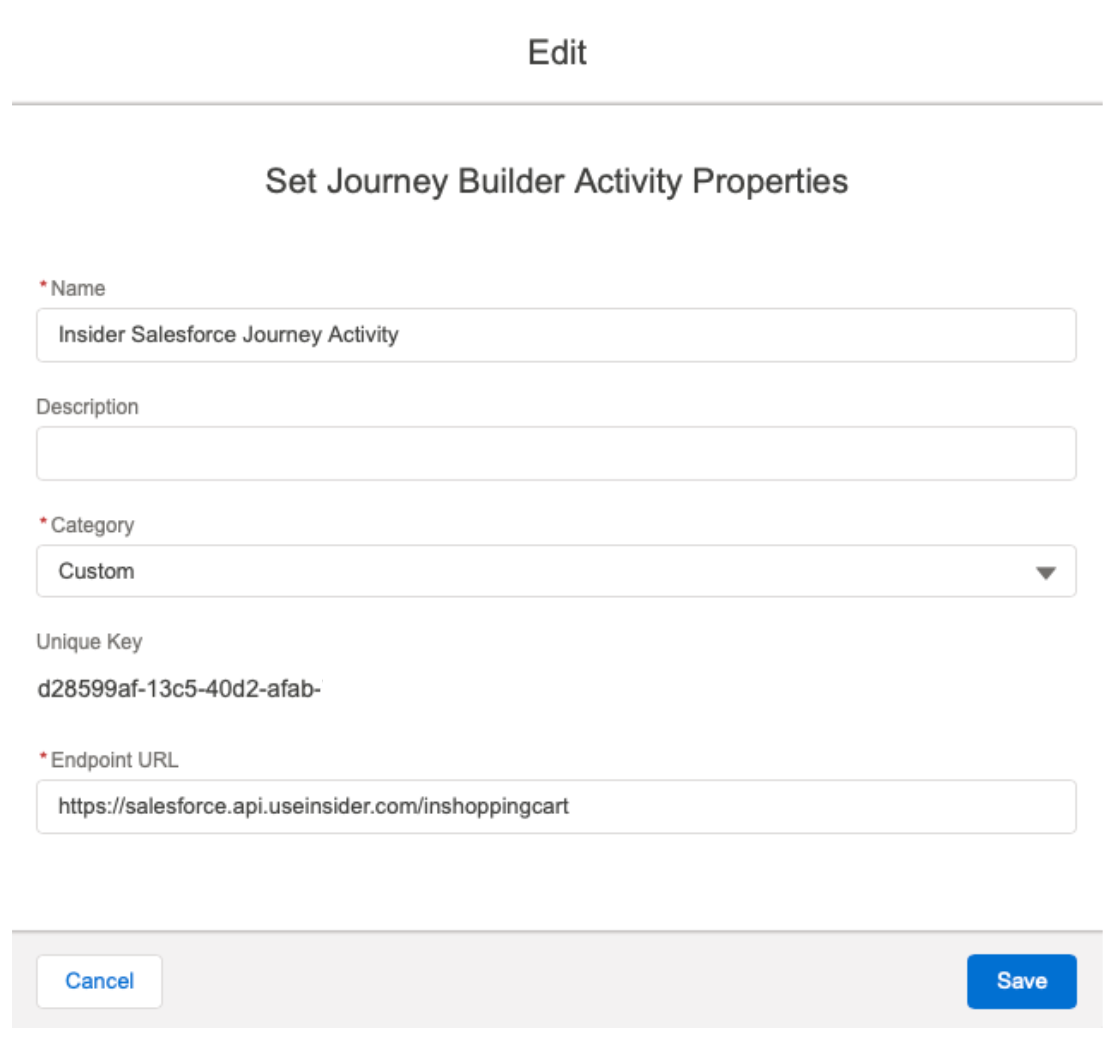
Click on Add Component below, choose Journey Builder Activity, and click the Next button.
Fill in the following component fields. Then click the Save button. Make sure to replace the partnerName in https://salesforce.api.useinsider.com/{partnerName}before adding your URL.
The Insider One team will provide the URL you need to add to this window. partnerName is your InOne account name, which you can see in the top-right corner of your InOne panel or in Settings.
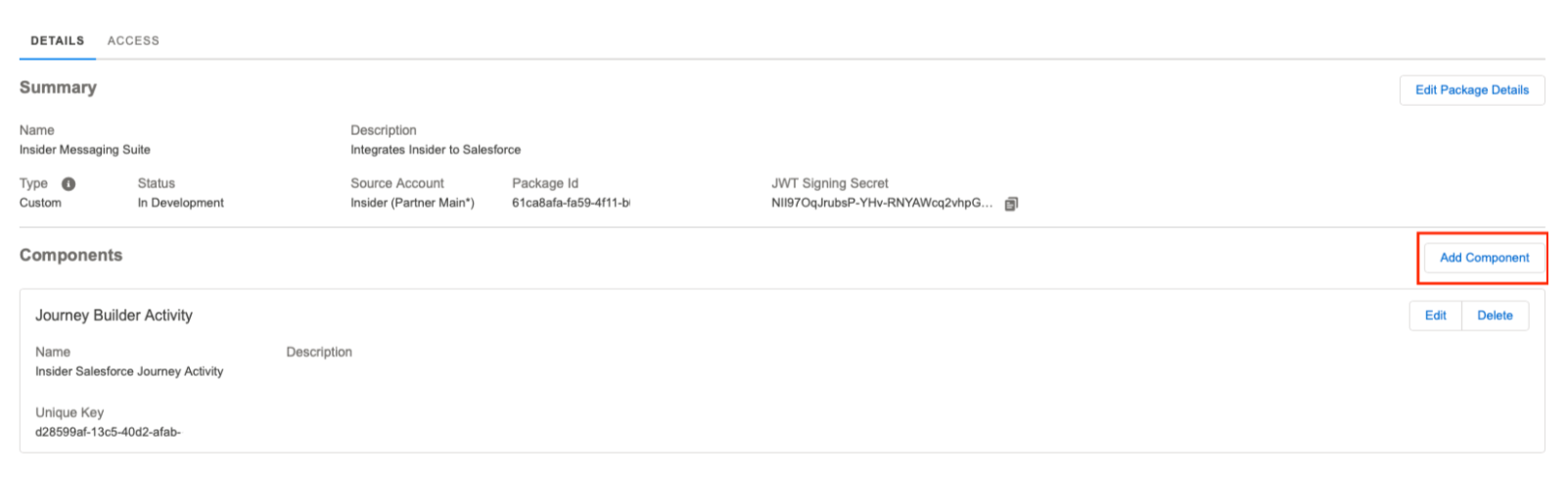
After saving this step, click the Add Component button again.
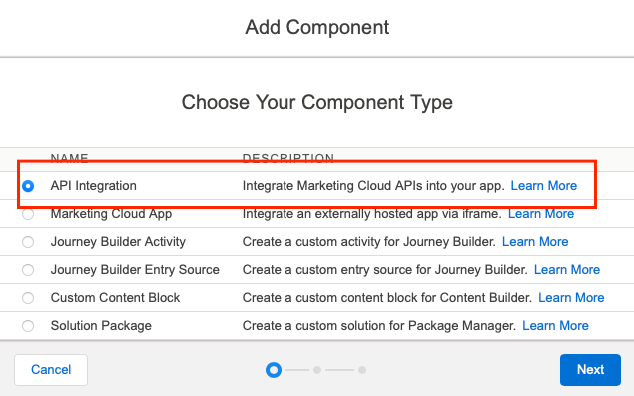
Choose API Integration and click the Next button.
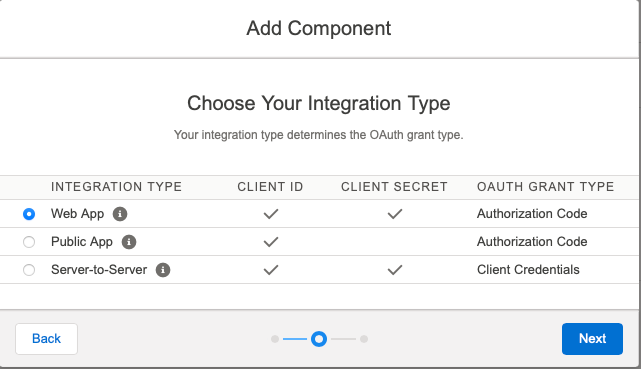
Choose Web App and click the Next button.
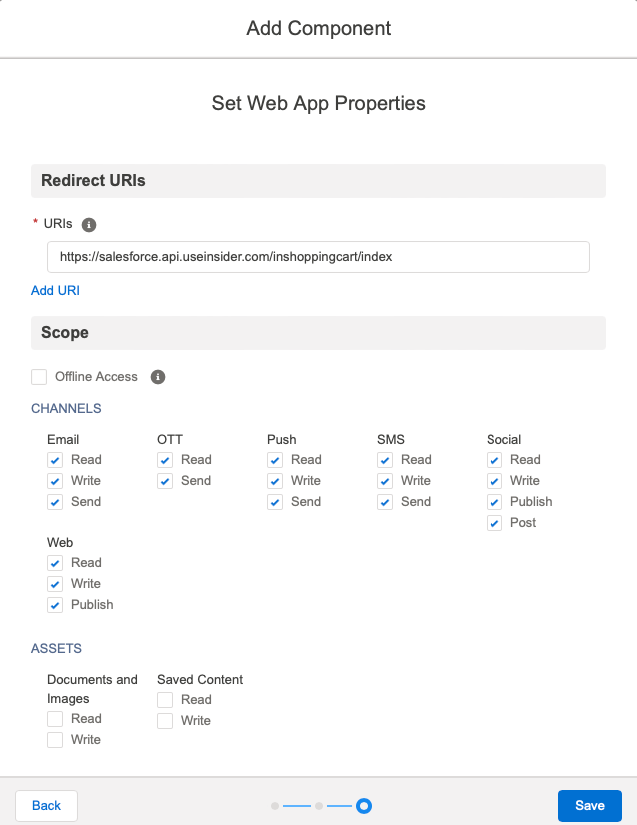
Fill in the URL, select the channels you want to use with the activity, and click the Save button. Make sure to replace the partnerName with your Insider partner name in https://salesforce.api.useinsider.com/{partnerName}/index.
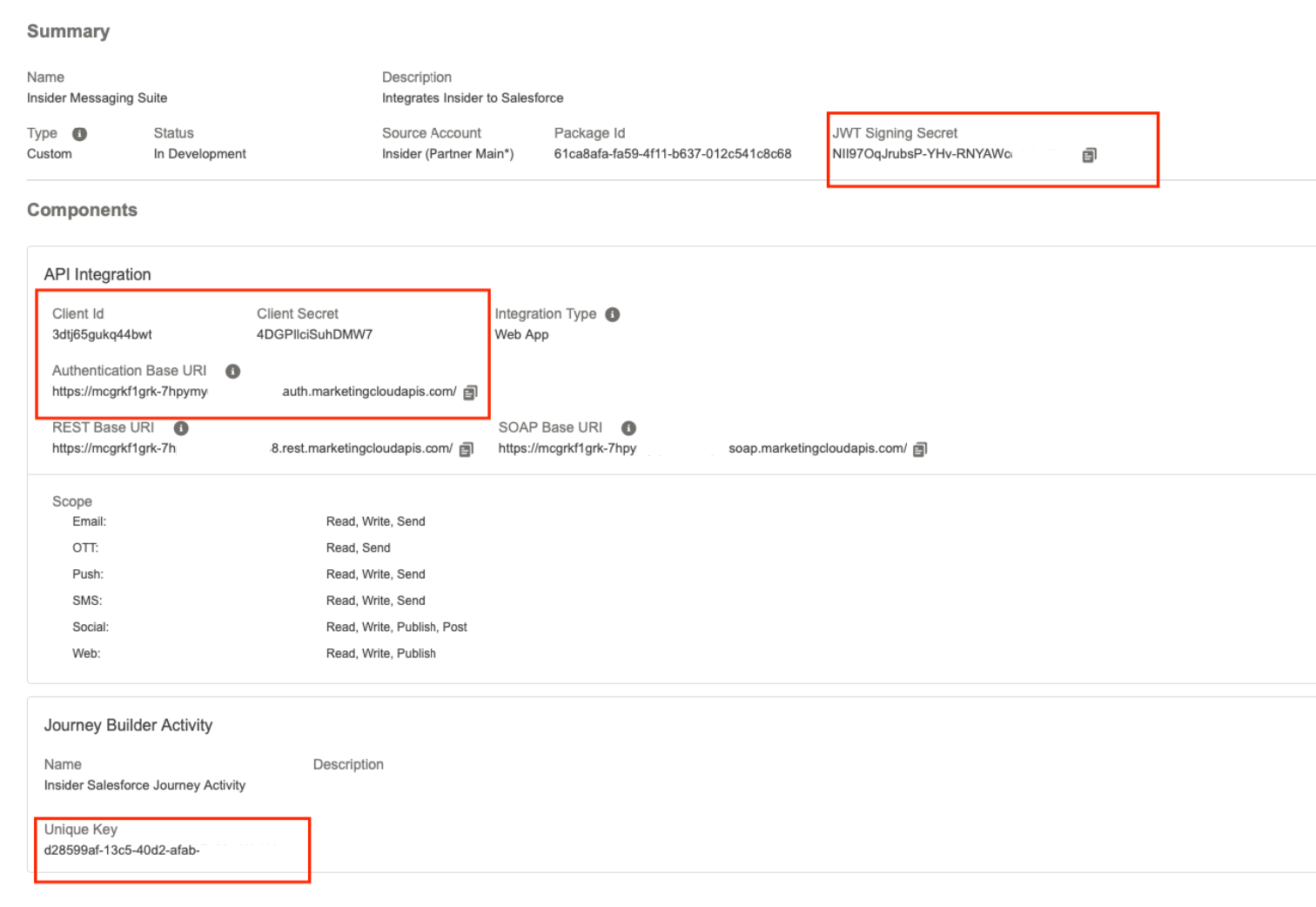
Once you save the previous step, you will see a summary page as follows.
Share Custom Activity Details
On the Summary page, save the JWT Signing Secret, Client ID, Client Secret, Authentication Base URI, and Unique Key, and share them with the Insider One team. Once Insider One completes configuring your custom activity on Insider One's end, you can start creating journeys.
Create Journeys
Once you complete building a custom activity, you will see the new application in your journey's Messages section as follows.
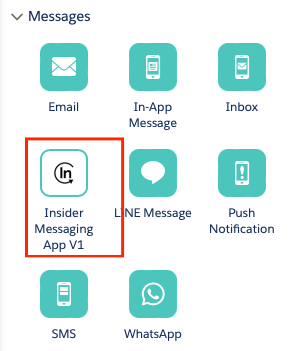
Drag and drop this element into your journey, and click on it to see the following window. Depending on when you view it, the content might have been updated.
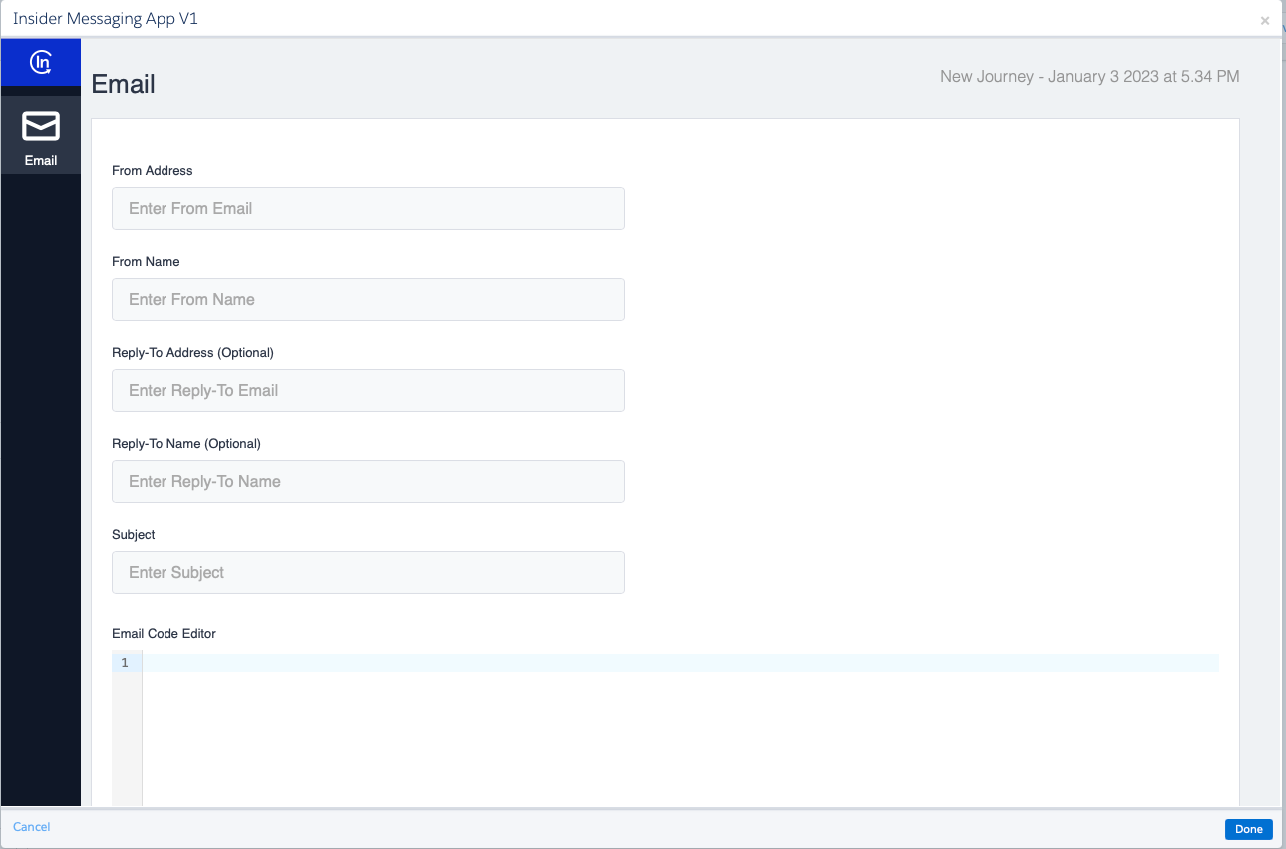
From this point on, no additional settings are required. You can fill in the necessary fields and use the products displayed in the Custom Activity application.
Once you start using Insider One Email in Salesforce Journey Builder, you can track your email performance from a dedicated analytics dashboard.
To access the dashboard shown below, navigate to InOne > Reports > Email Analytics > Salesforce Journey Email Analytics.
Insider One matches users with an identifier you select. This identifier should be an email address for the Email product. For example, when you select the email address as an identifier, Insider One will also check the user's email address. Once you configure your identifier in Salesforce, inform the Insider One team.