Your playbook, turned into a teammate.
Custom agents turn the way your team works into an assistant that works the same way every time. Give an agent a role, a goal, the steps to follow, and the tools to use, and it answers your team's questions in Agent One Teams with that focus and those rules.
You decide what each agent does, which tools it can use, and what it must never do. Then you test it in a live preview, activate it, and chat with it like any other agent in Agent One Teams.
Access: You need access to Agents in Agent One Teams. If you see "No Access to Agents", contact your Account Administrator. New to Agent One Teams? Start with Agent One Teams.
This article covers:
What you can do with custom agents
Create an agent from a template, with Build with Agent, or from scratch.
Write the agent's instructions in four parts: Role, Objective, Workflow, and Rules.
Choose up to 50 tools the agent can use.
Add guardrails and up to four conversation starters.
Test the agent in a preview before you activate it.
Activate, deactivate, duplicate, edit, or delete an agent.
Review each agent's activity and the conversations it took part in.
Use cases
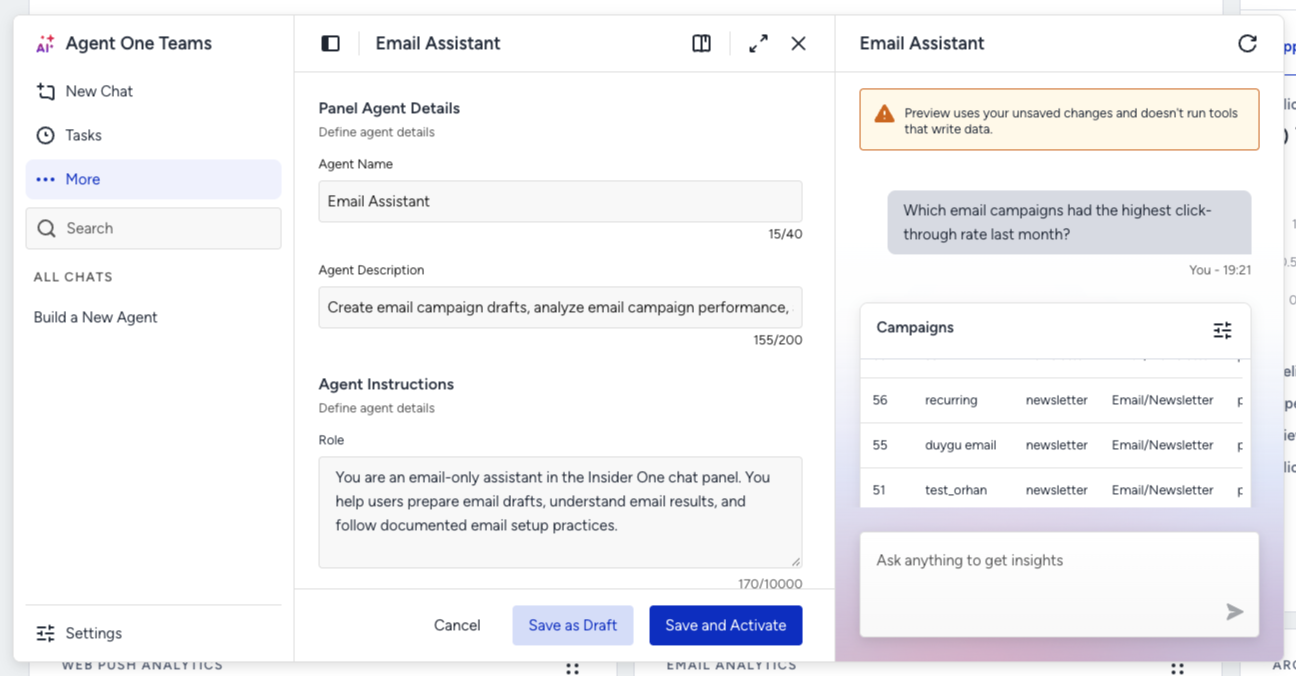
Give email its own specialist. Your email team wants answers about email, and only email. Build an Email Assistant that drafts email campaigns, analyzes their performance, and answers setup and best-practice questions, with a rule that it takes no action on other channels. Ask it "Which email campaigns had the highest click-through rate last month?" and it answers with your own campaign data.
Make the Monday report look the same every week. Your team asks for the same campaign summary at the start of every week, and every answer comes back in a different shape. Write the steps once in the agent's Workflow, and every summary follows the same structure, whoever asks.
Start from a sentence, not a blank page. You know what you need but not how to phrase the instructions. With Build with Agent, describe the agent in your own words and get a complete draft to review and edit.
Before you start
You need access to Agents. If you see "No Access to Agents", contact your Account Administrator.
Decide what the agent is for and which tasks it should leave alone. A focused agent gives sharper answers than an agent that tries to do everything.
Test runs in the preview do not consume Agent One Teams credits.
How you stay in control
The agent uses only the tools you select. Tool selection is the real limit on what an agent can do, so select only the tools its job needs.
The preview never writes data. While you test, the agent does not run tools that write data, so you can experiment safely.
Guardrails guide, tools limit. Guardrails are instructions you write for the agent to follow. They are not a security control. To keep an agent away from an action, leave out the tool that performs it.
You decide when it goes live. Save an agent as a draft until you are happy with it, and deactivate it at any time.
Every run is visible. The Activity view shows how many times the agent ran and links to its conversations.
Create an agent
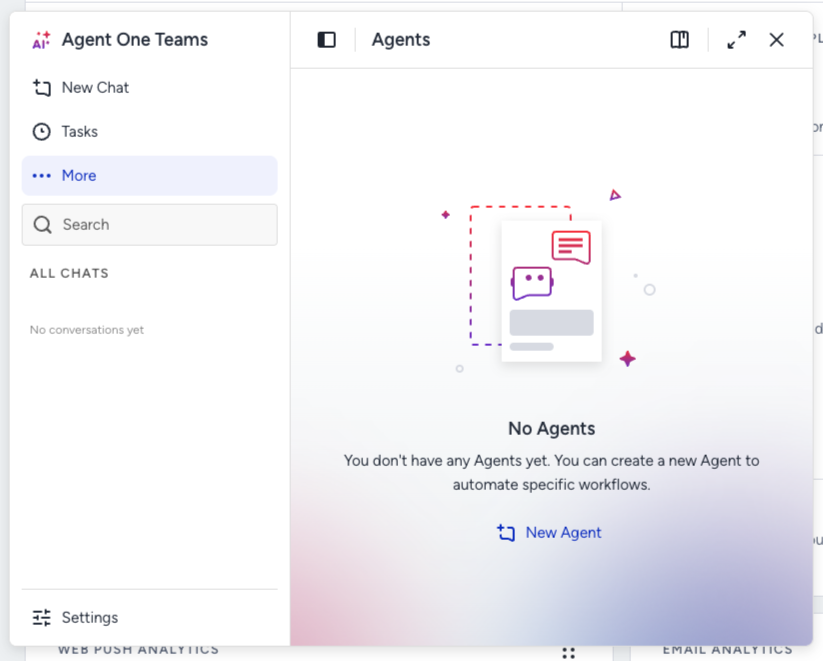
Open Agent One Teams and navigate to More > Agents. Click New Agent. If you already have agents, click Add New Agent.
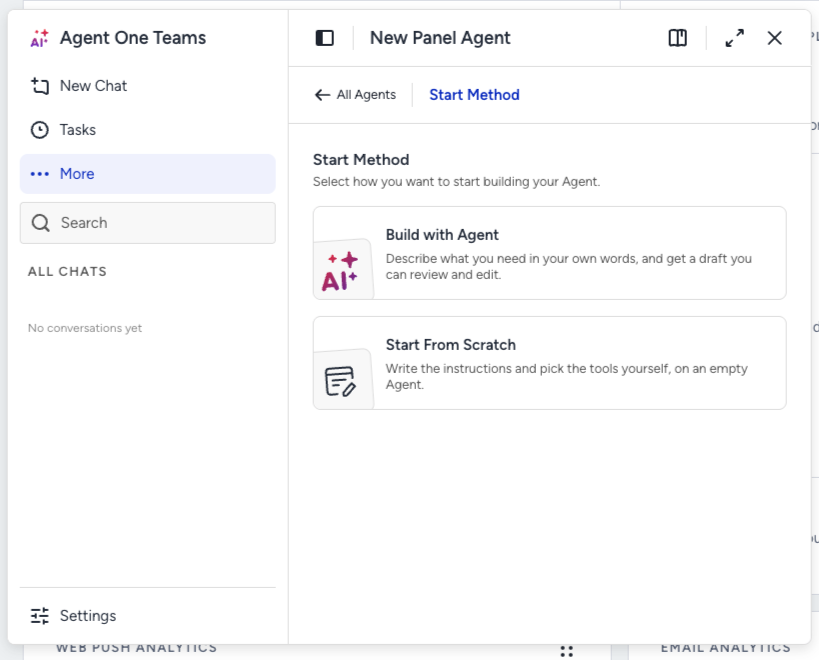
Choose how to start:
Templates: Start from a ready-made agent and change anything in it afterward.
Build with Agent: Describe what you need in your own words, and get a draft you can review and edit.
Start From Scratch: Write the instructions and pick the tools yourself, on an empty agent.
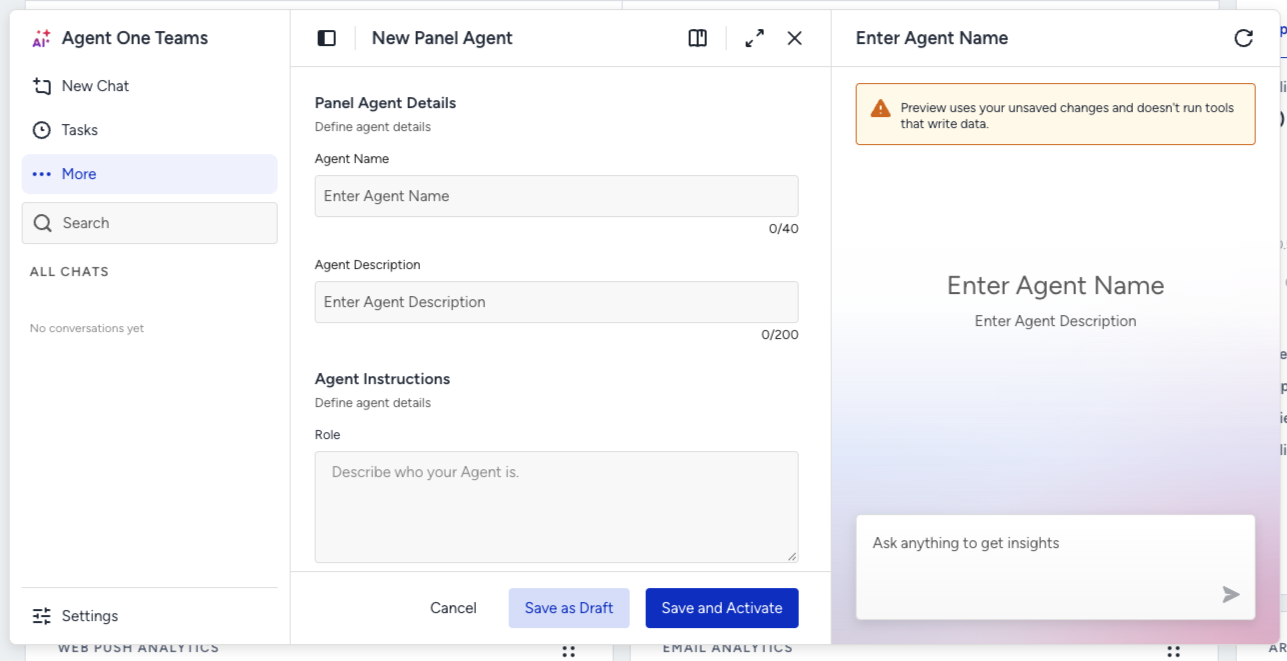
Fill in the builder:
Agent Name (up to 40 characters) and Agent Description (up to 200 characters).
Agent Instructions: Role describes who your agent is, Objective what it should achieve, Workflow the steps it follows in order, and Rules what it must always or never do.
Tools: Search, filter by type, and select up to 50 tools. Selected tools appear first after you save.
Guardrails: Tell the agent what to stay away from, for example, "Do not summarize technical anomalies."
Conversation Starters: Add up to four suggestions. They appear as chips when someone starts a chat with the agent.
Click Save as Draft to keep working on the agent later, or Save and Activate to make it available right away.
Write instructions that work
The four instruction fields shape every answer your agent gives. A few habits make the difference between a generic assistant and a dependable specialist:
Keep the Role to one clear job. Name the channel, team, or task the agent serves.
Make the Objective measurable. Say what a good answer looks like, for example, "a ranked list with the metric that drove each rank."
Write the Workflow as numbered steps. The agent follows them in order, so put the steps in the order you want them done.
Use Rules for the non-negotiables. Write each rule as "Always" or "Never," for example, "Never take actions on channels other than email."
Match the tools to the instructions. If the Workflow asks the agent to check campaign results, select a tool that reads campaign data.
For example, the Role of an Email Assistant can read:
You are an email-only assistant in the Insider One chat panel. You help users prepare email drafts, understand email results, and follow documented email setup practices.
And a matching conversation starter:
Which email campaigns had the highest click-through rate last month?
Test your agent
The Agent Preview sits next to the builder, so you can try a change the moment you make it. It uses your unsaved changes and does not run tools that write data.
Type a message in the preview, or try one of your conversation starters, and review the answer.
Adjust the instructions or tools, then test again until the answers match what you expect.
The preview handles one message at a time. If your agent replies with a follow-up question, save and activate it to test that back-and-forth in the chat.
Manage your agents
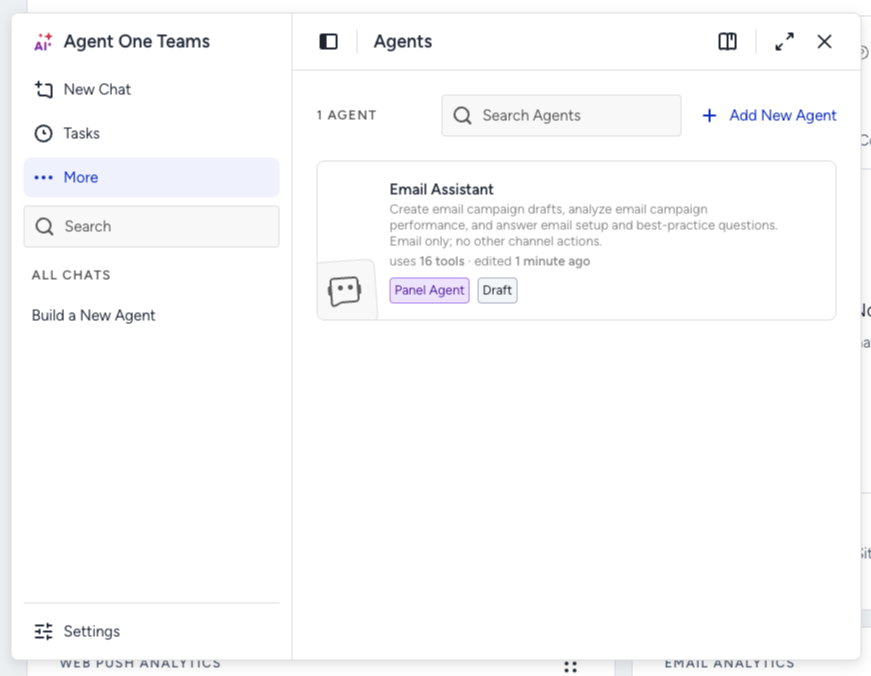
All your agents appear in More > Agents. Each agent card shows its name, description, how many tools it uses, when it was last edited, its type, and its status. Use Search Agents to find an agent by name.
Status | Meaning |
|---|---|
Draft | Saved, not yet running. |
Active | Available to use. |
Inactive | Turned off until you activate it again. |
Actions: Edit, Edit with Agent, Duplicate, Activate or Deactivate, Activity, and Delete. Deleting an agent cannot be undone.
Agent details: The details page shows the name, description, type, status, tools, conversation starters, and when the agent was last edited.
Activity: The Activity view shows how many times the agent ran and links to its conversations, so you can see how your team uses it and refine the instructions.
Troubleshooting
Message | What to do |
|---|---|
"No Access to Agents" | Contact your Account Administrator to request access. |
"An agent with this name already exists." | Use a different name. |
"Enter an Agent Name of up to 40 characters to continue." | Enter a name, or shorten it to 40 characters or fewer. |
"Enter conversation starter to continue." | Fill in or remove the empty conversation starter. |
"Agents could not be loaded" | Try again in a moment. Your existing agents are safe. |
"Test run failed. Please try again." | Send the test message again. |
Good to know
Each agent can use up to 50 tools and up to four conversation starters.
Guardrails are guidance, not a security control. Limit what an agent can do through the tools you select.
The preview does not run tools that write data and handles one message at a time.
Agent One Teams works best in English.
Next steps
Custom agents put your team's best way of working into every conversation: one role, clear steps, the right tools, and rules that hold. Ready to build your first one? Navigate to More > Agents, click New Agent, and let Build with Agent draft it from a single sentence.
Related articles: