Dynamic Attributes drive product interest and encourage purchases by showing how often they are viewed, purchased, or added to a cart.
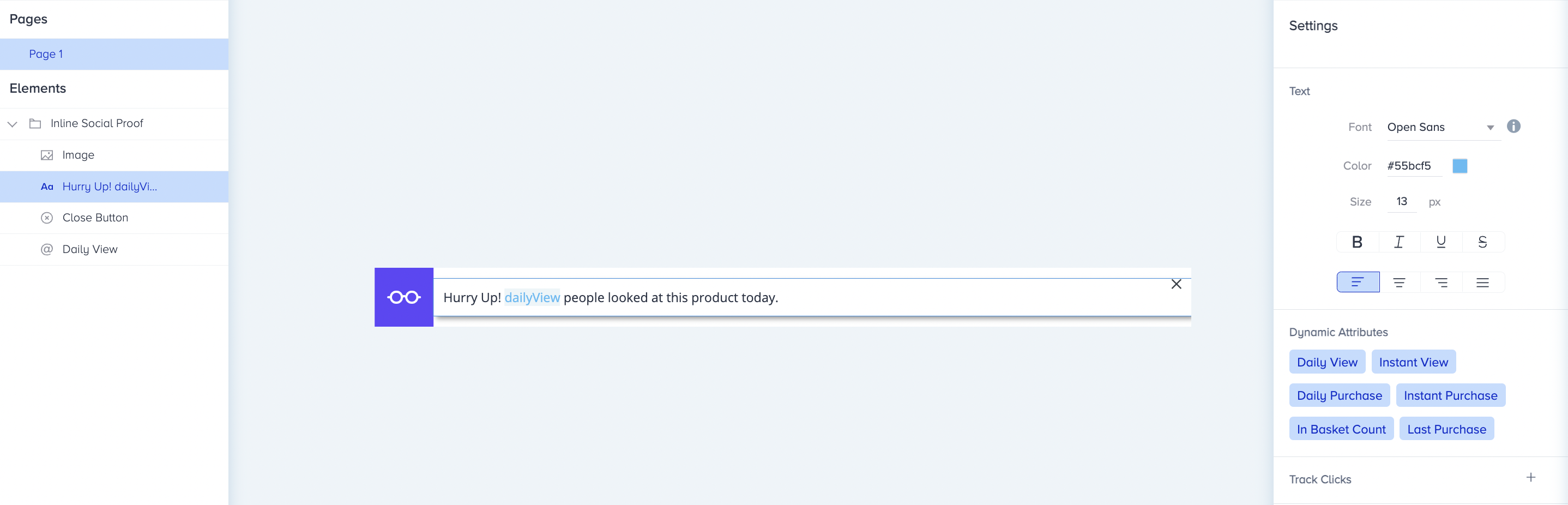
You can use the following Dynamic Attributes on your Social Proof campaigns:
Daily View: Displays the number of times the product page was viewed in the last 24 hours. Every view counts, including repeated views by the same visitor.
Instant View: Displays the number of users viewing the respective product at that time.
Daily Purchase: Displays the number of users who have purchased the respective product on that day.
Instant Purchase: Displays the number of users who have purchased the respective product at that time (within 15 minutes).
In Basket Count: Displays the number of cart page loads in the last six minutes where the cart contains the product. Each cart page load counts, so a visitor who added the product earlier adds to the count again each time they load the cart page. In Basket Count does not count unique users or add-to-cart events.
Last Purchase: Displays the last time the respective product was purchased.
Social Proof only collects data when an active campaign is in place. Test campaigns only collect data when you are actively testing the campaign.
A visitor only sees the Social Proof message if they are eligible for the campaign and the attribute value passes the configured minimum threshold.
How Daily View and In Basket Count are calculated
Attribute | What it counts | Time window | Repeated activity |
|---|---|---|---|
Daily View | Product page views | Last 24 hours | Counted. Every view adds to the value. |
In Basket Count | Cart page loads where the cart contains the product | Last six minutes | Counted. Every cart page load adds to the value. |
Both windows are rolling. At any moment, the value includes only the activity from the preceding 24 hours or six minutes, and older activity drops out of the count automatically.
Both attributes aggregate activity at the product level. The value for a product combines activity from all visitors, browsers, and devices, so you do not need custom development to combine counts across visitors or devices.
For example:
Daily View: In the last 24 hours, one visitor viewed a product page three times on desktop and twice on mobile, and a second visitor viewed it once. Daily View shows 6.
In Basket Count: In the last six minutes, three visitors loaded the cart page with the product in their carts, and one of them reloaded the cart page twice. In Basket Count shows 5. When those cart page loads are more than six minutes old, they no longer count.
Dynamic Attribute Settings
You can configure the settings of the dynamic attribute you define in the Text element.
Minimum Value
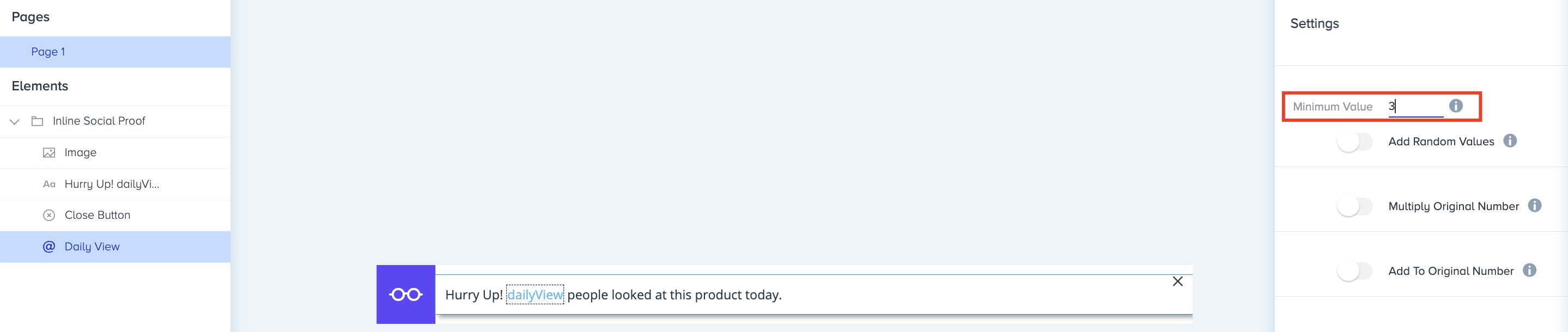
You can define a minimum value that a given Dynamic Attribute must reach before Social Proof is displayed on your products. For example, if the minimum value is 3, Social Proof will not be shown to any user until the value of that attribute reaches 3.
Dynamic Variable Random Values
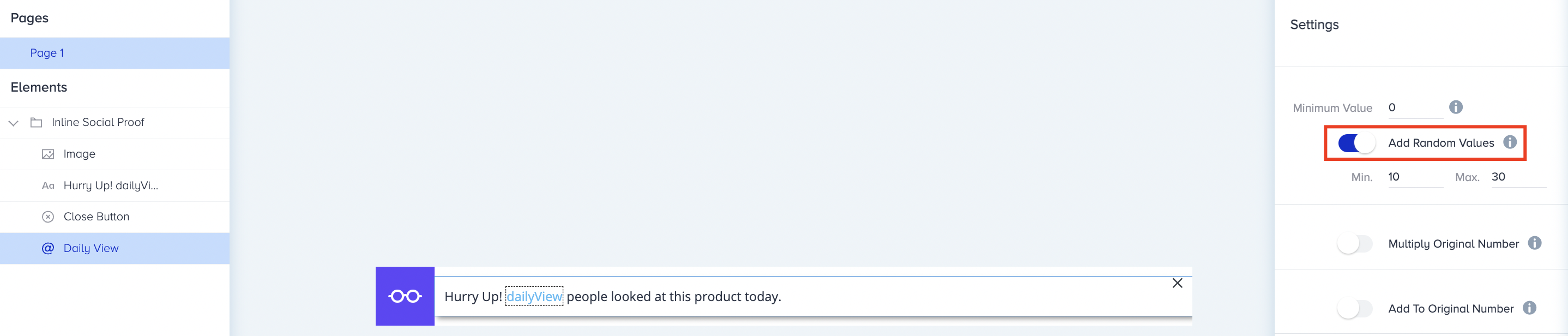
This feature enables you to set a range, and Social Proof will add a number within that range to the original value. For example, if your range is 10-30 and the original value is 47, Social Proof will display a value between 57 (47 + 10) and 77 (47 + 30).
Multiply Original Number
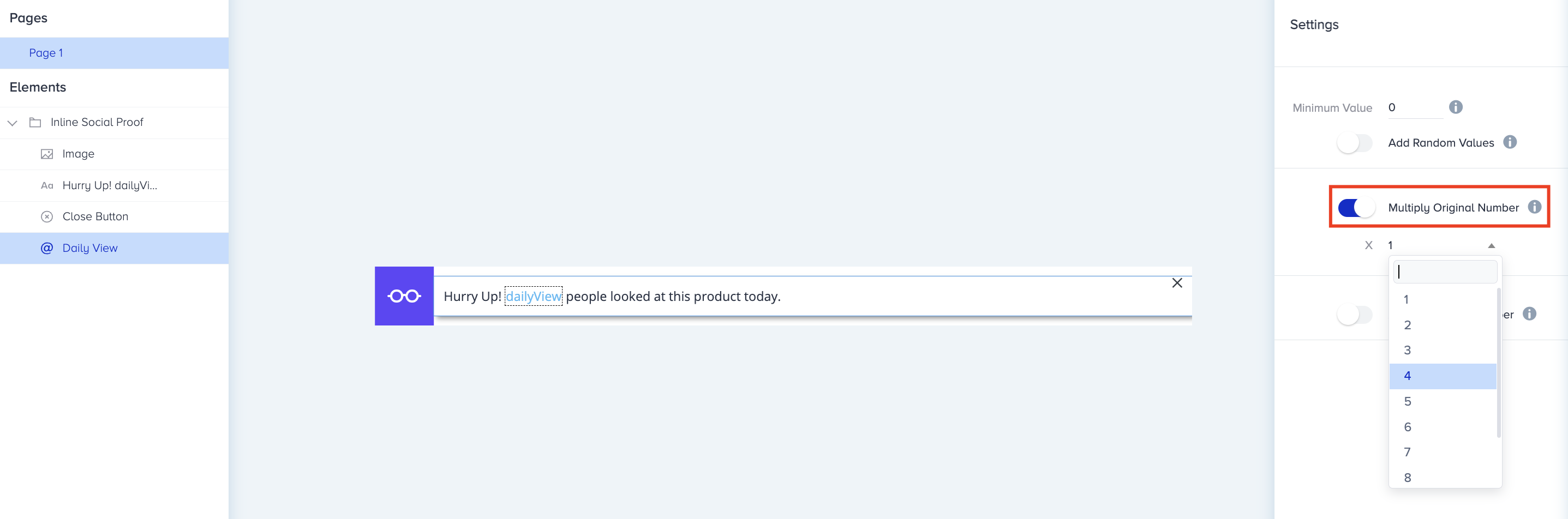
You can multiply the original value by 1-10. For example, if the original value is 38 and you select 4, this setting will multiply that original value (38) by 4, displaying 152 on Social Proof. If you choose 1 for your multiplier, this setting will show the original value on Social Proof (e.g., 38 x 1 = 38).
How does “Multiply Original Number” work in Social Proof campaigns?
The Multiply Original Number setting applies only to the dynamic attribute you are currently configuring. It does not apply globally to all dynamic attributes in the campaign.
For example, if you select Daily View and set the multiplier to 4, only the Daily View value is multiplied by 4. Other attributes, such as Instant View or Daily Purchase, remain unchanged.
To multiply another dynamic attribute:
Select the relevant dynamic attribute in the campaign editor.
Enable Multiply Original Number.
Choose the required multiplication factor.
Repeat these steps separately for any other attribute you want to modify.
Each dynamic attribute’s multiplication setting is configured independently.
Add to Original Number
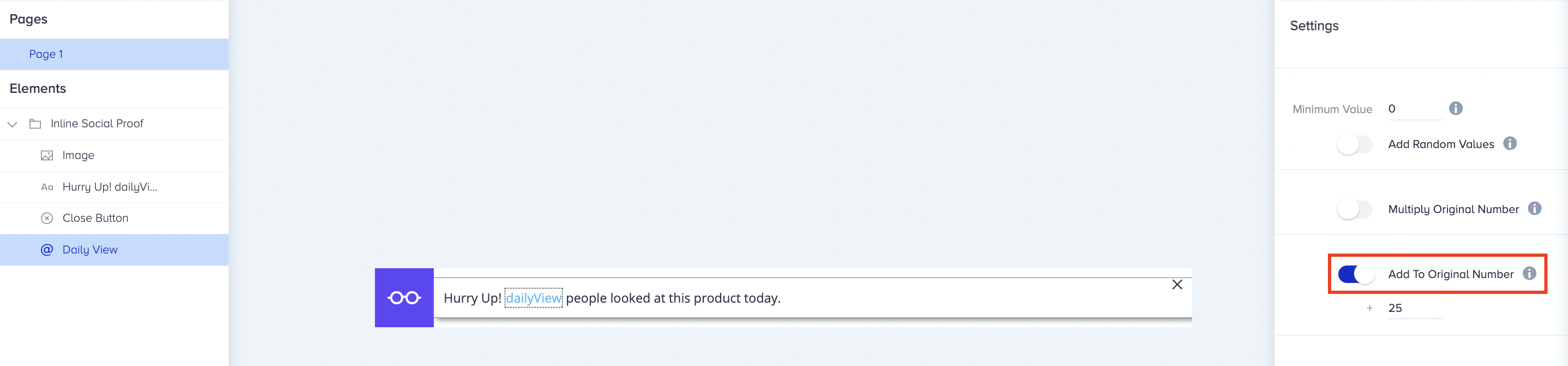
This feature lets you add any value you specify to the original number. For example, if the original value is 59 and you would like to add 25, the value displayed on the Social Proof will be 84.