The Purchase Progress Bar shows visitors how close they are to a reward, such as free shipping, and how much more they need to add to their cart to earn it. The bar fills as the cart value grows, so visitors always see what is left to reach the next milestone.
You edit the element on the Design tab of the template editor. The element has two pages:
Default State, which visitors see while they are still working toward the reward.
Success State, which they see once they reach it.
How the Purchase Progress Bar works
Select Purchase Progress Bar in the Elements list to open its settings.
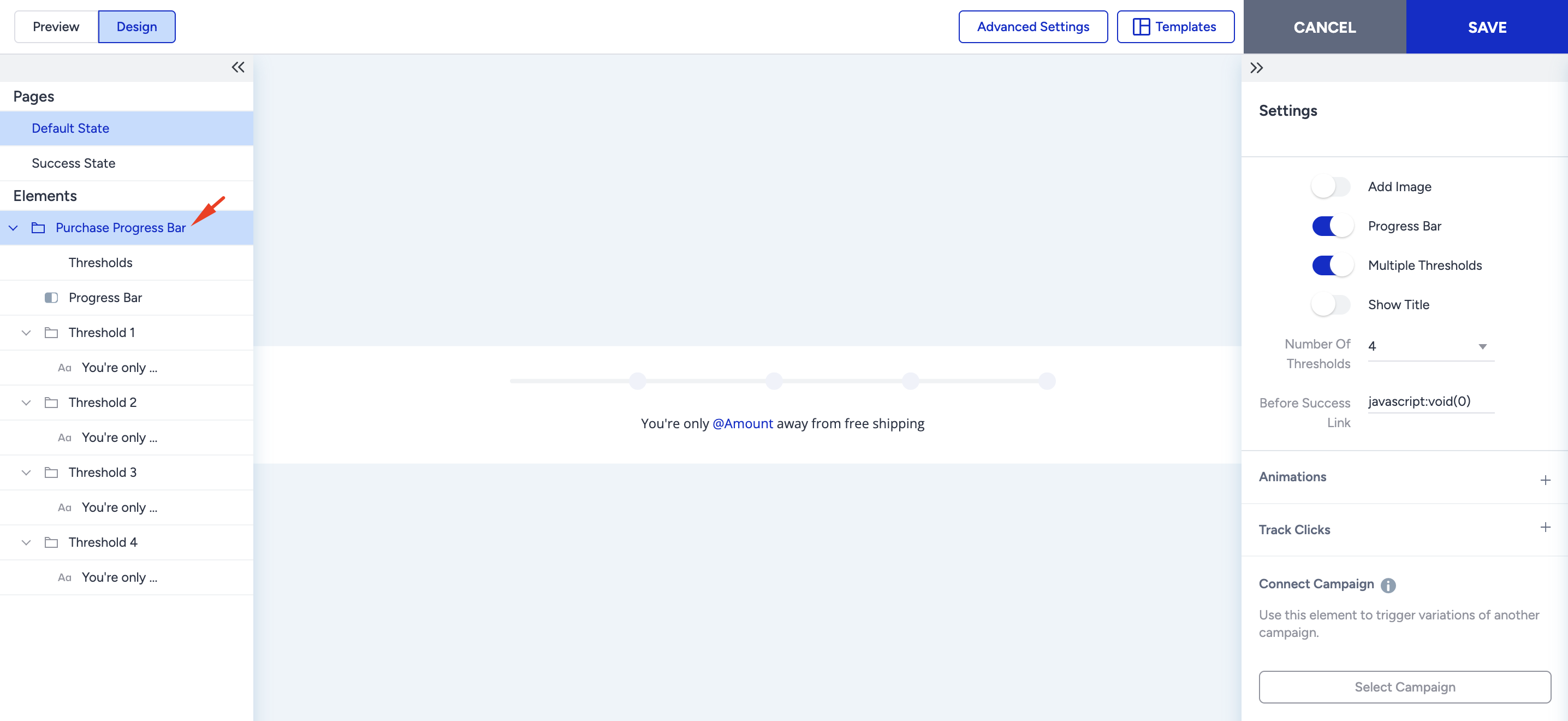
From there, you can:
Turn Add Image, Progress Bar, Multiple Thresholds, and Show Title on or off.
Set Number Of Thresholds to choose how many milestones the bar shows. You can add up to four and customize each one separately.
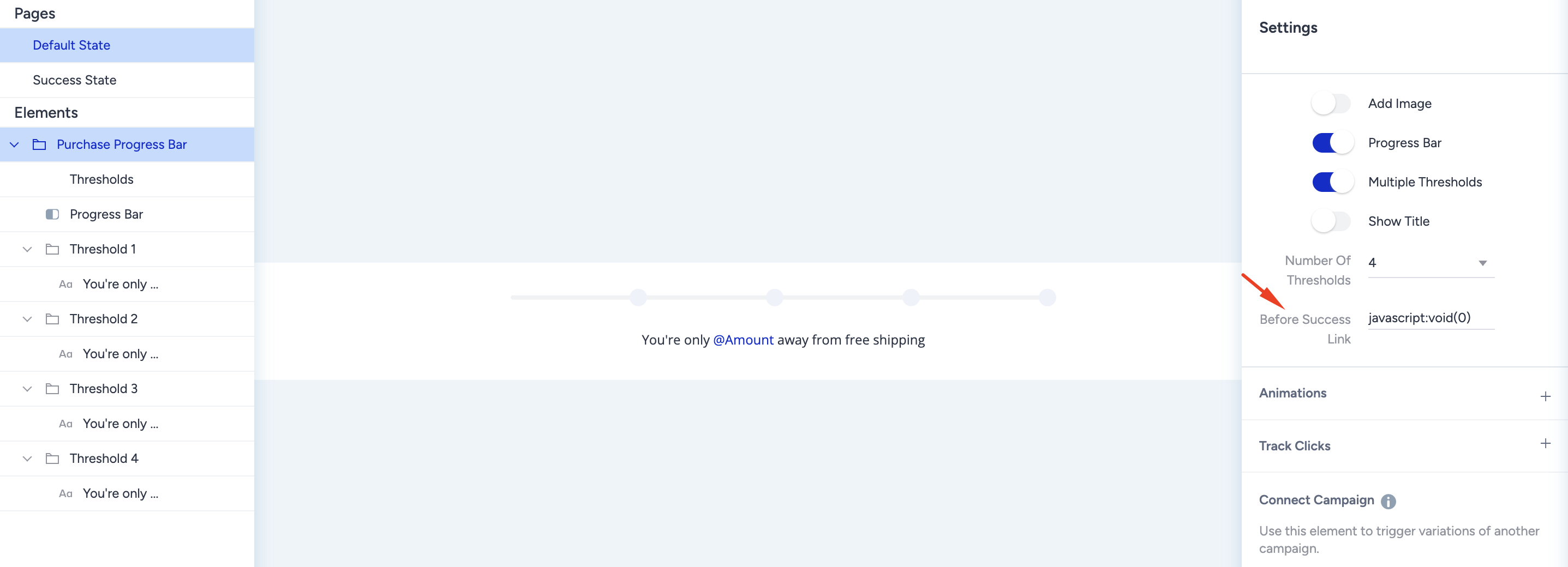
Enter a Before Success Link, the URL visitors go to when they click the bar before they reach the target threshold.
The link a click opens depends on where the visitor is in the journey. Clicks before the target threshold open the URL in Before Success Link. Clicks after the visitor reaches the threshold open the URL in Success Link, which you set in the Success State.
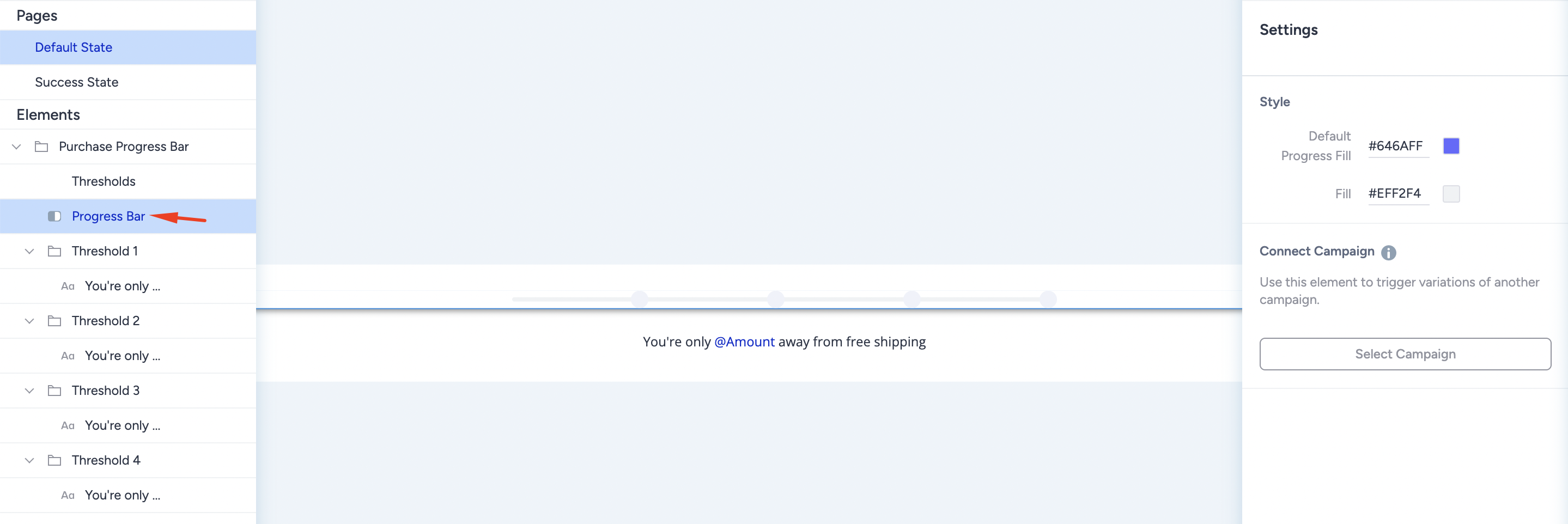
To style the bar itself, select Progress Bar in the Elements list. The style settings include the color the bar turns once it fills, which is what makes progress readable at a glance.
Customize each threshold
When Multiple Thresholds is on, every milestone appears in the Elements list as its own folder, from Threshold 1 to Threshold 4, each with its own text element. Edit them one by one so the message matches the stage the visitor is at.
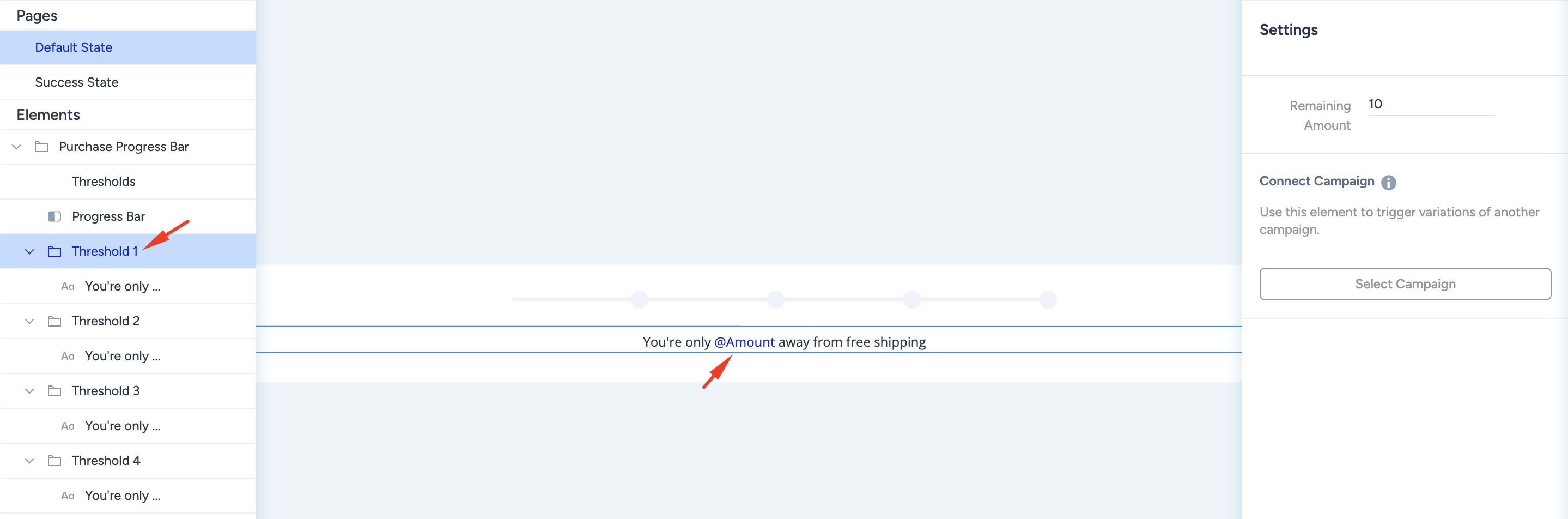
For each threshold, set the following:
The remaining amount that triggers the threshold.
The sentence visitors see when they reach it.
The remaining amount they still need to reach the next one.
Use the @Amount placeholder to pull the remaining value into the copy, as in "You're only @Amount away from free shipping." The placeholder updates automatically, so you write the sentence once, and it stays accurate for every cart value.
Edit the Success State
Select Success State in the Pages list to edit what visitors see after they pass the final threshold. This page holds the Success Threshold, the Progress Bar, and the text element that carries your reward message, for example, "You've earned free shipping for this purchase."
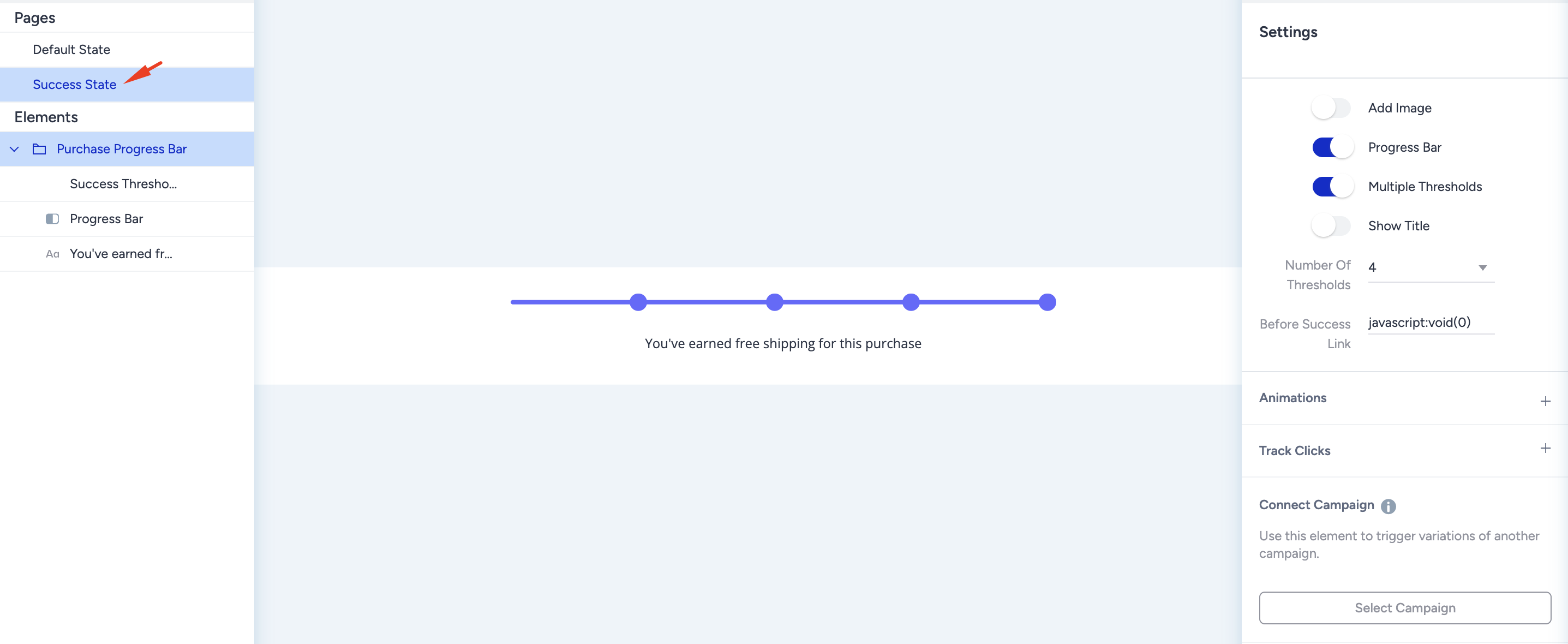
Write that message, then add the Success Link, the URL visitors go to when they click the completed bar. A link to the cart or checkout page keeps the momentum going while the reward is fresh.
Once both states are ready, preview the template on the Preview tab to check every threshold message, then select Save.