XML catalog integration, also known as syncing your product feed or inventory automatically via XML, is the method for ingesting your product catalog into Insider One by providing an XML feed URL that Insider One fetches on a defined schedule. As your feed updates, Insider One re-fetches it and applies the changes to your catalog, keeping product data, pricing, and availability current without manual uploads.
How product information is collected
With XML integration, product information is collected directly from an XML file that you host. This file contains structured product data with all the attributes Insider One needs to deliver accurate and up-to-date campaigns. Insider One periodically fetches the XML file from the provided source URL and automatically updates the Product Catalog based on the latest data.
Each XML file must include a primary product element (for example, <item> or <product>), with nested tags that define product details such as item ID, title, price, stock status, and category. During setup, these tags are mapped to Insider One’s product attributes so the system can correctly interpret and process your catalog.
Insider One supports multiple XML formats to accommodate different catalog structures:
Criteo XML Format
Designed for advertisers and retailers already exporting product data to Criteo. This format uses a standardized tag structure, enabling faster setup and attribute mapping.
Google Merchant XML Format
Commonly used by ecommerce businesses integrated with Google Merchant Center. Insider One can automatically recognize and map attributes that follow Google’s catalog conventions.
Custom XML Format
Provides full flexibility to define your own XML structure and tags. This option is ideal if your catalog includes unique data points or custom fields. Each tag can be manually mapped to the corresponding product attribute in Insider One.
Using XML integration allows Insider One to continuously collect, process, and refresh your product data with minimal operational effort.
Requirements before starting
Before starting your XML integration, ensure the following prerequisites are met:
Plan product attributes in advance
Identify all default and custom product attributes required for your selected Product Catalog Feed type. Create any necessary custom attributes from the Product Attributes page before integration.
Prepare a complete XML file
Your XML must include all required attributes for your feed type. Missing required attributes may prevent the catalog from being processed correctly.
Host the XML at a stable URL
Insider One retrieves product data from the source URL you provide. The XML file must be continuously accessible and reliably hosted.
Validate XML structure
Ensure your XML follows a consistent and well-formed structure. Each product entry should include an item ID, title, price, stock information, and any other attributes required by your feed type.
Make sure your XML file includes a supported number of currencies
You can include up to 25 distinct currency codes in a single XML file.
Meeting these requirements ensures a smooth XML integration and reliable synchronization of your Product Catalog with Insider One.
Step-by-step integration
Follow the steps below to integrate your XML Product Catalog with Insider One.
1. Plan your product attributes
Begin by reviewing the default product attributes and deciding which to use.
Review the required product attributes for your selected Product Catalog Feed Type. You can find the full list in the Product Attributes article.
Review your existing XML file and verify whether each required attribute is already included.
Identify any custom product attributes you will need in addition to the default ones.
2. Create Custom Product Attributes
Before enabling the XML integration, create all required custom attributes.
Navigate to Components > Product Catalog Management > Product Attributes.
Create the custom product attributes identified in the previous step.
3. Enable XML Integration
Navigate to Components > Product Catalog Management > Catalog Settings.
Open the Integration Settings tab.
Select XML as the integration method and click Save.
4. Navigate to the XML Integration page
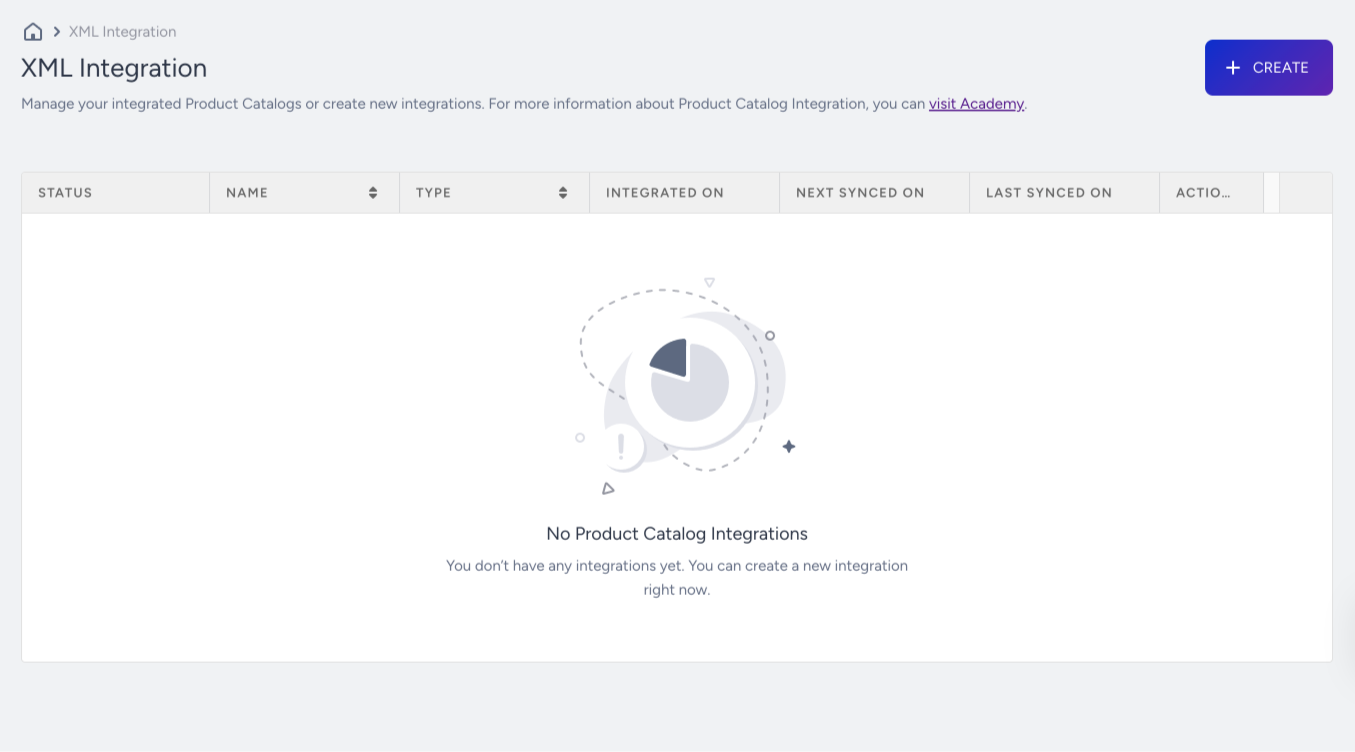
Go to Components > Product Catalog Management > XML Integration.
5. Create a new integration
Click Create to start a new XML integration.
Enter a clear and descriptive name (for example, Product Catalog – EN – 2023).
Select the appropriate XML format type.

6. Set up Source URL and Locale
Enter the source URL where the XML file is hosted.
Select the locale for the Product Catalog.
If you manage multiple locales or stores, create separate XML integrations for each one.
7. Define product tags
Product tags identify the XML element that represents a product record.
Specify the tag used to define a product block (for example, <item> or <product>).
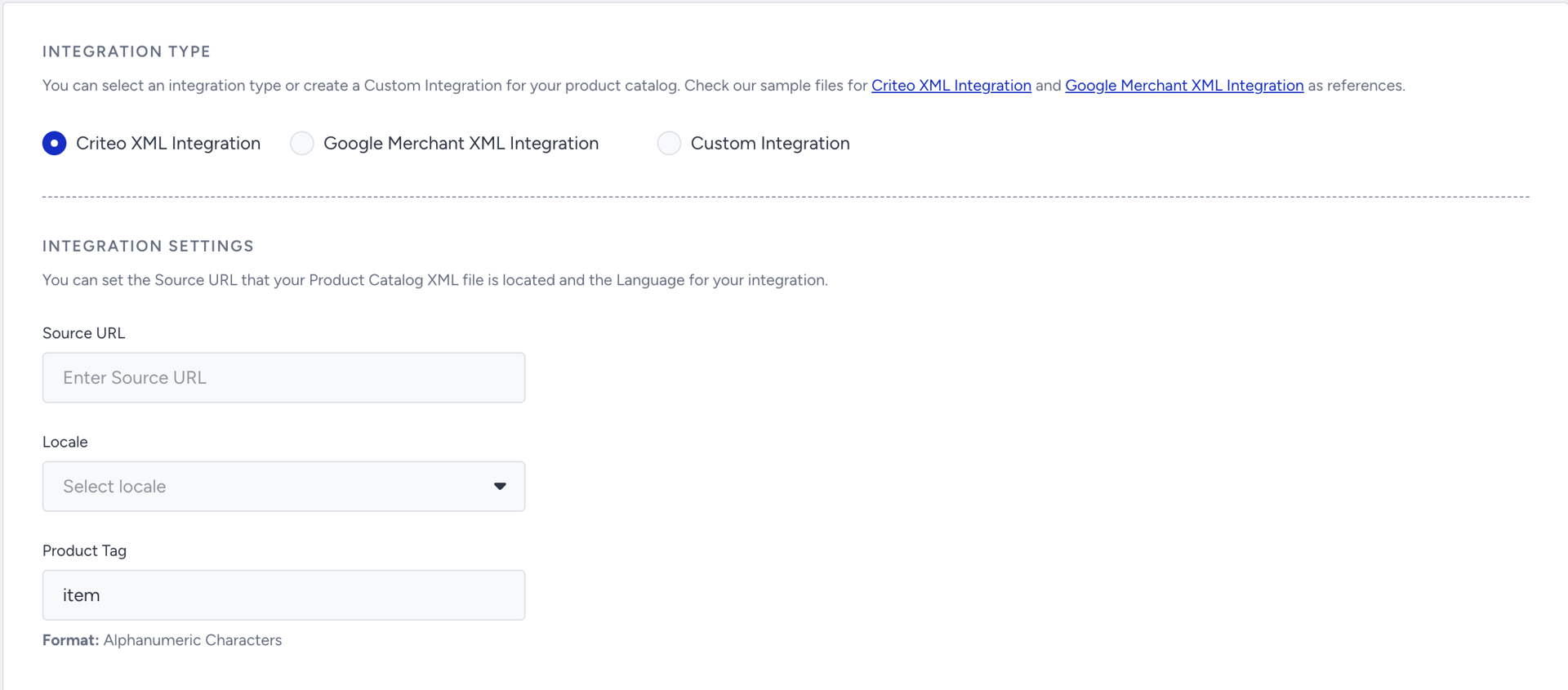
Ensure the selected tag clearly encapsulates all product-related fields so they can be parsed correctly.
8. Match Product Attributes
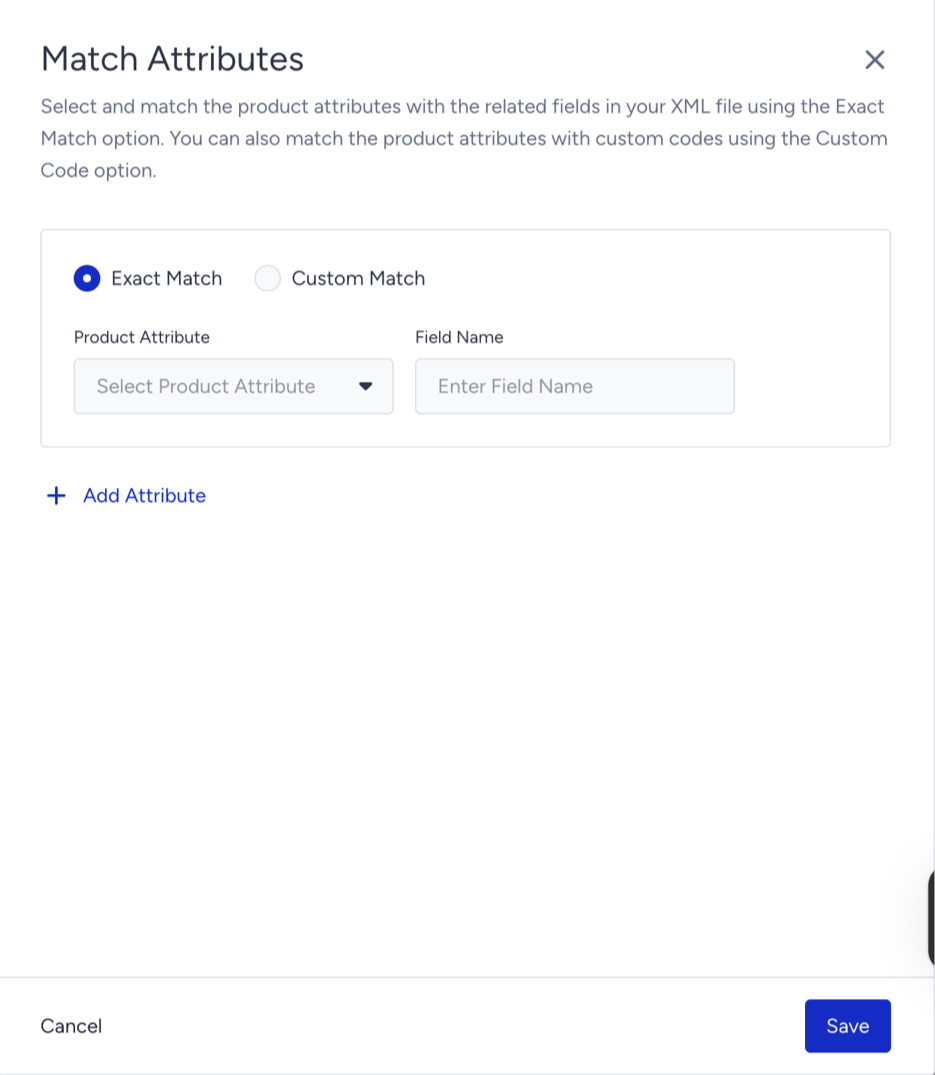
Before activating the integration, map XML fields to Insider One product attributes.
Exact Match: Use when the XML field name directly matches an Insider One attribute.
Custom Match: Use when the XML field does not match a predefined attribute. In this case, define a custom JavaScript expression to map the XML field to a custom product attribute in Insider One.
Custom Match Examples:
Attribute | XML | Custom Match JavaScript |
|---|---|---|
in_stock | <g:availability>in_stock</g:availability> | obj => obj["g:availability"] == "in_stock" ? 1 : 0 |
price | <g:price>133 USD</g:price> | obj => obj["g:price"].split(" ")[0] |
category | <g:google_product_category>Home & Garden > Decor > Clocks</g:google_product_category> | obj => obj["g:google_product_category"].split(" > ") |
Best practices for Custom Match expressions
Custom Match uses a JavaScript expression to transform an XML field into the value required by a product attribute.
When creating an expression:
Reference only fields and variables available within the expression.
Declare any local variables you introduce with const or let.
Check that optional XML fields have values before using methods such as split(), trim(), or toLowerCase().
Return a value compatible with the mapped product attribute’s data type.
Avoid references to global variables, page scripts, or values defined outside the expression.
Keep each expression focused on transforming one mapped attribute.
Example:
obj => {
  const price = obj["g:price"];

  return price ? price.split(" ")[0] : null;
}
9. Set synchronization period
Choose how often you want to fetch the latest XML file and update the product catalog. The synchronization interval can be set between 1 hour and 5 days. Make sure this matches the frequency at which your internal XML file is updated.

XML integrations work with scheduled synchronization windows, and product catalog changes are applied on the next sync cycle, not instantly.
After configuring all the settings, click Save and Activate to make the integration live.
Out-of-Stock Management
When configuring XML integration, you can control how Insider One handles products missing from your XML file with the Send Only In Stock Products toggle.
Toggle disabled (default)
Insider One updates each product in the XML file with the stock status in the file. Products not in the file keep their existing stock status in Insider One.
Toggle enabled
Insider One updates each product in the XML file with the stock status in the file, and marks any products not in the file as out of stock. This lets you send only your in-stock products instead of your full catalog.

Products you include in the XML file as out of stock are still updated as out of stock, whichever option you choose.
Remove or clear attribute values
Removing an optional attribute from your XML feed doesn’t delete the attribute or clear its stored value in Insider One. The product keeps its last stored value.
To clear the stored value of an optional string attribute that accepts empty values, keep its XML field in the feed and keep the corresponding product attribute mapping. Send the field with an empty value. Don’t use this method for required attributes, price, or currency.
When you change the attributes in your feed, review the corresponding product attribute mappings. If a mapping uses a Custom Match expression, make sure it handles missing or empty fields before calling methods such as split(), trim(), or toLowerCase(). To clear a value, the expression must return an empty string rather than a fallback value.
XML feed changes are not applied immediately. After the next successful scheduled synchronization, check the affected products in Catalog Manager and compare their stored attribute values with your updated feed. Review any campaigns that use the changed attributes before relying on the updated data.
Manage XML Integrations
Once your XML integration is live, you can manage it from Components > Product Catalog Management > XML Integration.
You can perform the following actions:
View Integration Details: Review the source URL, locale settings, and the list of mapped product attributes.
Edit Integration: Open the integration in edit mode to update configuration details as needed.
Activate or Deactivate Integration: Enable or disable an integration as needed. By default, newly created integrations are set to Active. You can switch an integration to Passive at any time to prevent it from affecting the Product Catalog.
Before you save an edit, review all existing Custom Match expressions, not just the ones you’re changing. Check each one against your current feed and follow the guidance in Best practices for Custom Match expressions, including its example of checking for a missing field before calling split().
Only one XML integration can be active per locale or store at a time. Additional integrations can remain passive for future use.
Validation and Error Handling
To prevent invalid or incomplete data from entering the system, Insider One applies an XML validation process. Before activating a new XML integration or modifying an existing one, the XML file must be successfully validated.
Validation Statuses:
Active: The integration is active, and the XML file is being processed.
Passive: The integration is inactive but can still be edited and validated.
Validation Pending: The XML file is currently undergoing validation.
Ready to Activate: Validation completed successfully and the integration can be activated.
Validation Failed: Errors were detected in the XML file. These issues must be resolved before activation.
System Error: A system-level issue prevented validation. Contact the Insider One team if this status persists.
After changing your XML feed, check the affected products in Catalog Manager after the next successful scheduled synchronization to verify their stored attribute values.
You can also refer to the video below to learn how to integrate the Product Catalog using XML:
If this video does not load in your region, you can watch it on our YouTube Channel.
Key considerations
Multiple XML Integrations: You can create multiple XML integrations per locale or store, but only one can be active at a time.
Synchronization Frequency: Choose a synchronization interval that matches the update frequency of your product data.
Missing Required Fields: Products missing required attributes (such as item_id or in_stock) are ignored during processing.
Custom Attributes: All custom product attributes must be created and configured in the Product Attributes section before they can be used in XML mappings.
Currency limit: You can include up to 25 distinct currency codes in a single XML file.
Removing an attribute doesn’t clear its stored value: If you remove an optional attribute from your XML feed, the product keeps its last stored value. To clear an optional string attribute that accepts empty values, keep its field in the feed and its corresponding product attribute mapping, and send the field with an empty value.
XML integration provides a scalable and reliable way to keep your Product Catalog synchronized with Smart Recommender. By supporting automated updates, flexible data structures, and multi-locale setups, it ensures users consistently receive accurate and personalized product recommendations.
If your XML source URL is protected by a firewall, WAF, IP restriction, or bot protection, allowlist Insider One’s XML feed-fetcher IP addresses. Ensure the URL returns the XML file without authentication, CAPTCHA, or challenge pages.