Shopify Product Catalog Synchronization allows you to connect your existing Shopify store with Insider One so that product data is automatically collected and kept up to date. Once enabled, Insider One continuously synchronizes your Shopify catalog across all Insider One products, including Smart Recommender, ensuring consistent and accurate product information.
How product information is collected
When Shopify synchronization is enabled, Insider establishes a secure server-to-server connection with your Shopify store. Through this connection, Insider collects all existing product data and continues to receive updates as changes occur in Shopify.
Whenever a product is created, updated, or modified in Shopify, Insider automatically receives the updated information. This includes attributes such as product name, description, images, price, stock status, and categories. You can also trigger a full catalog re-sync manually when needed.
Shopify Collections are synchronized in real time. Any changes made to collections are reflected immediately in Insider. As an additional safeguard, all collections are refreshed daily to ensure data accuracy and consistency.
Requirements before starting
Before setting up the Shopify integration, ensure the following requirements are met:
Shopify admin access
You must have administrator-level access to your Shopify store to activate and configure the integration.
Product attribute planning
Review your product attributes in advance. Identify which default and custom attributes you will use, and create any required custom product attributes in the Product Attributes section before enabling synchronization.
Avoid duplicate catalog sources
If product data is already being collected through another integration method, contact Insider before activating Shopify synchronization. Running multiple catalog sources simultaneously can cause data conflicts and unexpected behavior.
Meeting these prerequisites ensures a smooth Shopify integration and reliable synchronization of your Product Catalog with Insider.
Step-by-step integration
1. Enable Shopify Catalog Synchronization
Go to Components > Integrations > External Integrations > Shopify Integration page on the Insider’s InOne panel.
Check the Sync Shopify Product Catalog to Insider via Shopify API box.
Activate or update the integration to begin syncing.
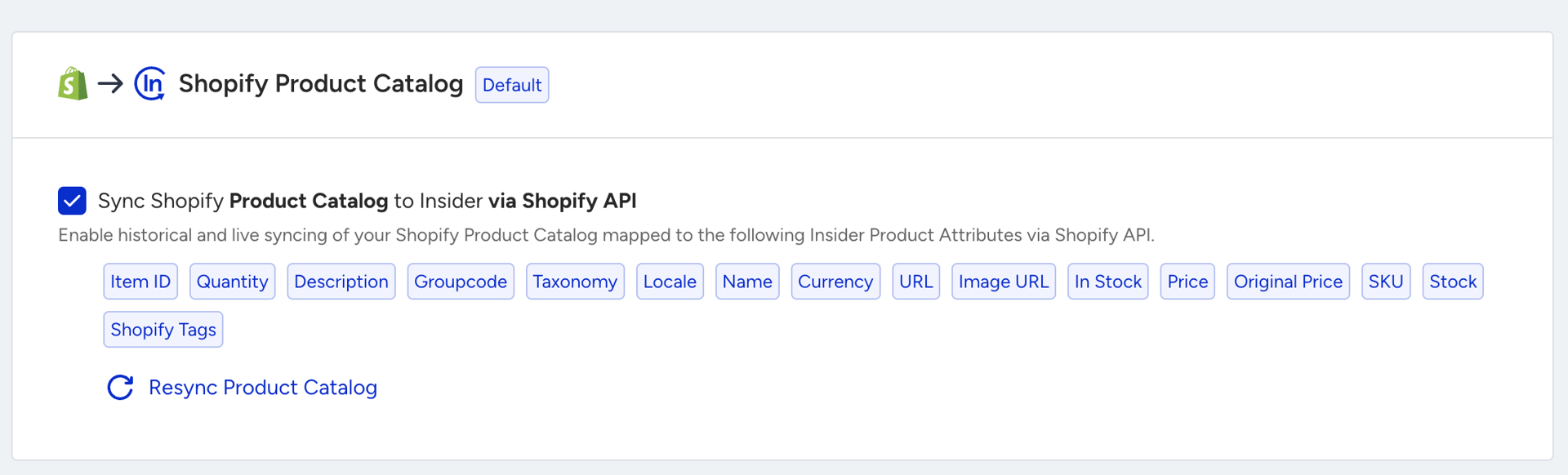
Once the sync begins, Insider One starts collecting your product catalog data automatically. The first synchronization may take time to complete, depending on the size of your catalog. After it starts, the process cannot be stopped.
If needed, you can use the Resync Product Catalog button later to refresh all product data.
Insider collects key product details from Shopify by default, including:
Shopify Field | Insider One Attribute |
|---|---|
variant.id | Item ID |
title | Name |
body_html | Description |
handle | URL |
images.src | Image URL |
product_id | Groupcode |
product_type | Product Type |
collections | Category |
variants.price | Price |
variants.compare_at_price | Original Price |
inventory_quantity | Stock |
sku | SKU |
default store currency | Currency |
language_country | Locale |
2. Synchronize product categories
By default, Insider One maps your Shopify Collections to the Category field in your catalog. This mapping helps you use those collections in Smart Recommender or Eureka campaigns.
You can change this mapping to another Shopify field, such as Tags, Product Type, or Product Metafields.
If your category fields are longer than 1024 characters, you can map your categories to Tags attribute. This field cannot be used in Recommendation Strategy filters.
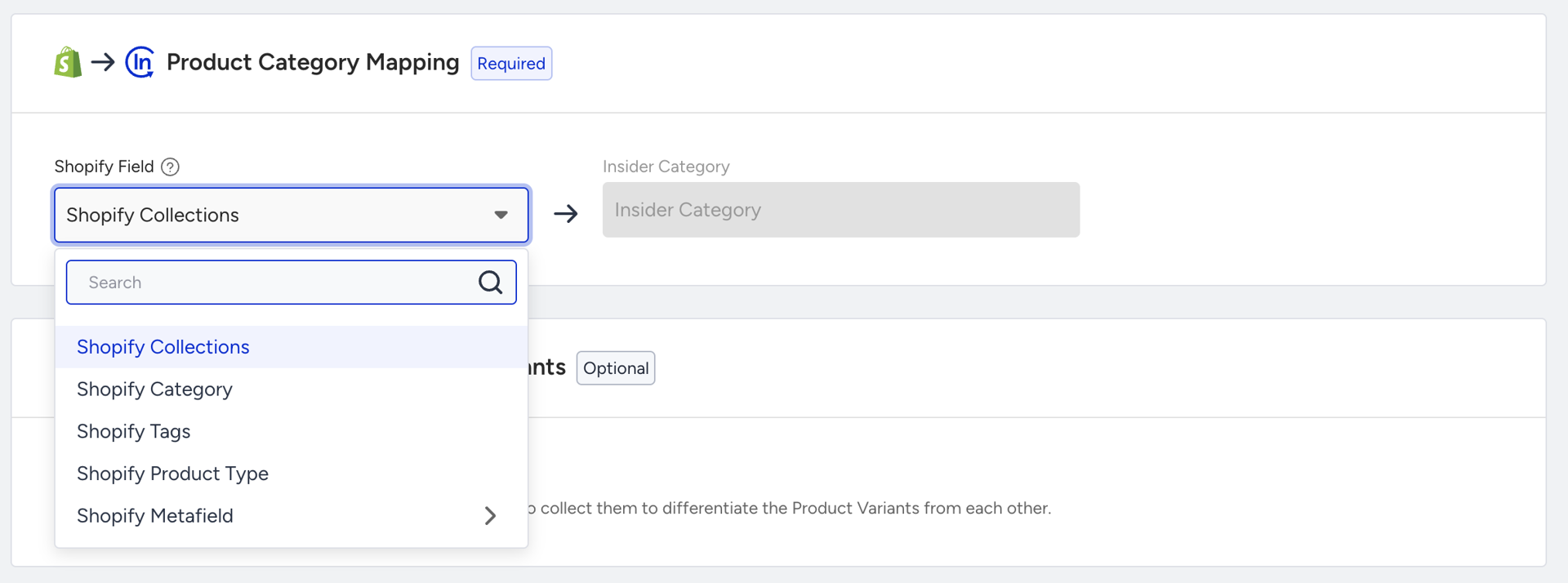
If you choose a different field for category mapping, make sure to update the taxonomy configuration in your Insider One setup so that categories are pulled from the correct source.
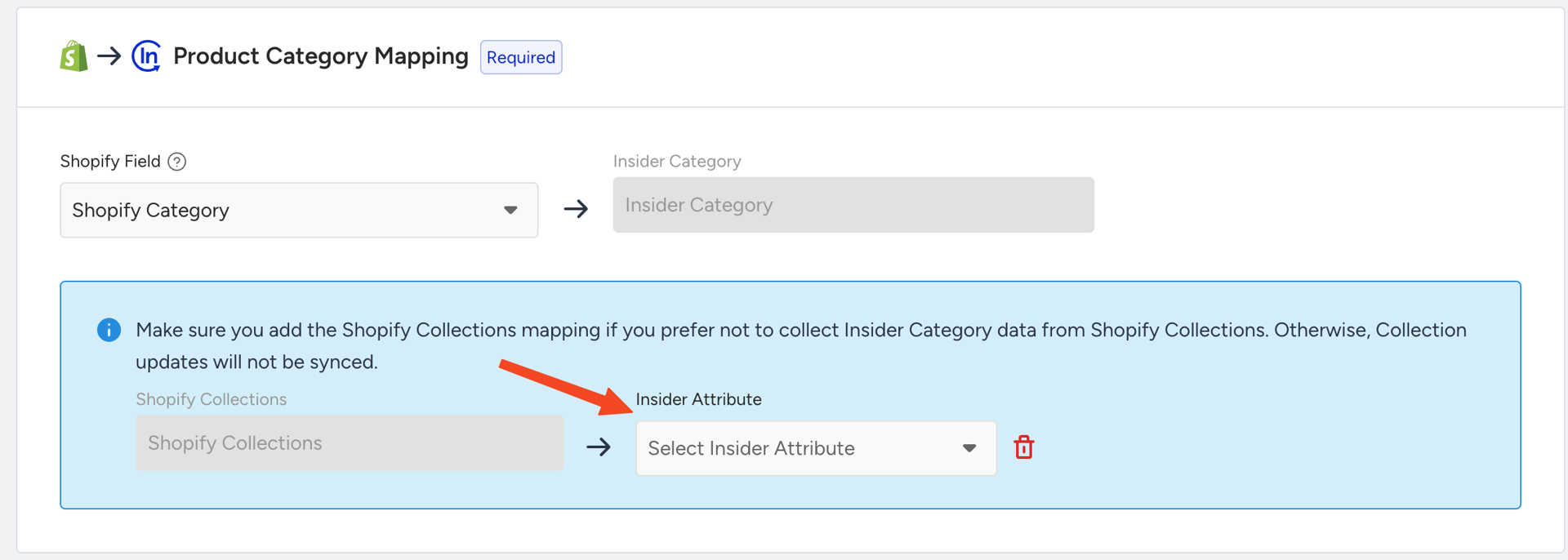
3. Synchronize Shopify product options
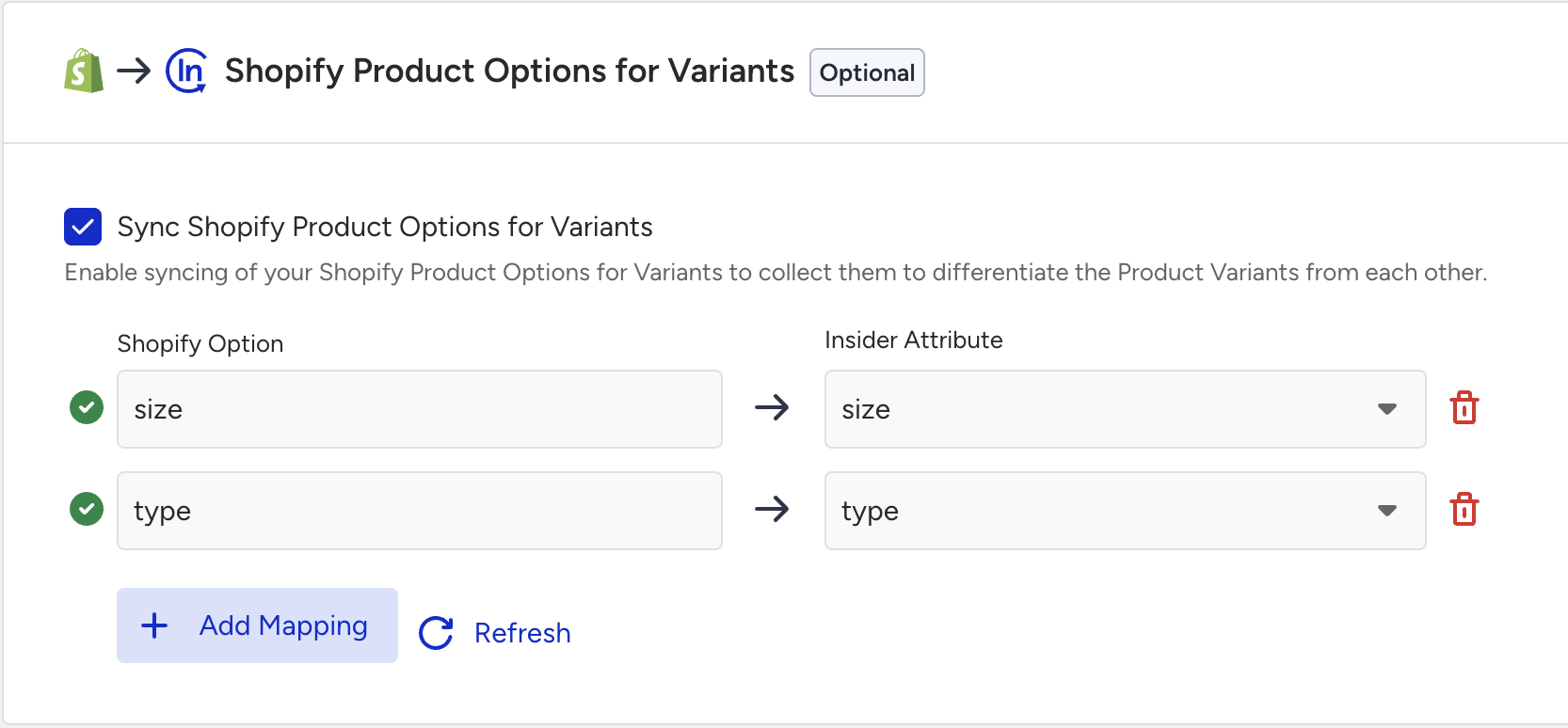
Shopify lets you create product options such as Size or Color. To use these in Insider One:
Go to Components > Product Catalog Management > Product Attributes on the Insider’s InOne panel.
Check the existing default attributes or create a custom attribute to map these variants.
Select string as the data type and create the attribute.
Go to the Shopify Integration page and map your Shopify product option to this new attribute.
4. Use Product Metafields
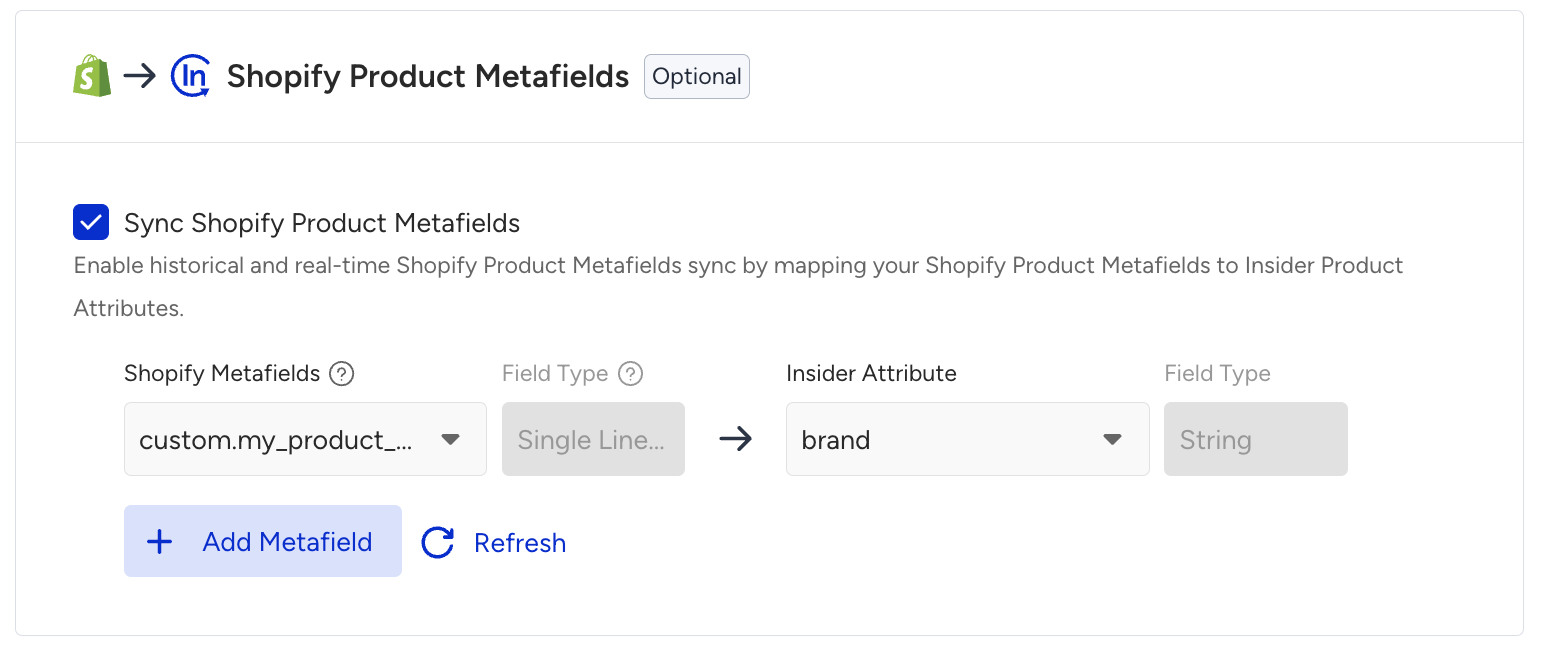
Shopify metafields let you add extra details about products, such as materials, nutritional facts, or custom badges like “New Arrival.” These metafields can also be synced to Insider One.
To send metafield data:
In Shopify, go to Settings > Custom Data > Products and review your metafields.
On the Insider’s InOne panel, go to Components > Product Catalog Management > Product Attributes and create matching custom attributes.
Choose the correct data type for each field while creating. (for example, string, number, or boolean).
Go back to your Shopify integration and map the metafields to your newly created attributes.
Click Update to trigger a historical sync that includes your new metafields.
Key considerations and limitations
When integrating your Shopify store with Insider One, consider the following limitations and operational rules to ensure a stable and accurate catalog setup.
Category limits
A maximum of 100 categories per product can be synchronized. If a product is assigned to more than 100 categories, any additional categories are ignored.
Collections containing more than 25,000 products are excluded from real-time synchronization and are instead updated during the daily historical sync at 08:00 am UTC.
Locale and Currency support
Only the primary locale and primary currency configured in Shopify are synchronized.
To support additional locales or currencies, contact the Insider One team for guidance.
Product updates
Some Shopify updates do not trigger automatic synchronization in Insider. These include:
Bulk edits to Cost per Item
Changes to Unavailable Count
Deleting or updating variant metafields for products without variants
If these changes need to be reflected in Insider One, a manual re-sync may be required.
Option and Metafield mapping
Shopify option names must be entered manually during the initial mapping process.
Option names are case-insensitive, but consistent naming is required to prevent mapping errors.
Only supported metafield types are synchronized. Unsupported metafield types are ignored during import.
Synchronization duration
The initial synchronization of a large product catalog may take a significant amount of time, depending on the catalog size.
Once a synchronization process starts, it cannot be interrupted until completion.
Custom integrations and storefronts
If product data is already being collected through another integration method, consult Insider before enabling Shopify synchronization to avoid data conflicts.
For custom storefronts or Shopify Hydrogen implementations, taxonomy objects may need to be updated manually to ensure correct category mapping.
By understanding and planning for these considerations, you can maintain an accurate, reliable, and fully synchronized Shopify Product Catalog across all Insider One products.