Domain whitelisting adds an additional layer of security by allowing administrators to control which email domains are permitted to access the panel.
It enhances administrators' control over panel access and helps ensure that only trusted domains can access your account.
Only users with the Administrator role can view and manage domain whitelisting; no additional roles or permissions are required.
How Domain Whitelisting works
All email domains currently used by registered users are automatically whitelisted. No action is required for existing users.
The list of allowed domains is visible under the User Management page, along with information about who added the domain and when.
If you remove a domain from the whitelist, all users associated with that domain will immediately lose access to the panel.
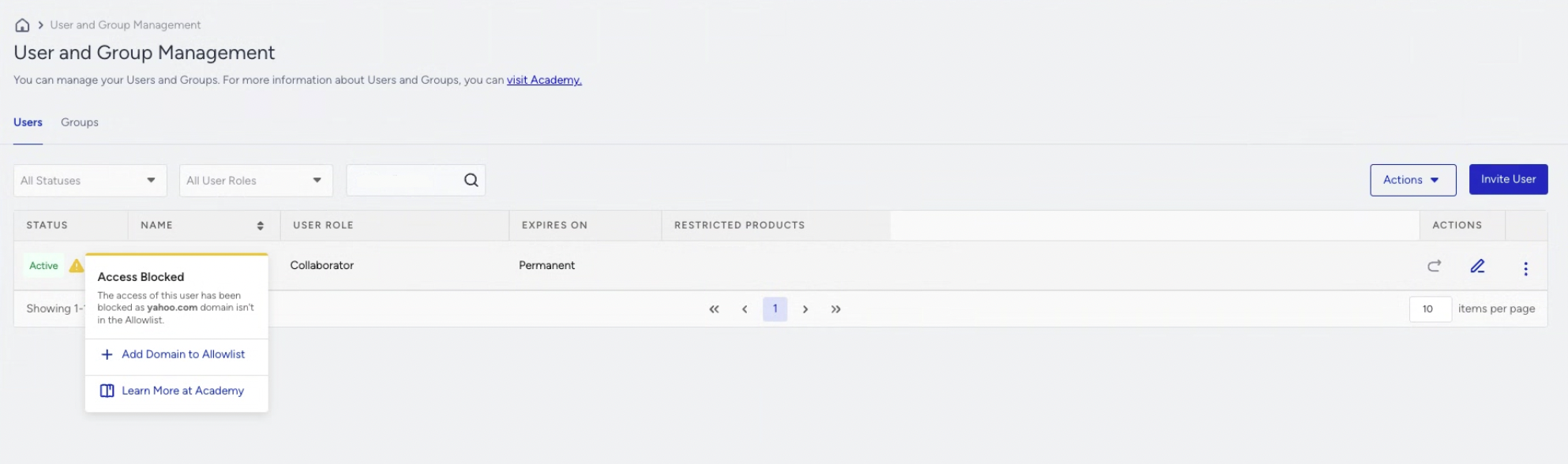
These users will not receive a new status but will see access restriction messages on the User Listing and Panel Selection pages.
If you invite a user with an unlisted domain, you can add the domain to the whitelist during the invitation process.
Manage Domains
Enable Domain Whitelisting
To enable the Domain Whitelisting feature,
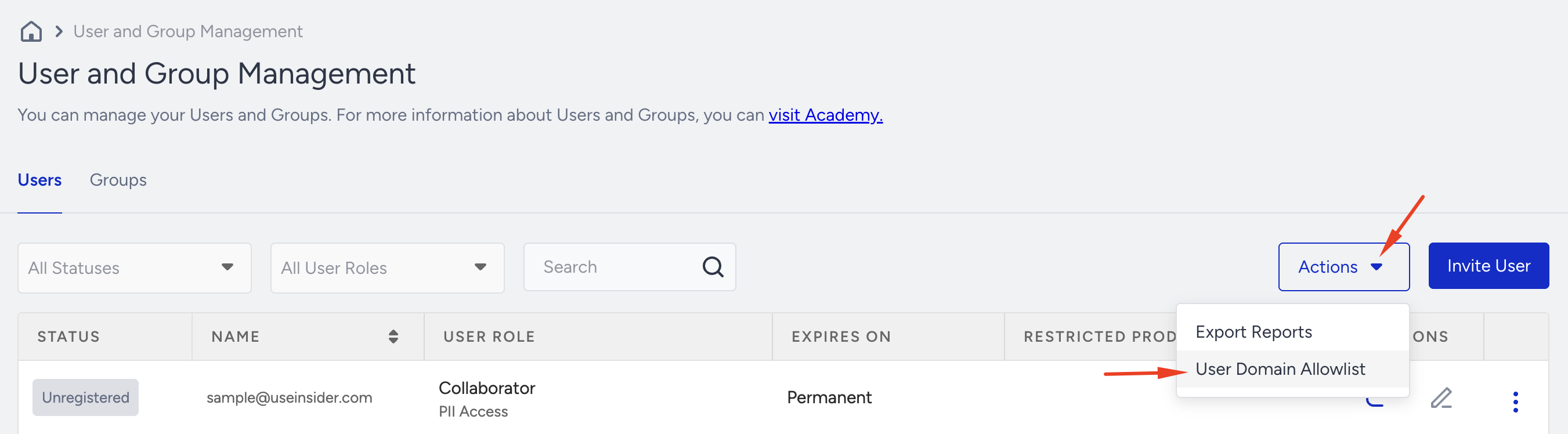
Navigate to Actions > User Domain Allowlist on the User and Group Management page.
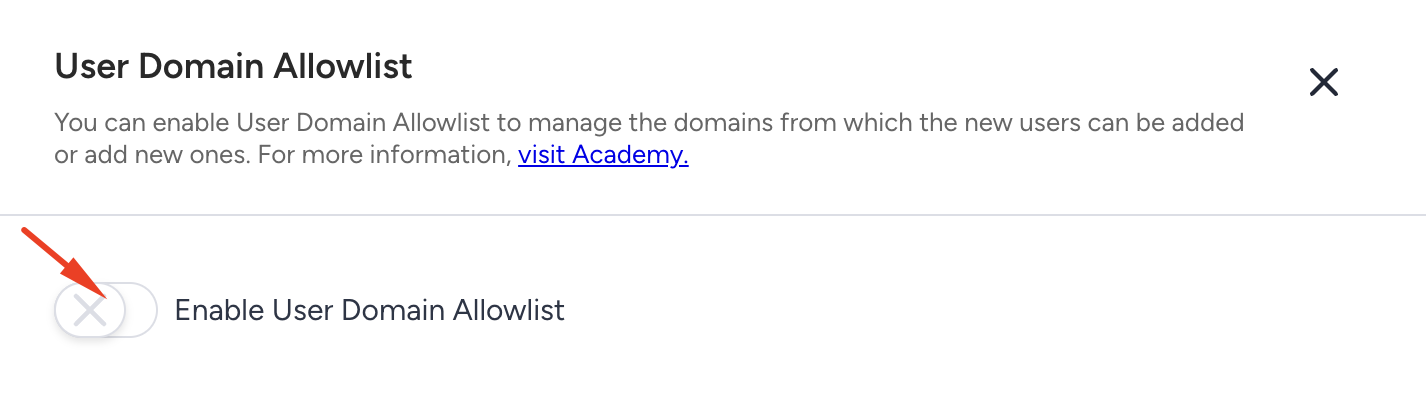
Enable the User Domain Allowlist toggle.
Click the Enable button on the pop-up message.
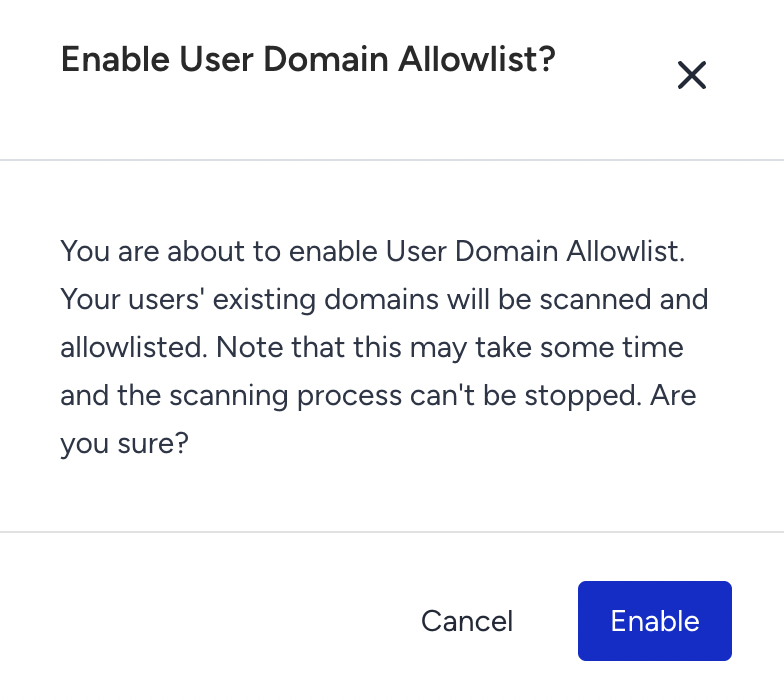
When you enable the allowlist toggle, the system automatically scans all users and email addresses, whitelisting them.
View Whitelisted Domains
Navigate to the User and Group Management page and click the Actions button > User Domain Allowlist to view all currently allowed domains and their details.
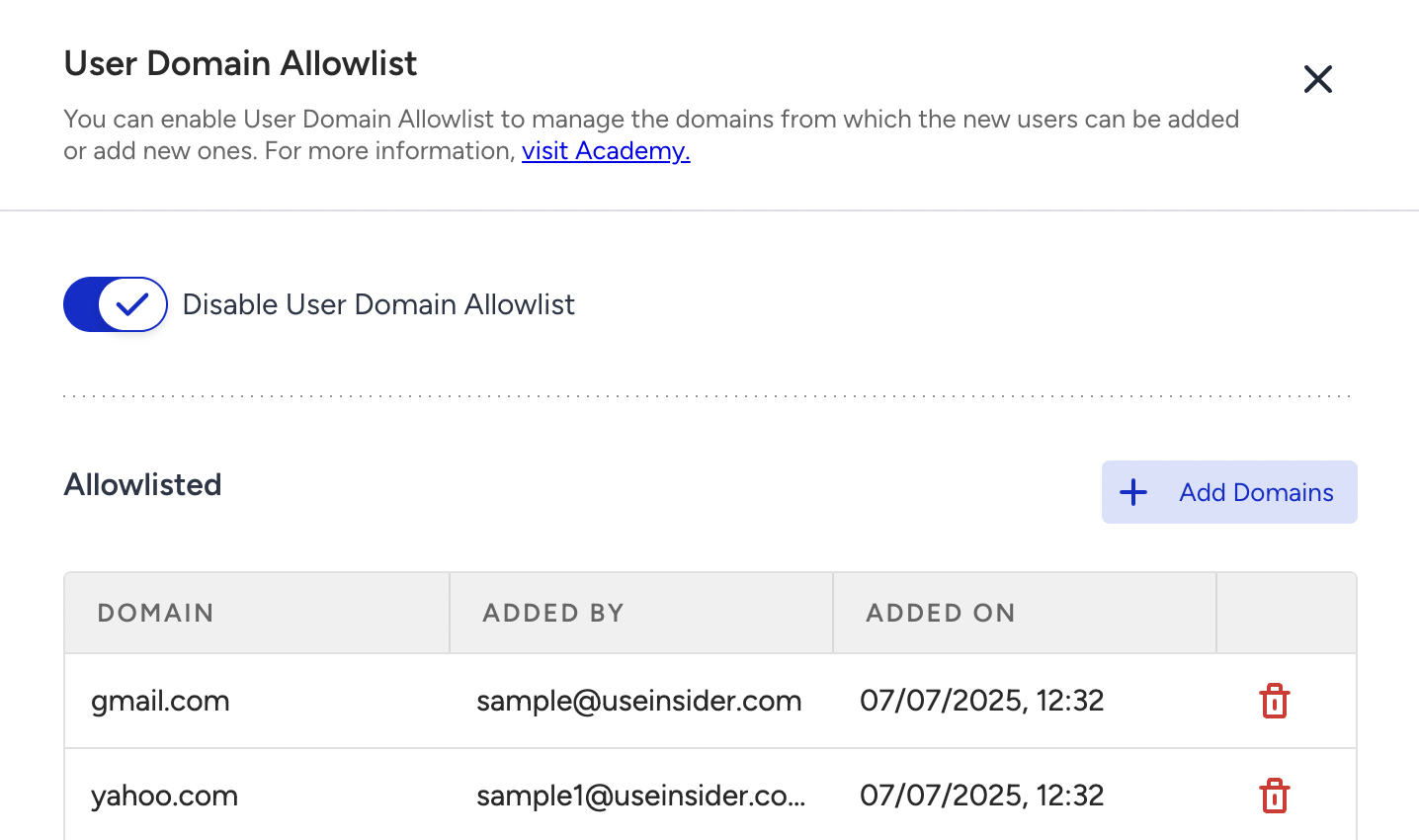
Add a Domain
Administrators can add a domain either manually.
Click the +Add Domain button.
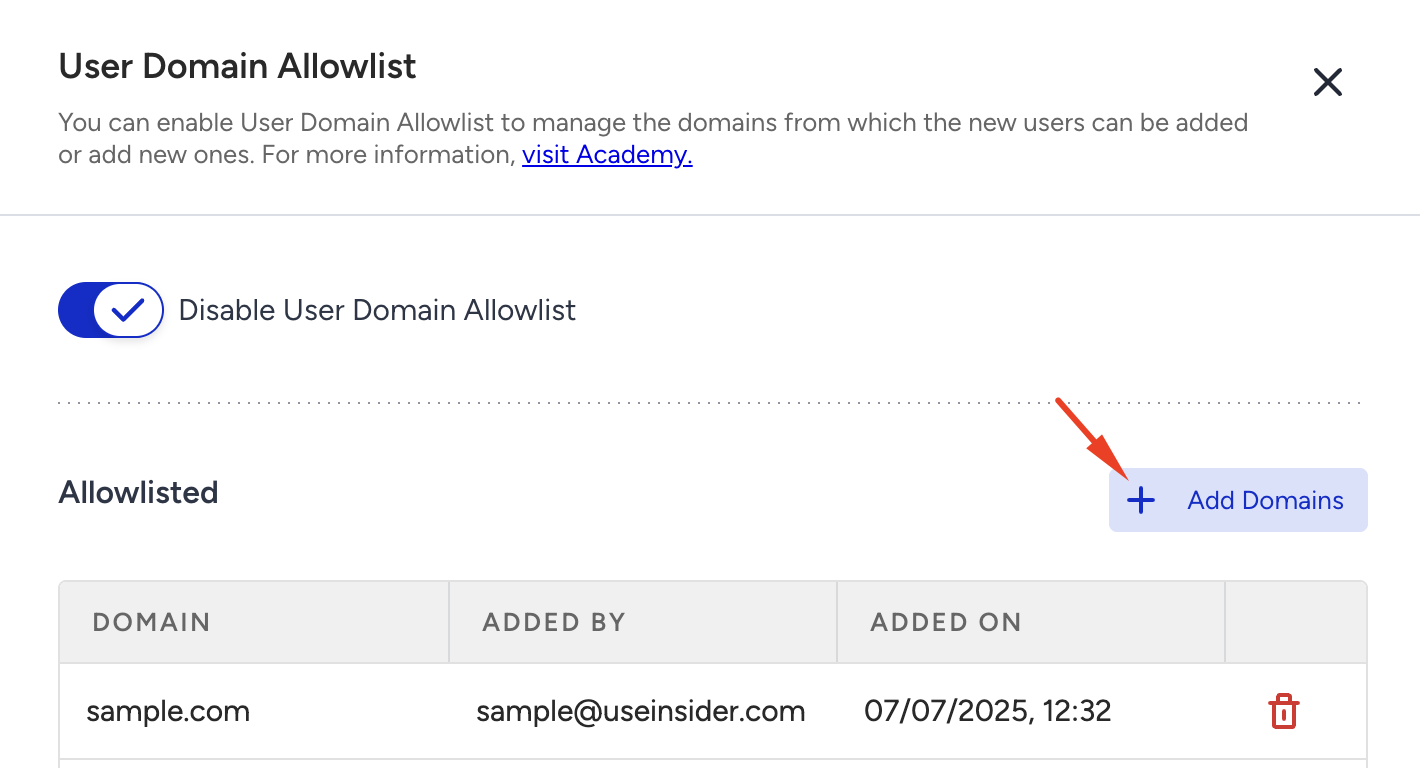
Enter the domain name and click the +Add button.
The domain is also automatically added during the user invite process if the invited email uses a new domain.
Delete a Domain
To remove a domain, simply click the Remove icon next to it.
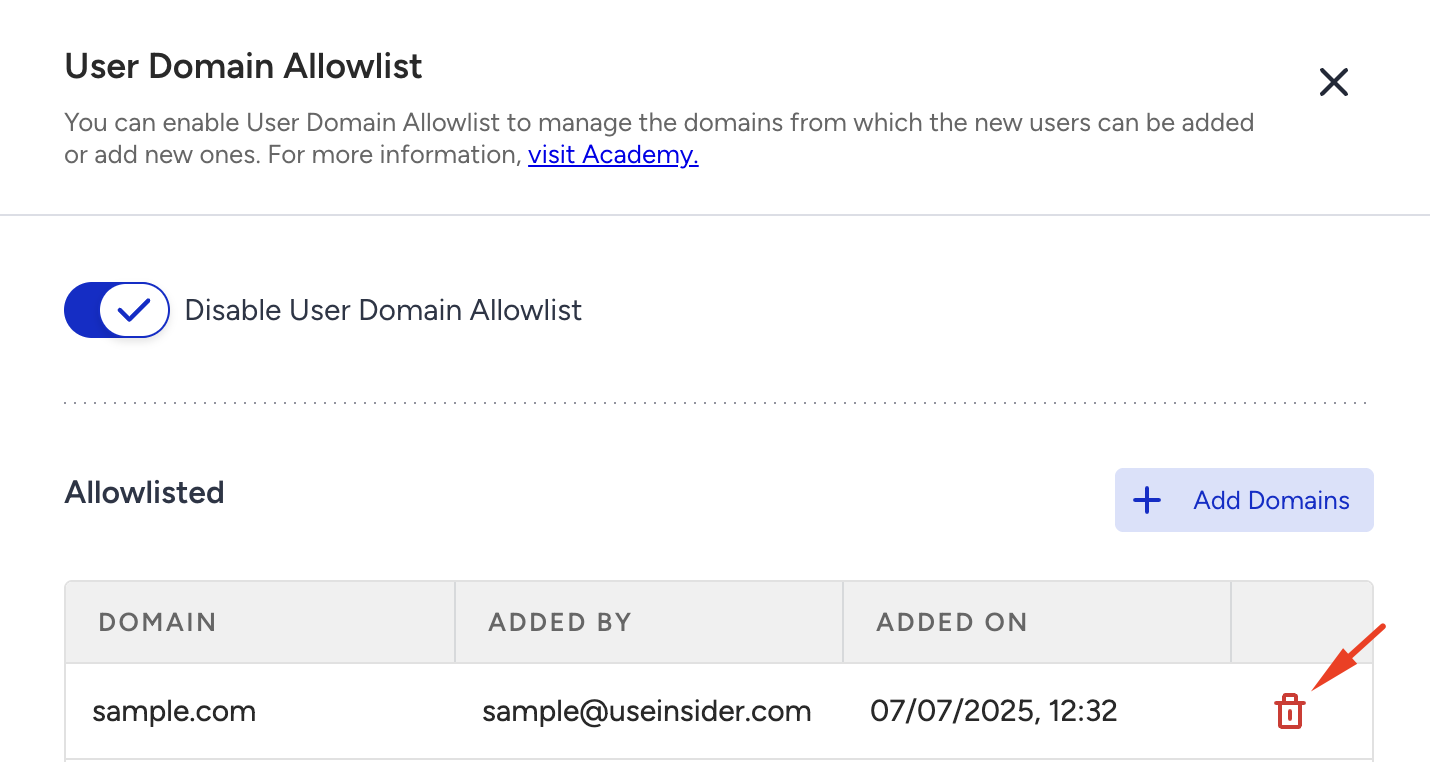
Confirm the pop-up message to delete the domain.
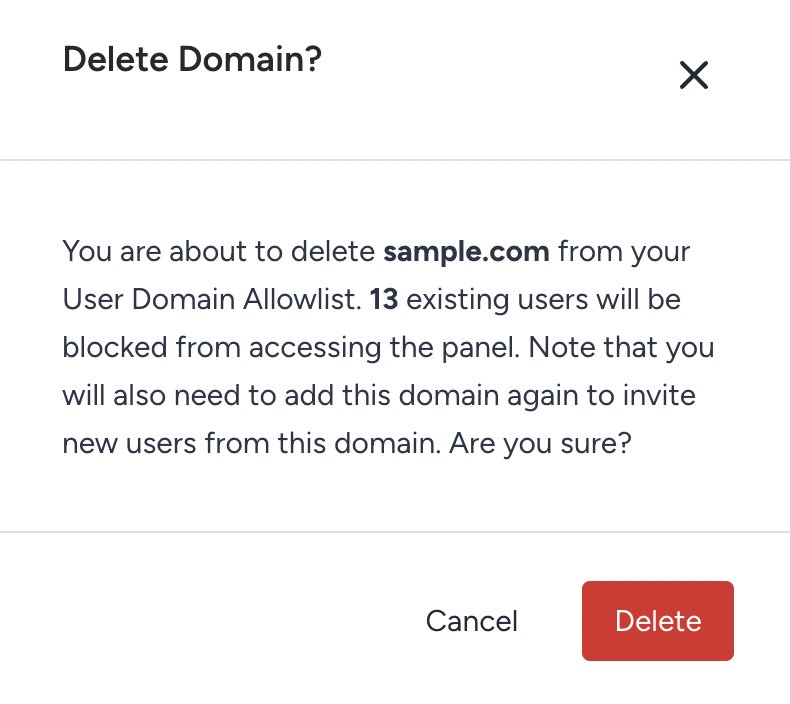
Then, the access for all users under that domain will be immediately revoked.

If a user from that domain tries to log in to the InOne panel, they will see that their access is blocked.
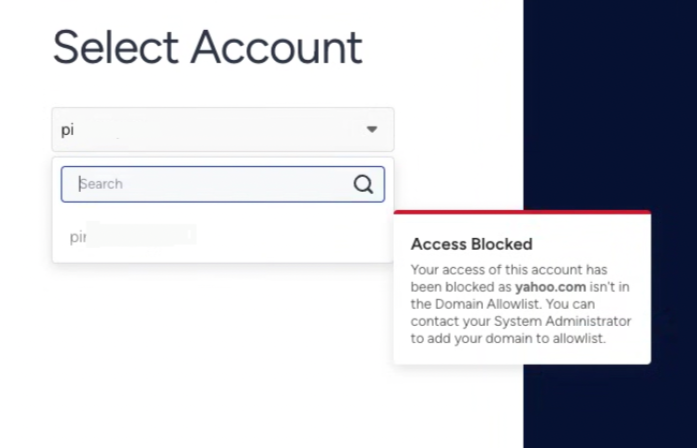
The panel administrator can view blocked users, with a warning next to their names. They can allowlist the domain again if needed.