With Smart Recommender Strategies, you can combine algorithms, filters, exclusions, and boosters into a reusable configuration to create strategies. Once you create and save a strategy, you can apply it across multiple campaigns, eliminating the need to reconfigure recommendation settings each time. You can assign strategies to different campaigns, update strategy-campaign assignments based on business goals, or modify a strategy without changing its campaign assignments.
At the end of this article, you will have learned how to:
- Assign a recommendation strategy to the campaign
- View the details of a recommendation strategy
- Create a strategy directly while creating a campaign
- Update a strategy directly while creating a campaign
- Use the recommendation strategies for your previous campaigns
Assign a Recommendation Strategy to the campaign
To assign a strategy to your campaign:
- Proceed to the Design step while creating your Smart Recommender campaign.
- Click the Recommendation Strategy dropdown to view all available strategies suitable for your campaign. Suitable campaigns mean your campaign page type and strategy’s applicable page types, which are selected while creating the strategy, should match.
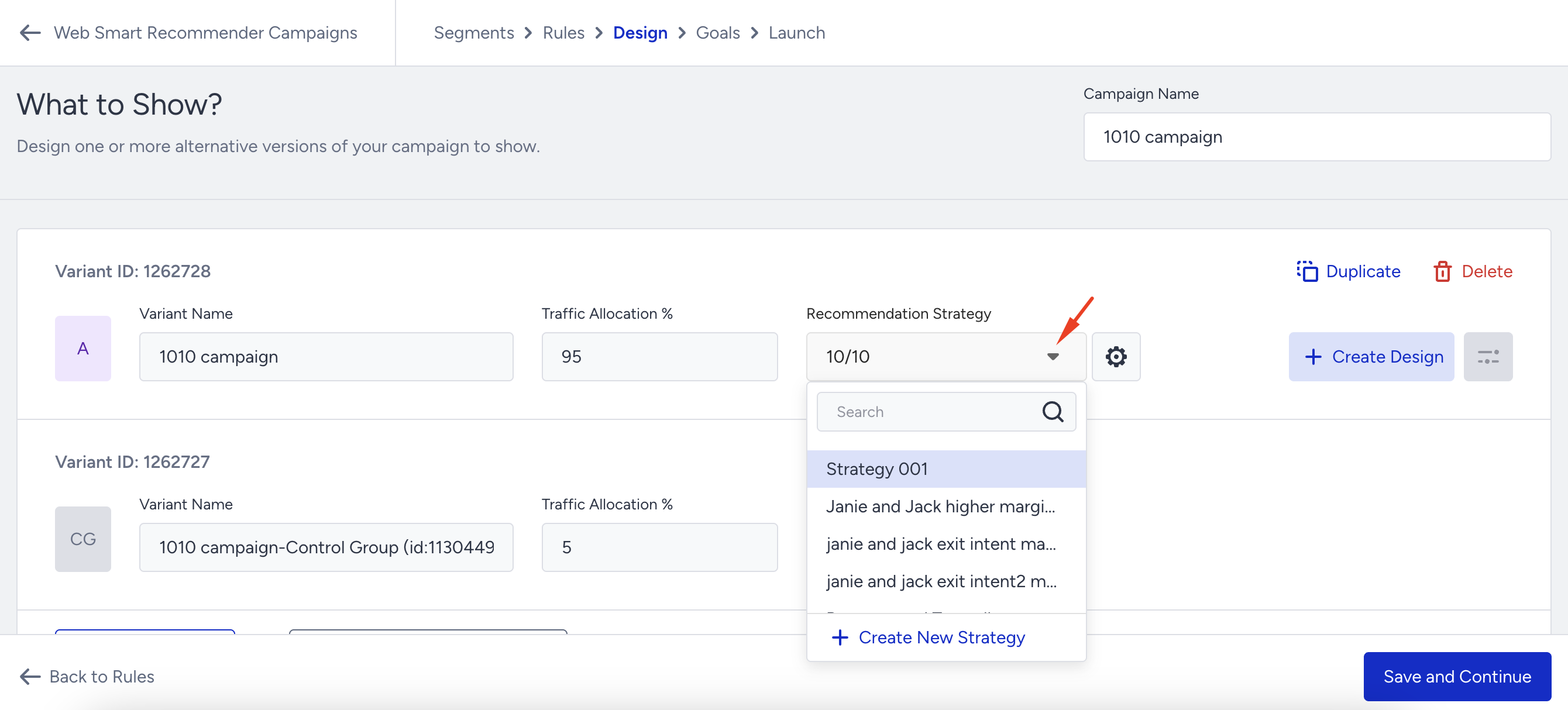
- Select the strategy you want to apply.
- Once selected, your campaign will run with the assigned strategy when launched.
View the details of a Recommendation Strategy
Thanks to the strategy assignment dropdown, you can visualize your strategy details to be sure before activating it in two ways:
1. Strategy overview via selection
In the Design step, hover over any strategy options in the Strategy dropdown and visualize the details as an overview.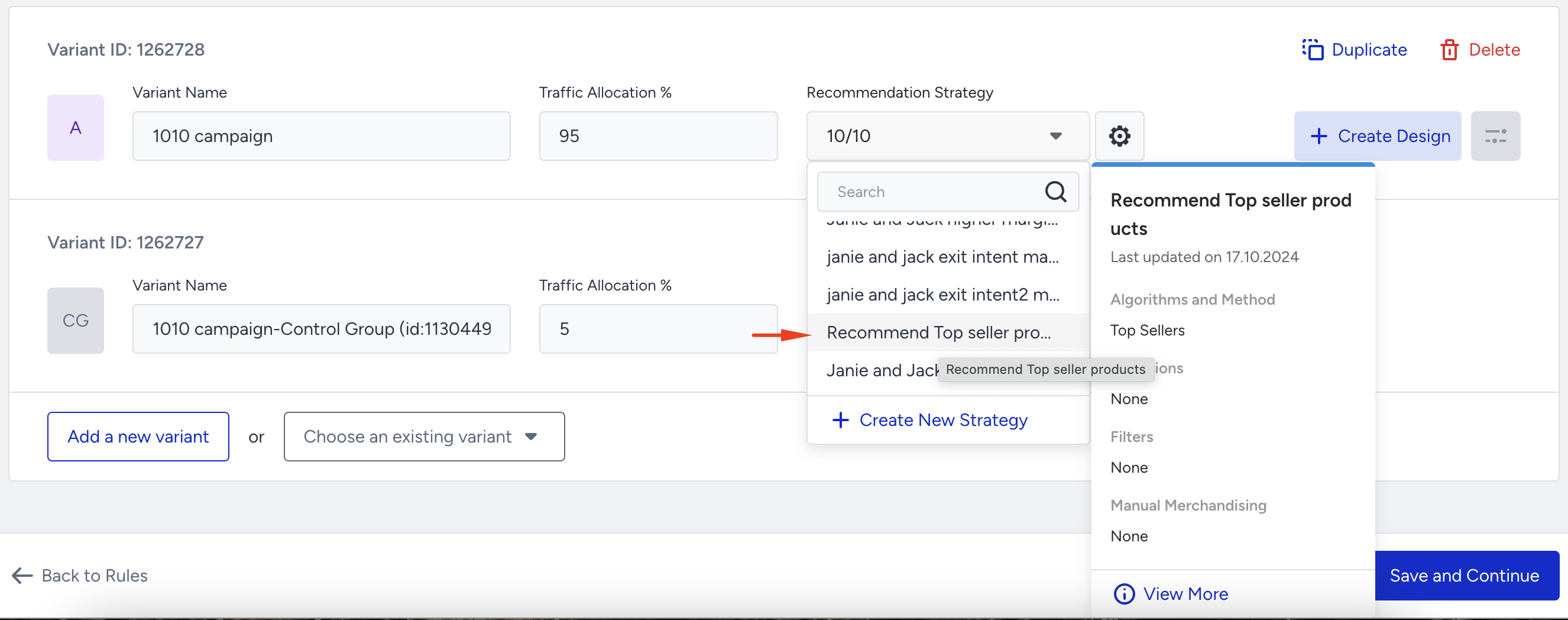
2. Strategy overview via the Manage Recommendation Strategy button
In the Design step, click the Manage Recommendation Strategy button.
Then, you can view the details of your strategy.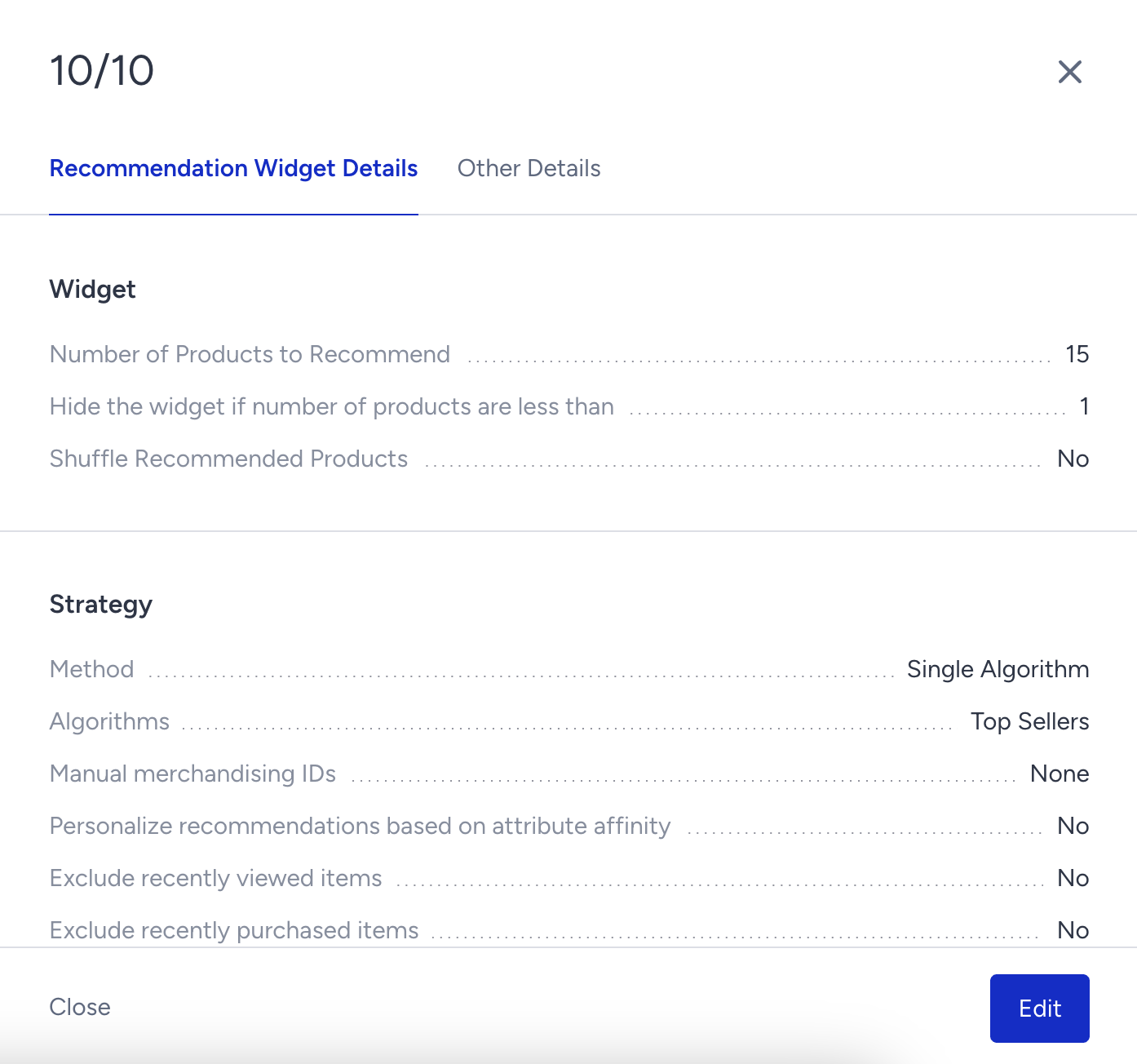
Create a strategy directly while creating a campaign
In the Design step of your Smart Recommender campaign,
- Click the Recommendation Strategy dropdown to view available strategies suitable for your campaign. You also see a Create New Strategy button.
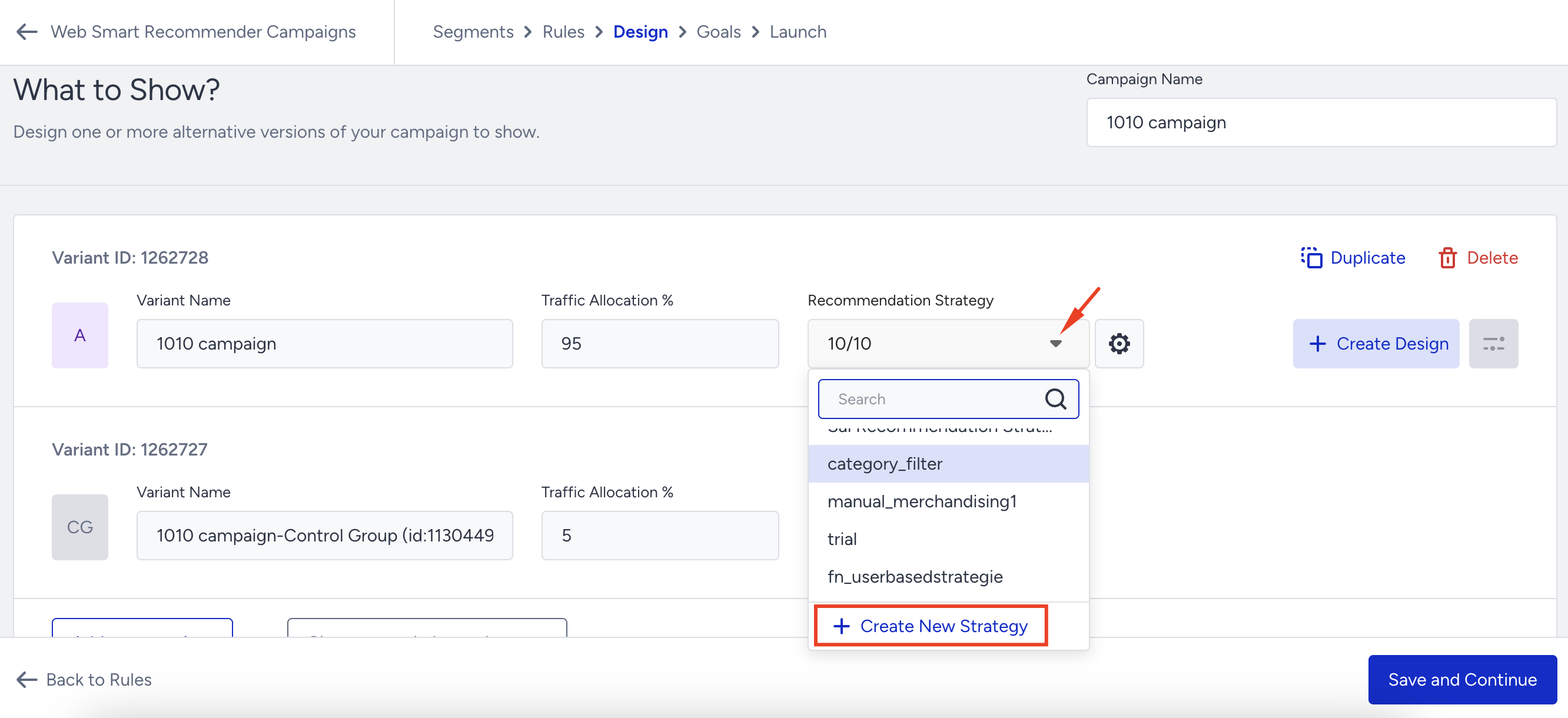
- Click the Create New Strategy button to open the strategy creation editor.
- In the strategy creation editor, select the algorithm you want to use, configure filters and exclusions, and enable any other relevant options if necessary.
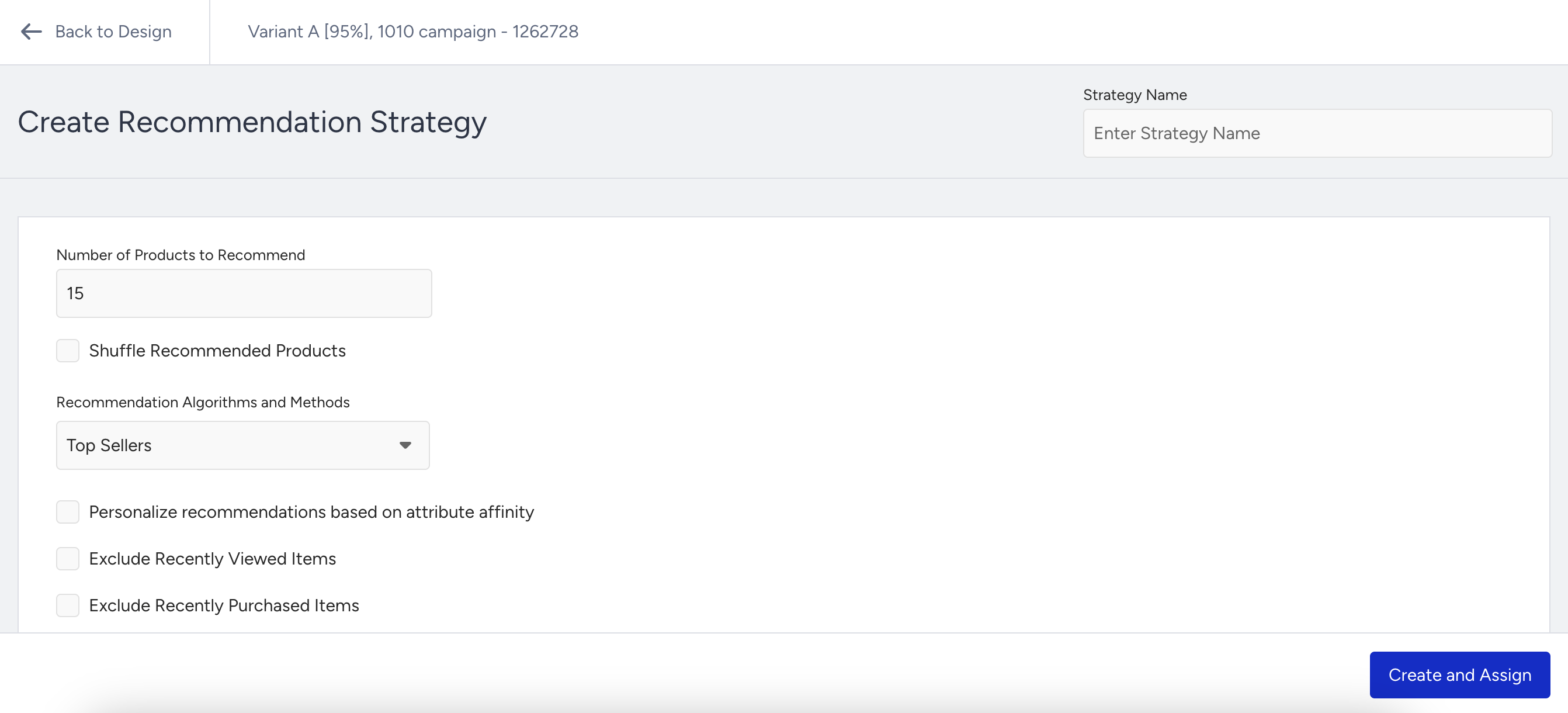
- After configuring your strategy, click the Create and Assign button. This will create and assign the new strategy to your current campaign, making it available for other campaigns.
Update a strategy directly while creating a campaign
In the Design step of your Smart Recommender campaign, click the Manage Recommendation Strategy button.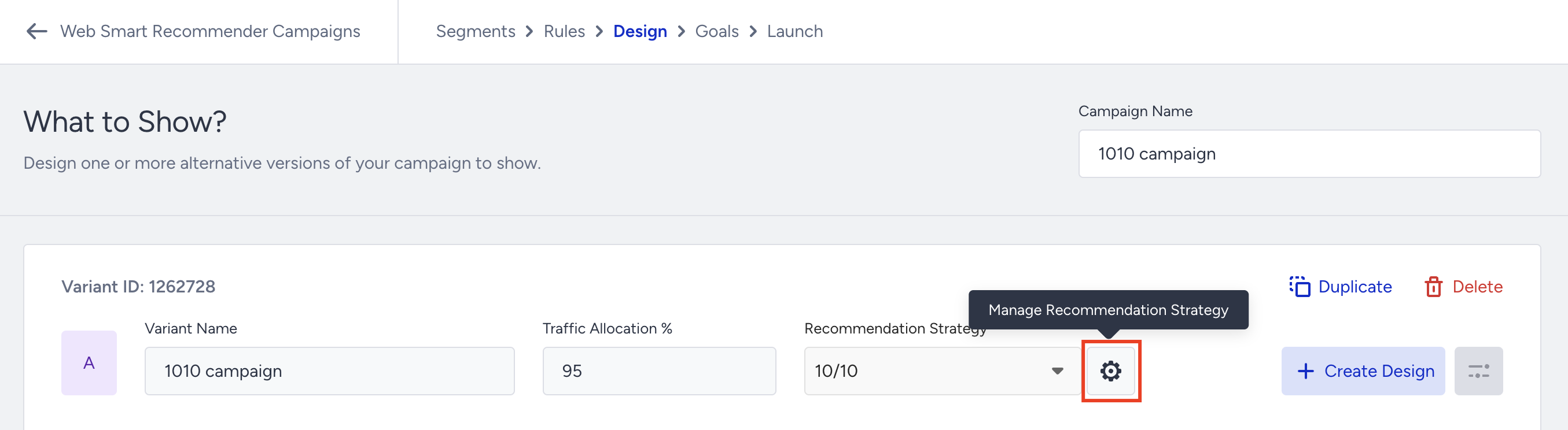
If the strategy is only assigned to the campaign you're editing, to update it:
- Click the Edit button.
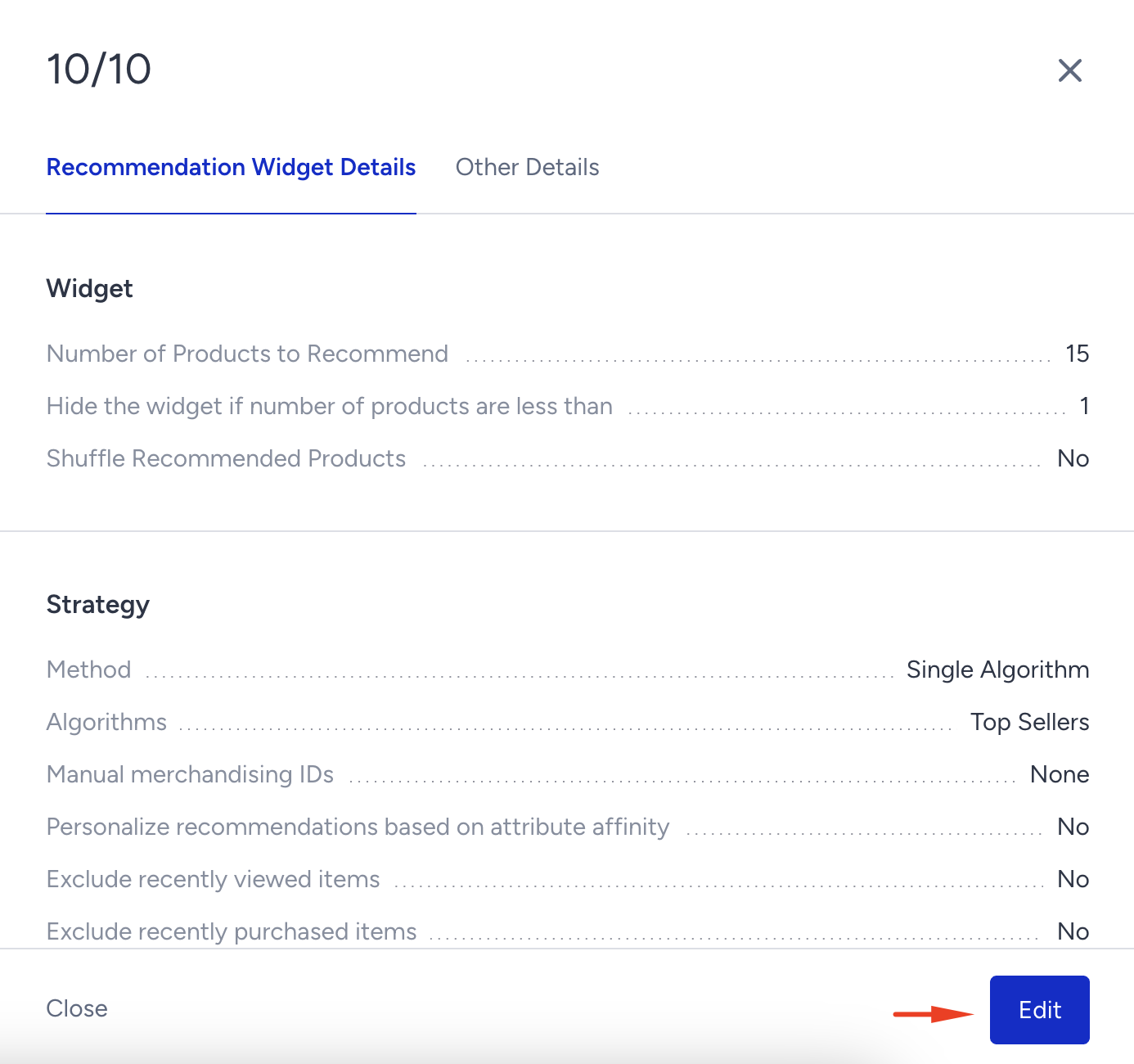
- Make the necessary changes, such as updating the algorithm, filters, exclusions, shuffling, or other options.
- Click the Save Changes button to apply your updates.
If you want to edit an existing strategy, you can copy it and assign it to your current campaign. To reuse an existing strategy with modifications during the campaign creation process:
- In the Design step of your Smart Recommender campaign, click the Recommendation Strategy dropdown to view all available strategies suitable for your campaign.
- Select the strategy you want to edit.
- Click the Manage Recommendation Strategy button to open the side panel.

- Click the Duplicate and Assign button to create a copy of the strategy and assign it to the current campaign.
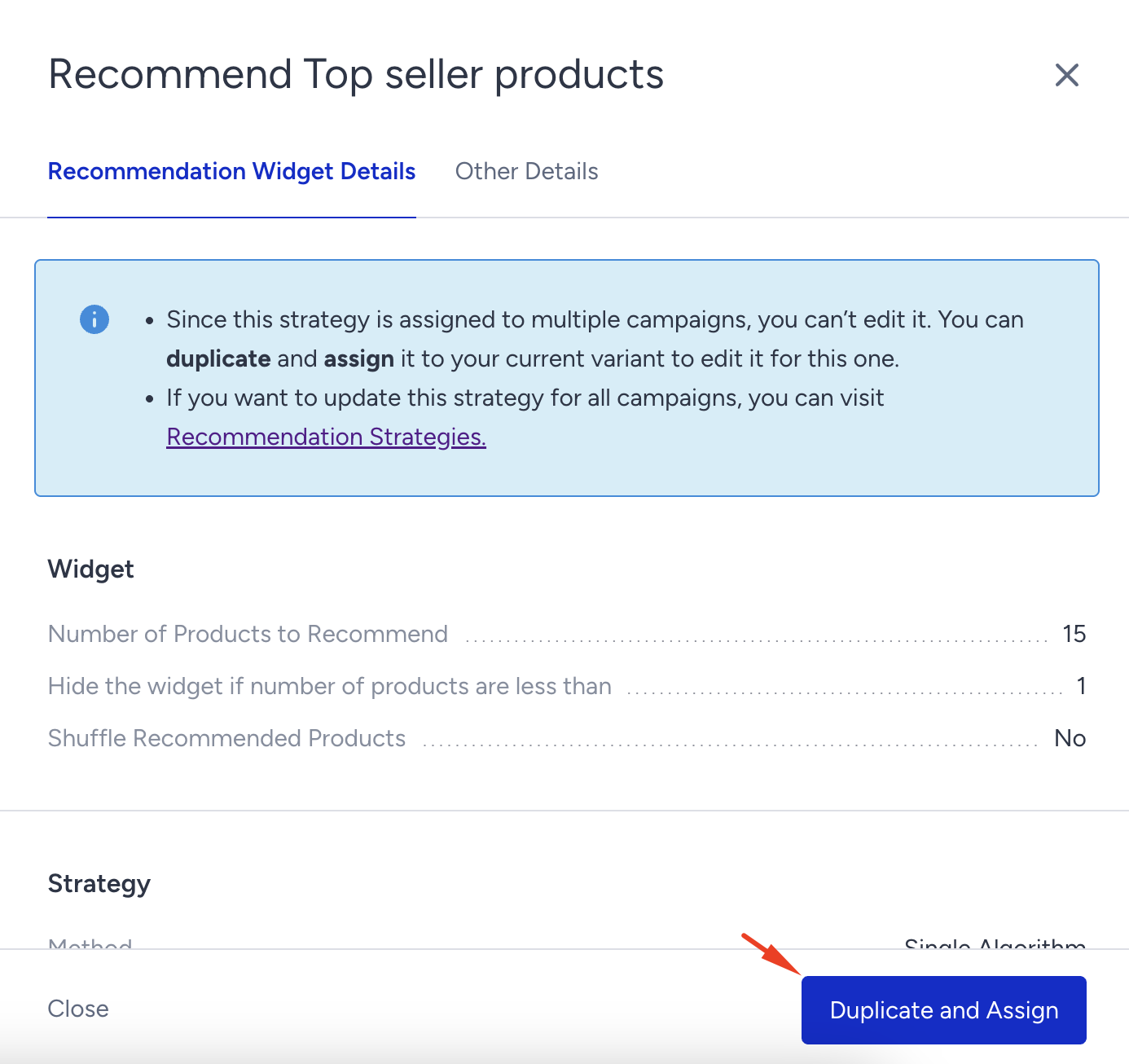
- You can now make the necessary changes, such as updating the algorithm, filters, exclusions, shuffling, or other options. Click the Save Changes button to apply your changes.
This new strategy will be assigned only to the current campaign, allowing you to make additional adjustments without affecting other campaigns.
Use the Recommendation Strategies for your previous campaigns
If you want to utilize strategies for your previous campaigns launched before the strategies capability exists,
- Start editing your previous campaign and proceed to the Design step.
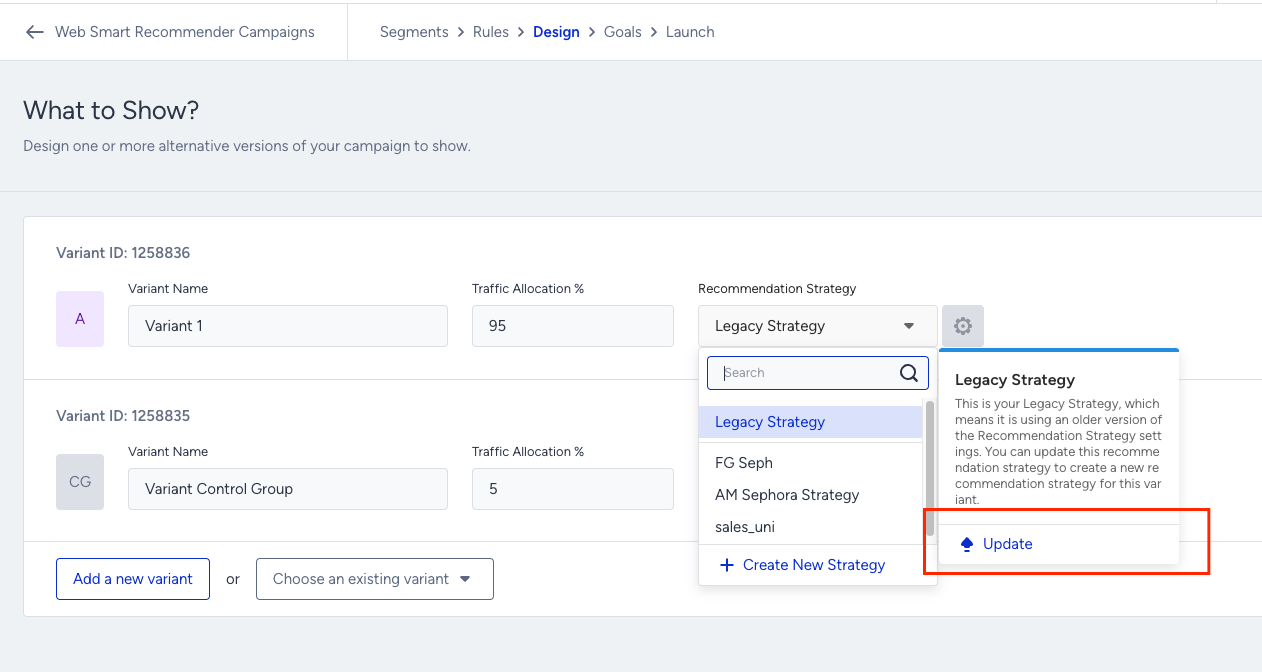
- In the Design step, locate the "Recommendation Strategy" dropdown. You will view the selected strategy as “Legacy Strategy,“ which represents the draft strategy originating from the old Smart Recommender settings of your campaign
- Hover over the legacy strategy and click the Update button to switch to the Recommendation Strategy. This will automatically convert your campaign’s existing recommendation settings into a reusable strategy and assign it to your campaign.