Suggested reading: Use an Array of Objects in Journey Elements
1. Define an Array of Objects Rule
Before using the Array of Objects in campaigns for dynamic content, you need to create an Array Rule first.
Array Rules determine:
Which object to evaluate
How objects are filtered
How objects are ordered
How many objects are considered
Without an Array Rule:
The system cannot determine which object to use
If multiple objects match the conditions, it cannot clearly decide which object’s key value (for example, renewal_date or plan_name) will be used in personalization
Array Rules ensure consistent and predictable object selection.
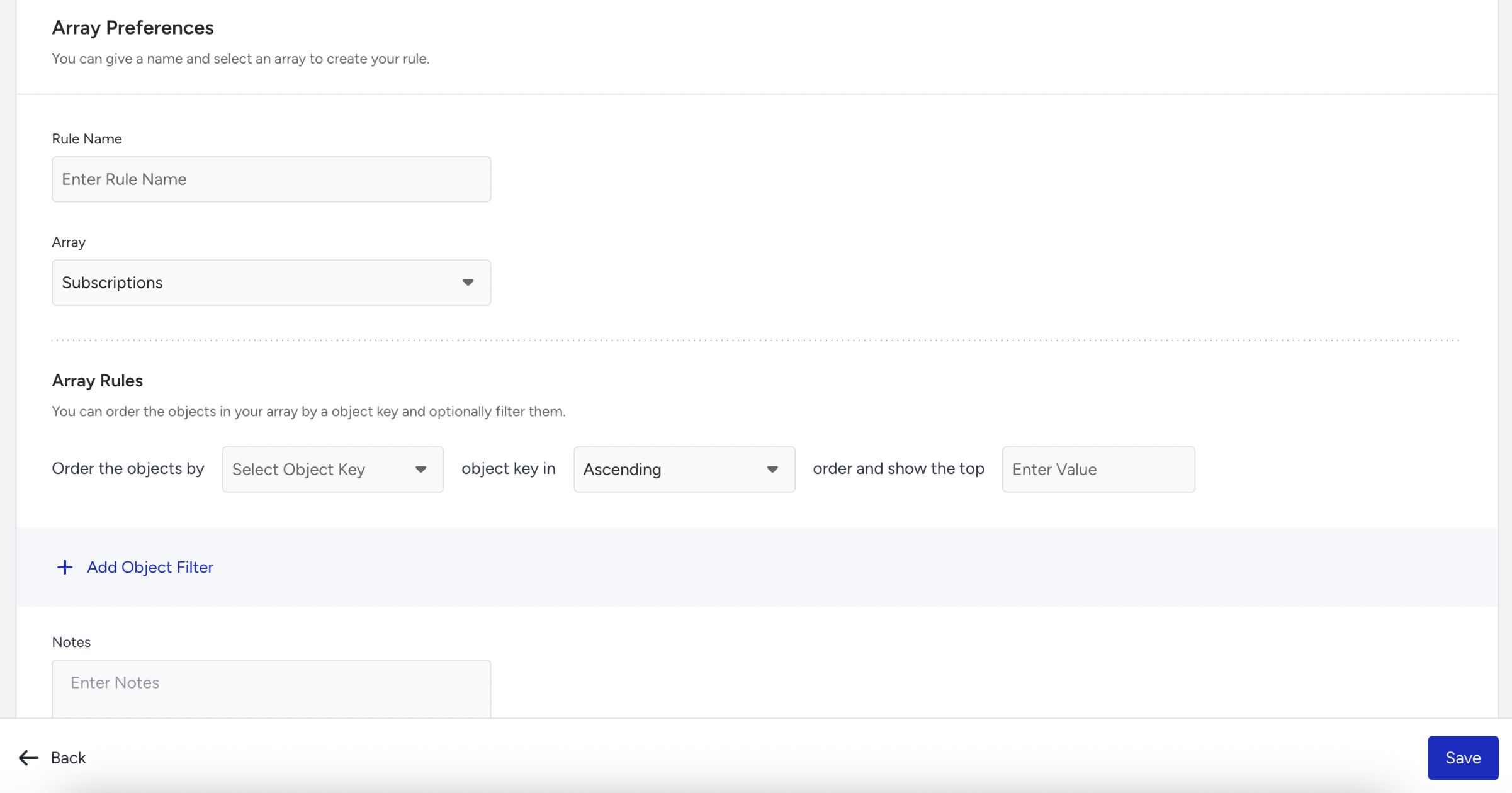
When configuring Order the objects by in an Array Rule, the selected object key must be one of the following data types:
Date
Number
String
Ascending and descending ordering is supported only for these types because they can be logically compared and sorted.
For example:
If you order by renewal_date (Date)
Ascending: from the earliest date to the latest date
Descending: from the latest date to the earliest date.
Example Array Rule Configuration
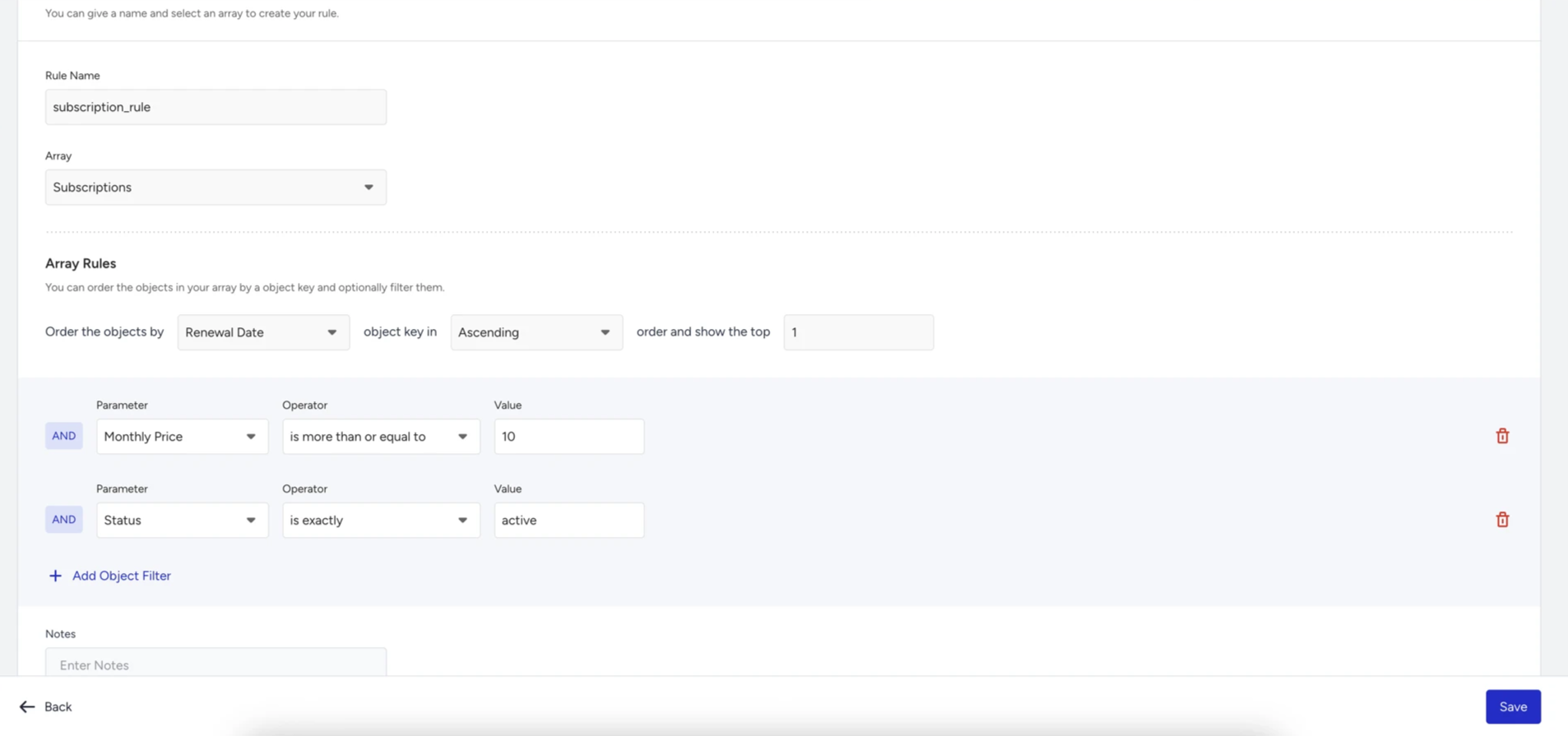
The screenshot below shows an example rule configuration for the Subscriptions Array of Objects. This example demonstrates how you can:
Filter only active subscriptions
Apply a price threshold
Order by renewal date
Select the nearest upcoming subscription
The configuration shown is only an example and can be adjusted based on business needs.
2. Use an Array of Objects in Dynamic Content
After creating the segment and defining the Array Rule, you can use object fields directly inside Journey messages for dynamic personalization.
This example demonstrates how subscription data can be used in a Journey campaign:
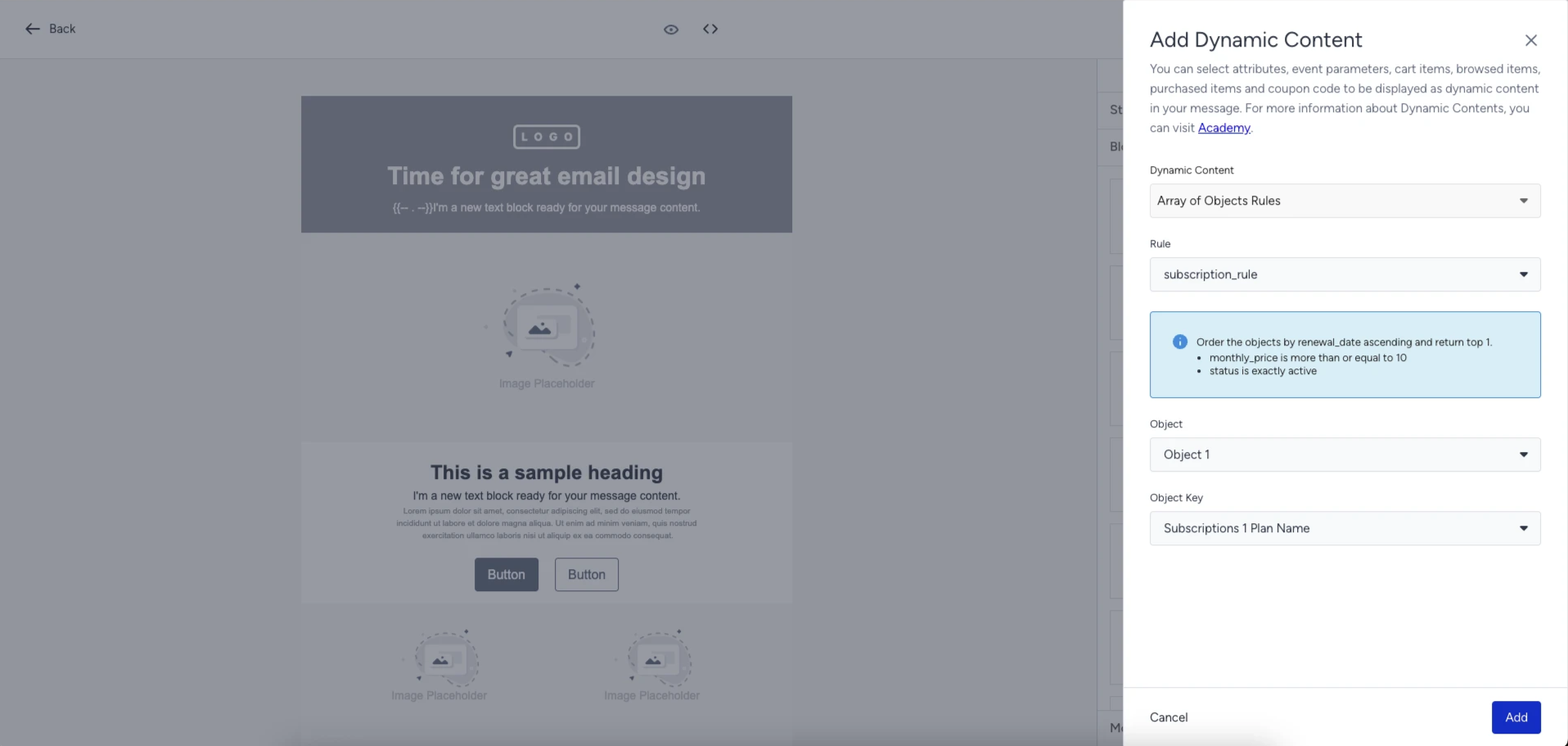
Message Content Example:
Your {{subscription_rule.c_subscriptions_1_plan_name}} subscription will renew on {{subscription_rule.c_subscriptions_1_renewal_date}}.