Suggested reading: Transactional Journeys
The Journey listing page is the main workspace for managing transactional journeys. It displays all journeys created in Transactional Journeys and provides access to journey-level actions and navigation.
This page is designed for operational visibility and fast access. It does not include optimization insights or performance recommendations.
On this page, you can:
View transactional journeys
Each journey on the listing page is shown with:
Journey name
Journey status
Creation date
Last updated date
Assigned tags
Transactional journeys are listed together with their current activation state. The listing reflects the real-time status of each journey.
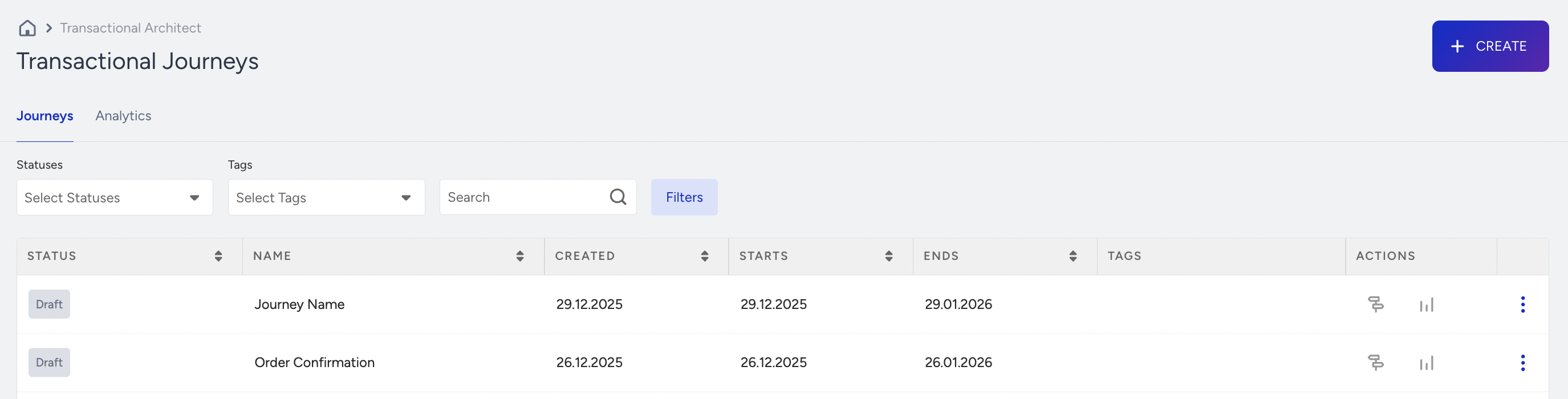
Journey statuses
Transactional journeys use the same lifecycle statuses as other Architect journeys.
Draft: The journey is being configured and is not active. No users can enter the journey. Draft journeys must be activated before they can receive API-triggered requests.
Active: The journey is live and can be triggered through the Transactional API. Valid API requests immediately enqueue users into the journey.
Passive: The journey is stopped. New users cannot enter the journey, and users already in the journey are dropped.
Create a transactional journey
To create a new journey, click the Create Journey button on the listing page. Give your journey a name and select the tags if needed.
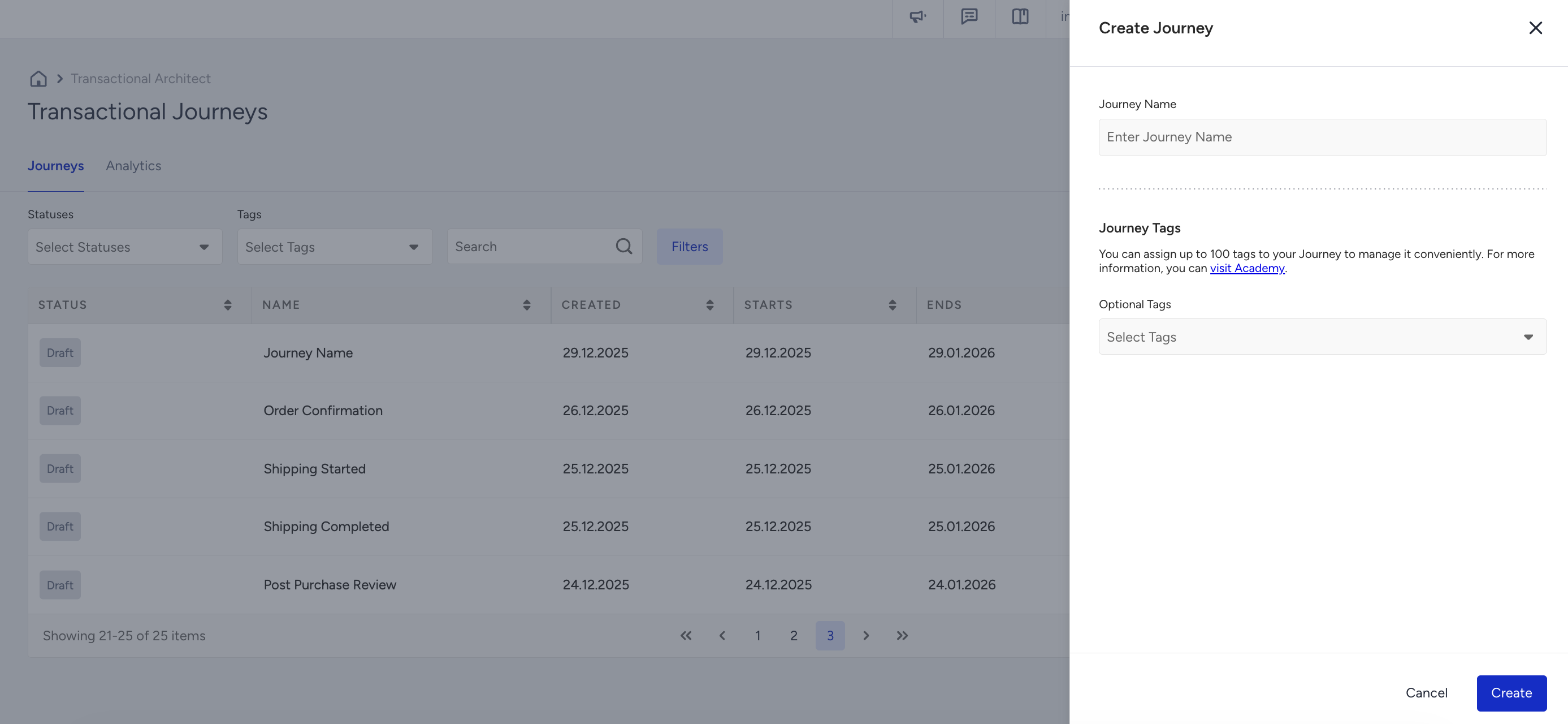
Once created, the journey opens on the canvas for configuration.
Transactional journeys start with an API Trigger by default. Other starter types are unavailable.
Search and filter journeys
The listing page allows you to:
Search journeys by name
Filter journeys by status
Filter journeys by tags
Filter journeys by channels
Filter journeys by creator
Filters help teams manage multiple transactional journeys across different use cases such as order flows, authentication, or notifications.
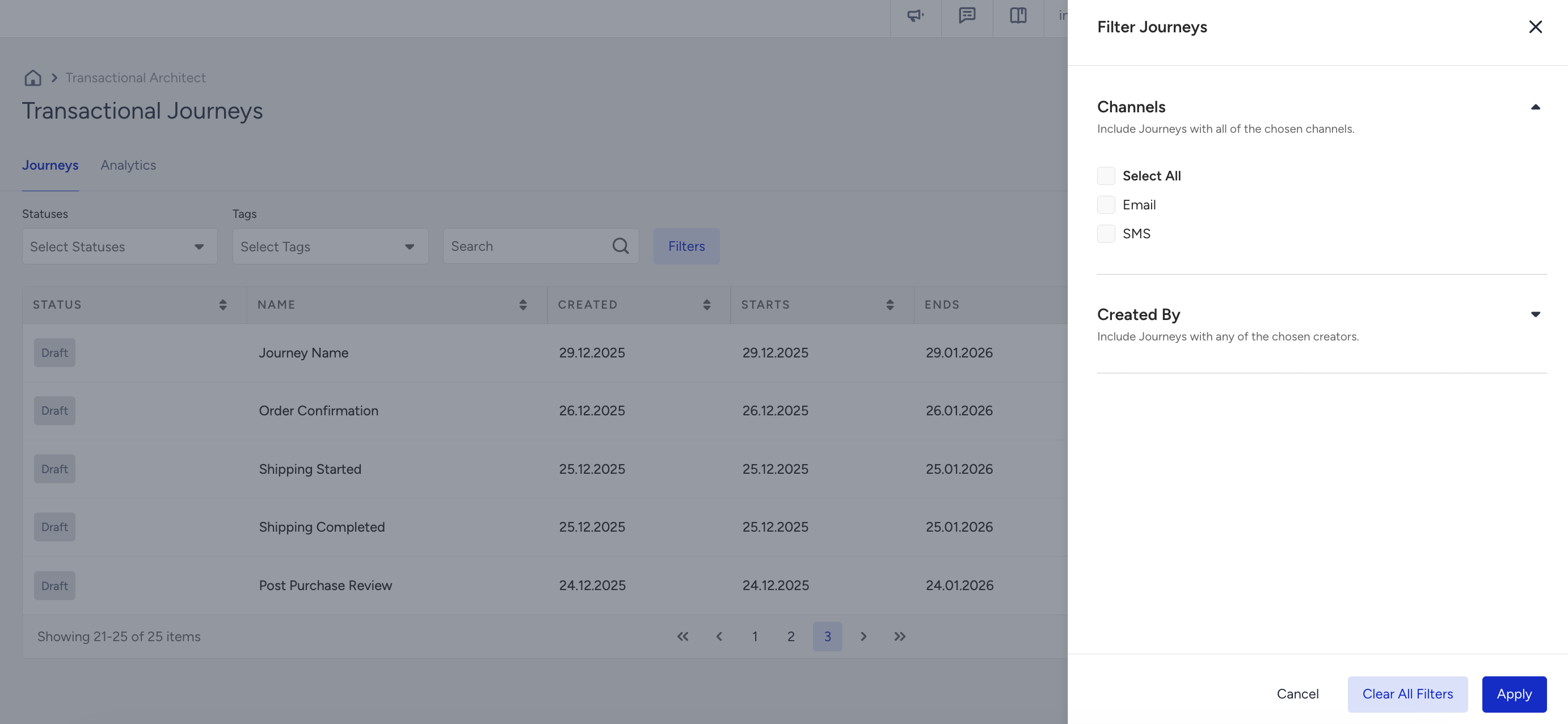
Execute journey actions
On the Journey Listing Page, you can:
Open a journey on the canvas.
Change the journey status.
Edit journey tags.
Duplicate the journey.
Duplicate the journey to another domain.
Delete the journey.
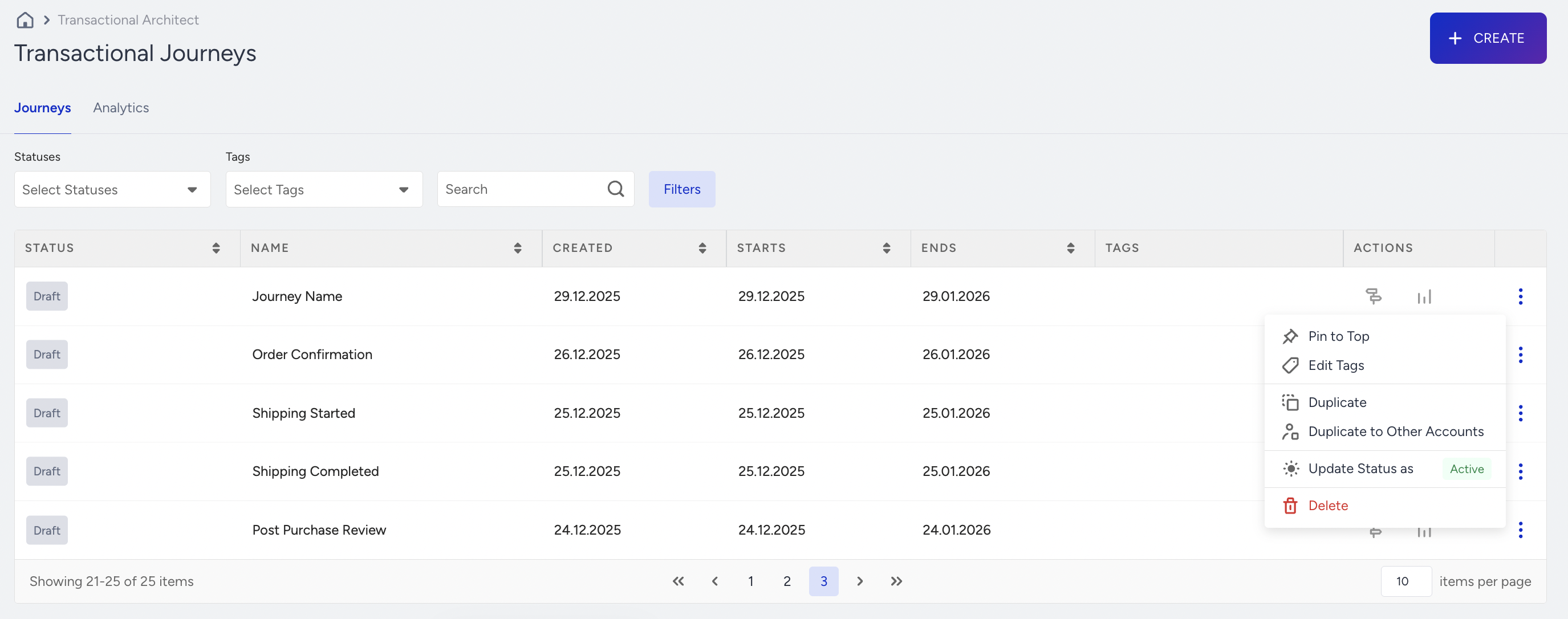
You can duplicate your journey to other accounts to edit them and create a similar journey in another domain under the same account.
Duplicated journeys keep their structure and channel configuration. Channel content remains editable after duplication.
When you click the Duplicate to Other Accounts button, a modal will open. You can select a single or multiple accounts to duplicate your journey. Also, you can edit tags and the journey name in this modal before duplicating.
Under the duplication information, you can see what elements will be duplicated and what will be excluded:
Channels (Email, SMS) will be duplicated.
The journey flow will be duplicated.
Journey Goals will be duplicated.
Journey Tags will be duplicated.
See journey details
Each journey entry provides quick access to:
Canvas view
Journey settings
Analytics (if available for the journey)
Transactional journeys do not have the Test Journey option since the testing is expected to be triggered by an API Trigger, which can be handled in the Active status. You can use the Test API and Test Message functions for testing.