Suggested readings: Transactional Journeys, Canvas and Navigation
Launch Settings define how a transactional journey becomes active and how it accepts API-triggered requests. These settings control journey visibility, activation state, and language handling.
Transactional Journeys keeps the launch configuration minimal to preserve delivery speed and predictability.
Goals
Journey goals are not tracked by default for transactional journeys. This is due to the informative nature of transactional messaging and the restricted use of promotional content within these journeys.
For specific use cases, you can enable Goal Tracking to measure whether users perform a desired action after receiving a transactional message.
Once Goal Tracking is enabled, conversion tracking becomes available for the journey.
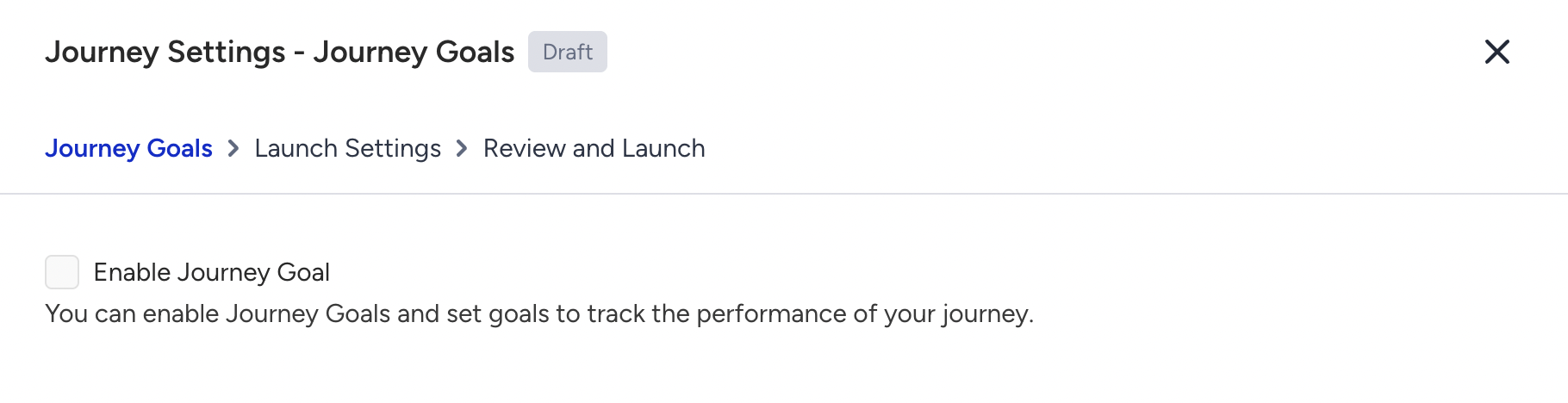
When goal tracking is enabled, purchase activity is always tracked by default, even if it is not selected as a conversion goal. The purchase metrics are visible under conversion-related analytics and cannot be disabled while Goal Tracking is active.
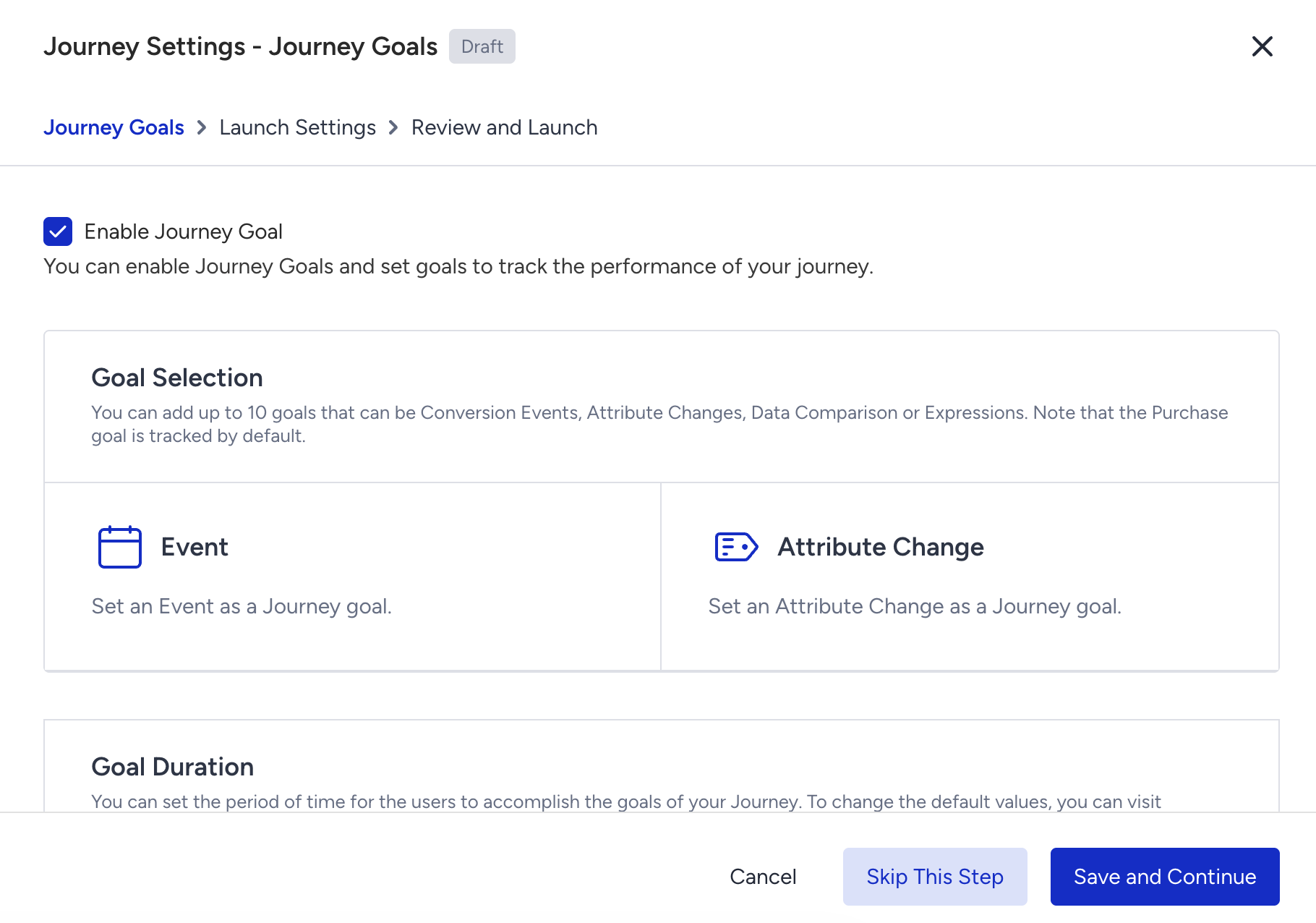
All events received through website, mobile app and Upsert User Data API (offline) can be selected as a goal for your journey.
The Journey Goals option is available in the Go to Launch modal. When you click Go to Launch, the modal opens and allows you to:
Enable goal tracking
Select conversion goals
Define goal duration
You can use either default or custom events and attributes to create goals.
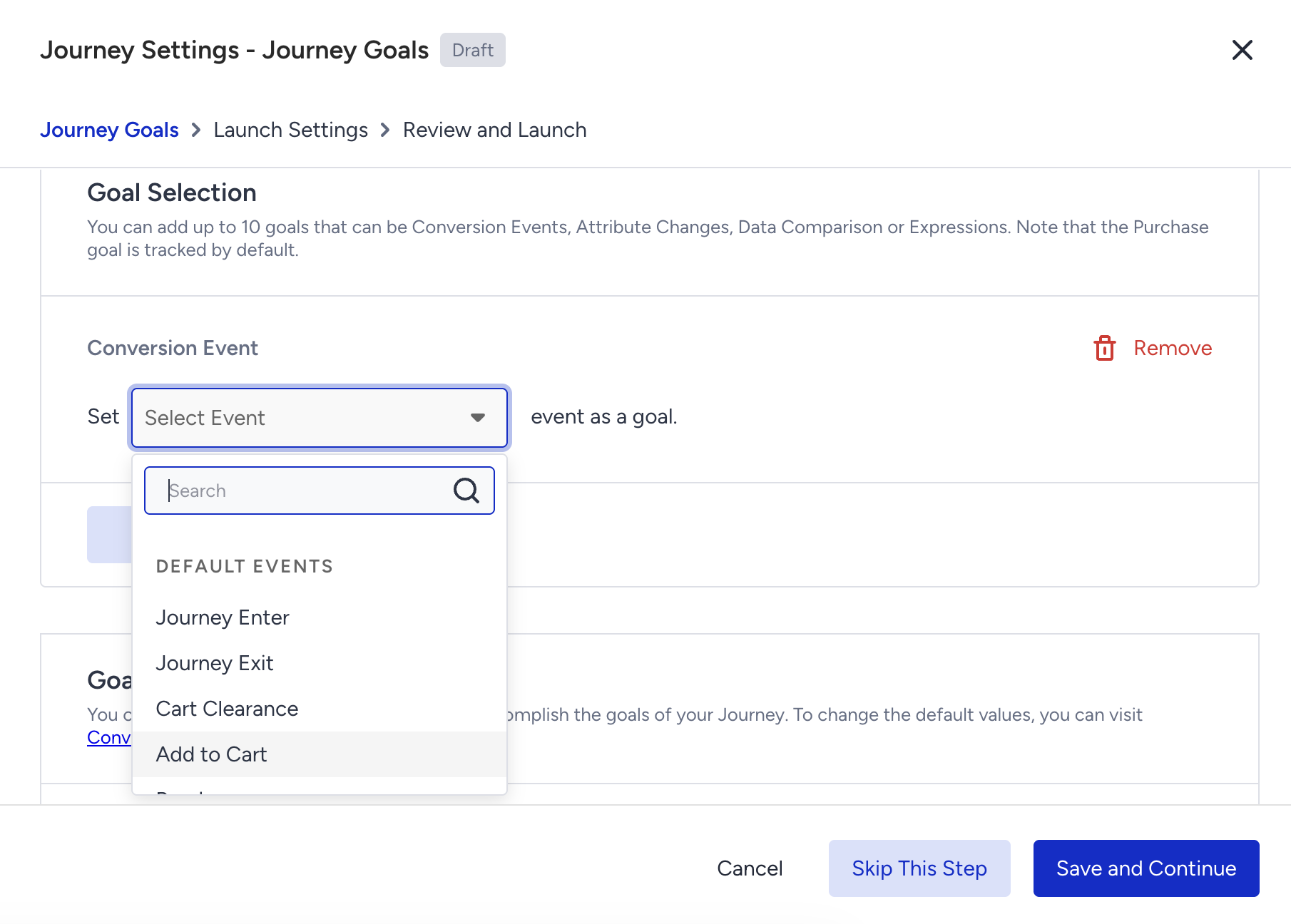
You can select up to 10 conversion goals per journey. Each goal is evaluated independently. This means a user does not need to complete all goals, and each completed event or attribute change is counted as a separate conversion.
The default limit shown here is a standard baseline. If your use case requires higher capacity, feel free to reach out to the Insider One team. We can adjust it to fit your needs.
Event-based goals
An event-based goal is counted as a conversion when a user performs the selected event within the attribution window.
If event parameters are added:
All parameters belonging to the same event are evaluated together.
Parameters are connected using the and operator.
The conversion is counted only when the full event definition is satisfied.
.png)
Attribute change goals
An attribute change goal is counted as a conversion when the selected attribute changes within the attribution window.
You can define conversions based on the following conditions:
From any value to any other value
From any value to a specific value
From one specific value to another specific value
.png)
Conversion goals are attributed to a channel by complying with the last click attribution model.
Only unique goals can be selected within a journey. You cannot:
Select the same event multiple times without parameters.
Select the same event with identical parameter sets more than once.
Each goal must be uniquely defined.
.png)
Revenue can be calculated for custom goals only if you send usp (unit sale price) or up (unit price) default parameters with the event. If revenue parameters are not included, revenue for that goal is shown as zero (0).
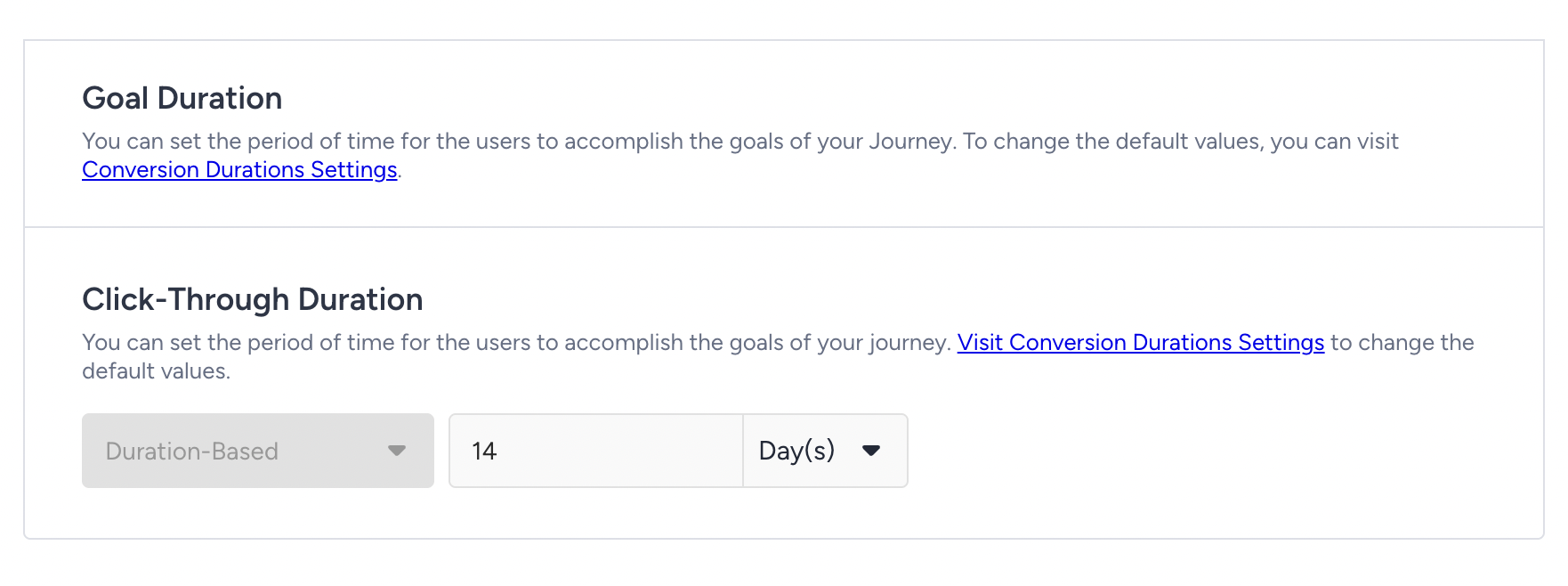
On the next step, you will define the Goal Duration after selecting goals. The goal duration determines how long Transactional Journeys tracks conversions after user interaction.
If the user completes the goal within the duration, it is counted as a conversion. After the duration expires, it is not counted.
Transactional Journeys uses a default goal duration of 14 days for click-through attribution.
If you want to apply different default durations across journeys, you can update them via Settings > Inone Settings > Conversion Duration Settings. Changes made there apply only to newly created journeys and do not affect the existing active journeys.
Once a conversion goal is created, tracking starts immediately.
You can monitor goal performance in:
Overall Architect Analytics
Journey Analytics
Channel Analytics
Live Statistics on the Canvas
Each conversion goal appears in the Conversion Goal dropdown, allowing you to switch between goals while analyzing performance.
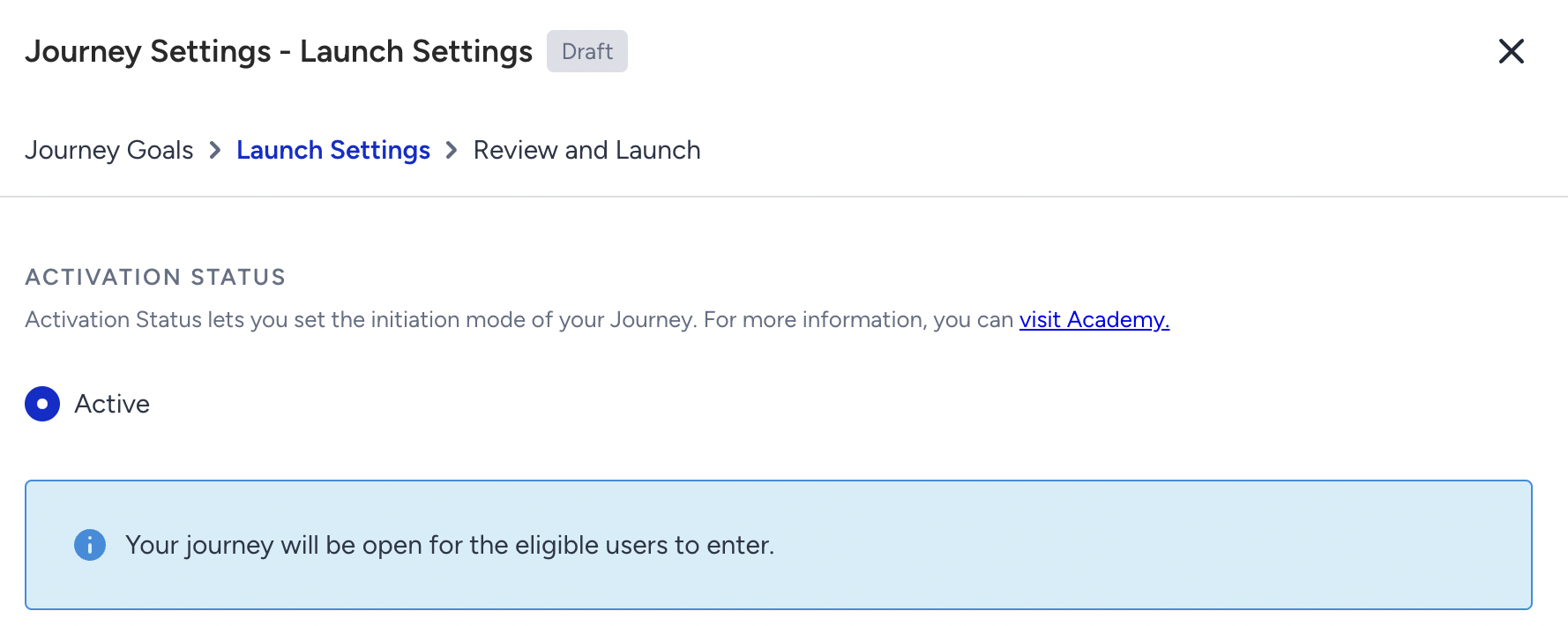
Activation Status
Activation Status controls whether the journey can receive API-triggered requests.
Available statuses are:
Draft: The journey is being configured. API requests targeting a Draft journey are rejected.
Active: The journey is live and can be triggered through the Transactional API. Valid requests immediately enqueue users into the journey.
Passive: The journey is stopped. New users cannot enter, and any users within the journey are dropped.
Transactional journeys must be in Active status to process requests.
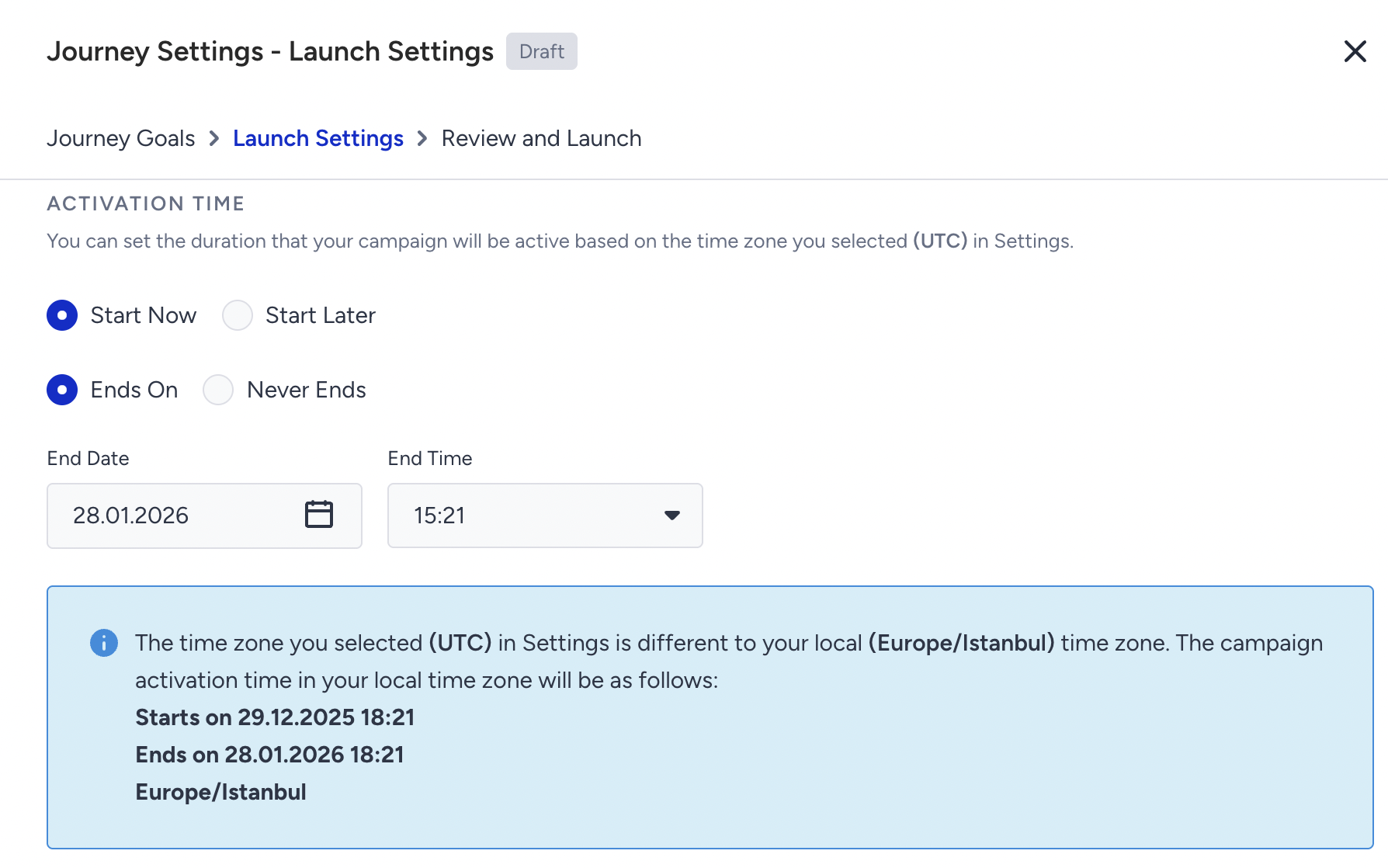
Activation Time
You can define when the journey starts accepting API requests.
Options include:
Start immediately
Start at a specific date and time
End Date and Time
Never Ends (to keep the journey running without an end date)
Start and end times are set based on your panel’s time zone. If the journey is outside its configured start-end window, it does not accept new entries.
User Eligibility
User eligibility and re-entry rules are not configurable in Transactional Journeys.
Each valid API request creates a new journey entry, even if the same user is already in the journey.
No re-eligibility window or entry capping is applied at the journey level. Users can enter the journey more than once without a limit.
Launch Validation
Before activation, Transactional Journeys validates the journey configuration.
Validation ensures that:
All elements are filled.
All required channel fields are filled.
Dynamic content is valid.
If the validation fails, activation is blocked until all errors are resolved.
Language is not a journey setting in transactional journeys. To determine the users who can enter the journey based on the language, its value should be provided with the API request. Transactional Journeys does not infer or fetch language from Insider One’s Unified Customer Database automatically. Language evaluation is based solely on the API trigger conditions.