Before launching your Web Push campaign, it's important to test and preview the notification to ensure everything looks and works as expected, especially when using dynamic content. Insider One offers two ways to validate your message:
A basic Test Message to check the overall design
A more advanced Preview as User option to see how the message appears with actual user data
Both testing methods allow you to confidently fine-tune your notification before sending it live.
Test Message (Design Preview)
To test how your Web Push notification will appear visually:
Go to the Design or Launch step of your campaign.
Click the Test Message button.
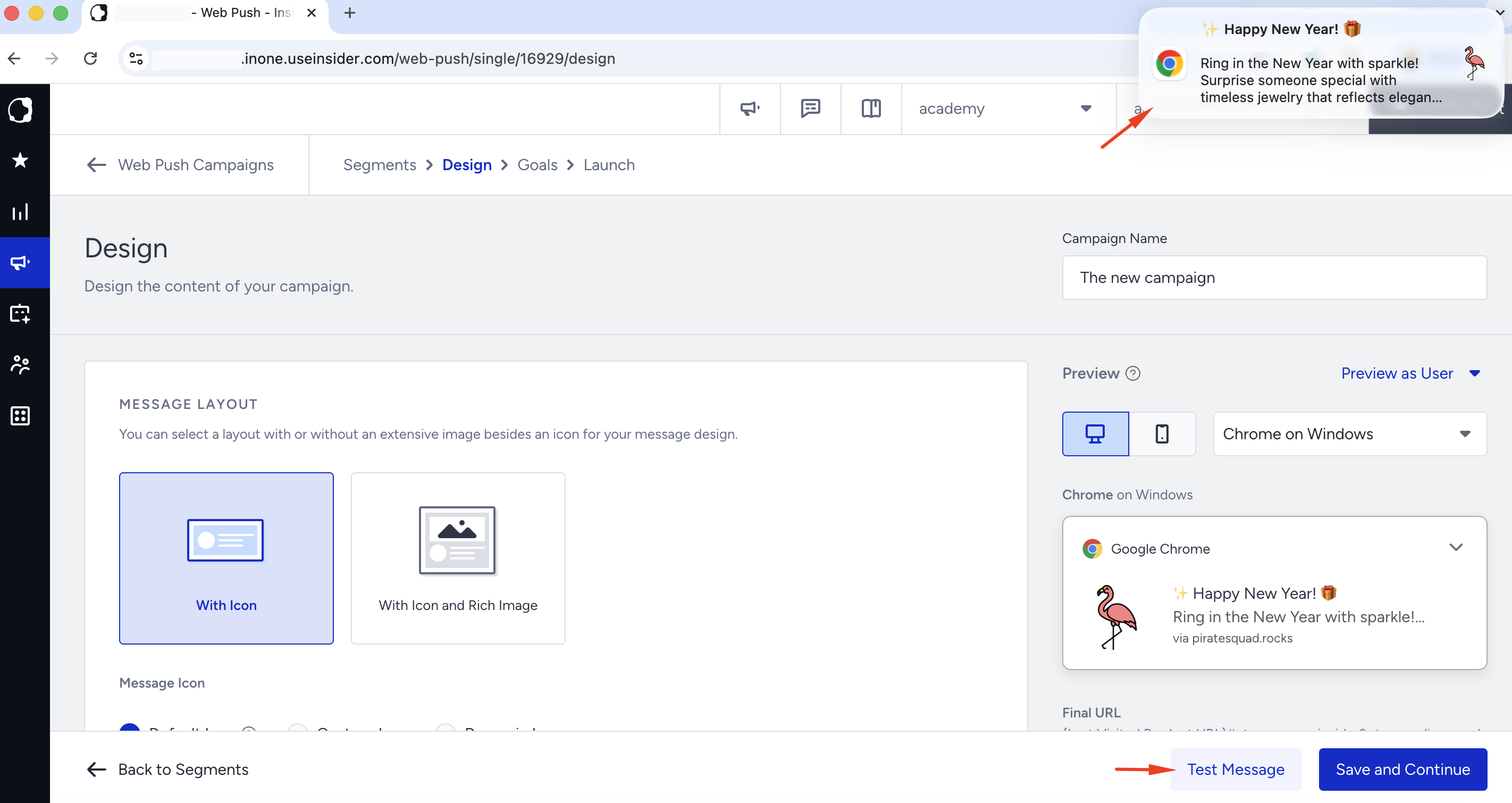
A sample notification will be displayed in your browser.
This is an off-site preview, not sent to any users, and is ideal for checking message layout, icons, images, and content structure.
Preview as User (Dynamic Content Test)
To preview how your Single and Trigger Web Push notifications work, with real values of dynamic content will appear in the actual message:
Click the Preview as User button.
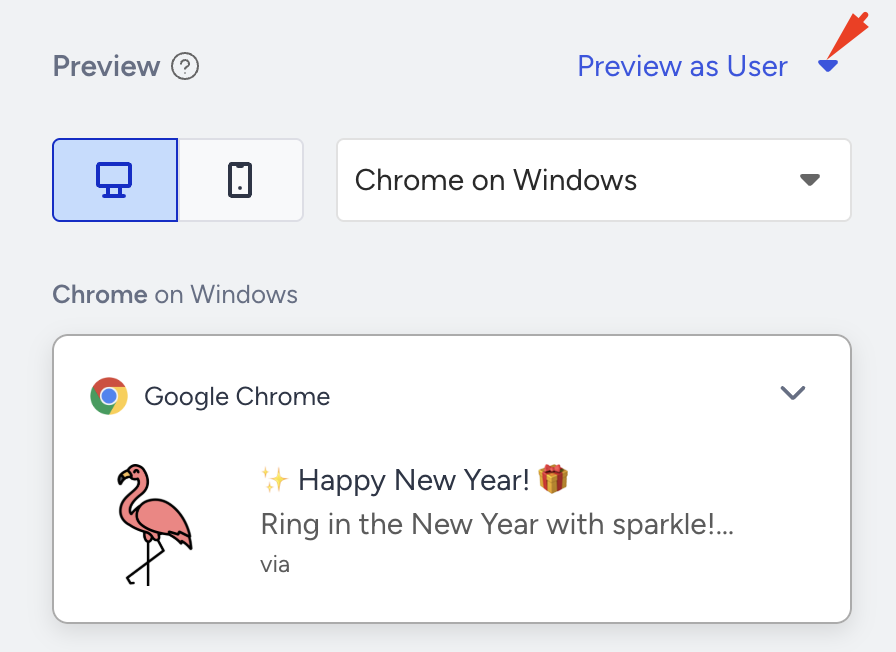
Choose one of two User Selection Methods:
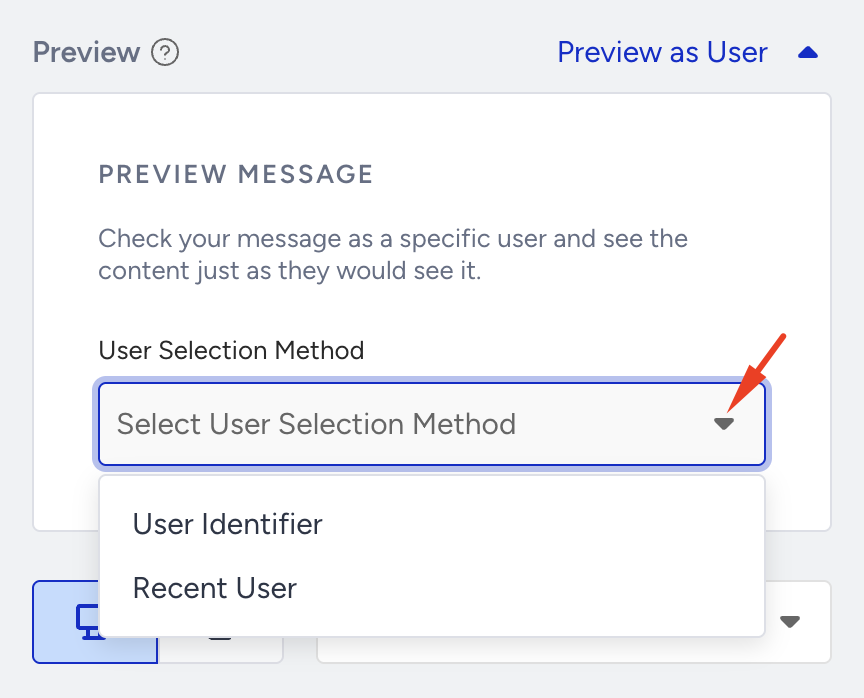
User Identifier: Search for a specific user by Profile ID, Email, or Phone Number.
Recent User: Select from the 10 most recently searched users.
Once a user is selected, you’ll see a personalized preview of the Web Push notification with real values filled in.